> ## Documentation Index
> Fetch the complete documentation index at: https://help-empuls.xoxoday.com/llms.txt
> Use this file to discover all available pages before exploring further.
# Action plan
## Action planning
Survey insights only create value when they lead to concrete improvements. The **Action Planning** feature lets you turn findings into tracked tasks.
### Creating an action plan task
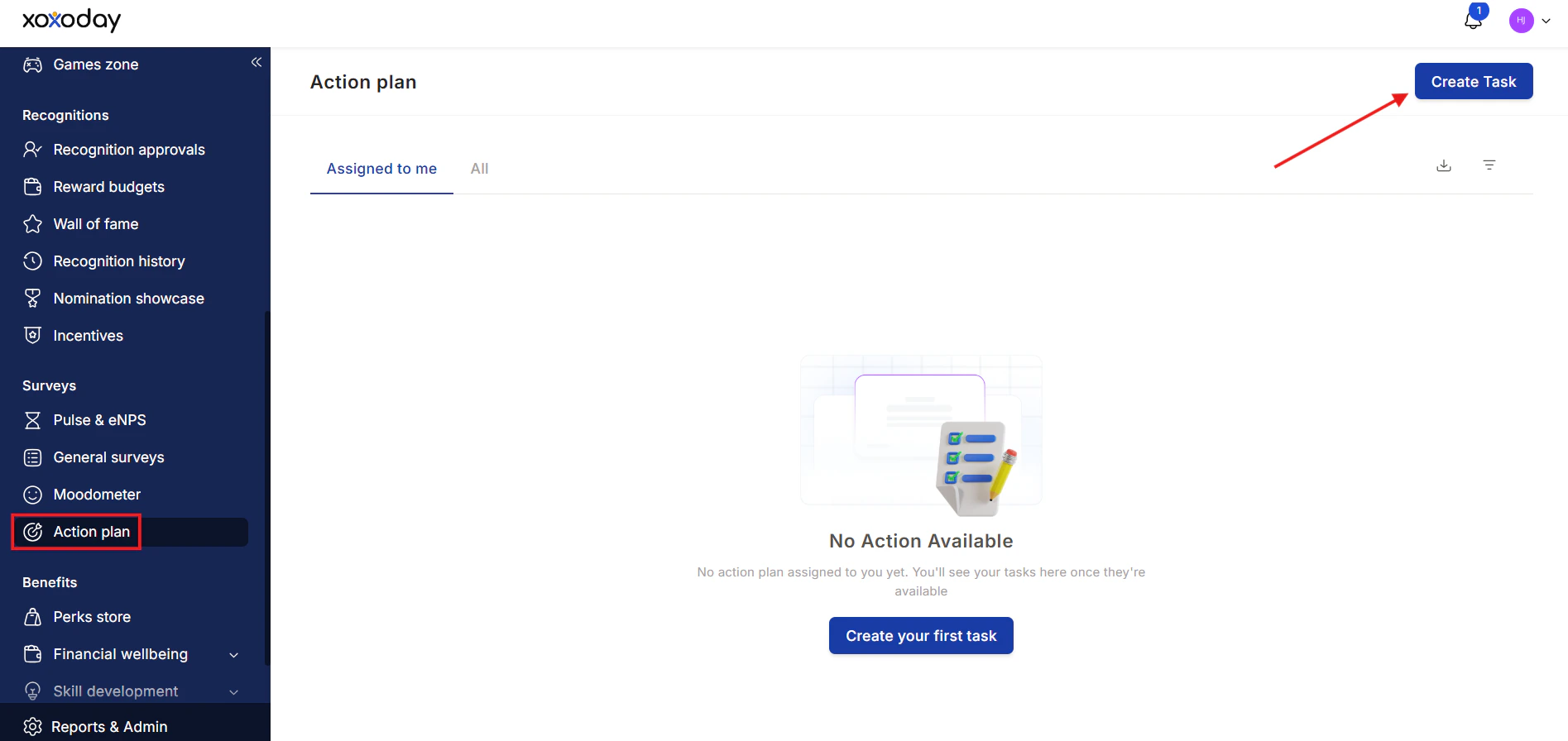
Go to **Surveys > Action Plan** from the left-hand navigation.
Click **Create Task** at the top-right corner.
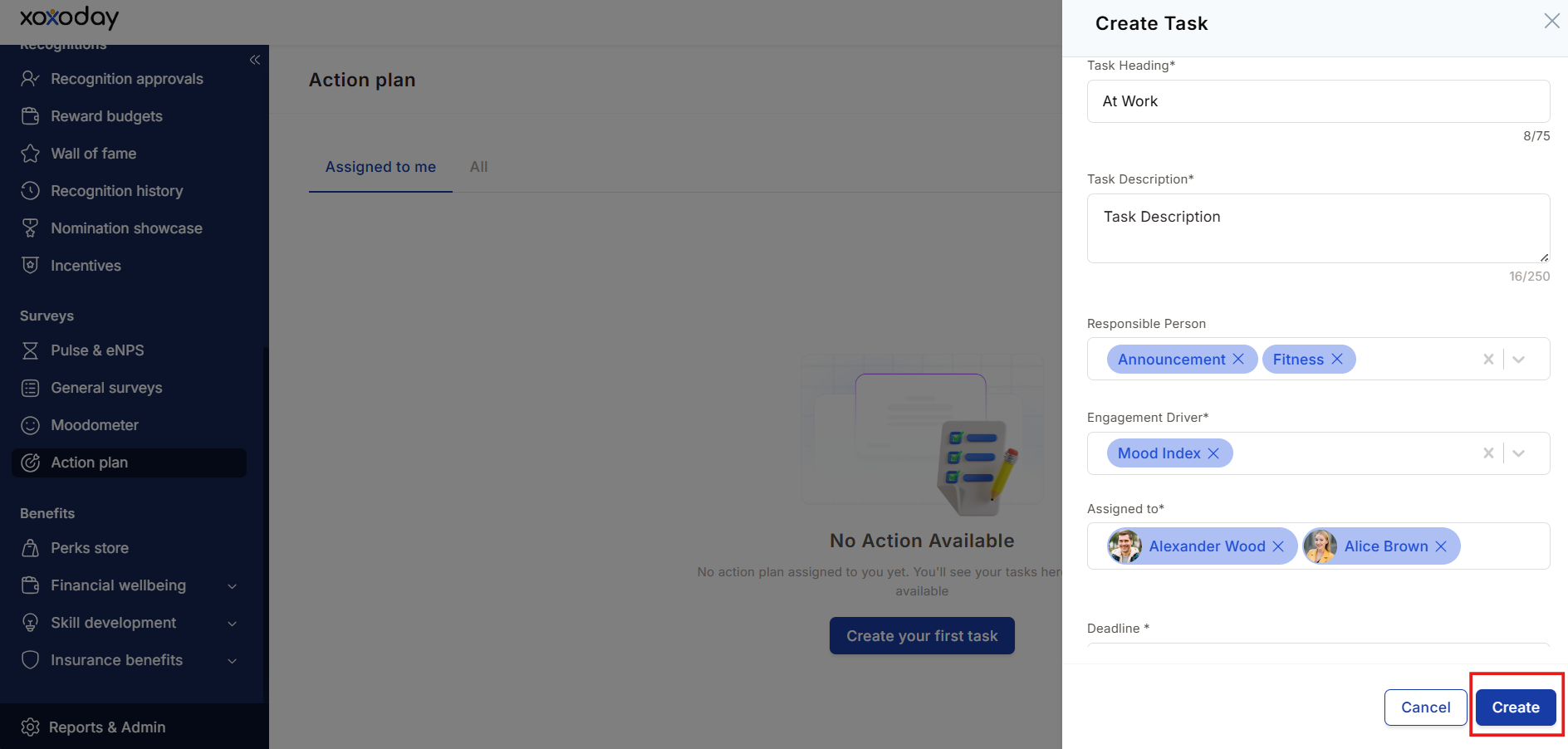
 Enter:
* **Task heading** — a clear, concise title
* **Description** — context and specifics for the task
* **Tags** — for easier search and categorization
* **Assign to** — select the responsible person from the dropdown
* **ETA** — the expected completion date
Click **Create**. The task appears in the Action Plan list.
Enter:
* **Task heading** — a clear, concise title
* **Description** — context and specifics for the task
* **Tags** — for easier search and categorization
* **Assign to** — select the responsible person from the dropdown
* **ETA** — the expected completion date
Click **Create**. The task appears in the Action Plan list.
 ### Managing existing tasks
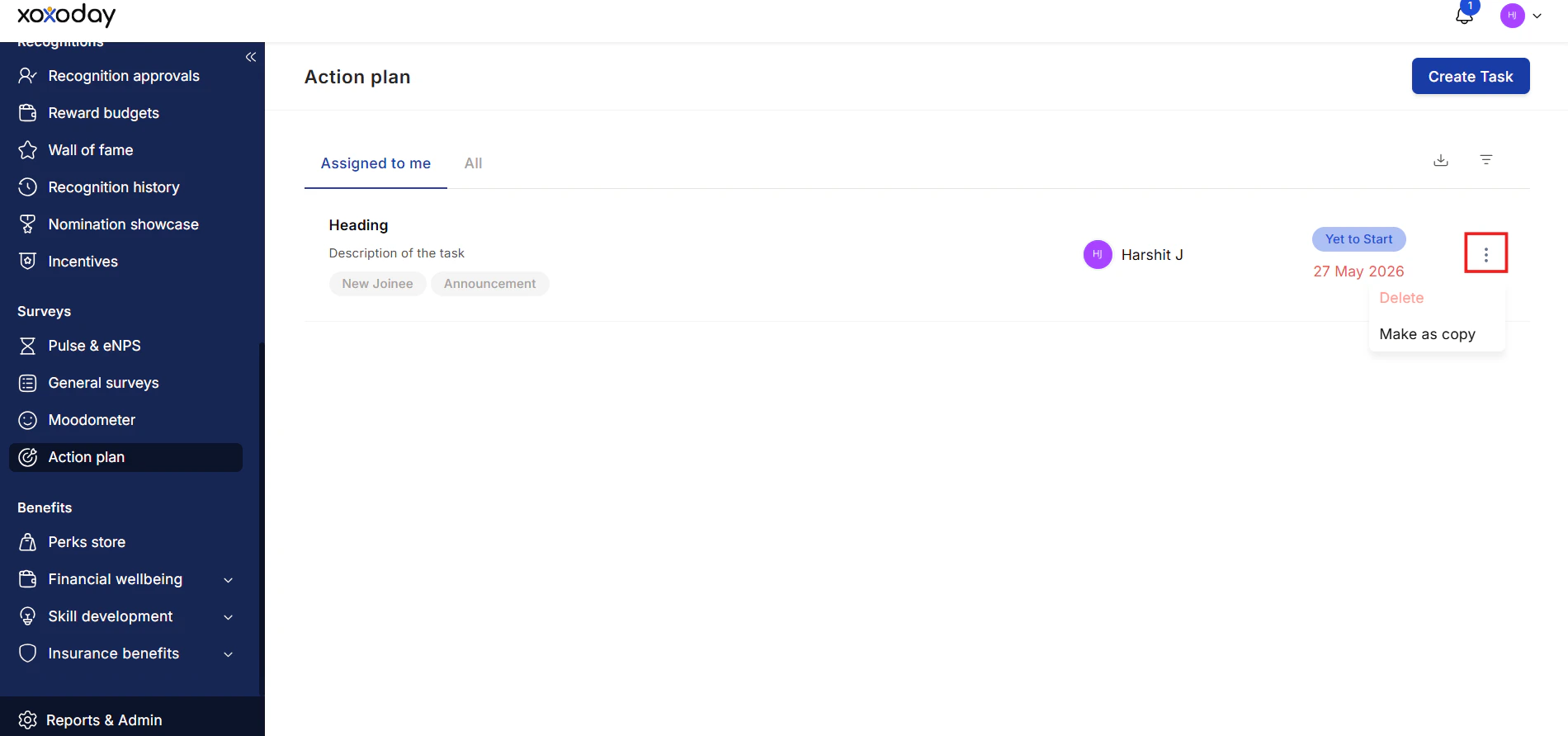
Click the **three-dot icon (⋮)** next to any task to:
* **Delete** the task permanently
* **Make a copy** to duplicate it with the same details
### Managing existing tasks
Click the **three-dot icon (⋮)** next to any task to:
* **Delete** the task permanently
* **Make a copy** to duplicate it with the same details
 ### Filtering action plans
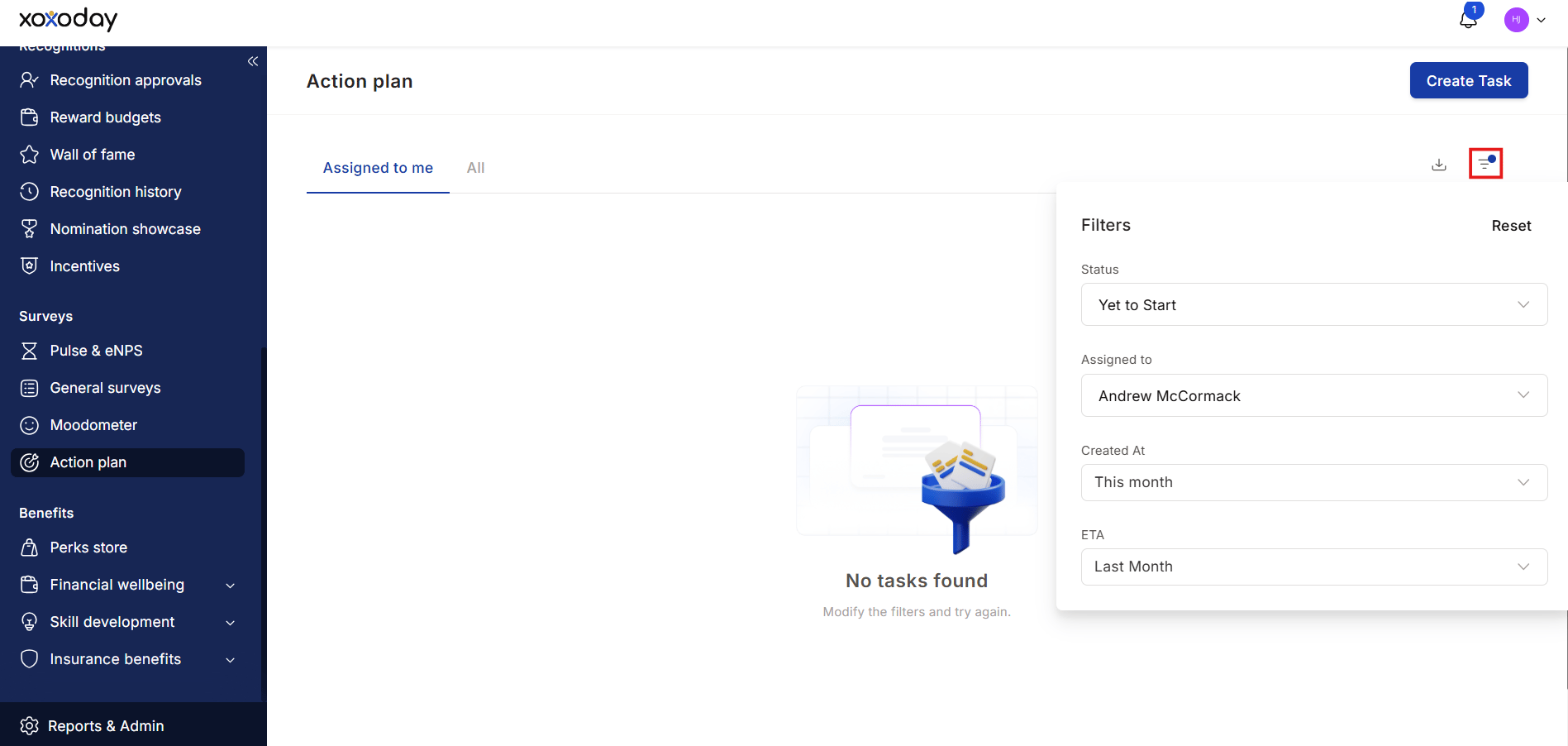
Use the **filter icon** to filter tasks by:
* **Created at** — monthly, quarterly, weekly, or a custom date range
* **Status** — Pending, In Progress, or Completed
* **Assigned to** — filter by assignee
* **ETA** — filter by expected completion date
Click **Apply** to update the view.
### Filtering action plans
Use the **filter icon** to filter tasks by:
* **Created at** — monthly, quarterly, weekly, or a custom date range
* **Status** — Pending, In Progress, or Completed
* **Assigned to** — filter by assignee
* **ETA** — filter by expected completion date
Click **Apply** to update the view.
 ### Tracking progress
The Action Plan section shows two views:
* **Assigned to me** — tasks assigned specifically to you
* **All** — all tasks created across the organization
### Tracking progress
The Action Plan section shows two views:
* **Assigned to me** — tasks assigned specifically to you
* **All** — all tasks created across the organization
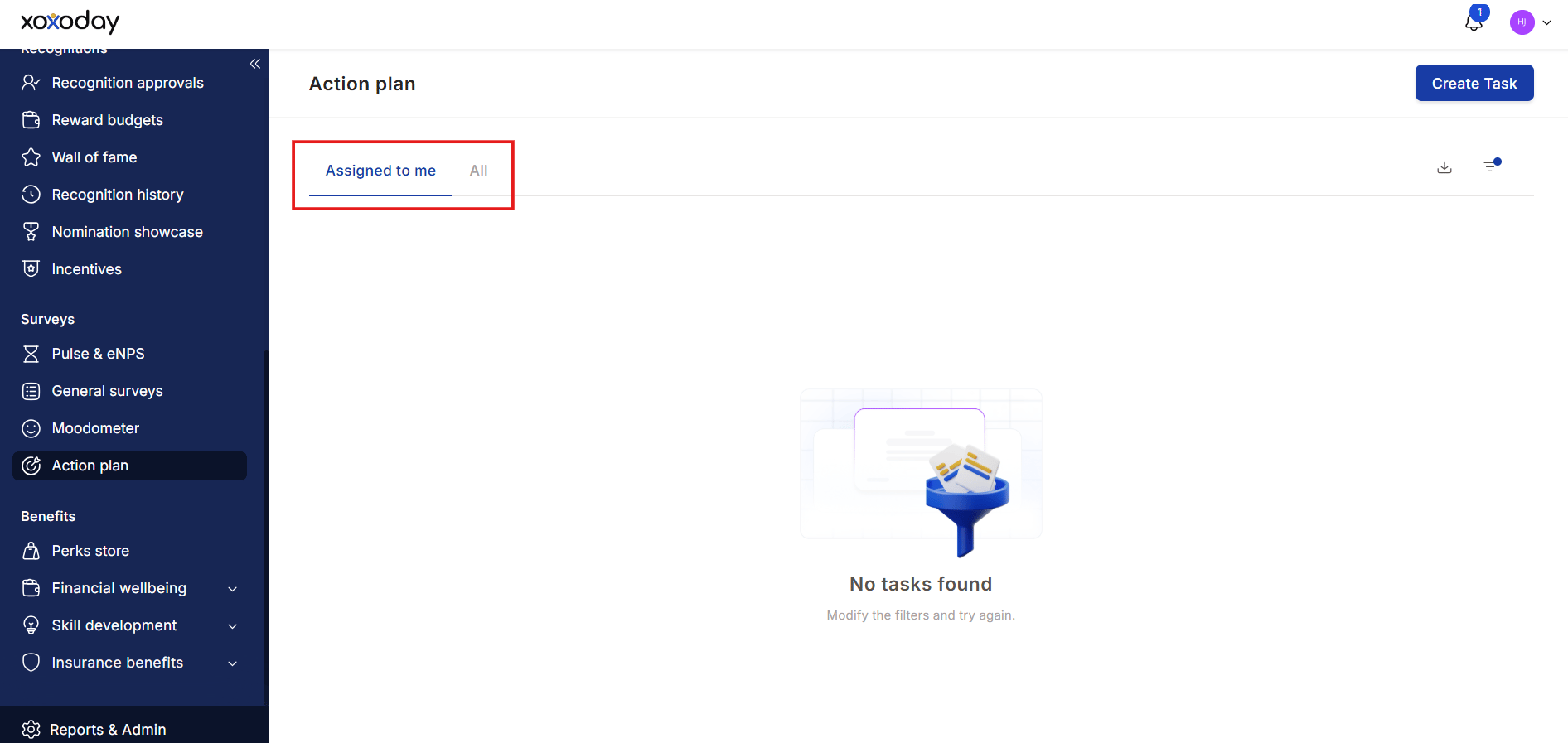 Use these views to monitor accountability and ensure follow-through on survey-driven improvements.