> ## Documentation Index
> Fetch the complete documentation index at: https://help-empuls.xoxoday.com/llms.txt
> Use this file to discover all available pages before exploring further.
# Tracking user performance and metric breakdown
> Learn how to track user performance and metric breakdown
Admins can now access detailed breakdowns of user performance metrics and earnings on the platform. This feature provides clarity on how metrics are calculated, making it easier to validate data with step-by-step breakdowns.
Here's how to use it:
## Step-by-Step Instructions
## Step 1: Navigate to the Plans Section
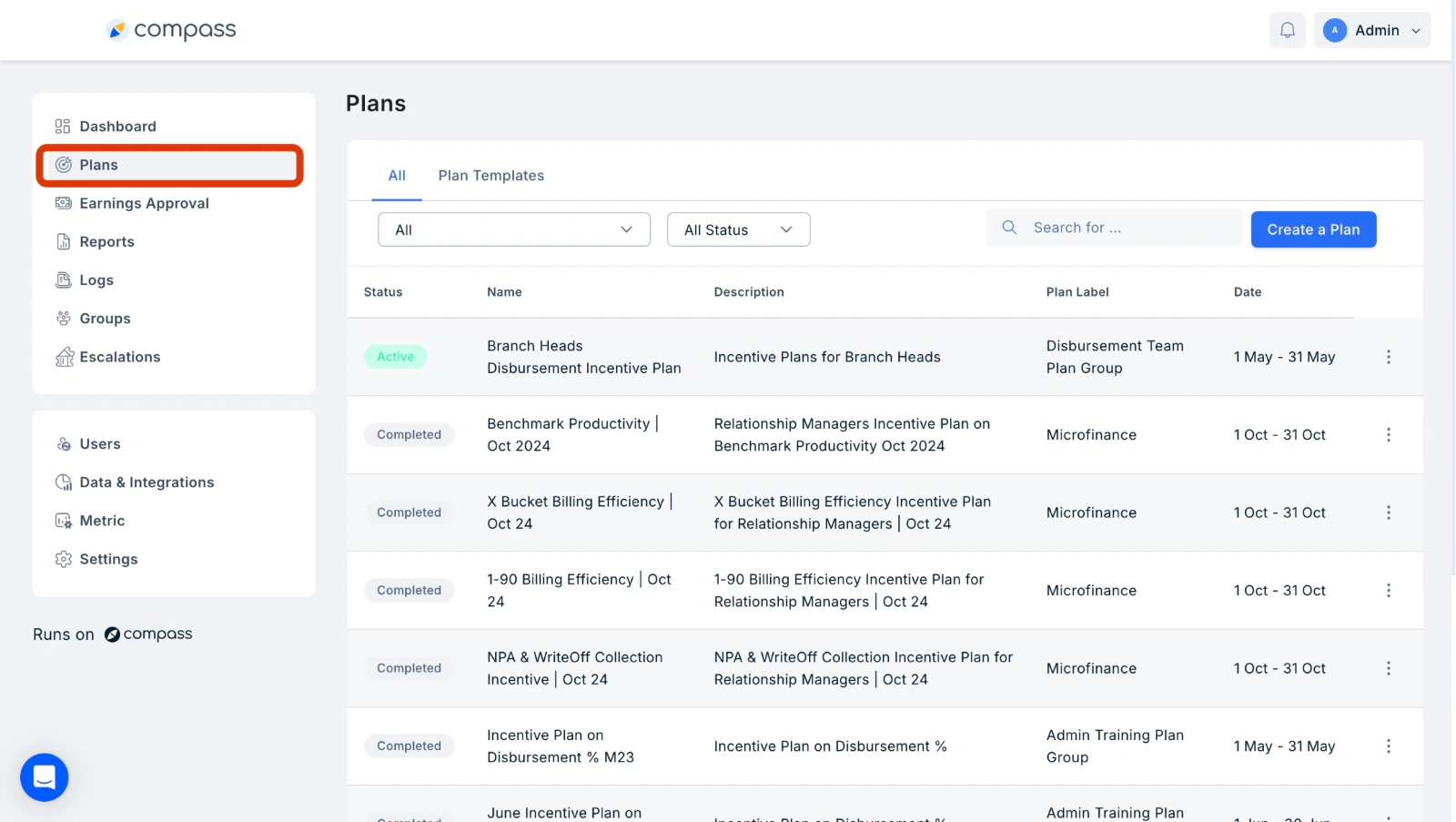
Log in to your sales incentive platform and go to the **Plans** tab.
 ## Step 2: Access User Earnings
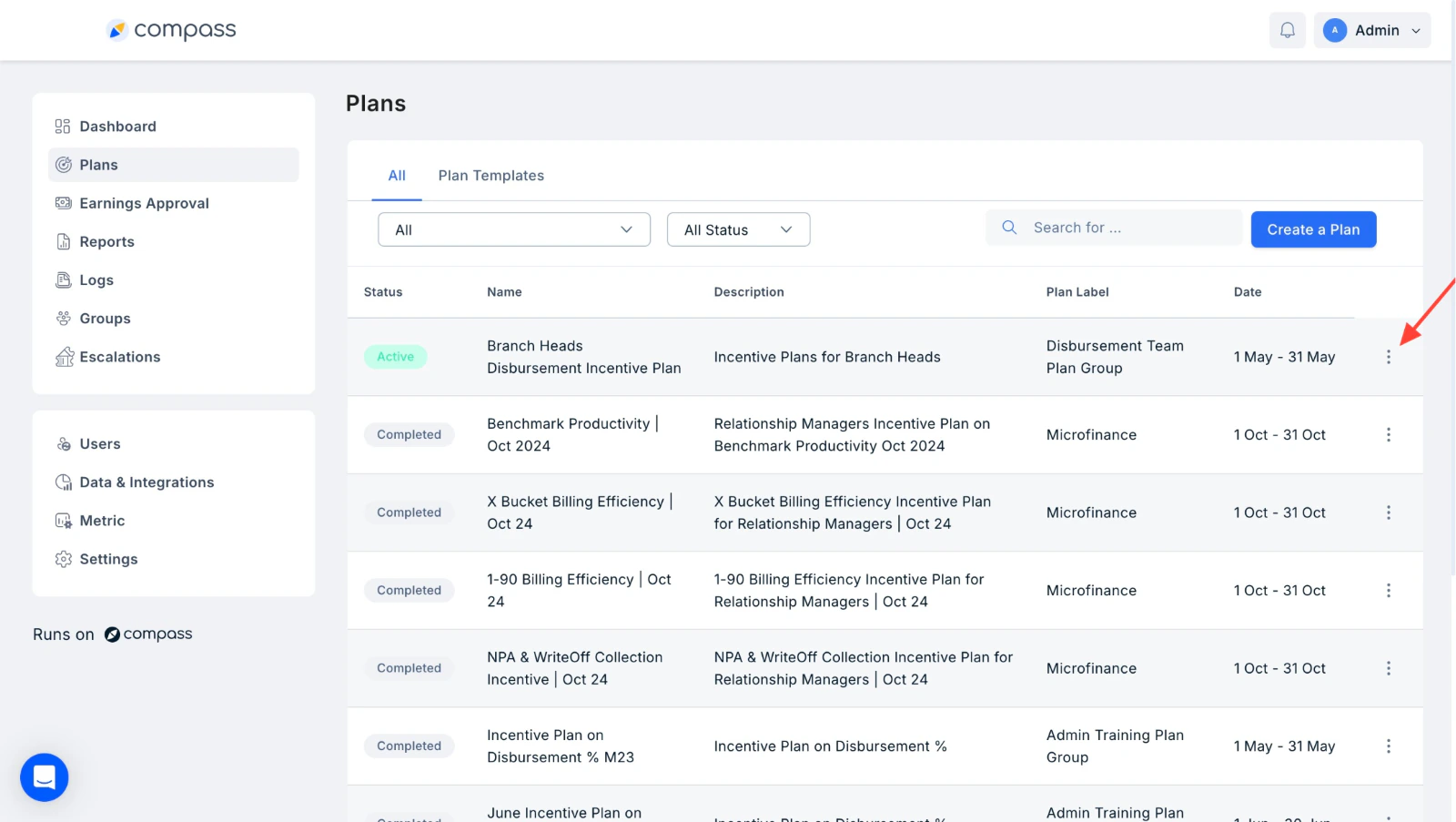
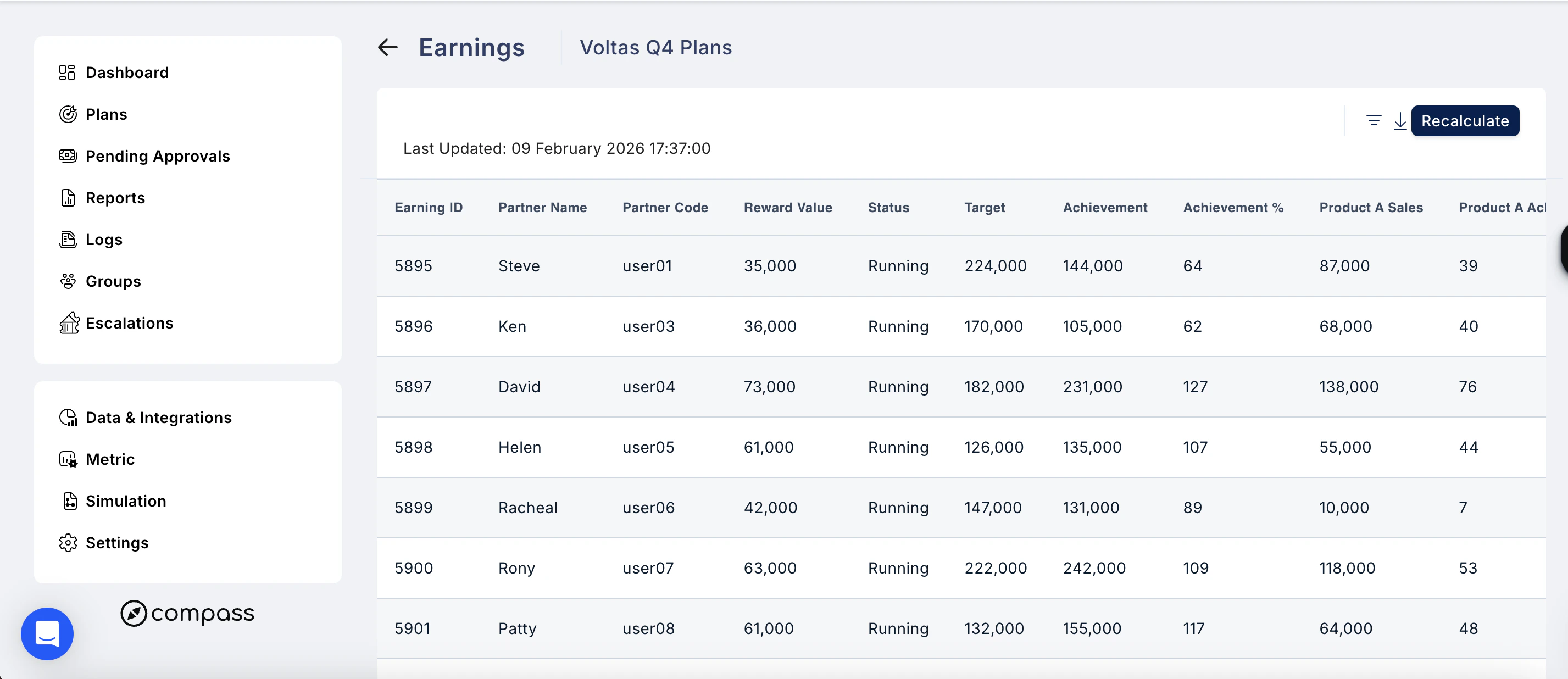
Under the **Plans** section, click on three dots next to the plan you wish to view metrics for, select **View Earnings** from the drop-down menu to see a list of all users and their associated earnings.
The table also shows a **Last Updated** timestamp so you know when the data was last refreshed.
## Step 2: Access User Earnings
Under the **Plans** section, click on three dots next to the plan you wish to view metrics for, select **View Earnings** from the drop-down menu to see a list of all users and their associated earnings.
The table also shows a **Last Updated** timestamp so you know when the data was last refreshed.
 **Filter the earnings list**
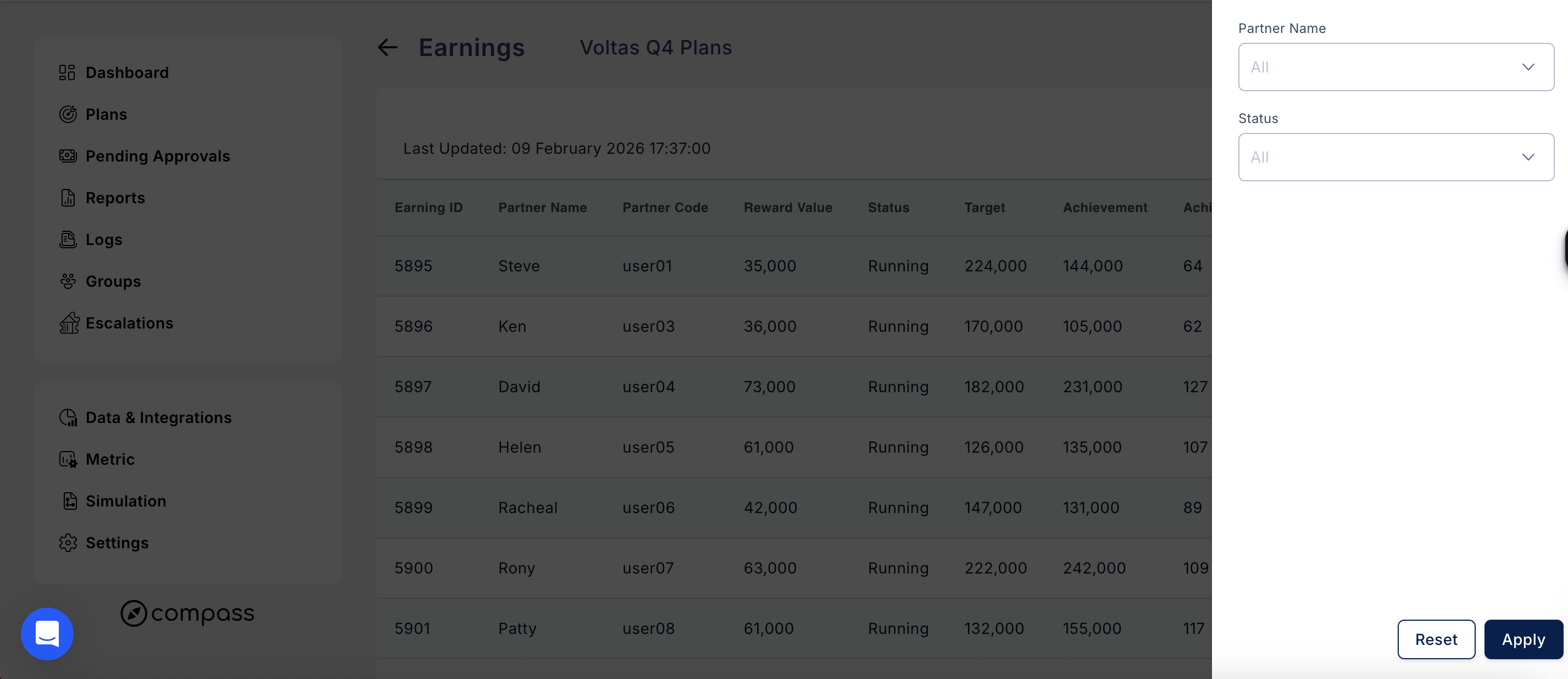
Click the **filter icon** (top right of the table) to open the filter panel. You can filter by:
* **Partner Name** — search for a specific user
* **Status** — filter by earnings status (e.g. Running)
Click **Apply** to update the table, or **Reset** to clear all filters.
**Filter the earnings list**
Click the **filter icon** (top right of the table) to open the filter panel. You can filter by:
* **Partner Name** — search for a specific user
* **Status** — filter by earnings status (e.g. Running)
Click **Apply** to update the table, or **Reset** to clear all filters.
 **Download the earnings data**
Click the **download icon** next to the filter icon to export the earnings data for the selected Plan.
**Recalculate earnings**
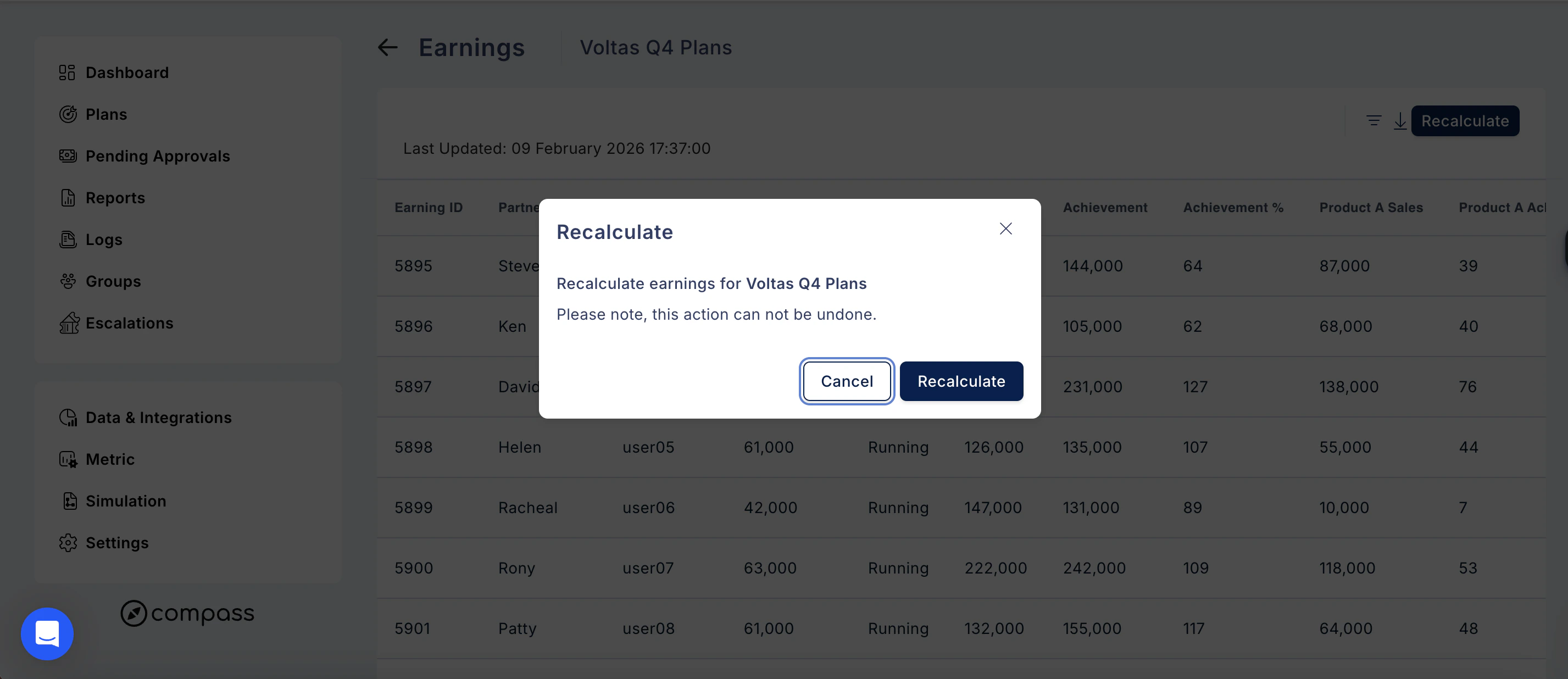
If you need to refresh the earnings calculations — for example, after a data correction — click the **Recalculate** button in the top right.
A confirmation prompt will appear:
*Recalculate earnings for \[Plan Name]. Please note, this action cannot be undone.*
Click **Recalculate** to confirm, or **Cancel** to go back.
**Download the earnings data**
Click the **download icon** next to the filter icon to export the earnings data for the selected Plan.
**Recalculate earnings**
If you need to refresh the earnings calculations — for example, after a data correction — click the **Recalculate** button in the top right.
A confirmation prompt will appear:
*Recalculate earnings for \[Plan Name]. Please note, this action cannot be undone.*
Click **Recalculate** to confirm, or **Cancel** to go back.
 ## Step 3: View Detailed Metrics and Earnings Breakdown
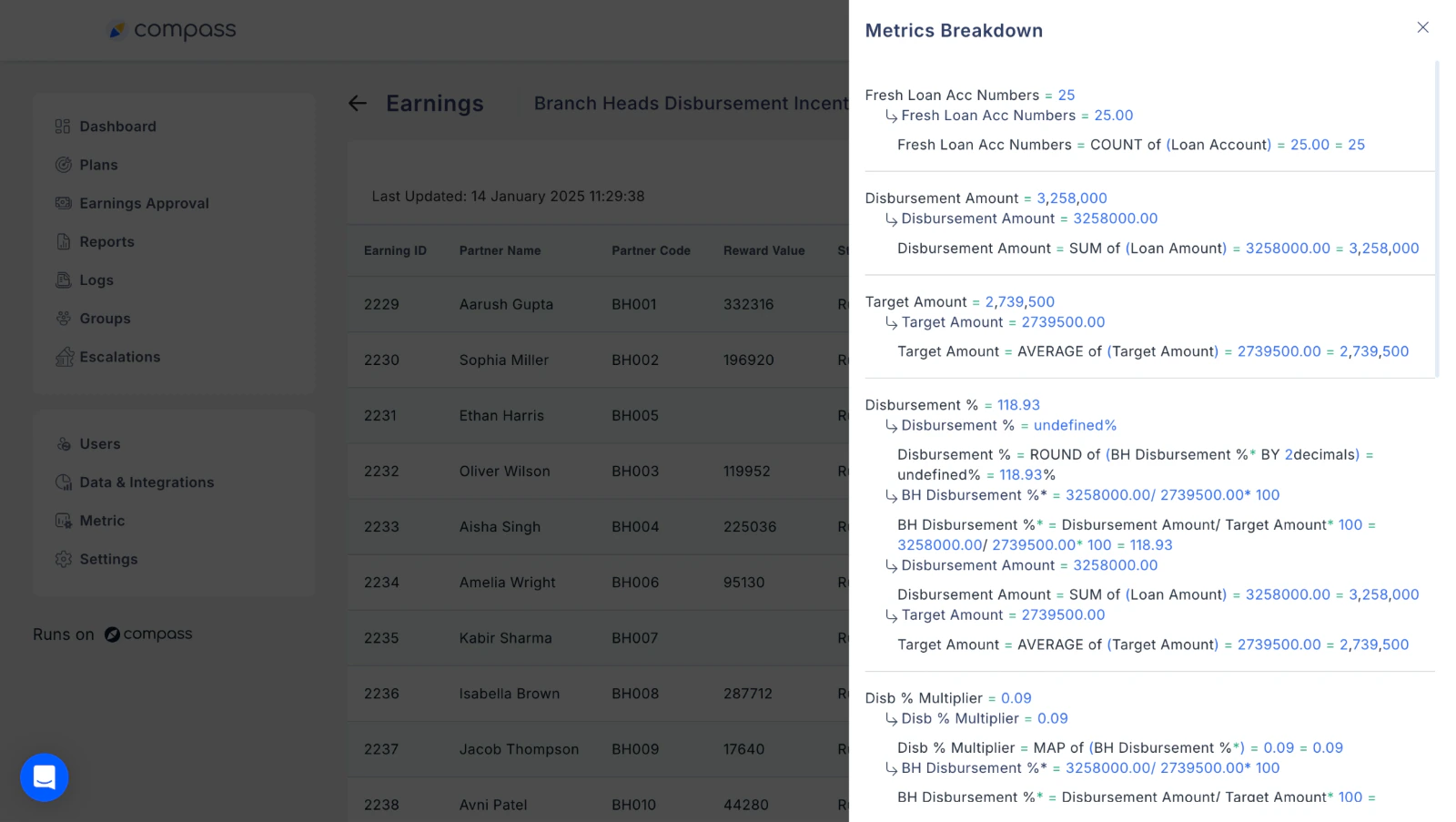
Click on any user's **Partner ID** to access a detailed breakdown of their metrics and earnings. This breakdown includes:
* Step-by-step calculations of metrics.
* Insights into how each plan and its components contribute to the user's earnings.
## Step 3: View Detailed Metrics and Earnings Breakdown
Click on any user's **Partner ID** to access a detailed breakdown of their metrics and earnings. This breakdown includes:
* Step-by-step calculations of metrics.
* Insights into how each plan and its components contribute to the user's earnings.
 ## Why This Feature is Useful
* **Transparency:** Clearly see how metrics and earnings are calculated for each user.
* **Validation:** Validate calculations with ease, thanks to detailed breakdown**s.**
* **Clarity:** Understand each step in the calculation process for better data accuracy.
This feature simplifies performance tracking and ensures data accuracy, helping admins efficiently manage and validate user metrics.
Need help? Reach out to your support team or [cs@xoxoday.com](mailto:cs@xoxoday.com).
## Why This Feature is Useful
* **Transparency:** Clearly see how metrics and earnings are calculated for each user.
* **Validation:** Validate calculations with ease, thanks to detailed breakdown**s.**
* **Clarity:** Understand each step in the calculation process for better data accuracy.
This feature simplifies performance tracking and ensures data accuracy, helping admins efficiently manage and validate user metrics.
Need help? Reach out to your support team or [cs@xoxoday.com](mailto:cs@xoxoday.com).