> ## Documentation Index
> Fetch the complete documentation index at: https://help-empuls.xoxoday.com/llms.txt
> Use this file to discover all available pages before exploring further.
# Managing data sources
The Data Sources section is the control center for all external data connected to the sales incentive module. Admins can add, manage, and update the data sources that power metrics, plans, and performance calculations.
Go to **Data & Integrations** in the left navigation panel, then click the **Data Sources** tab.
The table shows all connected data sources with the number of **Records** synced and the **Last Updated On** timestamp.
## Adding a data source
* Click **Add Datasource** in the top right corner.
* The Add Datasources page will open showing two sections:
* **Connected** — data sources already linked to your account (e.g. CSV Upload, Webhook, Derived). Click the **+** icon on any connected source to add another instance of it.
* **Add a New Datasource** — available integrations including Close.io, Google Sheet, Hubspot, LeadSquared, Salesforce, Zoho Books, and Zoho CRM.
* Click on the data source you want to connect and follow the prompts specific to that integration.
**For instance, For Google Sheets**, an important checklist will appear before authorisation. Ensure the following before proceeding:
* Required data is in the **first tab** of the Google Sheet — all other tabs will be ignored
* **Row 1 contains field headers**
* The sheet has **no blank rows or columns**
Click **Authorise in Google Sheet** to be redirected to Google to sign in and grant Compass access to your data. Click **Cancel** to go back.
## Viewing an existing data source
Click the **three-dot menu** next to any data source in the list and select **View details** to open a detailed view of that source.
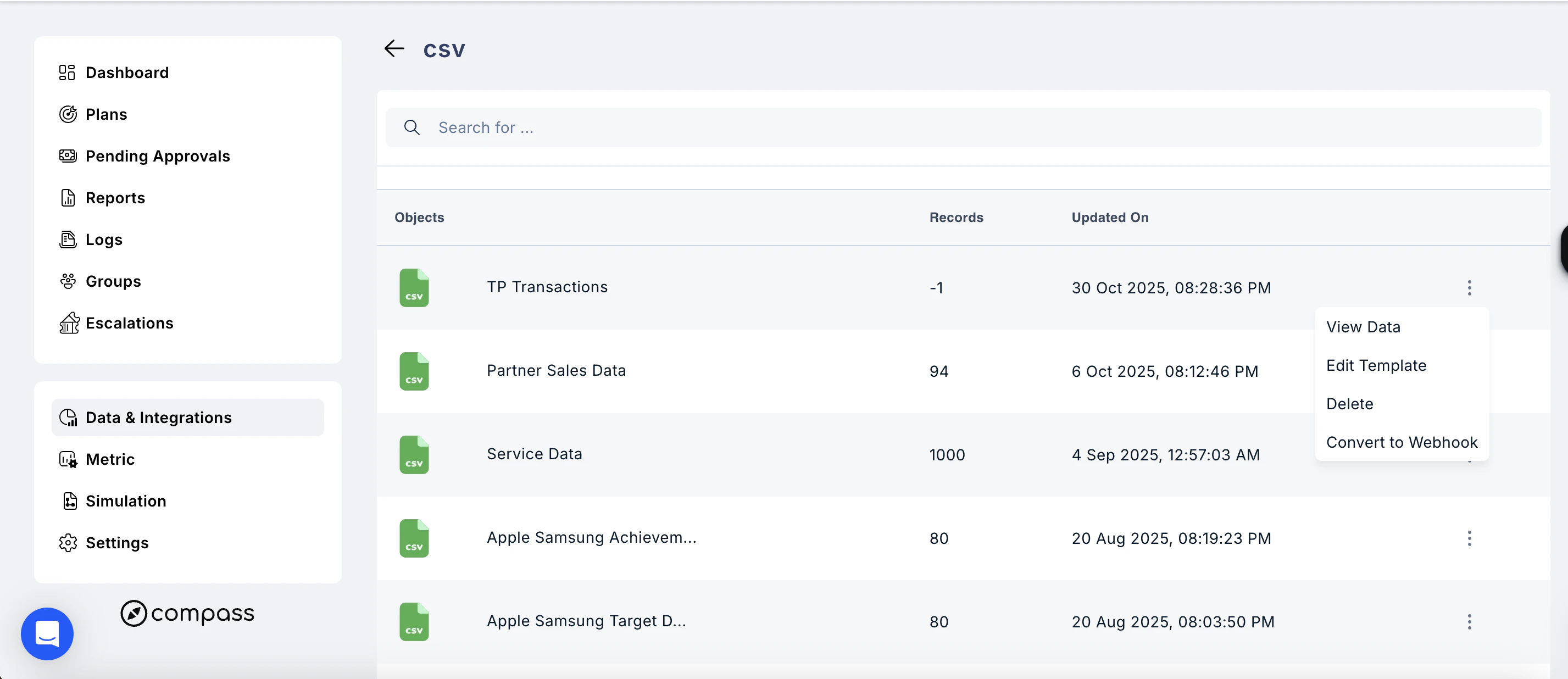
Inside a data source (for example, a CSV source), you will see a list of all **Objects** — the individual datasets uploaded under that source — along with the number of records and the last updated timestamp. Use the search bar to find a specific object.
 ## Managing objects within a data source
Click the **three-dot menu** next to any object to access the following actions:
| | |
| ---------------------- | -------------------------------------------------------------------------------- |
| Action | Description |
| **View Data** | Preview the records within that object |
| **Edit Template** | Modify the data template or field mappings for the object |
| **Delete** | Permanently remove the object and its data |
| **Convert to Webhook** | Convert a CSV-based object to a Webhook data source for real-time data ingestion |
***
**Note:** Deleting a data source object is permanent and cannot be undone. Ensure the data is no longer in use before removing it.
Need help? Reach out to your support team or email [cs@xoxoday.com](mailto:cs@xoxoday.com)
## Managing objects within a data source
Click the **three-dot menu** next to any object to access the following actions:
| | |
| ---------------------- | -------------------------------------------------------------------------------- |
| Action | Description |
| **View Data** | Preview the records within that object |
| **Edit Template** | Modify the data template or field mappings for the object |
| **Delete** | Permanently remove the object and its data |
| **Convert to Webhook** | Convert a CSV-based object to a Webhook data source for real-time data ingestion |
***
**Note:** Deleting a data source object is permanent and cannot be undone. Ensure the data is no longer in use before removing it.
Need help? Reach out to your support team or email [cs@xoxoday.com](mailto:cs@xoxoday.com)