> ## Documentation Index
> Fetch the complete documentation index at: https://help-empuls.xoxoday.com/llms.txt
> Use this file to discover all available pages before exploring further.
# Add a widget to your dashboard
> Learn how to add a widget to the dashboard
Widgets help you track metrics, rewards, or scores directly from your sales incentive dashboard.
**Follow these steps to add and manage a widget.**
## Step 1: Navigate to the Dashboard
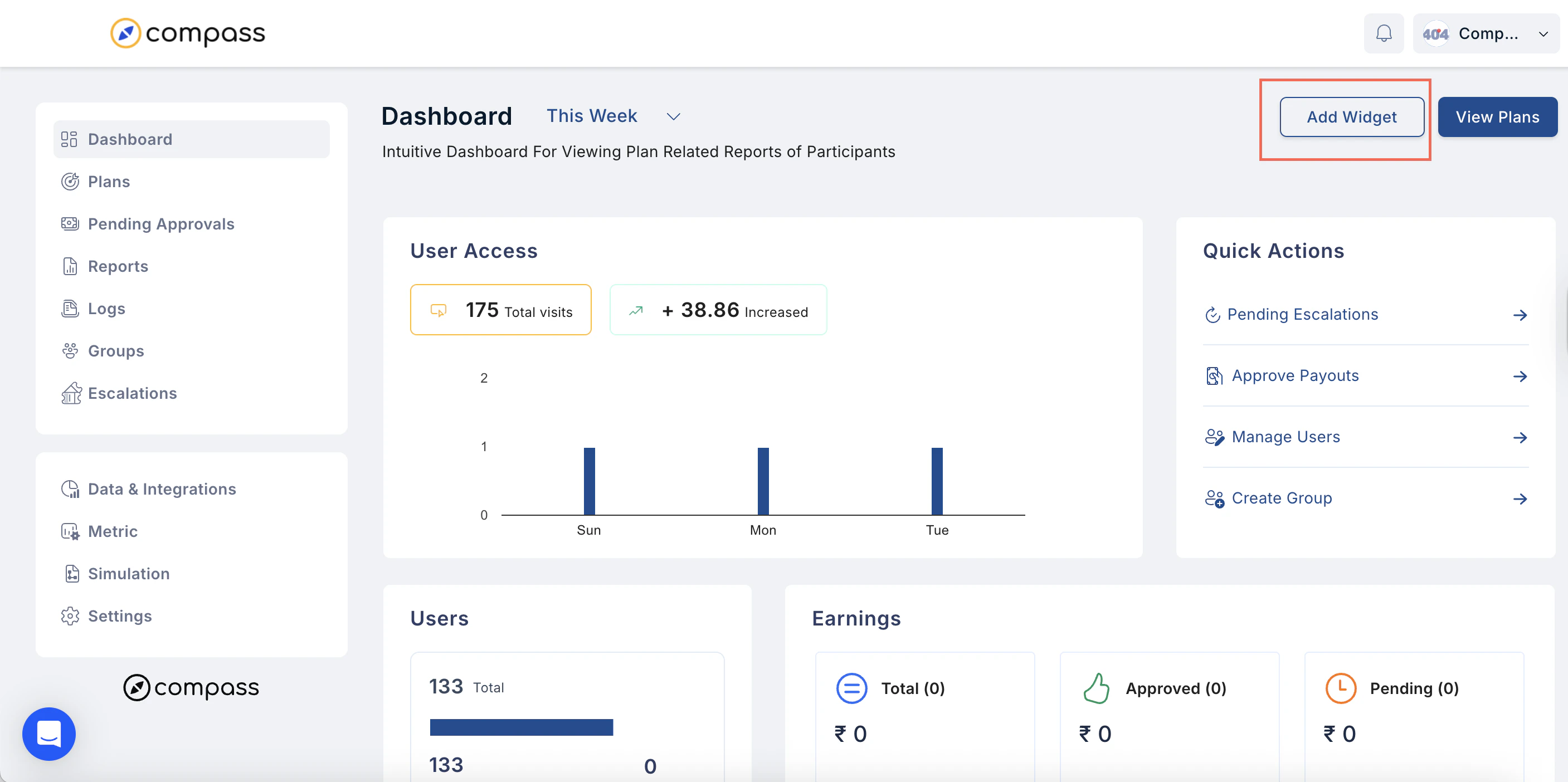
* Go to **Dashboards** in the main menu.
* Click **Add a Widget**.
 ## Step 2: Set Up Your Report
* **Name Your Report** – Enter a clear, descriptive name.
* **Select the Type of Report** – Choose from the following options:
## 2.1 Plan vs Plan
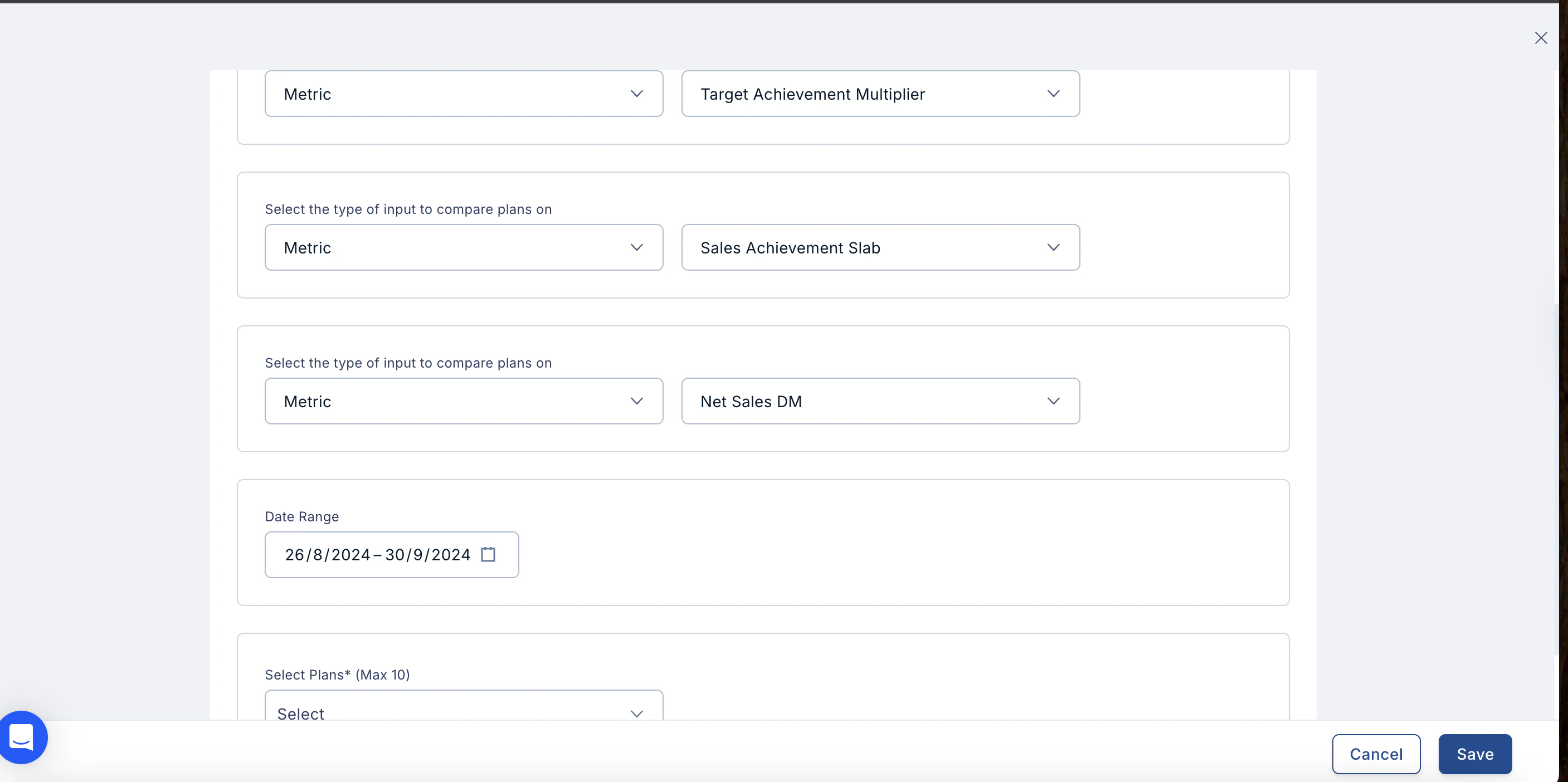
* **Purpose:** Track performance (metrics, rewards, or scores) across multiple plans.
* **How to Set Up:**
* Select the type of input to compare – **Metric**, **Score**, or **Point**.
* For each, choose the specific metric, score, or point from the dropdown.
* Select the date range using the **Calendar**.
* Select the plans from the dropdown menu.
* Click **Save**.
## Step 2: Set Up Your Report
* **Name Your Report** – Enter a clear, descriptive name.
* **Select the Type of Report** – Choose from the following options:
## 2.1 Plan vs Plan
* **Purpose:** Track performance (metrics, rewards, or scores) across multiple plans.
* **How to Set Up:**
* Select the type of input to compare – **Metric**, **Score**, or **Point**.
* For each, choose the specific metric, score, or point from the dropdown.
* Select the date range using the **Calendar**.
* Select the plans from the dropdown menu.
* Click **Save**.
 * **Editing/Deleting:**
* Can be **edited** using the three-dot menu.
* Can be **deleted** from the dashboard.
## 2.2 Plan Payout Trend
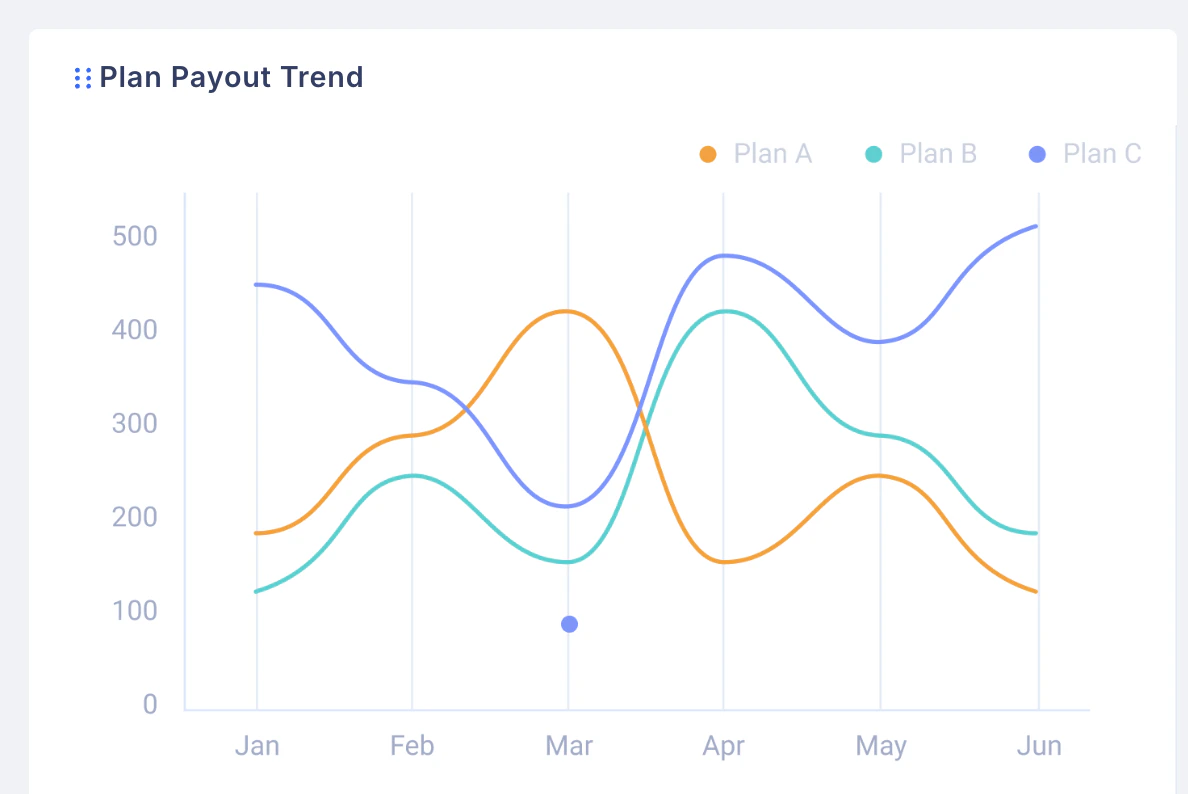
* **Purpose:** Track performance of a metric, reward, or score over time.
* **How to Set Up:**
* Select the date range using the **Calendar**.
* Select up to **three plans** from the dropdown menu.
* Click **Save**.
* **Editing/Deleting:**
* Can be **edited** using the three-dot menu.
* Can be **deleted** from the dashboard.
## 2.2 Plan Payout Trend
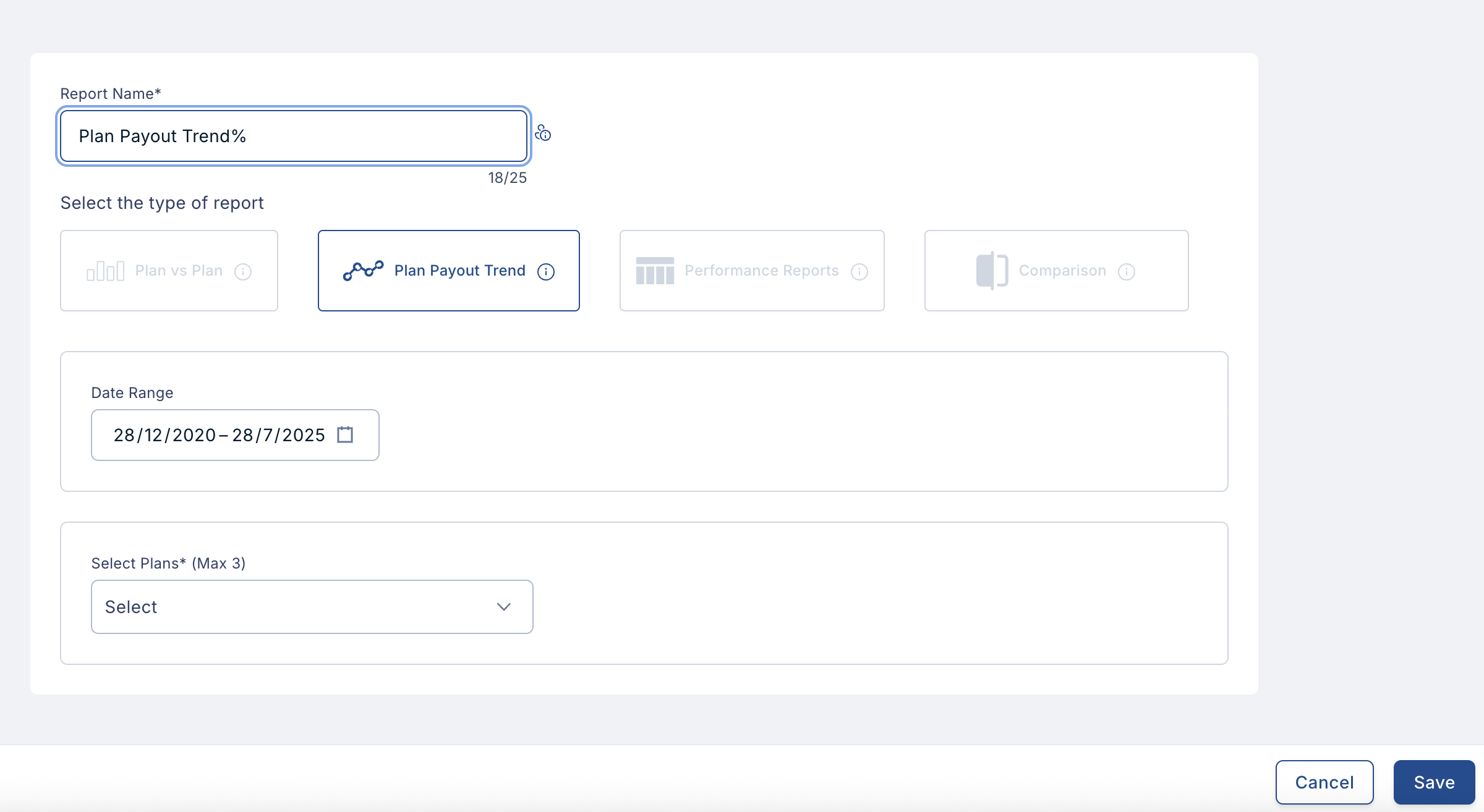
* **Purpose:** Track performance of a metric, reward, or score over time.
* **How to Set Up:**
* Select the date range using the **Calendar**.
* Select up to **three plans** from the dropdown menu.
* Click **Save**.
 * **Editing/Deleting:**
* Can be **edited** using the three-dot menu.
* Can be **deleted** from the dashboard.
* **Editing/Deleting:**
* Can be **edited** using the three-dot menu.
* Can be **deleted** from the dashboard.
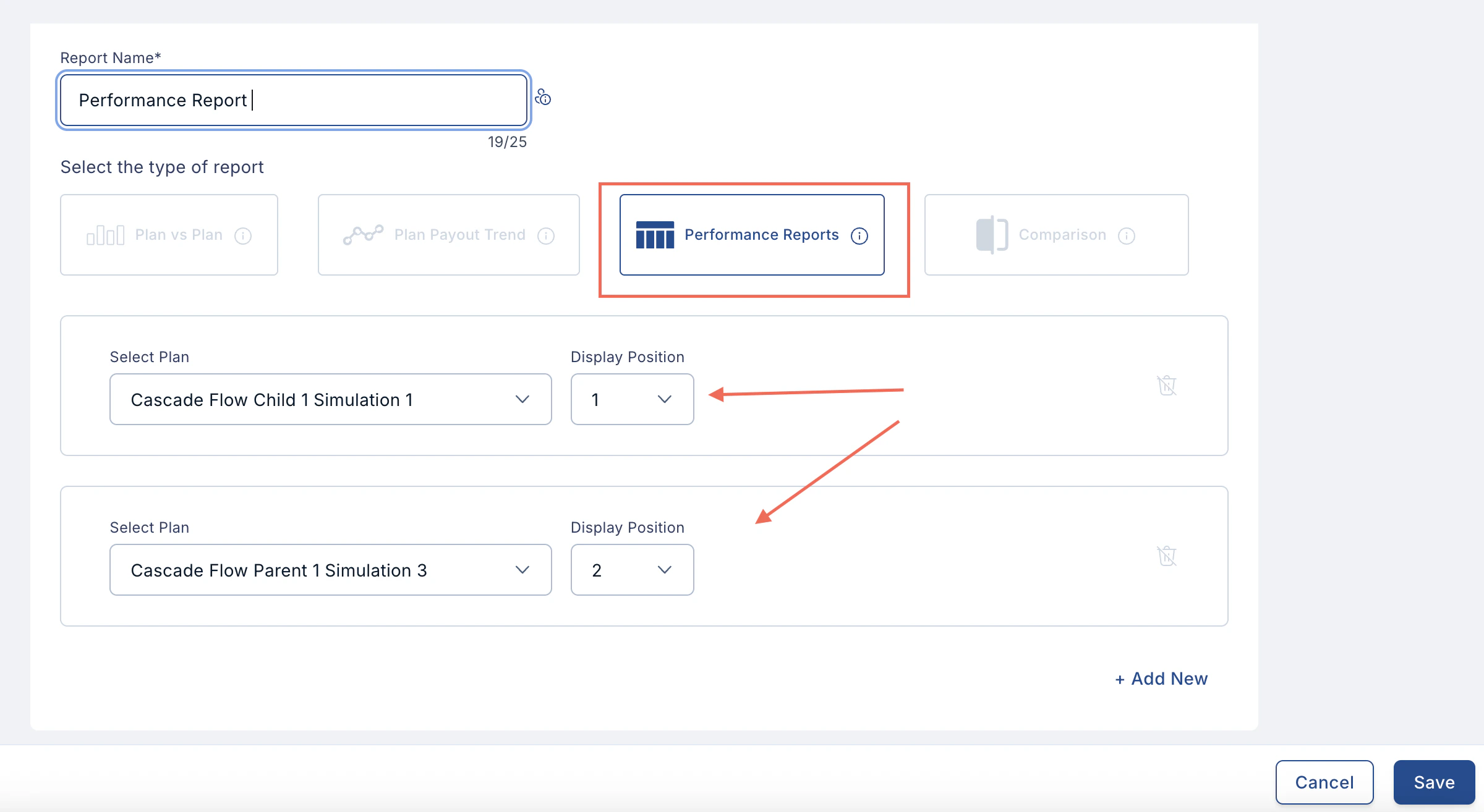
 ## 2.3 Performance Report
* **Purpose:** Track a plan’s performance report across plans.
* **How to Set Up:**
* Select the plan from the dropdown menu.
* Choose the positioning.
* To add more performance reports, click **Add New** and repeat the process.
* Click **Save**.
## 2.3 Performance Report
* **Purpose:** Track a plan’s performance report across plans.
* **How to Set Up:**
* Select the plan from the dropdown menu.
* Choose the positioning.
* To add more performance reports, click **Add New** and repeat the process.
* Click **Save**.
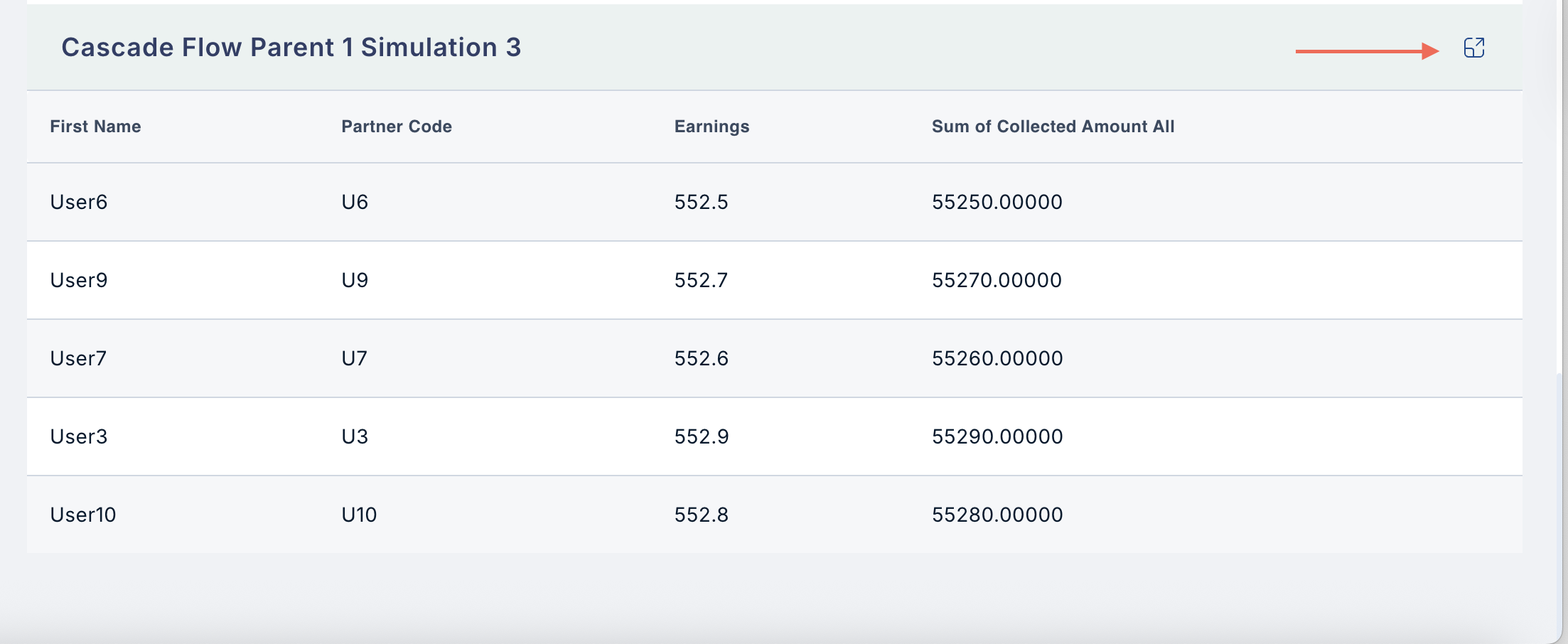
 * **Editing/Deleting:**
* Can be **expanded** for advanced functionality using the three-dot menu.
* **Cannot be deleted** from the dashboard.
* **Editing/Deleting:**
* Can be **expanded** for advanced functionality using the three-dot menu.
* **Cannot be deleted** from the dashboard.
 ## 2.4 Comparison
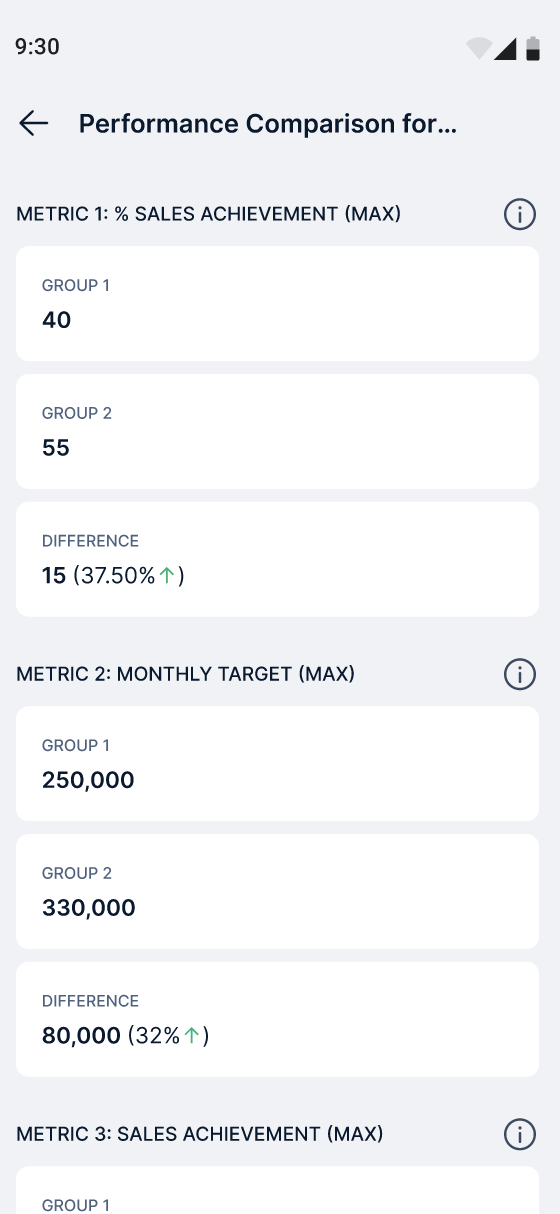
* **Purpose:** Compare two or more plans based on common metrics.
* **How to Set Up:**
* **Group 1:**
* Select the date range using the **Calendar**.
* Select up to **10 plans** from the dropdown menu.
* **Group 2:**
* Repeat the above steps for the second group.
* Add the metrics you want to compare (up to **5 metrics**).
* Make sure both groups share the same metrics.
* Click **Save**.
* **Editing/Deleting:**
* Can be **edited** using the three-dot menu.
* Can be **deleted** from the dashboard.
* You can choose to make the widget visible to **Managers** or **Users**.
## 2.4 Comparison
* **Purpose:** Compare two or more plans based on common metrics.
* **How to Set Up:**
* **Group 1:**
* Select the date range using the **Calendar**.
* Select up to **10 plans** from the dropdown menu.
* **Group 2:**
* Repeat the above steps for the second group.
* Add the metrics you want to compare (up to **5 metrics**).
* Make sure both groups share the same metrics.
* Click **Save**.
* **Editing/Deleting:**
* Can be **edited** using the three-dot menu.
* Can be **deleted** from the dashboard.
* You can choose to make the widget visible to **Managers** or **Users**.
 Need help? Reach out to your support team or [cs@xoxoday.com](mailto:cs@xoxoday.com).