> ## Documentation Index
> Fetch the complete documentation index at: https://help-empuls.xoxoday.com/llms.txt
> Use this file to discover all available pages before exploring further.
# Groups
> Enable clear communication about common updates in the sales commission or incentive plans.
**Quick explainer video:**
[https://app.supademo.com/demo/clyct5vmk0ky9thf7qsqjpvwt?preview=true](https://app.supademo.com/demo/clyct5vmk0ky9thf7qsqjpvwt?preview=true)
## Using groups
Groups help replace long, scattered email threads and bring structured communication directly to your sales teams within the platform.
Creating groups allows admins to:
* Communicate updates to IC plan structures or calculation logic to specific user segments, ensuring clarity and alignment.
* Reduce disputes by running short, targeted surveys to gather feedback on incentive plans from the right audience.
* Organize users based on any parameter in your dataset—department, designation, geography, IC structure, territory, and more.
Users can interact with posts through likes, high-fives, and comments, helping teams stay engaged and informed.
## Townhall
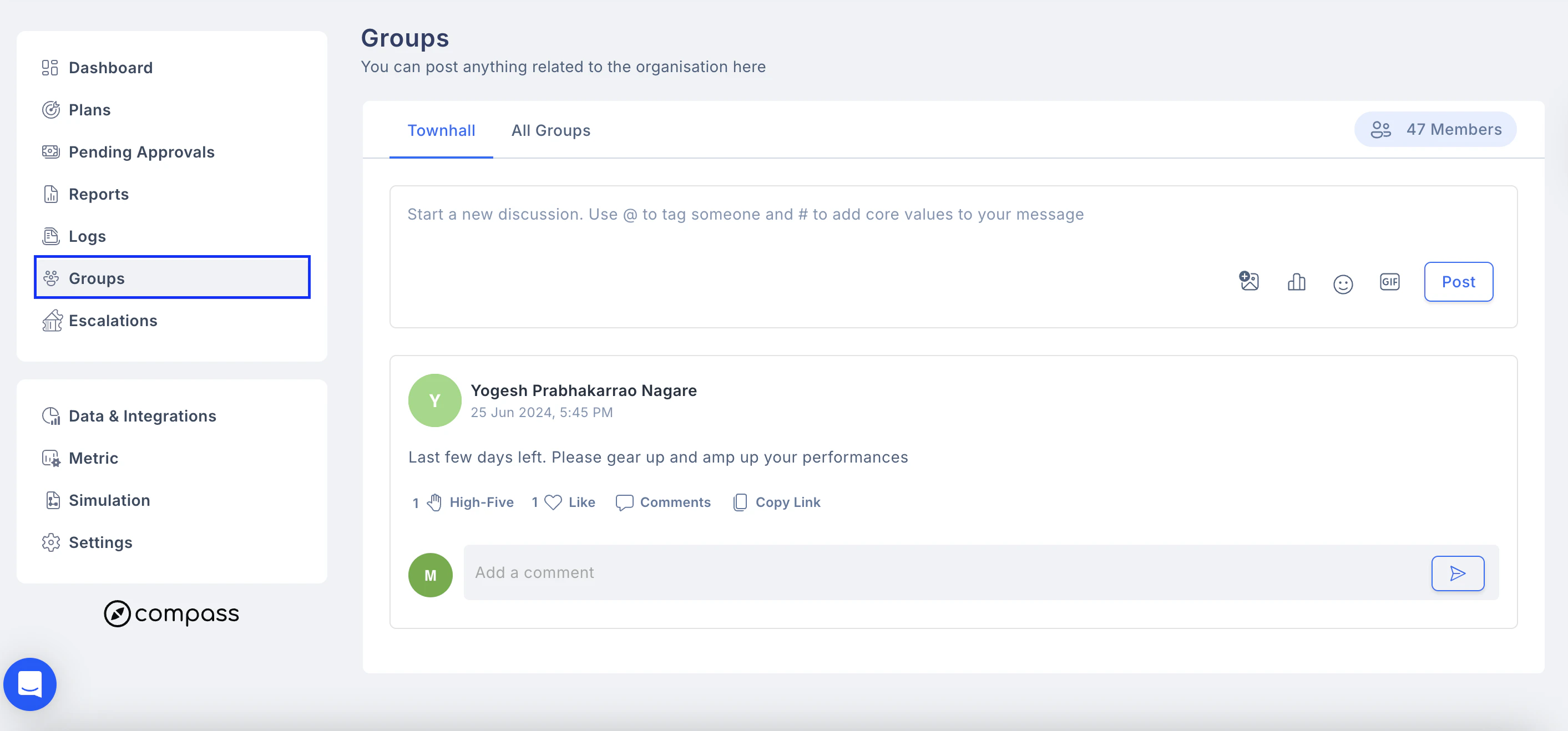
Every admin account comes with a system-generated default group called Townhall, which includes all end users on the platform.
You can access this group by clicking the Groups tab in the left navigation panel.
 ## Creating and managing a Group
To create a new group:
Click the **+ Add New** Group button on the top right under the **My Groups** tab.
(Please note that this option is only available to admins)
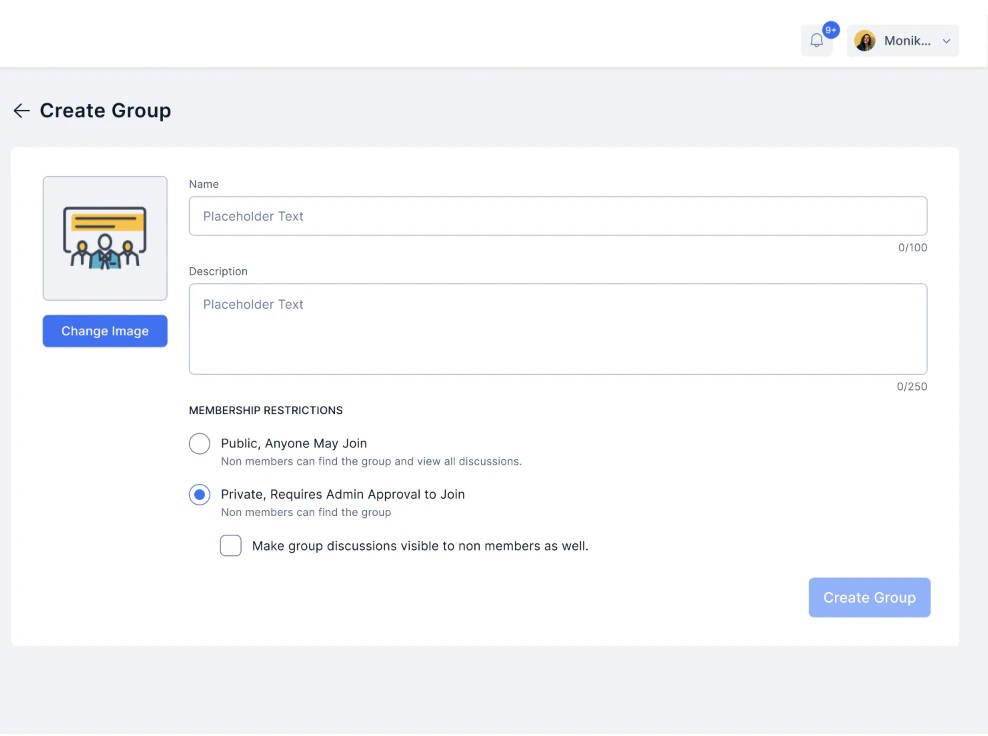
Fill in the **group details**, including the **display picture, name, description, and membership restrictions.**
## Creating and managing a Group
To create a new group:
Click the **+ Add New** Group button on the top right under the **My Groups** tab.
(Please note that this option is only available to admins)
Fill in the **group details**, including the **display picture, name, description, and membership restrictions.**
 ## Add members
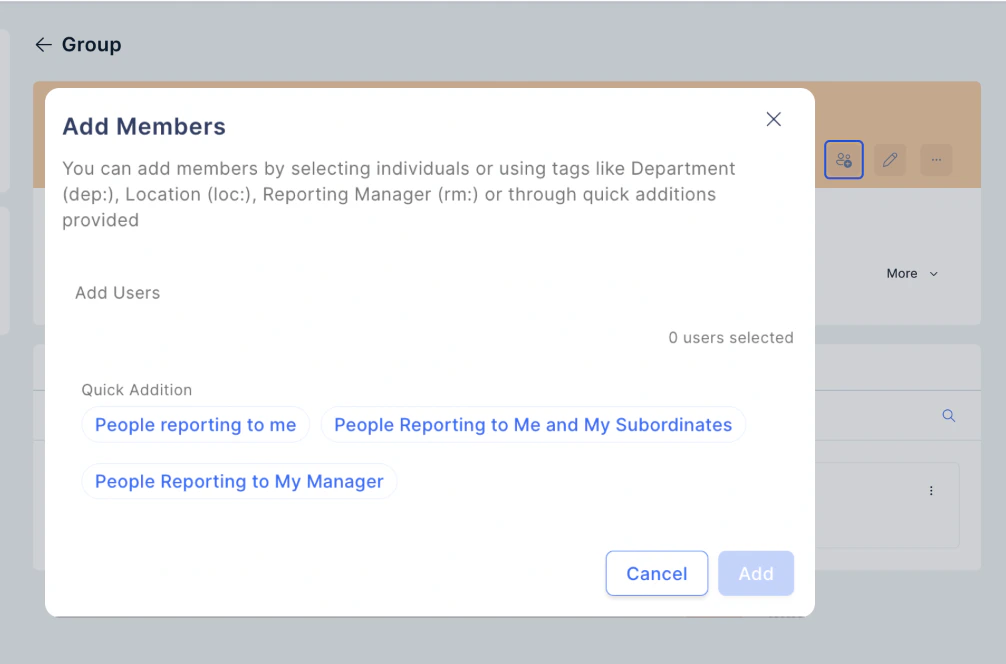
You can manually add more members to the group by clicking on the blue **+add people** icon next to the three dots on the group card.
## Add members
You can manually add more members to the group by clicking on the blue **+add people** icon next to the three dots on the group card.
 ## Edit Group Details
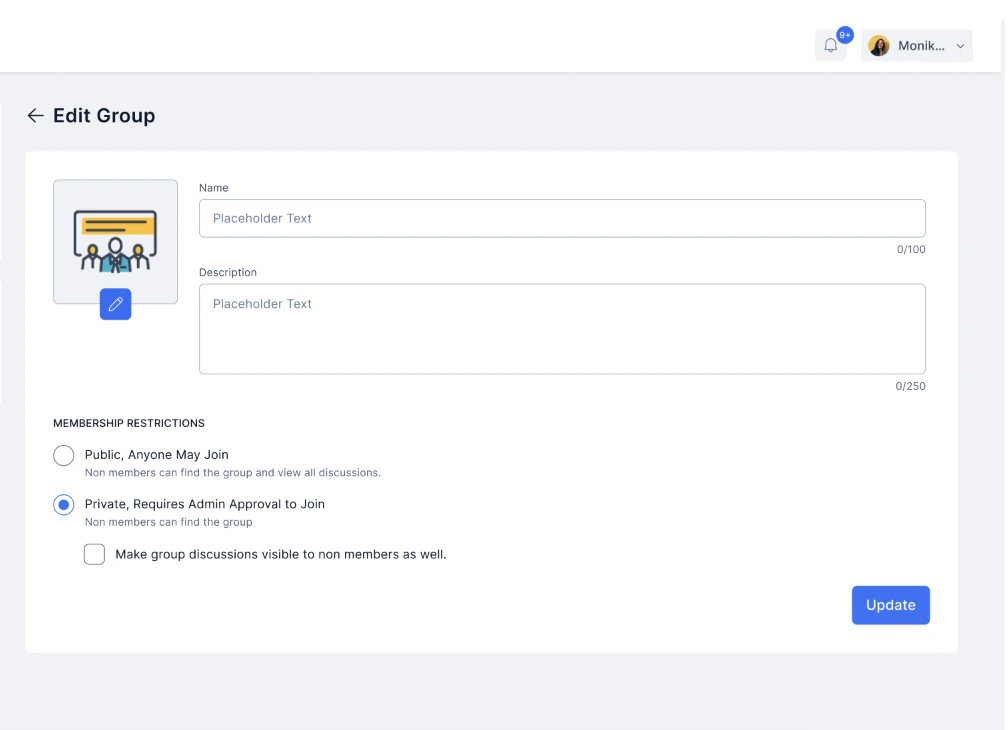
You can edit the existing group details, including name, permissions, or its members.
## Edit Group Details
You can edit the existing group details, including name, permissions, or its members.
 ## Member Permissions
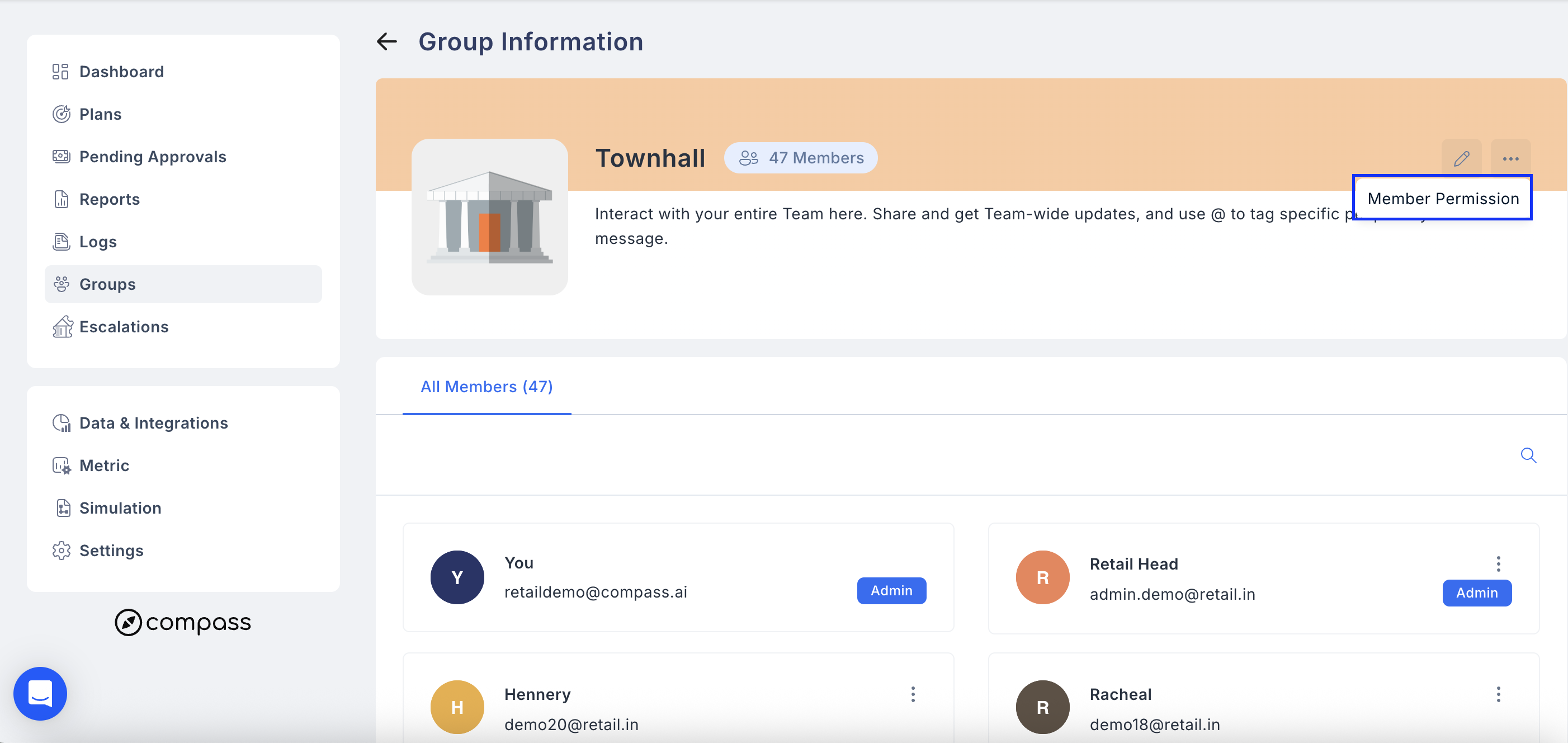
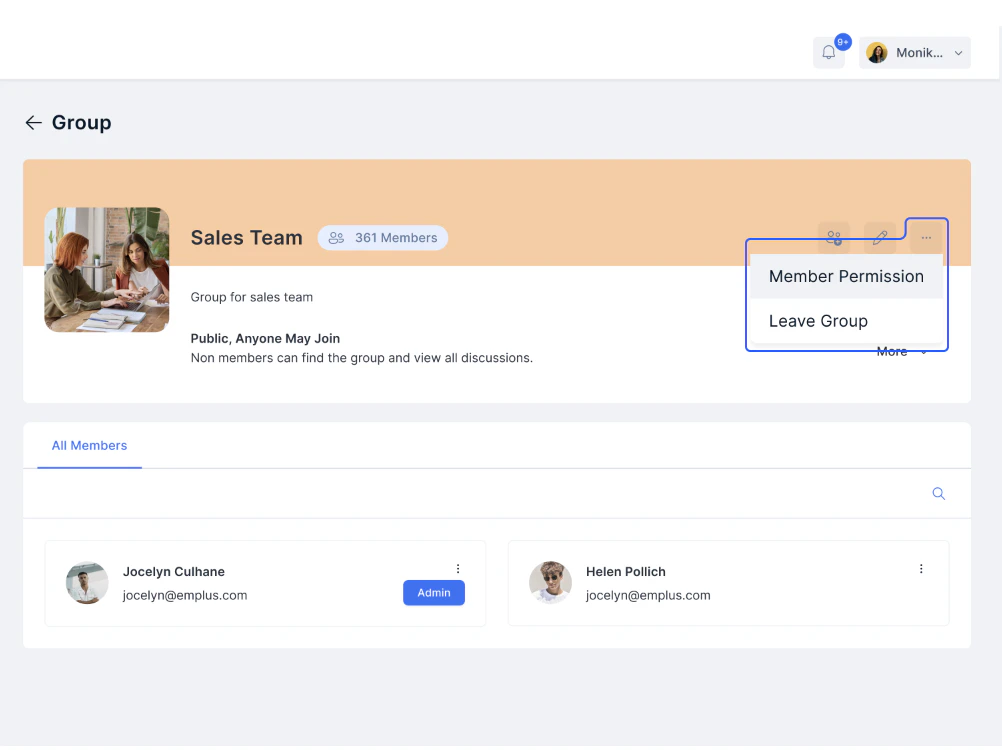
This option, as an admin, allows you to control the actions the end user in the group can take at two levels: Access and Nature of Conversations, as shown in the screenshot below.
* Click on the pen icon and then click "**Member Permission**".
## Member Permissions
This option, as an admin, allows you to control the actions the end user in the group can take at two levels: Access and Nature of Conversations, as shown in the screenshot below.
* Click on the pen icon and then click "**Member Permission**".
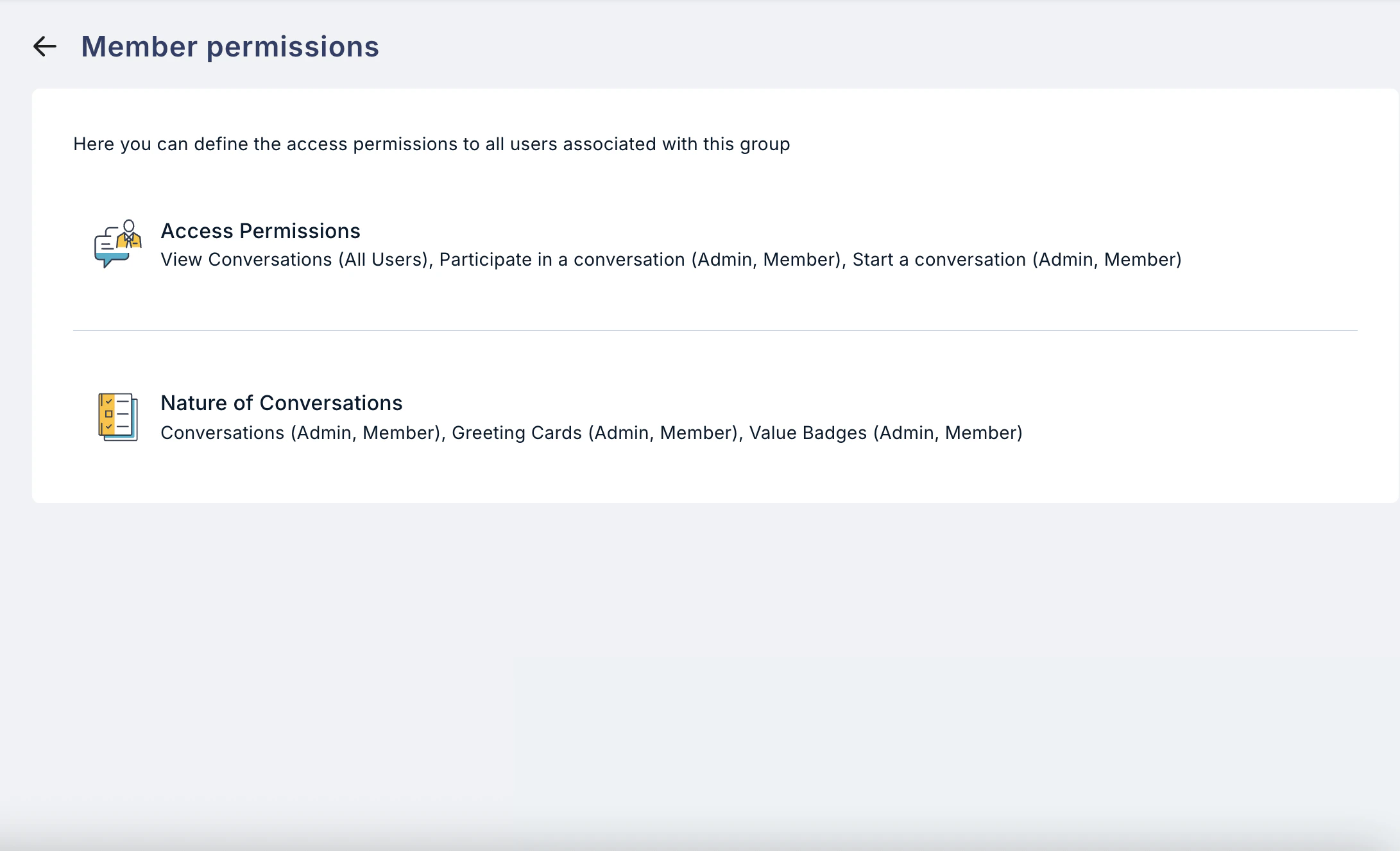
 * Manage either the **Access Permissions or Nature of conversations** by clicking on the pen icon next to each.
 * Check or uncheck the boxes based on the business requirements. Once done, click on "**Save Changes**".
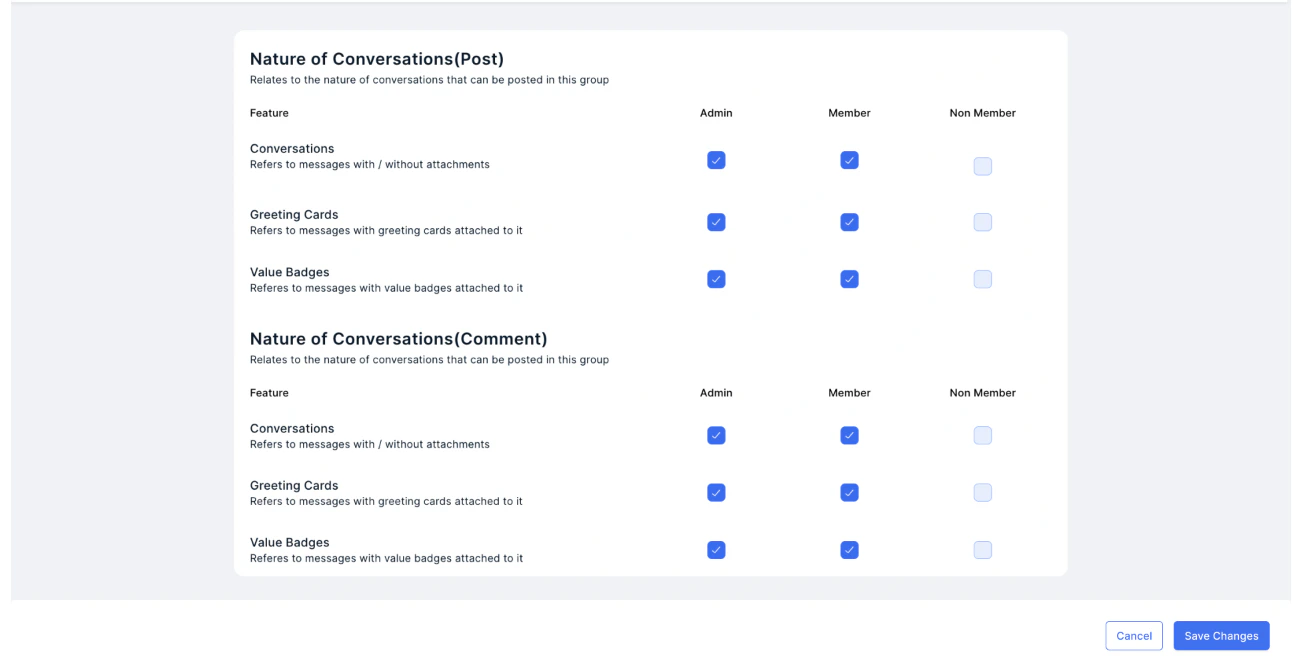
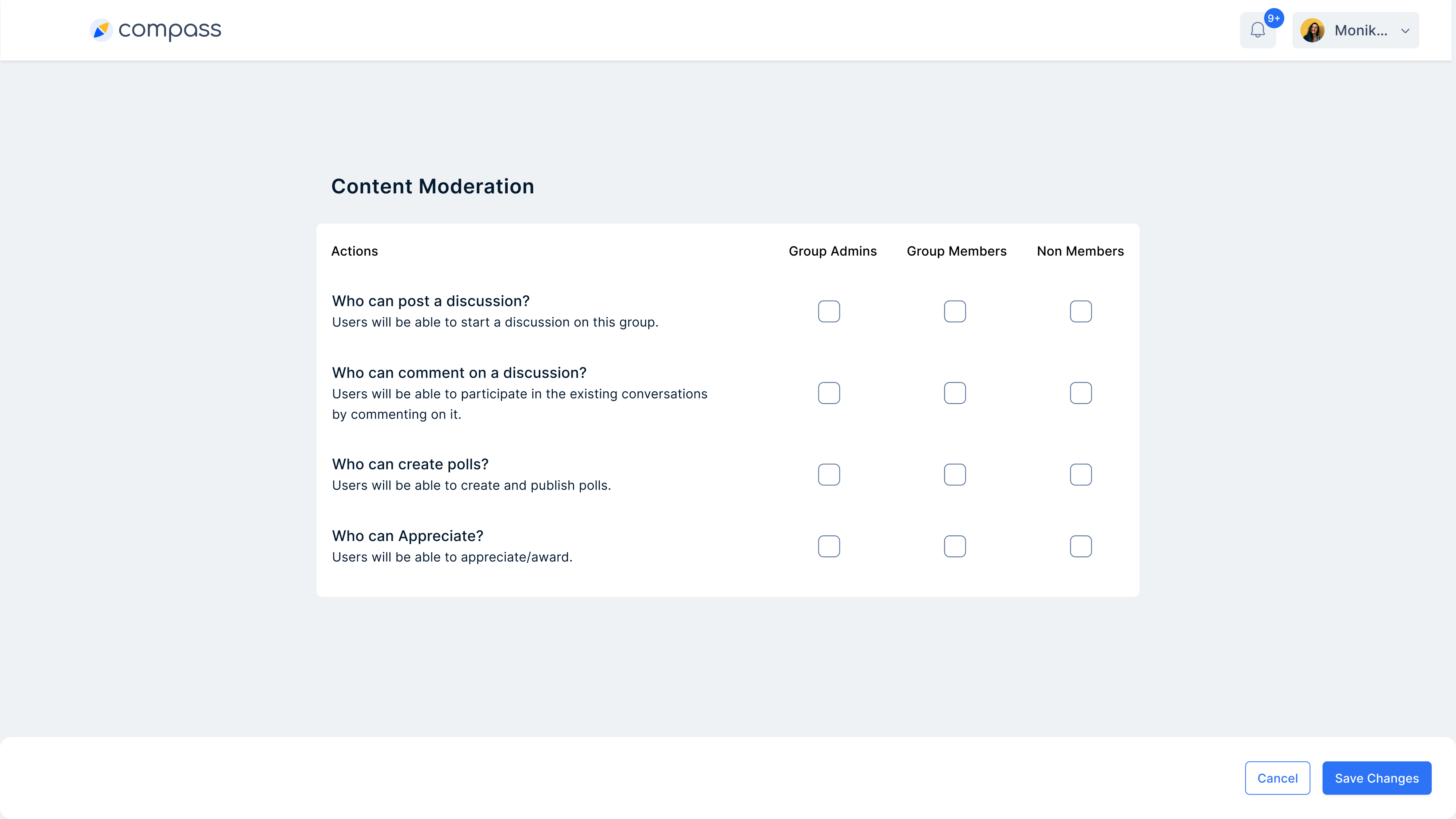
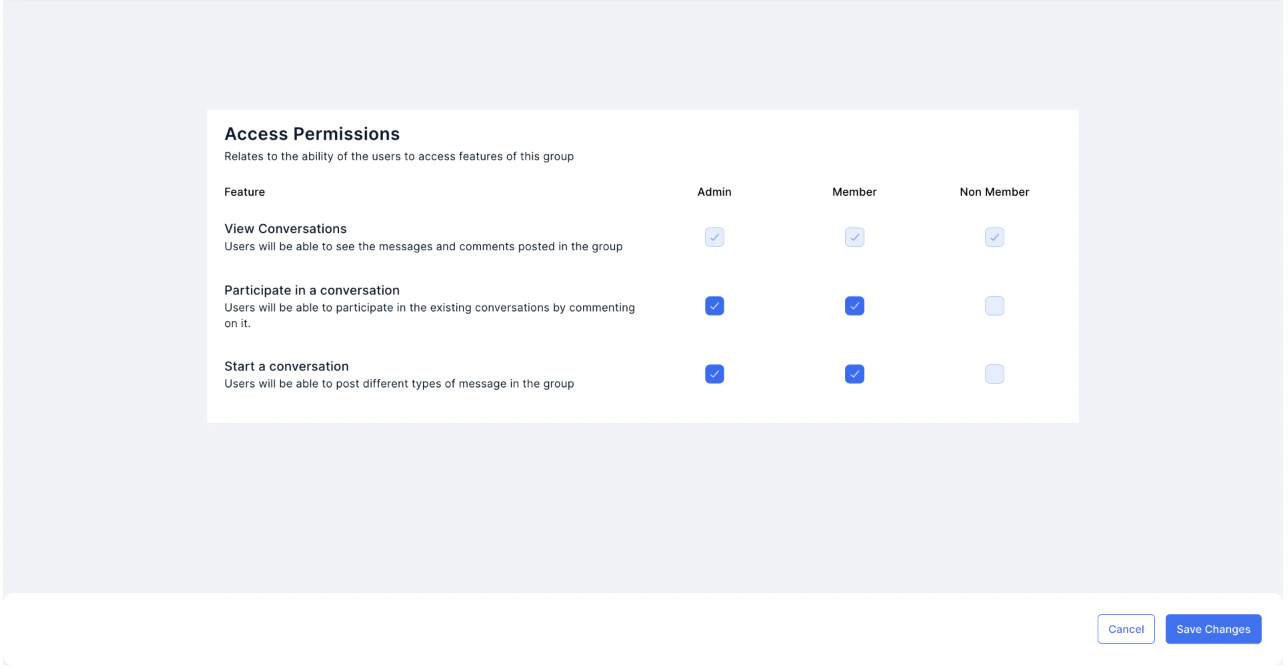 * The screenshots below showcase all the options for restricting or enabling permissions for various types of end users, including admins, members, and non-members.
 ## Content Settings
You can automate messages to highlight employees celebrating special occasions, including birthdays, work anniversaries, leaderboard winners, etc.
## Content Settings
You can automate messages to highlight employees celebrating special occasions, including birthdays, work anniversaries, leaderboard winners, etc.
 ## Deleting a group
To delete a group, follow these steps
* Remove all the members of the group.
* Leave the group as the admin.
* This will then auto-delete the group.
## Deleting a group
To delete a group, follow these steps
* Remove all the members of the group.
* Leave the group as the admin.
* This will then auto-delete the group.
 Need help? Reach out to your support team or [cs@xoxoday.com](mailto:cs@xoxoday.com).