> ## Documentation Index
> Fetch the complete documentation index at: https://help-empuls.xoxoday.com/llms.txt
> Use this file to discover all available pages before exploring further.
# Custom report
> Build, save, and share tailored reports with your own filters, date ranges, and source metrics.
Custom reports let admins create tailored views using filters and metrics specific to their organisational needs. Reports can be saved for recurring use, shared with colleagues, or edited and deleted as needed.
To access: Navigate to **Admin Hub → Reports → Custom Report**.
***
## Search and manage custom reports
You can search for a custom report by its name or description. Alternatively, filter reports by adding an email ID.
 You can **share, edit, or delete** a report. Use the **share icon** and enter the details of the person you want to send it to. Click on the **three-dot menu** to edit or delete the report.
 ***
## Viewing capabilities
Empuls lets admins, HRBPs, managers, and leaders view reports from different perspectives. This ensures every stakeholder sees insights relevant to their responsibilities.
### View as (any employee profile)
You can switch the report view to any employee profile. This helps you understand how reports and data appear from their point of view.
Use cases:
* Verify whether a user has correct visibility.
* Troubleshoot access or data issues.
* Validate manager or HRBP report experience.
### Role-based viewing
Available roles typically include:
* **Super Admin** — Full visibility across all teams, budgets, awards, and recognition activity.
* **Manager** — Sees recognition given and received within their reporting tree. Insights include team performance, participation, and gaps.
* **HRBP** — Sees data for employees mapped to their business unit or function. Useful for programme oversight, adoption tracking, and department-level insights.
* **Cost center head** — Sees recognition budgets, award usage, and adoption patterns for their cost center.
Use cases:
* Understand how different leaders see recognition and budget reports.
* Validate governance and ensure the right data is shown to the right role.
* Enable HRBPs and managers to make data-driven decisions without exposing global data.
**Why role-based viewing matters**
* **Improves governance:** Ensures sensitive data is only seen by authorised roles.
* **Builds transparency:** Managers and HRBPs get insights specific to their teams.
* **Supports accurate decision-making:** Each role sees the metrics they need most.
* **Simplifies troubleshooting:** Admins can switch views to replicate what others see.
***
## Creating a custom report
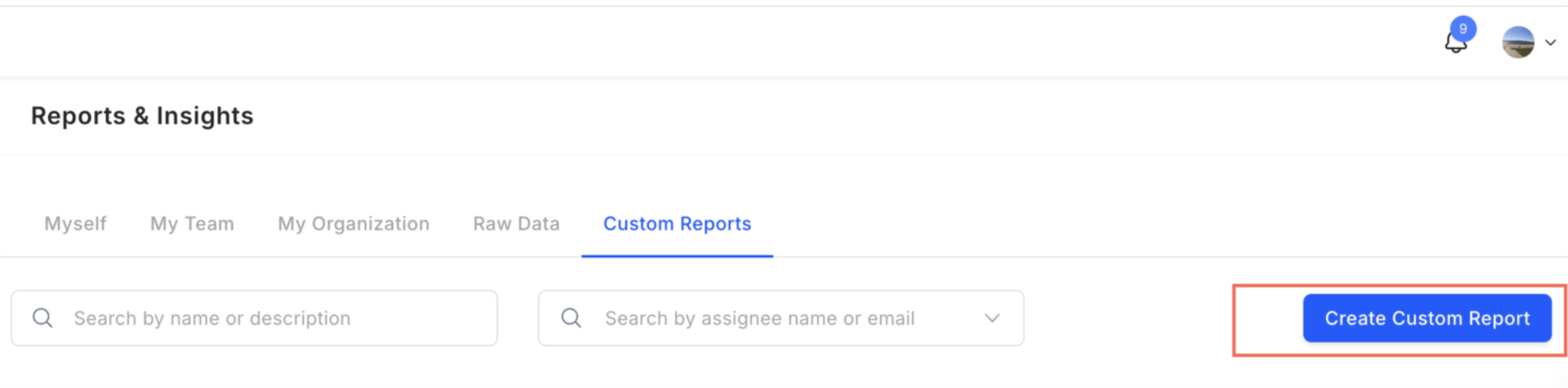
Click **Create Custom Report**.
***
## Viewing capabilities
Empuls lets admins, HRBPs, managers, and leaders view reports from different perspectives. This ensures every stakeholder sees insights relevant to their responsibilities.
### View as (any employee profile)
You can switch the report view to any employee profile. This helps you understand how reports and data appear from their point of view.
Use cases:
* Verify whether a user has correct visibility.
* Troubleshoot access or data issues.
* Validate manager or HRBP report experience.
### Role-based viewing
Available roles typically include:
* **Super Admin** — Full visibility across all teams, budgets, awards, and recognition activity.
* **Manager** — Sees recognition given and received within their reporting tree. Insights include team performance, participation, and gaps.
* **HRBP** — Sees data for employees mapped to their business unit or function. Useful for programme oversight, adoption tracking, and department-level insights.
* **Cost center head** — Sees recognition budgets, award usage, and adoption patterns for their cost center.
Use cases:
* Understand how different leaders see recognition and budget reports.
* Validate governance and ensure the right data is shown to the right role.
* Enable HRBPs and managers to make data-driven decisions without exposing global data.
**Why role-based viewing matters**
* **Improves governance:** Ensures sensitive data is only seen by authorised roles.
* **Builds transparency:** Managers and HRBPs get insights specific to their teams.
* **Supports accurate decision-making:** Each role sees the metrics they need most.
* **Simplifies troubleshooting:** Admins can switch views to replicate what others see.
***
## Creating a custom report
Click **Create Custom Report**.
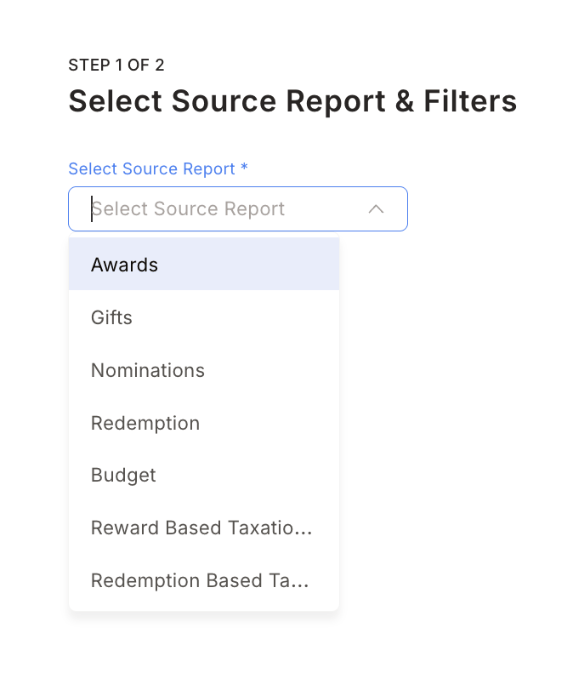
 Select a **source report** from the drop-down menu. Available options:
* Awards
* Gifts
* Nominations
* Budget
* Redemption
* Reward based taxation
* Redemption based taxation
Select a **source report** from the drop-down menu. Available options:
* Awards
* Gifts
* Nominations
* Budget
* Redemption
* Reward based taxation
* Redemption based taxation
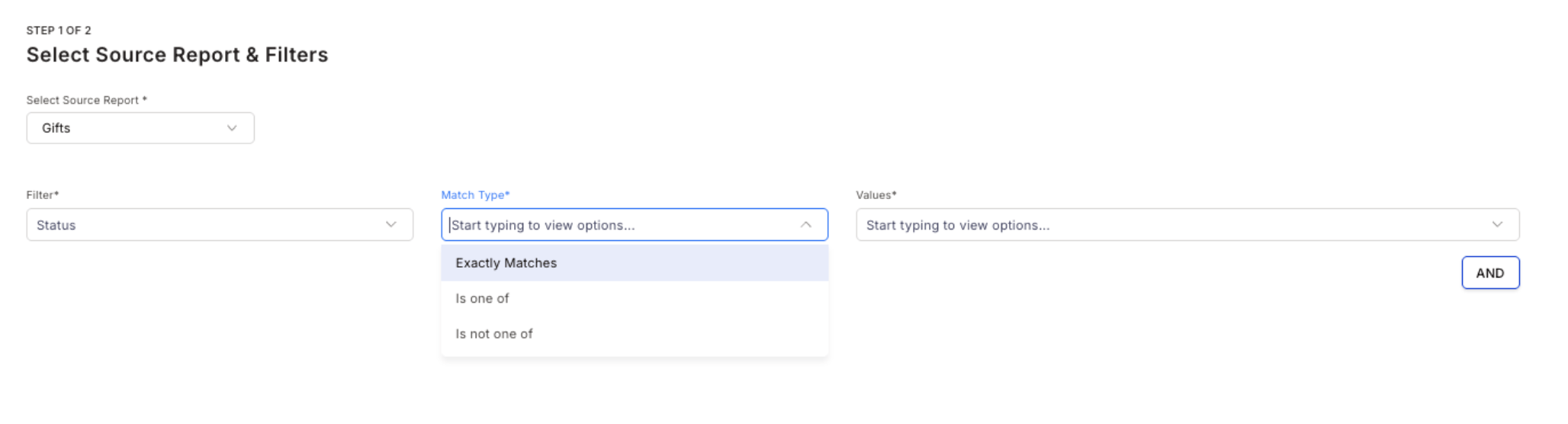
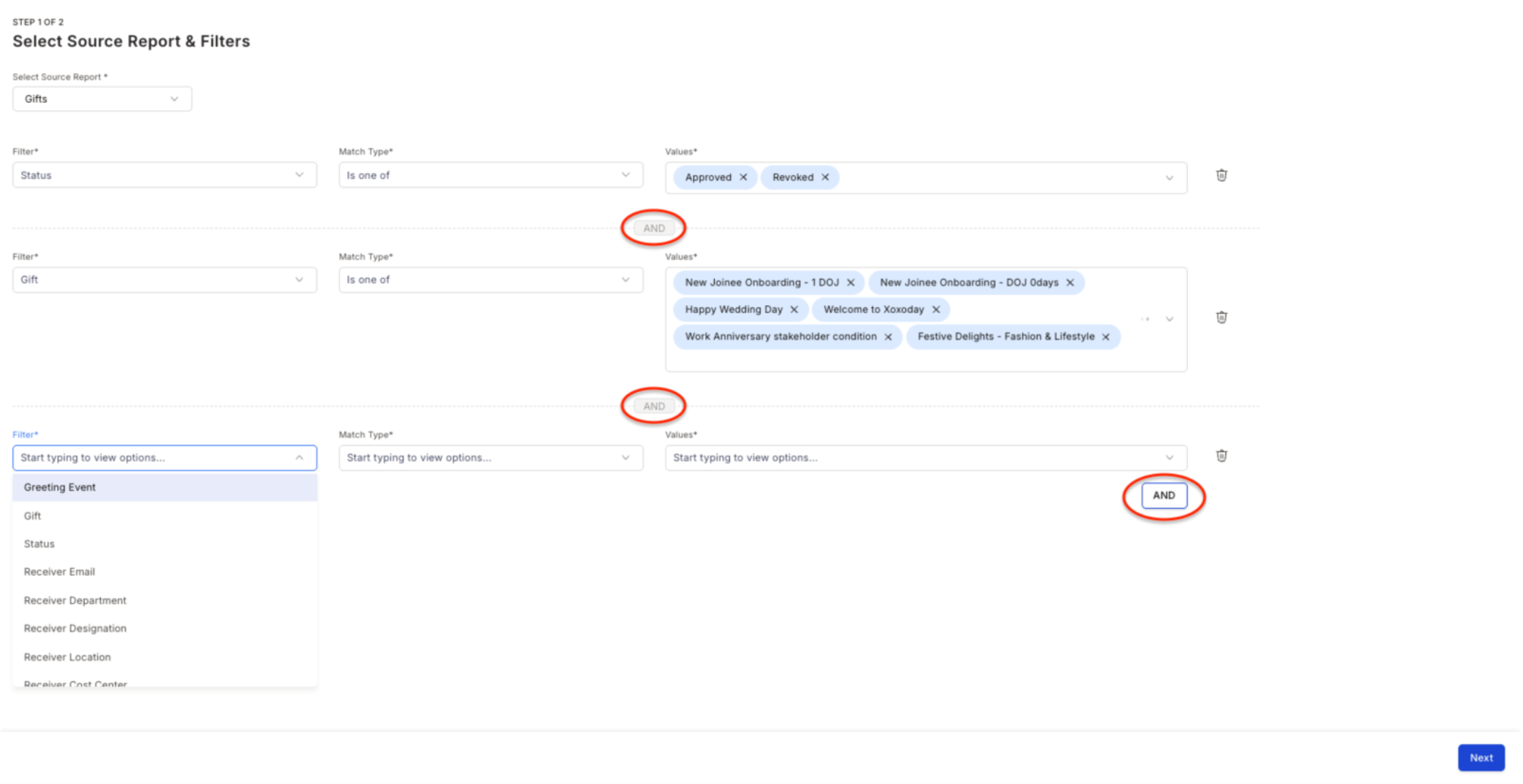
 Use the **filters** and add details. You can apply multiple filters to customise the report. Click **Next**.
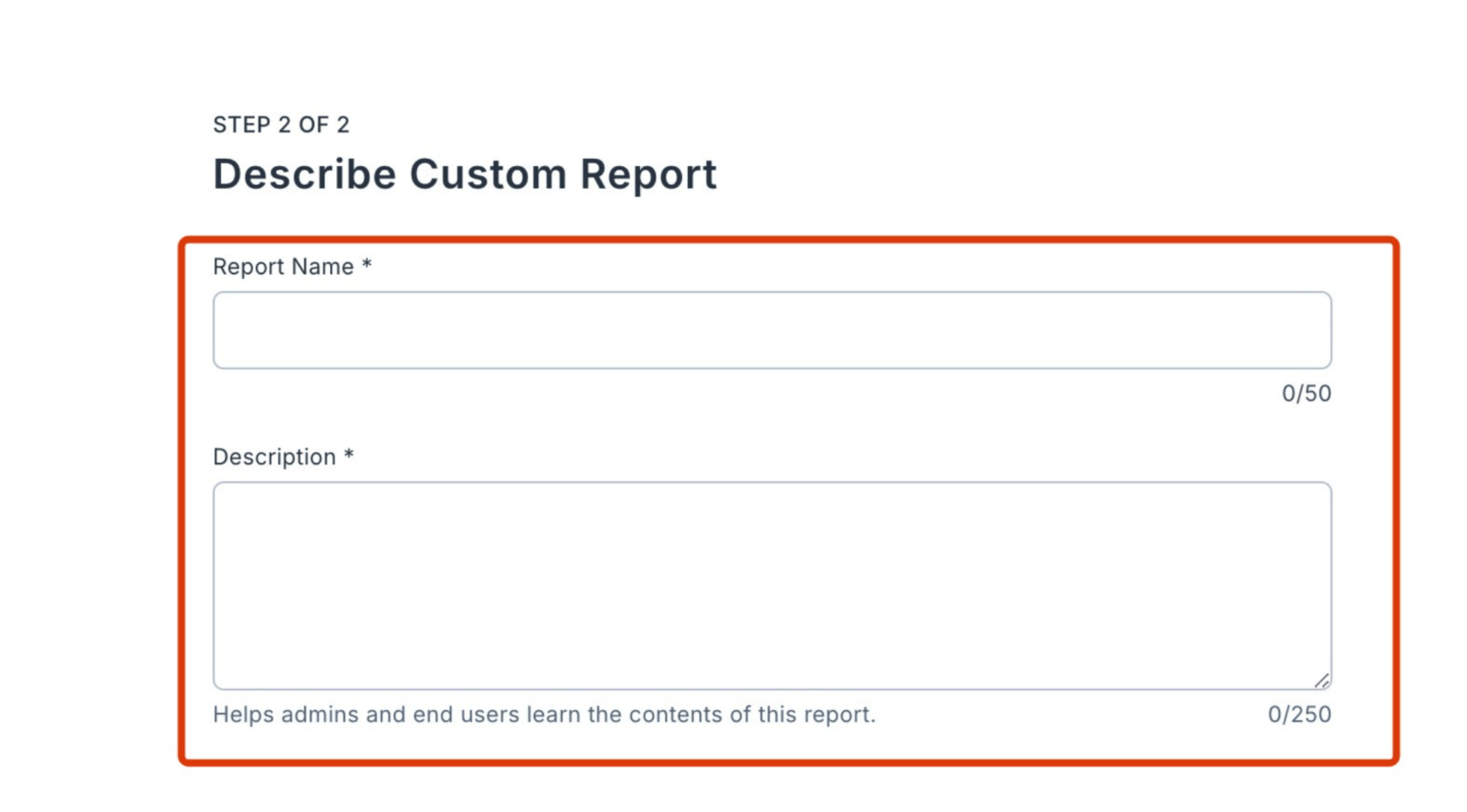
 Add a **custom name** and **description** for the report. Click **Create Report**.
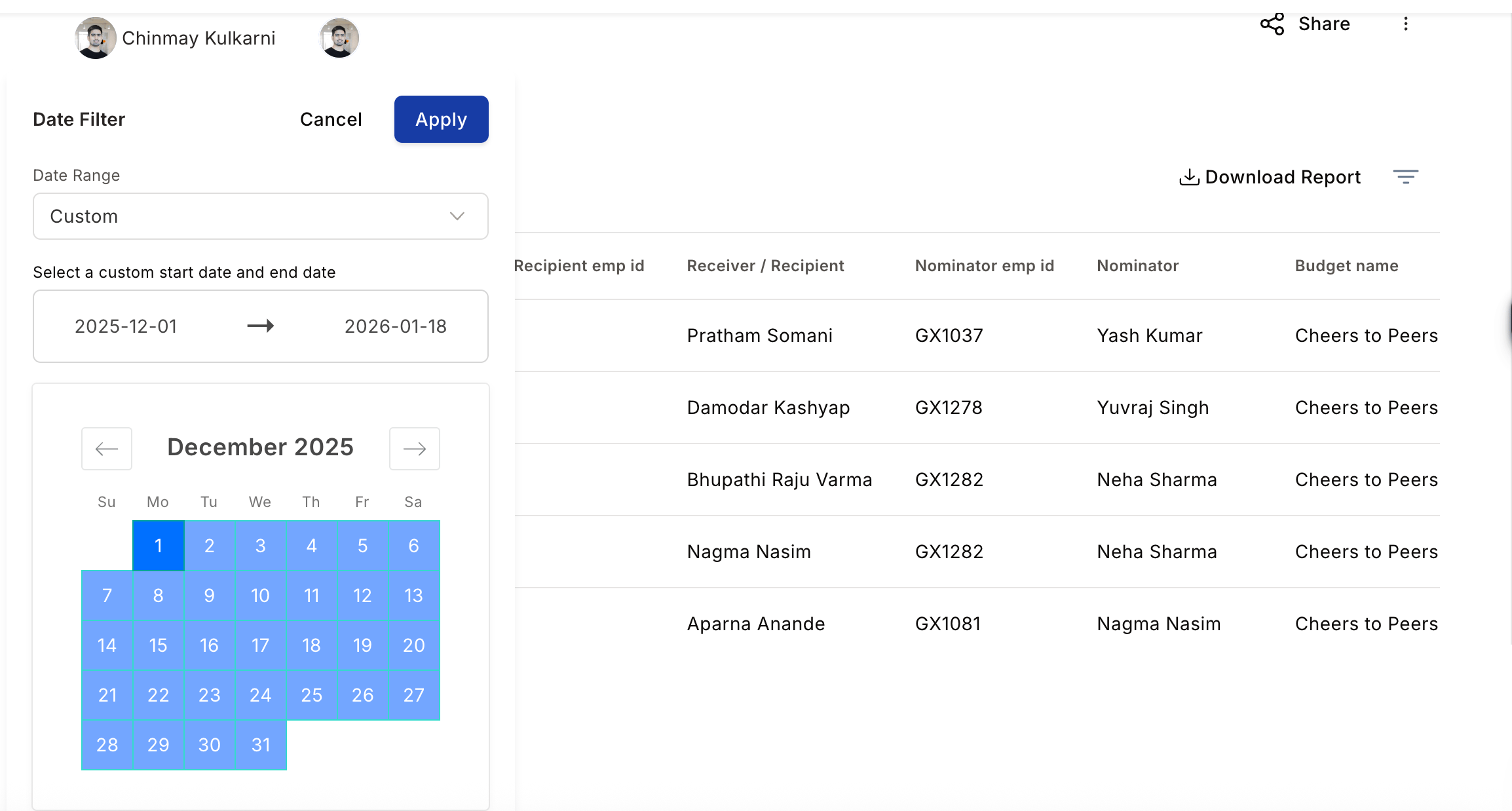
 Click on the report to expand it. Add a **custom date range** by selecting a **start** and **end date**. Apply the **filter** to view the report.
 ***
## FAQs
Yes. The platform includes a flexible report builder for creating custom or ad-hoc reports. Admins can define filters, select metrics, and customise data views. Reports can be saved for recurring use or exported for offline analysis, helping organisations track dynamic metrics like campaign participation or department-specific reward utilisation.
Yes. Click the **share icon** on any saved custom report and enter the recipient's details. They will receive access to view the report with the same filters and configuration you set.
Custom reports can be built from the following sources: Awards, Gifts, Nominations, Budget, Redemption, Reward based taxation, and Redemption based taxation.
## Related
Overview of all report types available in Empuls.
Export raw logs that feed custom report source data.
Control which roles can create and view custom reports.
Pre-built budget analytics for quick insights.
***
## FAQs
Yes. The platform includes a flexible report builder for creating custom or ad-hoc reports. Admins can define filters, select metrics, and customise data views. Reports can be saved for recurring use or exported for offline analysis, helping organisations track dynamic metrics like campaign participation or department-specific reward utilisation.
Yes. Click the **share icon** on any saved custom report and enter the recipient's details. They will receive access to view the report with the same filters and configuration you set.
Custom reports can be built from the following sources: Awards, Gifts, Nominations, Budget, Redemption, Reward based taxation, and Redemption based taxation.
## Related
Overview of all report types available in Empuls.
Export raw logs that feed custom report source data.
Control which roles can create and view custom reports.
Pre-built budget analytics for quick insights.