> ## Documentation Index
> Fetch the complete documentation index at: https://help-empuls.xoxoday.com/llms.txt
> Use this file to discover all available pages before exploring further.
# Budget report
> Monitor budget allocation, utilisation, and points movement across your organisation's reward programmes.
The budget report provides essential transparency into the allocation and utilisation of funds across your organisation. It is designed to help Super Admins and finance teams monitor spending health and ensure reward programmes stay within their financial parameters.
To access these insights, navigate to **Admin Hub → Reports → Budget Report**.
***
## Navigation and customisation
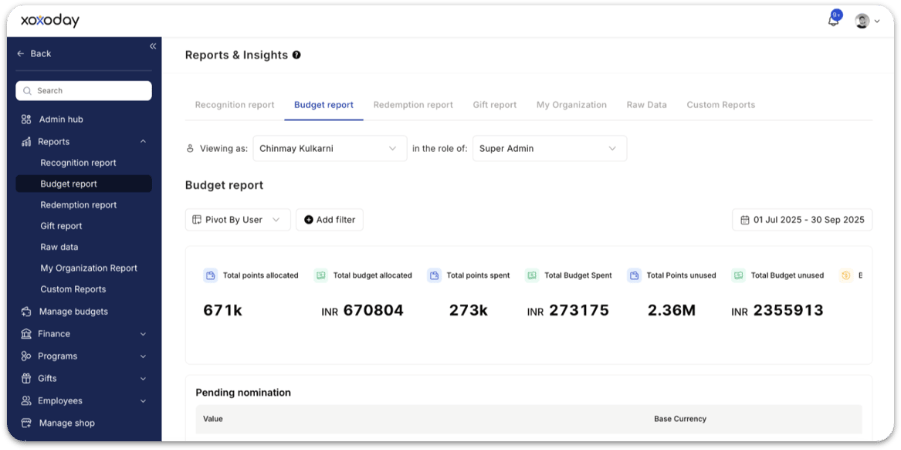
* **Filter view:** Use the global drop-down menu to quickly switch between different reporting views or organisation levels.
* **Report options:** Tailor the data to your specific needs by **pivoting by user or department**. You can further refine the results by filtering for specific **Budgets** (e.g. Performance, Culture, or Long Service) or specific **Recipients**.
* **Date-based analysis:** Use the calendar icon to observe spending trends and budget depletion over a defined period.
***
## Key budget metrics
The top summary bar provides a snapshot of your organisation's current reward budget status:
* **Total points allocated** — Overall points assigned to all budget owners.
* **Total budget allocated (value)** — Monetary equivalent of all assigned points.
* **Total points spent** — Total points already given out through recognition or awards.
* **Total budget spent (value)** — Monetary value of the spent points.
* **Total points unused** — Points still available for future recognition.
* **Total budget unused (value)** — Unspent monetary value.
* **Budget utilisation %** — Percentage of total budget that has been used so far.
This gives leadership and finance a real-time understanding of budget health.
**Pending nominations (value)**
If your organisation uses approval-based nominations, this section displays:
* Total value of nominations pending approval
* Base currency used
This helps admins anticipate upcoming spend and maintain financial control.
 ***
## Budget utilisation by user
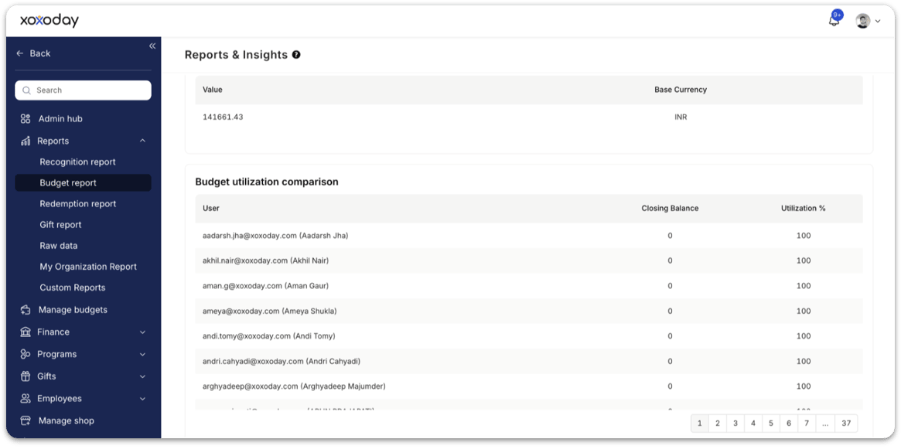
This table compares how individual budget owners are using their assigned reward budgets. For each user, the report shows:
* User name / email
* **Closing balance** — Points still available with the owner
* **Utilisation %** — How much of their budget they have actually used
This identifies:
* Budget owners who are highly active
* Managers who are not utilising their recognition budget
* Teams that may need budget top-ups
* Areas where training or nudges may be needed
***
## Budget utilisation by user
This table compares how individual budget owners are using their assigned reward budgets. For each user, the report shows:
* User name / email
* **Closing balance** — Points still available with the owner
* **Utilisation %** — How much of their budget they have actually used
This identifies:
* Budget owners who are highly active
* Managers who are not utilising their recognition budget
* Teams that may need budget top-ups
* Areas where training or nudges may be needed
 ***
## Points movement summary
At the bottom, the report shows total movement of points across the system:
* **Points rewarded** — Total points actually given to employees
* **Points gifted** — Points distributed through gifting or campaigns
* **Points revoked** — Points that were withdrawn or cancelled
This helps maintain a complete audit trail of all budget-related transactions.
***
## Points movement summary
At the bottom, the report shows total movement of points across the system:
* **Points rewarded** — Total points actually given to employees
* **Points gifted** — Points distributed through gifting or campaigns
* **Points revoked** — Points that were withdrawn or cancelled
This helps maintain a complete audit trail of all budget-related transactions.
 **Why the budget report matters**
* **Complete visibility** — Understand who has budget, who is using it, and how much is still unspent.
* **Ensures fairness** — Spot departments or teams who are under-recognising or consistently running out of budget.
* **Improves financial planning** — Finance and HR can plan future allocations based on actual usage patterns.
* **Supports governance** — Pending nominations + revocations + utilisation = clear, compliant processes.
* **Helps reduce waste** — Unused budget and low-activity areas highlight where reallocations may be needed.
**How admins use this report**
* **HR teams** — Track recognition adoption across managers.
* **Finance teams** — Monitor spend and unused value.
* **Programme owners** — Adjust budgets, set top-ups, or modify rules.
* **Leadership** — Understand how recognition is driving engagement.
***
## FAQs
Points balance reports include data such as the source of the budget, points allocated, time of allocation, points expired or destroyed, new points added, unused points carried forward, total points rewarded and gifted, points revoked, and the remaining unused points. These details help administrators monitor usage, track budget adherence, and plan future allocation effectively.
Yes. Reward reports capture the value of redemptions in the applicable local or configured currency, enabling precise tracking of reward costs and budgets across regions. The platform supports base and local currency views, dual currency reporting, and flexible export options.
## Related
Overview of all report types available in Empuls.
Configure and manage the budgets that appear in this report.
See how recognition flows and who is using their budget.
Track how employees redeem the points they earn.
**Why the budget report matters**
* **Complete visibility** — Understand who has budget, who is using it, and how much is still unspent.
* **Ensures fairness** — Spot departments or teams who are under-recognising or consistently running out of budget.
* **Improves financial planning** — Finance and HR can plan future allocations based on actual usage patterns.
* **Supports governance** — Pending nominations + revocations + utilisation = clear, compliant processes.
* **Helps reduce waste** — Unused budget and low-activity areas highlight where reallocations may be needed.
**How admins use this report**
* **HR teams** — Track recognition adoption across managers.
* **Finance teams** — Monitor spend and unused value.
* **Programme owners** — Adjust budgets, set top-ups, or modify rules.
* **Leadership** — Understand how recognition is driving engagement.
***
## FAQs
Points balance reports include data such as the source of the budget, points allocated, time of allocation, points expired or destroyed, new points added, unused points carried forward, total points rewarded and gifted, points revoked, and the remaining unused points. These details help administrators monitor usage, track budget adherence, and plan future allocation effectively.
Yes. Reward reports capture the value of redemptions in the applicable local or configured currency, enabling precise tracking of reward costs and budgets across regions. The platform supports base and local currency views, dual currency reporting, and flexible export options.
## Related
Overview of all report types available in Empuls.
Configure and manage the budgets that appear in this report.
See how recognition flows and who is using their budget.
Track how employees redeem the points they earn.