> ## Documentation Index
> Fetch the complete documentation index at: https://help-empuls.xoxoday.com/llms.txt
> Use this file to discover all available pages before exploring further.
# Manage leaderboards
> Build Empuls leaderboards with custom scoring rules, manage categories and exclusions, control visibility, and drive engagement through gamified competitions.
Leaderboards in Empuls turn employee engagement into a transparent, gamified experience. Employees earn engagement credits for specific platform actions (recognising peers, completing learning modules, participating in wellness challenges) and their cumulative scores determine their ranking. Admins configure which activities earn credits, how frequently scores reset, how many winners to spotlight, and whether to attach monetary milestone rewards. This page covers how to create and manage custom leaderboards, including the Gamezone feature for milestone-based incentives.
## Video walkthrough
## How leaderboards work
Every action an employee takes on Empuls can be associated with an **engagement credit score**. These are non-monetary points that measure participation — they are separate from the reward points employees redeem in the shop.
* Admins assign credit values to specific events (posting recognition, welcoming a new joiner, completing a profile, etc.).
* Employees accumulate credits over a game period (monthly, quarterly, or annually).
* Their total score ranks them against peers in the leaderboard's participant group.
* At the end of each period, the top-ranked employees are announced on the group feed.
* If milestone-based rewards are configured, employees can claim or automatically receive reward points when their score crosses defined thresholds.
## Create a custom leaderboard
Go to **Admin Dashboard > Programs > Manage Leaderboard** and click **+ Create Leaderboard**.
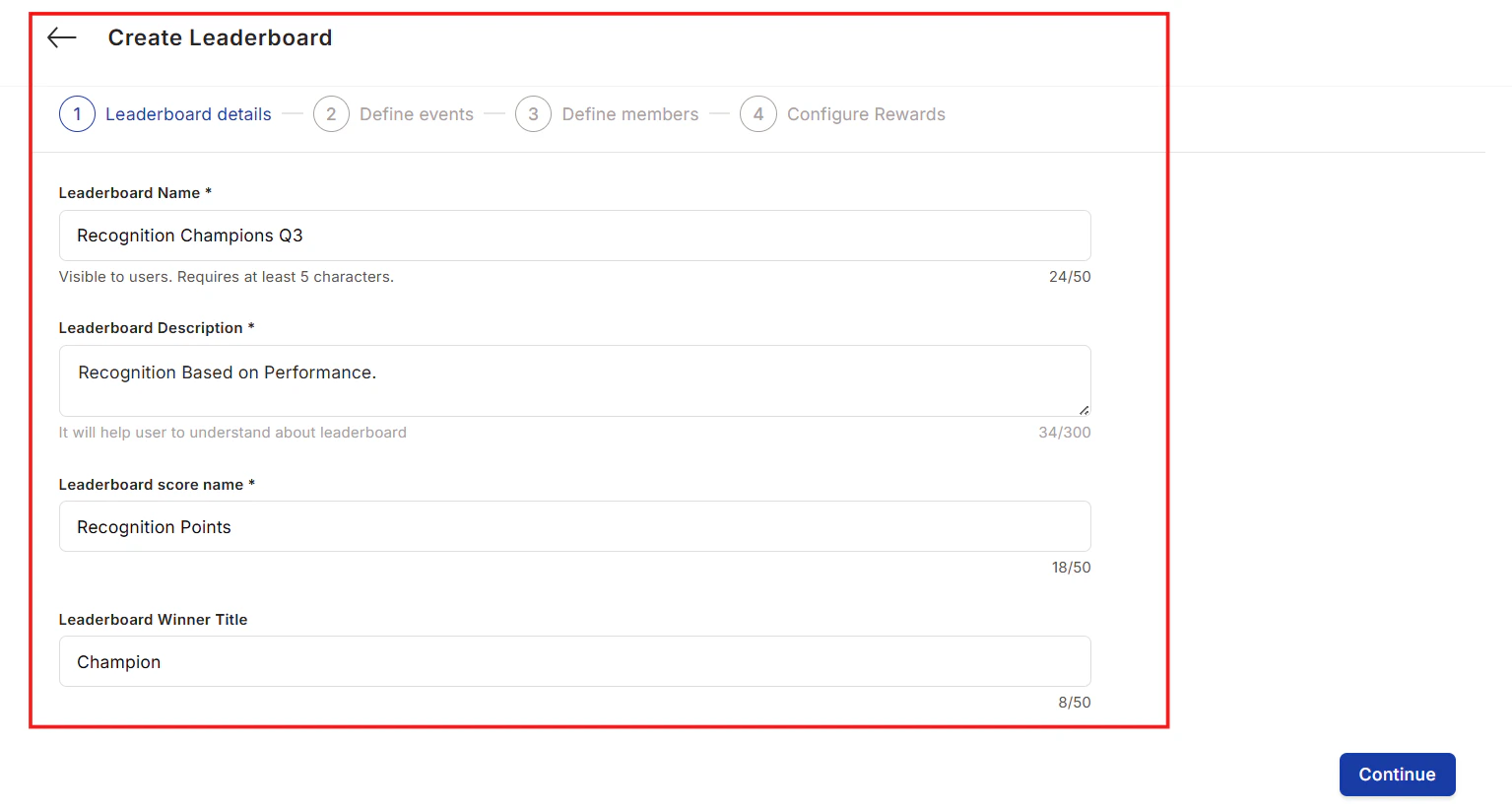
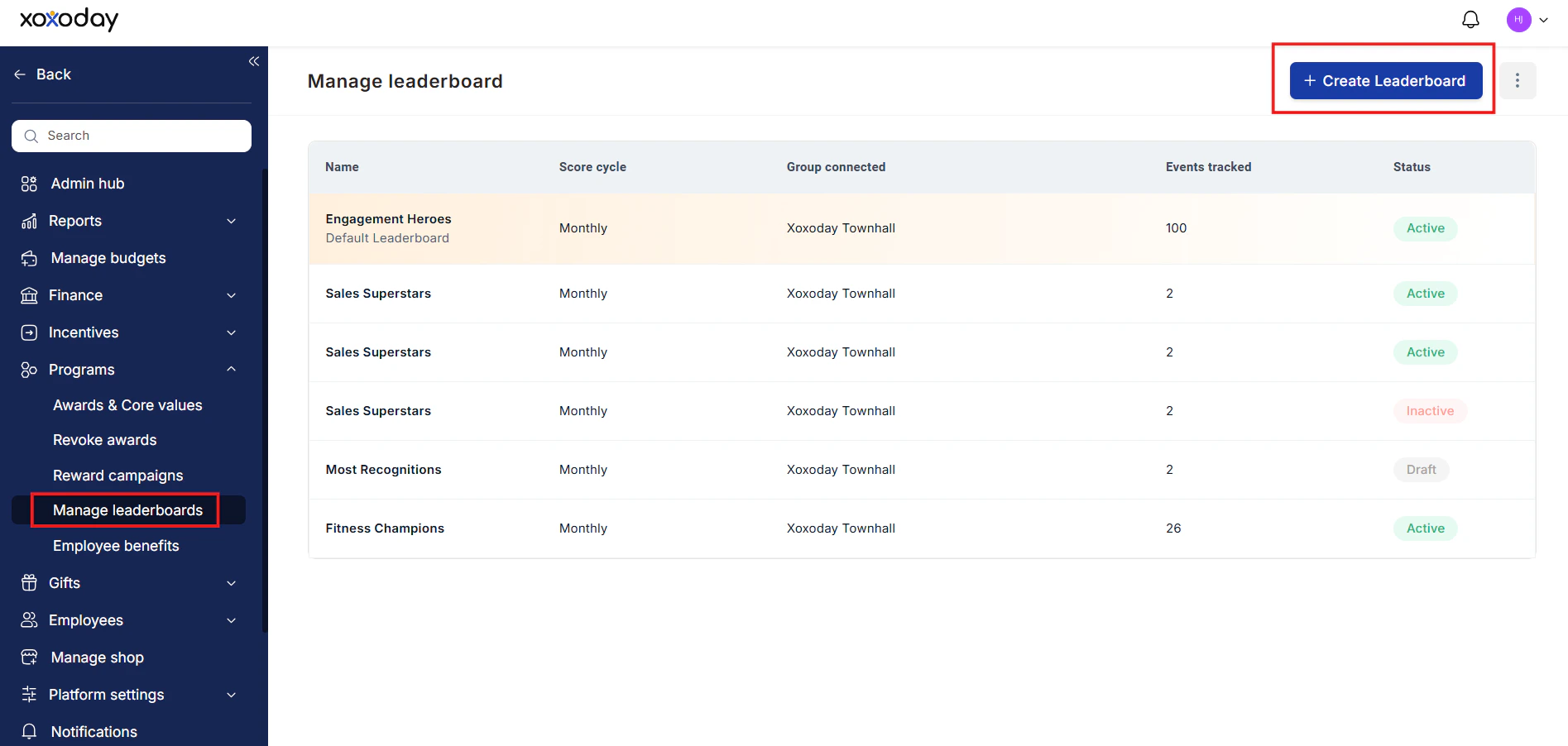 Fill in the following fields:
* **Leaderboard Name:** A descriptive name visible to employees (e.g., "Recognition Champions Q3").
* **Description:** A brief explanation of the leaderboard's purpose.
* **Score Name:** The label shown to employees for their accumulated score (e.g., "Stars", "Recognition Points").
* **Winner Title:** The label for the top-ranked employee (e.g., "Champion").
Fill in the following fields:
* **Leaderboard Name:** A descriptive name visible to employees (e.g., "Recognition Champions Q3").
* **Description:** A brief explanation of the leaderboard's purpose.
* **Score Name:** The label shown to employees for their accumulated score (e.g., "Stars", "Recognition Points").
* **Winner Title:** The label for the top-ranked employee (e.g., "Champion").
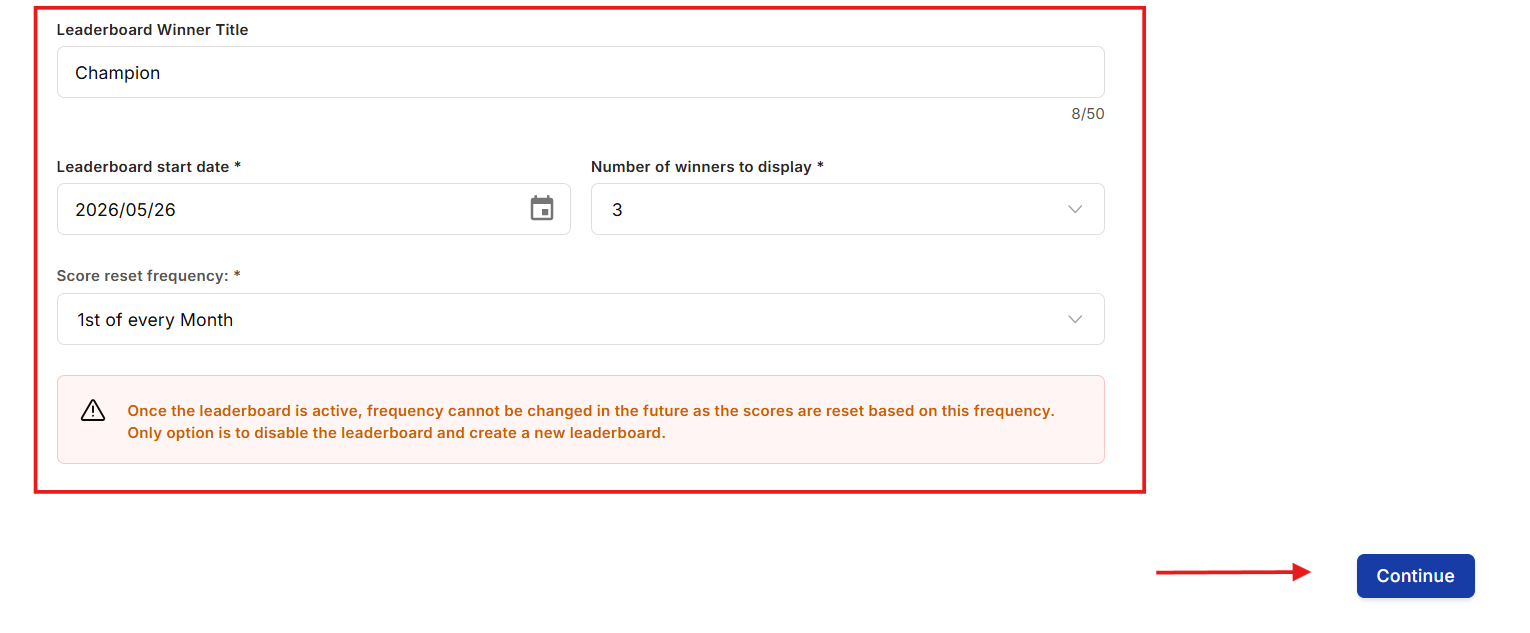
 * **Start Date:** When the leaderboard becomes active.
* **Number of Winners:** How many top performers to highlight in the winner announcement.
* **Reset Frequency:** How often scores reset — monthly (1st of every month), quarterly (1st of every quarter), or annually. Choose carefully: the reset frequency cannot be changed after the leaderboard is active.
* **Start Date:** When the leaderboard becomes active.
* **Number of Winners:** How many top performers to highlight in the winner announcement.
* **Reset Frequency:** How often scores reset — monthly (1st of every month), quarterly (1st of every quarter), or annually. Choose carefully: the reset frequency cannot be changed after the leaderboard is active.
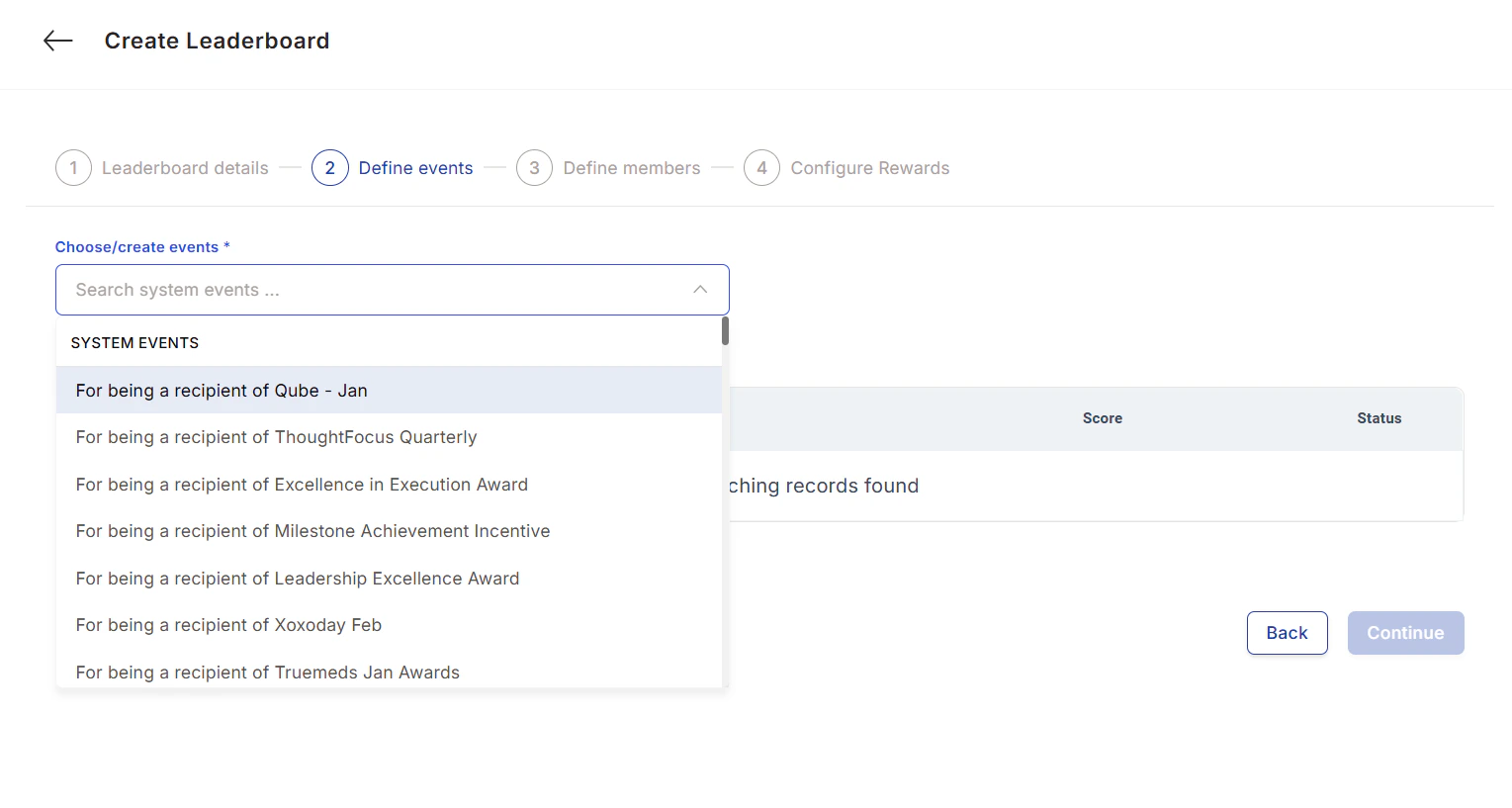
 Add at least two events that award credits. You can select from events already configured for your default leaderboard or create new custom events.
 To create a custom event:
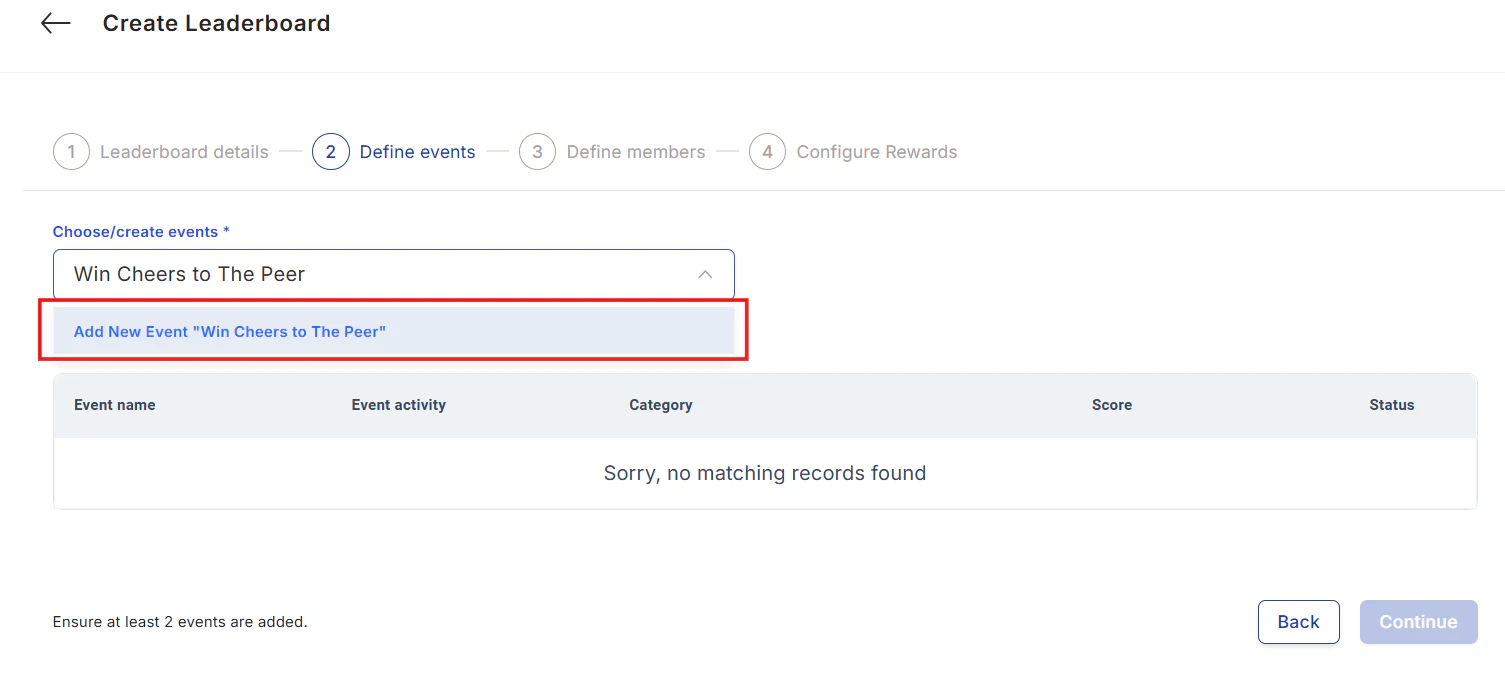
1. Enter the event name and click **Add New Event**.
To create a custom event:
1. Enter the event name and click **Add New Event**.
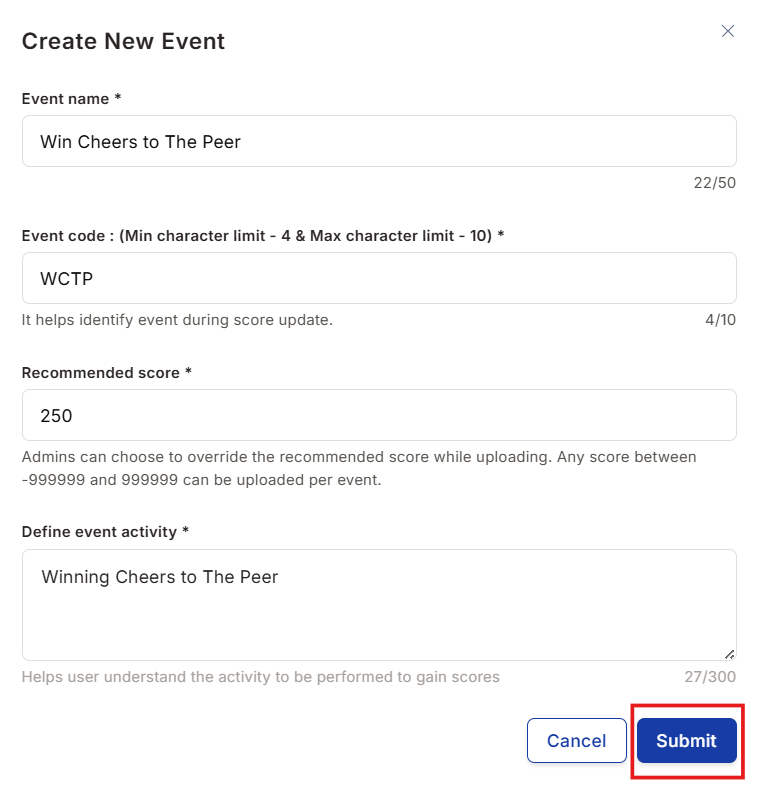
 2. Enter an **Event Code** (a short identifier used for bulk score uploads), the **Recommended Score**, and the **Event Type**.
3. Click **Submit**.
2. Enter an **Event Code** (a short identifier used for bulk score uploads), the **Recommended Score**, and the **Event Type**.
3. Click **Submit**.
 Credit values for any event can be edited later without rebuilding the entire leaderboard.
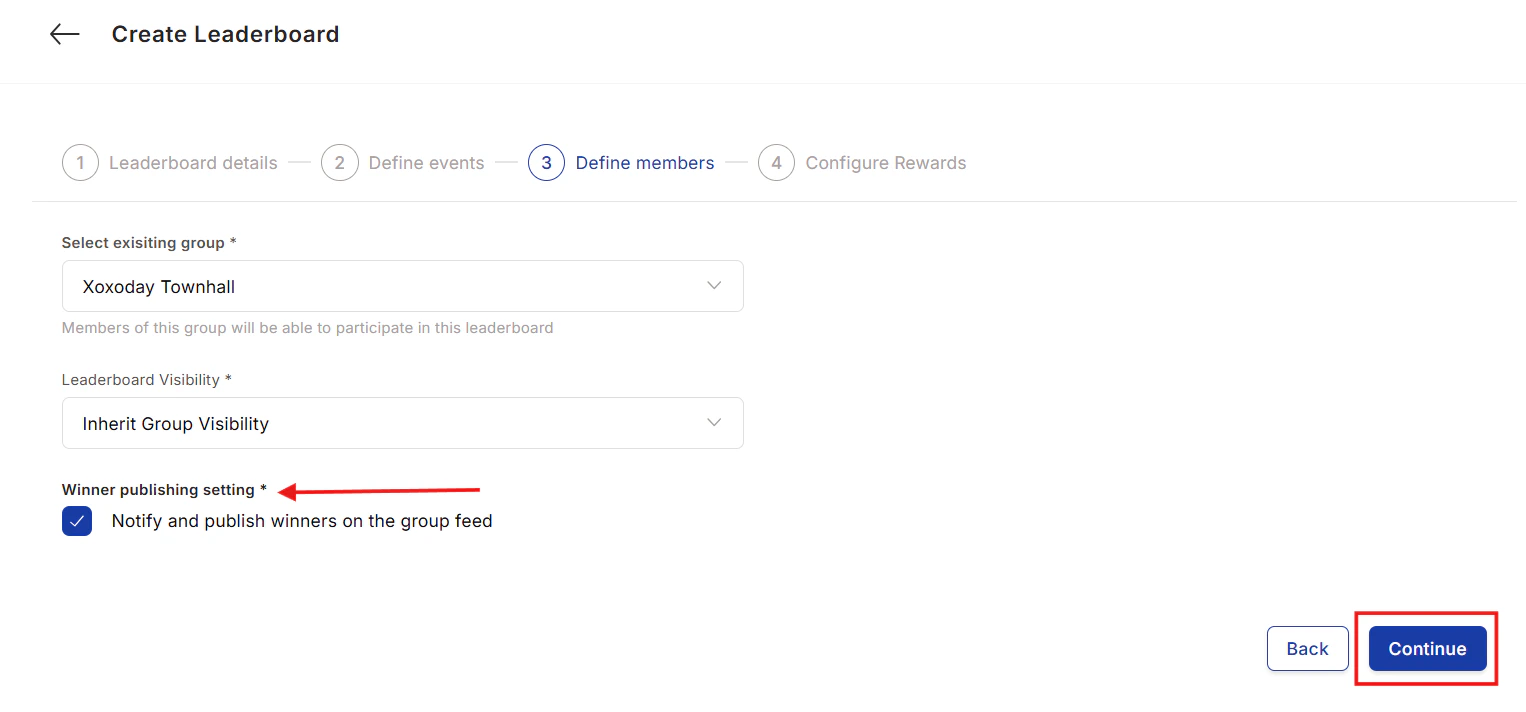
Use the dropdown to select the **group** whose members will participate in this leaderboard. You can also check **Winner Publishing Setting** to automatically post winner announcements on the selected group's feed.
Credit values for any event can be edited later without rebuilding the entire leaderboard.
Use the dropdown to select the **group** whose members will participate in this leaderboard. You can also check **Winner Publishing Setting** to automatically post winner announcements on the selected group's feed.
 If you want to attach monetary rewards to leaderboard performance, click **Yes** when prompted. You'll set up milestone-based rewards in the next step. If you only want a non-monetary leaderboard (ranking and recognition only), click **No** to finish.
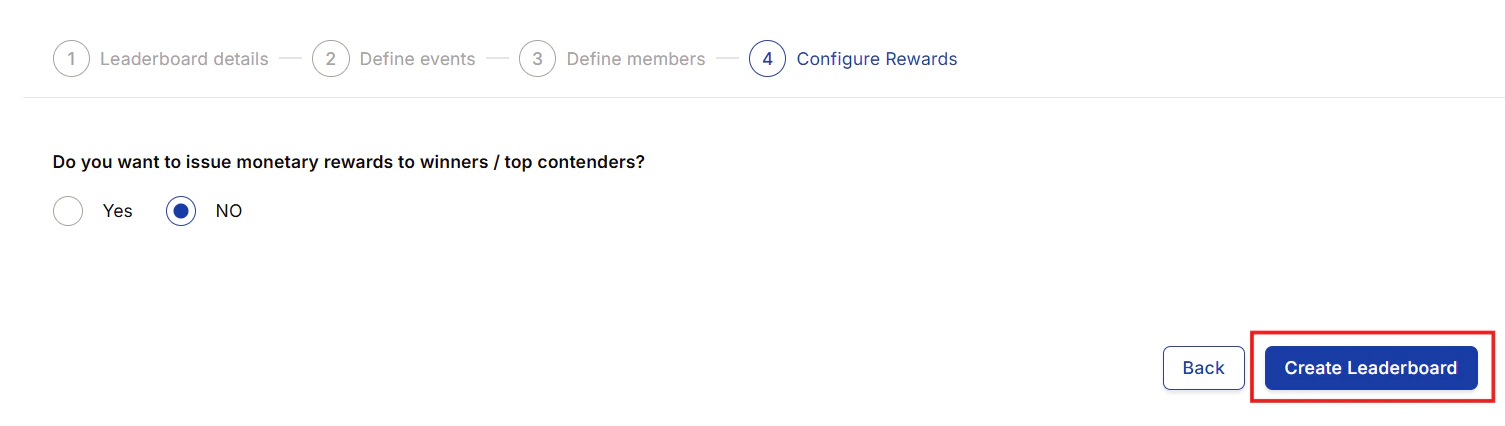 Click **Create**. The leaderboard is created in an inactive state. Toggle the activation switch to make it live for participants.
 ## Set up milestone-based rewards
Milestone-based rewards attach monetary reward points to score thresholds on an active leaderboard. When employees hit a milestone score, they receive points — either automatically or by claiming them manually.
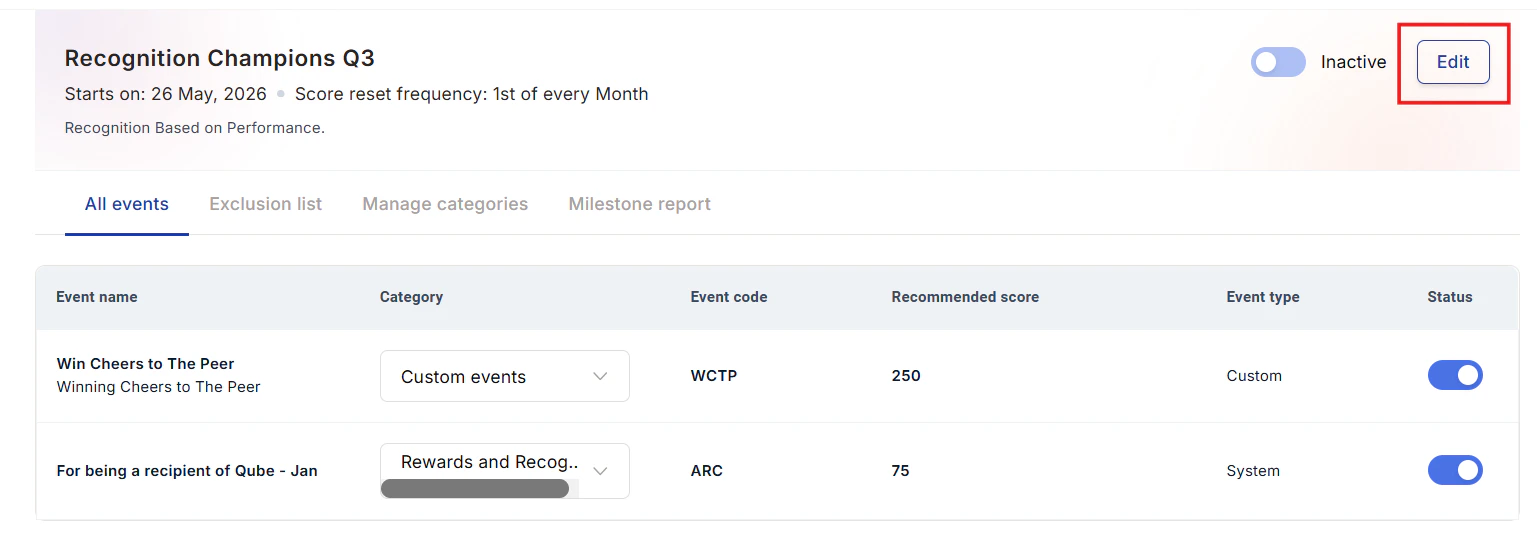
Go to **Admin Dashboard > Programs > Manage Leaderboard**, click the leaderboard you want to modify, and select the **Edit** option.
## Set up milestone-based rewards
Milestone-based rewards attach monetary reward points to score thresholds on an active leaderboard. When employees hit a milestone score, they receive points — either automatically or by claiming them manually.
Go to **Admin Dashboard > Programs > Manage Leaderboard**, click the leaderboard you want to modify, and select the **Edit** option.
 Click **Continue** through the Leaderboard Details and Define Events steps, and through the Define Members step, until you reach **Configure Rewards**. Select **Yes**.
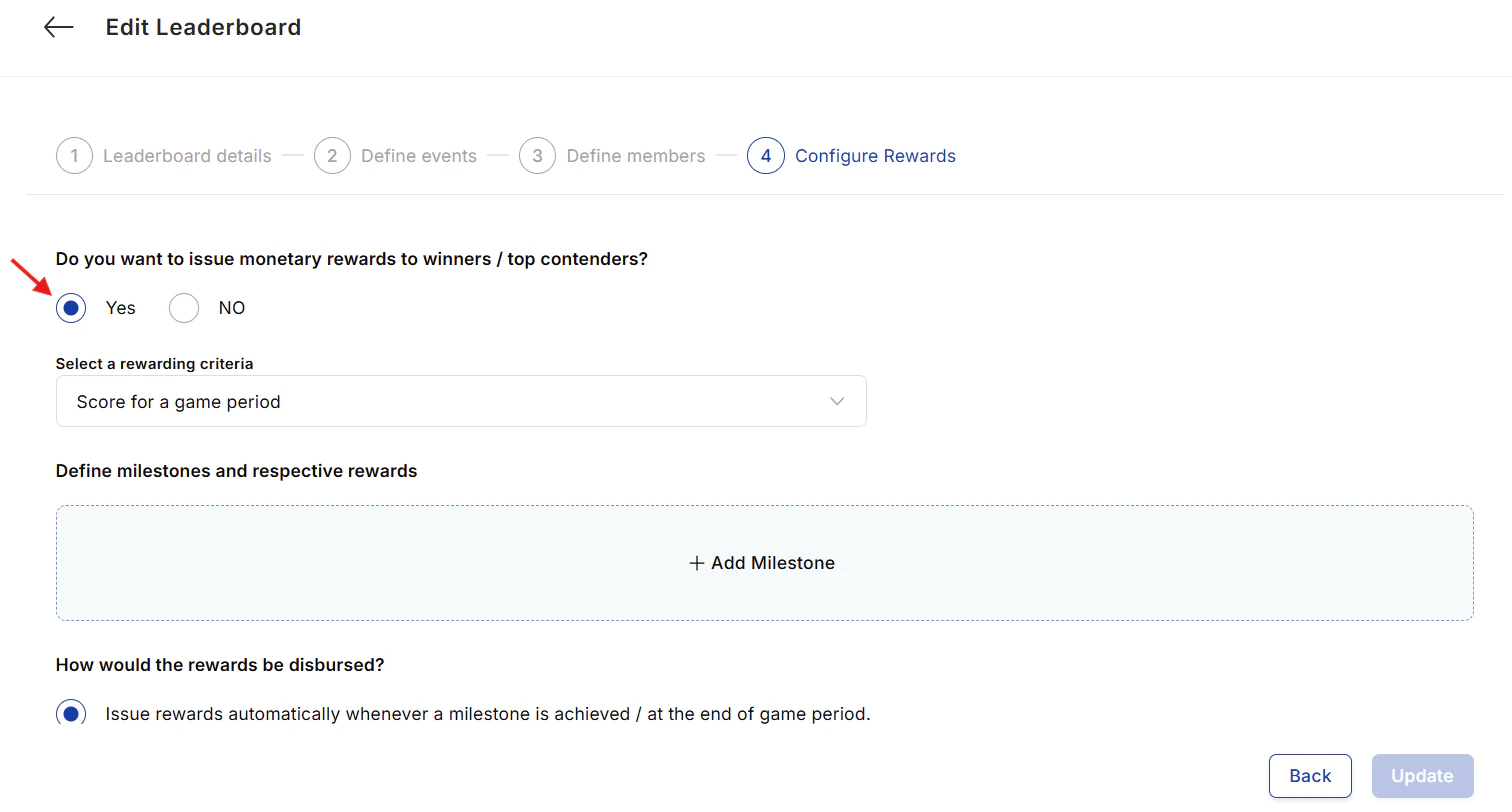 Select how milestone scores are measured:
* **Score for a game period:** Milestones are evaluated at the end of each reset period. Rewards are issued automatically when a milestone is achieved at period end.
* **Score across multiple game periods:** The leaderboard tracks cumulative scores across several periods. You choose whether to issue rewards automatically when a milestone is reached, or allow employees to claim rewards manually.
Click **+ Add Milestone**. For each milestone, enter:
* **Milestone Name** (e.g., "Silver Achiever")
* **Score threshold** (the credit score at which this milestone is unlocked)
* **Description**
* **Email subject line and body** (the notification message sent to the employee)
* Whether to send a gift or award alongside the notification
Add as many milestones as needed, from entry-level to mastery.
For manually claimed rewards, you can optionally check **Reset score to zero upon claiming**. If checked, the employee's score resets after each claim and they work towards the next milestone from zero. If unchecked, scores accumulate continuously toward the final milestone.
Click **Update** to save the milestone configuration.
Employees see a "Claim Rewards" icon next to each achieved milestone under **Programs > Leaderboard > Milestone**. For automatically issued rewards, points are credited without any action needed.
## Update leaderboard scores with custom events
For events that Empuls cannot track automatically (e.g., steps in a fitness challenge tracked by a wearable app), you can upload score data manually.
Go to **Admin Dashboard > Programs > Manage Leaderboard** and select the leaderboard.
Click **Update data for custom events**. Download the CSV template, fill in employee identifiers and the event code with corresponding scores, and upload the file. Each event code for a user requires a separate row.
Select how milestone scores are measured:
* **Score for a game period:** Milestones are evaluated at the end of each reset period. Rewards are issued automatically when a milestone is achieved at period end.
* **Score across multiple game periods:** The leaderboard tracks cumulative scores across several periods. You choose whether to issue rewards automatically when a milestone is reached, or allow employees to claim rewards manually.
Click **+ Add Milestone**. For each milestone, enter:
* **Milestone Name** (e.g., "Silver Achiever")
* **Score threshold** (the credit score at which this milestone is unlocked)
* **Description**
* **Email subject line and body** (the notification message sent to the employee)
* Whether to send a gift or award alongside the notification
Add as many milestones as needed, from entry-level to mastery.
For manually claimed rewards, you can optionally check **Reset score to zero upon claiming**. If checked, the employee's score resets after each claim and they work towards the next milestone from zero. If unchecked, scores accumulate continuously toward the final milestone.
Click **Update** to save the milestone configuration.
Employees see a "Claim Rewards" icon next to each achieved milestone under **Programs > Leaderboard > Milestone**. For automatically issued rewards, points are credited without any action needed.
## Update leaderboard scores with custom events
For events that Empuls cannot track automatically (e.g., steps in a fitness challenge tracked by a wearable app), you can upload score data manually.
Go to **Admin Dashboard > Programs > Manage Leaderboard** and select the leaderboard.
Click **Update data for custom events**. Download the CSV template, fill in employee identifiers and the event code with corresponding scores, and upload the file. Each event code for a user requires a separate row.
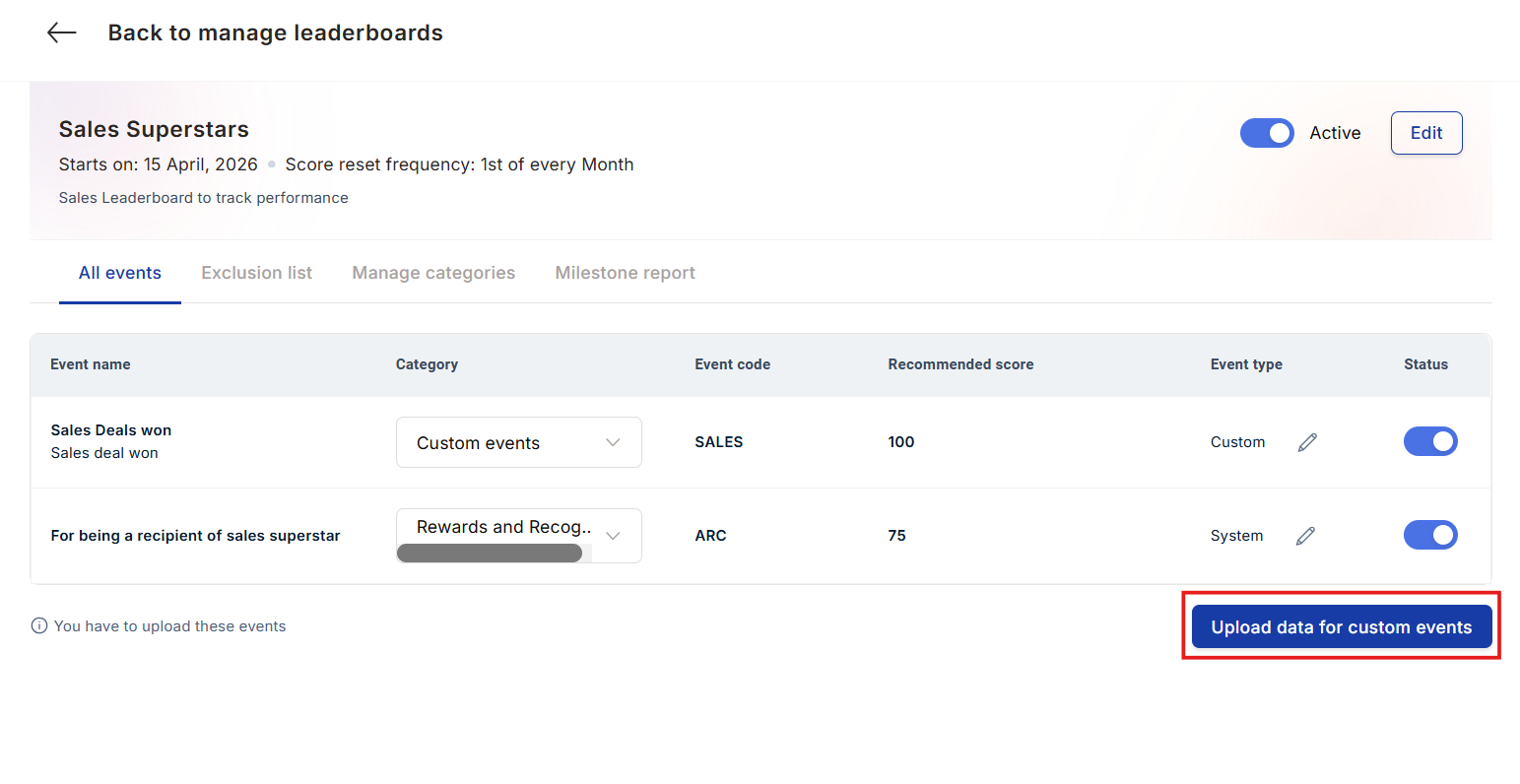 Review the validation summary, then click **Update Score** to apply the uploaded scores.
## Edit event credits
You can adjust the credit value assigned to any event without rebuilding the leaderboard.
Navigate to **Admin Dashboard > Programs > Manage Leaderboard > \[Leaderboard Name] > Edit Leaderboard > Define Events**, then click **List of Events** to see all configured events. Click the edit icon next to any event, adjust the score, and click **Submit**.
## Manage leaderboard categories
Categories let you group events into themes (e.g., "Wellness", "Learning", "Recognition"). Employees can filter their leaderboard view by category.
Navigate to **Admin Dashboard > Programs > Manage Leaderboard > Manage Categories**. Click **Create Category**, enter a name and description, and click **Save**. Use the pen icon to edit existing categories and the status toggle to enable or disable them.
## Exclude users from rankings
Users added to the exclusion list are not ranked or incentivised for any activity on Empuls. This is useful for HR team members who monitor engagement but should not compete.
Navigate to **Admin Dashboard > Programs > Manage Leaderboard > \[Leaderboard Name] > Exclusion List**. Enter the user's name and click **Save**. To remove a user from the exclusion list, hover over their name and click the delete icon.
## Manage leaderboard visibility
Control which leaderboards appear as widgets on employees' home pages.
Navigate to **Admin Dashboard > Programs > Manage Leaderboard**, click the three-dot icon at the top of the screen, and select **Leaderboard Visibility Settings**.
Check the boxes next to the leaderboards you want to display on employee home pages, and uncheck those you want to hide. Click **Update Leaderboard Visibility**.
## Publish results to Slack
Empuls can automatically post leaderboard results to one or more Slack channels at the end of each game period. Configure the target channel(s) in your Slack integration settings. Contact your Empuls account manager to enable multi-channel publishing.
## Leaderboard use cases
Track who recognises peers most actively. Showcase top contributors who embody core values through frequent appreciation.
Reward actions like posting, commenting, welcoming new joiners, and completing profiles. Reset monthly to keep competition fresh.
Track daily steps, calorie burn, or wellness challenge progress. Run team vs. team competitions during health awareness months.
Award credits for course completions, certifications, and skill modules. Run quarterly "Learning Champion" programmes.
Highlight top performers in revenue, project delivery, or quality. Link Empuls events to CRM milestones.
Track volunteer hours, funds raised, and causes supported. Make social impact visible and celebrate top contributors.
Yes. Add them to the Exclusion List under the leaderboard settings. Excluded users are not ranked or incentivised for any activity on Empuls. You can remove them from the list at any time.
You can edit the leaderboard name, description, score name, winner title, and event credit values. You cannot change the start date, reset frequency, or the participant group after the leaderboard is active. To change those settings, disable the leaderboard and create a new one.
Winners (the number you configured) are announced according to the leaderboard's reset frequency. Announcements appear on the feed of the group selected when creating the leaderboard.
Employees can view rankings under **Programs > Leaderboard** in the left sidebar. If visibility is enabled, a leaderboard widget also appears on the home page right-hand side.
Yes. Create a group containing only those employees, and select that group when configuring the leaderboard. Winner announcements will appear only in that group's feed.
Yes. Go to **Manage Categories** within the leaderboard and create any category. You can then map existing events to the new category.
## Related
Learn how milestone rewards connect to leaderboard scores and use cases.
Create the awards that feed into recognition leaderboards.
Review the validation summary, then click **Update Score** to apply the uploaded scores.
## Edit event credits
You can adjust the credit value assigned to any event without rebuilding the leaderboard.
Navigate to **Admin Dashboard > Programs > Manage Leaderboard > \[Leaderboard Name] > Edit Leaderboard > Define Events**, then click **List of Events** to see all configured events. Click the edit icon next to any event, adjust the score, and click **Submit**.
## Manage leaderboard categories
Categories let you group events into themes (e.g., "Wellness", "Learning", "Recognition"). Employees can filter their leaderboard view by category.
Navigate to **Admin Dashboard > Programs > Manage Leaderboard > Manage Categories**. Click **Create Category**, enter a name and description, and click **Save**. Use the pen icon to edit existing categories and the status toggle to enable or disable them.
## Exclude users from rankings
Users added to the exclusion list are not ranked or incentivised for any activity on Empuls. This is useful for HR team members who monitor engagement but should not compete.
Navigate to **Admin Dashboard > Programs > Manage Leaderboard > \[Leaderboard Name] > Exclusion List**. Enter the user's name and click **Save**. To remove a user from the exclusion list, hover over their name and click the delete icon.
## Manage leaderboard visibility
Control which leaderboards appear as widgets on employees' home pages.
Navigate to **Admin Dashboard > Programs > Manage Leaderboard**, click the three-dot icon at the top of the screen, and select **Leaderboard Visibility Settings**.
Check the boxes next to the leaderboards you want to display on employee home pages, and uncheck those you want to hide. Click **Update Leaderboard Visibility**.
## Publish results to Slack
Empuls can automatically post leaderboard results to one or more Slack channels at the end of each game period. Configure the target channel(s) in your Slack integration settings. Contact your Empuls account manager to enable multi-channel publishing.
## Leaderboard use cases
Track who recognises peers most actively. Showcase top contributors who embody core values through frequent appreciation.
Reward actions like posting, commenting, welcoming new joiners, and completing profiles. Reset monthly to keep competition fresh.
Track daily steps, calorie burn, or wellness challenge progress. Run team vs. team competitions during health awareness months.
Award credits for course completions, certifications, and skill modules. Run quarterly "Learning Champion" programmes.
Highlight top performers in revenue, project delivery, or quality. Link Empuls events to CRM milestones.
Track volunteer hours, funds raised, and causes supported. Make social impact visible and celebrate top contributors.
Yes. Add them to the Exclusion List under the leaderboard settings. Excluded users are not ranked or incentivised for any activity on Empuls. You can remove them from the list at any time.
You can edit the leaderboard name, description, score name, winner title, and event credit values. You cannot change the start date, reset frequency, or the participant group after the leaderboard is active. To change those settings, disable the leaderboard and create a new one.
Winners (the number you configured) are announced according to the leaderboard's reset frequency. Announcements appear on the feed of the group selected when creating the leaderboard.
Employees can view rankings under **Programs > Leaderboard** in the left sidebar. If visibility is enabled, a leaderboard widget also appears on the home page right-hand side.
Yes. Create a group containing only those employees, and select that group when configuring the leaderboard. Winner announcements will appear only in that group's feed.
Yes. Go to **Manage Categories** within the leaderboard and create any category. You can then map existing events to the new category.
## Related
Learn how milestone rewards connect to leaderboard scores and use cases.
Create the awards that feed into recognition leaderboards.