> ## Documentation Index
> Fetch the complete documentation index at: https://help-empuls.xoxoday.com/llms.txt
> Use this file to discover all available pages before exploring further.
# Spot awards
> Create and configure spot awards — the instant, no-approval recognition tool in Empuls — and link core values to recognition.
With Empuls, you can create awards and value cards relevant to your R\&R programme needs and instantly distribute them across the organisation.
## Creating a new award
Go to the **Admin Dashboard** by clicking **Reports and Admin** at the bottom of the left sidebar.
Navigate to **Programs > Awards & Core Values > Create Award**.
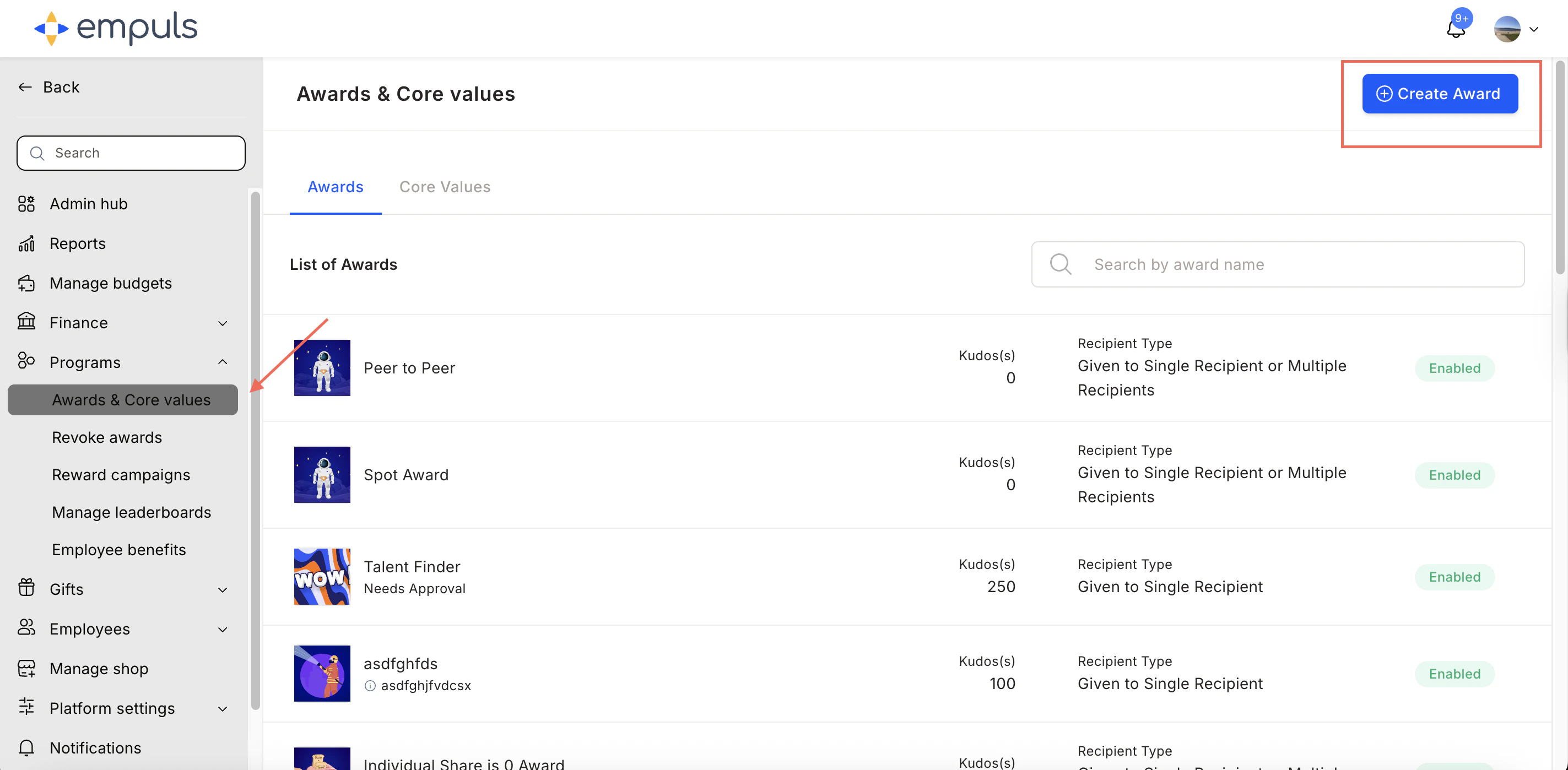 Choose the award type:
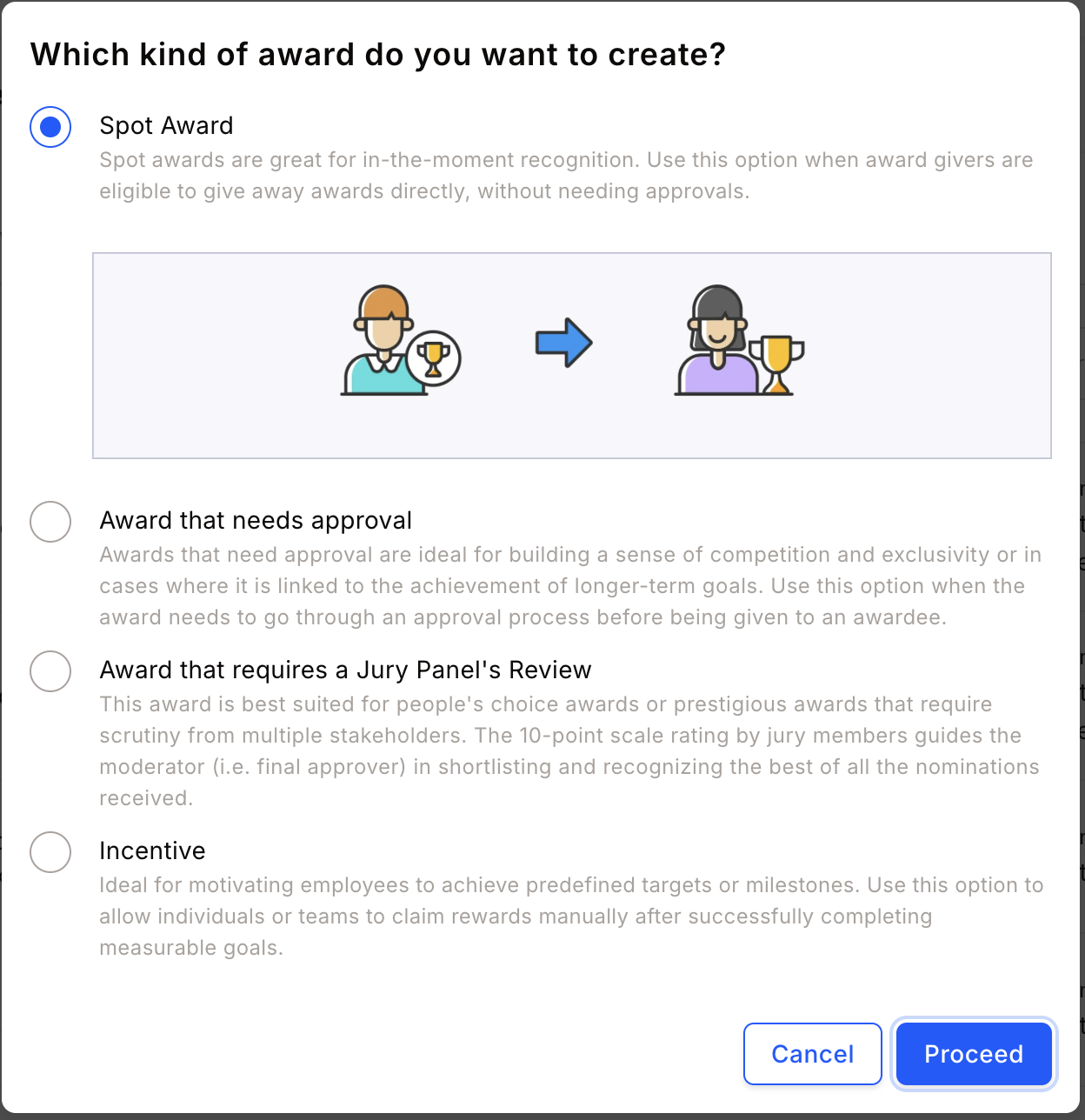
1. **Spot Award** — Instantly recognise outstanding performance without prior approval.
2. **Award that needs approval** — Best for high-value awards linked to long-term goals. Goes through an approval process before being given.
3. **Award that requires a Jury Panel's review** — For recognising outstanding achievements or setting up a people's choice award. A 10-point scale jury rating guides the moderator in shortlisting nominations.
4. **Incentives** — Ideal for motivating employees to achieve predefined targets or milestones. Employees claim rewards manually after completing measurable goals.
Choose the award type:
1. **Spot Award** — Instantly recognise outstanding performance without prior approval.
2. **Award that needs approval** — Best for high-value awards linked to long-term goals. Goes through an approval process before being given.
3. **Award that requires a Jury Panel's review** — For recognising outstanding achievements or setting up a people's choice award. A 10-point scale jury rating guides the moderator in shortlisting nominations.
4. **Incentives** — Ideal for motivating employees to achieve predefined targets or milestones. Employees claim rewards manually after completing measurable goals.
 Fill in the **award name**, **description**, **image**, and **recipient type**, then click **Continue**.
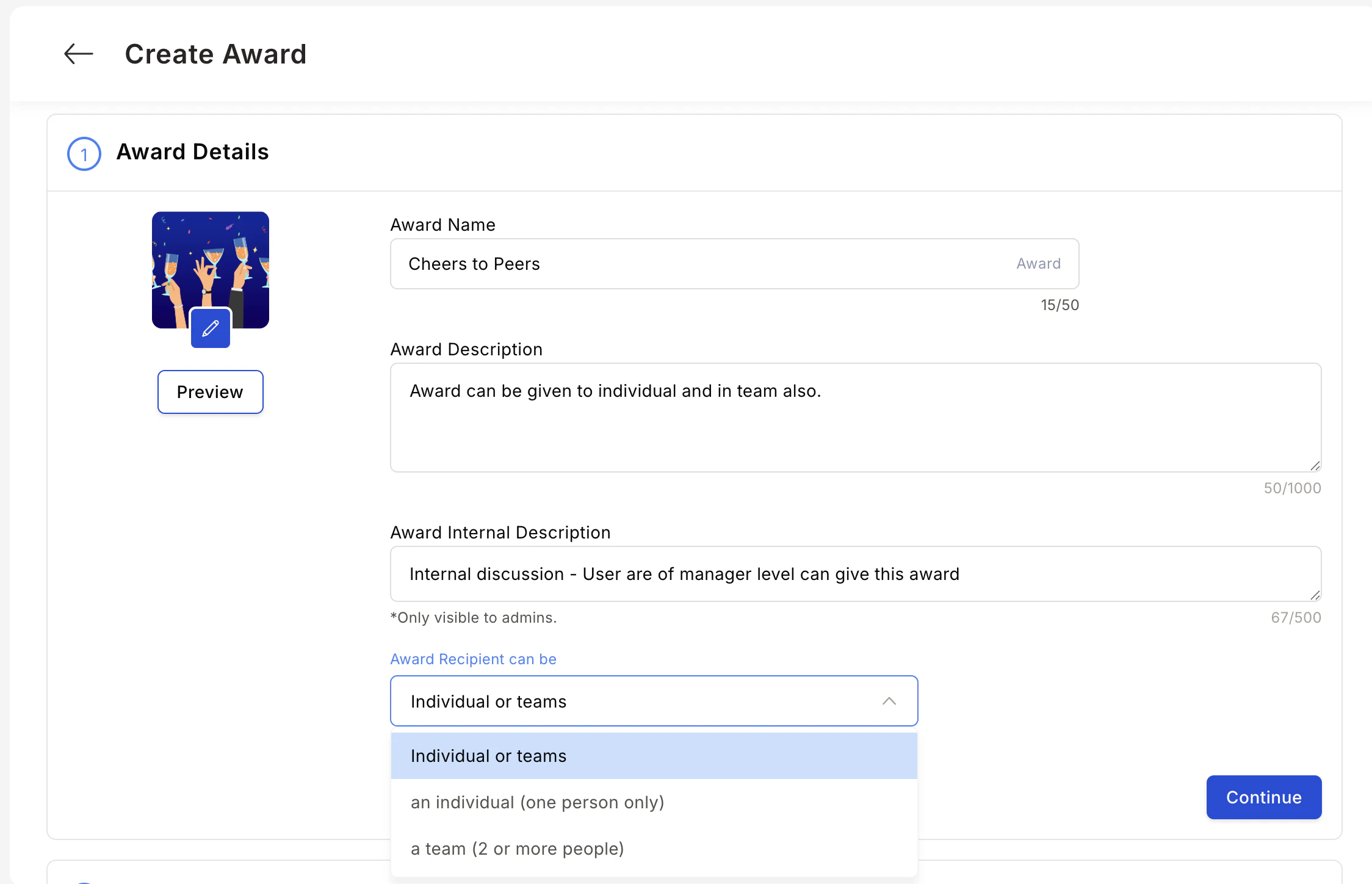 An award recipient can be an individual, a team, or kept flexible — letting the award presenter decide at the time of giving.
Choose whether to reward **points** or **gift cards and merchandise**.
**For spot awards**, points can be:
* **Fixed** — The same points every time; the presenter cannot modify the allocation.
* **Range** — The Super Admin sets a min/max range; the presenter allocates within that range.
An award recipient can be an individual, a team, or kept flexible — letting the award presenter decide at the time of giving.
Choose whether to reward **points** or **gift cards and merchandise**.
**For spot awards**, points can be:
* **Fixed** — The same points every time; the presenter cannot modify the allocation.
* **Range** — The Super Admin sets a min/max range; the presenter allocates within that range.
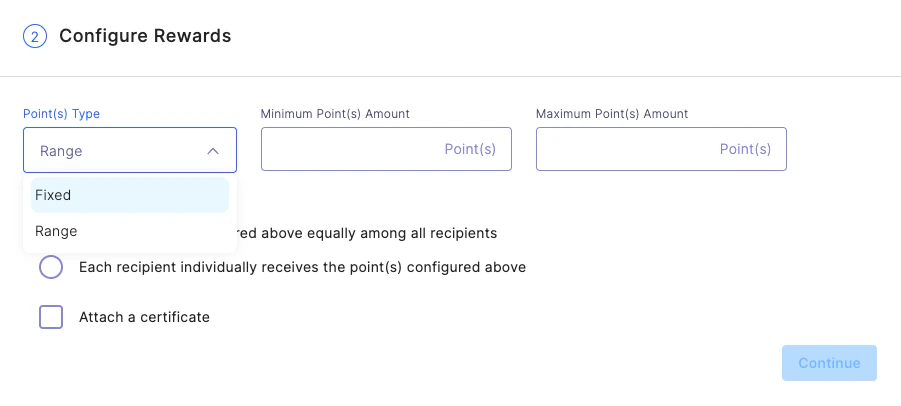 **For team rewards**, you can either:
* Distribute the configured points equally among all team members.
* Give each recipient the full configured points independently.
**For team rewards**, you can either:
* Distribute the configured points equally among all team members.
* Give each recipient the full configured points independently.
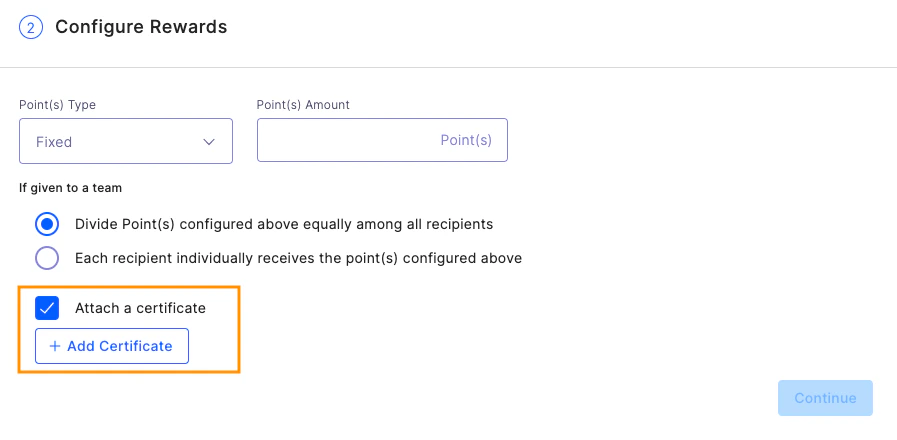
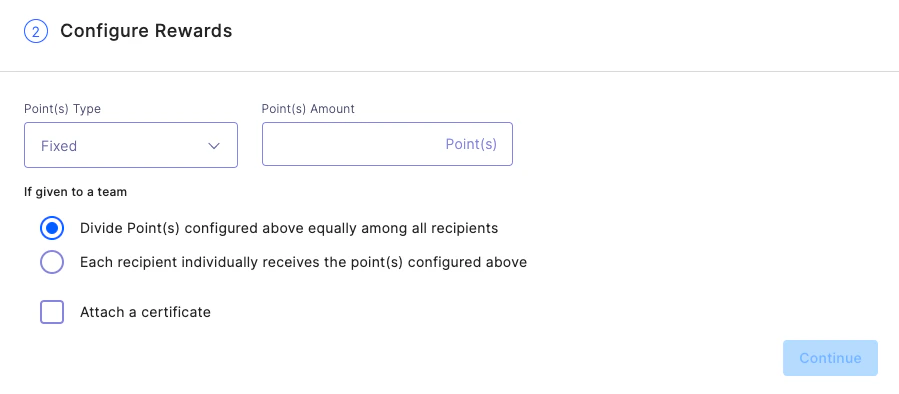 **Attach Certificate** — Use this option to attach a certificate template. Certificates are configurable and automatically populate with the awardee's details. See [Add certificates to awards](/admin/programs/awards/add-certificates-to-awards) for detailed steps.
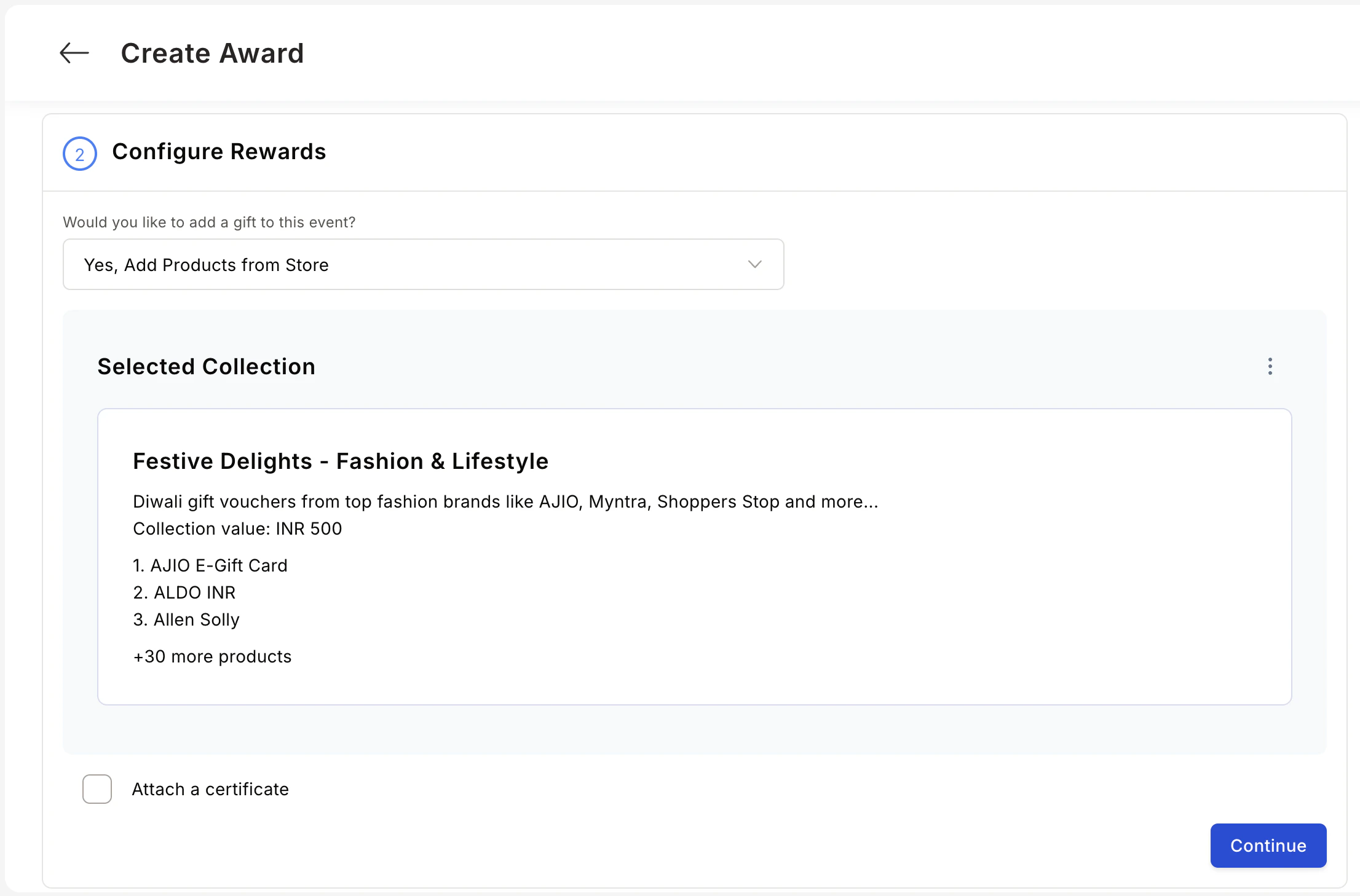
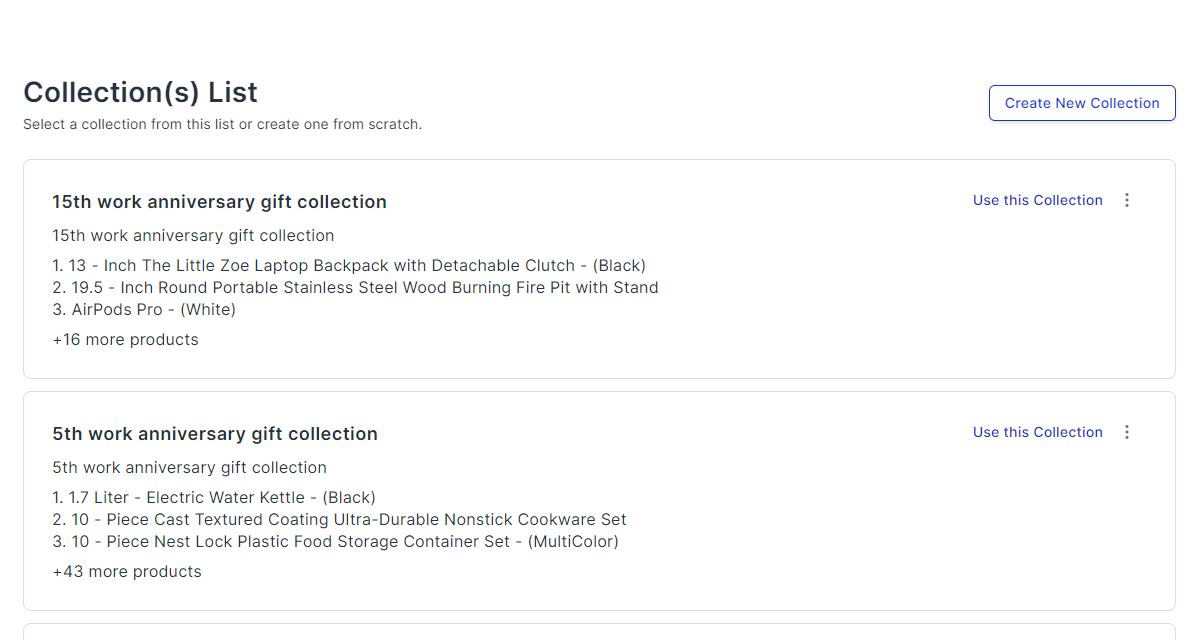
 **Add Products from the Store** — Reward or gift employees with merchandise and gift cards instead of points. See [Set up product-based rewards](/admin/programs/awards/set-up-product-based-rewards) for detailed steps.
 These settings allow you to award anyone or restrict awards to specific user groups.
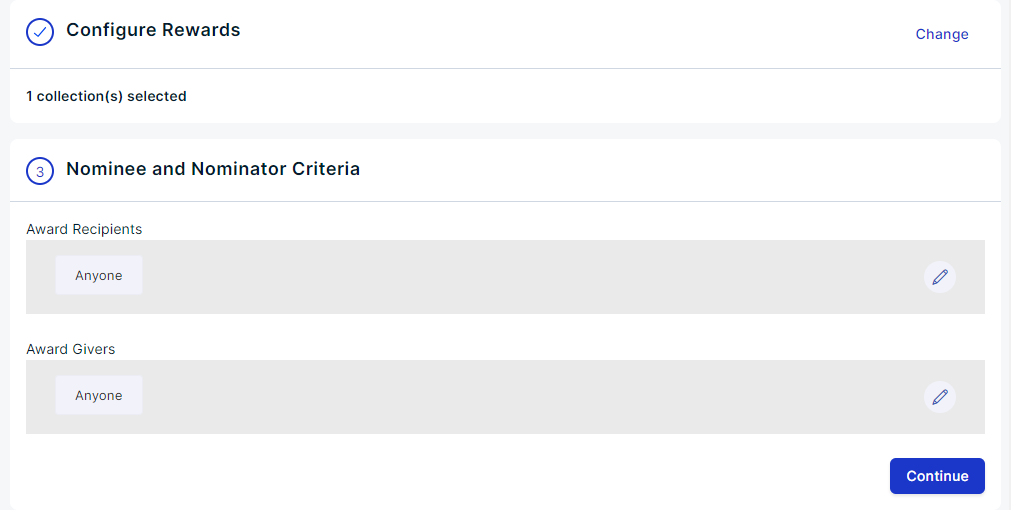
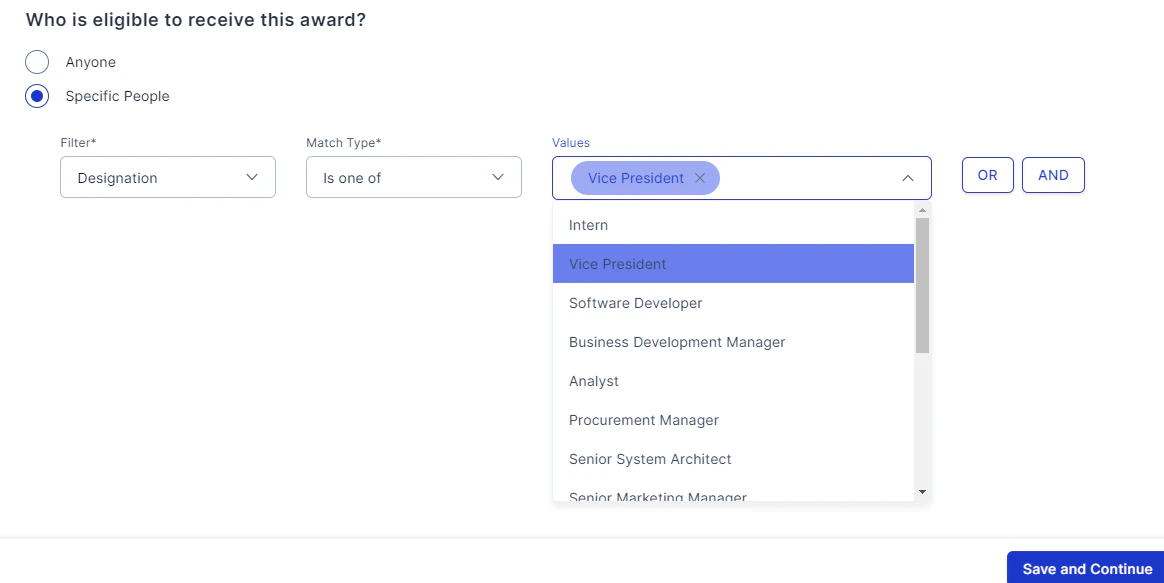 **Examples:**
**Example 1 — Jerry Maguire Award** Your company has an award for the best Sales department performer. Nominations are submitted by first-line managers and require approval from the VP of Sales.
**Examples:**
**Example 1 — Jerry Maguire Award** Your company has an award for the best Sales department performer. Nominations are submitted by first-line managers and require approval from the VP of Sales.
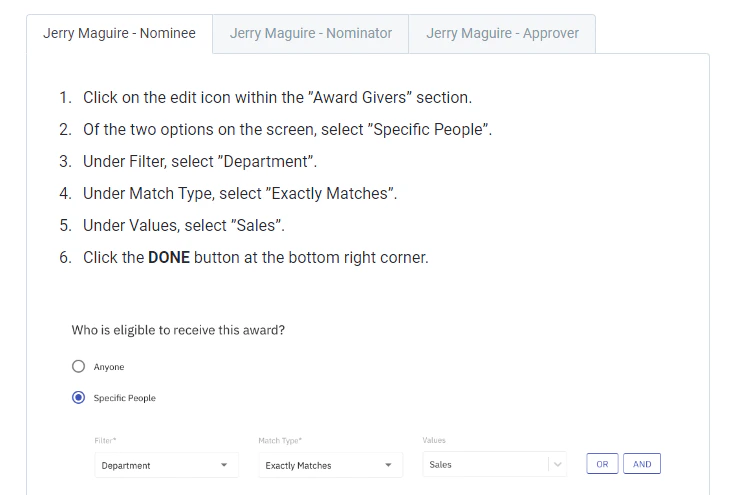 **Example 2 — Herman Boone Award** ABC Corp presents an award for excellence among people managers. All employees except VPs are eligible. Anyone can nominate, and final approval rests with either the CEO or the COO.
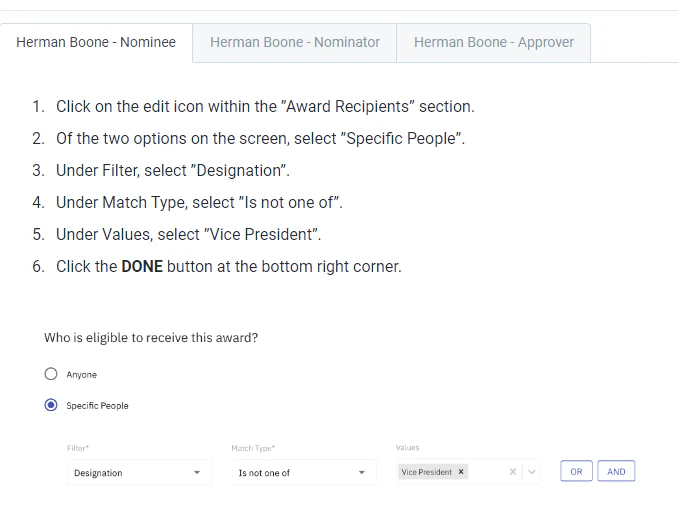 Use **OR** when matching any one clause is sufficient for eligibility. Use **AND** when all clauses must match.
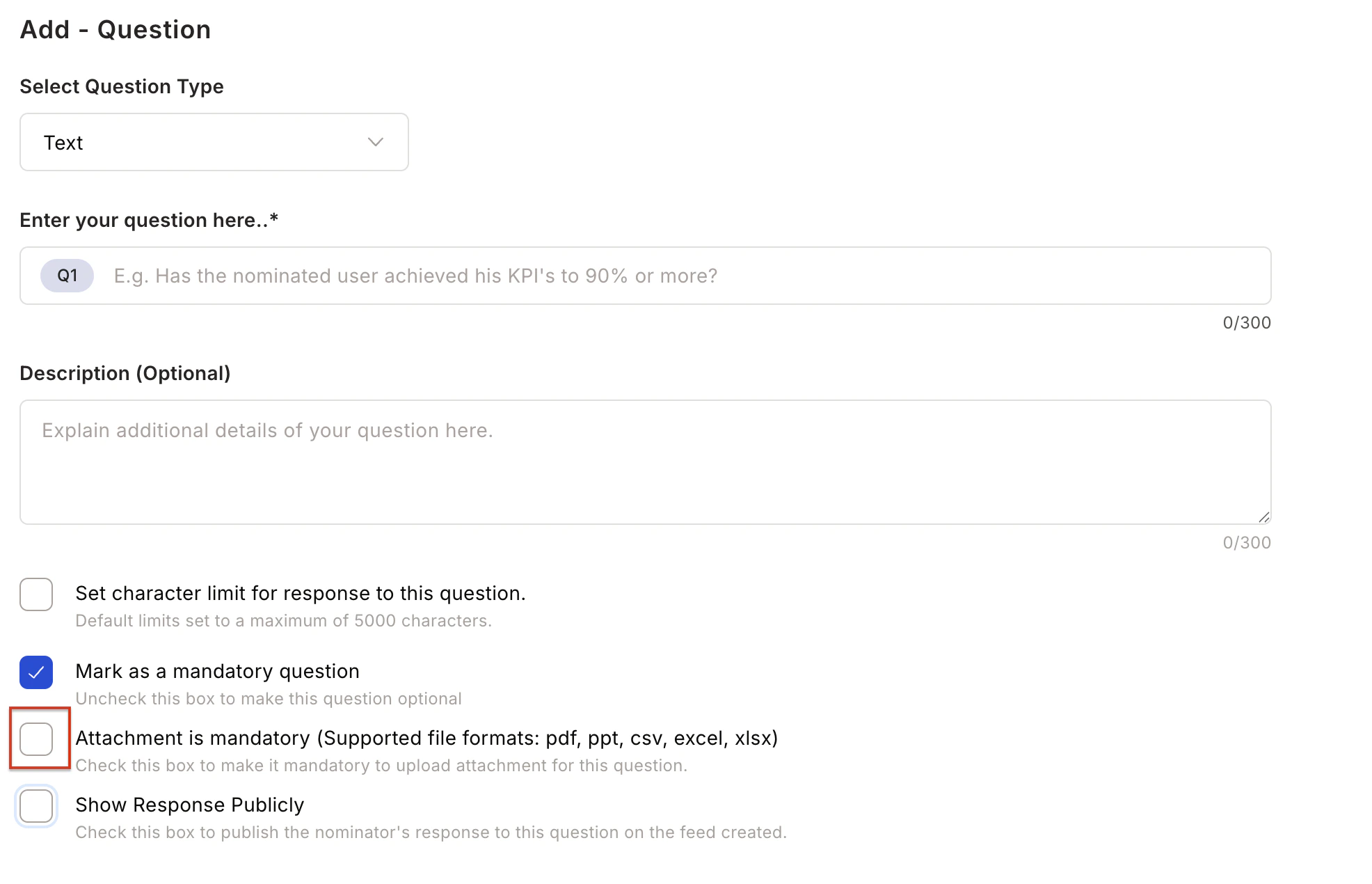
**A. Set Questions for Nominator** — Create up to 20 questions (multiple-choice or short text) that nominators must answer. If a question is text-based and mandatory, you can also mark an attachment as mandatory.
Use **OR** when matching any one clause is sufficient for eligibility. Use **AND** when all clauses must match.
**A. Set Questions for Nominator** — Create up to 20 questions (multiple-choice or short text) that nominators must answer. If a question is text-based and mandatory, you can also mark an attachment as mandatory.
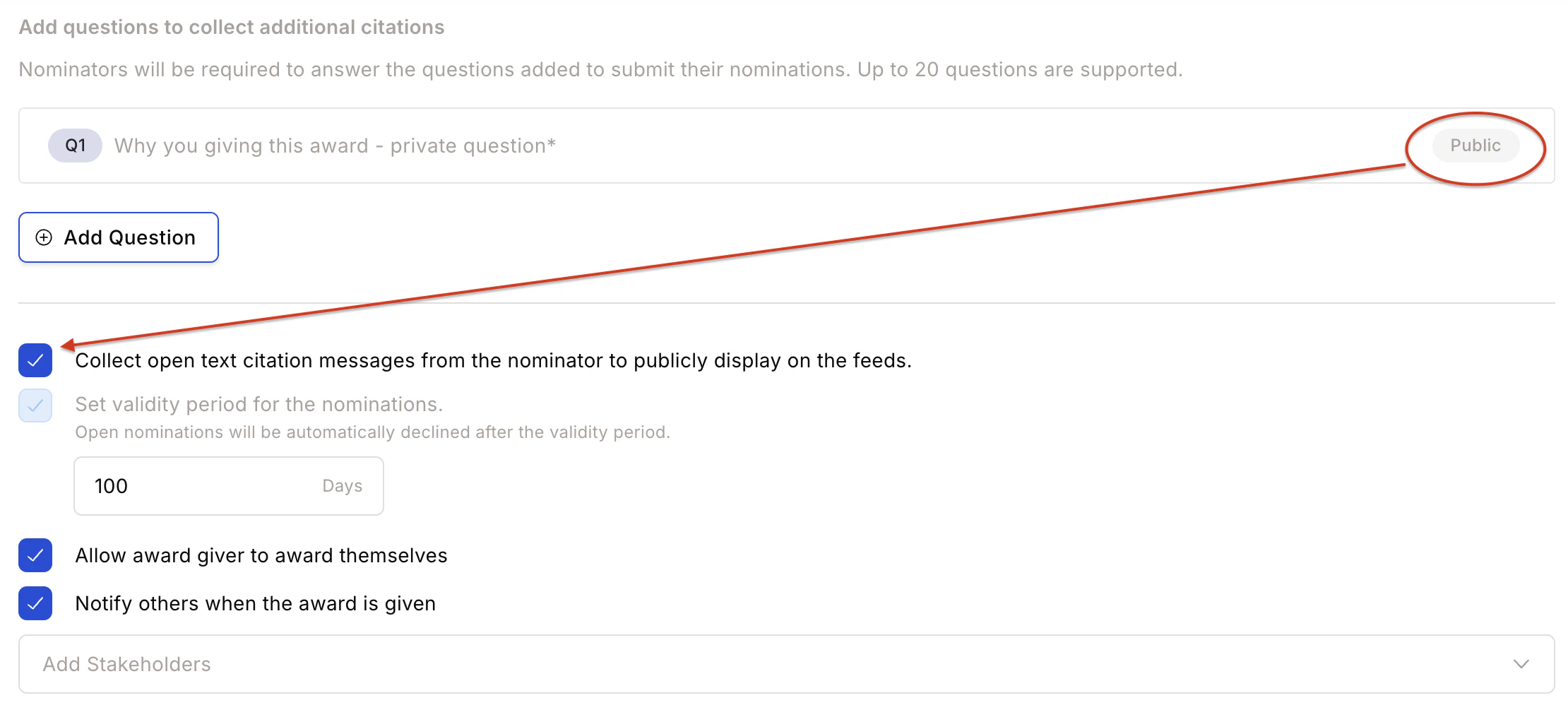
 **B. Citation Input** — When a mandatory public question is added, you can skip the separate citation input.
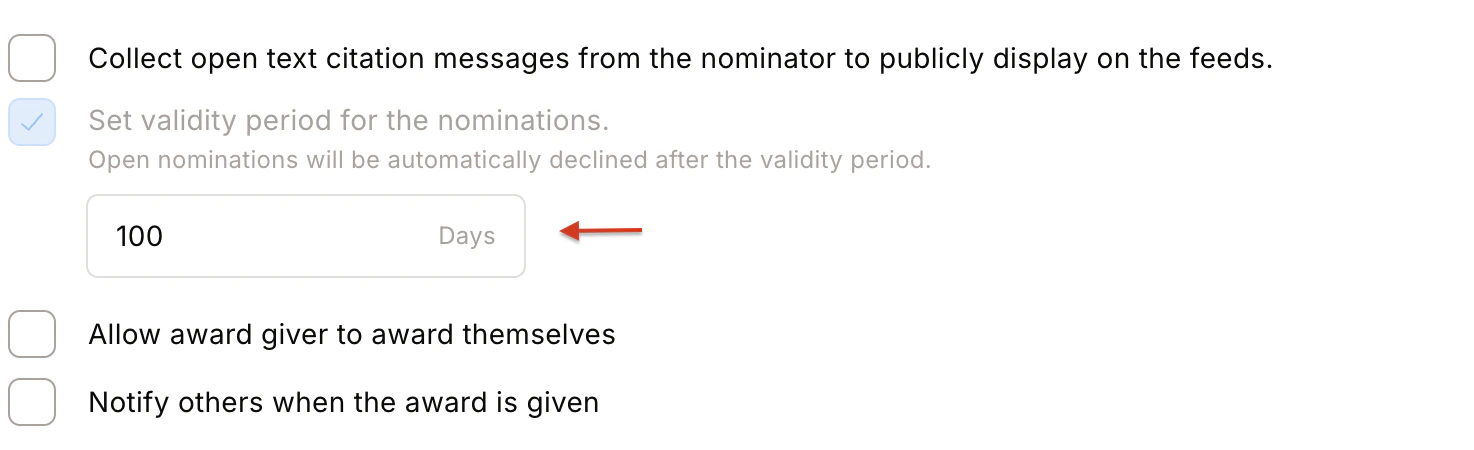
 **C. Nomination Validity** — Set a validity period after which open nominations are automatically declined.
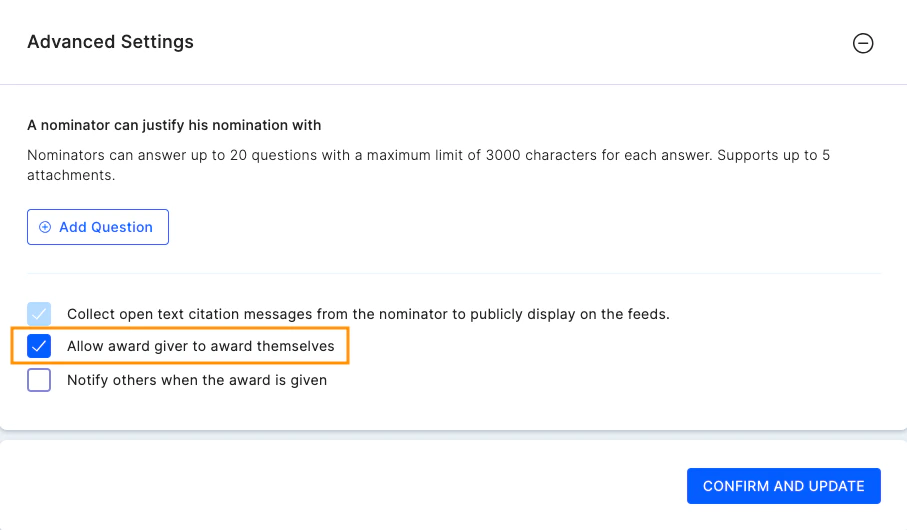
 **D. Self Nomination** — When enabled, allows a nominator to nominate themselves.
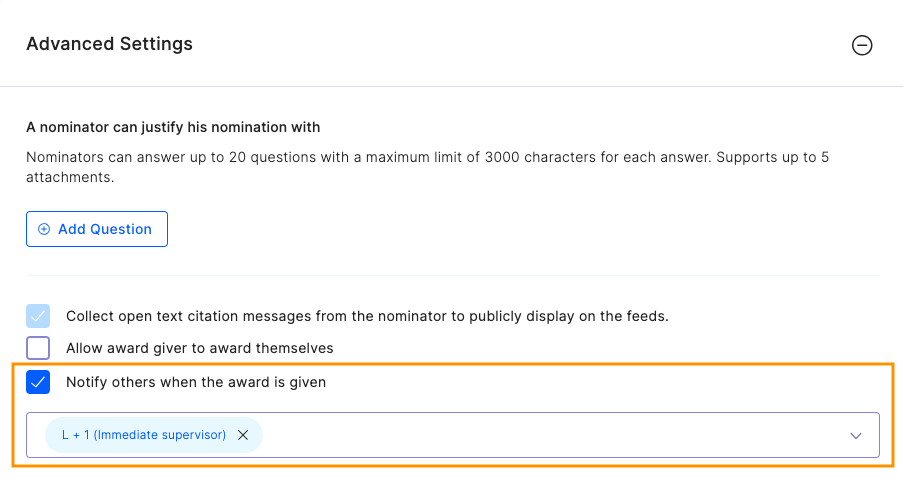
 **E. Notify Stakeholders** — Specify who is notified when the award is given (manager, HRBP, department head, etc.).
 **F. Announcement and Feed Controls**
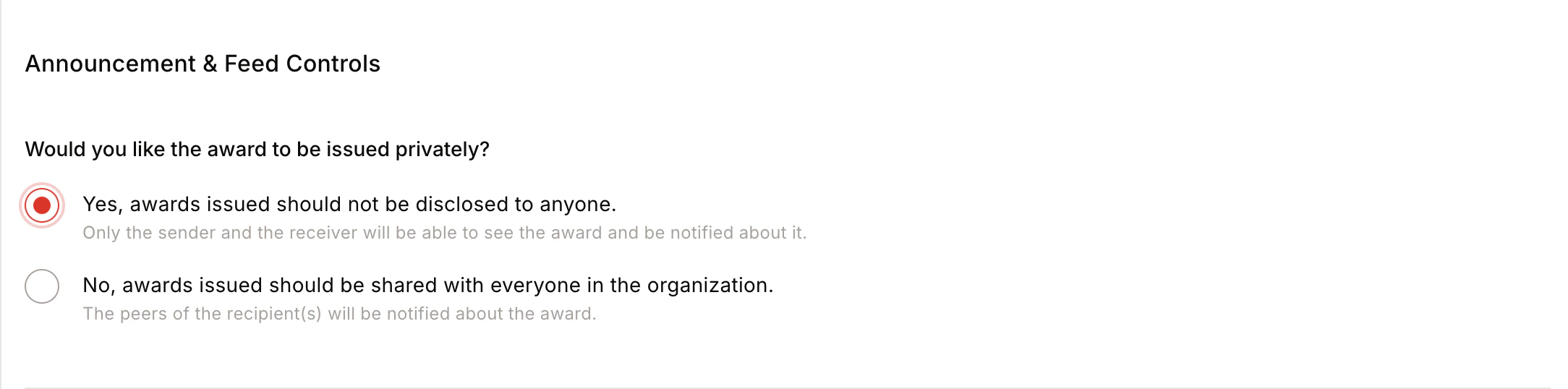
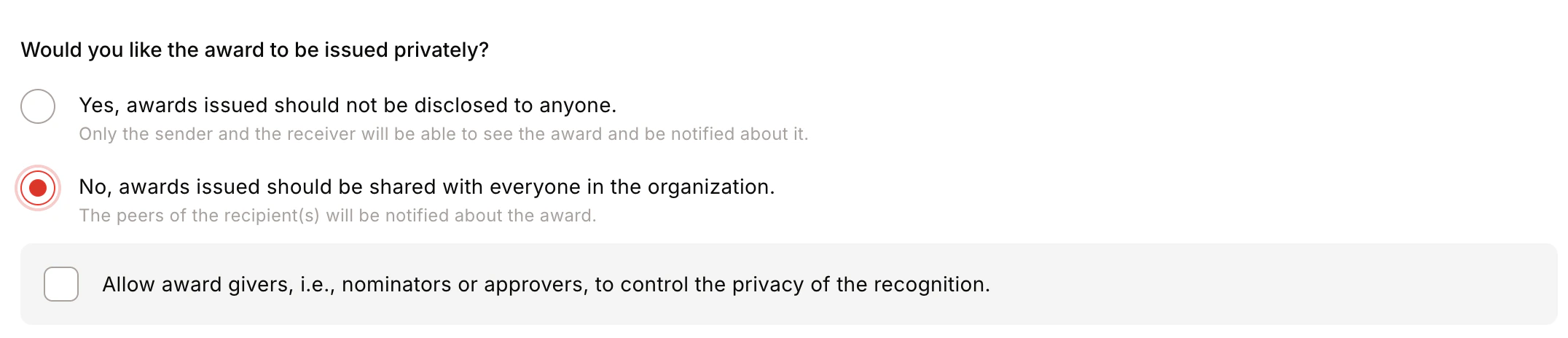
* **Award Visibility** — Post publicly on the feed, or keep private (only sender and receiver can view).
* You can also allow nominators/approvers to control visibility at the time of giving.
**F. Announcement and Feed Controls**
* **Award Visibility** — Post publicly on the feed, or keep private (only sender and receiver can view).
* You can also allow nominators/approvers to control visibility at the time of giving.
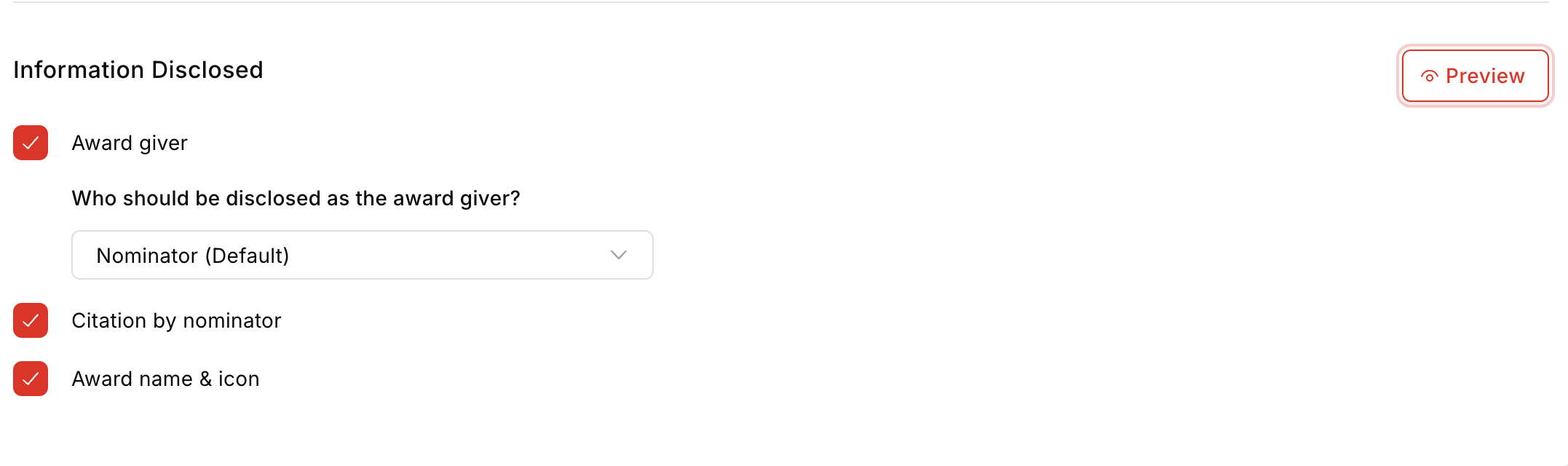
 * **Information Disclosed** — Choose whether to show Award Giver, Citation by Nominator, and Award Name and Icon on the feed.
 * **Privacy Control**:
* **Centrally** — Award is posted publicly and visible to all group members.
* **Public** — Award feed visible to all members of the group where it is posted.
* **Private** — Only the nominator and nominee can see the award feed.
* **By Nominator/Approver** — Privacy is set by the nominator or approver at the time of giving.
* **Team Size** — Minimum 1, maximum 50 members.
* **Privacy Control**:
* **Centrally** — Award is posted publicly and visible to all group members.
* **Public** — Award feed visible to all members of the group where it is posted.
* **Private** — Only the nominator and nominee can see the award feed.
* **By Nominator/Approver** — Privacy is set by the nominator or approver at the time of giving.
* **Team Size** — Minimum 1, maximum 50 members.
 Click **Confirm and Create** to complete the award setup.
The awardee's teammates are notified by email to crowdsource wishes for the award recipient.
**Award design best practices:**
* Use clear names and simple descriptions.
* Align award categories with business goals and company culture.
* Limit the number of active awards for better adoption and clarity.
* Combine automated triggers with manual nominations for balance.
* Use AI nudges and notifications to sustain participation.
## Set up a reward budget
Once the award is created, assign a budget. Three options are available:
Click **Confirm and Create** to complete the award setup.
The awardee's teammates are notified by email to crowdsource wishes for the award recipient.
**Award design best practices:**
* Use clear names and simple descriptions.
* Align award categories with business goals and company culture.
* Limit the number of active awards for better adoption and clarity.
* Combine automated triggers with manual nominations for balance.
* Use AI nudges and notifications to sustain participation.
## Set up a reward budget
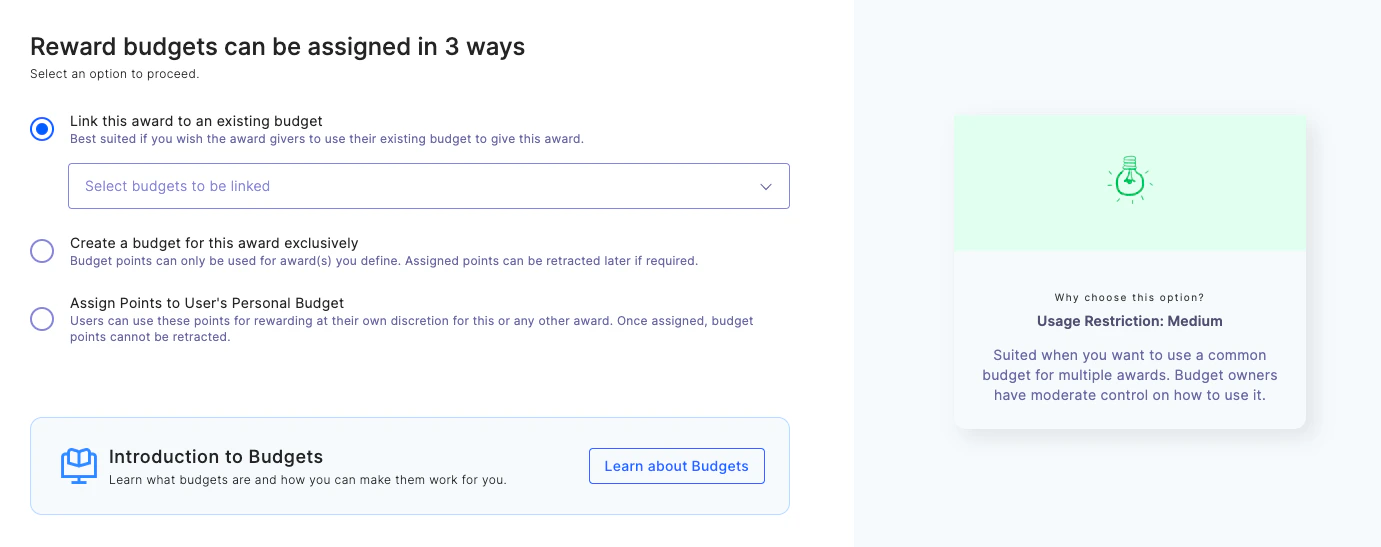
Once the award is created, assign a budget. Three options are available:
 Go to the **Admin Dashboard** by clicking **Reports and Admin** at the bottom of the left sidebar.
Navigate to **Programs > Awards & Core Values > Create Award**.
Choose the award type:
1. **Spot Award** — Instantly recognise outstanding performance without prior approval.
2. **Award that needs approval** — Best for high-value awards linked to long-term goals. Goes through an approval process before being given.
3. **Award that requires a Jury Panel's review** — For recognising outstanding achievements or setting up a people's choice award. A 10-point scale jury rating guides the moderator in shortlisting nominations.
4. **Incentives** — Ideal for motivating employees to achieve predefined targets or milestones. Employees claim rewards manually after completing measurable goals.
Fill in the **award name**, **description**, **image**, and **recipient type**, then click **Continue**.
An award recipient can be an individual, a team, or kept flexible — letting the award presenter decide at the time of giving.
Choose whether to reward **points** or **gift cards and merchandise**.
**For spot awards**, points can be:
* **Fixed** — The same points every time; the presenter cannot modify the allocation.
* **Range** — The Super Admin sets a min/max range; the presenter allocates within that range.
**For team rewards**, you can either:
* Distribute the configured points equally among all team members.
* Give each recipient the full configured points independently.
**Attach Certificate** — Use this option to attach a certificate template. Certificates are configurable and automatically populate with the awardee's details. See [Add certificates to awards](/admin/programs/awards/add-certificates-to-awards) for detailed steps.
**Add Products from the Store** — Reward or gift employees with merchandise and gift cards instead of points. See [Set up product-based rewards](/admin/programs/awards/set-up-product-based-rewards) for detailed steps.
These settings allow you to award anyone or restrict awards to specific user groups.
**Examples:**
**Example 1 — Jerry Maguire Award** Your company has an award for the best Sales department performer. Nominations are submitted by first-line managers and require approval from the VP of Sales.
**Example 2 — Herman Boone Award** ABC Corp presents an award for excellence among people managers. All employees except VPs are eligible. Anyone can nominate, and final approval rests with either the CEO or the COO.
Use **OR** when matching any one clause is sufficient for eligibility. Use **AND** when all clauses must match.
**A. Set Questions for Nominator** — Create up to 20 questions (multiple-choice or short text) that nominators must answer. If a question is text-based and mandatory, you can also mark an attachment as mandatory.
**B. Citation Input** — When a mandatory public question is added, you can skip the separate citation input.
**C. Nomination Validity** — Set a validity period after which open nominations are automatically declined.
**D. Self Nomination** — When enabled, allows a nominator to nominate themselves.
**E. Notify Stakeholders** — Specify who is notified when the award is given (manager, HRBP, department head, etc.).
**F. Announcement and Feed Controls**
* **Award Visibility** — Post publicly on the feed, or keep private (only sender and receiver can view).
* You can also allow nominators/approvers to control visibility at the time of giving.
* **Information Disclosed** — Choose whether to show Award Giver, Citation by Nominator, and Award Name and Icon on the feed.
* **Privacy Control**:
* **Centrally** — Award is posted publicly and visible to all group members.
* **Public** — Award feed visible to all members of the group where it is posted.
* **Private** — Only the nominator and nominee can see the award feed.
* **By Nominator/Approver** — Privacy is set by the nominator or approver at the time of giving.
* **Team Size** — Minimum 1, maximum 50 members.
Click **Confirm and Create** to complete the award setup.
The awardee's teammates are notified by email to crowdsource wishes for the award recipient.
**Award design best practices:**
* Use clear names and simple descriptions.
* Align award categories with business goals and company culture.
* Limit the number of active awards for better adoption and clarity.
* Combine automated triggers with manual nominations for balance.
* Use AI nudges and notifications to sustain participation.
## Set up a reward budget
Once the award is created, assign a budget. Three options are available:
### A. Link the award to an existing budget
Best when using a shared budget across multiple awards. Available only if you have previously set up awards in Empuls.
### B. Create an exclusive budget for this award
Use when you want to restrict budget usage exclusively to this award.
1. Create a new budget with a name and description. Set a validity period to retract unused points if needed. Click **Next**.
Go to the **Admin Dashboard** by clicking **Reports and Admin** at the bottom of the left sidebar.
Navigate to **Programs > Awards & Core Values > Create Award**.
Choose the award type:
1. **Spot Award** — Instantly recognise outstanding performance without prior approval.
2. **Award that needs approval** — Best for high-value awards linked to long-term goals. Goes through an approval process before being given.
3. **Award that requires a Jury Panel's review** — For recognising outstanding achievements or setting up a people's choice award. A 10-point scale jury rating guides the moderator in shortlisting nominations.
4. **Incentives** — Ideal for motivating employees to achieve predefined targets or milestones. Employees claim rewards manually after completing measurable goals.
Fill in the **award name**, **description**, **image**, and **recipient type**, then click **Continue**.
An award recipient can be an individual, a team, or kept flexible — letting the award presenter decide at the time of giving.
Choose whether to reward **points** or **gift cards and merchandise**.
**For spot awards**, points can be:
* **Fixed** — The same points every time; the presenter cannot modify the allocation.
* **Range** — The Super Admin sets a min/max range; the presenter allocates within that range.
**For team rewards**, you can either:
* Distribute the configured points equally among all team members.
* Give each recipient the full configured points independently.
**Attach Certificate** — Use this option to attach a certificate template. Certificates are configurable and automatically populate with the awardee's details. See [Add certificates to awards](/admin/programs/awards/add-certificates-to-awards) for detailed steps.
**Add Products from the Store** — Reward or gift employees with merchandise and gift cards instead of points. See [Set up product-based rewards](/admin/programs/awards/set-up-product-based-rewards) for detailed steps.
These settings allow you to award anyone or restrict awards to specific user groups.
**Examples:**
**Example 1 — Jerry Maguire Award** Your company has an award for the best Sales department performer. Nominations are submitted by first-line managers and require approval from the VP of Sales.
**Example 2 — Herman Boone Award** ABC Corp presents an award for excellence among people managers. All employees except VPs are eligible. Anyone can nominate, and final approval rests with either the CEO or the COO.
Use **OR** when matching any one clause is sufficient for eligibility. Use **AND** when all clauses must match.
**A. Set Questions for Nominator** — Create up to 20 questions (multiple-choice or short text) that nominators must answer. If a question is text-based and mandatory, you can also mark an attachment as mandatory.
**B. Citation Input** — When a mandatory public question is added, you can skip the separate citation input.
**C. Nomination Validity** — Set a validity period after which open nominations are automatically declined.
**D. Self Nomination** — When enabled, allows a nominator to nominate themselves.
**E. Notify Stakeholders** — Specify who is notified when the award is given (manager, HRBP, department head, etc.).
**F. Announcement and Feed Controls**
* **Award Visibility** — Post publicly on the feed, or keep private (only sender and receiver can view).
* You can also allow nominators/approvers to control visibility at the time of giving.
* **Information Disclosed** — Choose whether to show Award Giver, Citation by Nominator, and Award Name and Icon on the feed.
* **Privacy Control**:
* **Centrally** — Award is posted publicly and visible to all group members.
* **Public** — Award feed visible to all members of the group where it is posted.
* **Private** — Only the nominator and nominee can see the award feed.
* **By Nominator/Approver** — Privacy is set by the nominator or approver at the time of giving.
* **Team Size** — Minimum 1, maximum 50 members.
Click **Confirm and Create** to complete the award setup.
The awardee's teammates are notified by email to crowdsource wishes for the award recipient.
**Award design best practices:**
* Use clear names and simple descriptions.
* Align award categories with business goals and company culture.
* Limit the number of active awards for better adoption and clarity.
* Combine automated triggers with manual nominations for balance.
* Use AI nudges and notifications to sustain participation.
## Set up a reward budget
Once the award is created, assign a budget. Three options are available:
### A. Link the award to an existing budget
Best when using a shared budget across multiple awards. Available only if you have previously set up awards in Empuls.
### B. Create an exclusive budget for this award
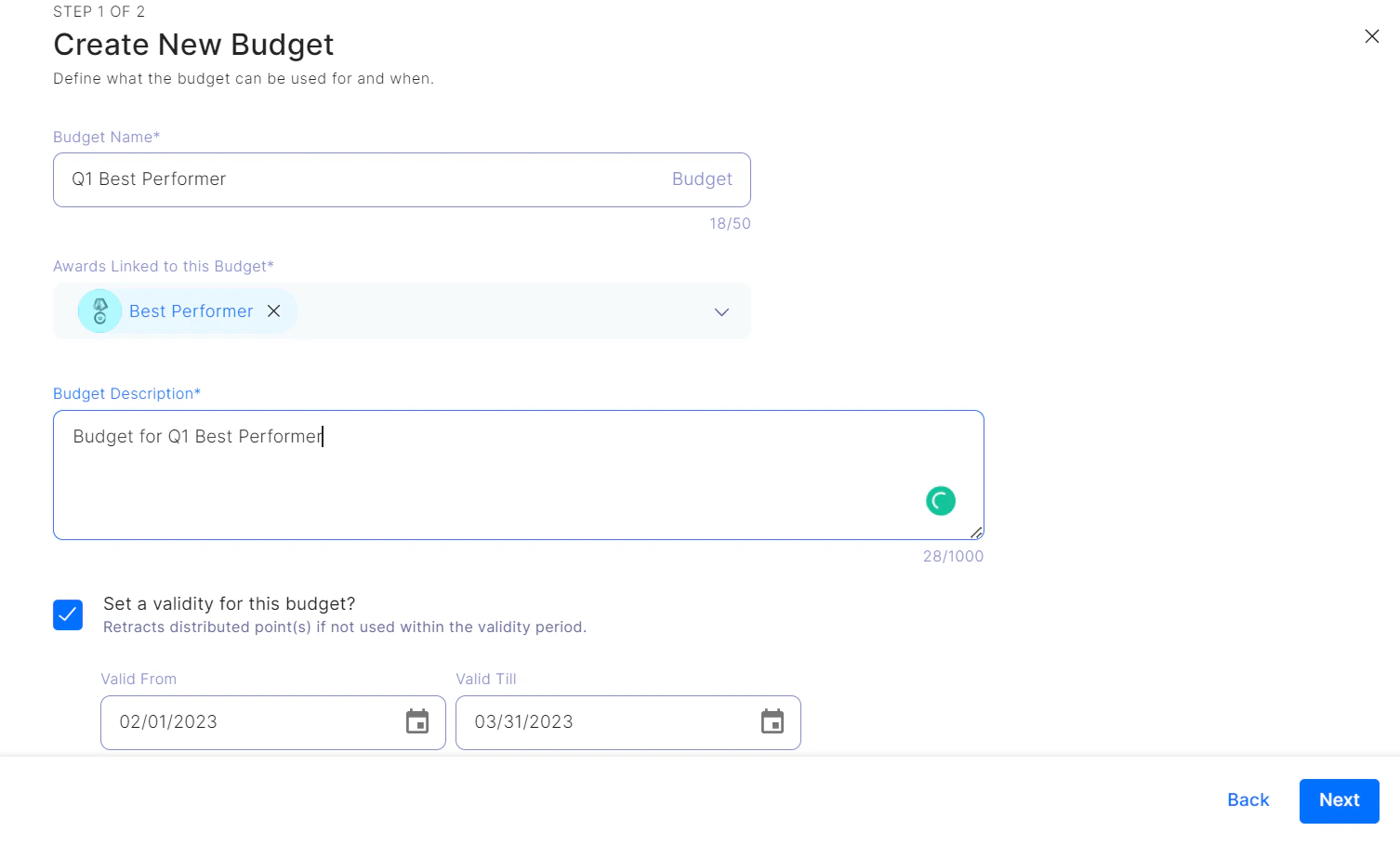
Use when you want to restrict budget usage exclusively to this award.
1. Create a new budget with a name and description. Set a validity period to retract unused points if needed. Click **Next**.
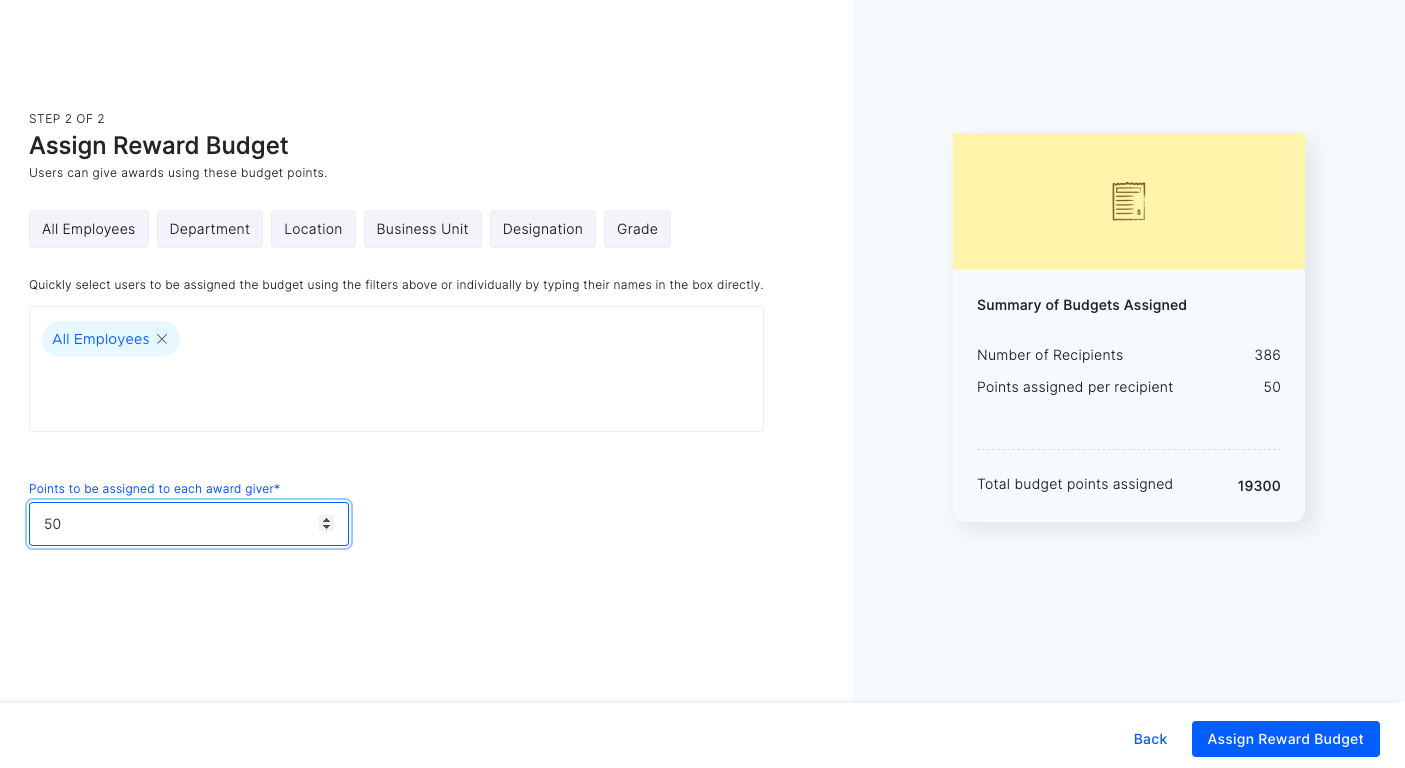
 2. Assign budget points to users individually or by filter. Preview the budget summary on the right and click **Assign Reward Budget**.
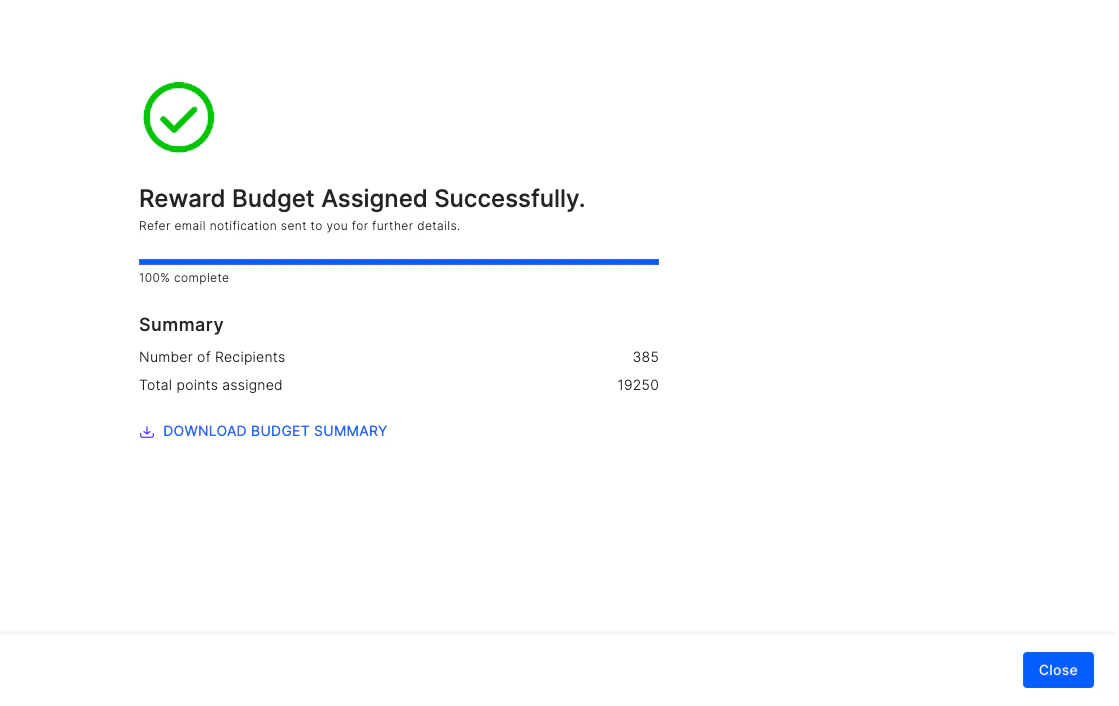
 3. Once points are distributed, you'll receive a confirmation summary. Click **Close** to complete.
 ### C. Assign points to the user's personal budget
Best when you want budget owners to use points for any award.
1. Assign budget points to users individually or by filter. Preview the summary and click **Assign Reward Budget**.
### C. Assign points to the user's personal budget
Best when you want budget owners to use points for any award.
1. Assign budget points to users individually or by filter. Preview the summary and click **Assign Reward Budget**.
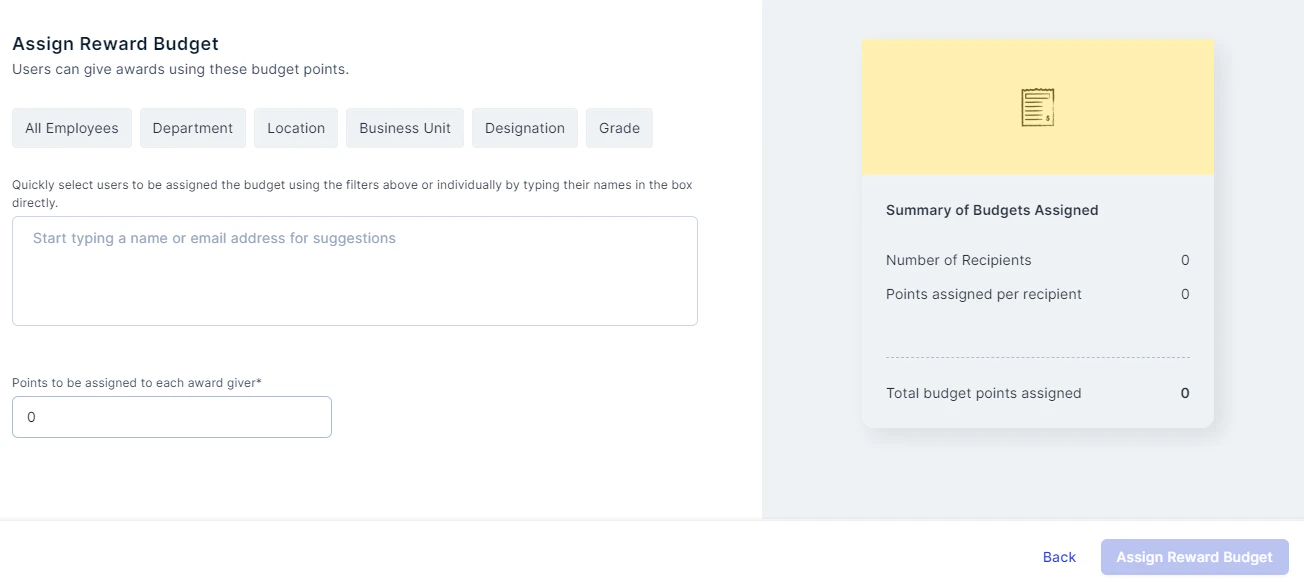 2. Once distributed, you'll receive a confirmation summary. Click **Close**. You can also download the summary for your records.
## Edit an award
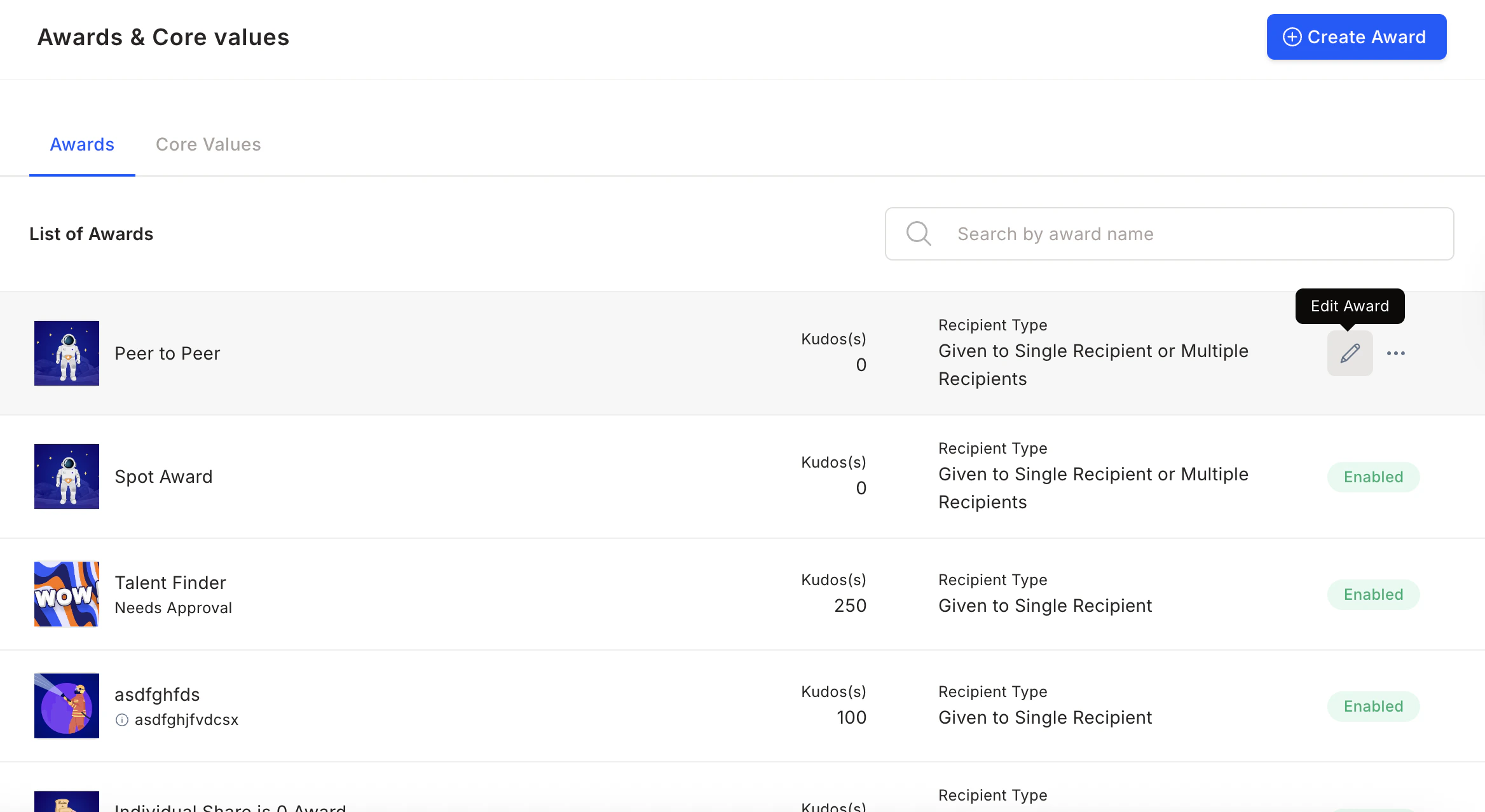
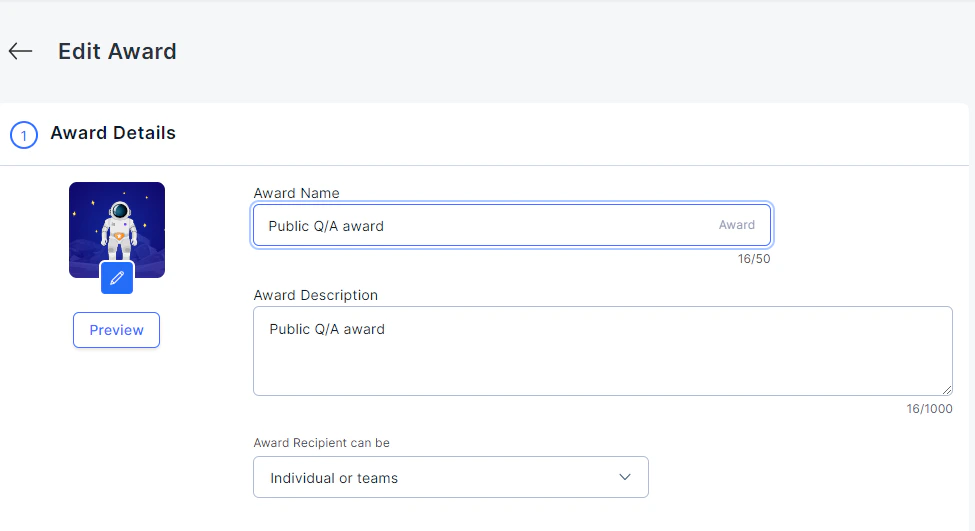
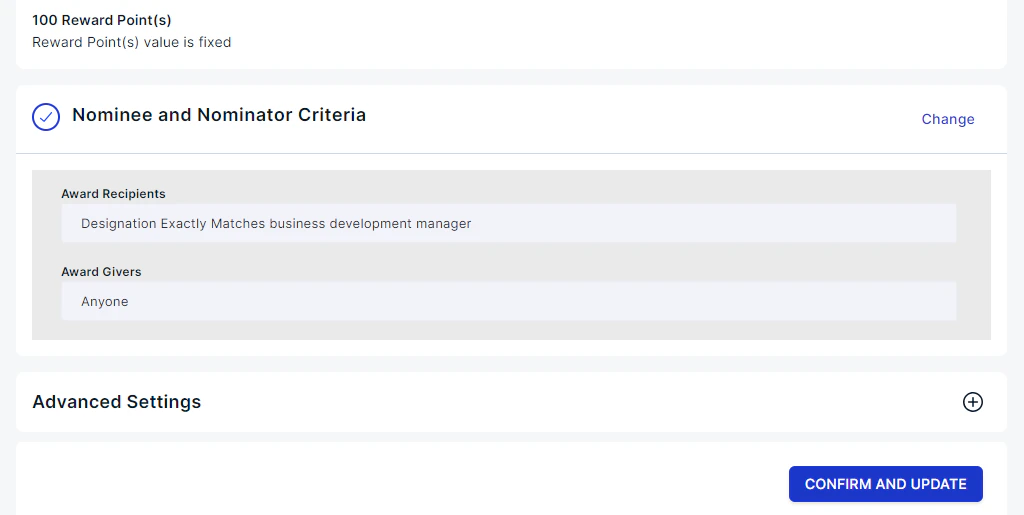
Navigate to **Programs > Awards & Core Values**, hover over an award, and click the **edit icon**. Make your changes and click **Confirm and Update** to save.
2. Once distributed, you'll receive a confirmation summary. Click **Close**. You can also download the summary for your records.
## Edit an award
Navigate to **Programs > Awards & Core Values**, hover over an award, and click the **edit icon**. Make your changes and click **Confirm and Update** to save.
 The award type cannot be changed after creation.
## Additional award settings
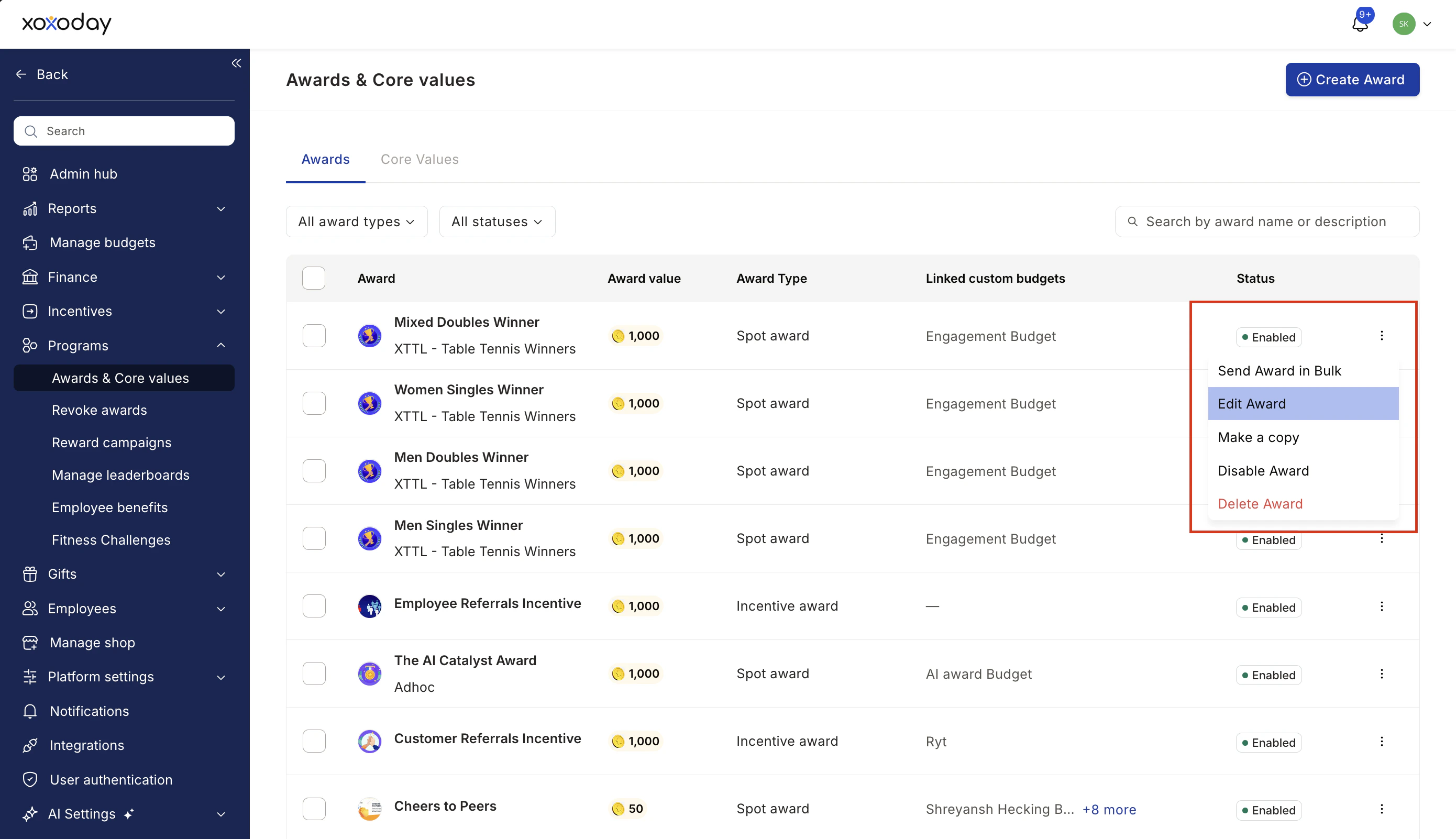
Navigate to **Programs > Awards & Core Values**, hover over an award, and click the **three-dot icon** to:
* **Enable/disable** — Disabled awards can no longer be nominated for, but existing nominations remain active.
* **Make a copy** — Duplicate an award's configuration.
* **Delete** — Removes the award from the interface. Past data and pending nominations remain intact.
The award type cannot be changed after creation.
## Additional award settings
Navigate to **Programs > Awards & Core Values**, hover over an award, and click the **three-dot icon** to:
* **Enable/disable** — Disabled awards can no longer be nominated for, but existing nominations remain active.
* **Make a copy** — Duplicate an award's configuration.
* **Delete** — Removes the award from the interface. Past data and pending nominations remain intact.
 ## Bulk awards
Navigate to **Programs > Awards & Core Values**, hover over an award, click the **three-dot icon**, and select **Send Award in Bulk**.
## Bulk awards
Navigate to **Programs > Awards & Core Values**, hover over an award, click the **three-dot icon**, and select **Send Award in Bulk**.
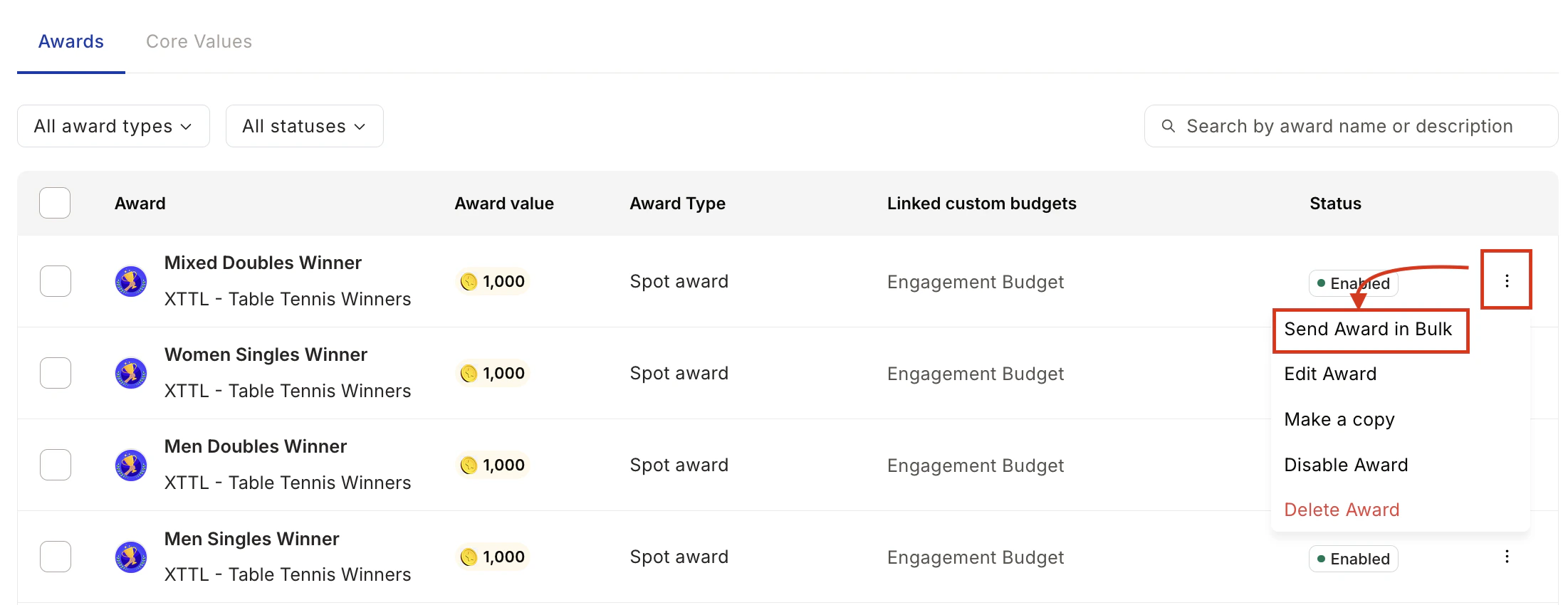 Download the sample CSV template, fill in the details, upload it, select the budget, and confirm. For range-based awards, enter points in a separate column.
 ## Manage Core Values
### Set up a core value card
Value cards represent your company's core values and the desired behaviours you want to recognise and reinforce at work.
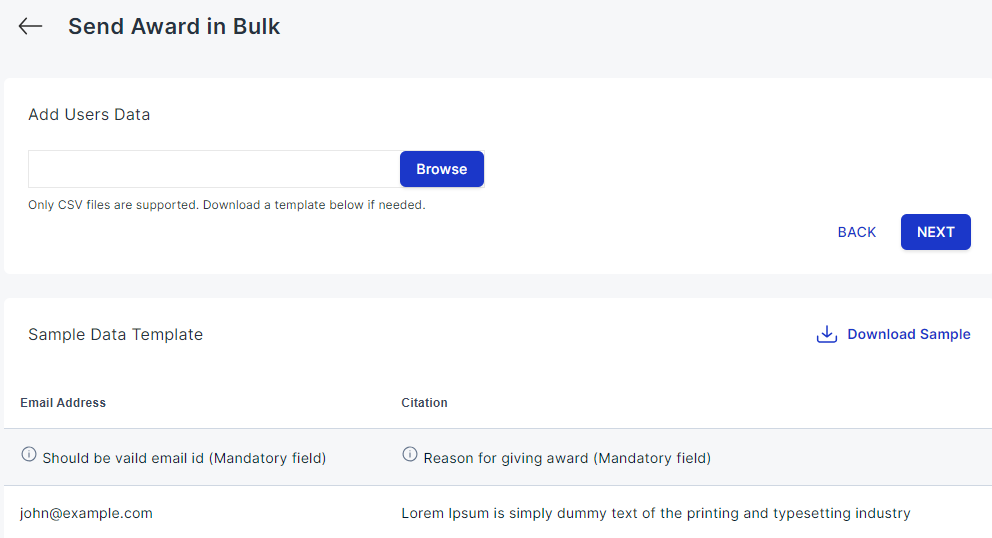
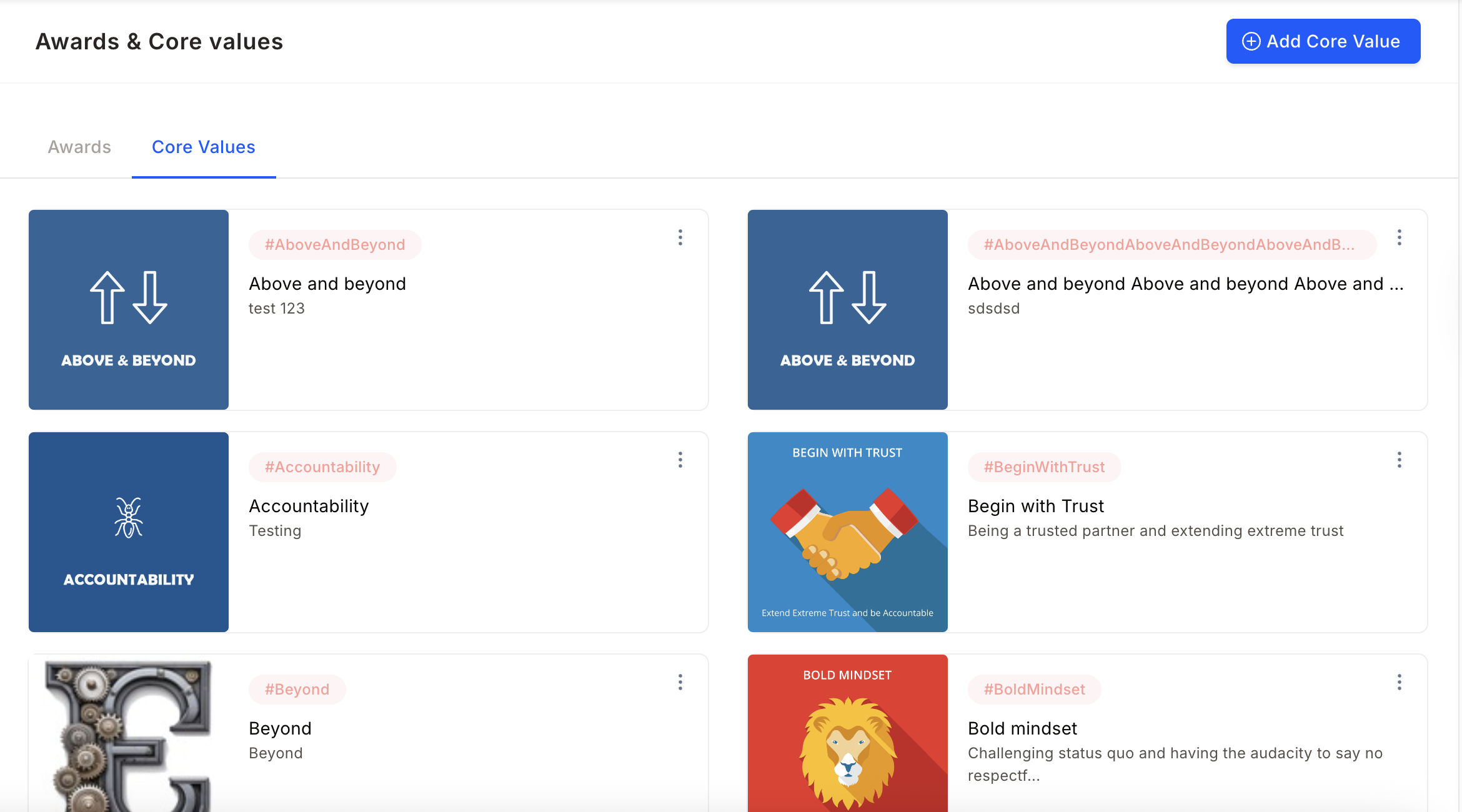
Navigate to **Programs > Awards & Core Values > Core Values tab**.
Choose from existing value badges or click **Add Core Value** to create a custom card.
## Manage Core Values
### Set up a core value card
Value cards represent your company's core values and the desired behaviours you want to recognise and reinforce at work.
Navigate to **Programs > Awards & Core Values > Core Values tab**.
Choose from existing value badges or click **Add Core Value** to create a custom card.
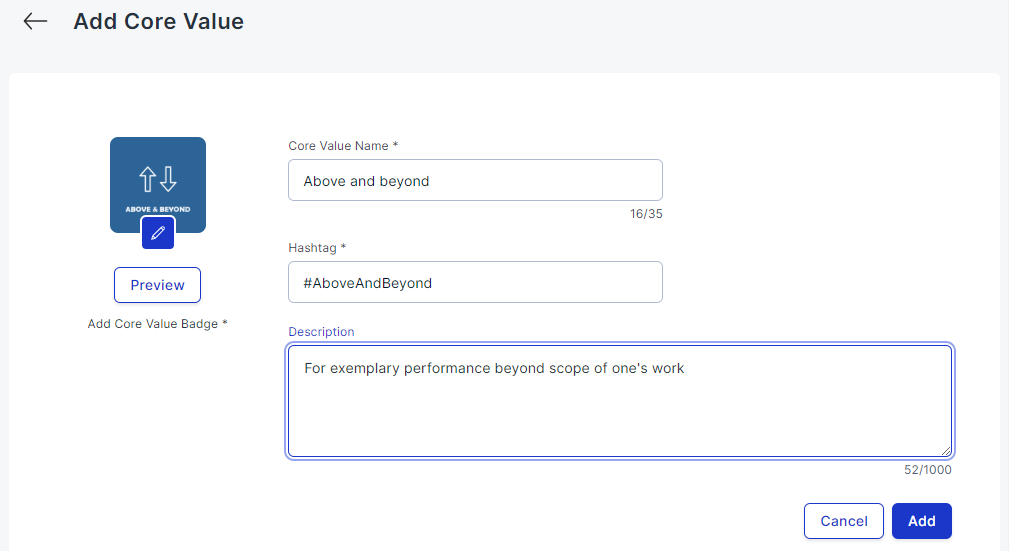
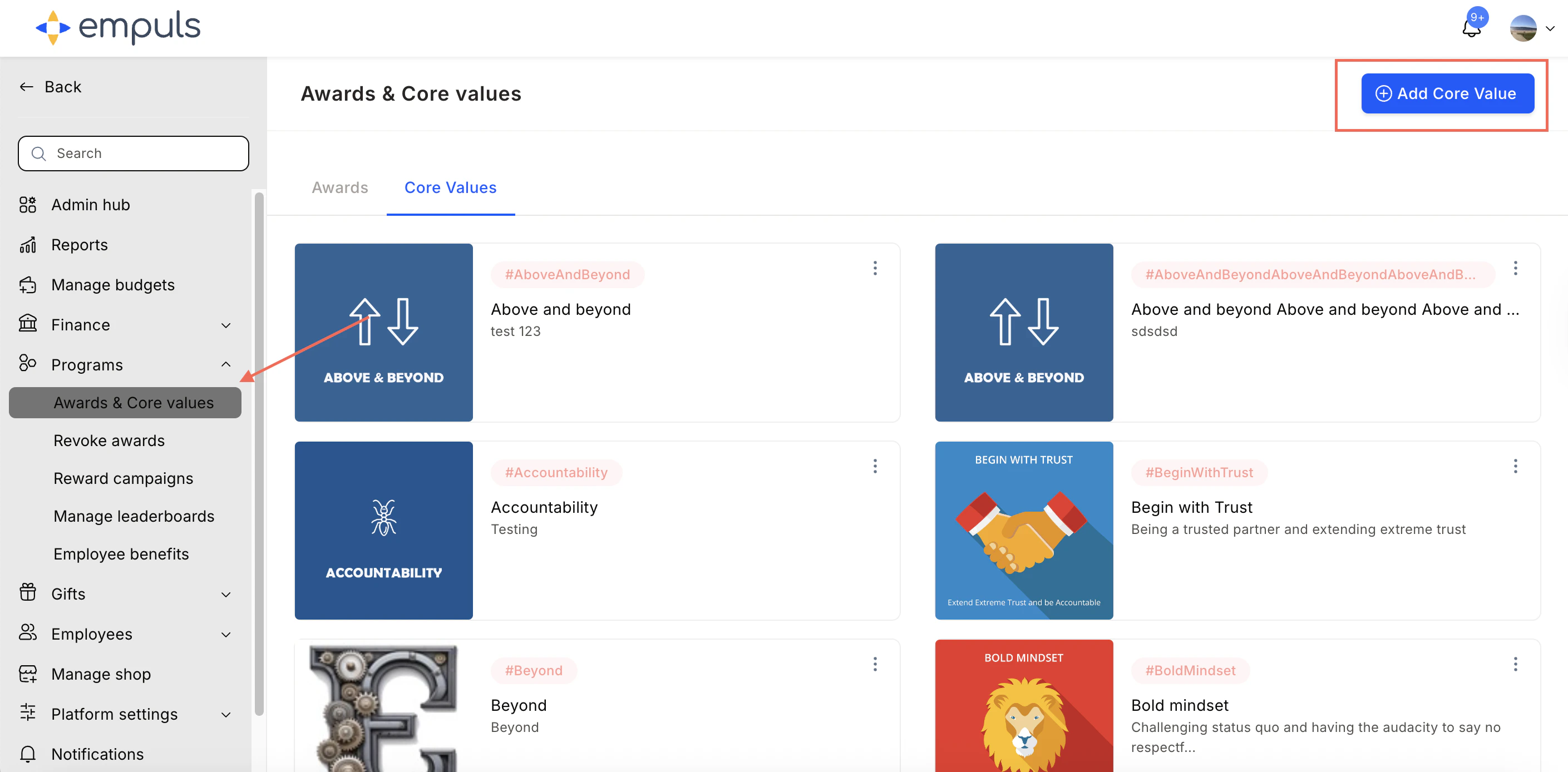 Fill in the **Core Value Name**, **Description**, and **Hashtag**. Upload and crop an image. Click **Add**.
 The new value card will be added to the core value cards list.
 **Core value setup best practices:**
* Limit values to 5–8 for simplicity and adoption.
* Use distinctive icons, colours, and hashtags for each value.
* Link recognitions to company principles and behaviours.
* Review adoption trends quarterly.
* Recognise values publicly in feeds and leaderboards.
**Examples of core values:**
| Value | Hashtag | Description |
| ------------------- | --------------- | --------------------------------------------------------------------- |
| Collaboration | #Collaboration | For individuals who promote teamwork and cross-functional success. |
| Innovation | #Innovation | For employees who propose or implement new ideas with impact. |
| Customer Centricity | #CustomerFirst | For employees who deliver exceptional customer experiences. |
| Integrity | #Integrity | For showing honesty and accountability in every decision. |
| Ownership | #Ownership | For employees who take initiative and deliver outcomes independently. |
| Motivation | #Motivation | For those who inspire and uplift their peers. |
| Inclusivity | #Inclusivity | For fostering a diverse and inclusive work environment. |
| Accountability | #Accountability | For maintaining reliability and commitment to results. |
### Additional core value settings
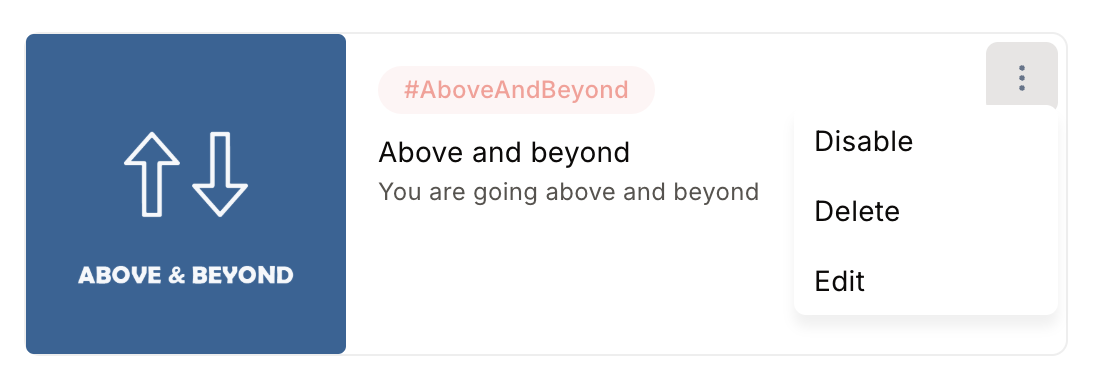
Navigate to **Programs > Awards & Core Values > Core Values tab**. Click the three-dot icon on any core value card to edit, disable, or delete it.
**Core value setup best practices:**
* Limit values to 5–8 for simplicity and adoption.
* Use distinctive icons, colours, and hashtags for each value.
* Link recognitions to company principles and behaviours.
* Review adoption trends quarterly.
* Recognise values publicly in feeds and leaderboards.
**Examples of core values:**
| Value | Hashtag | Description |
| ------------------- | --------------- | --------------------------------------------------------------------- |
| Collaboration | #Collaboration | For individuals who promote teamwork and cross-functional success. |
| Innovation | #Innovation | For employees who propose or implement new ideas with impact. |
| Customer Centricity | #CustomerFirst | For employees who deliver exceptional customer experiences. |
| Integrity | #Integrity | For showing honesty and accountability in every decision. |
| Ownership | #Ownership | For employees who take initiative and deliver outcomes independently. |
| Motivation | #Motivation | For those who inspire and uplift their peers. |
| Inclusivity | #Inclusivity | For fostering a diverse and inclusive work environment. |
| Accountability | #Accountability | For maintaining reliability and commitment to results. |
### Additional core value settings
Navigate to **Programs > Awards & Core Values > Core Values tab**. Click the three-dot icon on any core value card to edit, disable, or delete it.
 ## FAQs
Spot Award (instant, no approval), Approval Award (one or more approval levels), Jury Award (nominations reviewed by a jury panel), and Incentives (goal-based claims).
Go to **Programs > Awards & Core Values > Create Award**. Select the award type, enter a name, description, and image, set recipient and nominator rules, configure rewards (points, gift cards, certificates), assign a budget, and click **Confirm and Create**.
Fixed or range-based points, gift cards, physical products, or certificates. Team rewards can be split equally or given individually.
Go to **Programs > Awards & Core Values**, click the edit icon, make your changes, and save. Use the three-dot menu to disable an award.
**Disable** stops new nominations but retains all past data. **Delete** removes the award from the interface but past data and pending nominations stay intact.
Go to **Programs > Awards & Core Values > \[award] > three-dot icon > Send Award in Bulk**. Download the sample CSV, fill in the details, upload it, select a budget, and confirm.
Go to **Programs > Awards & Core Values > Core Values > Add Core Value**. Enter the name, description, hashtag, and image. Save to activate.
Best when using a shared budget across multiple awards. Available only if you have previously set up awards in Empuls.
### B. Create an exclusive budget for this award
Use when you want to restrict budget usage exclusively to this award.
1. Create a new budget with a name and description. Set a validity period to retract unused points if needed. Click **Next**.
2. Assign budget points to users individually or by filter. Preview the budget summary on the right and click **Assign Reward Budget**.
3. Once points are distributed, you'll receive a confirmation summary. Click **Close** to complete.
### C. Assign points to the user's personal budget
Best when you want budget owners to use points for any award.
1. Assign budget points to users individually or by filter. Preview the summary and click **Assign Reward Budget**.
2. Once distributed, you'll receive a confirmation summary. Click **Close**. You can also download the summary for your records.
## Edit an award
Navigate to **Programs > Awards & Core Values**, hover over an award, and click the **edit icon**. Make your changes and click **Confirm and Update** to save.
The award type cannot be changed after creation.
## Additional award settings
Navigate to **Programs > Awards & Core Values**, hover over an award, and click the **three-dot icon** to:
* **Enable/disable** — Disabled awards can no longer be nominated for, but existing nominations remain active.
* **Make a copy** — Duplicate an award's configuration.
* **Delete** — Removes the award from the interface. Past data and pending nominations remain intact.
## Bulk awards
Navigate to **Programs > Awards & Core Values**, hover over an award, click the **three-dot icon**, and select **Send Award in Bulk**.
Download the sample CSV template, fill in the details, upload it, select the budget, and confirm. For range-based awards, enter points in a separate column.
## Manage Core Values
### Set up a core value card
Value cards represent your company's core values and the desired behaviours you want to recognise and reinforce at work.
Navigate to **Programs > Awards & Core Values > Core Values tab**.
Choose from existing value badges or click **Add Core Value** to create a custom card.
Fill in the **Core Value Name**, **Description**, and **Hashtag**. Upload and crop an image. Click **Add**.
The new value card will be added to the core value cards list.
**Core value setup best practices:**
* Limit values to 5–8 for simplicity and adoption.
* Use distinctive icons, colours, and hashtags for each value.
* Link recognitions to company principles and behaviours.
* Review adoption trends quarterly.
* Recognise values publicly in feeds and leaderboards.
**Examples of core values:**
| Value | Hashtag | Description |
| ------------------- | --------------- | --------------------------------------------------------------------- |
| Collaboration | #Collaboration | For individuals who promote teamwork and cross-functional success. |
| Innovation | #Innovation | For employees who propose or implement new ideas with impact. |
| Customer Centricity | #CustomerFirst | For employees who deliver exceptional customer experiences. |
| Integrity | #Integrity | For showing honesty and accountability in every decision. |
| Ownership | #Ownership | For employees who take initiative and deliver outcomes independently. |
| Motivation | #Motivation | For those who inspire and uplift their peers. |
| Inclusivity | #Inclusivity | For fostering a diverse and inclusive work environment. |
| Accountability | #Accountability | For maintaining reliability and commitment to results. |
### Additional core value settings
Navigate to **Programs > Awards & Core Values > Core Values tab**. Click the three-dot icon on any core value card to edit, disable, or delete it.
## FAQs
Spot Award (instant, no approval), Approval Award (one or more approval levels), Jury Award (nominations reviewed by a jury panel), and Incentives (goal-based claims).
Go to **Programs > Awards & Core Values > Create Award**. Select the award type, enter a name, description, and image, set recipient and nominator rules, configure rewards (points, gift cards, certificates), assign a budget, and click **Confirm and Create**.
Fixed or range-based points, gift cards, physical products, or certificates. Team rewards can be split equally or given individually.
Go to **Programs > Awards & Core Values**, click the edit icon, make your changes, and save. Use the three-dot menu to disable an award.
**Disable** stops new nominations but retains all past data. **Delete** removes the award from the interface but past data and pending nominations stay intact.
Go to **Programs > Awards & Core Values > \[award] > three-dot icon > Send Award in Bulk**. Download the sample CSV, fill in the details, upload it, select a budget, and confirm.
Go to **Programs > Awards & Core Values > Core Values > Add Core Value**. Enter the name, description, hashtag, and image. Save to activate.
Best when using a shared budget across multiple awards. Available only if you have previously set up awards in Empuls.
### B. Create an exclusive budget for this award
Use when you want to restrict budget usage exclusively to this award.
1. Create a new budget with a name and description. Set a validity period to retract unused points if needed. Click **Next**.
2. Assign budget points to users individually or by filter. Preview the budget summary on the right and click **Assign Reward Budget**.
3. Once points are distributed, you'll receive a confirmation summary. Click **Close** to complete.
### C. Assign points to the user's personal budget
Best when you want budget owners to use points for any award.
1. Assign budget points to users individually or by filter. Preview the summary and click **Assign Reward Budget**.
2. Once distributed, you'll receive a confirmation summary. Click **Close**. You can also download the summary for your records.
## Edit an award
Navigate to **Programs > Awards & Core Values**, hover over an award, and click the **edit icon**. Make your changes and click **Confirm and Update** to save.
The award type cannot be changed after creation.
## Additional award settings
Navigate to **Programs > Awards & Core Values**, hover over an award, and click the **three-dot icon** to:
* **Enable/disable** — Disabled awards can no longer be nominated for, but existing nominations remain active.
* **Make a copy** — Duplicate an award's configuration.
* **Delete** — Removes the award from the interface. Past data and pending nominations remain intact.
## Bulk awards
Navigate to **Programs > Awards & Core Values**, hover over an award, click the **three-dot icon**, and select **Send Award in Bulk**.
Download the sample CSV template, fill in the details, upload it, select the budget, and confirm. For range-based awards, enter points in a separate column.
## Manage Core Values
### Set up a core value card
Value cards represent your company's core values and the desired behaviours you want to recognise and reinforce at work.
Navigate to **Programs > Awards & Core Values > Core Values tab**.
Choose from existing value badges or click **Add Core Value** to create a custom card.
Fill in the **Core Value Name**, **Description**, and **Hashtag**. Upload and crop an image. Click **Add**.
The new value card will be added to the core value cards list.
**Core value setup best practices:**
* Limit values to 5–8 for simplicity and adoption.
* Use distinctive icons, colours, and hashtags for each value.
* Link recognitions to company principles and behaviours.
* Review adoption trends quarterly.
* Recognise values publicly in feeds and leaderboards.
**Examples of core values:**
| Value | Hashtag | Description |
| ------------------- | --------------- | --------------------------------------------------------------------- |
| Collaboration | #Collaboration | For individuals who promote teamwork and cross-functional success. |
| Innovation | #Innovation | For employees who propose or implement new ideas with impact. |
| Customer Centricity | #CustomerFirst | For employees who deliver exceptional customer experiences. |
| Integrity | #Integrity | For showing honesty and accountability in every decision. |
| Ownership | #Ownership | For employees who take initiative and deliver outcomes independently. |
| Motivation | #Motivation | For those who inspire and uplift their peers. |
| Inclusivity | #Inclusivity | For fostering a diverse and inclusive work environment. |
| Accountability | #Accountability | For maintaining reliability and commitment to results. |
### Additional core value settings
Navigate to **Programs > Awards & Core Values > Core Values tab**. Click the three-dot icon on any core value card to edit, disable, or delete it.