> ## Documentation Index
> Fetch the complete documentation index at: https://help-empuls.xoxoday.com/llms.txt
> Use this file to discover all available pages before exploring further.
# Approval-based awards
> Learn how to set up awards that require one or more approval levels before being issued.
Approval-based awards are best suited for high-value recognition linked to long-term goals. Nominations go through a defined review workflow before the award is issued to the recipient.
## Steps to create an approval-based award
Go to the **Admin Dashboard** by clicking **Reports and Admin**, then navigate to **Programs > Awards & Core Values > Create Award**.
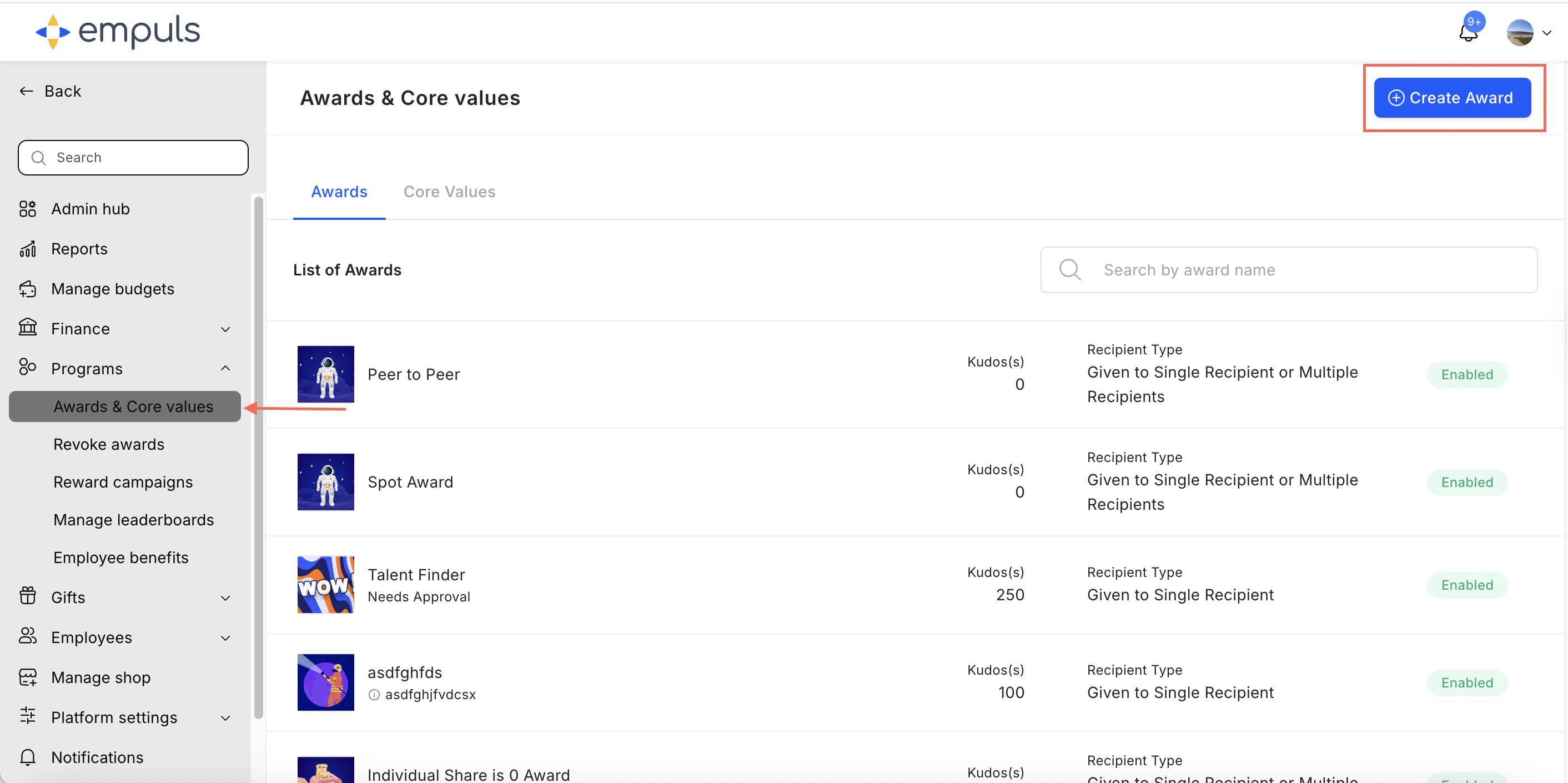 Select **Award that needs approval** and click **Proceed**.
> Best suited for high-value awards linked to long-term goals. Select this option when the award requires approval before being presented to the awardee.
Select **Award that needs approval** and click **Proceed**.
> Best suited for high-value awards linked to long-term goals. Select this option when the award requires approval before being presented to the awardee.
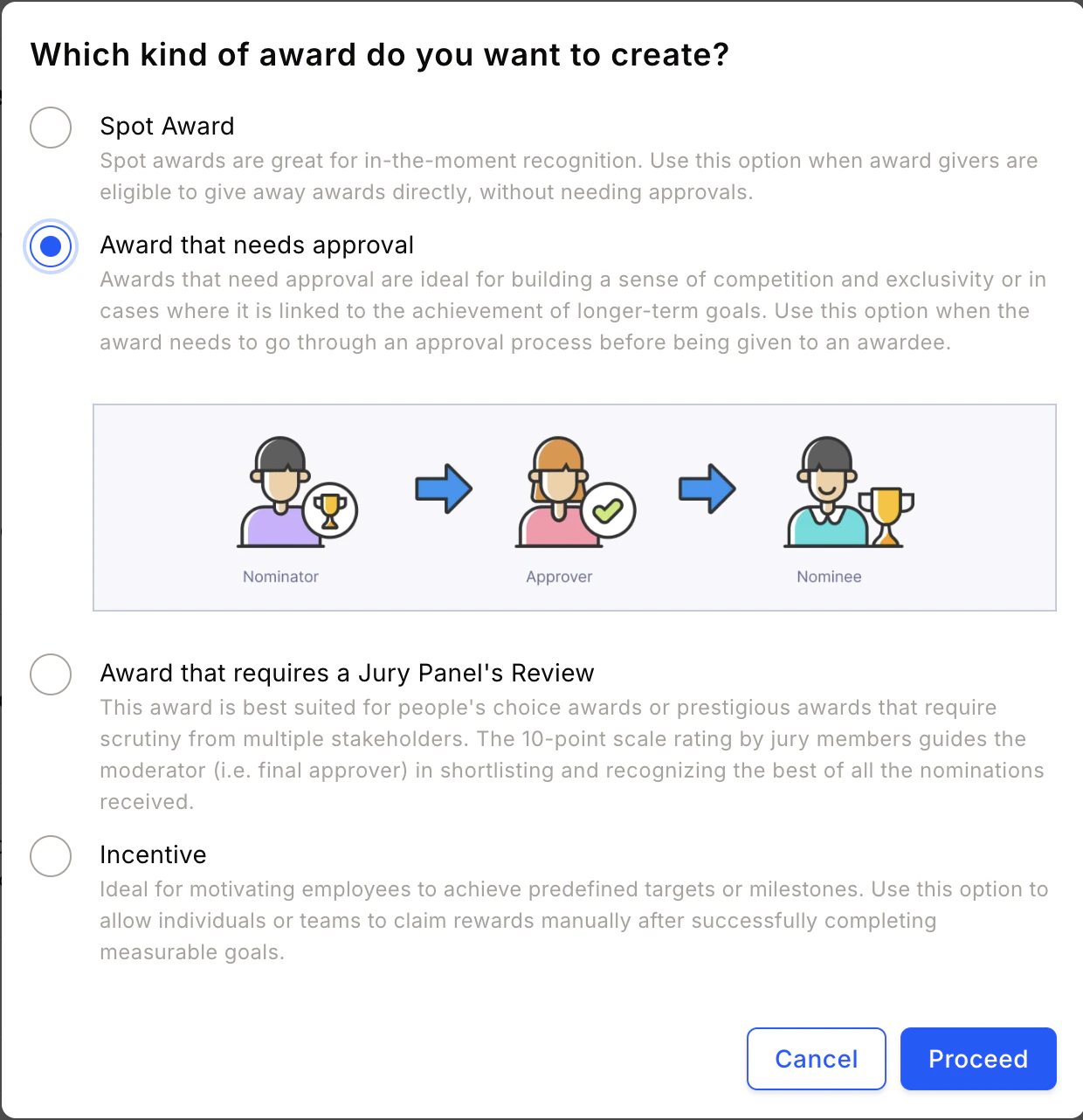 Fill in the **award name**, **description**, **image**, and **recipient type**, then click **Continue**.
An award recipient can be an individual, a team, or kept flexible — letting the award presenter decide.
Fill in the **award name**, **description**, **image**, and **recipient type**, then click **Continue**.
An award recipient can be an individual, a team, or kept flexible — letting the award presenter decide.
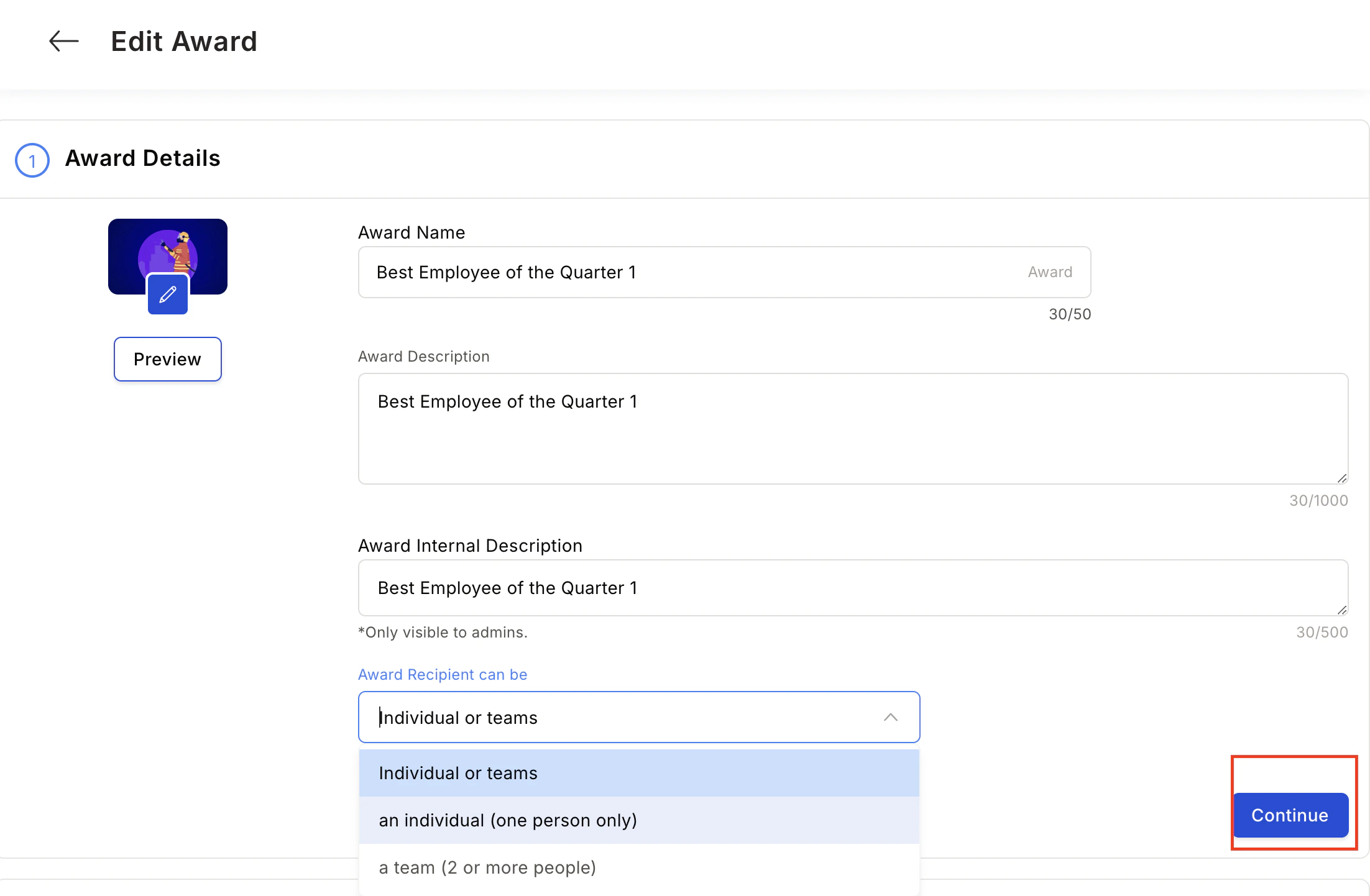 Choose whether to reward points or gift cards and merchandise.
**For spot awards**, points can be:
* **Fixed** — The same points every time; the presenter cannot modify.
* **Range** — The Super Admin sets a min/max range; the presenter allocates within it.
Choose whether to reward points or gift cards and merchandise.
**For spot awards**, points can be:
* **Fixed** — The same points every time; the presenter cannot modify.
* **Range** — The Super Admin sets a min/max range; the presenter allocates within it.
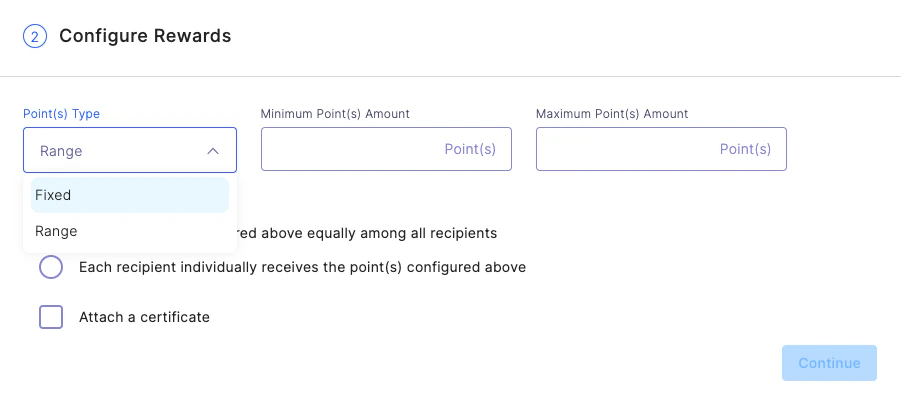 **For team rewards**, distribute configured points equally among all team members, or give each recipient the full configured points independently.
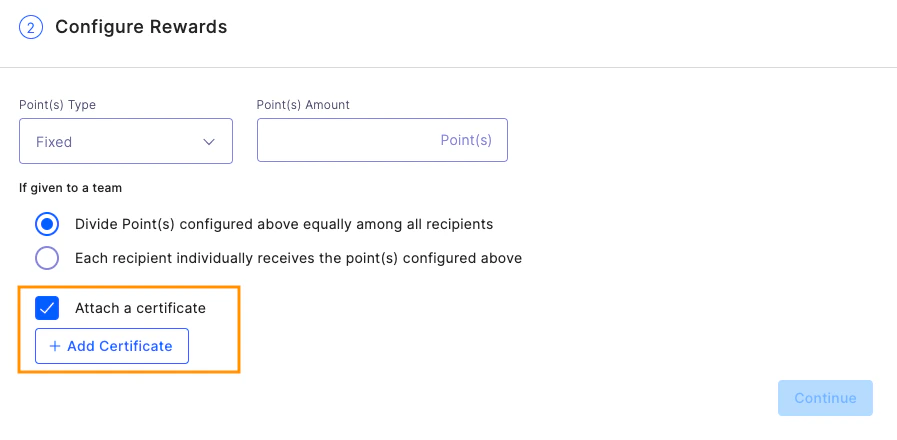
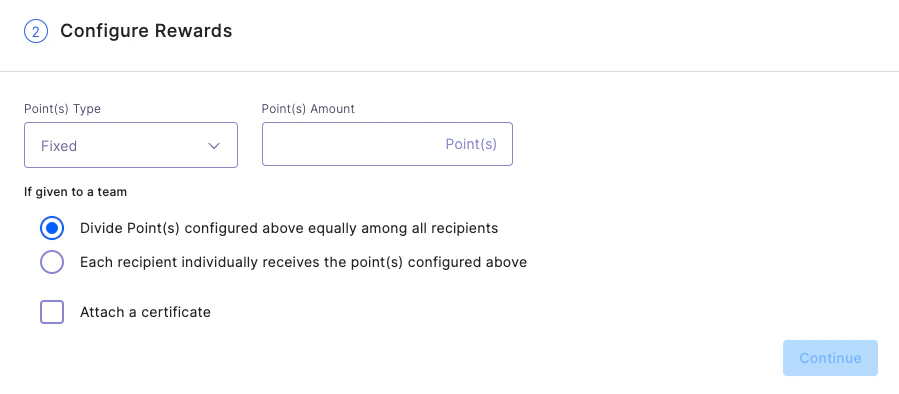 **Attach Certificate** — Attach a certificate template to your award. Certificates are configurable and automatically populate with the awardee's details. See [Add certificates to awards](/admin/programs/awards/add-certificates-to-awards) for detailed steps.
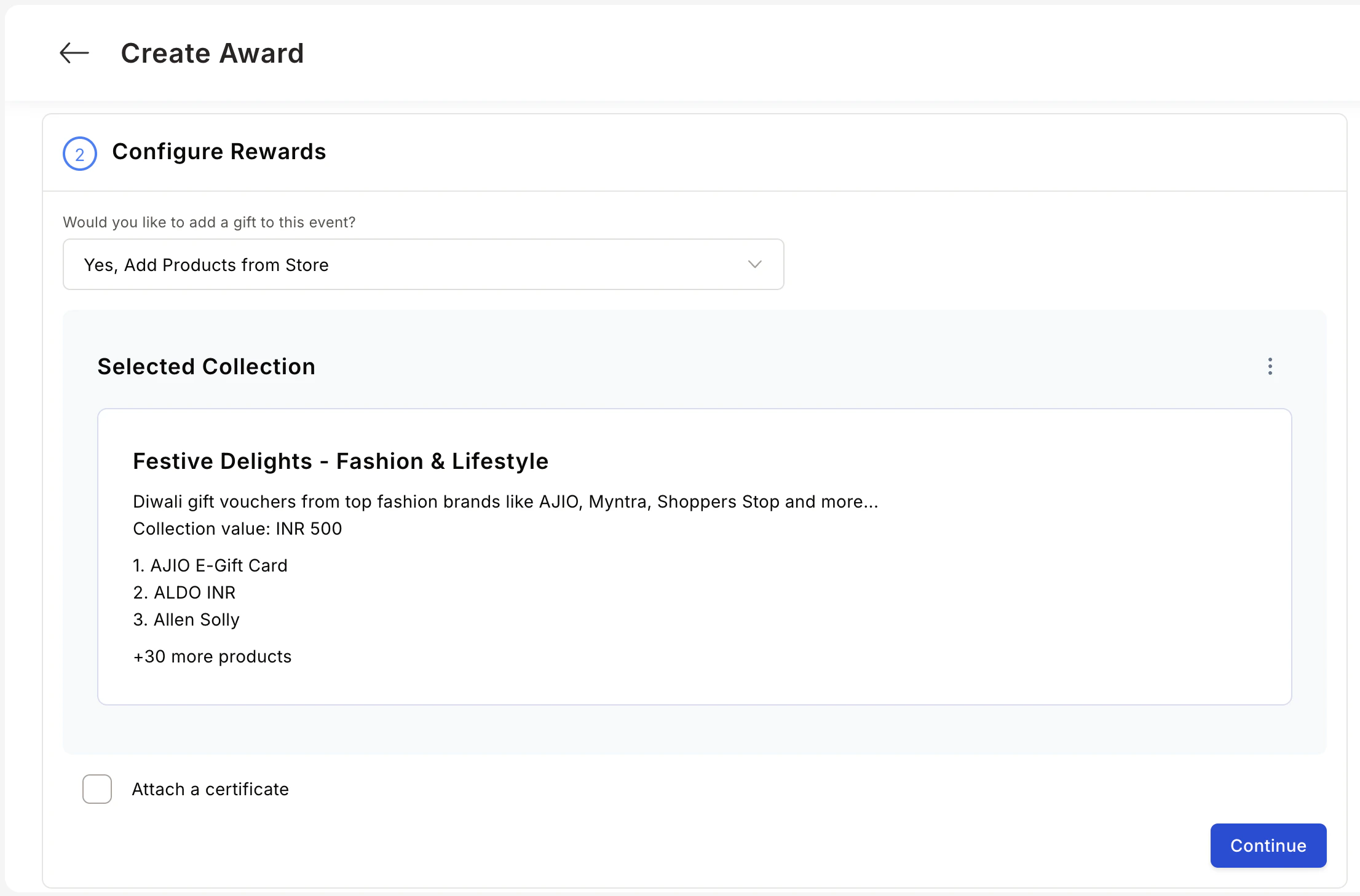
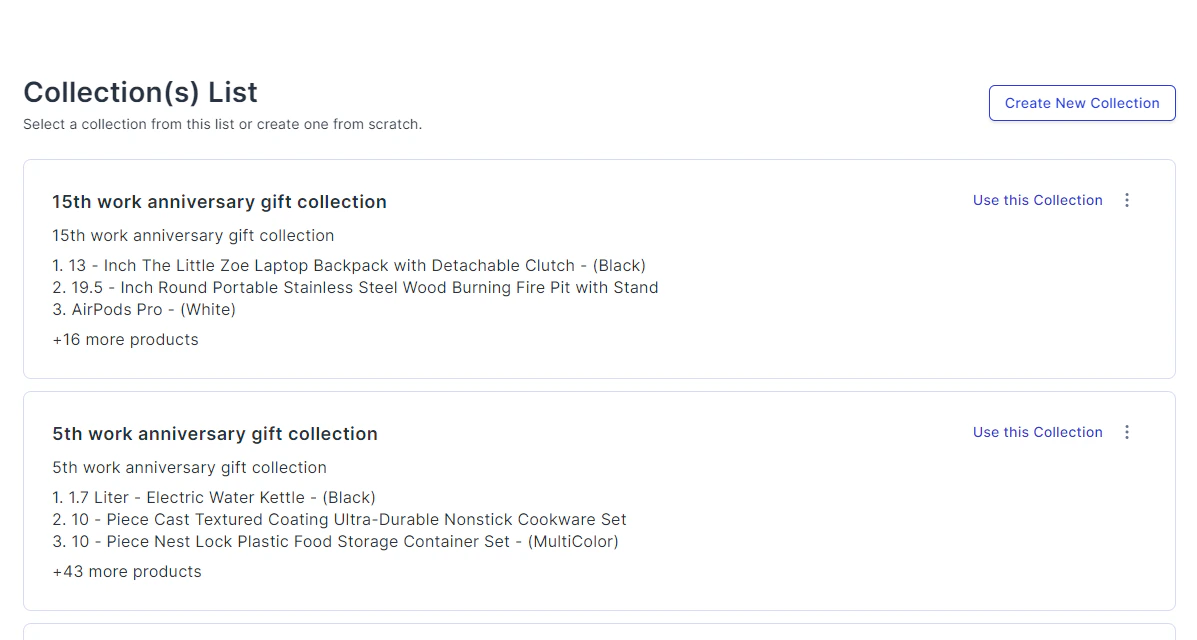
 **Add Products from the Store** — Reward employees with merchandise and gift cards instead of points. See [Set up product-based rewards](/admin/programs/awards/set-up-product-based-rewards) for detailed steps.
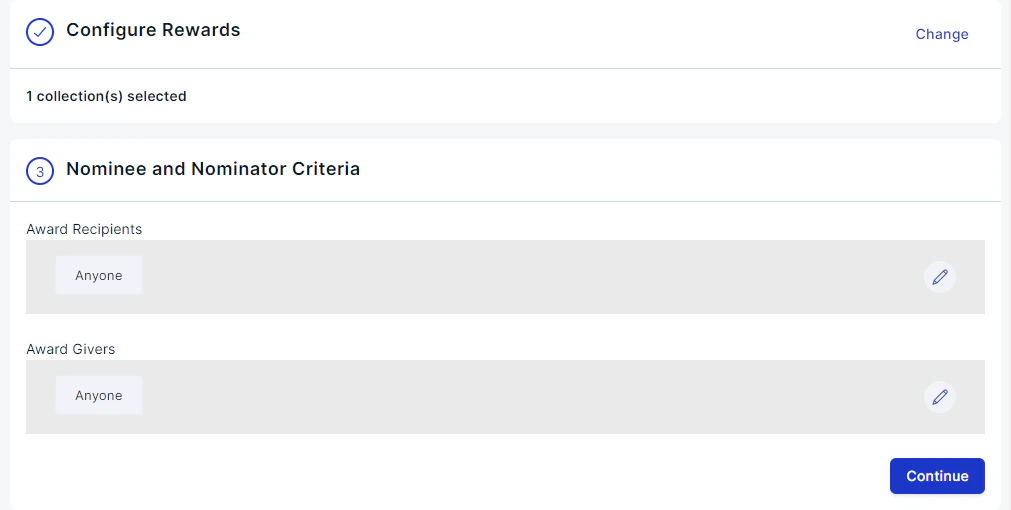
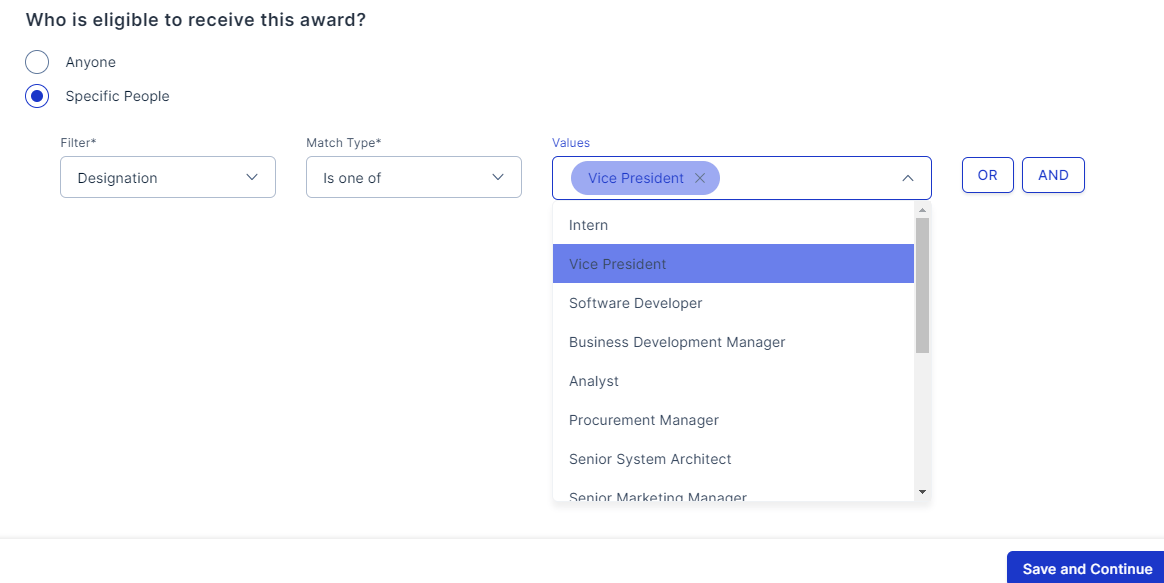
 Restrict nominations to specific groups by setting constraints on who can nominate, who can be nominated, and who can approve.
 **Example 1 — Jerry Maguire Award**
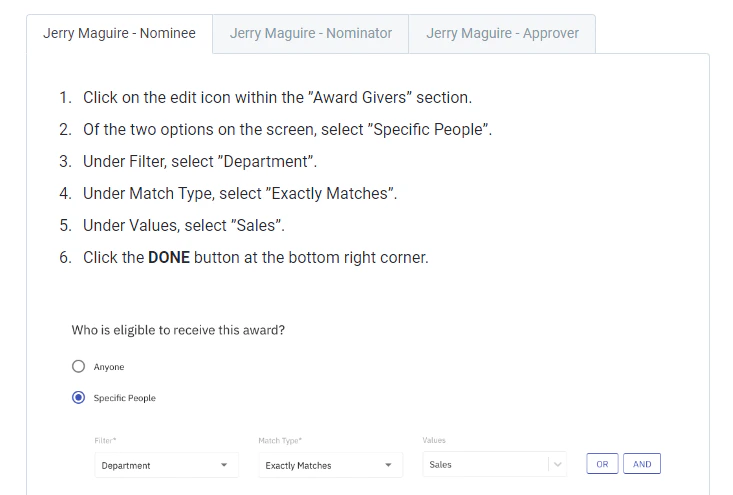
Your company has a Sales award for the best performer. Nominations are submitted by first-line managers and require VP of Sales approval.
**Example 1 — Jerry Maguire Award**
Your company has a Sales award for the best performer. Nominations are submitted by first-line managers and require VP of Sales approval.
 **Example 2 — Herman Boone Award**
An award for excellence among people managers. All employees except VPs are eligible to be nominated. Anyone in the organisation can nominate, and final approval rests with either the CEO or the COO.
**Example 2 — Herman Boone Award**
An award for excellence among people managers. All employees except VPs are eligible to be nominated. Anyone in the organisation can nominate, and final approval rests with either the CEO or the COO.
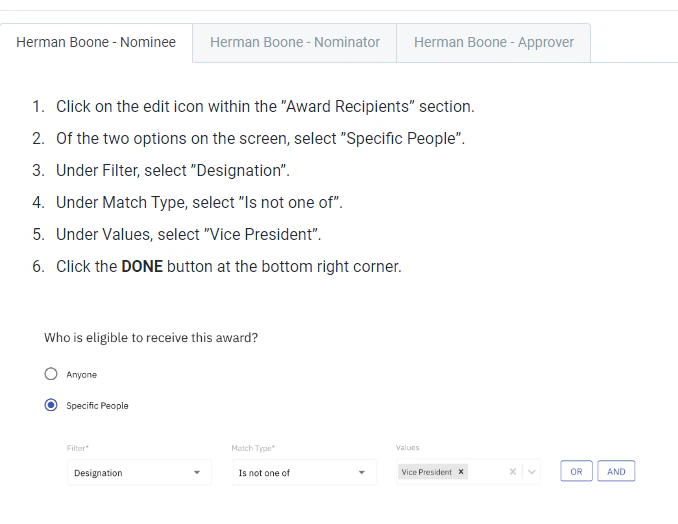 Use **OR** when matching any one clause is sufficient for eligibility. Use **AND** when all clauses must match.
Click the **pencil icon** next to the Approver Selection card. Choose between:
* **Anyone** — Any user can approve the award.
Use **OR** when matching any one clause is sufficient for eligibility. Use **AND** when all clauses must match.
Click the **pencil icon** next to the Approver Selection card. Choose between:
* **Anyone** — Any user can approve the award.
 * **Specific User** — Define one or more specific approvers. Use filters to select the approver type and add multiple approval levels.
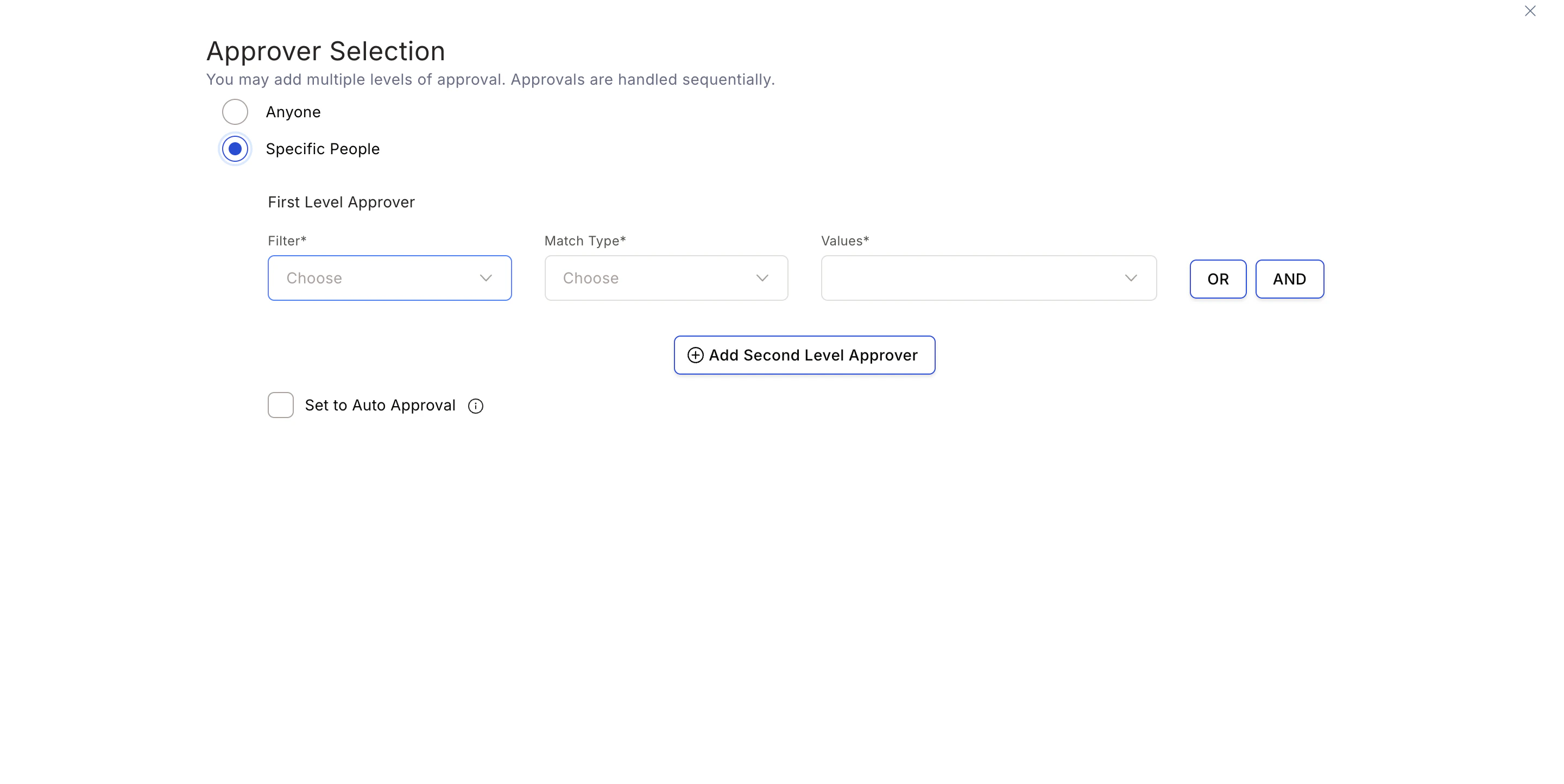 To add automatic approval, check **Set to Auto-Approve**. The selected approver is automatically assigned whenever an award is triggered, and all nominations reaching that level are automatically approved — provided the approver has sufficient budget.
If an approver marked for Auto-Approval does not have sufficient budget, all Super Admins receive an email notification that the nomination is in a pending state.
To add more approvers, click **Add Second Level Approver**.
To add automatic approval, check **Set to Auto-Approve**. The selected approver is automatically assigned whenever an award is triggered, and all nominations reaching that level are automatically approved — provided the approver has sufficient budget.
If an approver marked for Auto-Approval does not have sufficient budget, all Super Admins receive an email notification that the nomination is in a pending state.
To add more approvers, click **Add Second Level Approver**.
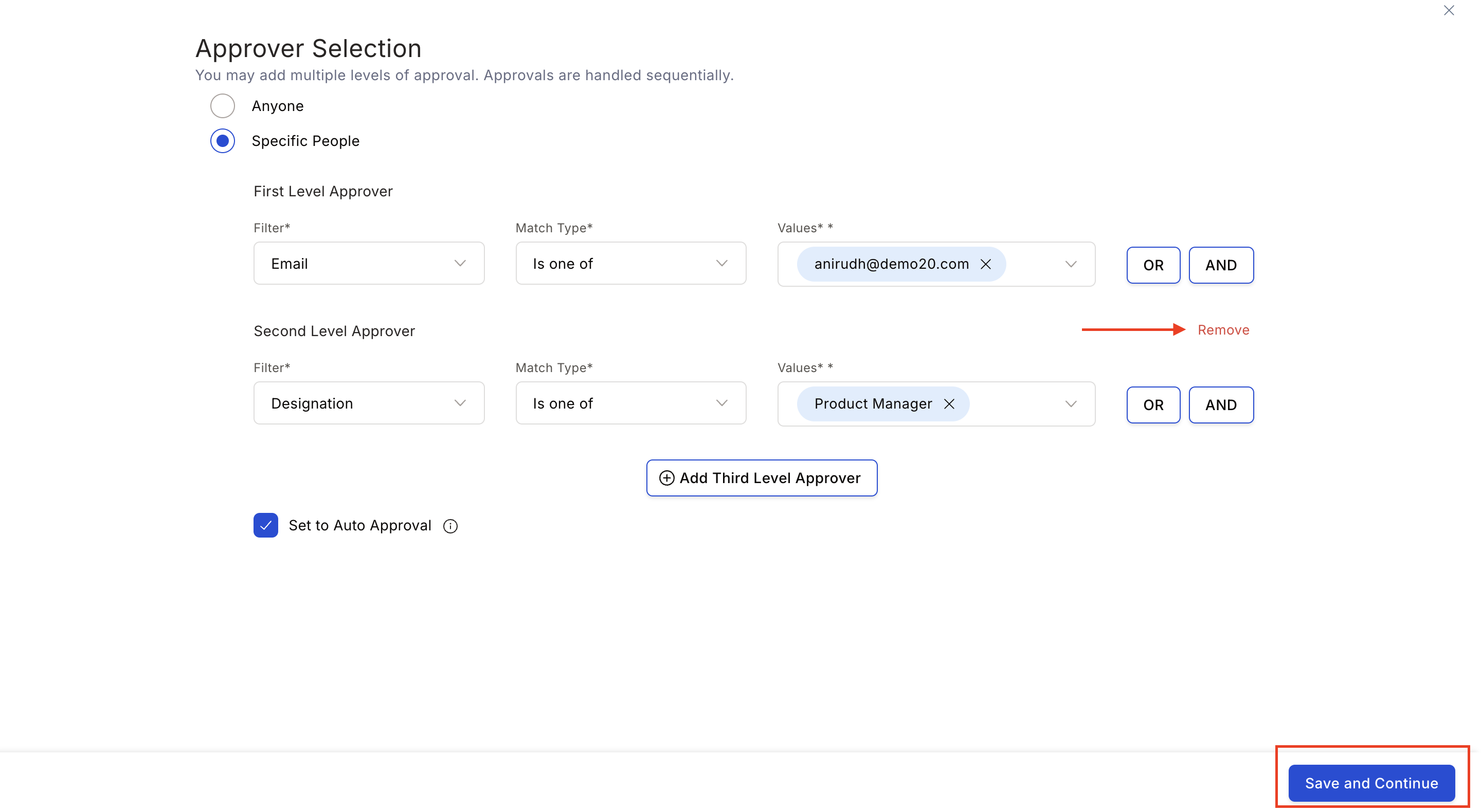
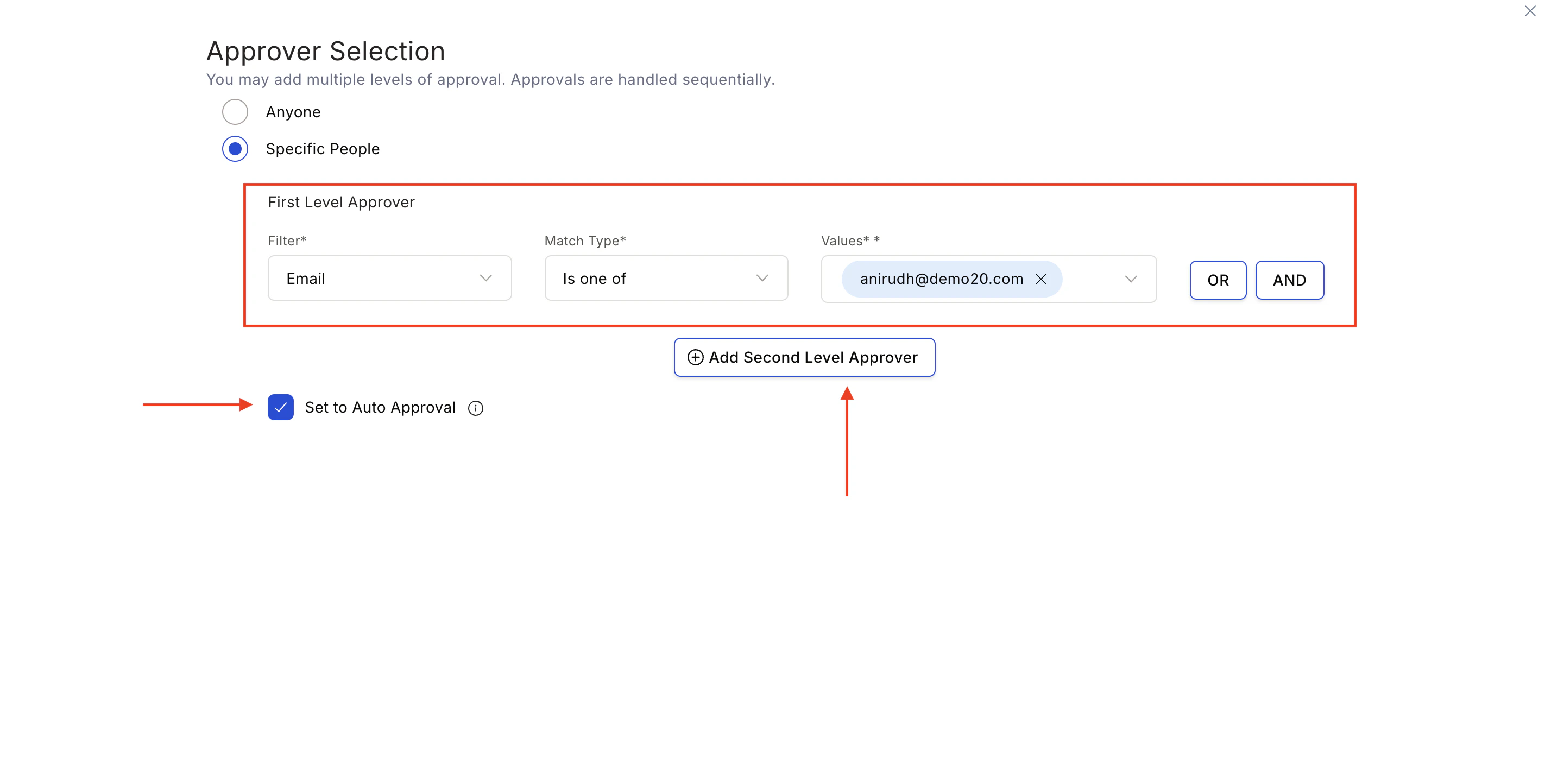 To remove an approver, click the red **Remove** button. Once done, click **Save and Continue**.
 **A. Set Questions for Nominator** — Create up to 20 questions (multiple-choice or short text) that nominators must answer. If a text-based question is mandatory, you can also mark an attachment as mandatory.
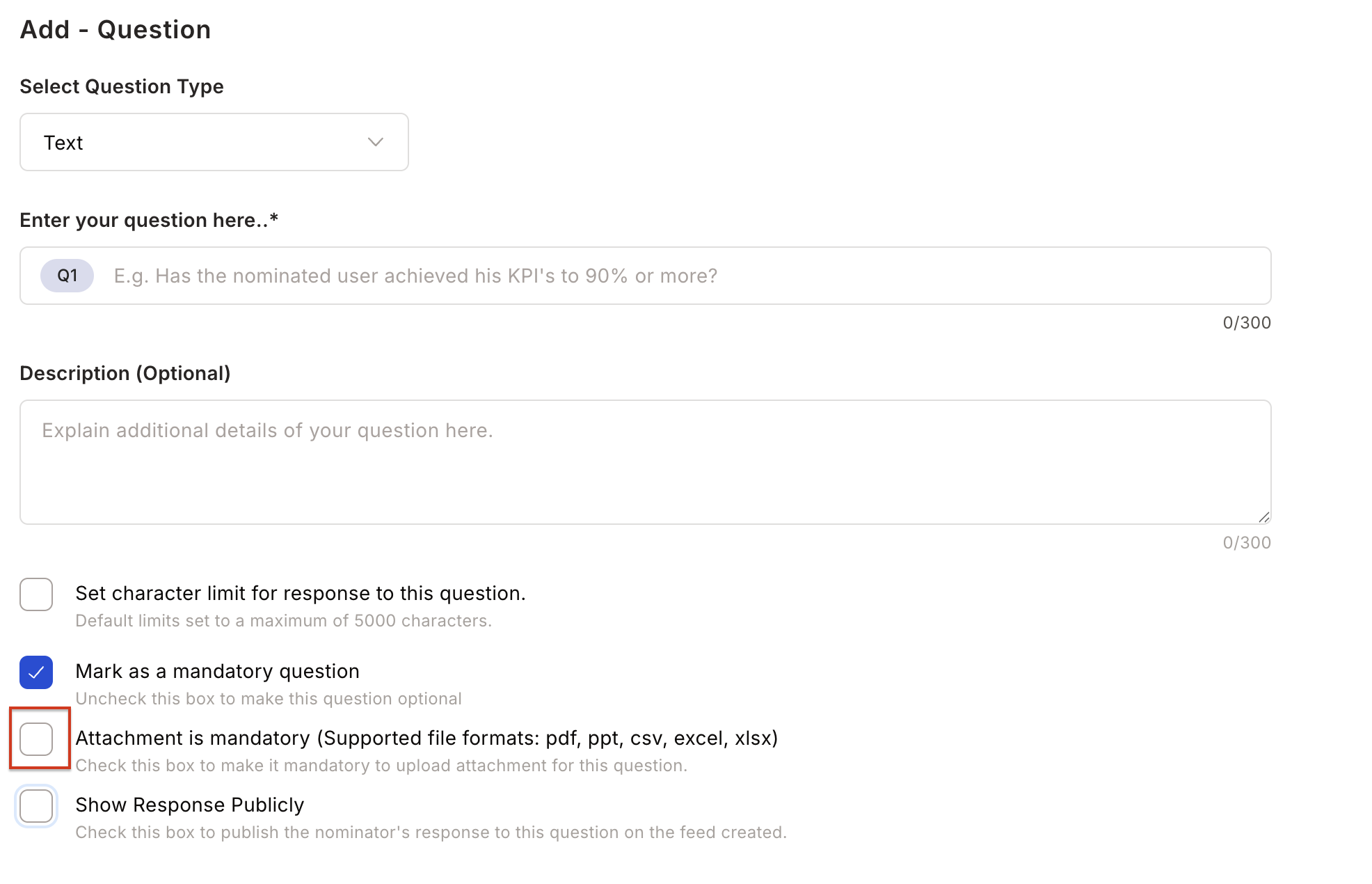 **B. Citation Input** — When a mandatory public question is added, you can skip the separate citation input.
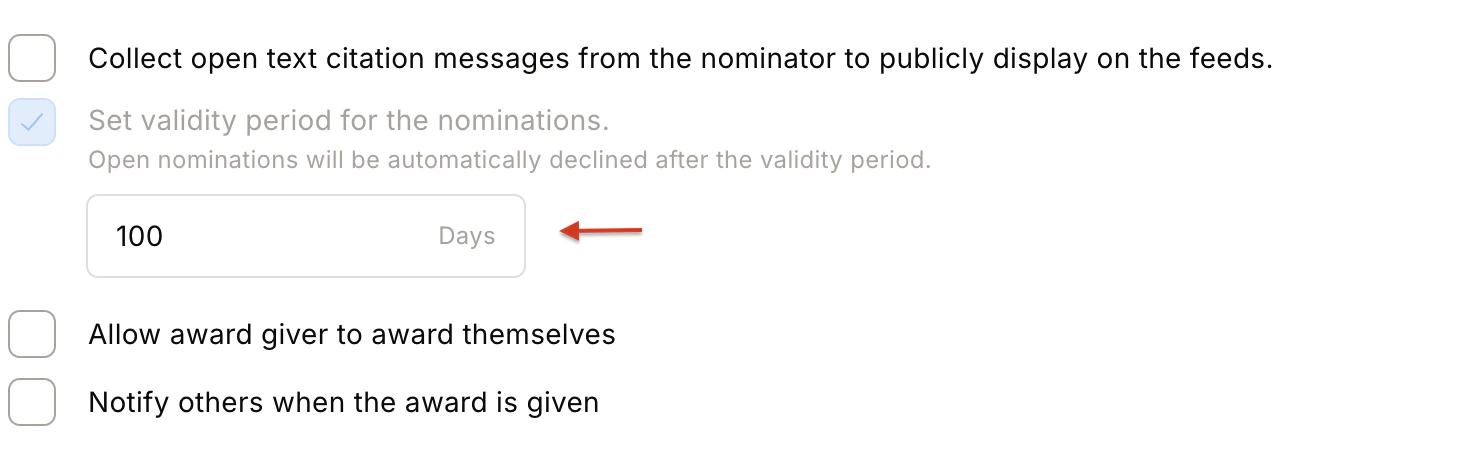
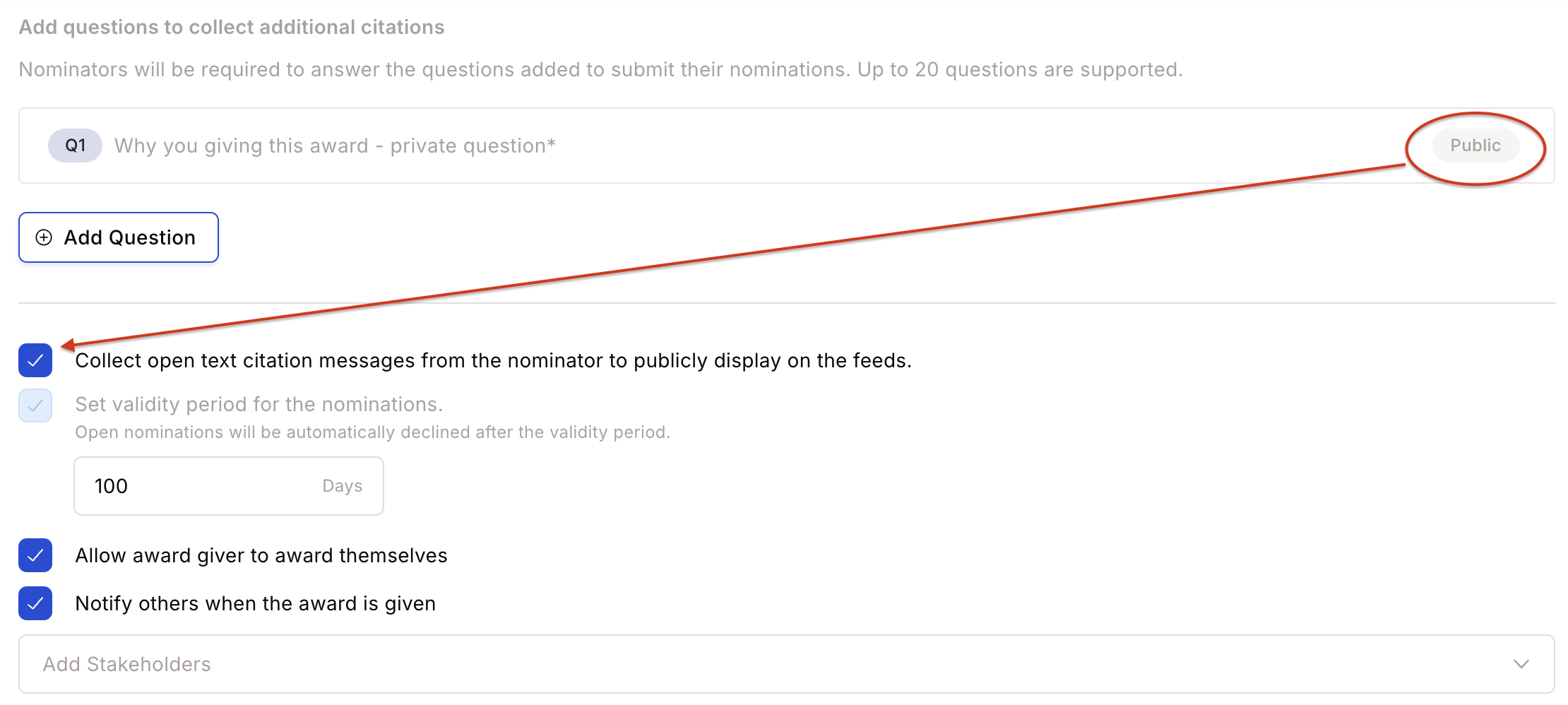 **C. Nomination Validity** — Set a validity period after which open nominations are automatically declined.
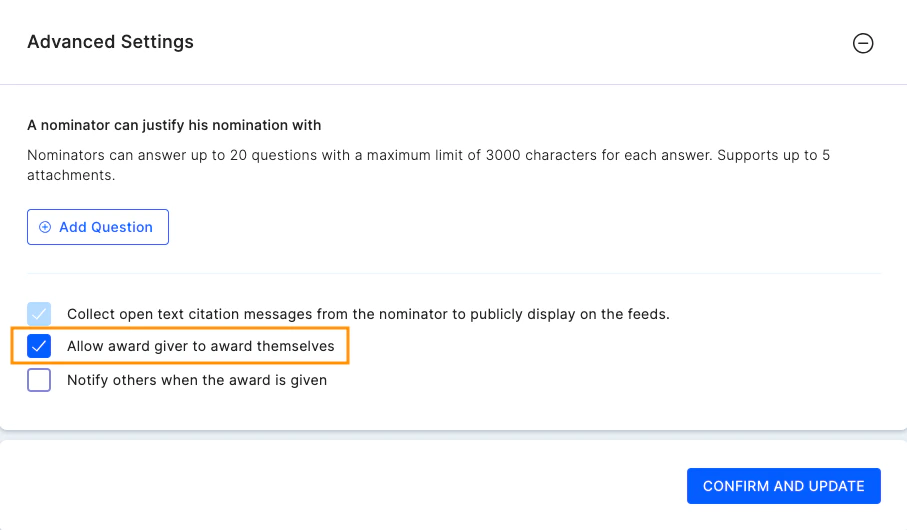
 **D. Self Nomination** — When enabled, allows a nominator to nominate themselves.
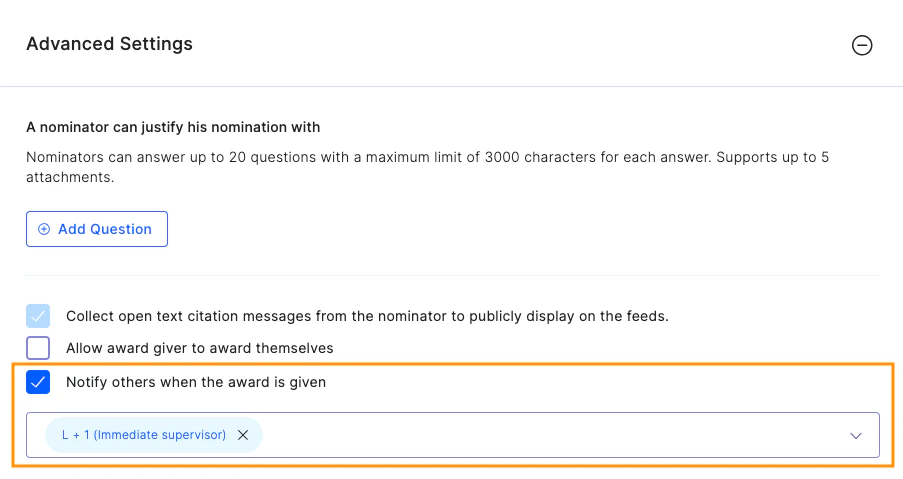
 **E. Notify Stakeholders** — Specify who is notified when the award is given (manager, HRBP, department head, etc.).
 **F. Announcement and Feed Controls**
* **Award Visibility** — Post publicly on the feed, or keep private (only sender and receiver can see it). You can also allow nominators/approvers to control visibility at the time of giving.
**F. Announcement and Feed Controls**
* **Award Visibility** — Post publicly on the feed, or keep private (only sender and receiver can see it). You can also allow nominators/approvers to control visibility at the time of giving.
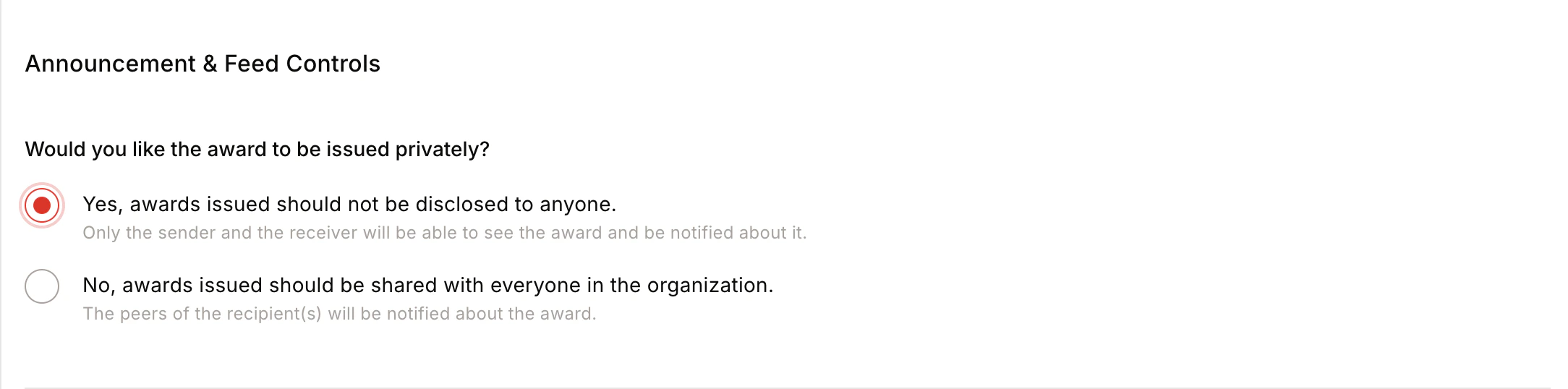
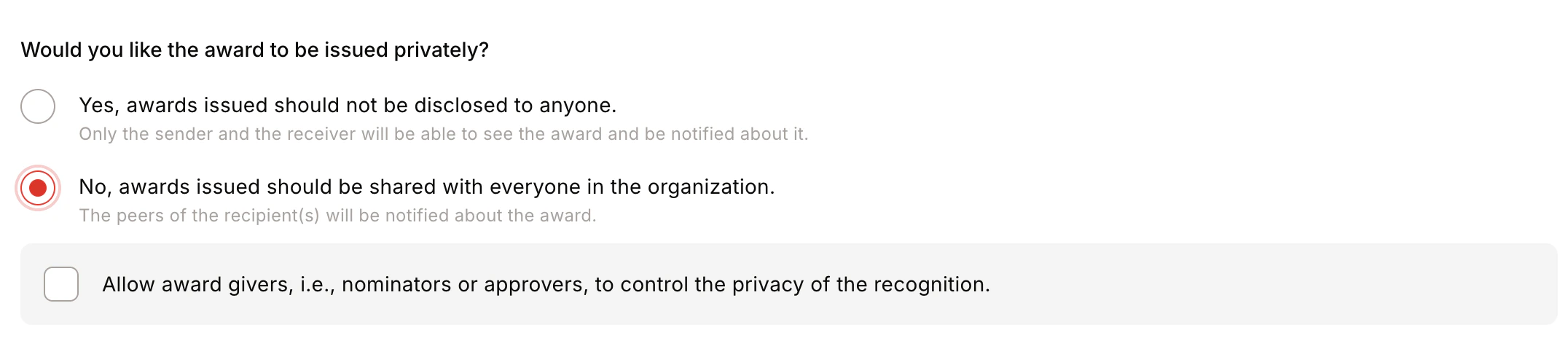 * **Information Disclosed** — Choose whether to show the Award Giver, Citation by Nominator, and Award Name and Icon on the feed.
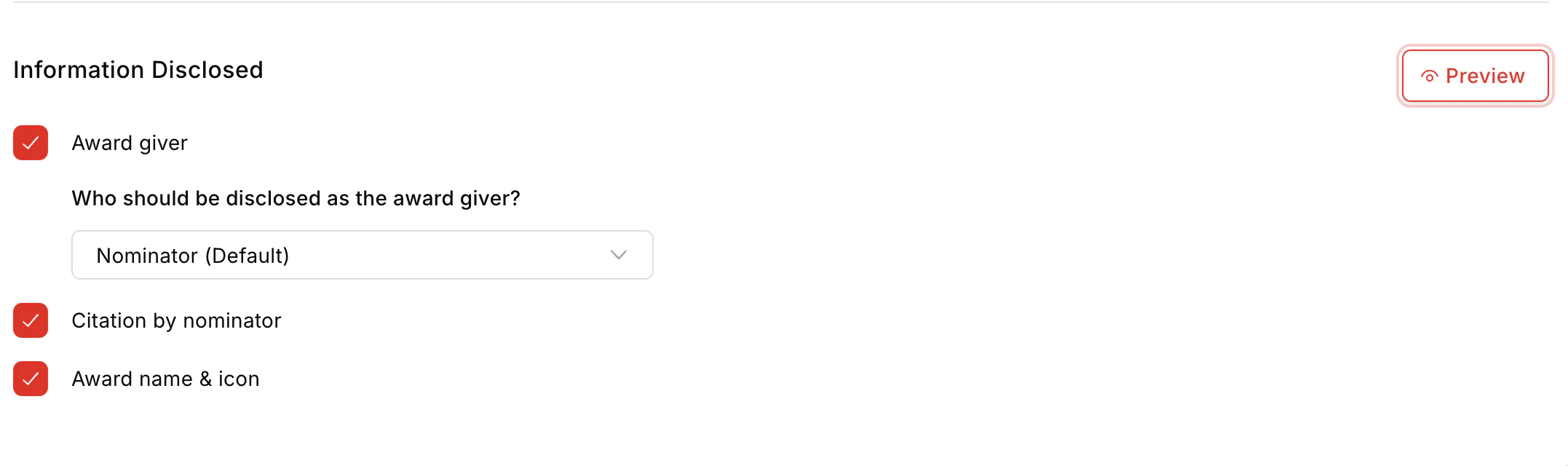 * **Privacy Control**:
* **Centrally** — Award is posted publicly and visible to all group members.
* **Public** — Visible to all members of the group where recognition is posted.
* **Private** — Only the nominator and nominee can see the award feed.
* **By Nominator/Approver** — Privacy is set by the nominator or approver at time of giving.
* **Team Size** — Minimum 1, maximum 50 members.
* **Privacy Control**:
* **Centrally** — Award is posted publicly and visible to all group members.
* **Public** — Visible to all members of the group where recognition is posted.
* **Private** — Only the nominator and nominee can see the award feed.
* **By Nominator/Approver** — Privacy is set by the nominator or approver at time of giving.
* **Team Size** — Minimum 1, maximum 50 members.
 Click **Confirm and Create** to complete the award setup.
The awardee's teammates are notified by email to crowdsource wishes for the award recipient.
Click **Confirm and Create** to complete the award setup.
The awardee's teammates are notified by email to crowdsource wishes for the award recipient.