> ## Documentation Index
> Fetch the complete documentation index at: https://help-empuls.xoxoday.com/llms.txt
> Use this file to discover all available pages before exploring further.
# Revoke awards and gifts
> Revoke awards or gifts when a recognition needs to be taken back due to disputes, policy violations, accidental nominations, or human error.
If an award or gift needs to be taken back (revoked) due to disputes, policy violations, accidental nominations, or human error, the Super Admin can do it in a few simple steps.
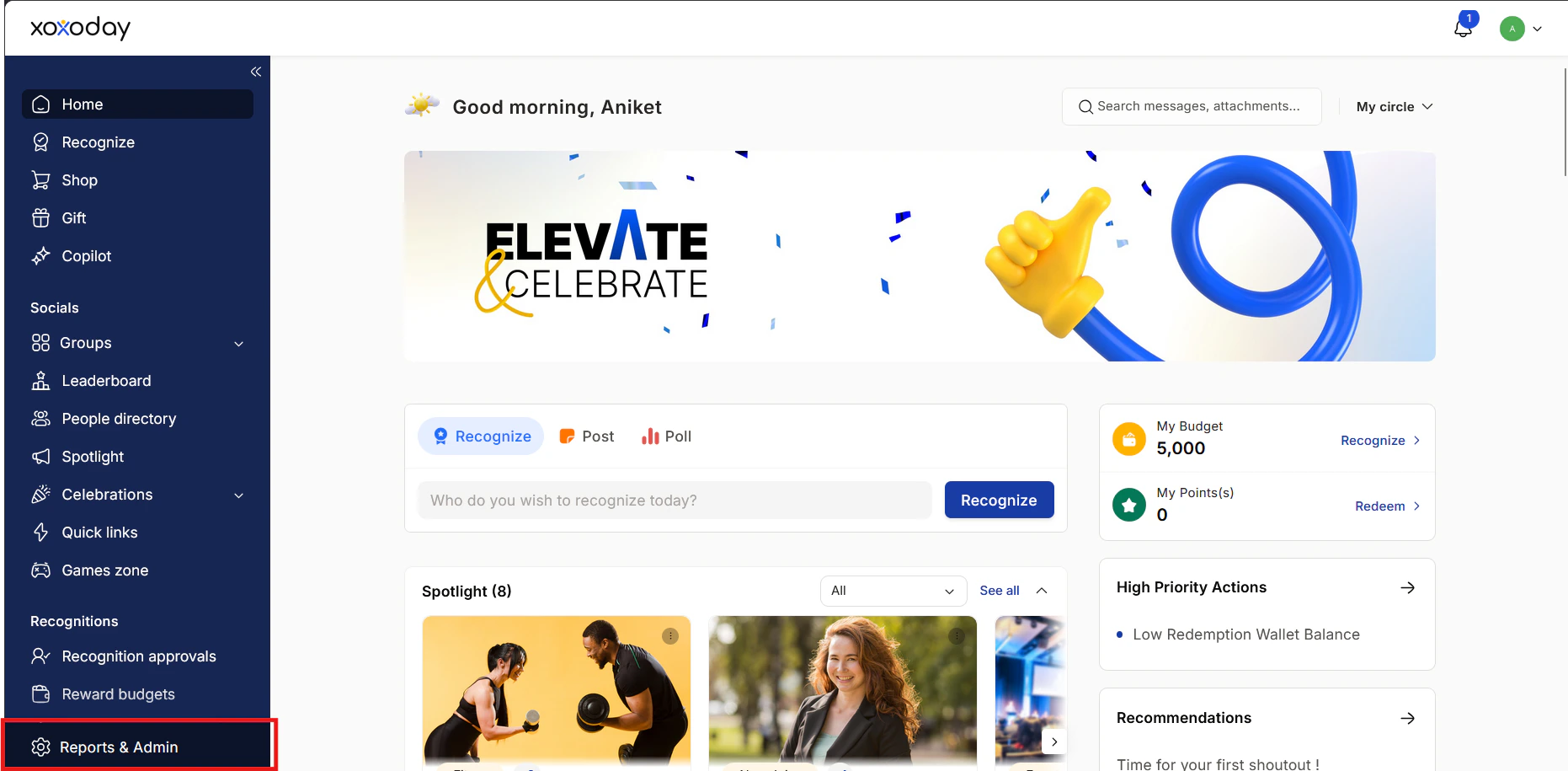
Go to **Admin Dashboard** by clicking on **Report & Admin** as shown below.
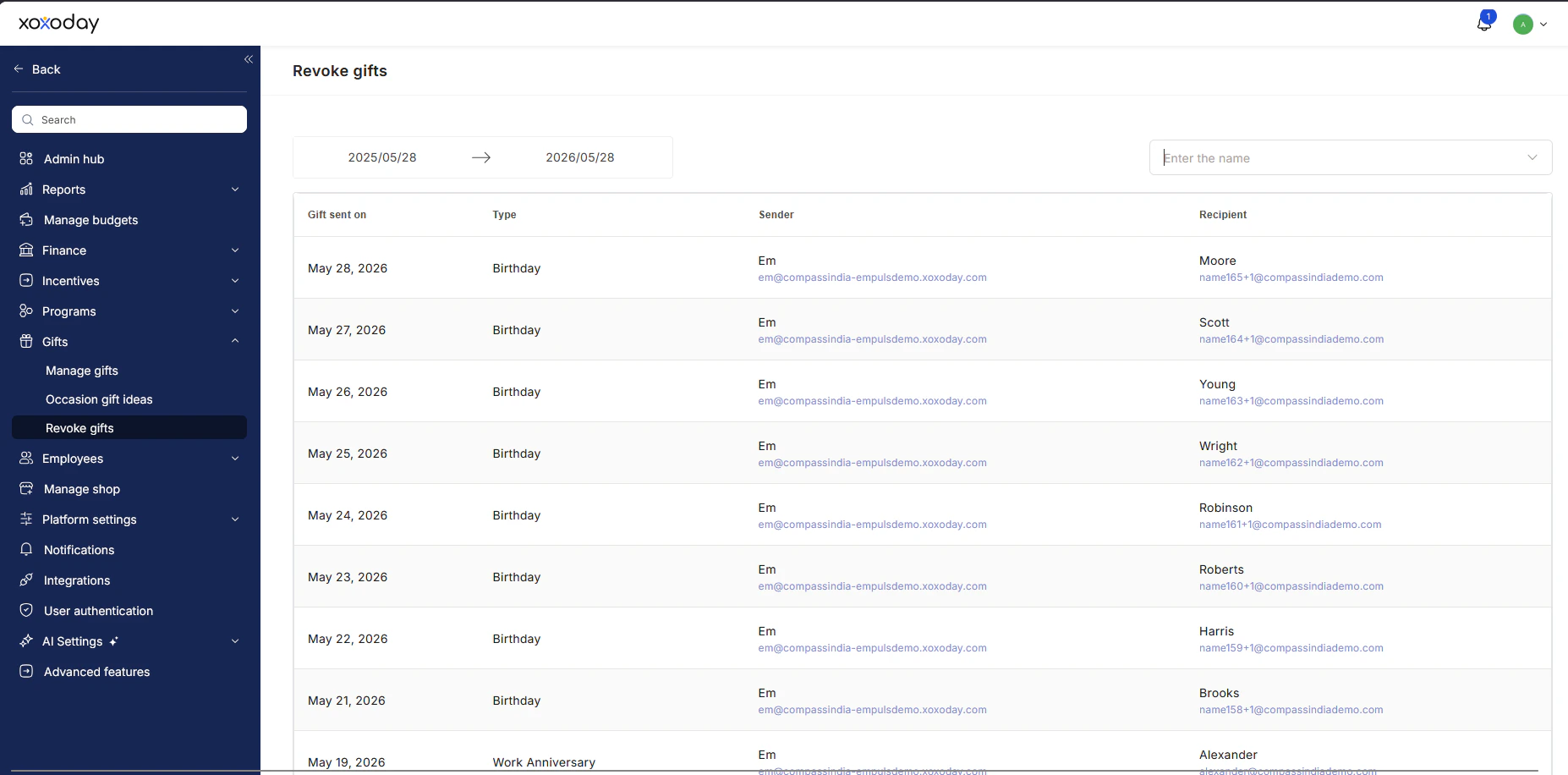
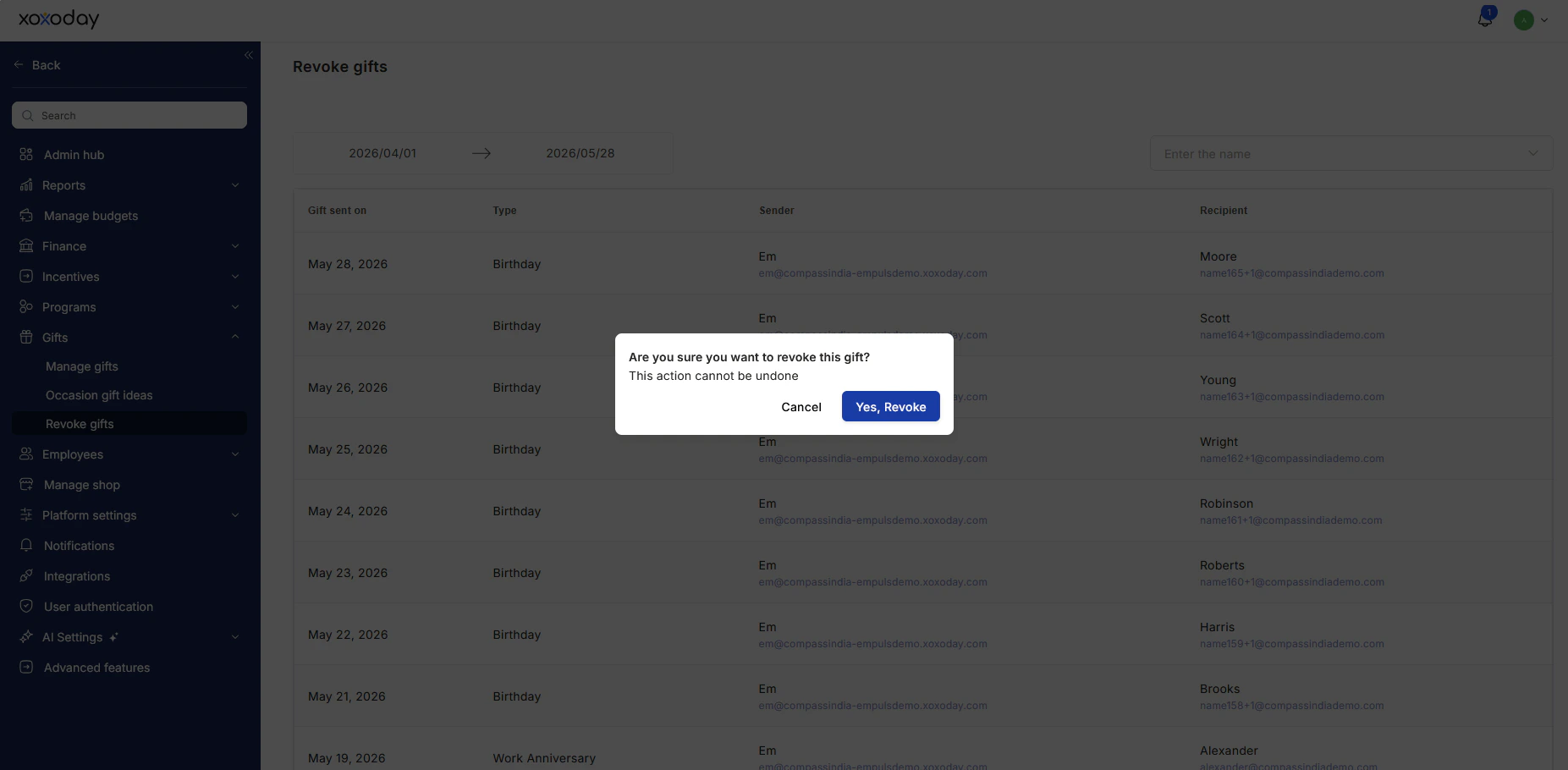
 Navigate to **Gifts > Revoke Gifts**.
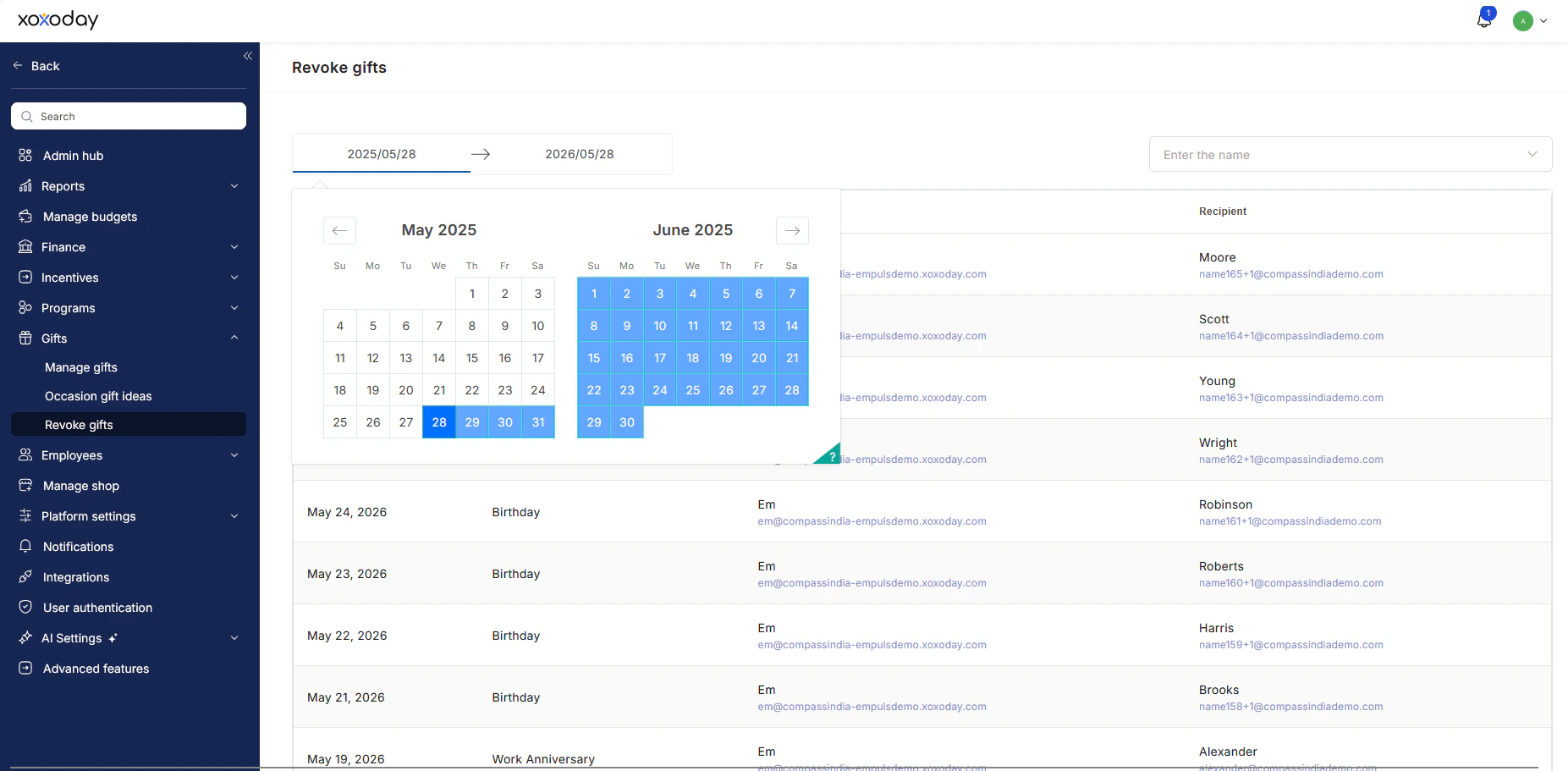
 Select the **date range** during which the gift has to be revoked.
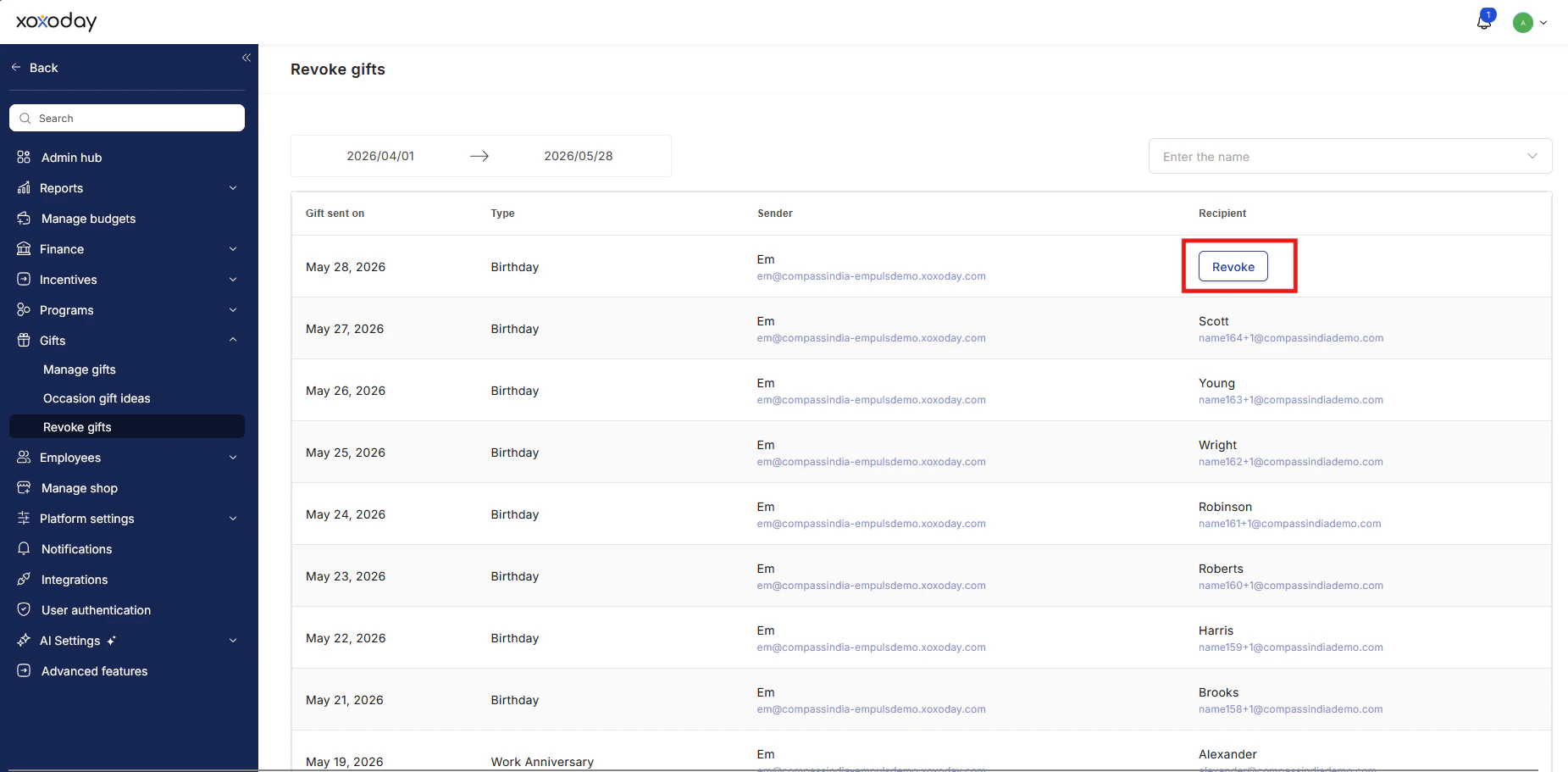
 Click on the gift and then click **Revoke** to initiate the process.
 **When you revoke an award or gift, the following happens:**
* Points are returned to the nominator's account.
* The award status is updated in the reports.
* A notification is sent to the award recipient to inform them of the change.
* The nominator is notified about the revocation.
* If the nominator is disabled, Empuls can revoke the points to a different user's account.
**When you revoke an award or gift, the following happens:**
* Points are returned to the nominator's account.
* The award status is updated in the reports.
* A notification is sent to the award recipient to inform them of the change.
* The nominator is notified about the revocation.
* If the nominator is disabled, Empuls can revoke the points to a different user's account.
 ## FAQs
Awards and gifts can be revoked in cases of disputes, policy violations, accidental nominations, or any human error.
* Points are returned to the nominator's account.
* Reports are updated with the revoked status.
* Both the recipient and the nominator receive notifications about the revocation.
Yes. Use the **date range filter** in **Gifts > Revoke Gifts** to view and select awards or gifts within a specific period.
In such cases, Empuls lets you revoke the points to a different user's account, which can be set manually.
Application URL: `https://{tenant_url}/home/gift-rollback`
## FAQs
Awards and gifts can be revoked in cases of disputes, policy violations, accidental nominations, or any human error.
* Points are returned to the nominator's account.
* Reports are updated with the revoked status.
* Both the recipient and the nominator receive notifications about the revocation.
Yes. Use the **date range filter** in **Gifts > Revoke Gifts** to view and select awards or gifts within a specific period.
In such cases, Empuls lets you revoke the points to a different user's account, which can be set manually.
Application URL: `https://{tenant_url}/home/gift-rollback`