> ## Documentation Index
> Fetch the complete documentation index at: https://help-empuls.xoxoday.com/llms.txt
> Use this file to discover all available pages before exploring further.
# Types of awards
> Learn about the different award types available in Empuls and how they support your recognition programme.
An award is a form of recognition that includes a badge, a certificate, and the option to include a monetary value. You can give awards to anyone in your organisation — team members, managers, and colleagues — to acknowledge their hard work or positive attributes. Granting awards may be subject to restrictions defined by the Super Admin.
Empuls supports four award configurations, each suited to a different recognition scenario.
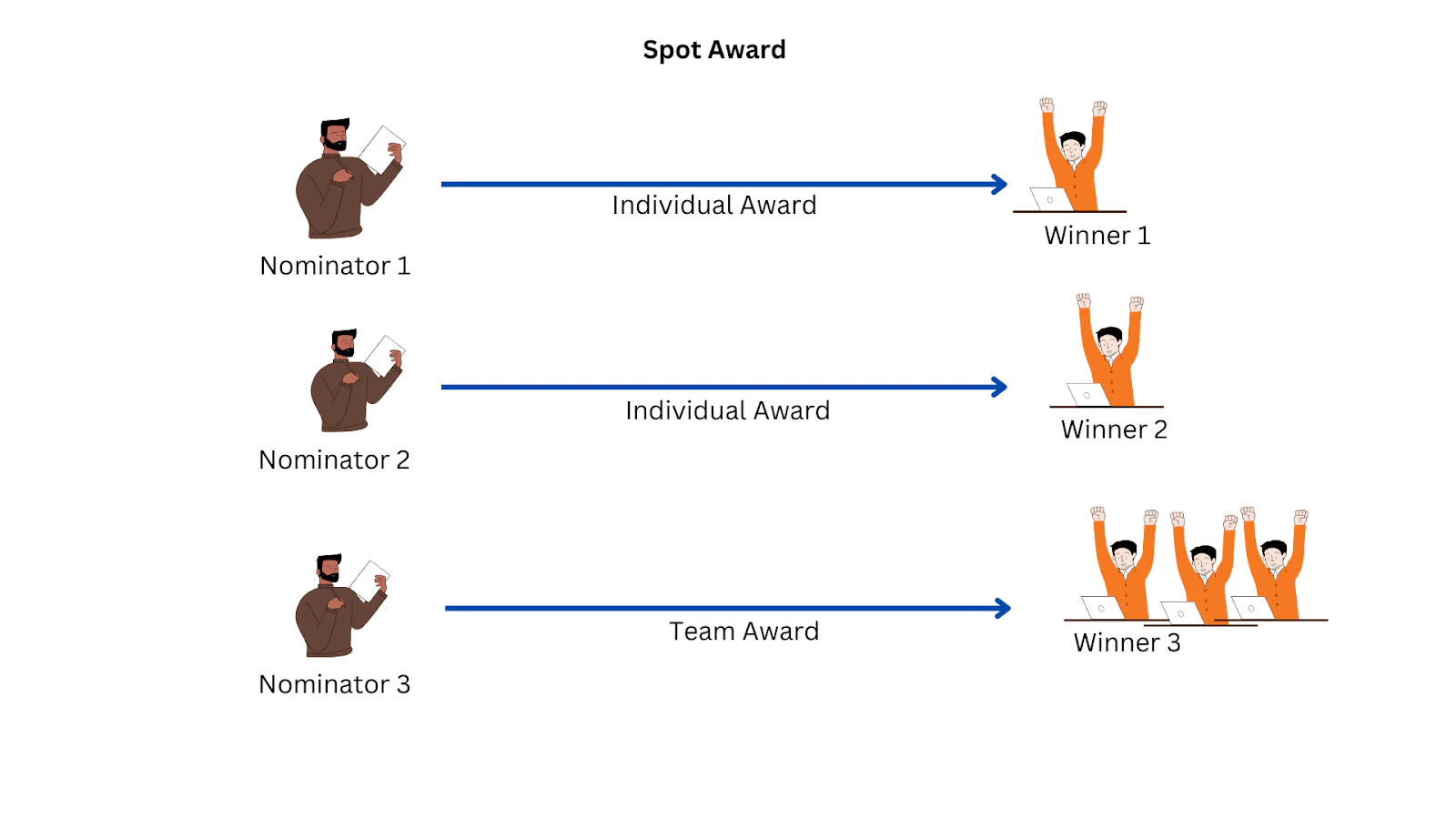
### 1. Spot awards
Spot awards are great for in-the-moment recognition. Use this option when you want to allow award givers to give awards without requiring approvals.
This award type supports all reward configurations: fixed or range-based points, gift cards, certificates, and team rewards.
 ### 2. Approval-based awards
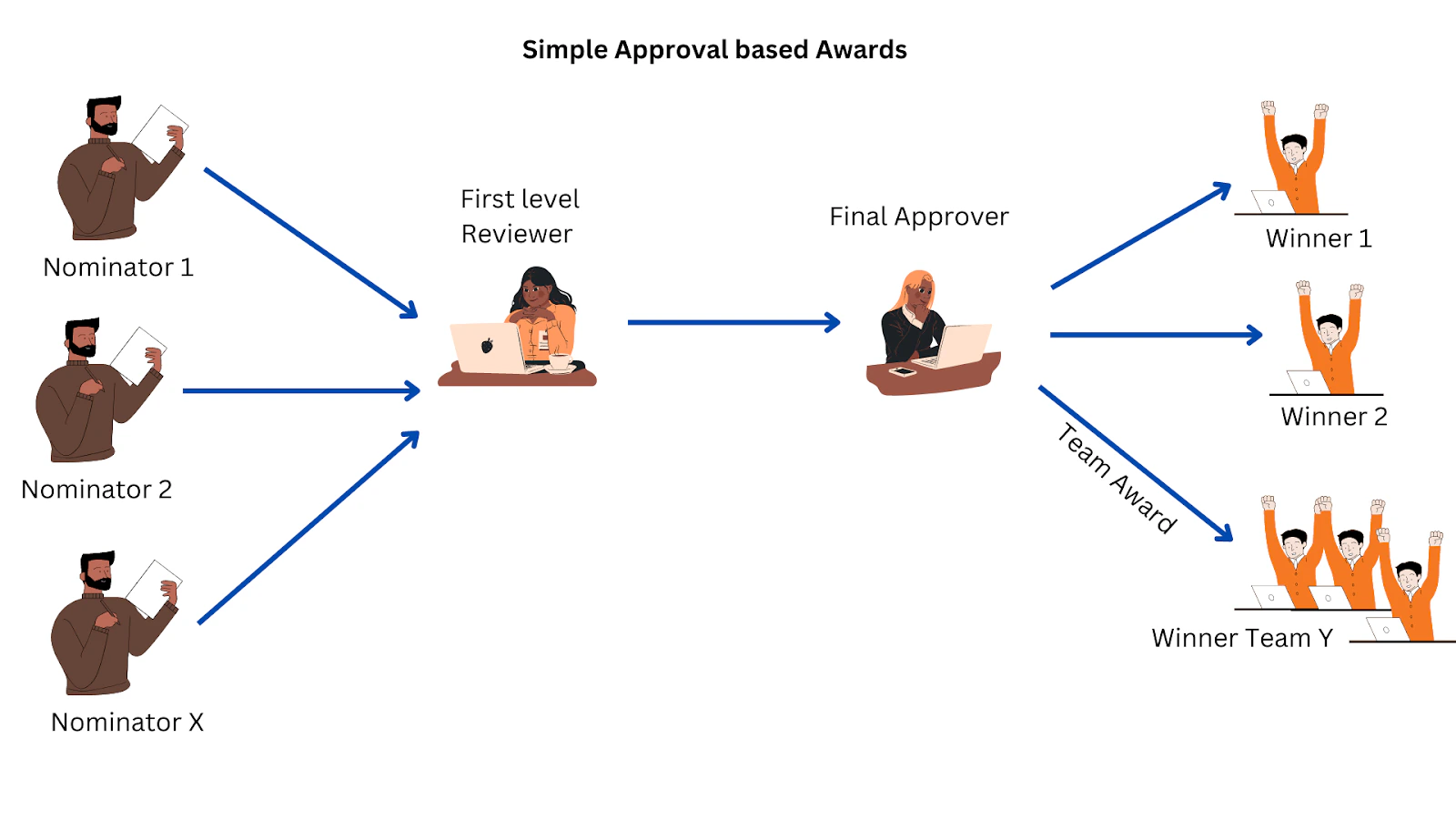
Use approval-based awards when you want employees to nominate colleagues for awards that need a review before being issued.
Four personas are involved:
* **Nominator** — Identifies the individual or team that deserves an award and submits a nomination.
* **Nominee** — The individual or group nominated. Nominees are not informed about the nomination process until the award is approved.
* **First-level approver** — Reviews the nomination and decides whether it should move forward.
* **Final-level approver** — The final authority on award nominations. Can approve nominations only if sufficient budget is available.
### 2. Approval-based awards
Use approval-based awards when you want employees to nominate colleagues for awards that need a review before being issued.
Four personas are involved:
* **Nominator** — Identifies the individual or team that deserves an award and submits a nomination.
* **Nominee** — The individual or group nominated. Nominees are not informed about the nomination process until the award is approved.
* **First-level approver** — Reviews the nomination and decides whether it should move forward.
* **Final-level approver** — The final authority on award nominations. Can approve nominations only if sufficient budget is available.
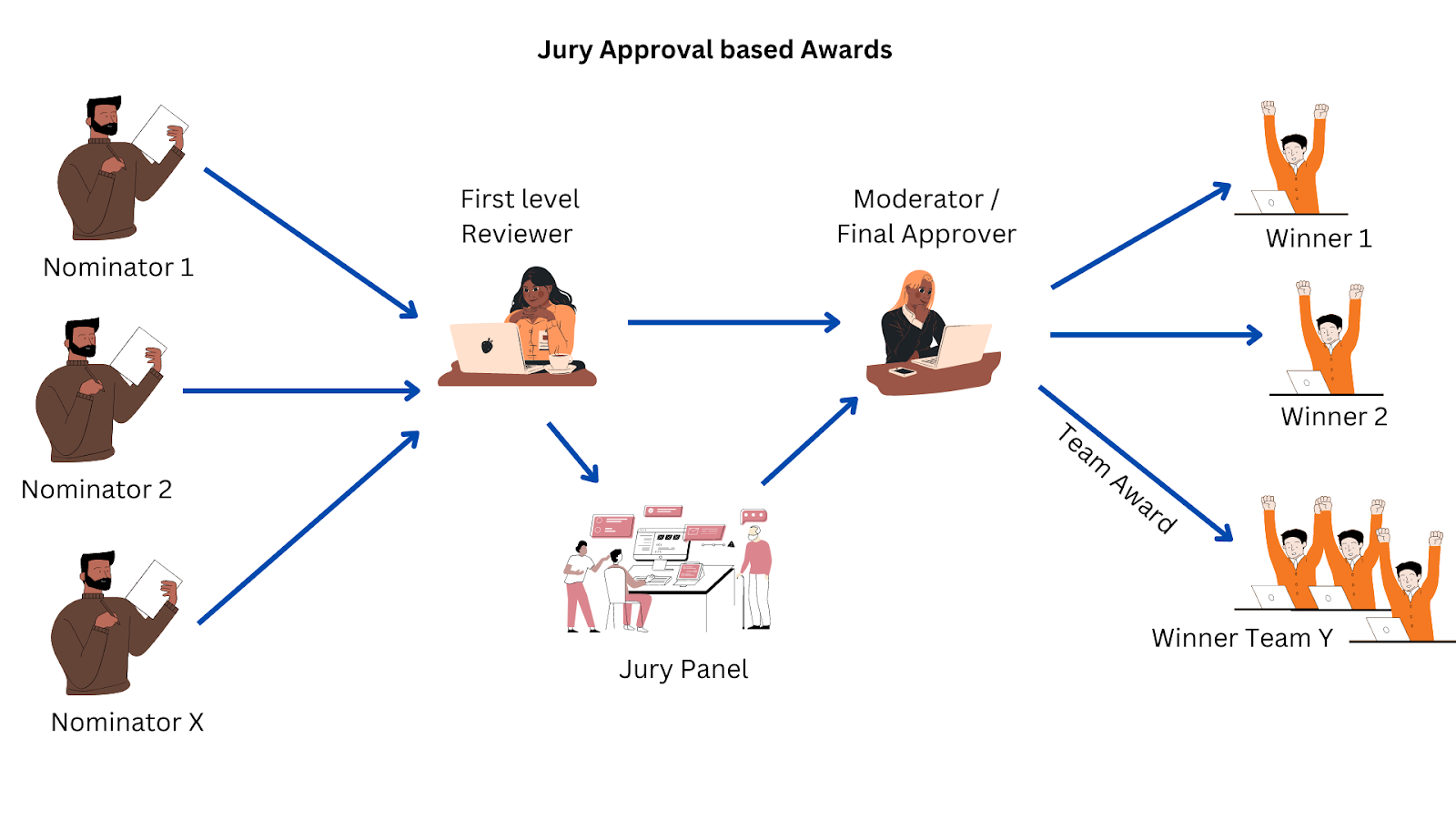
 **Jury approval-based awards** are an enterprise-only variant of this type. A jury panel rates nominations on a 10-point scale, and a moderator makes the final selection. Contact your account manager or CSM to enable jury awards.
 ### 3. Incentives
Ideal for motivating employees to achieve predefined targets or milestones. Employees or teams claim rewards manually after successfully completing measurable goals.
The process: Admin defines the goal → Employee completes the goal → Employee claims the award → Approver reviews and approves → Reward is issued.
### 3. Incentives
Ideal for motivating employees to achieve predefined targets or milestones. Employees or teams claim rewards manually after successfully completing measurable goals.
The process: Admin defines the goal → Employee completes the goal → Employee claims the award → Approver reviews and approves → Reward is issued.
 ### 4. Point distribution
* **Fixed** — The reward points remain the same for all recipients. The award presenter cannot modify the allocation.
* **Range** — The Super Admin sets a minimum and maximum points range. The award presenter can allocate points within that range. Applicable only for Spot Recognition.
## Next steps
Set up your first award by navigating to **Programs > Awards & Core Values > Create Award**.
Questions or support? Email [cs@xoxoday.com](mailto:cs@xoxoday.com).
### 4. Point distribution
* **Fixed** — The reward points remain the same for all recipients. The award presenter cannot modify the allocation.
* **Range** — The Super Admin sets a minimum and maximum points range. The award presenter can allocate points within that range. Applicable only for Spot Recognition.
## Next steps
Set up your first award by navigating to **Programs > Awards & Core Values > Create Award**.
Questions or support? Email [cs@xoxoday.com](mailto:cs@xoxoday.com).