> ## Documentation Index
> Fetch the complete documentation index at: https://help-empuls.xoxoday.com/llms.txt
> Use this file to discover all available pages before exploring further.
# Incentive awards
> Learn how to create goal-based incentive awards that reward employees for achieving measurable targets.
Goal-based rewards allow organisations to incentivise employees for achieving measurable, ongoing performance objectives. Unlike traditional recognition programmes focused on anniversaries or one-off achievements, this feature ties rewards to clearly defined business, learning, and collaborative goals.
Admins define, manage, and approve goals, configure reward eligibility, and provide visibility through social recognition to consistently motivate employees.
## Why this matters
* Highly engaged teams show **21% greater profitability** and **41% less absenteeism** (Gallup).
* Traditional recognition systems often fail to continuously motivate employees, leading to disengagement.
* Goal-based incentives create measurable motivation and maintain focus on achieving objectives.
## When to use incentives
Incentives are most effective when you want to:
* **Reward completion of clearly defined targets** — sales quotas, learning milestones, or wellness challenges.
* **Encourage ongoing improvement** and sustained effort rather than one-time accomplishments.
* **Acknowledge systematic performance improvements** and consistent goal achievement.
## Example use cases
| Domain | Example |
| -------------------------- | --------------------------------------------------------------------------- |
| **Sales** | Achieving quarterly or annual sales targets |
| **Learning & Development** | Completing mandatory training, certifications, or skill-building programmes |
| **Wellness** | Actively participating in company wellness initiatives or challenges |
| **Operations** | Meeting project deadlines, productivity benchmarks, or operational goals |
## Steps to set up an incentive award
Go to **Programs > Awards & Core Values > Create Award**.
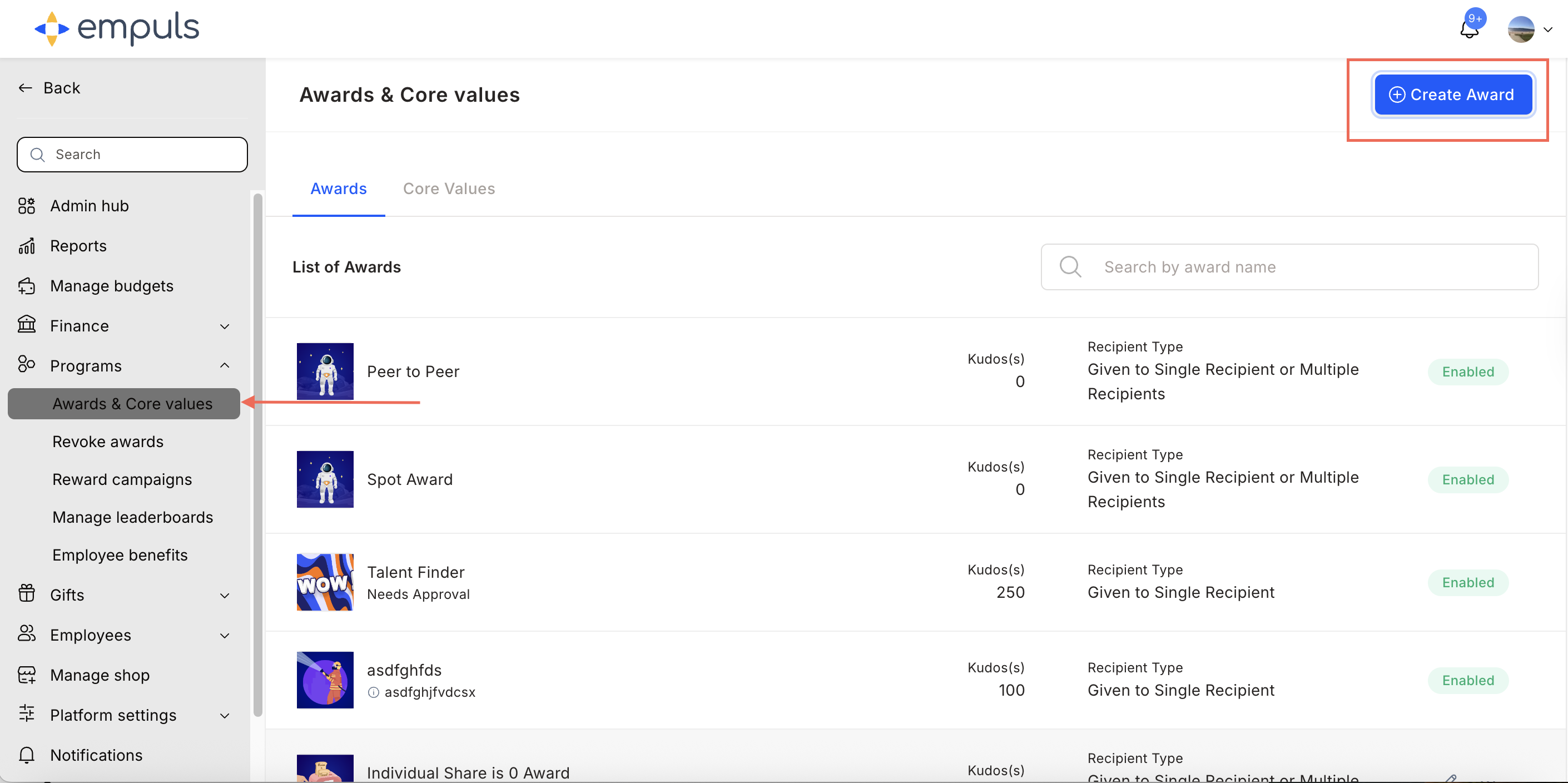 Select **Incentive** and click **Proceed**.
> Ideal for motivating employees to achieve predefined targets or milestones. Allows individuals or teams to claim rewards manually after successfully completing measurable goals.
Select **Incentive** and click **Proceed**.
> Ideal for motivating employees to achieve predefined targets or milestones. Allows individuals or teams to claim rewards manually after successfully completing measurable goals.
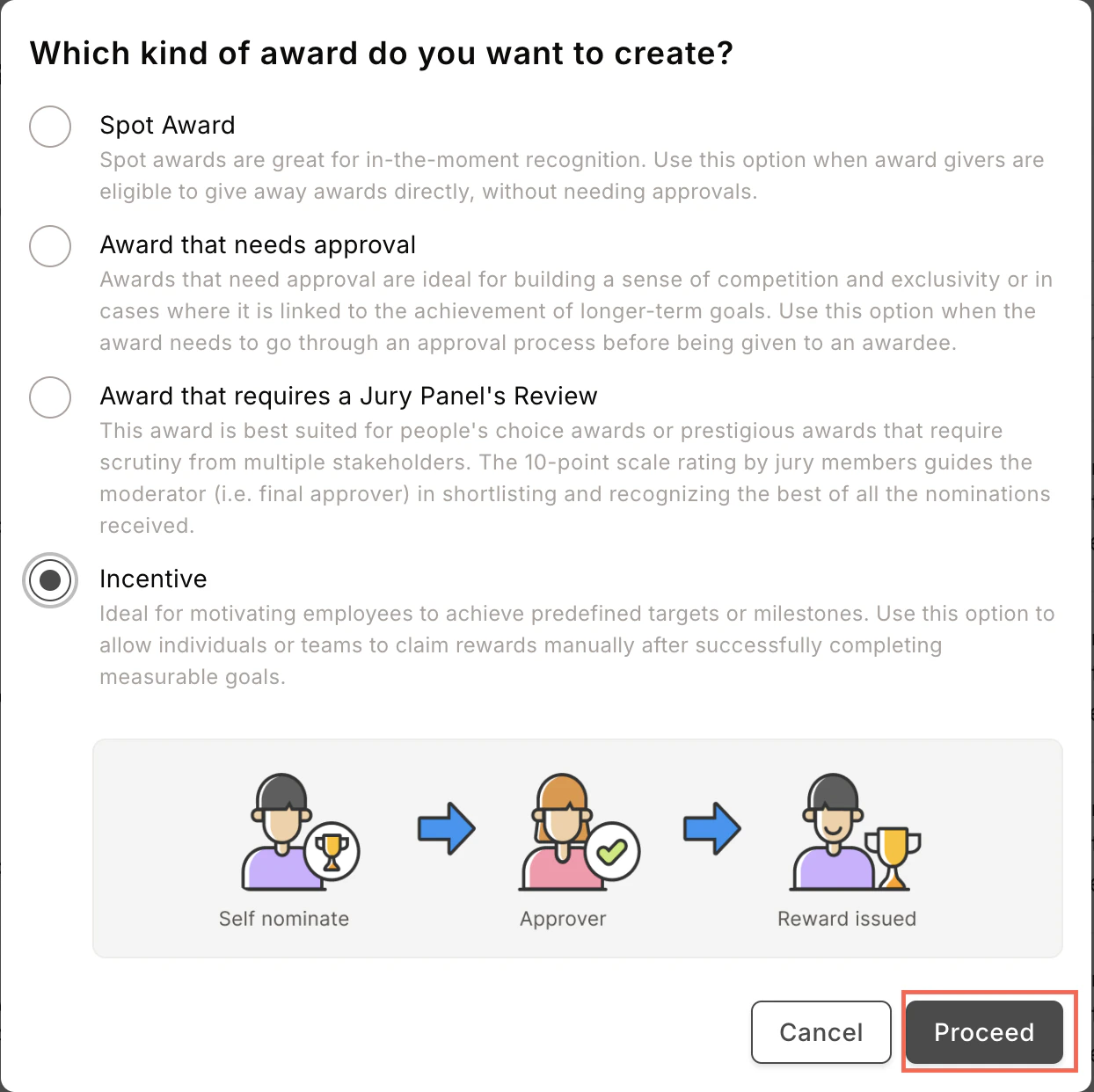 Enter the **award name**, **description**, **image**, and **recipient type**. Click **Continue**.
An award recipient can be an individual, a team, or kept flexible.
Enter the **award name**, **description**, **image**, and **recipient type**. Click **Continue**.
An award recipient can be an individual, a team, or kept flexible.
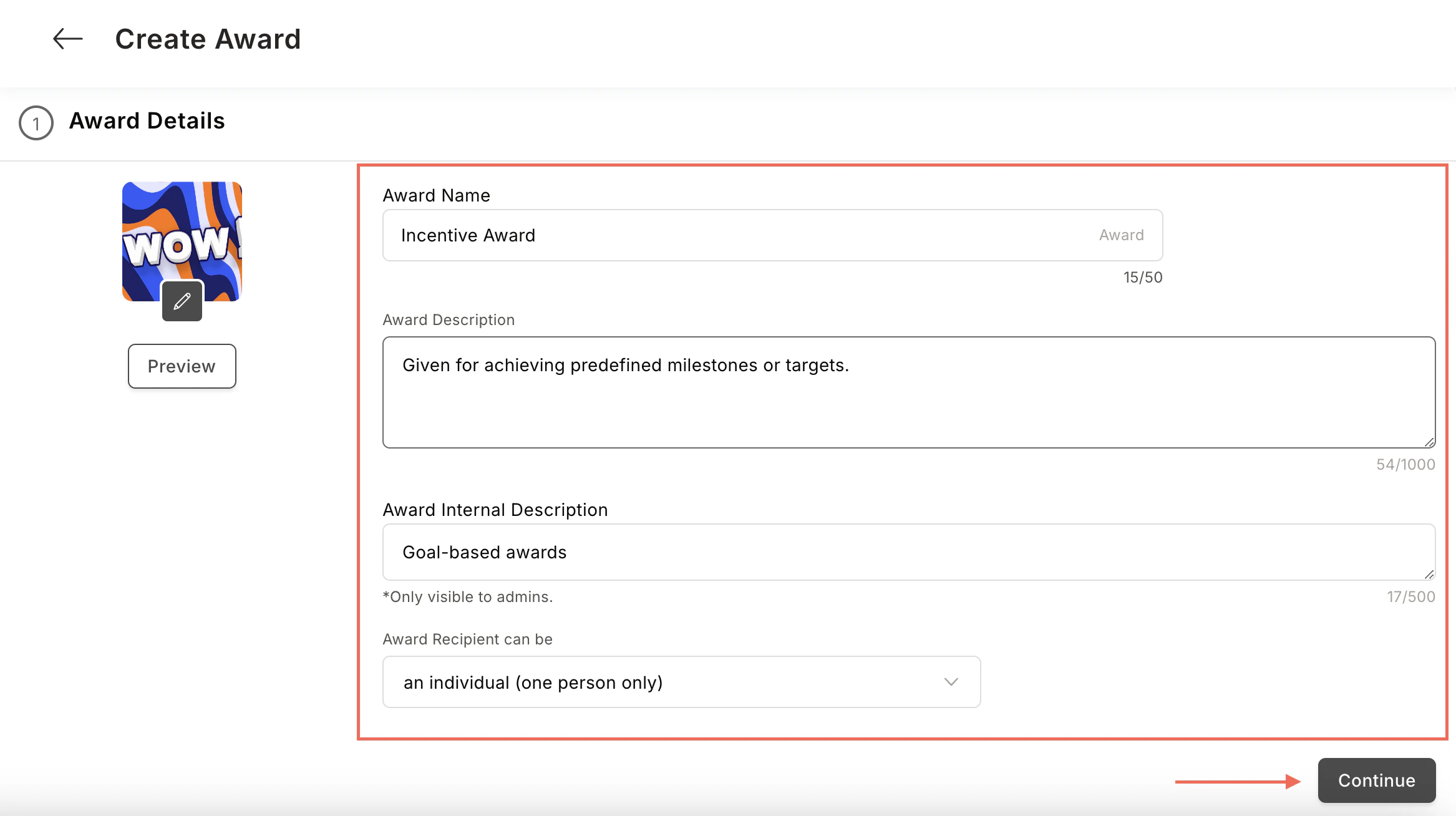 Choose to reward points or gift cards and merchandise.
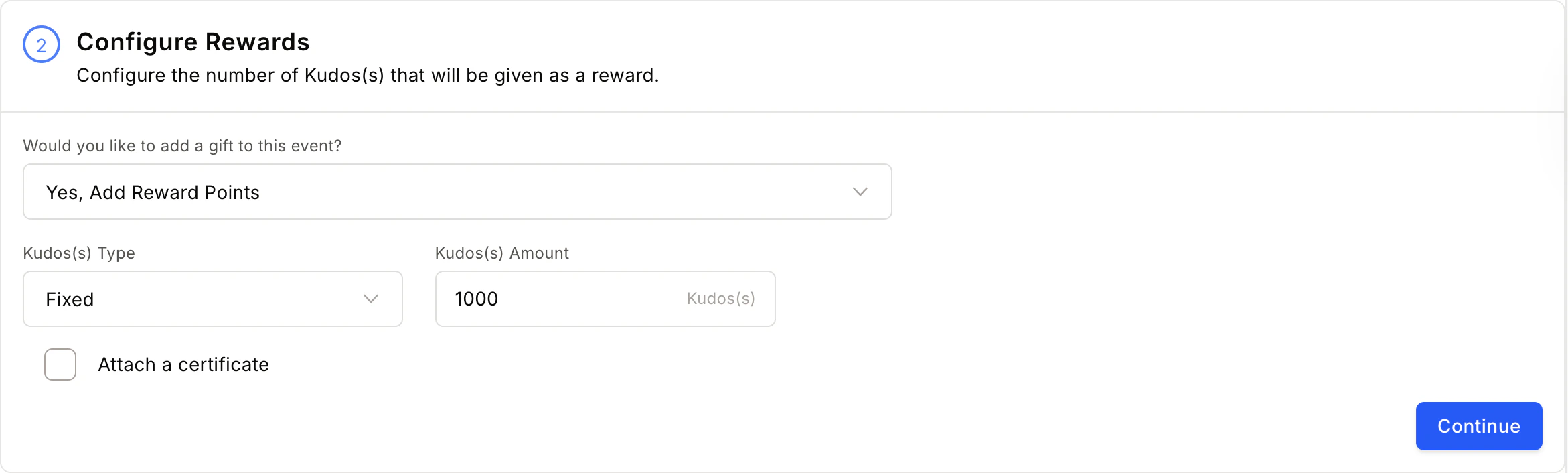 * **Attach Certificate** — See [Add certificates to awards](/admin/programs/awards/add-certificates-to-awards) for detailed steps.
* **Add Products from the Store** — See [Set up product-based rewards](/admin/programs/awards/set-up-product-based-rewards) for detailed steps.
Set constraints on who can nominate, be nominated, and approve.
* **Attach Certificate** — See [Add certificates to awards](/admin/programs/awards/add-certificates-to-awards) for detailed steps.
* **Add Products from the Store** — See [Set up product-based rewards](/admin/programs/awards/set-up-product-based-rewards) for detailed steps.
Set constraints on who can nominate, be nominated, and approve.
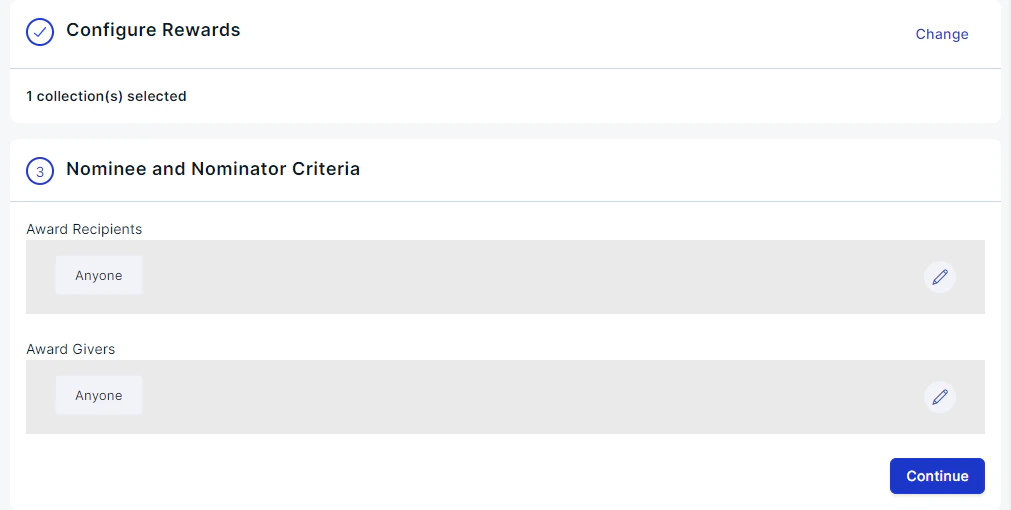
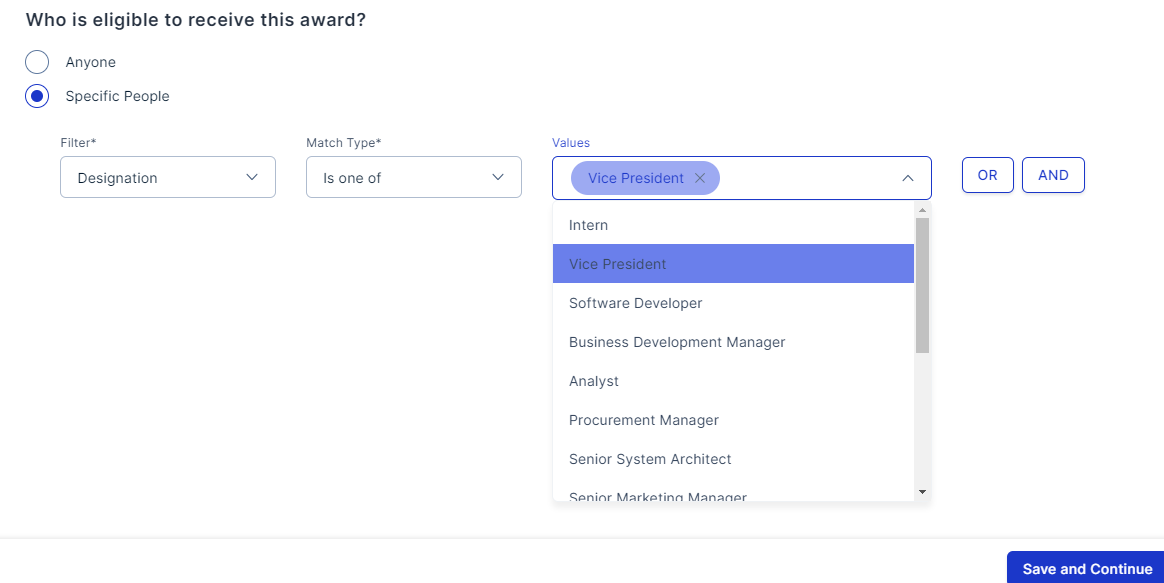 Use **OR** when matching any one clause is sufficient. Use **AND** when all clauses must match.
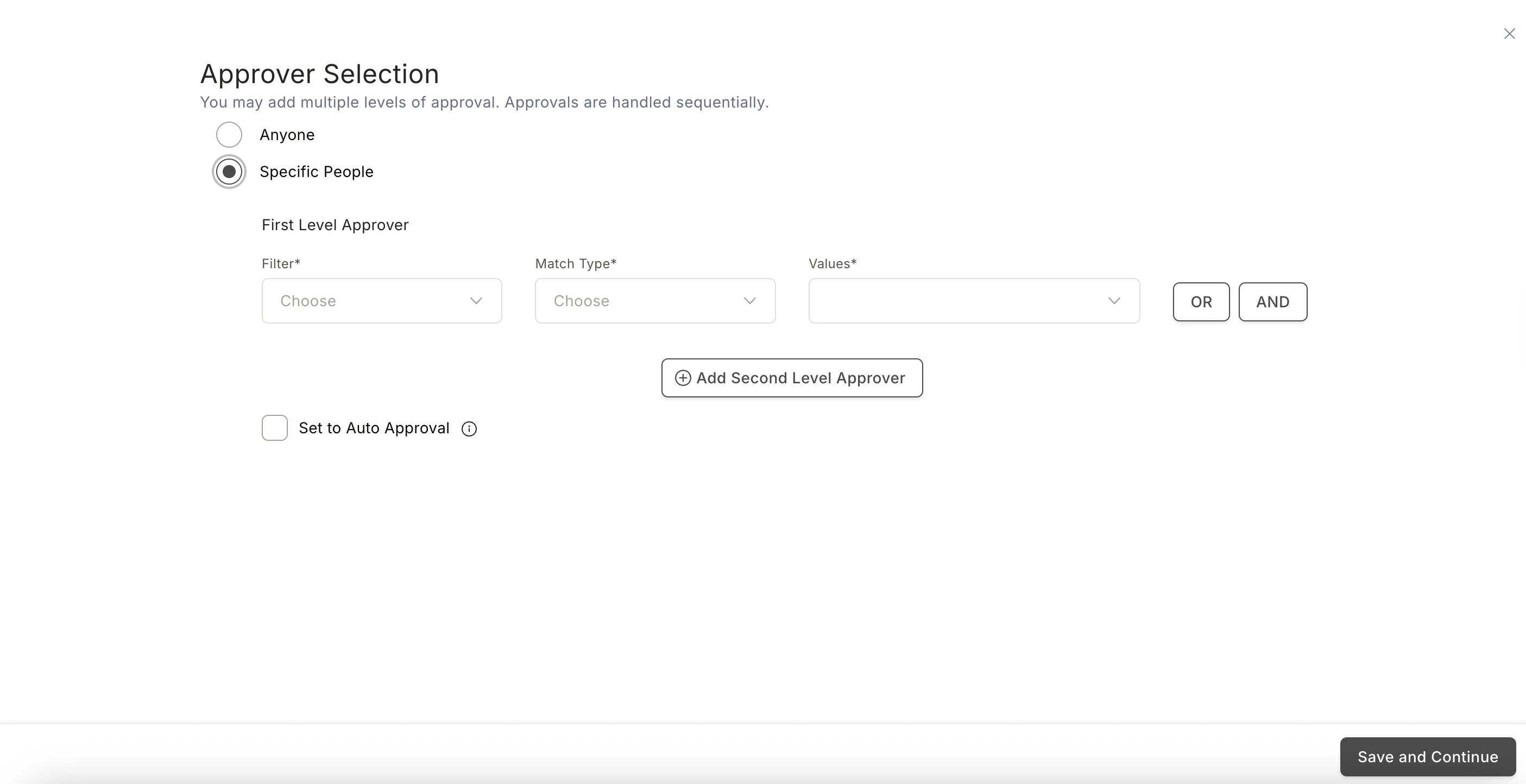
Click the **pencil icon** and select a **First Level Approver**. Use advanced filters to refine your selection.
Use **OR** when matching any one clause is sufficient. Use **AND** when all clauses must match.
Click the **pencil icon** and select a **First Level Approver**. Use advanced filters to refine your selection.
 **A. Set Questions for Nominator** — Create up to 20 questions for nominators to answer when claiming the award. Text-based mandatory questions can also require an attachment.
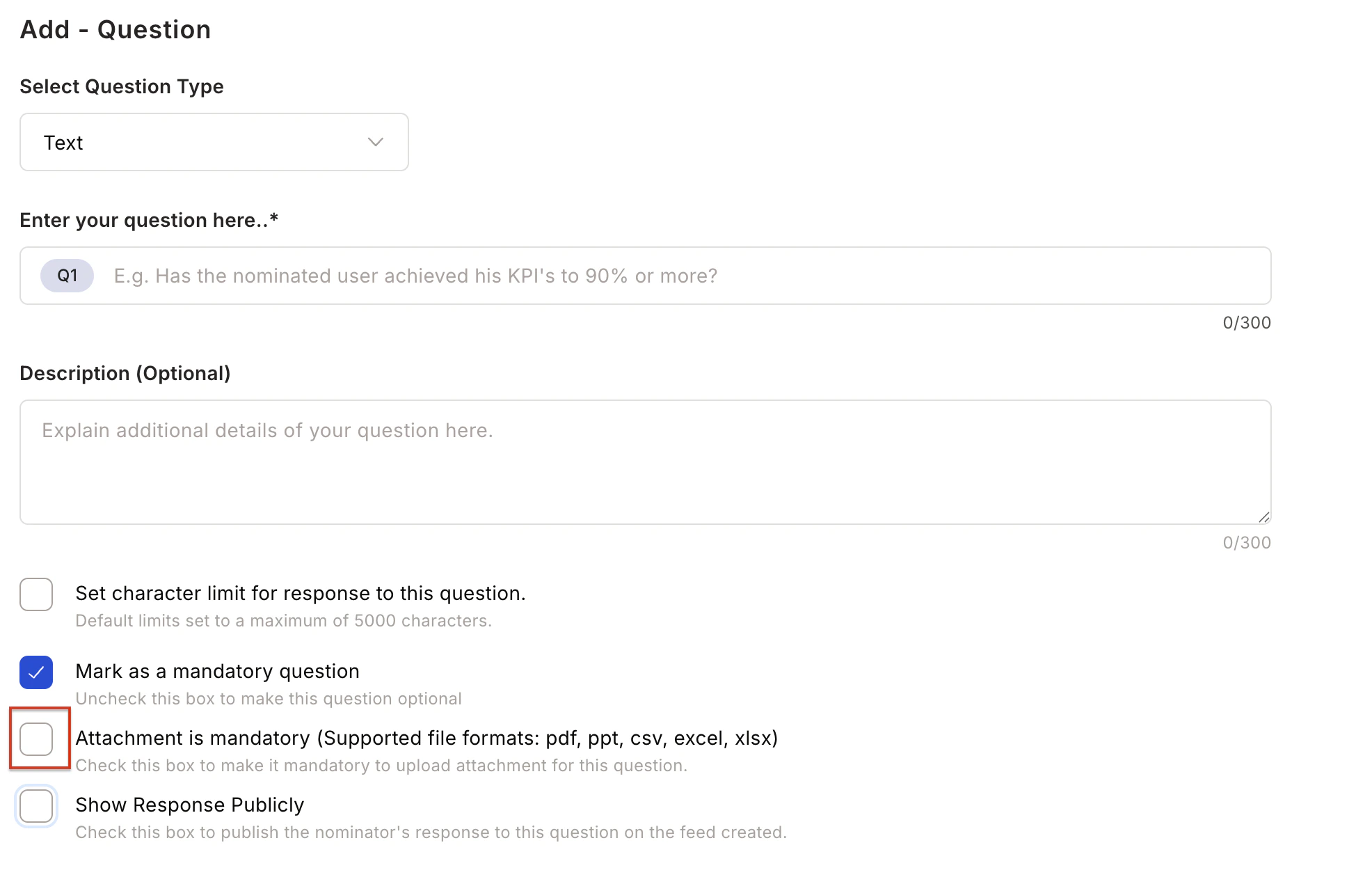 **B. Citation Input** — When a mandatory public question exists, you can skip the separate citation input.
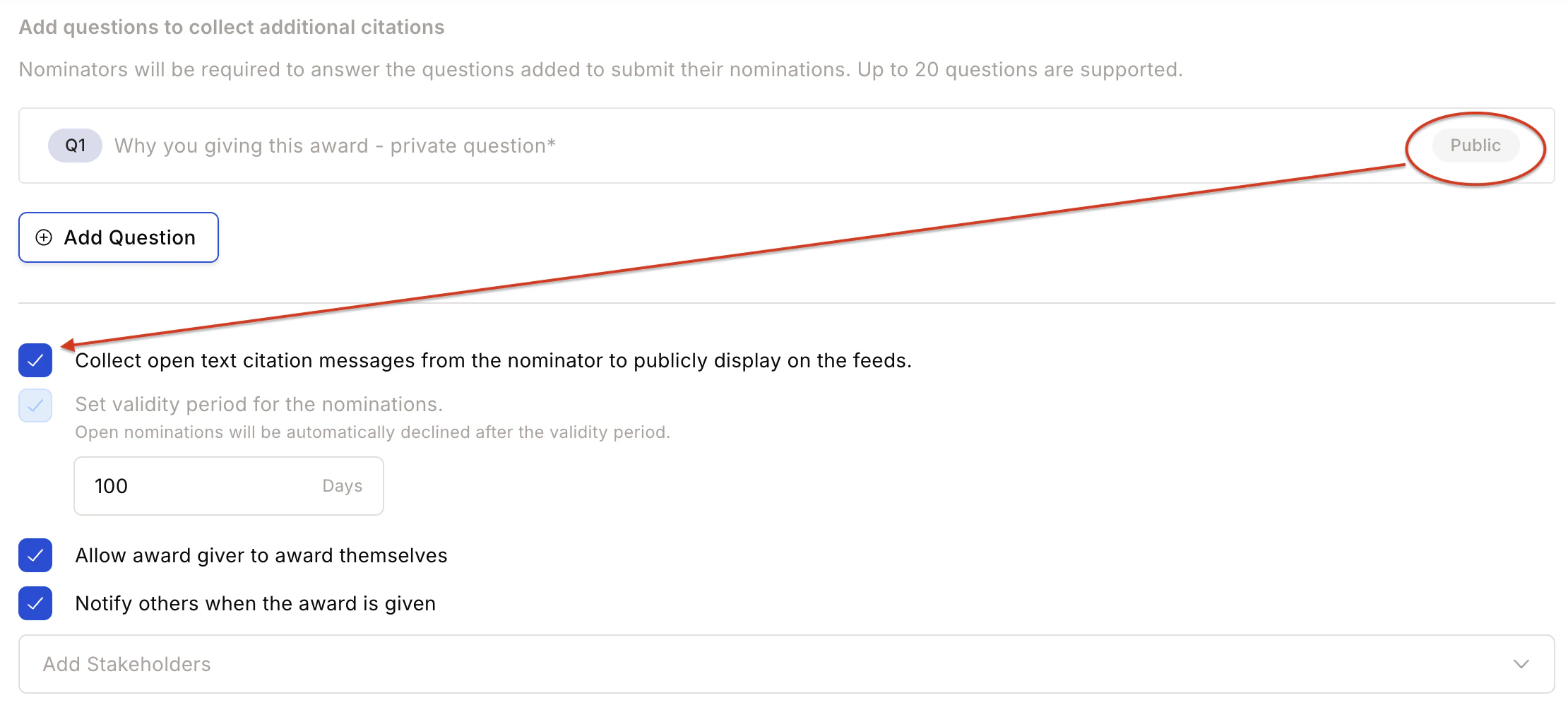 **C. Nomination Validity** — Set a validity period after which open claims are automatically declined.
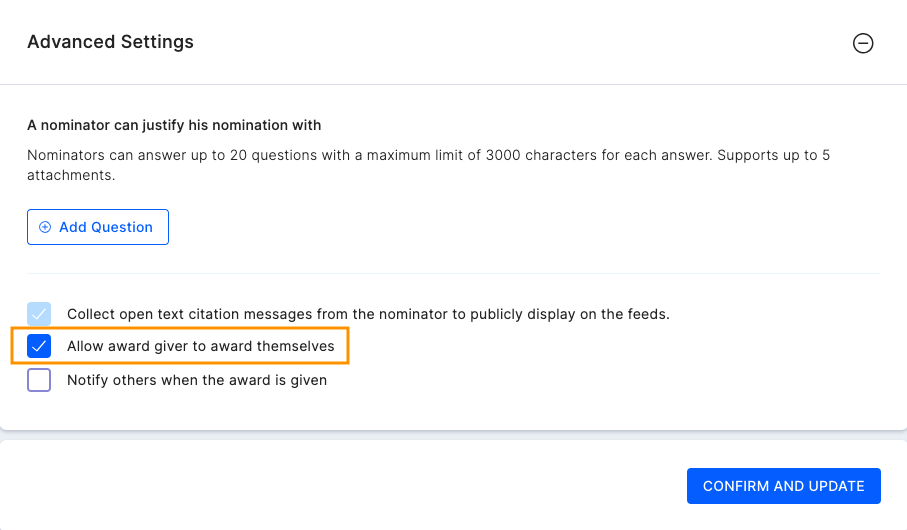
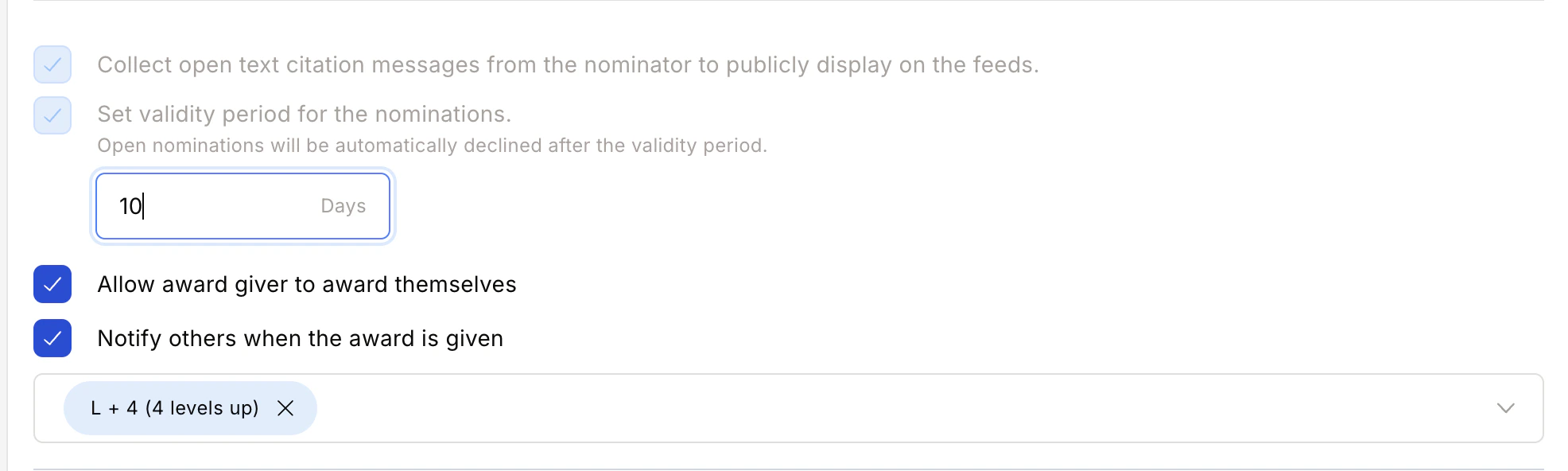 **D. Self Nomination** — When enabled, allows employees to self-nominate and claim the incentive award after completing the goal.
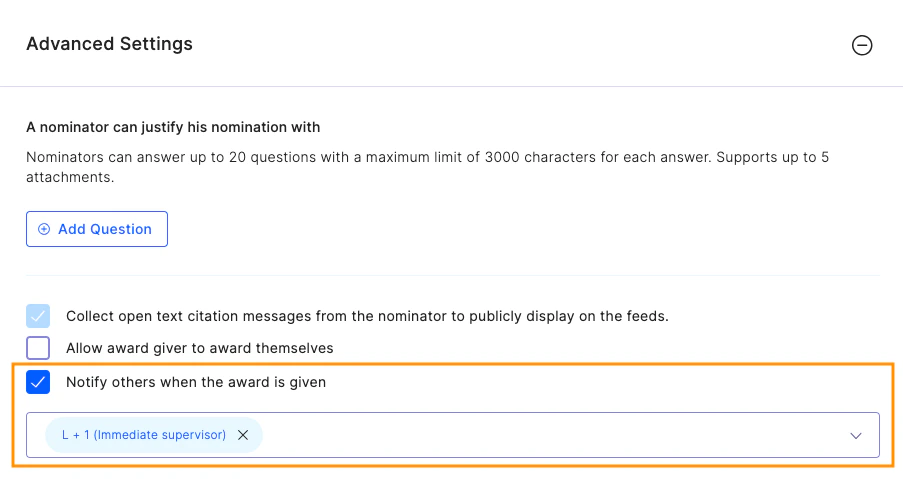
 **E. Notify Stakeholders** — Specify who is notified when the award is given (manager, HRBP, department head, etc.).
 **F. Announcement and Feed Controls**
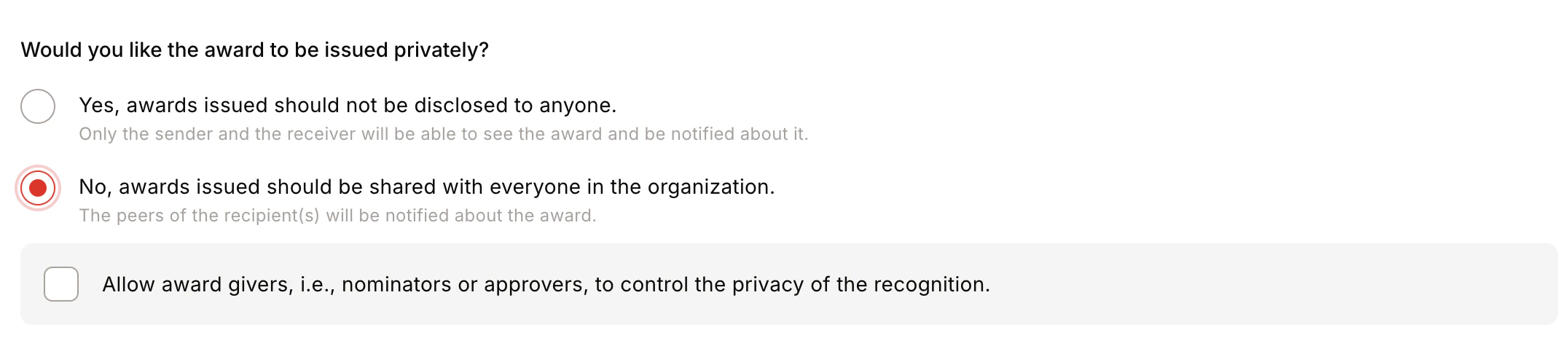
* **Award Visibility** — Public (visible to all) or Private (visible only to sender and recipient).
**F. Announcement and Feed Controls**
* **Award Visibility** — Public (visible to all) or Private (visible only to sender and recipient).
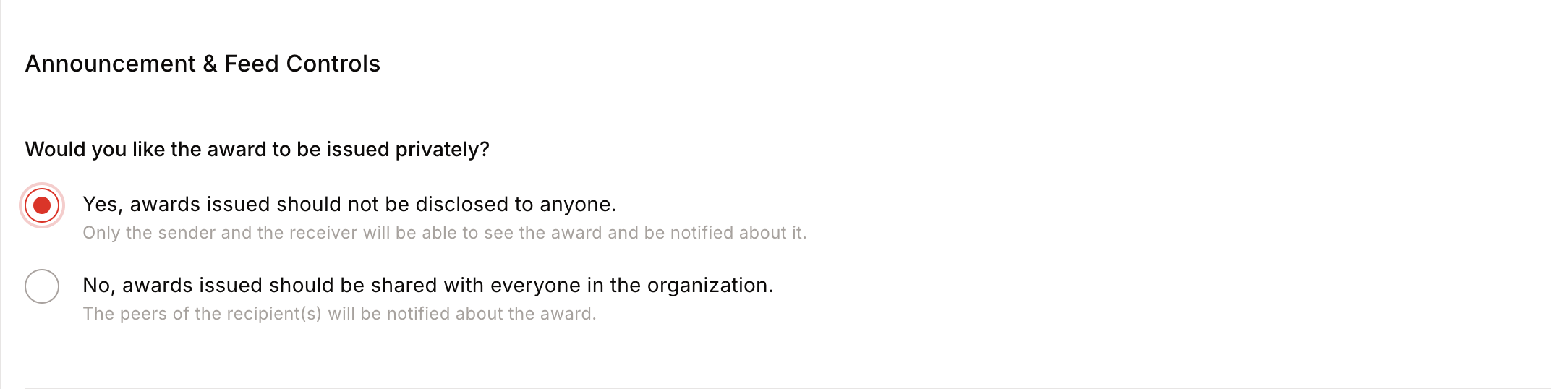
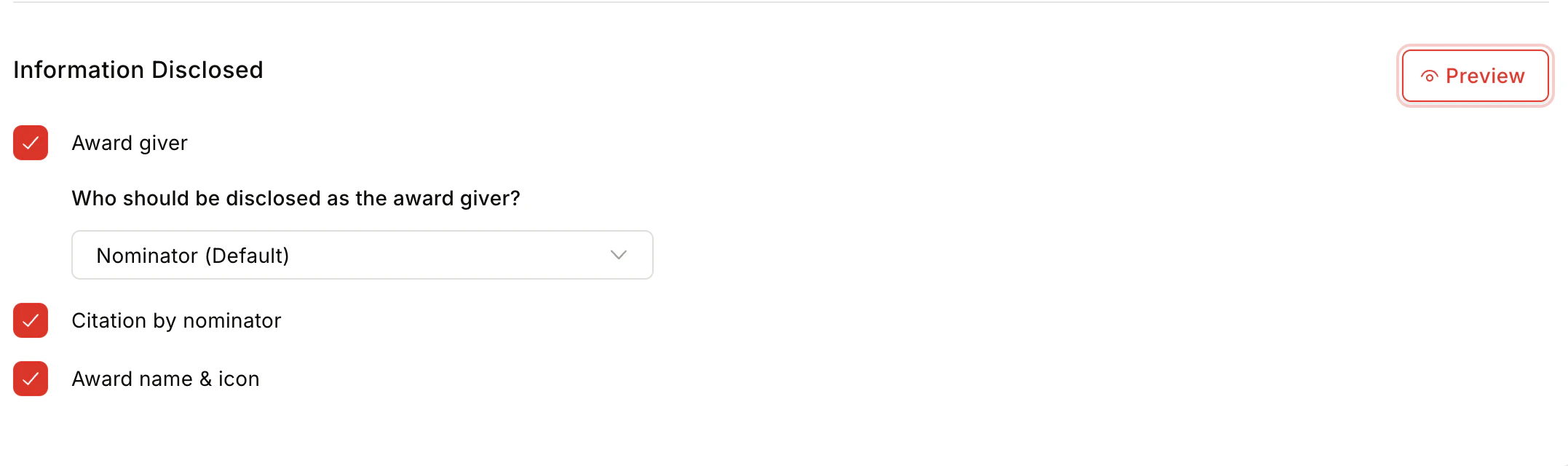
 * **Information Disclosed** — Show/hide Award Giver, Citation by Nominator, and Award Name and Icon.
 * **Privacy Control** — Centrally / Public / Private / By Nominator/Approver.
* **Team Size** — Minimum 1, maximum 50 members.
* **Privacy Control** — Centrally / Public / Private / By Nominator/Approver.
* **Team Size** — Minimum 1, maximum 50 members.
 Click **Confirm and Create** to complete the award setup.
## FAQs
Yes. Changes to reward values, receiver conditions, or evidence questions do not affect existing nominations. Changes to award name, icon, or criteria apply retroactively.
Deleting an award does not impact existing nominations.
Managers and admins can issue awards. Employees can self-nominate if the **Allow employees to claim this incentive** checkbox is enabled during setup.
Admins define claim frequency per award: Daily, Weekly, Fortnightly, Monthly, Quarterly, Yearly, or Once in a Lifetime.
Admins can add questions that employees must answer or attach evidence to when submitting a claim.
Yes. Eligibility can be defined for specific users or teams, and team size restrictions can be configured in advanced settings.
Admins can control award visibility (public or private) and choose who gets notified when an award is issued.
For feedback or questions, reach out to [cs@xoxoday.com](mailto:cs@xoxoday.com).
Click **Confirm and Create** to complete the award setup.
## FAQs
Yes. Changes to reward values, receiver conditions, or evidence questions do not affect existing nominations. Changes to award name, icon, or criteria apply retroactively.
Deleting an award does not impact existing nominations.
Managers and admins can issue awards. Employees can self-nominate if the **Allow employees to claim this incentive** checkbox is enabled during setup.
Admins define claim frequency per award: Daily, Weekly, Fortnightly, Monthly, Quarterly, Yearly, or Once in a Lifetime.
Admins can add questions that employees must answer or attach evidence to when submitting a claim.
Yes. Eligibility can be defined for specific users or teams, and team size restrictions can be configured in advanced settings.
Admins can control award visibility (public or private) and choose who gets notified when an award is issued.
For feedback or questions, reach out to [cs@xoxoday.com](mailto:cs@xoxoday.com).