> ## Documentation Index
> Fetch the complete documentation index at: https://help-empuls.xoxoday.com/llms.txt
> Use this file to discover all available pages before exploring further.
# Bulk review of nominations
> Review, approve, or decline multiple award nominations at once using the bulk review feature.
Empuls makes it simple to review multiple nominations at once using the **Bulk Review** feature. Two options are available: reviewing directly from the UI or via CSV upload.
## Option 1: Bulk approve / decline from the UI
### Step 1: Navigate to Recognition Approvals
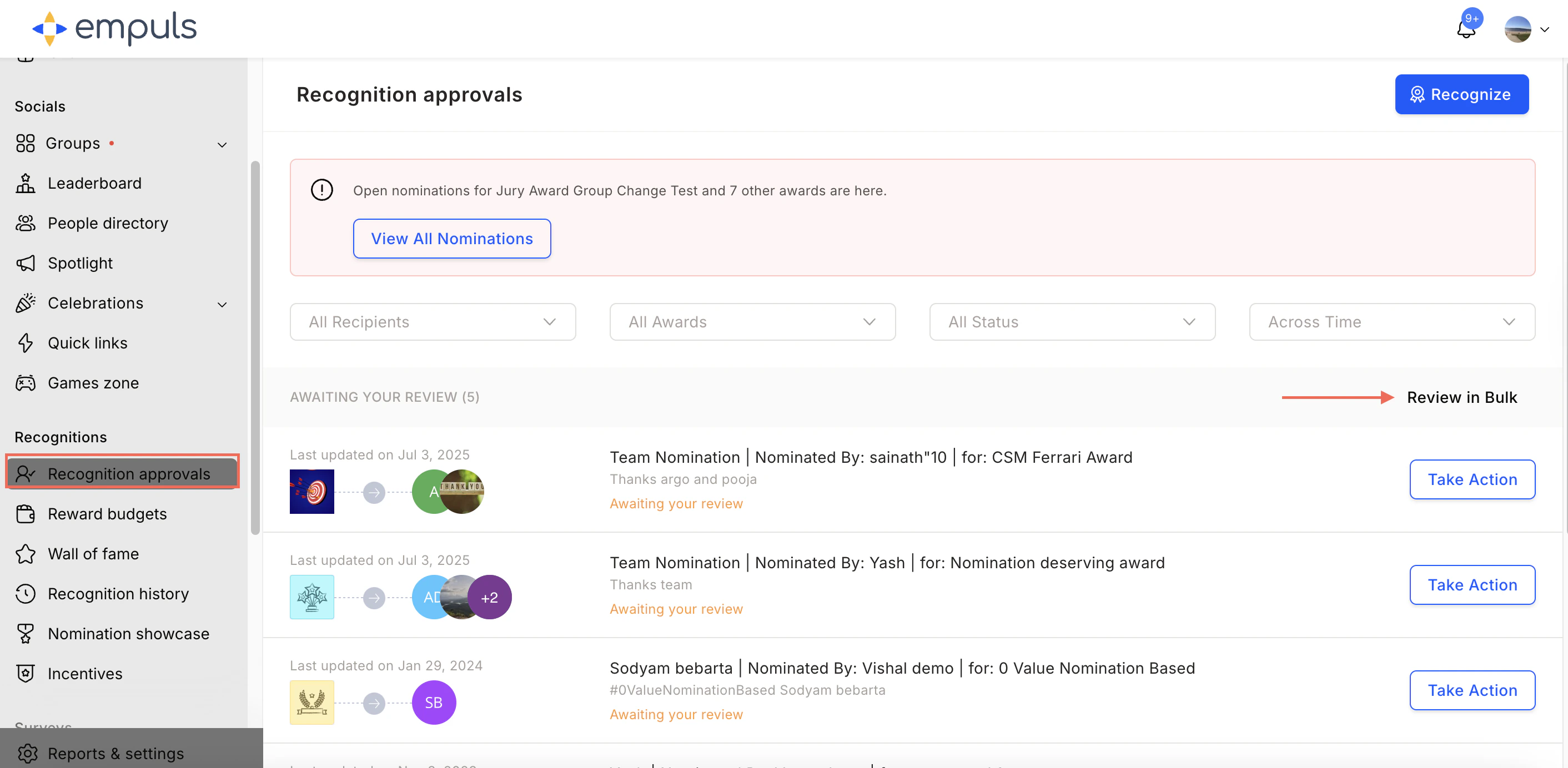
Go to **Recognitions > Recognition Approvals** and click **Review Nominations in Bulk**.
 ### Step 2: Select nominations
Use the checkboxes to select multiple nominations.
### Step 3: Approve or decline
Click **Approve** or **Decline** from the on-screen action controls. Confirm your action to process the selected nominations instantly.
### Step 2: Select nominations
Use the checkboxes to select multiple nominations.
### Step 3: Approve or decline
Click **Approve** or **Decline** from the on-screen action controls. Confirm your action to process the selected nominations instantly.
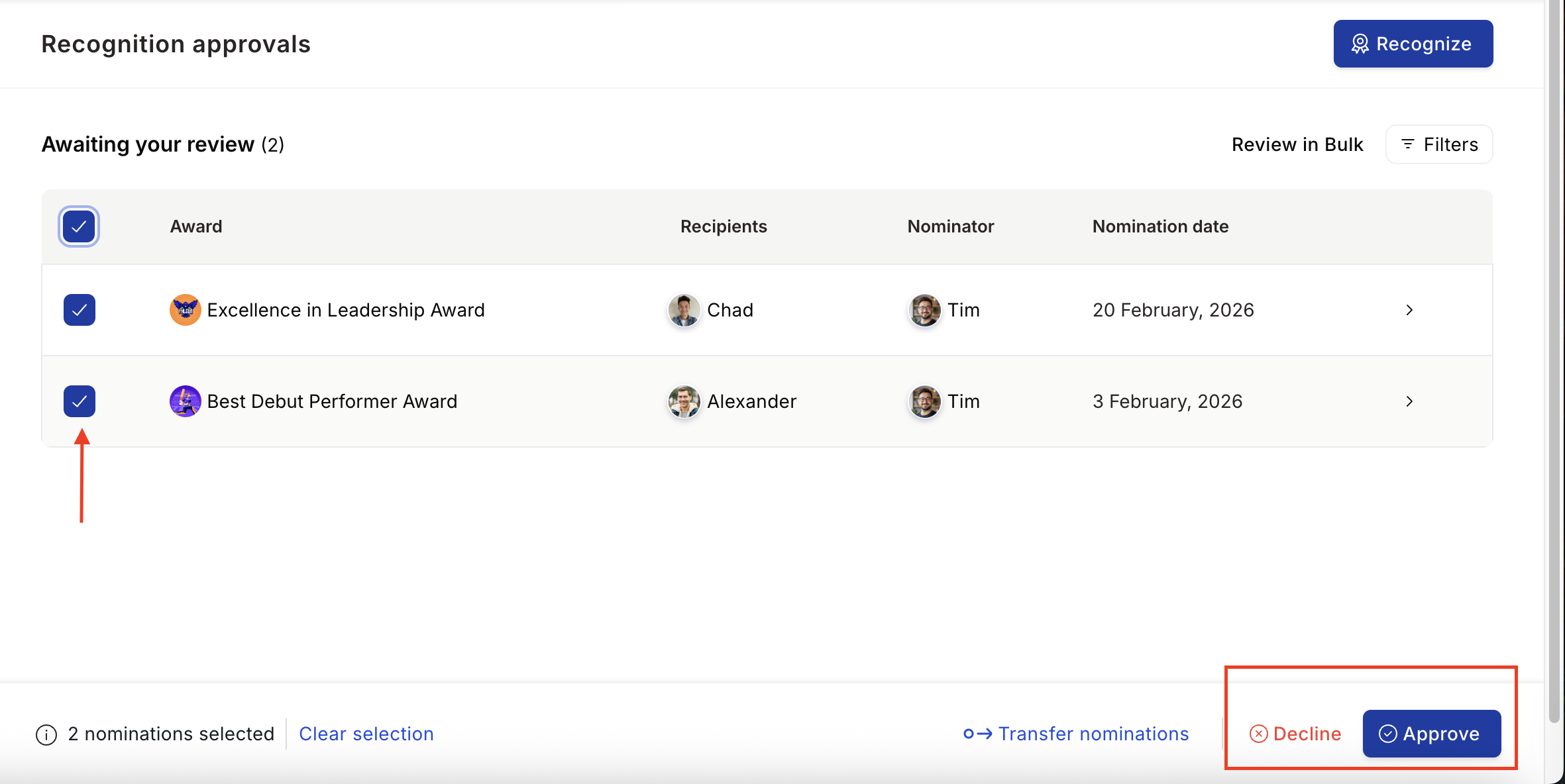 You can process up to **25 intermediate-level nominations** at once from the UI. For more than 25 nominations, use the CSV upload option below.
## Option 2: Bulk review via CSV upload
### Step 1: Navigate to Recognition Approvals
Go to **Recognitions > Recognition Approvals** and click **Review Nominations in Bulk**.
You can process up to **25 intermediate-level nominations** at once from the UI. For more than 25 nominations, use the CSV upload option below.
## Option 2: Bulk review via CSV upload
### Step 1: Navigate to Recognition Approvals
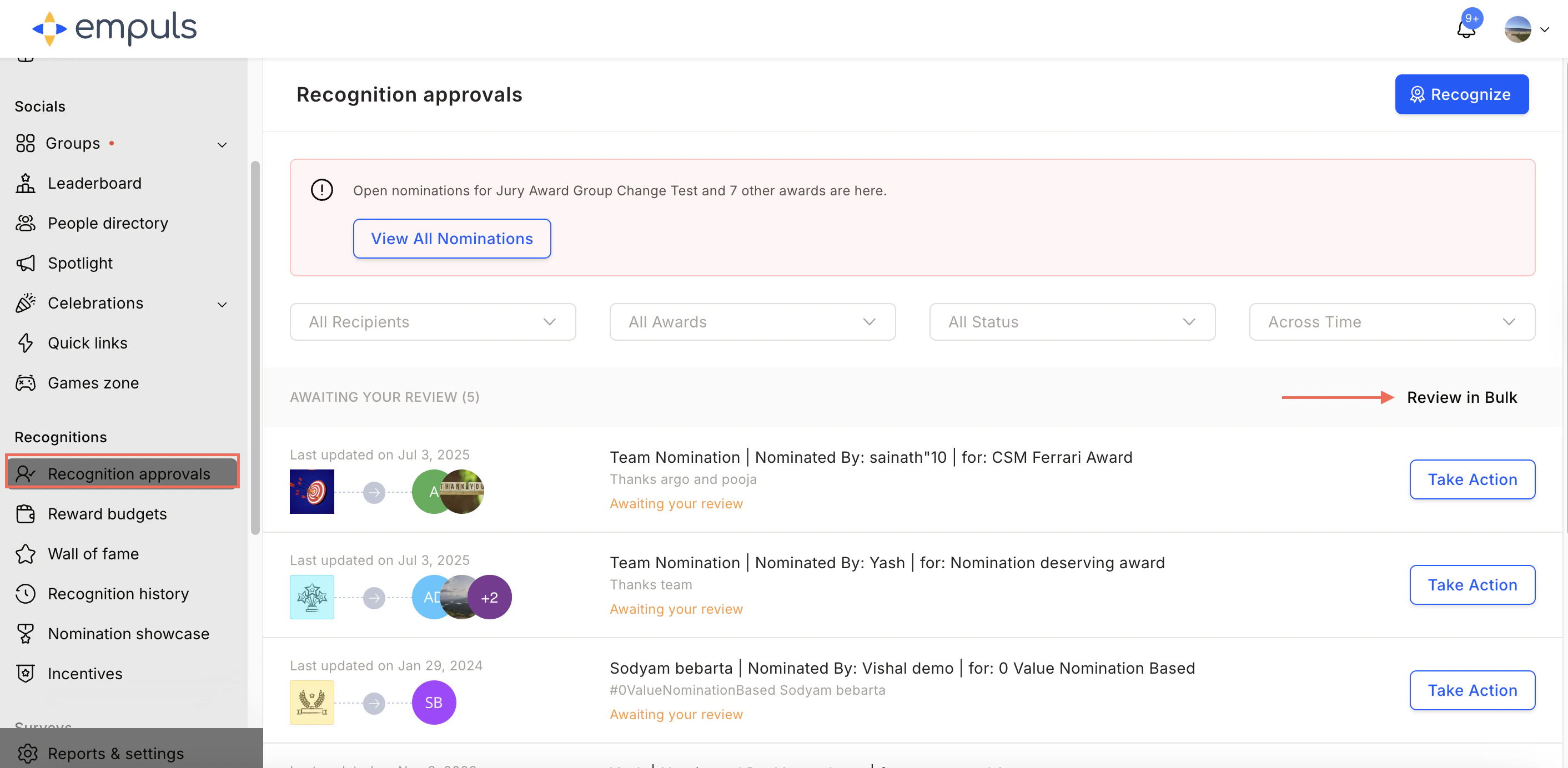
Go to **Recognitions > Recognition Approvals** and click **Review Nominations in Bulk**.
 ### Step 2: Download nominations awaiting review
Click **Download Now**. A CSV file containing all nominations waiting for your approval or rejection will be downloaded to your computer.
### Step 3: Fill in the required fields
Open the downloaded CSV file. Two columns need to be filled:
### Step 2: Download nominations awaiting review
Click **Download Now**. A CSV file containing all nominations waiting for your approval or rejection will be downloaded to your computer.
### Step 3: Fill in the required fields
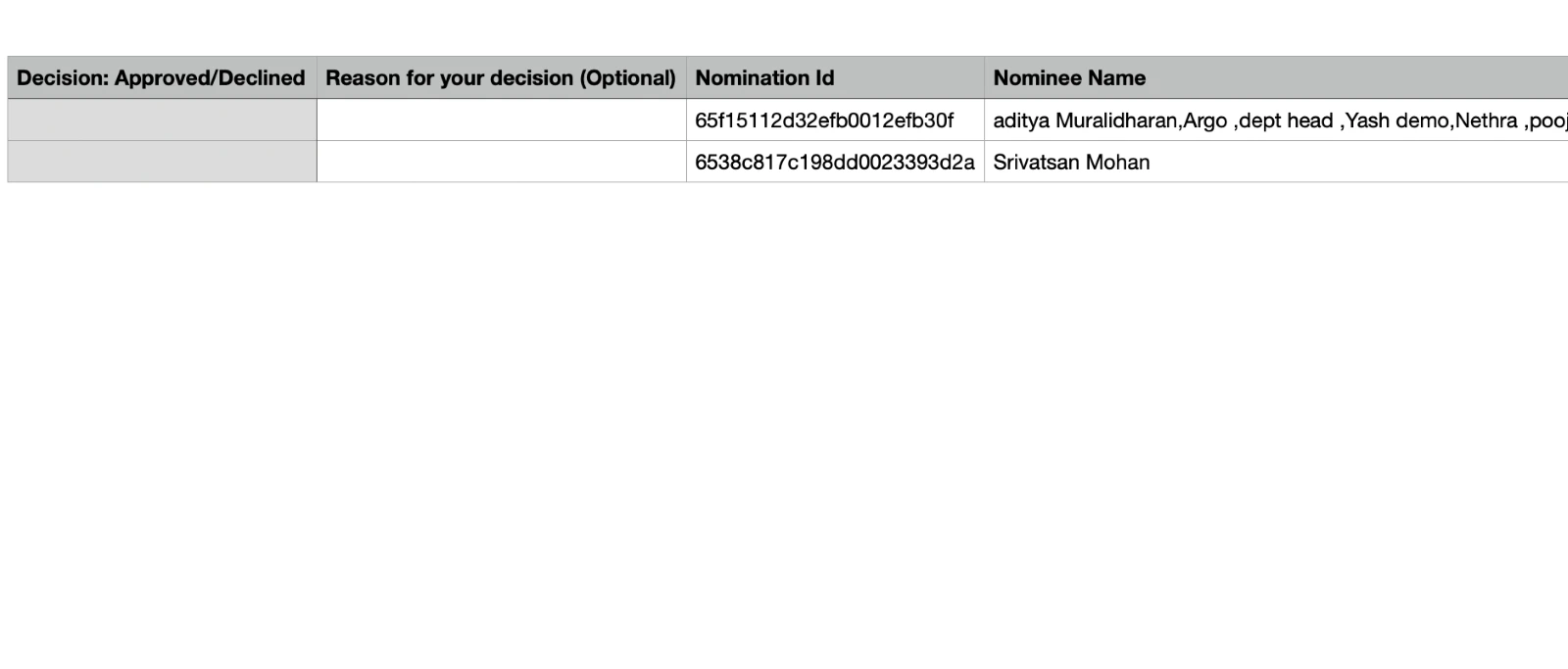
Open the downloaded CSV file. Two columns need to be filled:
 | Column | What to enter |
| ---------------- | -------------------------------------------------- |
| **A (Decision)** | Enter `Approved` or `Declined` for each nomination |
| **B (Reason)** | Provide a reason for your decision |
Save the file in **CSV format** after updating it.
### Step 4: Upload the updated CSV file
Click **Browse File** and select the updated CSV from your computer.
| Column | What to enter |
| ---------------- | -------------------------------------------------- |
| **A (Decision)** | Enter `Approved` or `Declined` for each nomination |
| **B (Reason)** | Provide a reason for your decision |
Save the file in **CSV format** after updating it.
### Step 4: Upload the updated CSV file
Click **Browse File** and select the updated CSV from your computer.
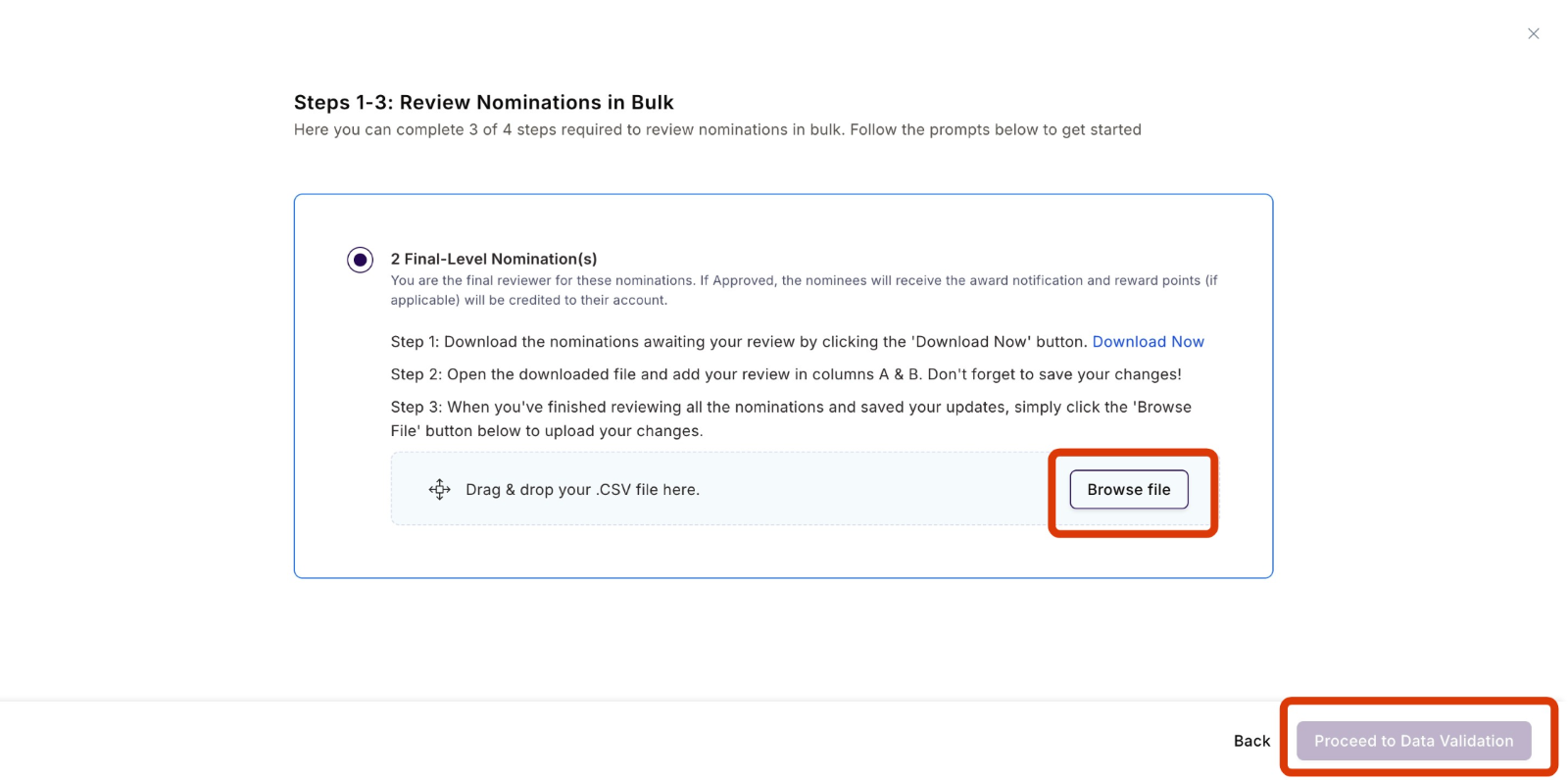 Click **Proceed to Data Validation**.
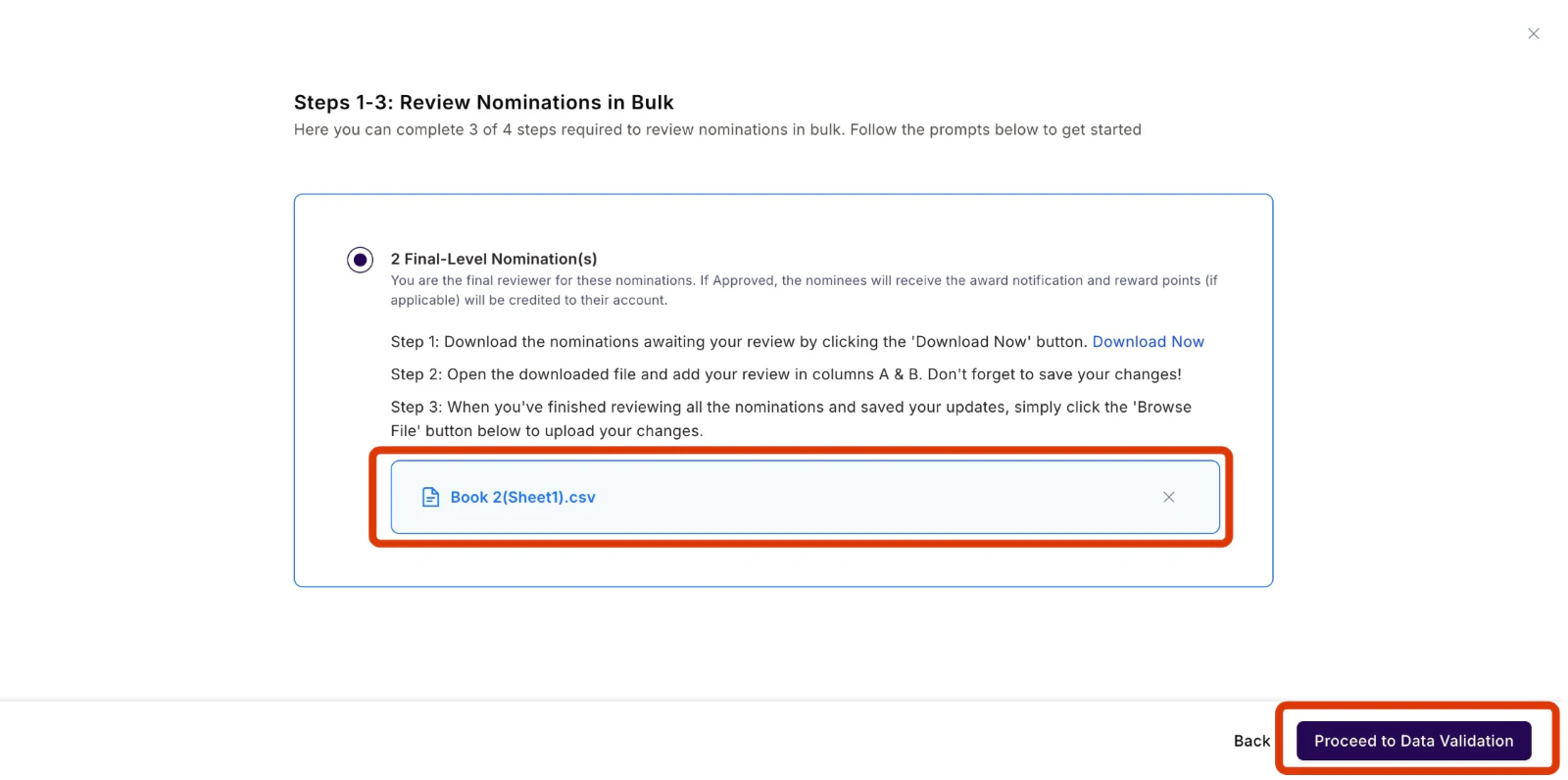 ### Step 5: Verify and submit
Empuls displays a summary showing:
* Number of **Approved** nominations
* Number of **Declined** nominations
### Step 5: Verify and submit
Empuls displays a summary showing:
* Number of **Approved** nominations
* Number of **Declined** nominations
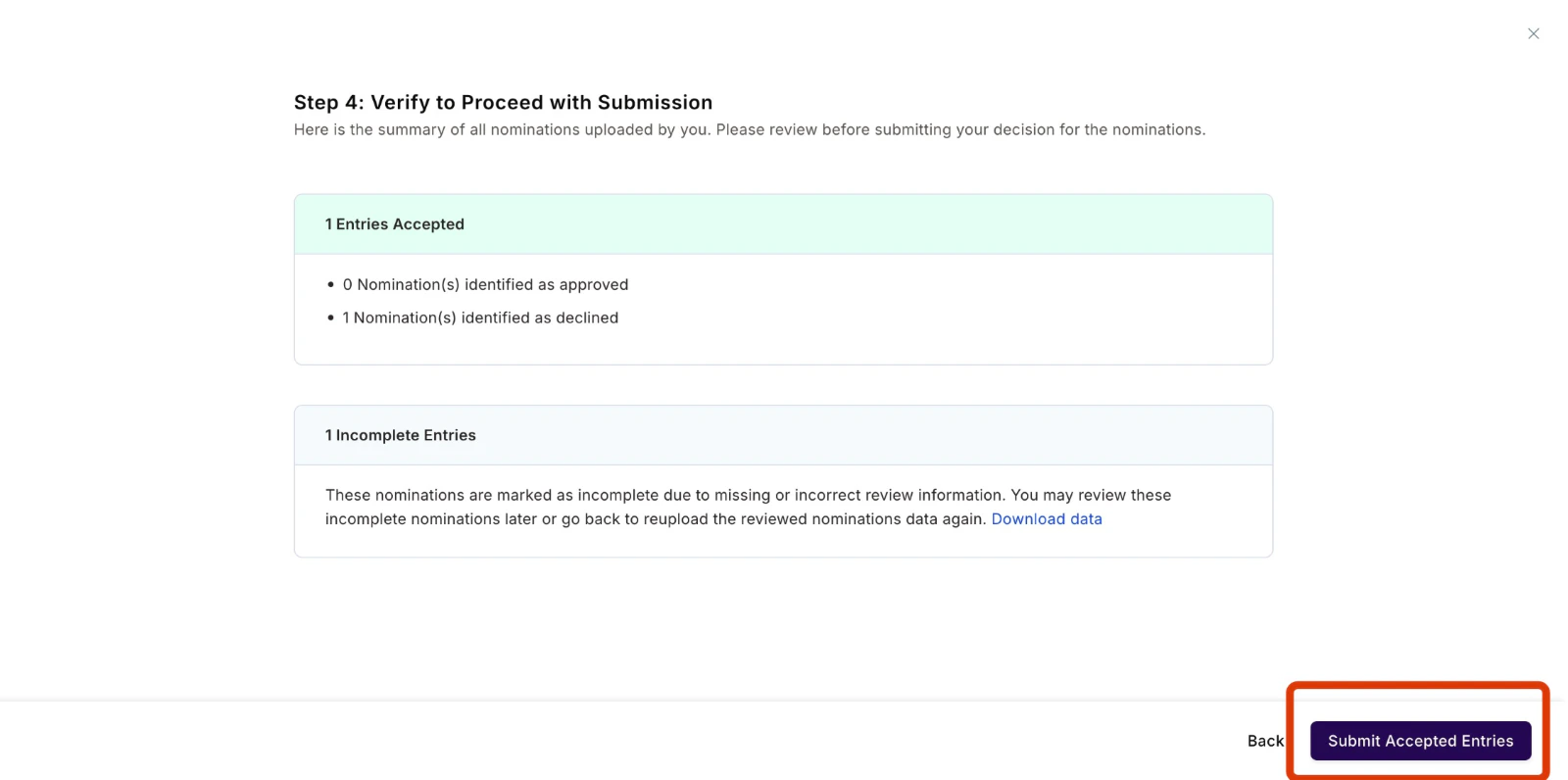 If you need to make changes, click **Download Now** again, edit the file, and repeat Step 3. Once satisfied, click **Submit Accepted Entries**.
After submission, the system shows **Data Processing Underway**.
If you need to make changes, click **Download Now** again, edit the file, and repeat Step 3. Once satisfied, click **Submit Accepted Entries**.
After submission, the system shows **Data Processing Underway**.
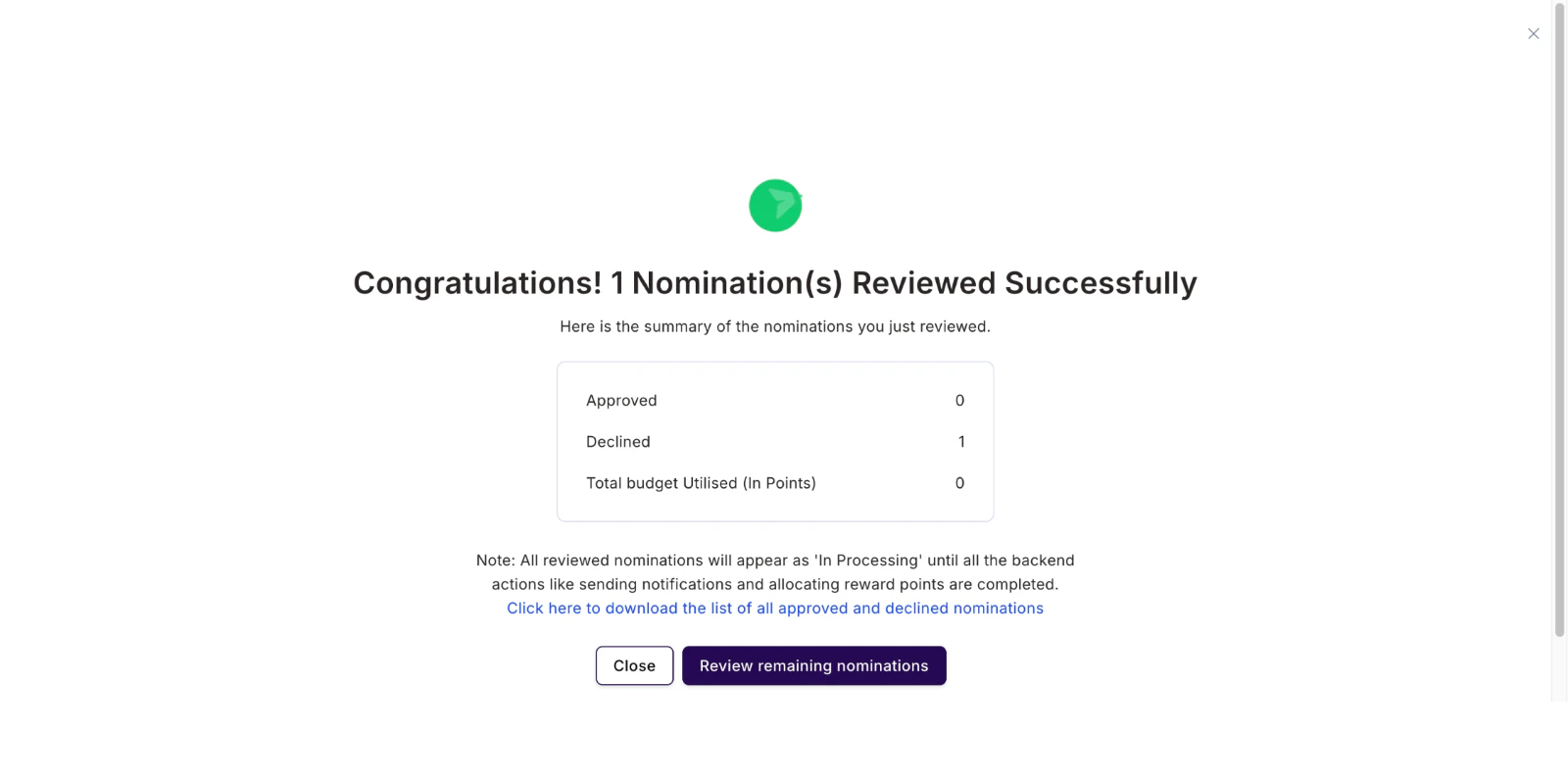
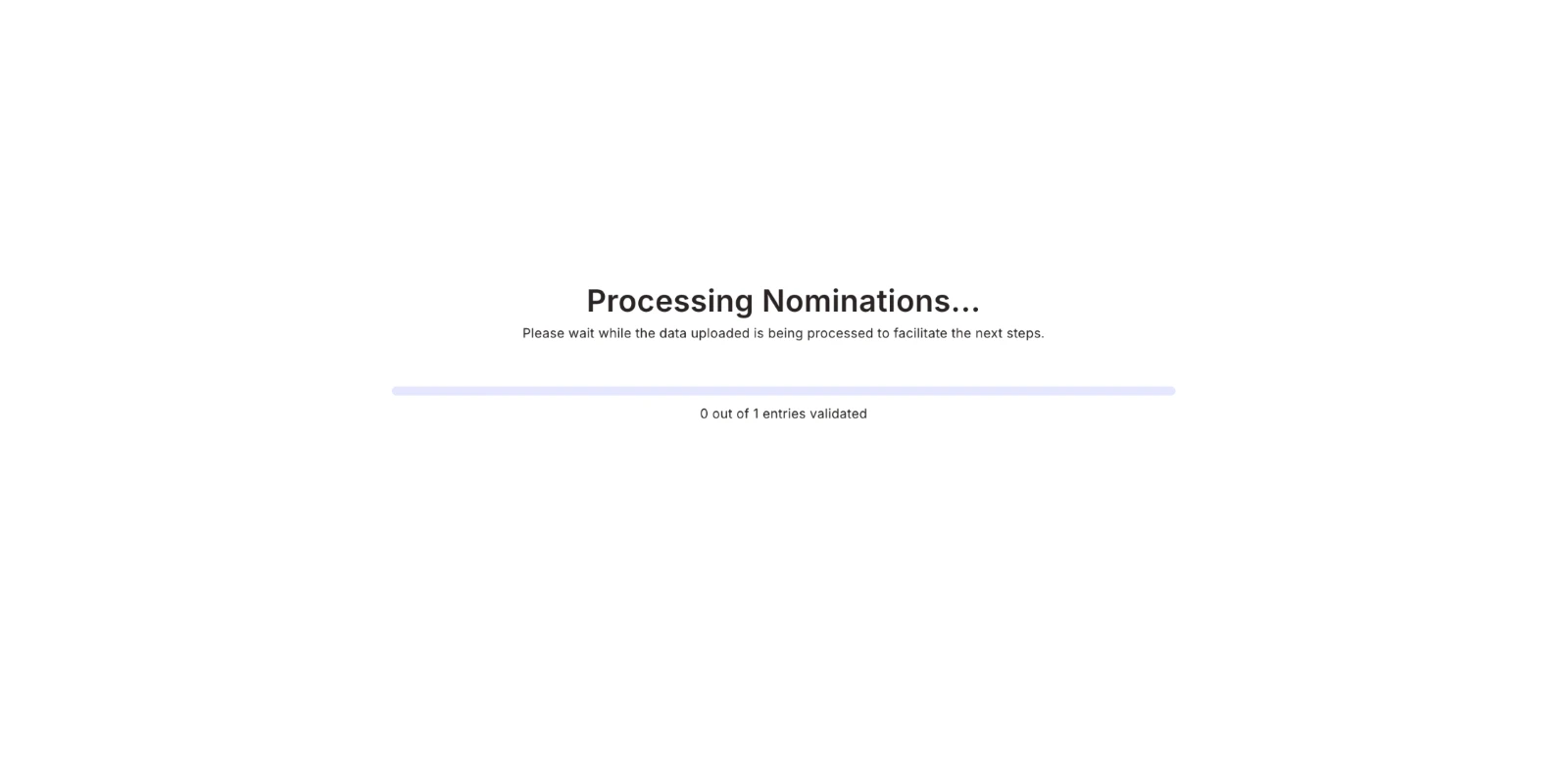 Once complete, your nominations are reviewed in bulk. You can then click to review any remaining nominations.
 ## Quick tips
* Always save the file in **CSV format** only.
* Provide a **clear reason** for any declined nominations.
## Quick tips
* Always save the file in **CSV format** only.
* Provide a **clear reason** for any declined nominations.