> ## Documentation Index
> Fetch the complete documentation index at: https://help-empuls.xoxoday.com/llms.txt
> Use this file to discover all available pages before exploring further.
# Add certificates to awards
> Learn how to configure and attach certificate templates to awards and work anniversary gifts.
Empuls allows organisations to issue certificates to commemorate recognitions and milestones. Admins can attach certificates to awards during award setup. Certificates are configurable and automatically populate with the awardee's details.
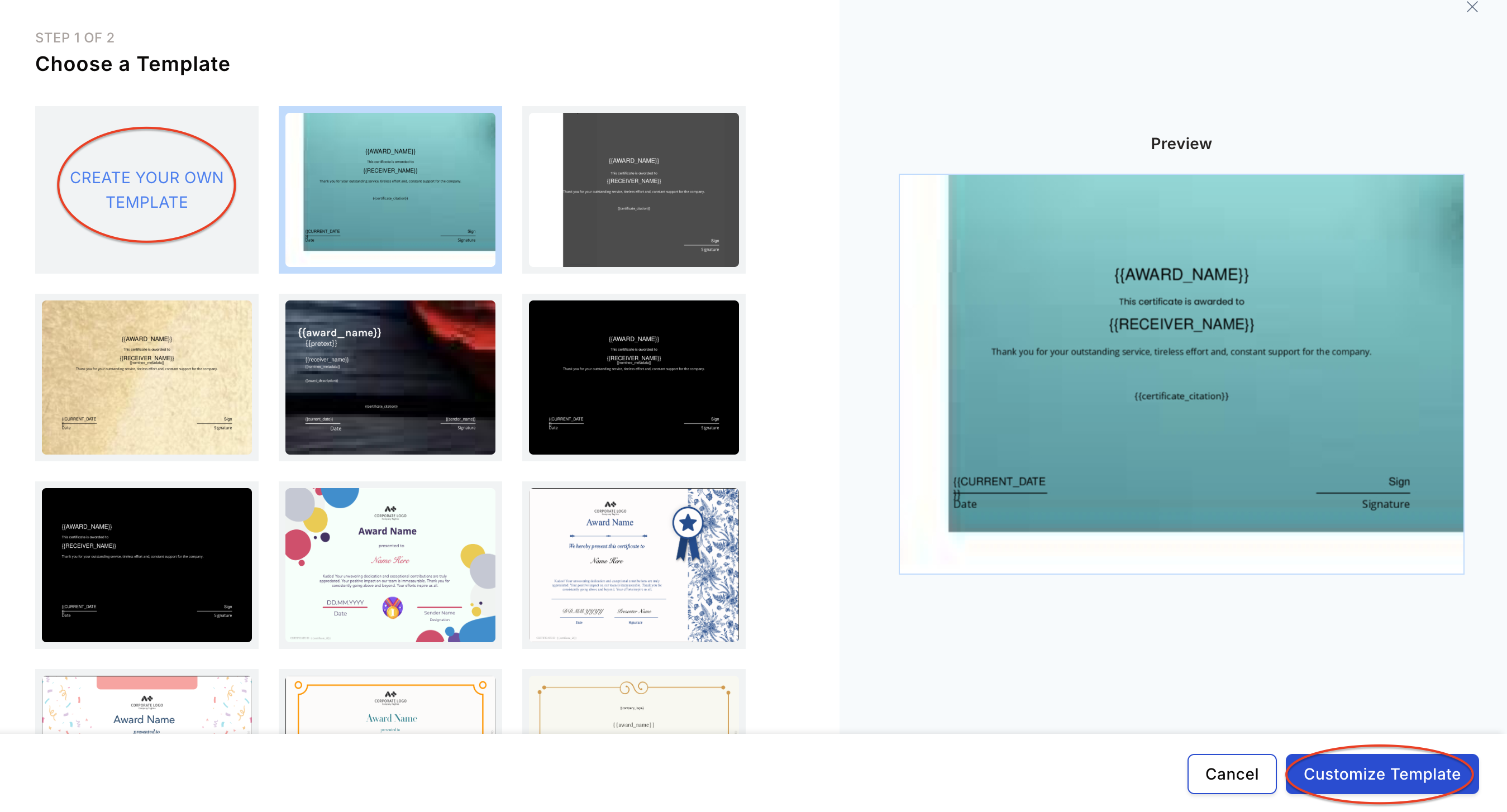
You can use a predefined certificate template or create one from scratch.
 ## Step 1: Design your template image
Prepare a certificate template image following these guidelines:
* Image dimensions: **A4 landscape format — 1240 × 1754 px** for best results.
* Ensure the image has sufficient blank space for dynamic text fields (award name, recipient name, citation, signatory, date).
## Step 1: Design your template image
Prepare a certificate template image following these guidelines:
* Image dimensions: **A4 landscape format — 1240 × 1754 px** for best results.
* Ensure the image has sufficient blank space for dynamic text fields (award name, recipient name, citation, signatory, date).
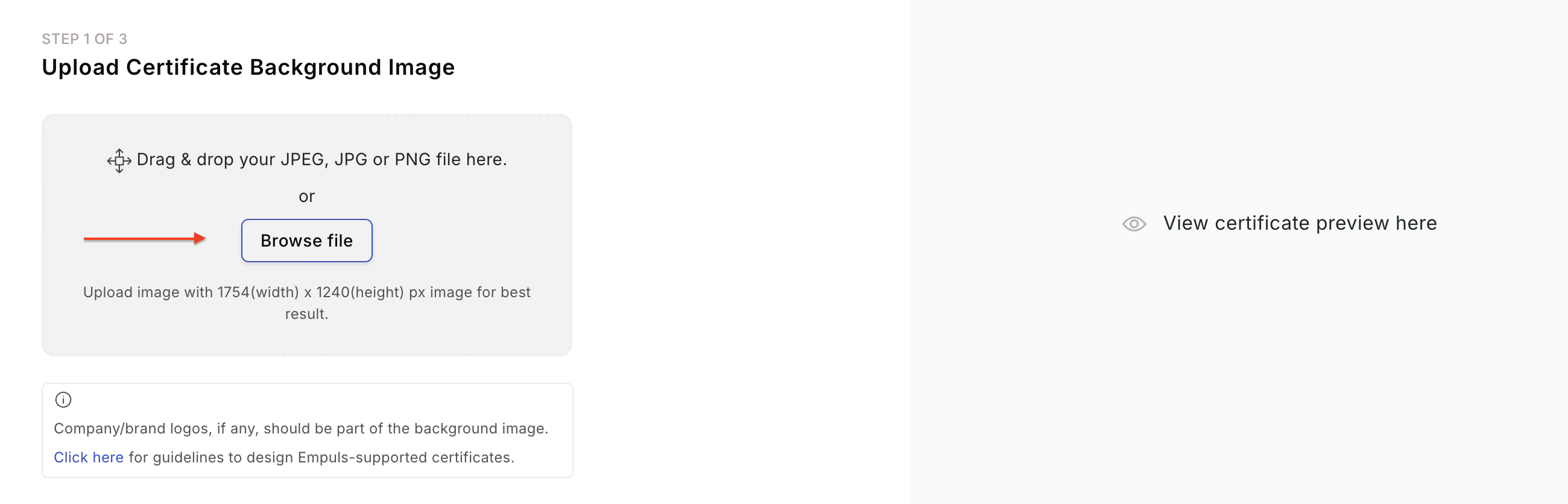
 ## Step 2: Upload your certificate image
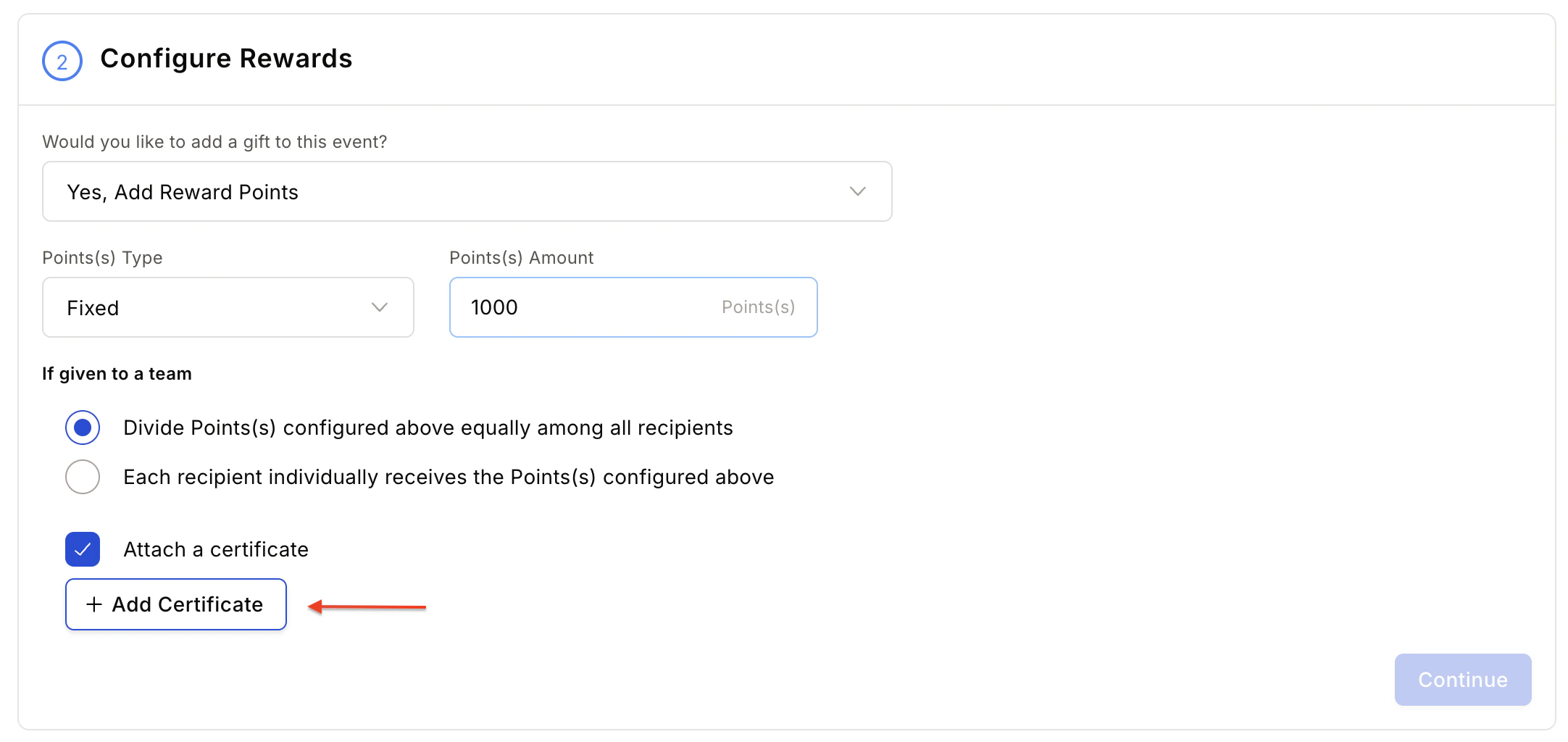
The **Add Certificates** option is available in two places: Awards and Work Anniversary Gifts.
1. Click **Add Certificates** to open the upload dialog.
2. Upload your designed certificate image.
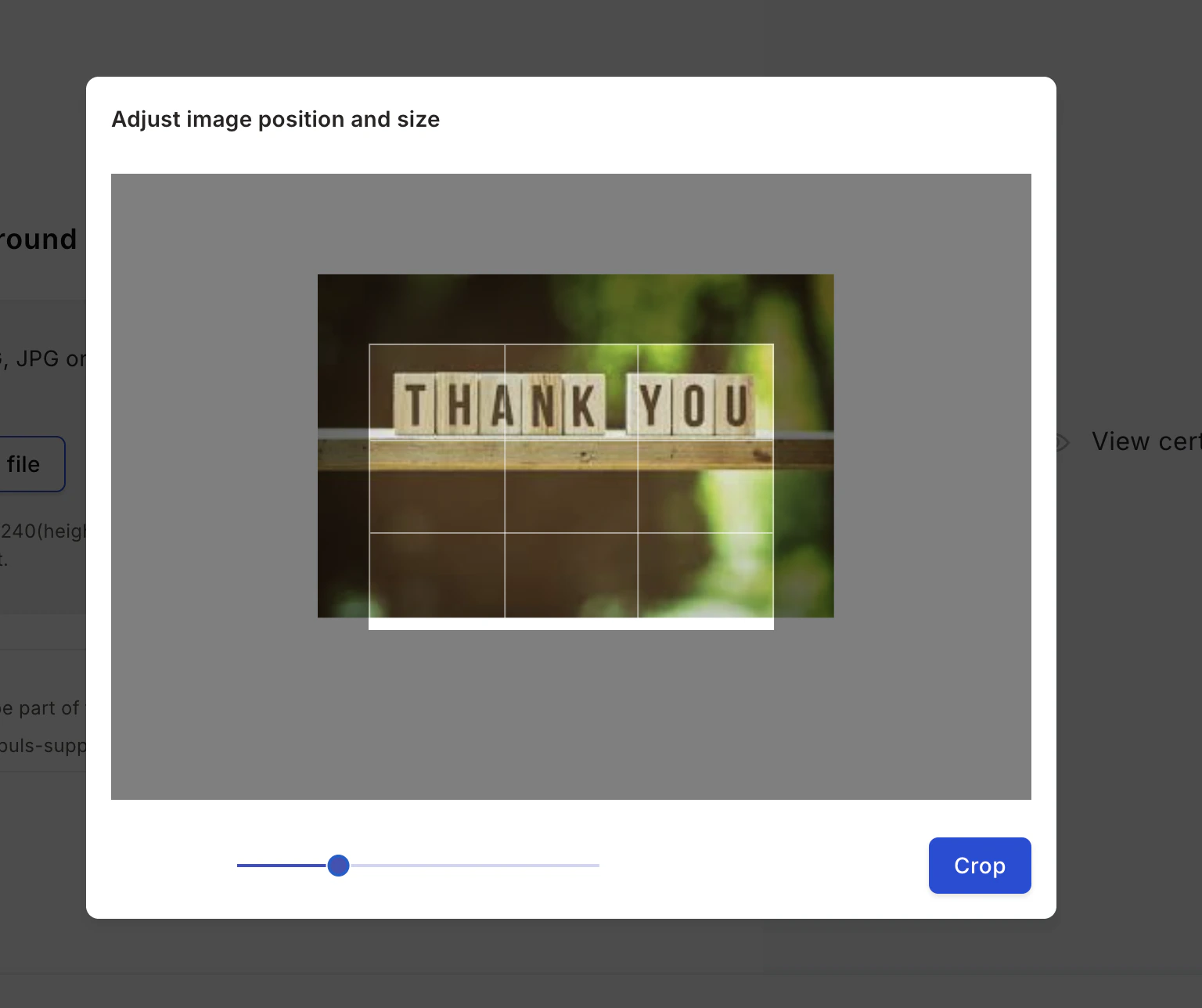
3. Use the **Crop Image** option to adjust position and size. Image size and resolution are validated to ensure the generated certificate is of printable quality.
## Step 2: Upload your certificate image
The **Add Certificates** option is available in two places: Awards and Work Anniversary Gifts.
1. Click **Add Certificates** to open the upload dialog.
2. Upload your designed certificate image.
3. Use the **Crop Image** option to adjust position and size. Image size and resolution are validated to ensure the generated certificate is of printable quality.
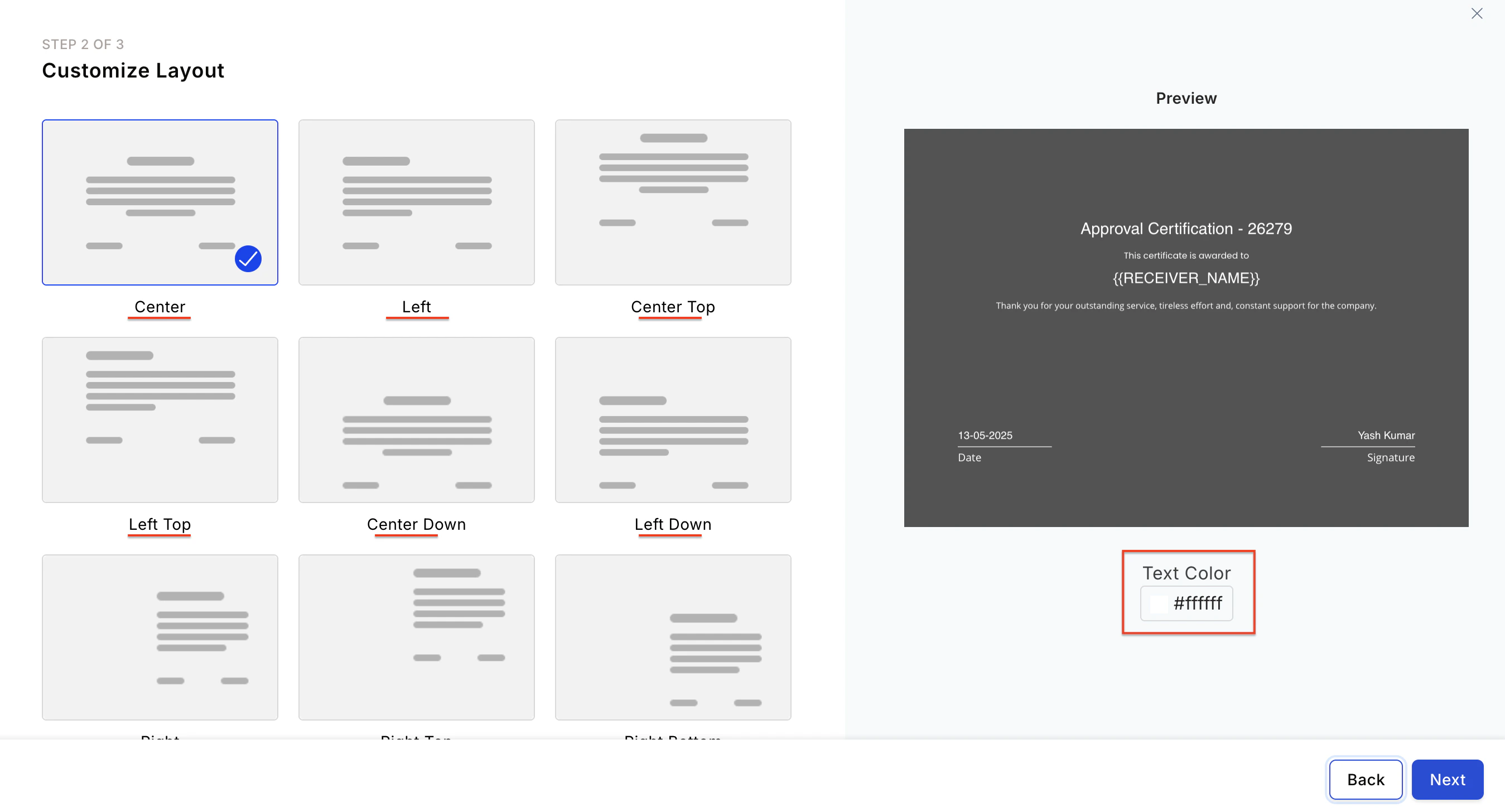
 ## Step 3: Customise the layout
Select the **layout** and the **text colour** to use on your uploaded image.
## Step 3: Customise the layout
Select the **layout** and the **text colour** to use on your uploaded image.
 ## Step 4: Provide certificate details
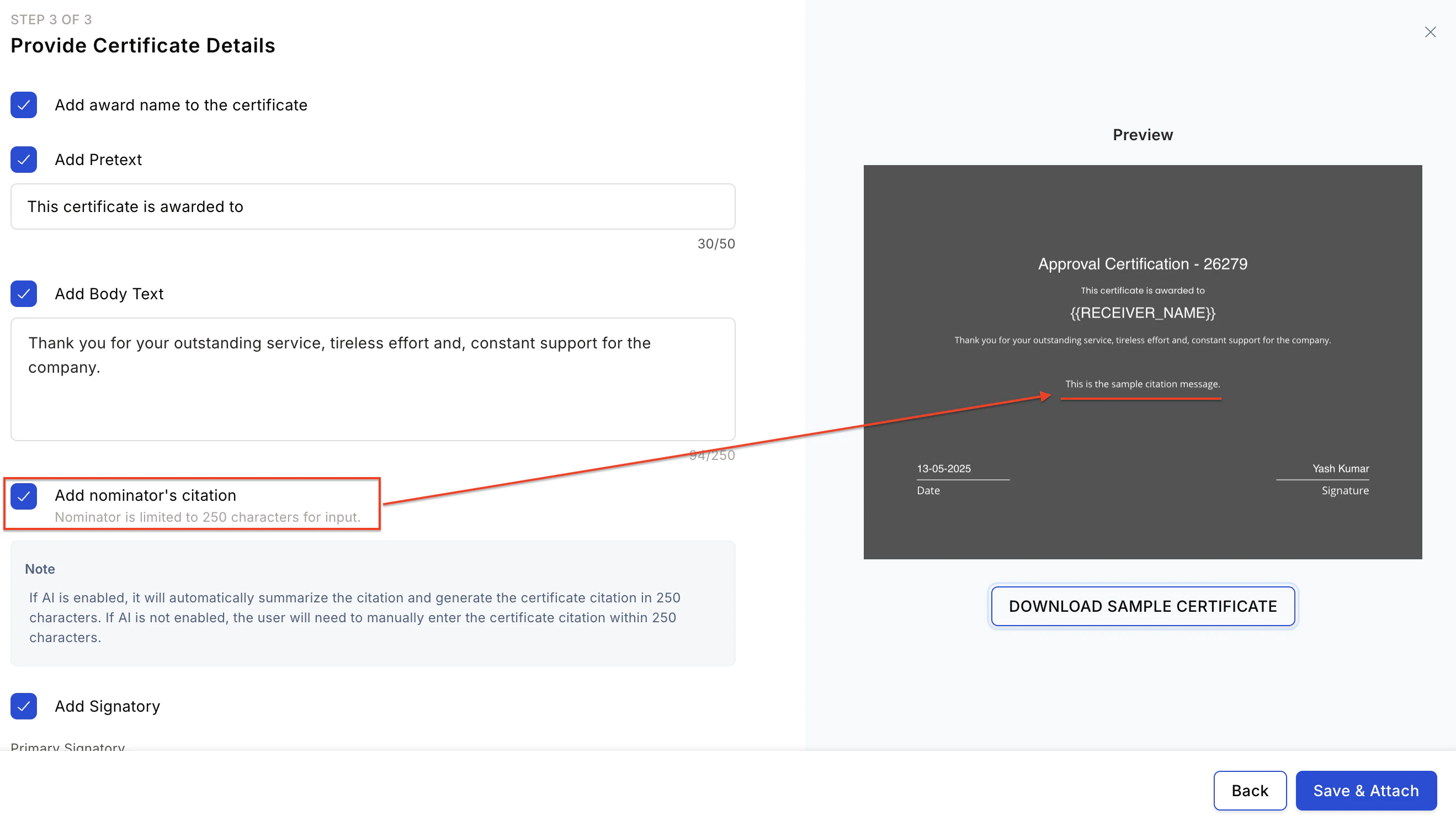
Configure the content fields to appear on the certificate:
* **Award name** — Add the award name to the certificate.
* **Pretext** — Add introductory text above the recipient's name.
* **Body text** — Add the main body of the certificate.
* **Nominator's message** — Include the nominator's citation.
* **Signatory** — Select using the dropdown. You can also add the nominator's name as the signatory.
* **Default signatory** — Used if the primary signatory does not exist in the system.
## Step 4: Provide certificate details
Configure the content fields to appear on the certificate:
* **Award name** — Add the award name to the certificate.
* **Pretext** — Add introductory text above the recipient's name.
* **Body text** — Add the main body of the certificate.
* **Nominator's message** — Include the nominator's citation.
* **Signatory** — Select using the dropdown. You can also add the nominator's name as the signatory.
* **Default signatory** — Used if the primary signatory does not exist in the system.
 **Date options:**
* **Nomination Date** — The certificate includes the date the nomination was submitted.
* **Approved Date** — The certificate includes the date the nomination was approved.
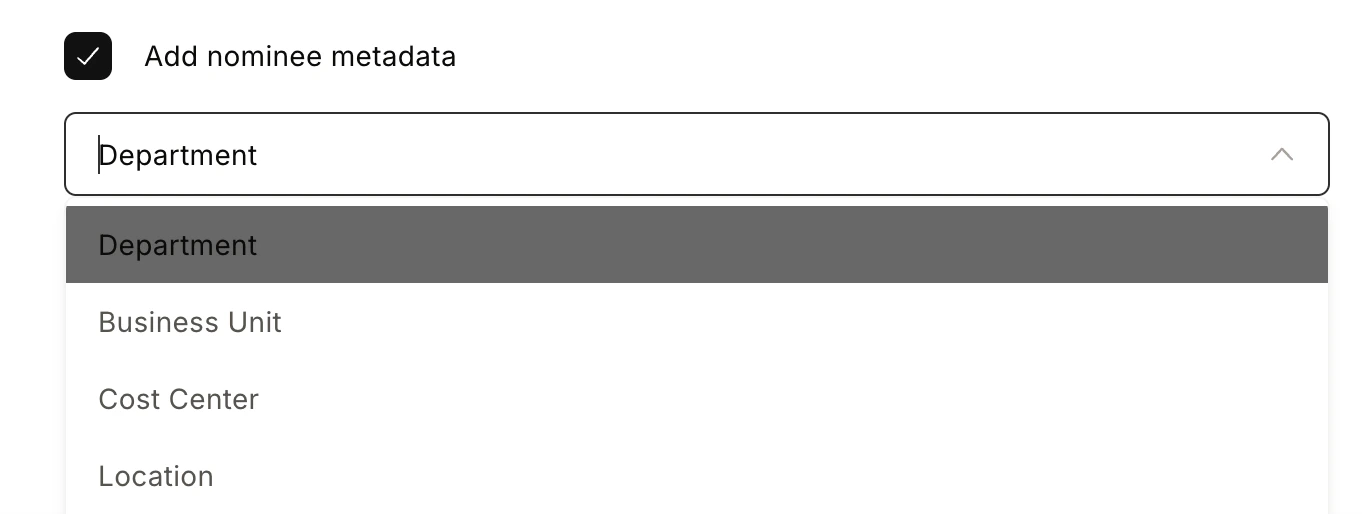
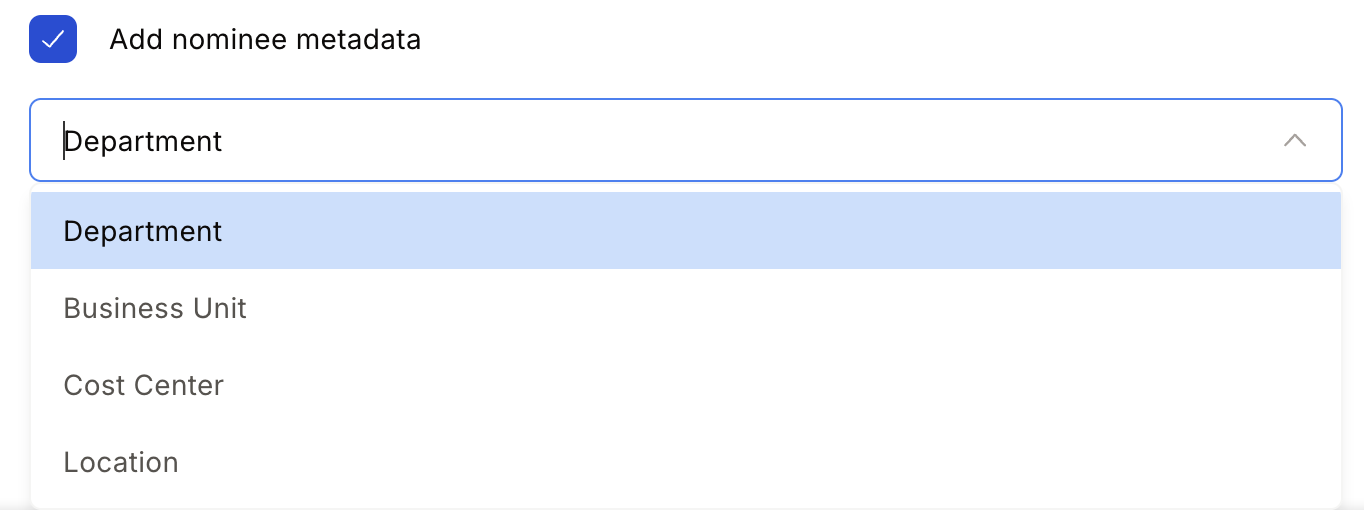
**Nominee metadata** — Check the box to include the nominee's metadata (Department, Business Unit, Cost Centre, Location) and select the relevant fields from the dropdown.
**Date options:**
* **Nomination Date** — The certificate includes the date the nomination was submitted.
* **Approved Date** — The certificate includes the date the nomination was approved.
**Nominee metadata** — Check the box to include the nominee's metadata (Department, Business Unit, Cost Centre, Location) and select the relevant fields from the dropdown.
 Your custom certificate is now configured on Empuls and will be automatically attached when this award is issued.
## FAQs
Yes. The nominator citation can be added to the certificate only when the admin has enabled the **Nominator citation** option during certificate setup.
* Only 250 characters of content can be printed on the certificate.
* The nominator can update the certificate citation when submitting the nomination.
Your custom certificate is now configured on Empuls and will be automatically attached when this award is issued.
## FAQs
Yes. The nominator citation can be added to the certificate only when the admin has enabled the **Nominator citation** option during certificate setup.
* Only 250 characters of content can be printed on the certificate.
* The nominator can update the certificate citation when submitting the nomination.
 Yes. Select the **Nominator name** option in the Primary Signatory field during certificate setup.
 Yes. Enable the **Add Nominee Metadata** option during Step 4 of certificate setup and select the relevant fields from the dropdown.
 To get a custom certificate design for rewards, raise a request to [cs@xoxoday.com](mailto:cs@xoxoday.com).