> ## Documentation Index
> Fetch the complete documentation index at: https://help-empuls.xoxoday.com/llms.txt
> Use this file to discover all available pages before exploring further.
# Right to be forgotten
# Right to be Forgotten
As an admin, ensuring data privacy and compliance is a top priority. With the **Right to be Forgotten** feature in Empuls, you now have a streamlined way to manage user account deletions while maintaining security and transparency.
## Why This Matters for Admins?
Data privacy laws, such as GDPR and CCPA, emphasize user control over personal data. The **Right to be Forgotten** feature allows organizations to comply with these regulations while allowing users to manage their own data.
## Enabling “Right to be forgotten” on Empuls
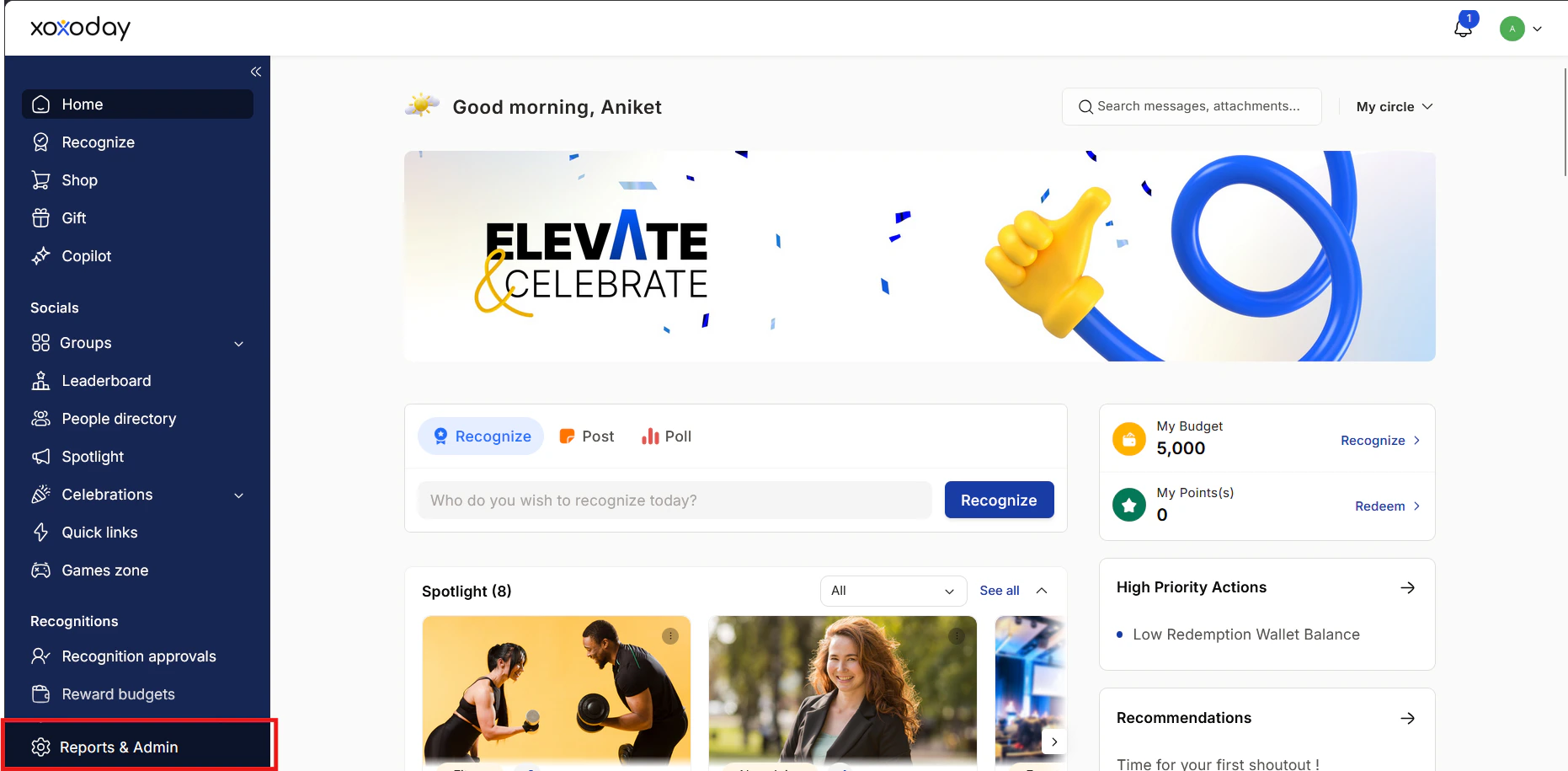
Go to **Admin Dashboard** by clicking on **Reports and Admin** as shown in the screenshot below.
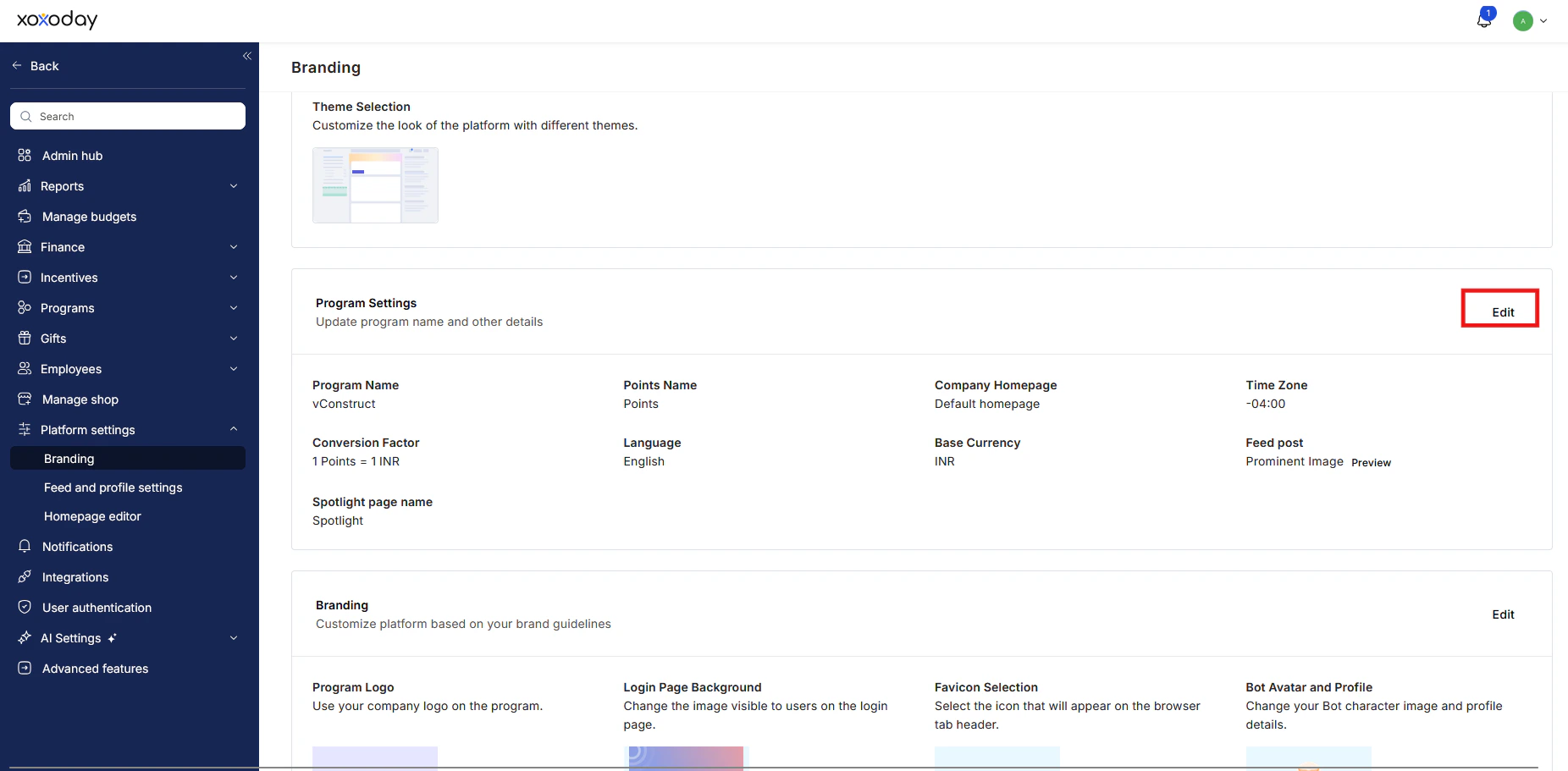
 Navigate to **Platform Settings > Branding > Program Settings** and click **Edit** next to it.
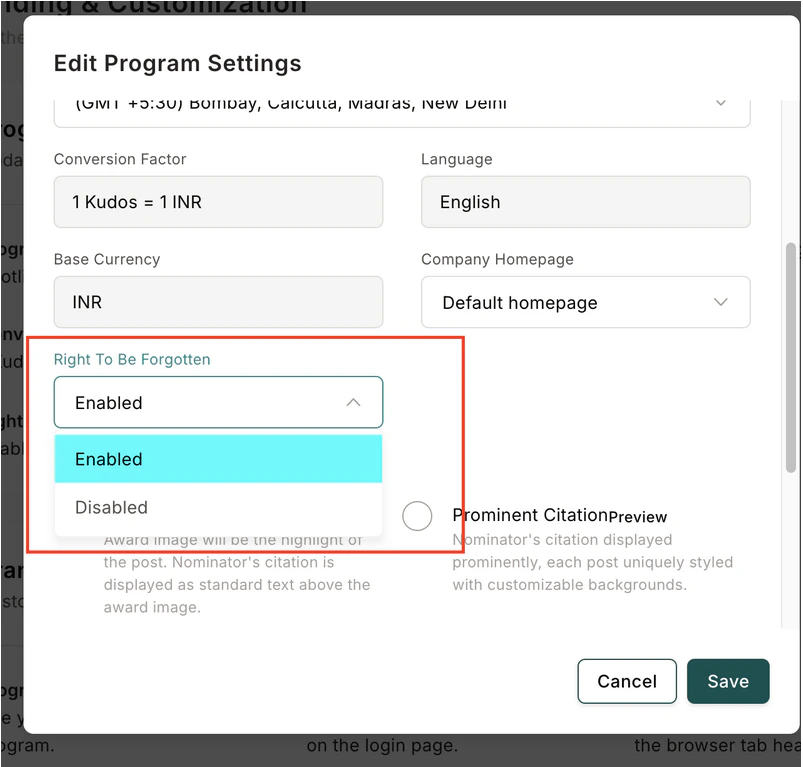
 Scroll down to **Right to be Forgotten** in the settings and select **Enable Right to be Forgotten**. Click **Save** once done.
 ## What Happens for Employees?
Employees see a consent pop-up at login, allowing them to request account deletion. They can choose to **Decline** or Accept.
## What Happens for Employees?
Employees see a consent pop-up at login, allowing them to request account deletion. They can choose to **Decline** or Accept.
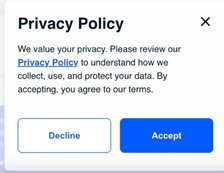 If proceeding with Decline option, employees must agree to the **terms and conditions** before continuing.
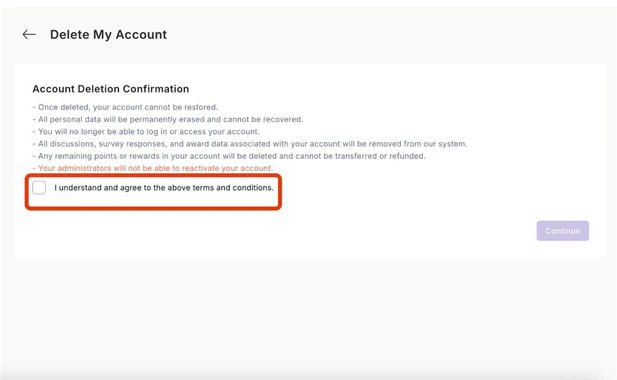 A confirmation code is sent to the employee’s registered email. They need to enter the code in the provided field.
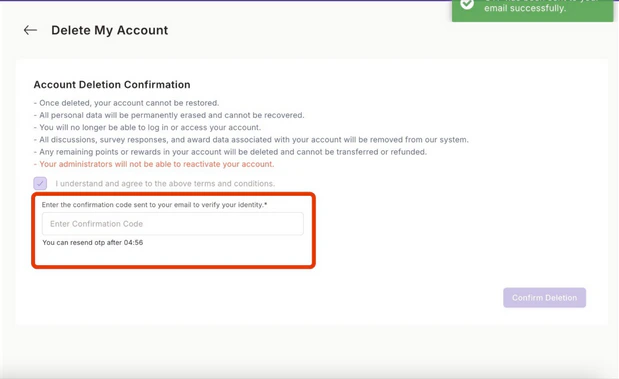 Once the code is entered, they must confirm the deletion to complete the process.
Additionally, employees can manage this process by navigating to **Profile > Account Preferences**.
## What This Means for your employees?
1. **Simple Account Deletion**: Upon login, users can request deletion directly from a consent popup.
2. **Secure Verification**: An OTP ensures that only the rightful account owner can proceed.
3. **Immediate Action**: Once verified, their account and data are permanently erased.
Once the code is entered, they must confirm the deletion to complete the process.
Additionally, employees can manage this process by navigating to **Profile > Account Preferences**.
## What This Means for your employees?
1. **Simple Account Deletion**: Upon login, users can request deletion directly from a consent popup.
2. **Secure Verification**: An OTP ensures that only the rightful account owner can proceed.
3. **Immediate Action**: Once verified, their account and data are permanently erased.