> ## Documentation Index
> Fetch the complete documentation index at: https://help-empuls.xoxoday.com/llms.txt
> Use this file to discover all available pages before exploring further.
# Notification settings
> Manage which notifications Empuls sends to employees — email, mobile, SMS, and in-product — and configure reminders, engagement nudges, and catalogue nudges.
Admins can manage all notifications sent to employees across the organisation. Notifications are delivered via Email, Mobile App, SMS, and In-Product alerts.
Navigate to **Admin Settings > Notifications** to access this feature. You must have **Super Admin** or **General Admin** permissions.
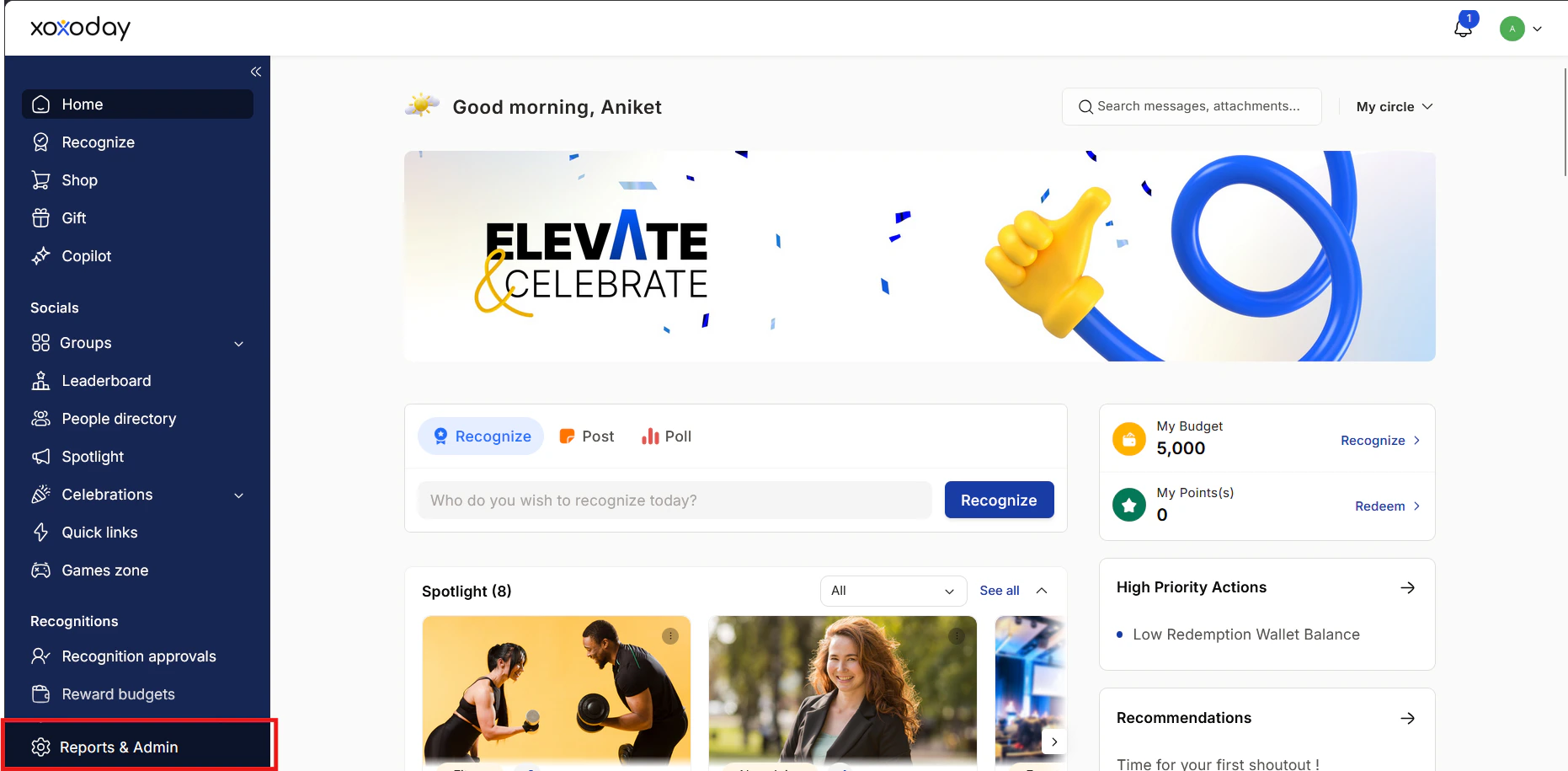
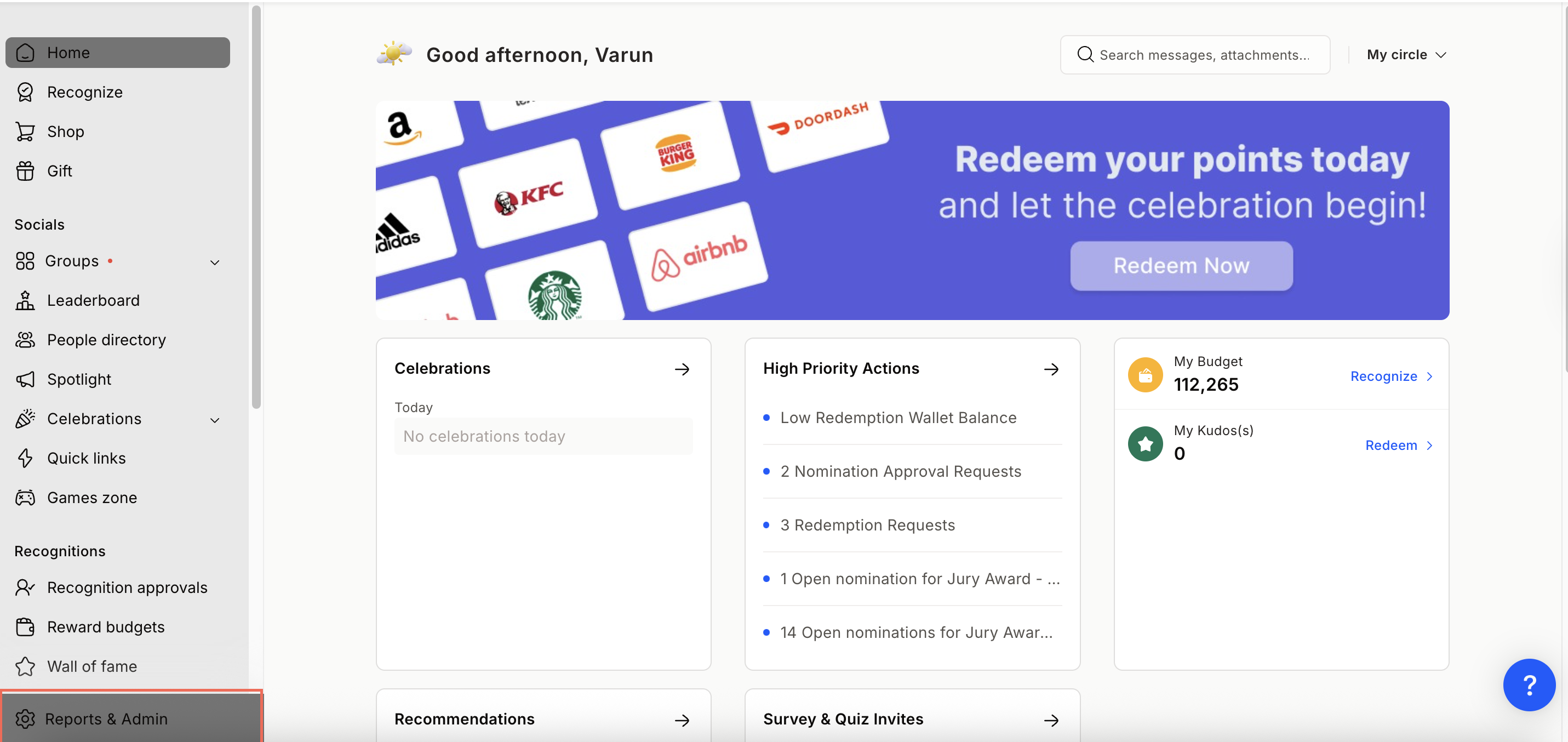
## Step 1: Go to Admin Dashboard
Click **Reports and Admin** to access the admin dashboard.
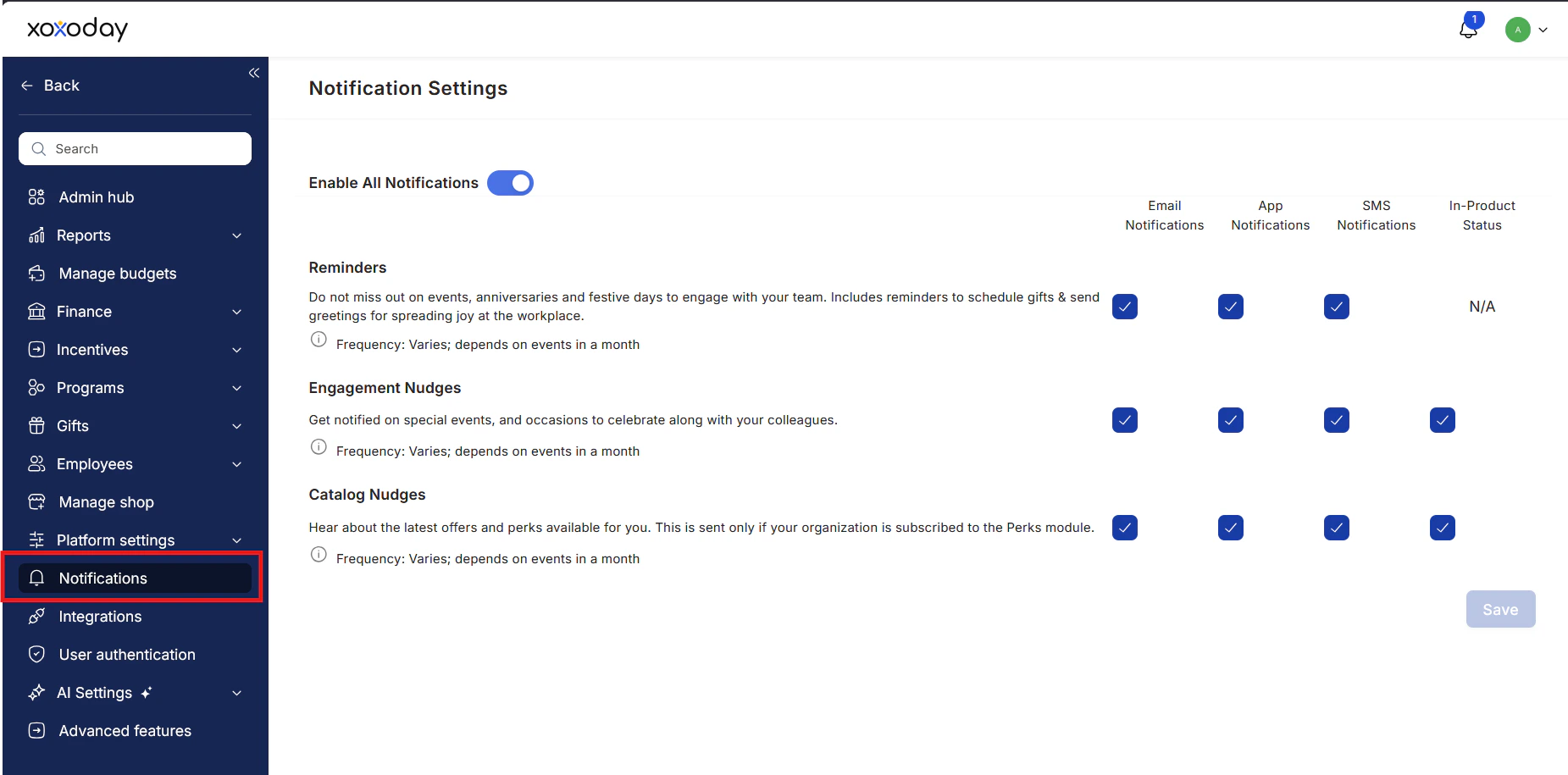
 ## Step 2: Access notification settings
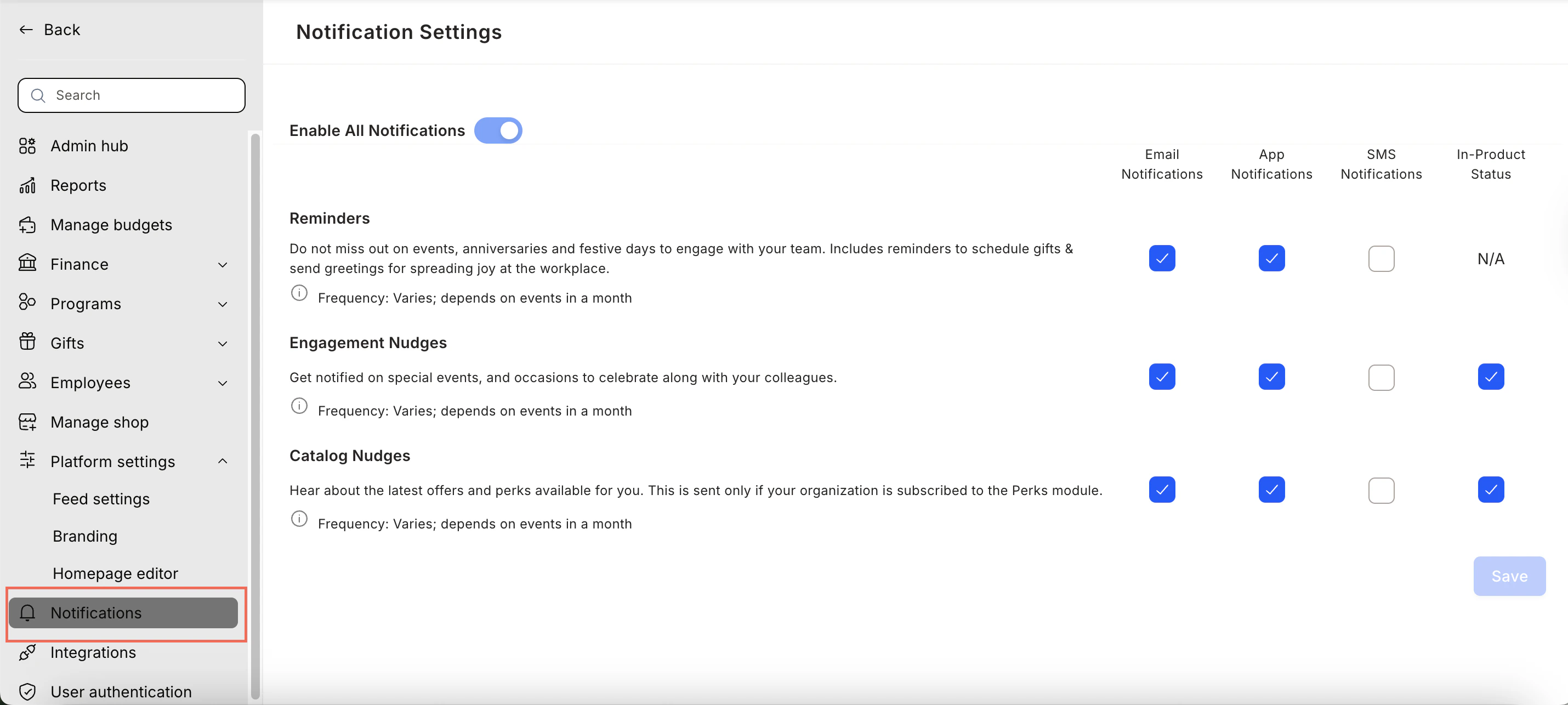
Navigate to **Notifications** to manage organisation-level notification settings.
## Step 2: Access notification settings
Navigate to **Notifications** to manage organisation-level notification settings.
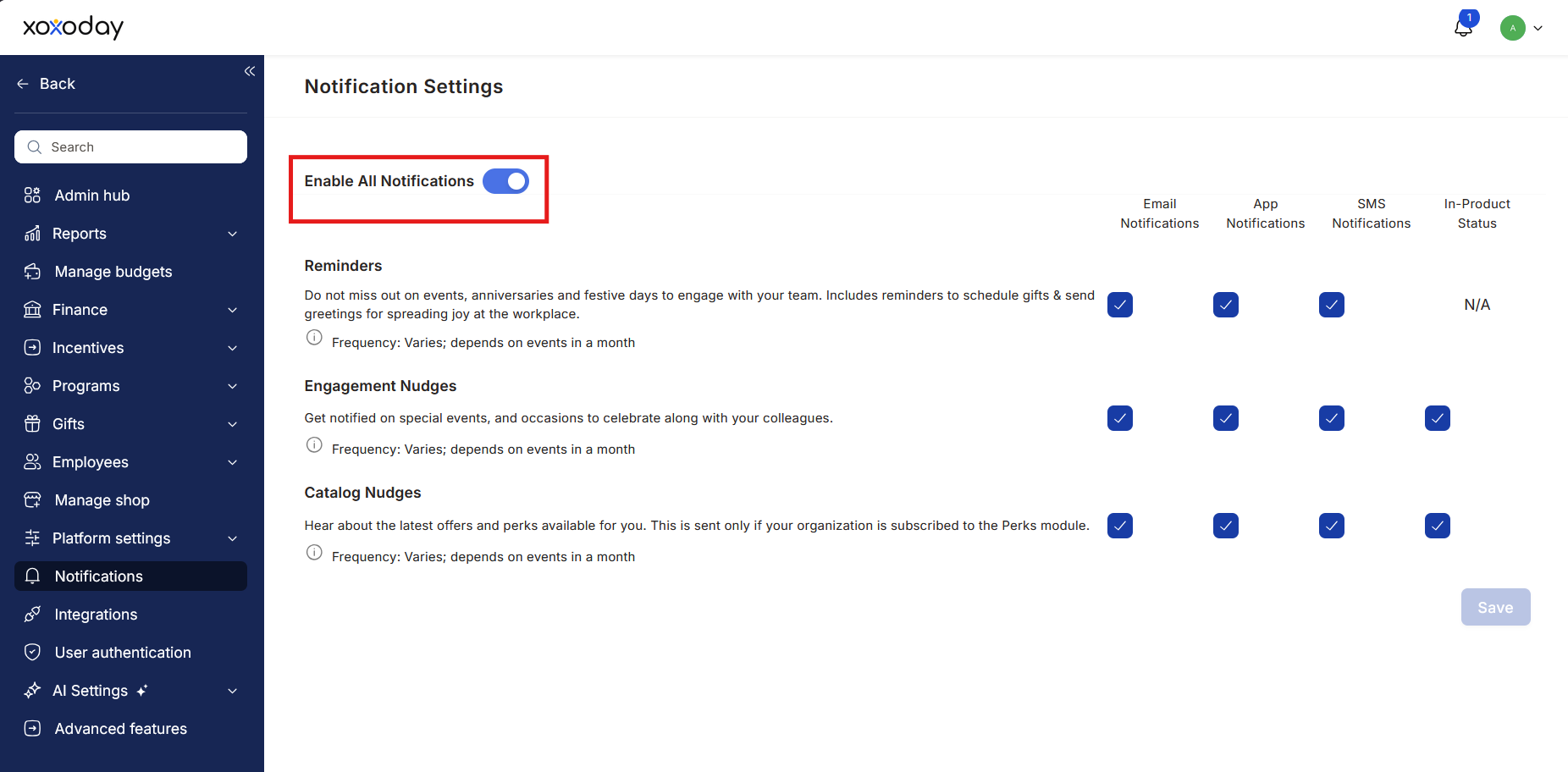
 ## Step 3: Enable or disable notifications
Enable or disable all notifications and customise settings as needed. Click **Confirm** to apply changes.
## Step 3: Enable or disable notifications
Enable or disable all notifications and customise settings as needed. Click **Confirm** to apply changes.
 ## Step 4: Reminders
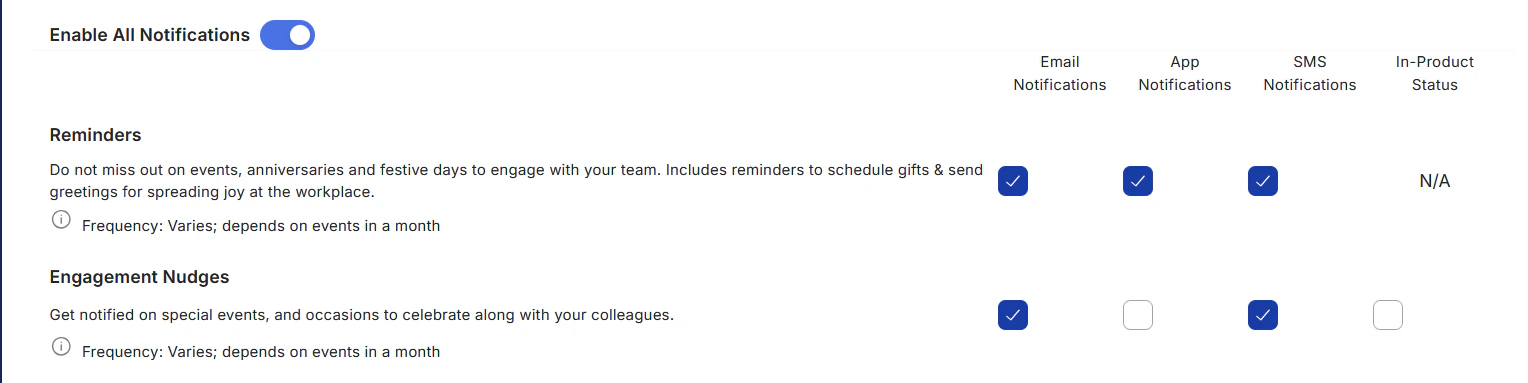
Reminders notify employees about events, anniversaries, and scheduled gifts or festival greetings. Use the checkbox to enable or disable them.
## Step 4: Reminders
Reminders notify employees about events, anniversaries, and scheduled gifts or festival greetings. Use the checkbox to enable or disable them.
 ## Step 5: Engagement nudges
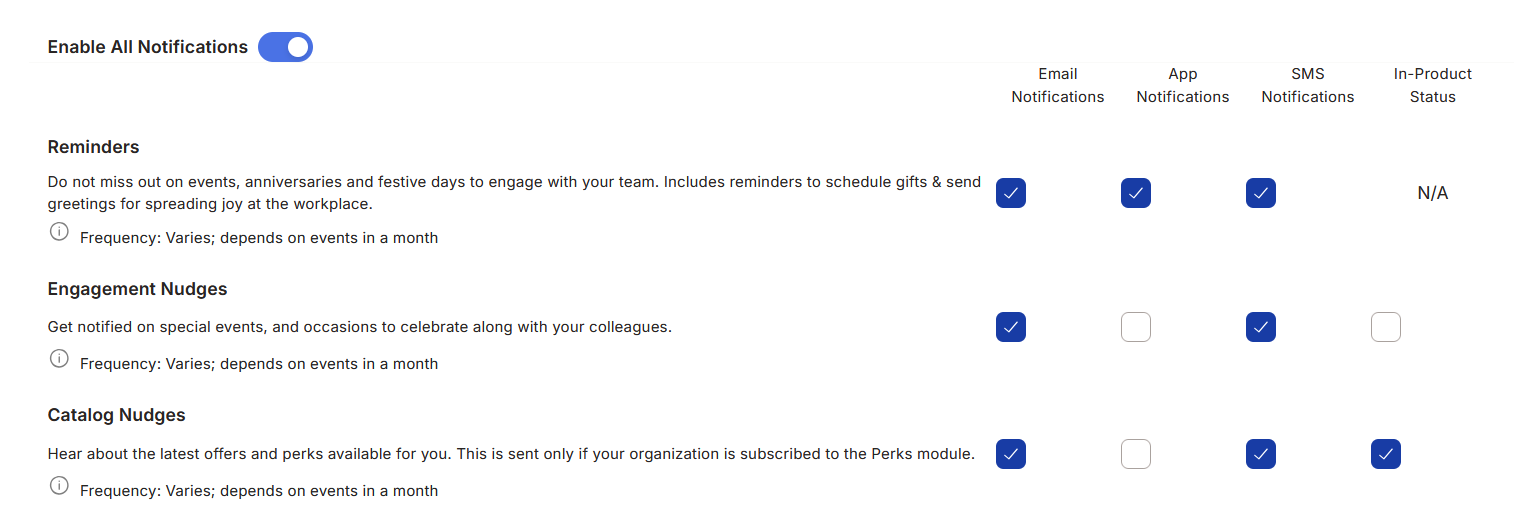
Engagement nudges are internal campaign notifications sent by Empuls to drive participation (e.g., HR Day, social events). Enable or disable based on preference.
## Step 5: Engagement nudges
Engagement nudges are internal campaign notifications sent by Empuls to drive participation (e.g., HR Day, social events). Enable or disable based on preference.
 ## Step 6: Catalogue nudges
Catalogue nudges promote offers and perks available in the **Perks and Benefits** section. Enable or disable as needed.
## Step 6: Catalogue nudges
Catalogue nudges promote offers and perks available in the **Perks and Benefits** section. Enable or disable as needed.
 ## Step 7: Save preferences
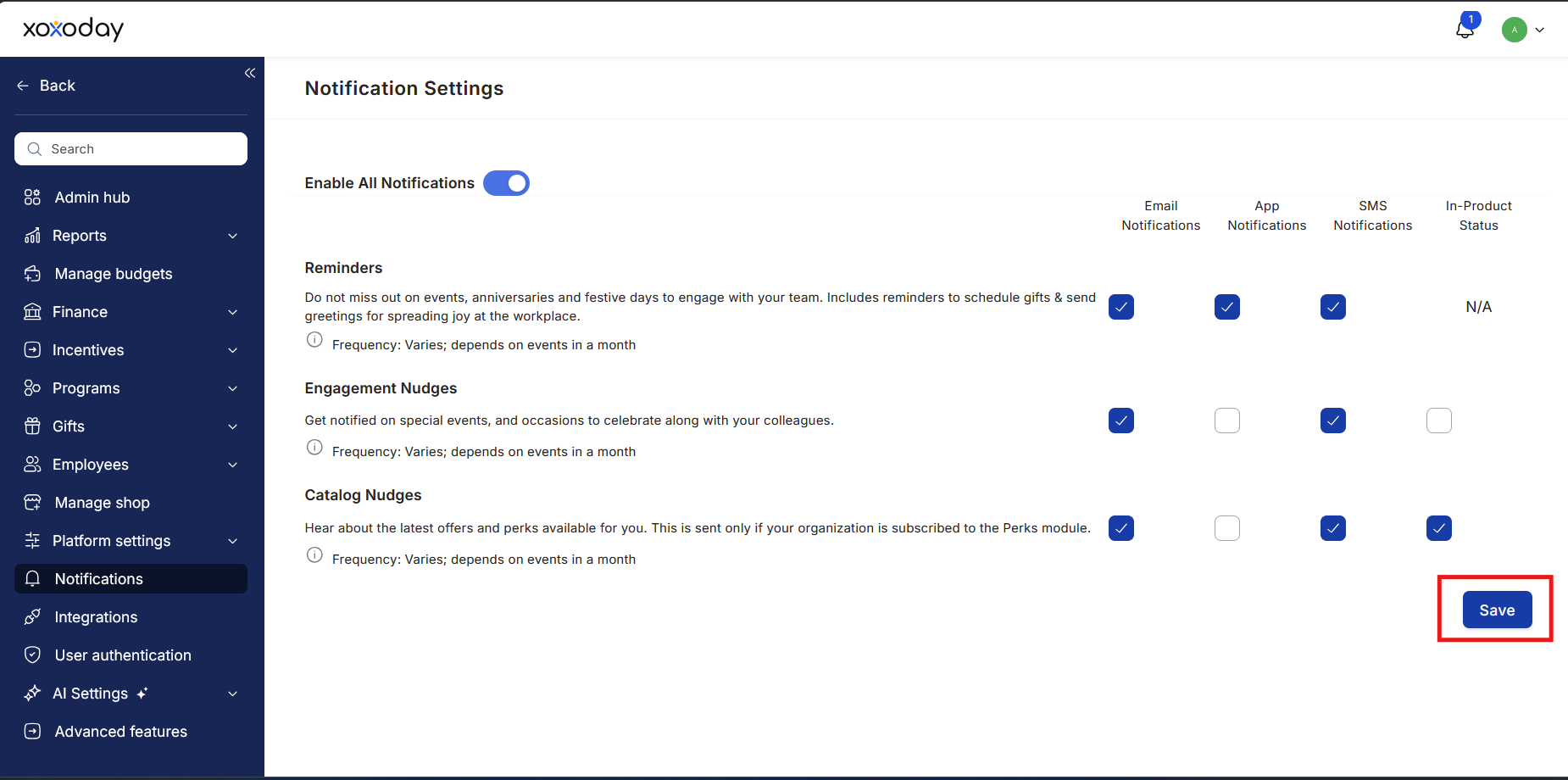
Select or deselect the required options and click **Save** to apply changes.
> If a Super Admin disables or modifies notification settings, all Super Admins receive an email alert.
## Step 7: Save preferences
Select or deselect the required options and click **Save** to apply changes.
> If a Super Admin disables or modifies notification settings, all Super Admins receive an email alert.
 ## FAQs
Only **Super Admins** can access and modify notification settings.
Go to **Admin > Billing and Customisation > Notification Settings**.
Email, Mobile App notifications, SMS, and In-Product Alerts.
Yes. You can disable all notifications using a single toggle.
Notifications for events, birthdays, anniversaries, and gift scheduling.
Internal campaign notifications to drive engagement (e.g., HR Day, social events).
Notifications promoting perks and discounts in the benefits catalogue.
Click **Save** after updating your preferences.
For support, contact [cs@xoxoday.com](mailto:cs@xoxoday.com).
## FAQs
Only **Super Admins** can access and modify notification settings.
Go to **Admin > Billing and Customisation > Notification Settings**.
Email, Mobile App notifications, SMS, and In-Product Alerts.
Yes. You can disable all notifications using a single toggle.
Notifications for events, birthdays, anniversaries, and gift scheduling.
Internal campaign notifications to drive engagement (e.g., HR Day, social events).
Notifications promoting perks and discounts in the benefits catalogue.
Click **Save** after updating your preferences.
For support, contact [cs@xoxoday.com](mailto:cs@xoxoday.com).