> ## Documentation Index
> Fetch the complete documentation index at: https://help-empuls.xoxoday.com/llms.txt
> Use this file to discover all available pages before exploring further.
# Feed and profile settings
# Feed & Profile Settings
> Customise the recommended feed content for your employees.
Empuls is committed to enhancing employee engagement and communication within your organisation. As an admin, you can customise the content on your employees' Recommended Feed. This feature ensures that messages are visible to the right people.
## Configure Feed Settings
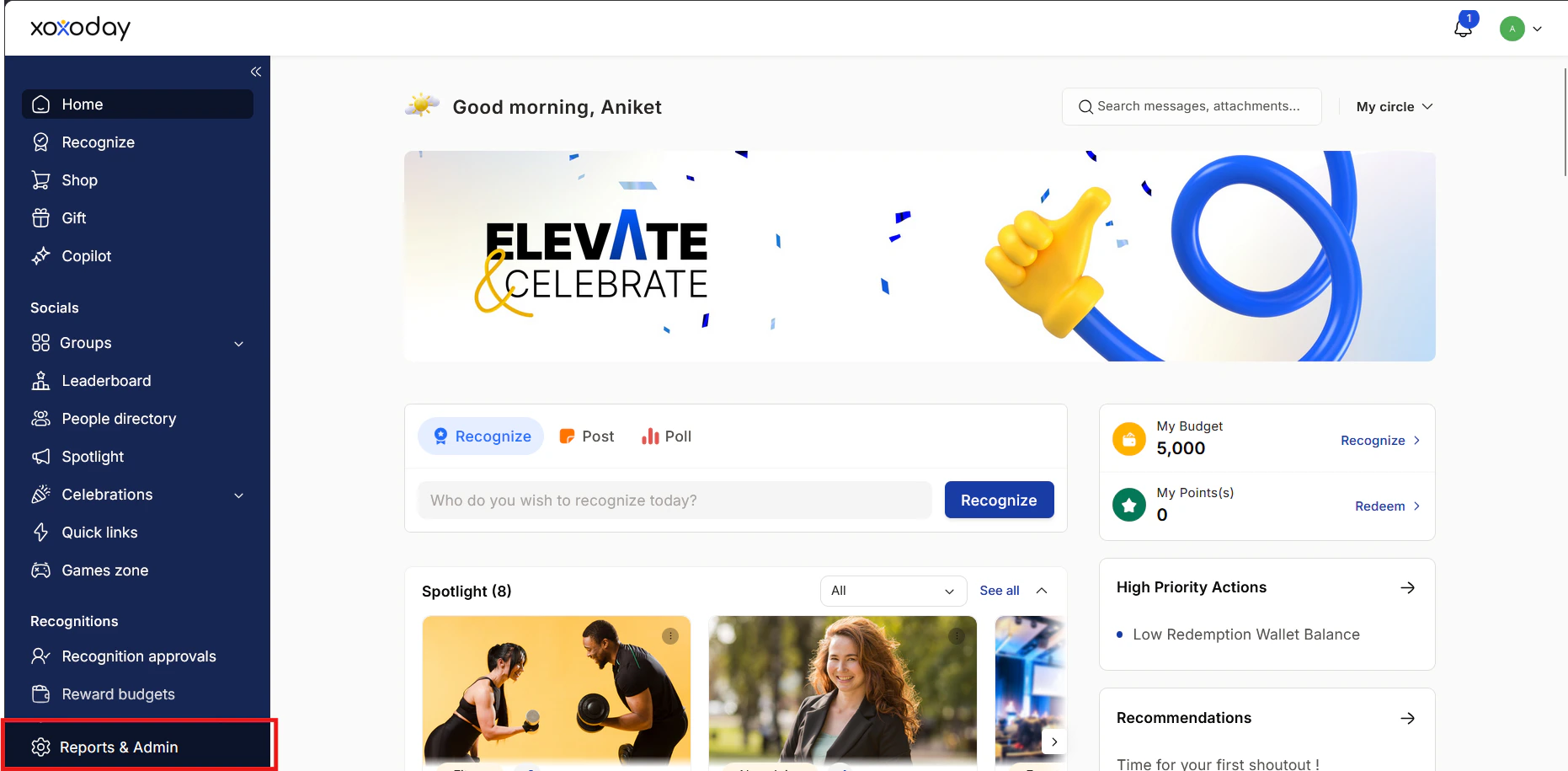
Go to the **Admin Dashboard** by clicking on **Reports and Admin** at the bottom.
 Navigate to **Platform Settings > Feed Settings**
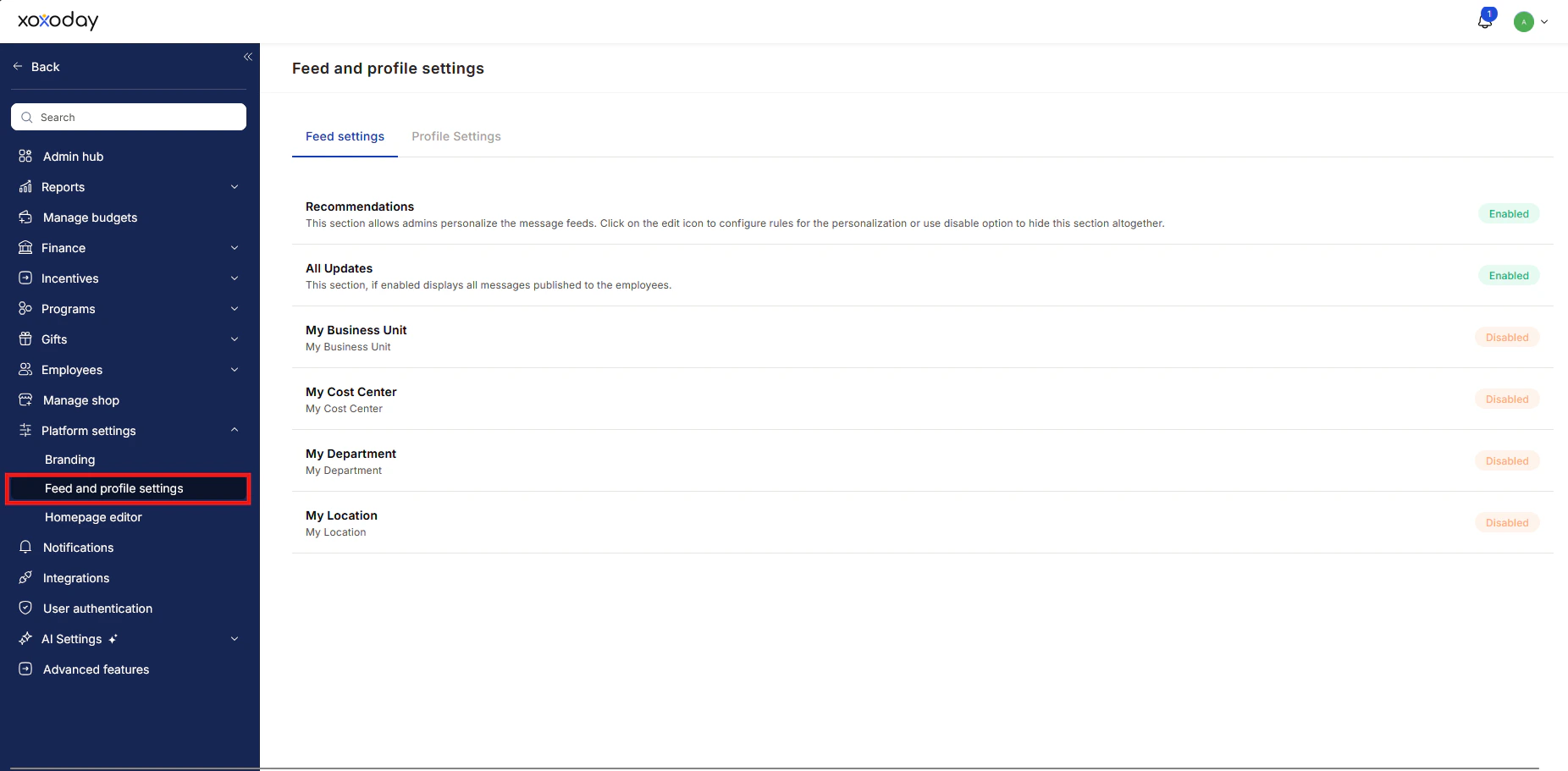 The **Feed Settings** menu has three ways to customise your messages.
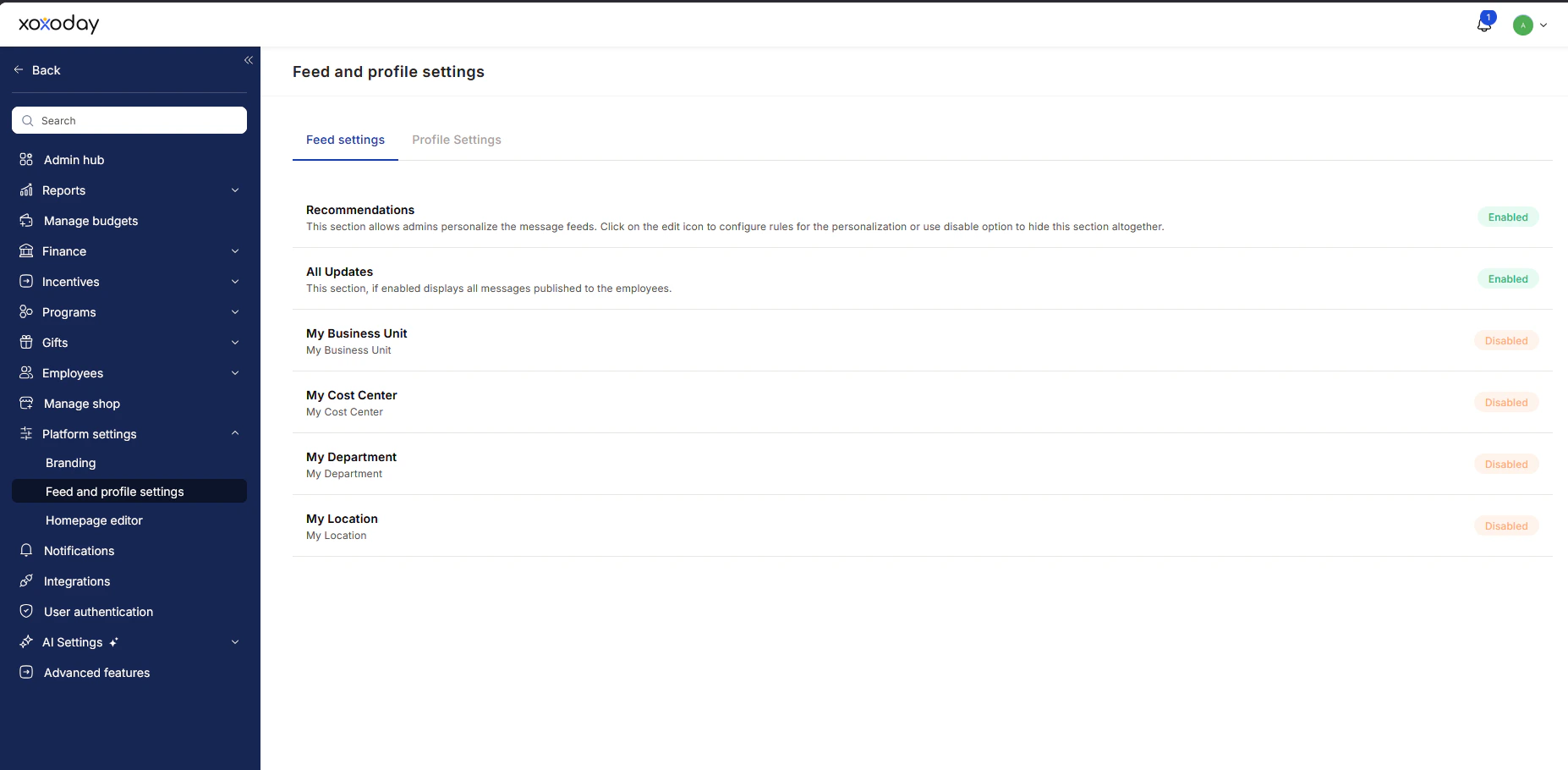 * **Option 1:** **Recommendations** - This section allows admins to customise the message feeds.
* **How to Edit the Recommendations?**
* To edit feed settings, **hover to the right** and click on **the pen icon.**
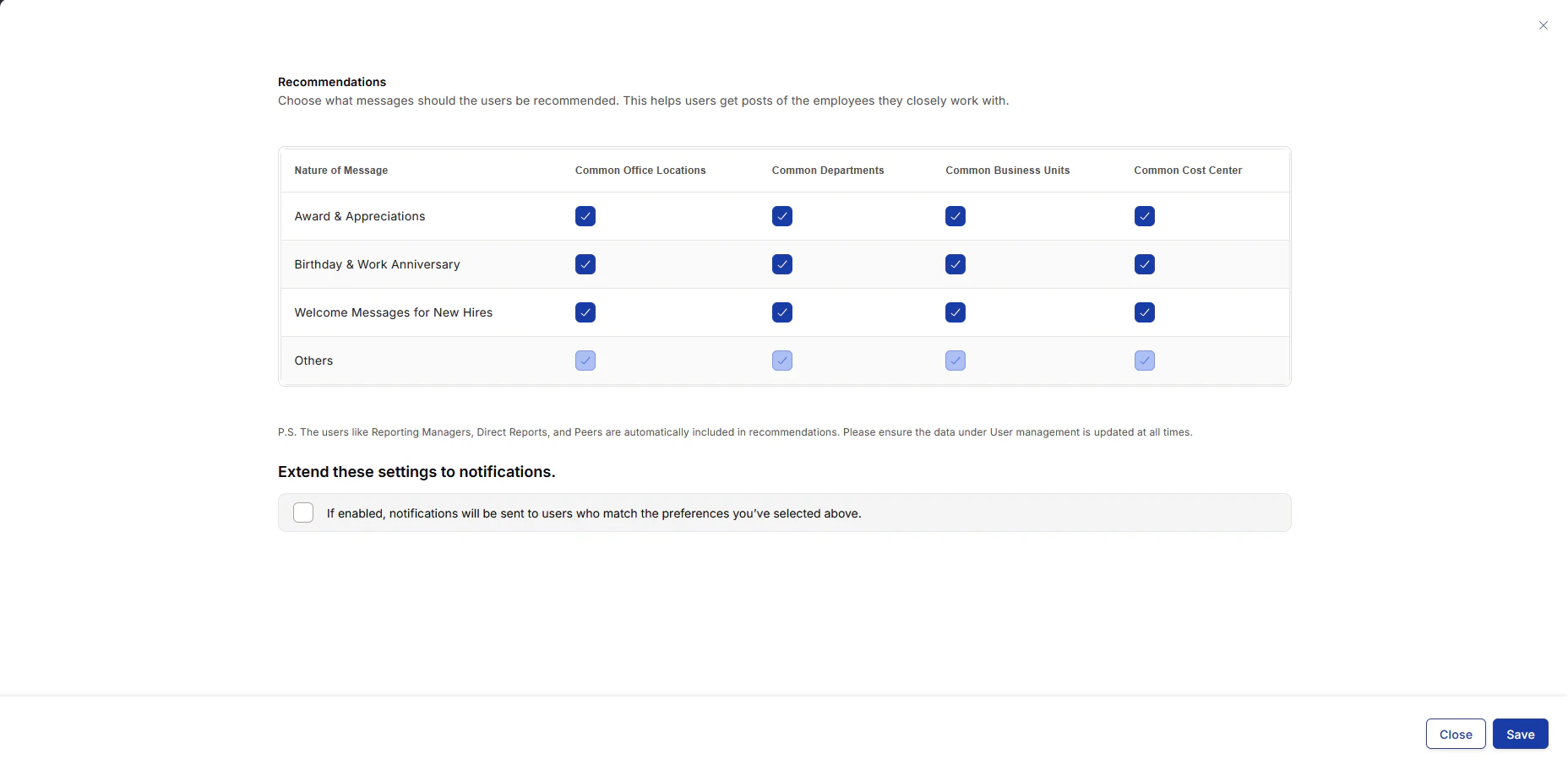
* **Nature of Messages**: You can define the nature of messages you want to allow or restrict in the recommended feed. Empuls offers various categories and tags to filter messages.
* **Header Selection**: To customise your recommended feed, you can correspond to the type of content you want to allow or restrict. **Check the box** to include a category or tag in the feed and uncheck the box to exclude. Once done, click on **Save.**
* **Option 1:** **Recommendations** - This section allows admins to customise the message feeds.
* **How to Edit the Recommendations?**
* To edit feed settings, **hover to the right** and click on **the pen icon.**
* **Nature of Messages**: You can define the nature of messages you want to allow or restrict in the recommended feed. Empuls offers various categories and tags to filter messages.
* **Header Selection**: To customise your recommended feed, you can correspond to the type of content you want to allow or restrict. **Check the box** to include a category or tag in the feed and uncheck the box to exclude. Once done, click on **Save.**
 * **Option 2:** **All Updates** - When enabled, the “All updates” section will show all the messages that have been published to employees. To turn off this feature, click on the **Disable** option.
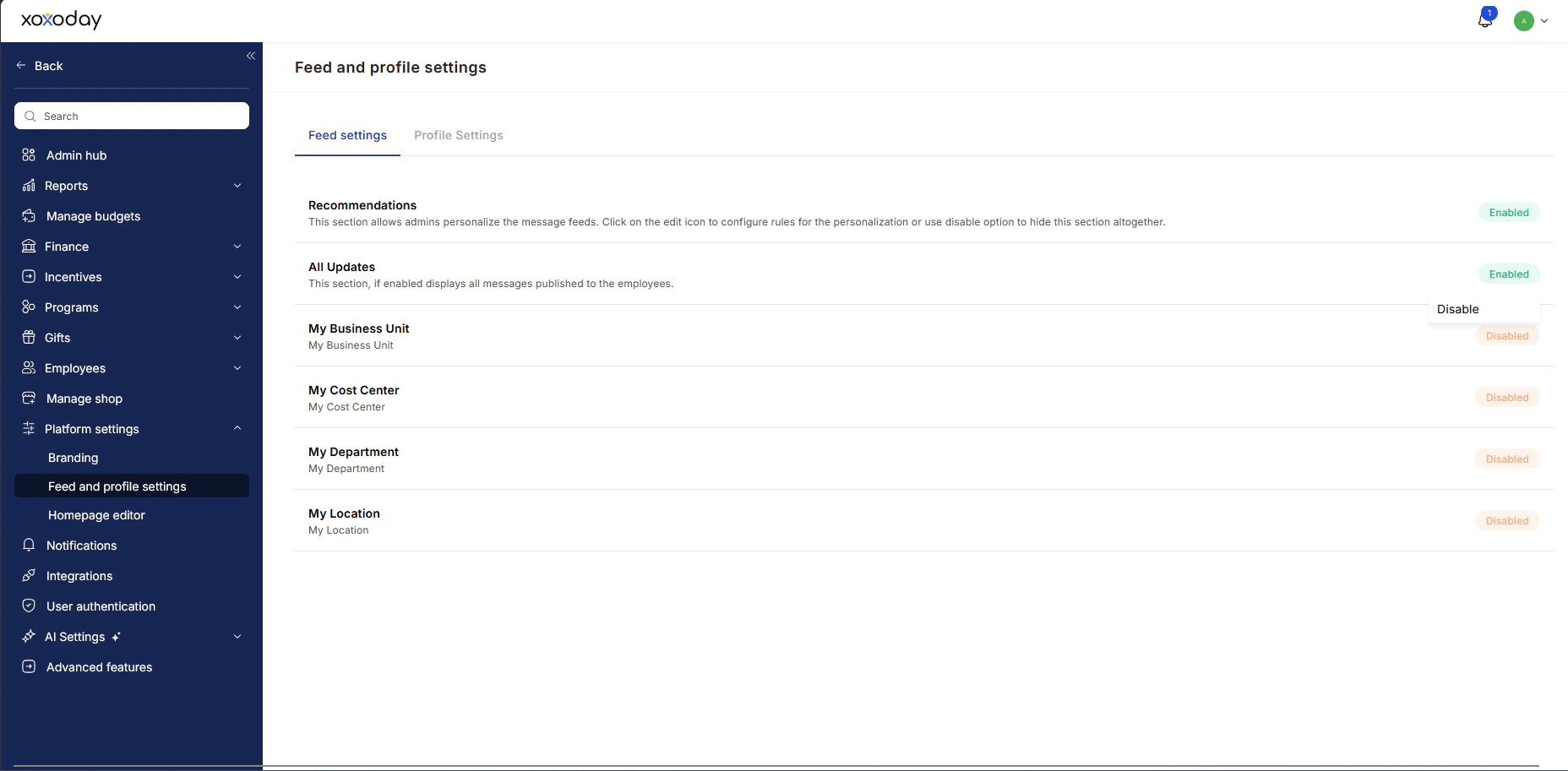 * **Option 3:** **Disabling Features for Specific Groups**
* You can disable features for the following groups within your organization:
* **My Business Unit**
* **My Cost Center**
* **My Department**
* **My Location**
* To update settings, navigate to the relevant section and adjust the permissions (by hovering to Enabled/Disabled) for each group as needed.
* **Option 3:** **Disabling Features for Specific Groups**
* You can disable features for the following groups within your organization:
* **My Business Unit**
* **My Cost Center**
* **My Department**
* **My Location**
* To update settings, navigate to the relevant section and adjust the permissions (by hovering to Enabled/Disabled) for each group as needed.
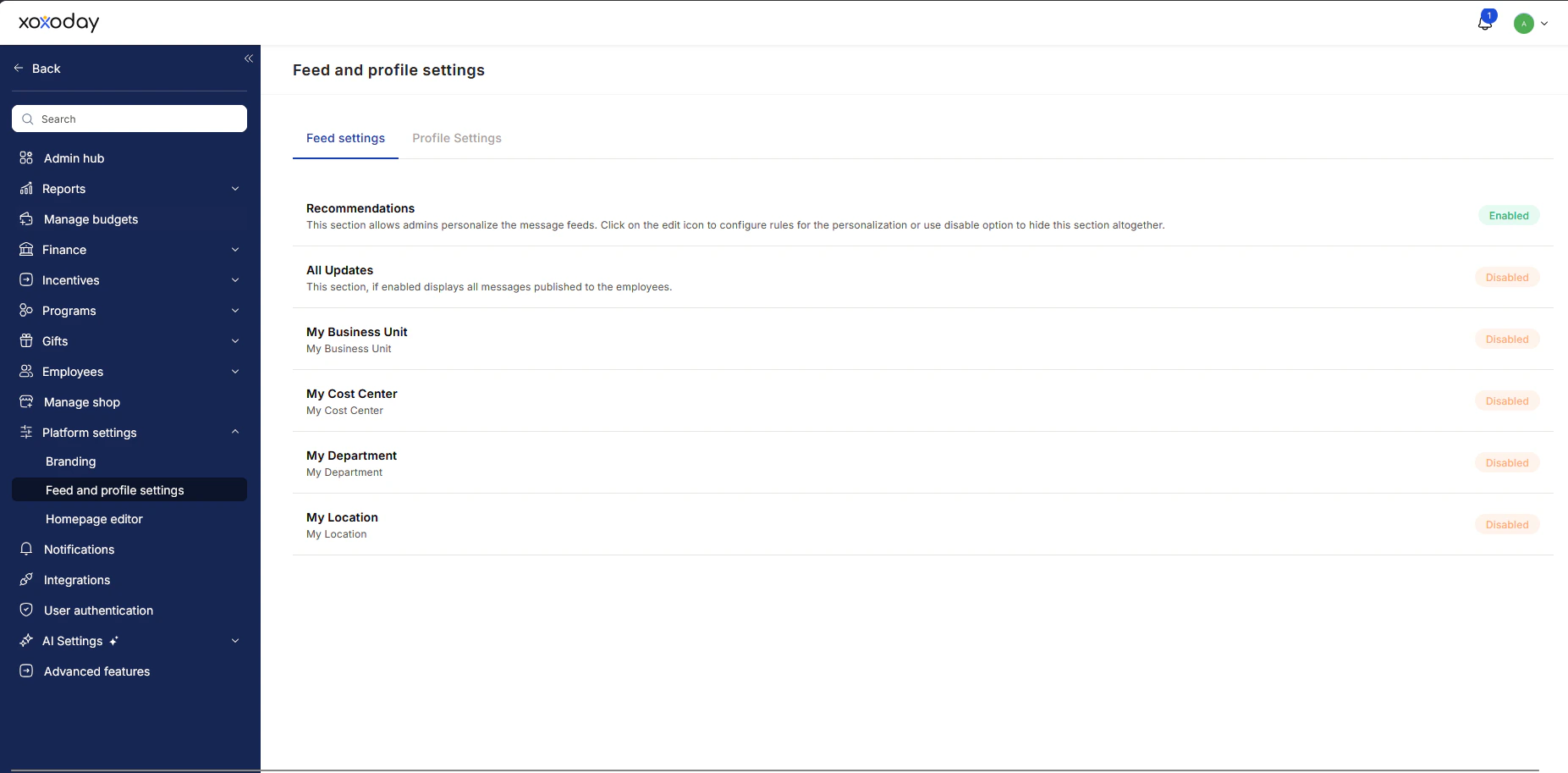 Click on **Save** once you have made your choice.
## Profile Settings
Customize and manage how user information and fields appear across different screens in the platform.
Go to the **Profile Settings** tab.
Click on **Save** once you have made your choice.
## Profile Settings
Customize and manage how user information and fields appear across different screens in the platform.
Go to the **Profile Settings** tab.
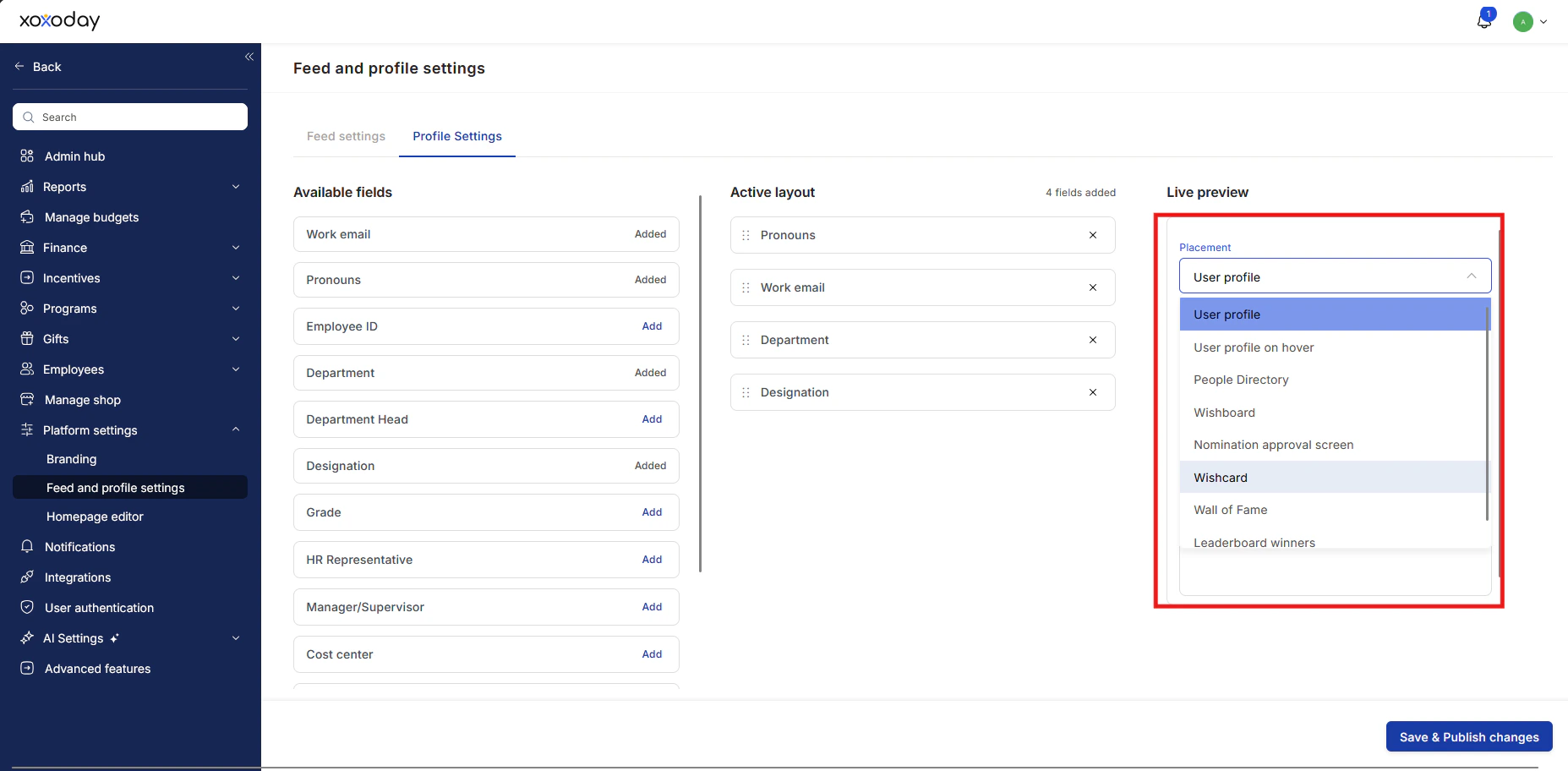 Select a screen from the **Live Preview** dropdown menu:
* User Profile
* User Profile on Hover
* People Directory
* Wishboard
* Nomination Approval Screen
* Wishcard
* Wall of Fame
* Wall of Fame — User Profile
Select a screen from the **Live Preview** dropdown menu:
* User Profile
* User Profile on Hover
* People Directory
* Wishboard
* Nomination Approval Screen
* Wishcard
* Wall of Fame
* Wall of Fame — User Profile
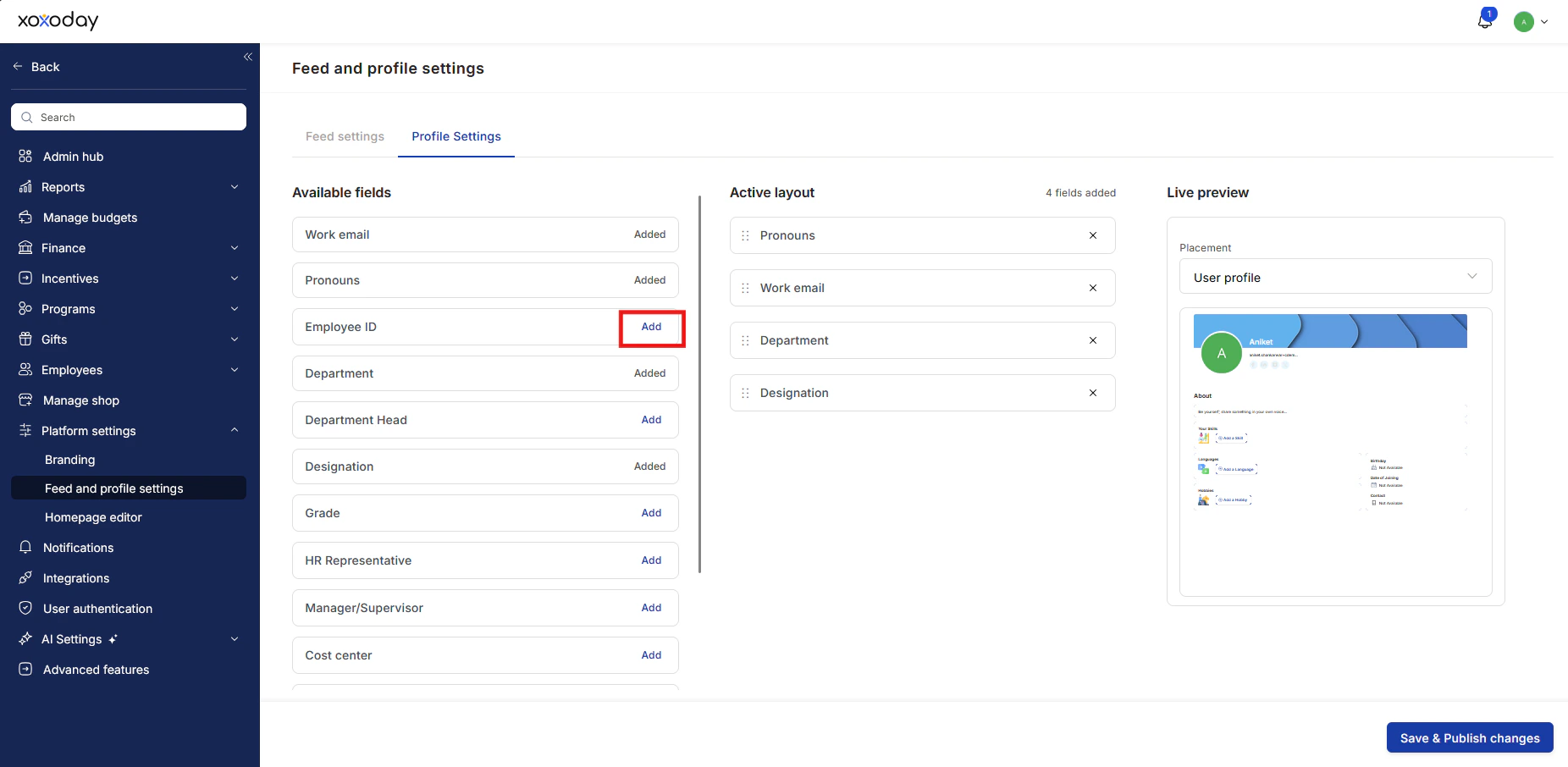 * Choose from the available fields.
* Click **Add** for the field you want to include in that menu.
* Choose from the available fields.
* Click **Add** for the field you want to include in that menu.
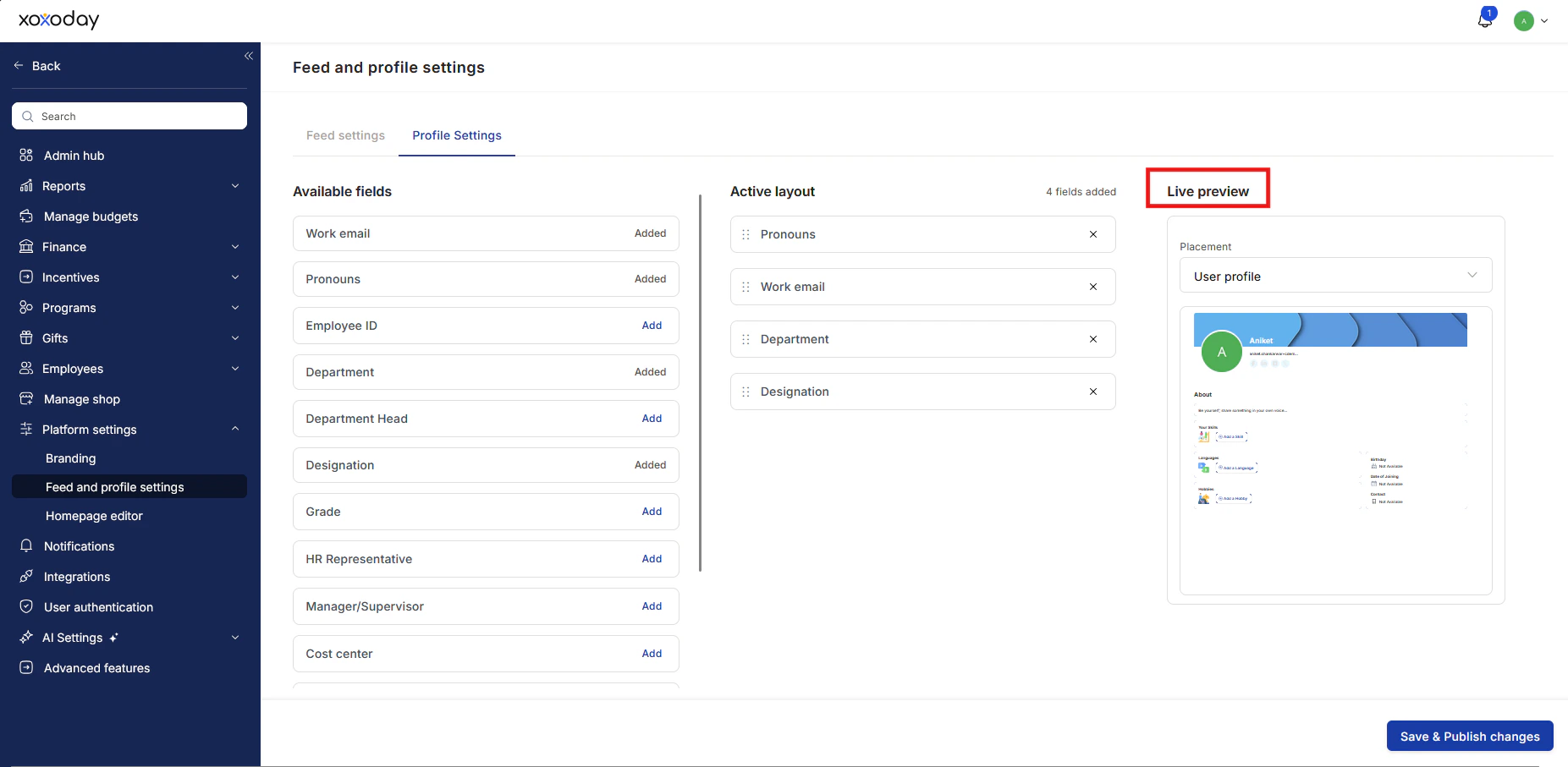 The selected field will now appear under the active menu.
* You can also **preview** how it will appear under the **Live Preview**, as shown below.
The selected field will now appear under the active menu.
* You can also **preview** how it will appear under the **Live Preview**, as shown below.
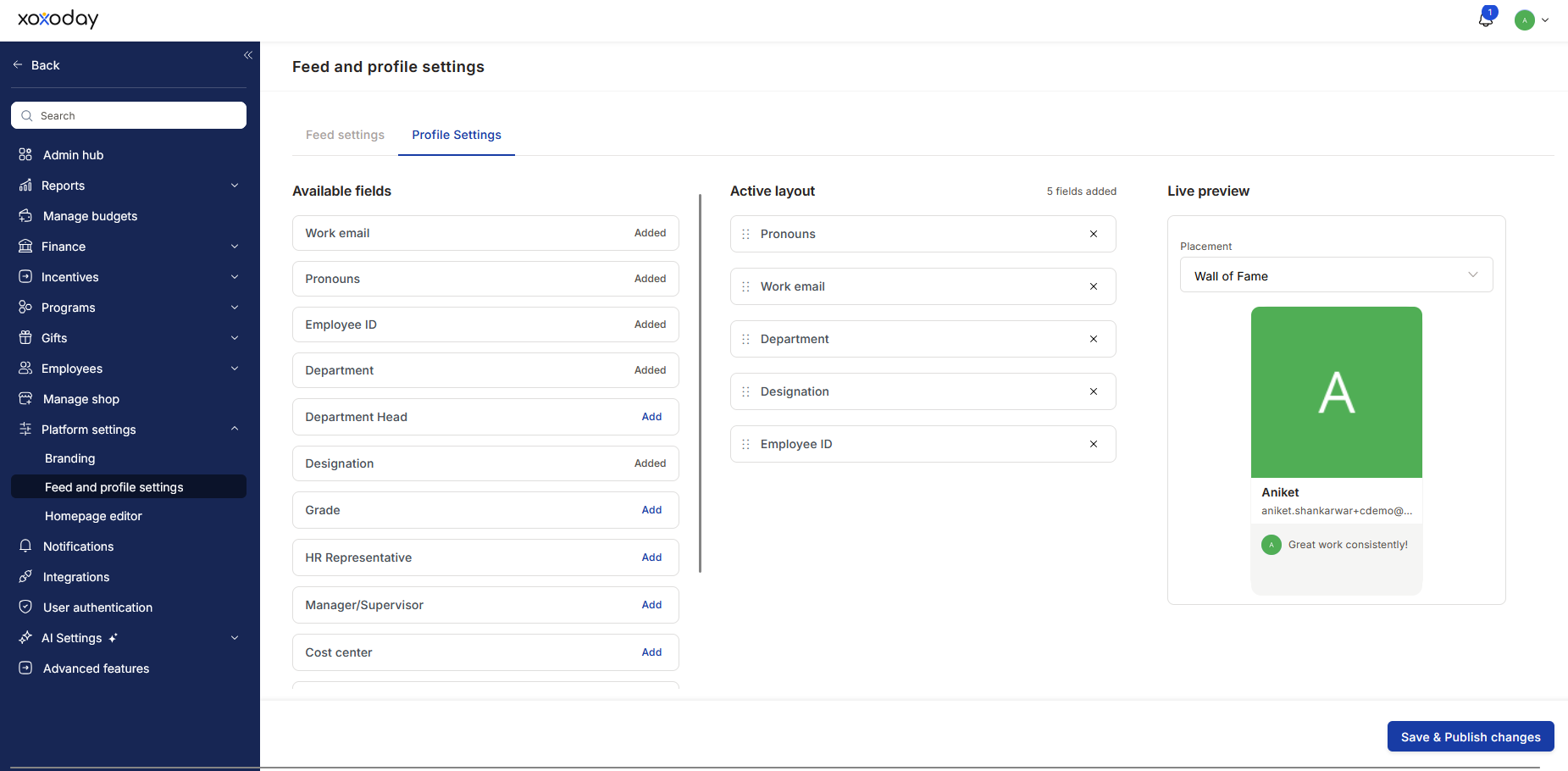 ## Configuring the Wall of Fame Display
Admins can customise which metadata fields are shown on the Wall of Fame page and the individual user profile screen that opens when a user card is clicked.
Two placements are available under Live Preview:
* **Wall of Fame** — controls the fields visible on the main Wall of Fame listing (e.g. Designation, Department, Employee ID, Location).
* **Wall of Fame — User Profile** — controls the fields visible when a user's card is clicked and their internal profile opens.
## FAQs
### What is the Recommended Feed on Empuls?
The Recommended Feed is a curated content stream for employees that highlights relevant messages, announcements, and updates. Admins can customise what appears here to ensure visibility to the right audience.
### Where do I find the Feed Settings?
Navigate to **Program Settings > Feed Settings** to access the configuration options for controlling the feed content.
### How do I edit or customise Recommendations?
Go to the **Recommendations** section and click the pen icon to edit. You can select or deselect content categories and tags that should appear on the feed. Click **Save** to apply changes.
### What happens if I enable ‘All Updates’?
Enabling ‘All Updates’ will allow all published messages—regardless of their category—to show on the employees' feed. Disable this if you prefer showing only specific content.
### Can I manage feed visibility for specific teams or locations?
Yes, you can control feed access for groups like Business Units, Cost Centers, Departments, or Locations by toggling visibility within Feed Settings.
> Please reach out to [cs@xoxoday.com](mailto:cs@xoxoday.com) in case of any feedback or questions.
**Where to find this in the platform?**
Application URL : `https://#{{tenant_url}}/home/feed-settings`
## Configuring the Wall of Fame Display
Admins can customise which metadata fields are shown on the Wall of Fame page and the individual user profile screen that opens when a user card is clicked.
Two placements are available under Live Preview:
* **Wall of Fame** — controls the fields visible on the main Wall of Fame listing (e.g. Designation, Department, Employee ID, Location).
* **Wall of Fame — User Profile** — controls the fields visible when a user's card is clicked and their internal profile opens.
## FAQs
### What is the Recommended Feed on Empuls?
The Recommended Feed is a curated content stream for employees that highlights relevant messages, announcements, and updates. Admins can customise what appears here to ensure visibility to the right audience.
### Where do I find the Feed Settings?
Navigate to **Program Settings > Feed Settings** to access the configuration options for controlling the feed content.
### How do I edit or customise Recommendations?
Go to the **Recommendations** section and click the pen icon to edit. You can select or deselect content categories and tags that should appear on the feed. Click **Save** to apply changes.
### What happens if I enable ‘All Updates’?
Enabling ‘All Updates’ will allow all published messages—regardless of their category—to show on the employees' feed. Disable this if you prefer showing only specific content.
### Can I manage feed visibility for specific teams or locations?
Yes, you can control feed access for groups like Business Units, Cost Centers, Departments, or Locations by toggling visibility within Feed Settings.
> Please reach out to [cs@xoxoday.com](mailto:cs@xoxoday.com) in case of any feedback or questions.
**Where to find this in the platform?**
Application URL : `https://#{{tenant_url}}/home/feed-settings`