> ## Documentation Index
> Fetch the complete documentation index at: https://help-empuls.xoxoday.com/llms.txt
> Use this file to discover all available pages before exploring further.
# Hybrid workplace management with neoffice
> Learn more about integrating Neoffice with Empuls
## **About Neoffice**
Neoffice helps manage your hybrid workspace with ease and control. Empower employees to book the facilities they need—seats, car park, meeting rooms, and employee transport on one app.
## **Why Connect Neoffice with Empuls**
Bring facility bookings into your engagement stack to streamline hybrid operations, reduce admin effort, and give teams a smooth, self-serve experience.
## **Key Benefits**
**For HR**
* **Centralized control**
Manage seats, parking, rooms, and transport in one place.
* **Lower overhead**
Self-serve bookings reduce manual coordination.
* **Better planning**
Visibility into usage supports hybrid policies.
**For Employees**
* **One-stop app**
Book what you need, when you need it.
* **Frictionless hybrid work**
Reserve seats and rooms in advance.
* **Commuter convenience**
Coordinate transport alongside workplace bookings.
## **How Employees Can Use Neoffice**
* **Seat Booking**
Reserve workstations in advance for smooth hybrid work.
* **Car Park Management**
Book and manage parking spaces effortlessly.
* **Meeting Room Reservations**
Schedule and secure meeting rooms with ease.
* **Employee Transport**
Manage office commute and transport facilities in one place.
## **Co-Sponsor & Deliver Neoffice at Scale**
Roll out Neoffice across locations to standardize hybrid-work bookings and improve space utilization—without adding admin burden. Follow the steps below to bring Neoffice to your organization.
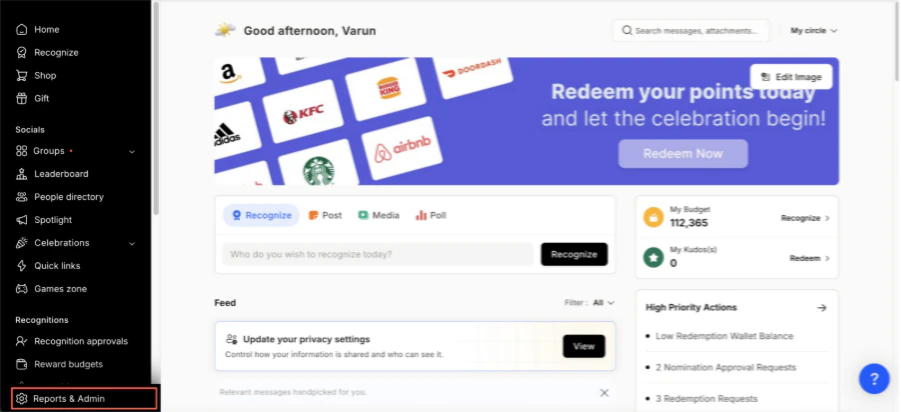
* Click on **Reports & Admin** to land onAdmin Dashboard.
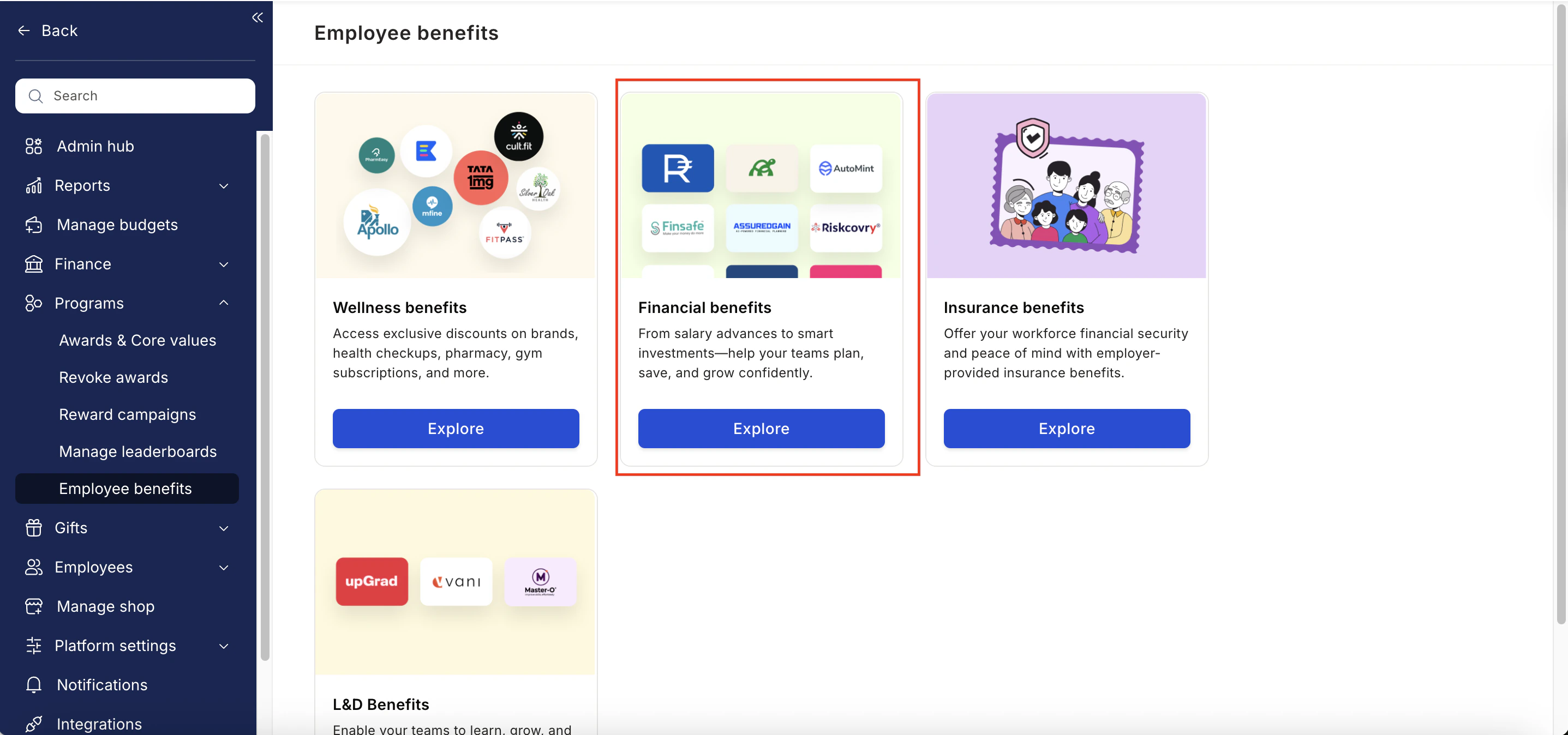
 * Navigate to **Program >> Manage Benefits >> Financial Benefits**
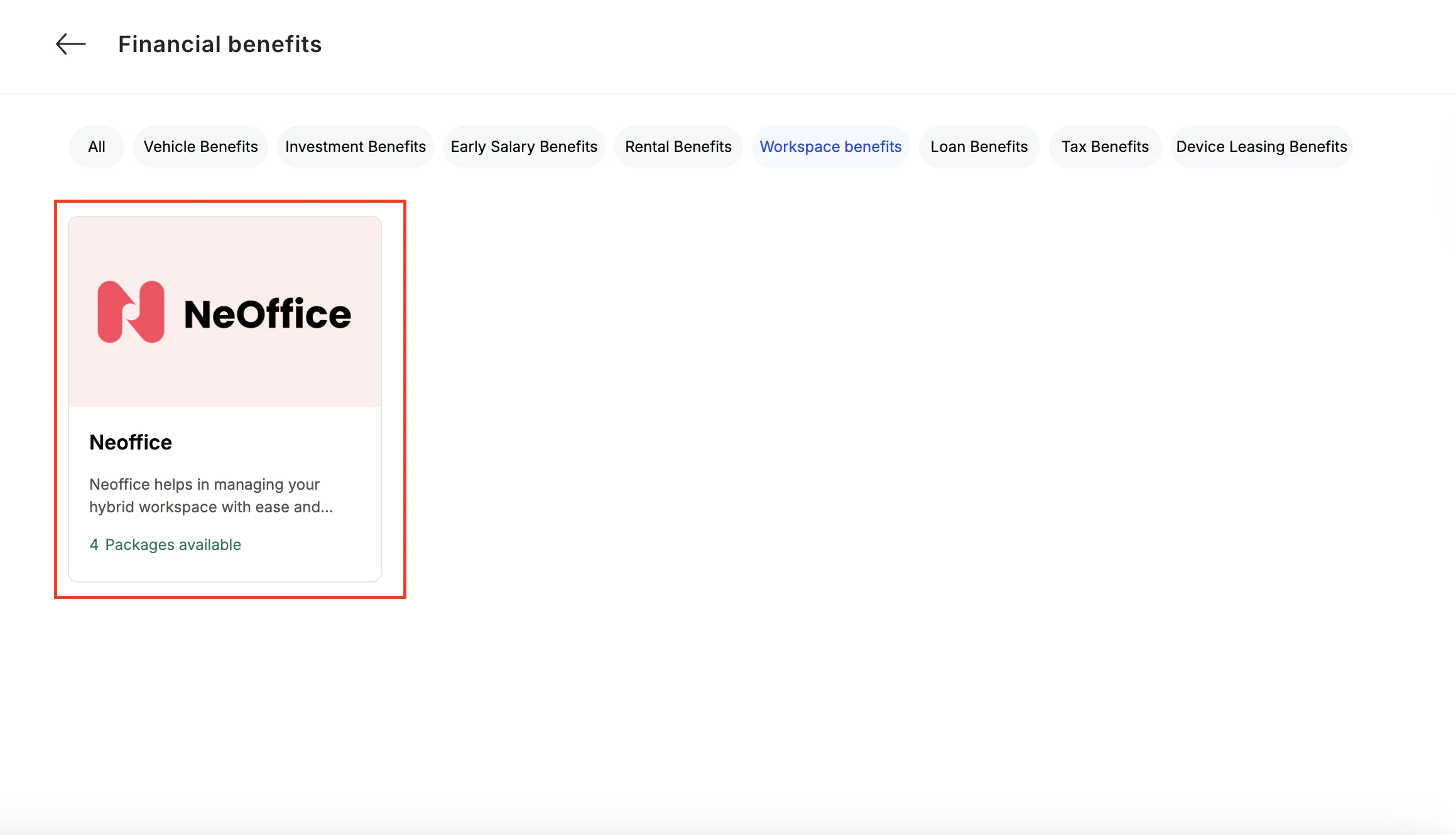
 * From the list of wellness partners, choose **Neoffice**
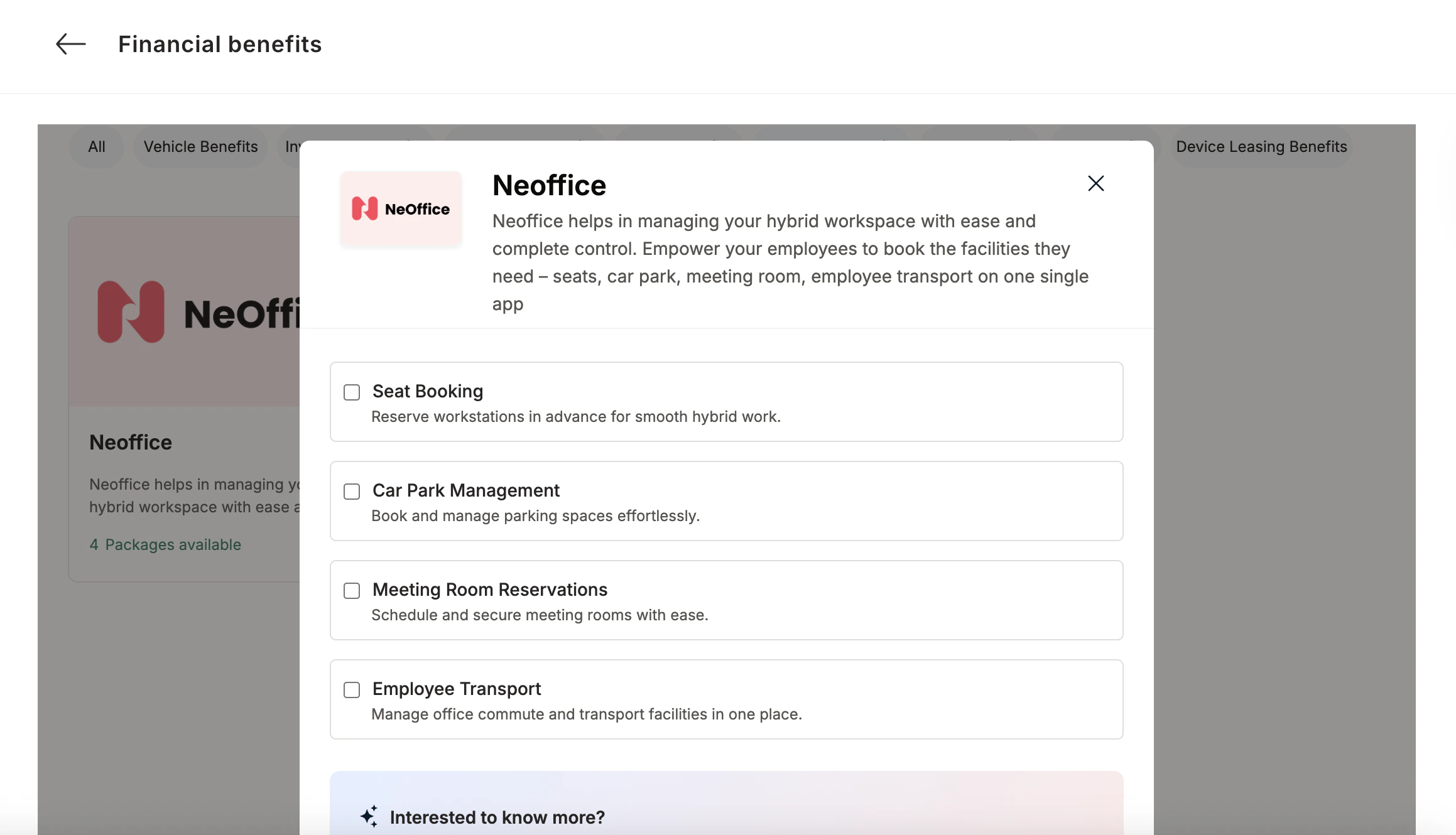 * Enter:
* Number of employees
* Work email addresses
* Phone numbers
* Click **Enquire**.
* Our team will respond with details and pricing.
* Enter:
* Number of employees
* Work email addresses
* Phone numbers
* Click **Enquire**.
* Our team will respond with details and pricing.
 * Our team will connect with you, confirm pricing and requirements, and activate the benefit for all employees.
## How Employees Can Access Neoffice
Log in to Empuls with your credentials.
Navigate to **Benefits >> Financial Benefits**
Select\*\* Neoffice \*\*from the available options.
Pick the service you need.
Book your benefit by **c**licking on **Pay.**
## Support
For setup or usage assistance, contact us at **[cs@xoxoday.com](mailto:cs@xoxoday.com)**.
* Our team will connect with you, confirm pricing and requirements, and activate the benefit for all employees.
## How Employees Can Access Neoffice
Log in to Empuls with your credentials.
Navigate to **Benefits >> Financial Benefits**
Select\*\* Neoffice \*\*from the available options.
Pick the service you need.
Book your benefit by **c**licking on **Pay.**
## Support
For setup or usage assistance, contact us at **[cs@xoxoday.com](mailto:cs@xoxoday.com)**.