> ## Documentation Index
> Fetch the complete documentation index at: https://help-empuls.xoxoday.com/llms.txt
> Use this file to discover all available pages before exploring further.
# Keka
> Learn how the Keka and Empuls Integration works and helps automate Employee Engagement, Recognition & Rewards
## Before You Begin
You'll need admin access to both Keka and Empuls. Obtain your Keka API credentials from the Keka admin panel.
## About This Integration
This integration automates the user account management processes in Empuls, based on the employee data available in Keka. With this integration, you can:
1. Add new employees to Empuls automatically, as soon as their Keka account is created.
2. Edit existing employee data in Empuls simply by updating their Keka profile.
Once this integration is enabled, the data will sync between Empuls and your Keka account once every 24 hours.
## Set Up the Integration
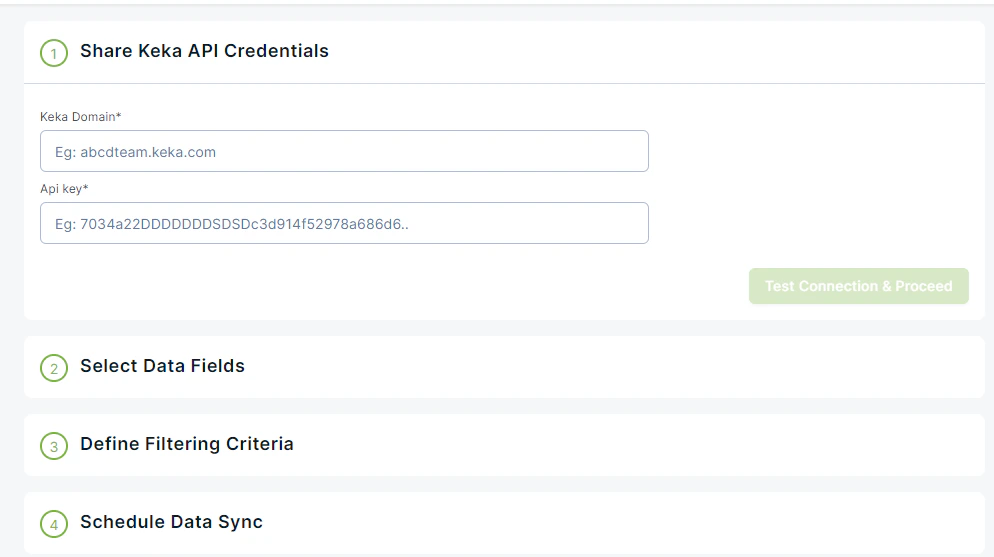
Please contact your Keka account manager and request them to share the below client details, with respect to your Keka account:
**Client Details Needed from Keka:**
API Key
\*\*Access token URL being used: \*\*"[https://app.keka.com/connect/token?grant\_type=kekaapi](https://app.keka.com/connect/token?grant_type=kekaapi)"
\*\*API being used: \*\*"[https://api.keka.com/v1/employees](https://api.keka.com/v1/employees)"
 ## Fields received from API
1. Official Email
2. First Name
3. Last Name
4. Joining Date
5. Date of Birth
6. Employment Status
7. Employee Number
8. Reporting Manager
9. Designation
10. Department
11. City
12. State
Once we receive the client details, we will set up the integration based on your guidance.
## Next Steps
Verify all employee data is complete in Keka. Run the first sync and validate that employee counts match between systems.
Questions, feedback, need support? Email [cs@xoxoday.com](mailto:cs@xoxoday.com)
##
## Fields received from API
1. Official Email
2. First Name
3. Last Name
4. Joining Date
5. Date of Birth
6. Employment Status
7. Employee Number
8. Reporting Manager
9. Designation
10. Department
11. City
12. State
Once we receive the client details, we will set up the integration based on your guidance.
## Next Steps
Verify all employee data is complete in Keka. Run the first sync and validate that employee counts match between systems.
Questions, feedback, need support? Email [cs@xoxoday.com](mailto:cs@xoxoday.com)
##