> ## Documentation Index
> Fetch the complete documentation index at: https://help-empuls.xoxoday.com/llms.txt
> Use this file to discover all available pages before exploring further.
# JustLogin
> Learn how the JustLogin and Empuls integration works and help automate employee engagement, recognition & rewards
## Before You Begin
You'll need admin access to both JustLogin and Empuls accounts. Obtain your JustLogin API credentials.
## Why this Integration?
JustLogin integration connects your employee engagement system with Empuls to automate recognition and rewards features.
**With this integration, you can:**
* Add new employees to Empuls automatically when their JustLogin profile is created.
* Edit existing employee data in Empuls simply by updating their JustLogin profile.
* Remove exited employees from Empuls based on their exit date/status in JustLogin.
Once this integration is enabled, the data will sync once every 24 hours between Empuls and your JustLogin account.
## How to set up this integration?
Log in to your Empuls account.
Go to **Admin Dashboard** by clicking on "**Reports and Admin**".
Navigate to "**Integrations.**"
Navigate to the the **HRMS Applications** section and click on the **JustLogin app**.
Click on the "**Add JustLogin**" button to start the integration.
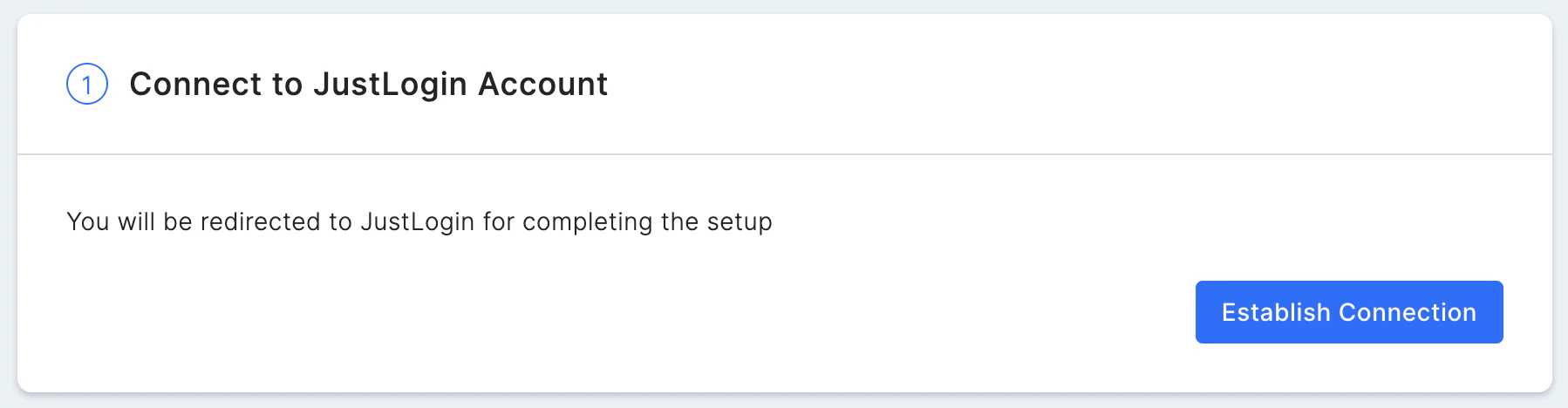
Connect your JustLogin account with Empuls by authenticating your account and providing Empuls permission to access data from your JustLogin account.
 This step allows you to select the data to be uploaded to your Empuls account.
* Select the data fields to be imported to Empuls. All the fields are selected by default. You may uncheck the boxes to unselect specific fields. For example, Uncheck the Work Contact Number fields if you do not wish to share this information with Empuls. A few fields, like the First Name, email ID, and Status, are mandatory and thus cannot be unchecked.
* Map the data fields on your JustLogin account to the correct fields on Empuls to configure the platform per your needs.
* Select the date format for the **Date of Joining & Date of Birth** fields to ensure that dates are updated correctly on Empuls
This step allows you to select the data to be uploaded to your Empuls account.
* Select the data fields to be imported to Empuls. All the fields are selected by default. You may uncheck the boxes to unselect specific fields. For example, Uncheck the Work Contact Number fields if you do not wish to share this information with Empuls. A few fields, like the First Name, email ID, and Status, are mandatory and thus cannot be unchecked.
* Map the data fields on your JustLogin account to the correct fields on Empuls to configure the platform per your needs.
* Select the date format for the **Date of Joining & Date of Birth** fields to ensure that dates are updated correctly on Empuls
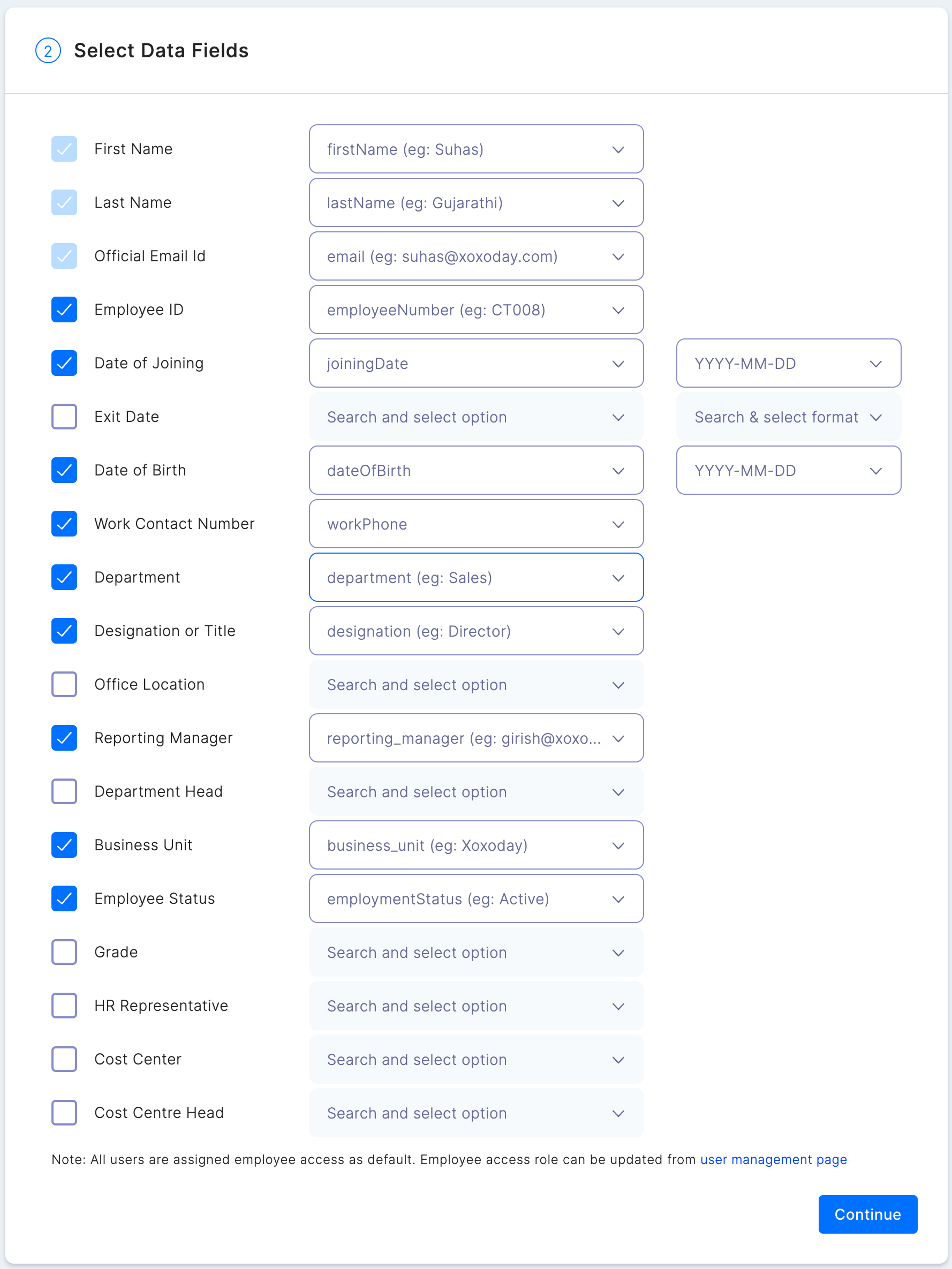 Data can be mapped for multiple fields like
1. First name
2. Last name
3. Official email
4. Employee code/ID
5. Grade
6. Department
7. Designation
8. Date of birth
9. Date of Joining
10. Mobile number
11. Business Unit
12. Cost center
13. Location
14. Contact/Mobile number, and many more
Admins can download employee data in CSV format before uploading to Empuls to validate that the data fields are mapped and no record is repeated.
In this step, you can choose between two data sync options:
* Run Date Sync Once Now: Select this option to launch your Empuls account immediately. This will create accounts for all employees and send invites.
* Schedule First Data Sync for Later: Select this option to schedule employee account creation to a later date and time. This will help you plan and execute employee account creation on Empuls to coincide with your internal launch announcements.
Data can be mapped for multiple fields like
1. First name
2. Last name
3. Official email
4. Employee code/ID
5. Grade
6. Department
7. Designation
8. Date of birth
9. Date of Joining
10. Mobile number
11. Business Unit
12. Cost center
13. Location
14. Contact/Mobile number, and many more
Admins can download employee data in CSV format before uploading to Empuls to validate that the data fields are mapped and no record is repeated.
In this step, you can choose between two data sync options:
* Run Date Sync Once Now: Select this option to launch your Empuls account immediately. This will create accounts for all employees and send invites.
* Schedule First Data Sync for Later: Select this option to schedule employee account creation to a later date and time. This will help you plan and execute employee account creation on Empuls to coincide with your internal launch announcements.
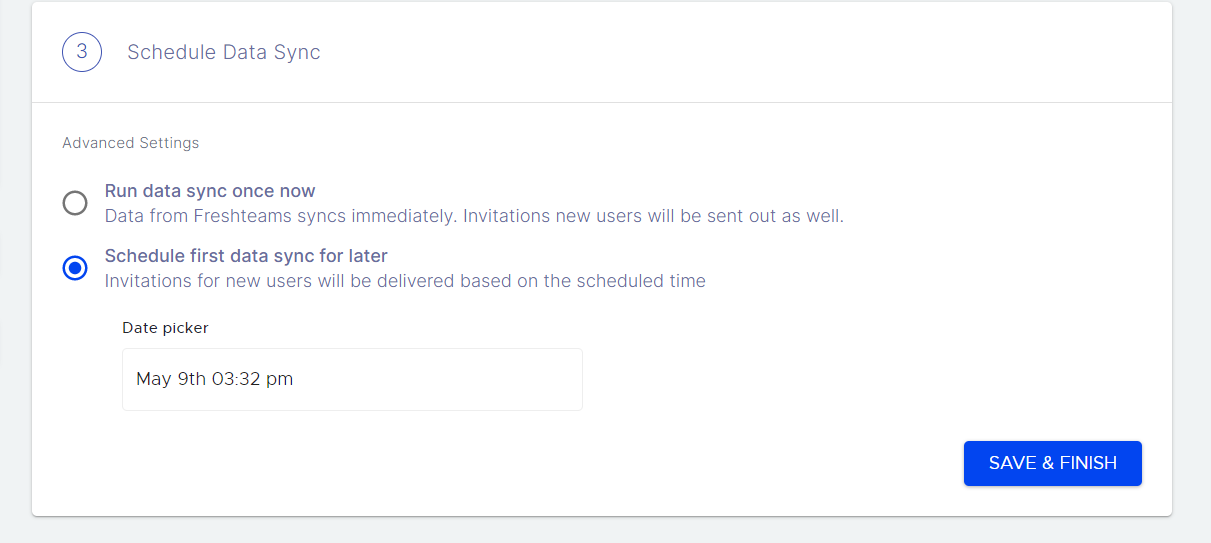 Click on **Save & Finish** to complete your integration setup.
## How to stop data sync with your JustLogin account?
Based on the time period you wish the data sync to be stopped, there are two ways to achieve this. Refer to the Temporary and permanent changes below.
* \*\*Temporarily Disable Data Sync with \*\*JustLogin
Log in to your Empuls account.
Go to **Admin Dashboard** by clicking on "**Reports and Settings**".
Navigate to "**Integrations.**"
Navigate to the Active Integrations section and click on the JustLogin app.
Scroll down to see the ellipses (i.e., 3 dots) icon; click on the icon to select Disable JustLogin to turn off your data sync with JustLogin.
* \*\*Permanently Disable Data Sync with \*\*JustLogin
Log in to your Empuls account.
Go to **Admin Dashboard** by clicking on "**Reports and Settings**".
Navigate to "**Integrations.**"
Navigate to the A\*\*ctive Integrations \*\*section and click on the **JustLogin app.**
Scroll down to see the button Remove JustLogin. Click this button to permanently turn off your data sync with JustLogin.
Note: You can re-enable your data sync by following the instructions in "How to setup this integration?"
Questions? Email to [cs@xoxoday.com](mailto:cs@xoxoday.com)
Click on **Save & Finish** to complete your integration setup.
## How to stop data sync with your JustLogin account?
Based on the time period you wish the data sync to be stopped, there are two ways to achieve this. Refer to the Temporary and permanent changes below.
* \*\*Temporarily Disable Data Sync with \*\*JustLogin
Log in to your Empuls account.
Go to **Admin Dashboard** by clicking on "**Reports and Settings**".
Navigate to "**Integrations.**"
Navigate to the Active Integrations section and click on the JustLogin app.
Scroll down to see the ellipses (i.e., 3 dots) icon; click on the icon to select Disable JustLogin to turn off your data sync with JustLogin.
* \*\*Permanently Disable Data Sync with \*\*JustLogin
Log in to your Empuls account.
Go to **Admin Dashboard** by clicking on "**Reports and Settings**".
Navigate to "**Integrations.**"
Navigate to the A\*\*ctive Integrations \*\*section and click on the **JustLogin app.**
Scroll down to see the button Remove JustLogin. Click this button to permanently turn off your data sync with JustLogin.
Note: You can re-enable your data sync by following the instructions in "How to setup this integration?"
Questions? Email to [cs@xoxoday.com](mailto:cs@xoxoday.com)