> ## Documentation Index
> Fetch the complete documentation index at: https://help-empuls.xoxoday.com/llms.txt
> Use this file to discover all available pages before exploring further.
# Freshteam
> Learn how the Freshteam and Empuls Integration works and helps automate Employee Engagement, Recognition & Rewards and automated celebrations.
Empuls and Freshteam help you automate user data management and seamlessly drive people initiatives across your organization.
## Before You Begin
Ensure you have admin access to both Freshteam and Empuls. You'll need your Freshteam API key from the Freshteam admin settings.
## How It Works
Freshteam integration automatically synchronizes employee data with Empuls while enabling special event celebrations. When changes occur in Freshteam—new hires, profile updates, or departures—they sync automatically. The integration extracts celebration event data (birthdays, anniversaries, work anniversaries) and triggers automated celebration features in Empuls.
With this integration you can:
* **Save time and keep data fresh:** Sync data automatically to Empuls when you make changes, like adding, deleting, and updating employee information in Freshteam.
* **Never miss a special event:** Celebrate special employee events by importing birth dates and start dates and automating greetings and gifts.
Once this integration is enabled, the data sync once every 24 hours between Empuls and your Freshteam account will happen.
## How to Set This Integration Up
### Fetch the API key from Freshteam
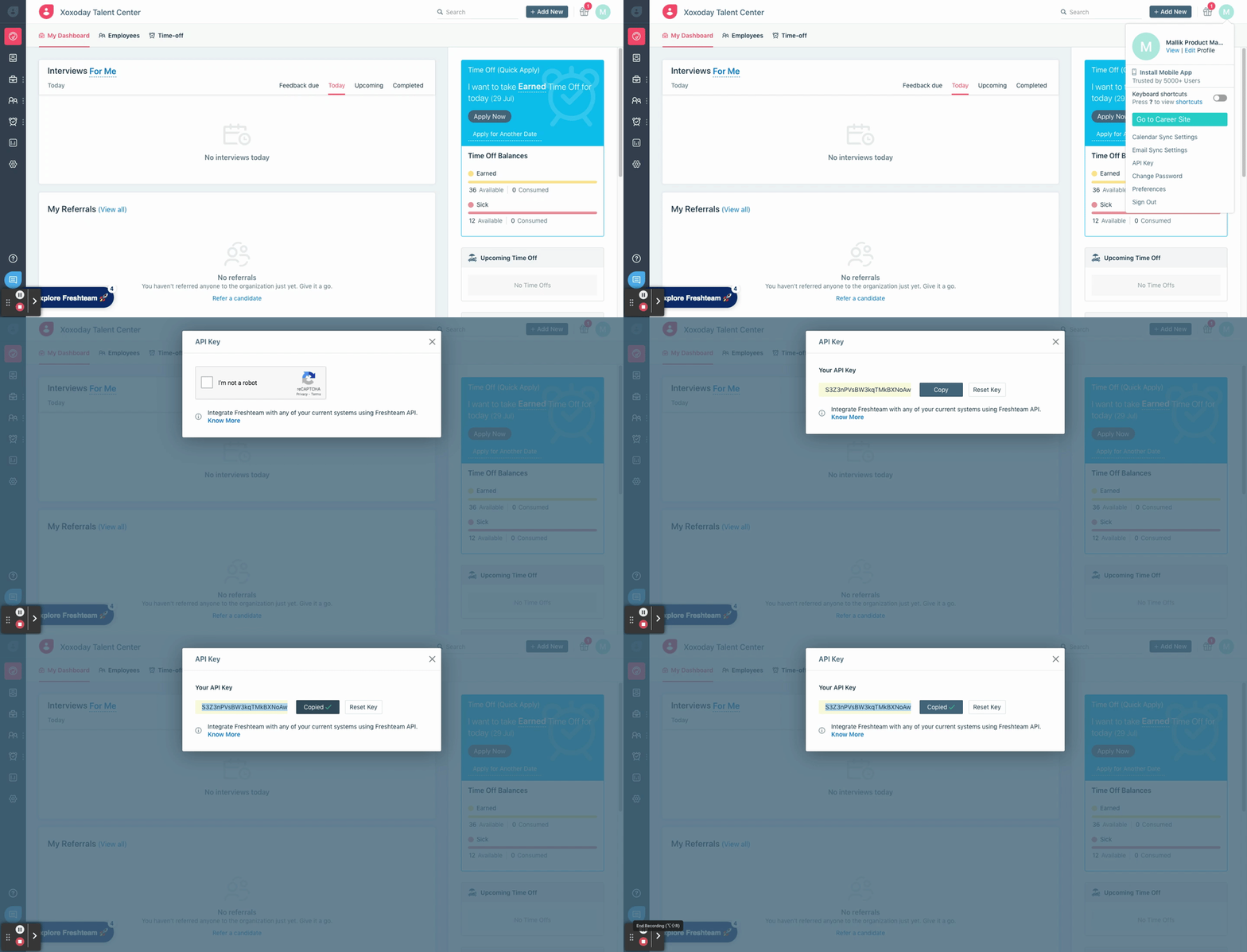
The following GIF illustrates the steps to fetch the API key from your Freshteam account.
You require the admin access to your Freshteam account set this integration up.
 ### **Share the API key with Empuls**
Log in to your Empuls account.
Go to **Admin Dashboard** by clicking on "**Reports and Admin**".
Navigate to "**Integrations.**"
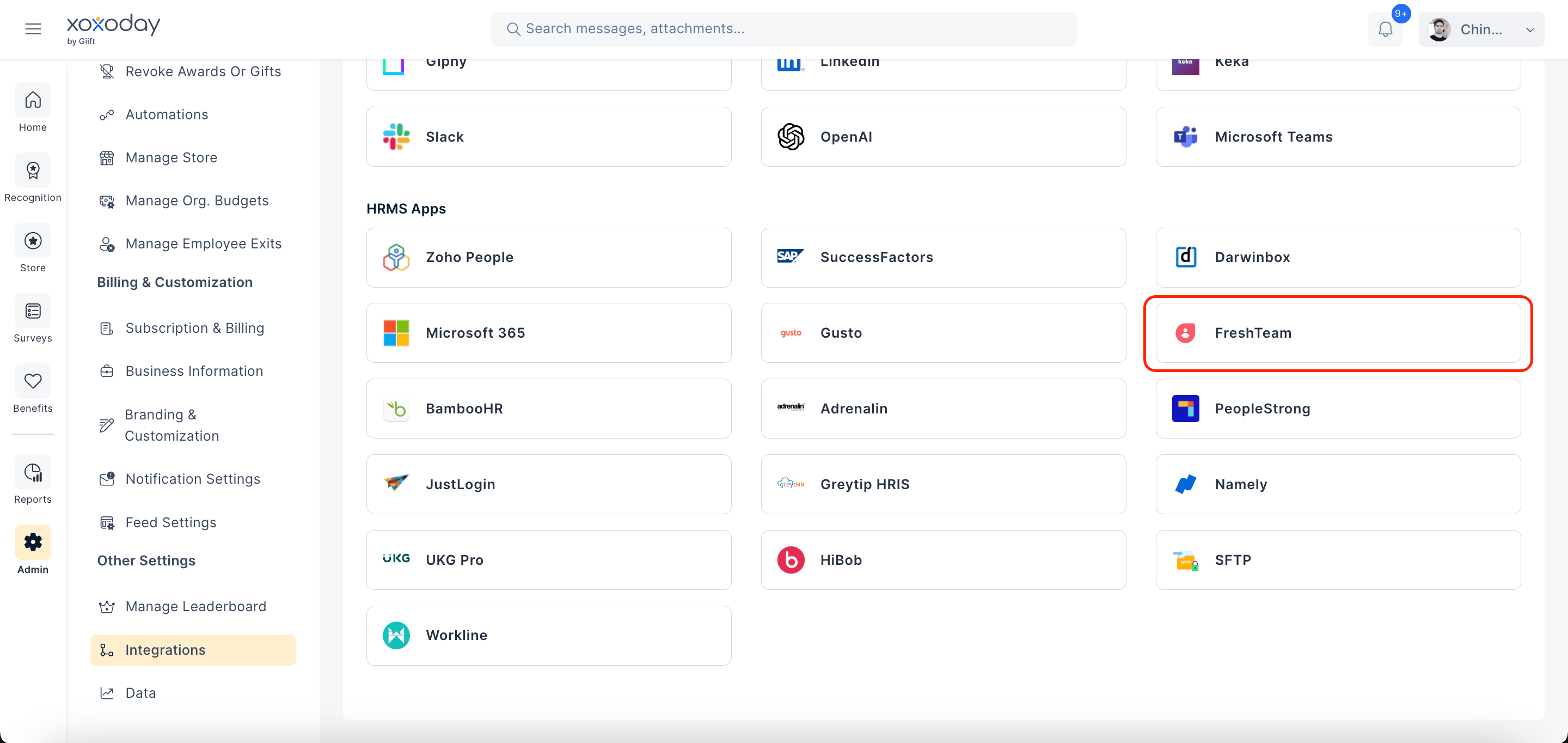
Navigate to the **HRMS Applications** and click on the **Freshteam** app.
### **Share the API key with Empuls**
Log in to your Empuls account.
Go to **Admin Dashboard** by clicking on "**Reports and Admin**".
Navigate to "**Integrations.**"
Navigate to the **HRMS Applications** and click on the **Freshteam** app.
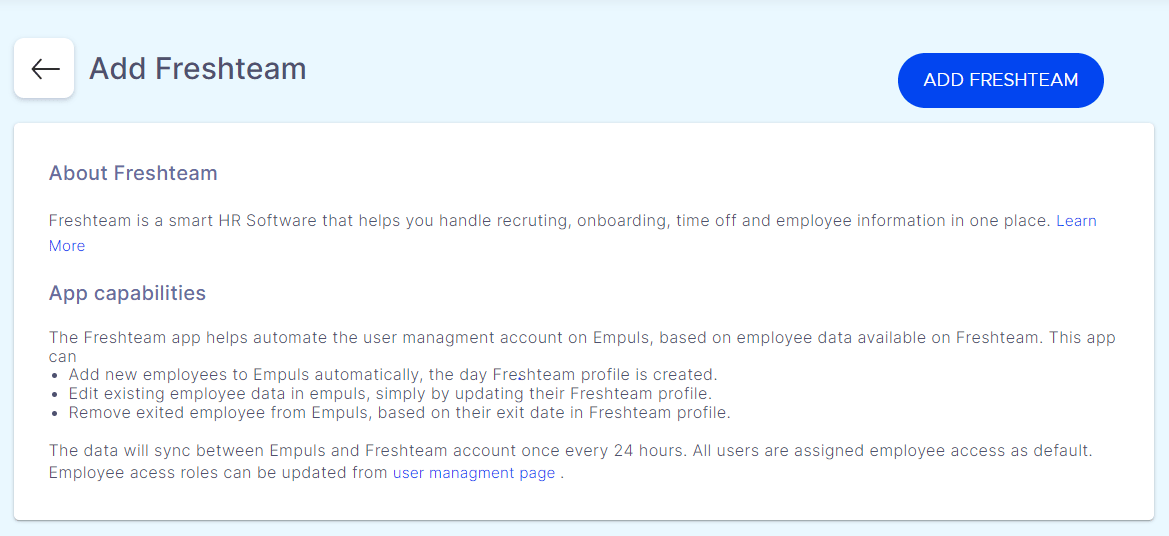
 Click on **ADD FRESHTEAM** button to start the integration.
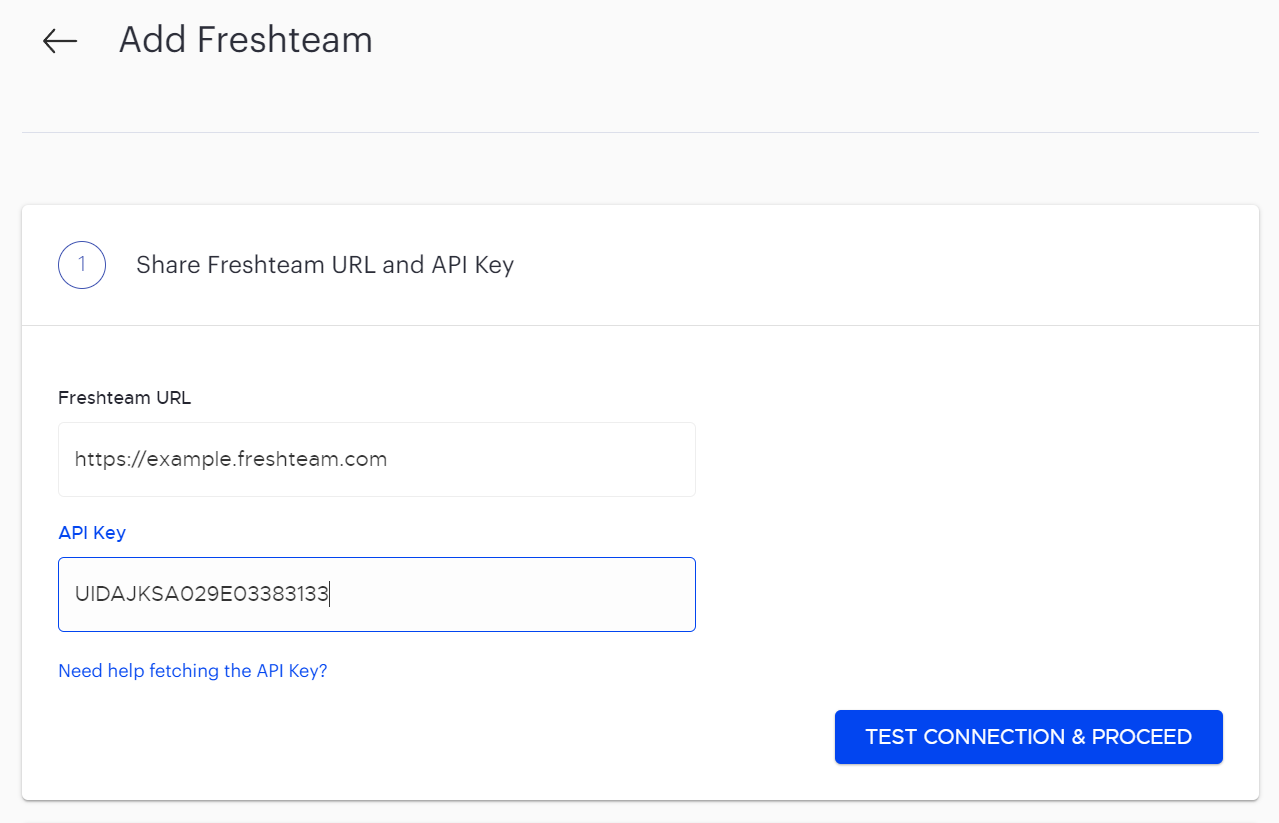
 On this screen, enter your Freshteam account URL and the API key generated in the previous step. Click on **TEST CONNECTION & PROCEED** to select the data fields to be integrated.
 In this step you will select the data fields to be imported to Empuls. By default all the boxes are checked in this step. You can uncheck the boxes for data that you do not wish to import to Empuls. For example, if you do not want to import the **Work Contact Number** data, then uncheck this field. You will not be able to take any action on boxes that are grayed out like the **First Name** and **Last Name**.
Click the **SELECT DATA FIELDS **button after making your selections**.**
In this step you will select the data fields to be imported to Empuls. By default all the boxes are checked in this step. You can uncheck the boxes for data that you do not wish to import to Empuls. For example, if you do not want to import the **Work Contact Number** data, then uncheck this field. You will not be able to take any action on boxes that are grayed out like the **First Name** and **Last Name**.
Click the **SELECT DATA FIELDS **button after making your selections**.**
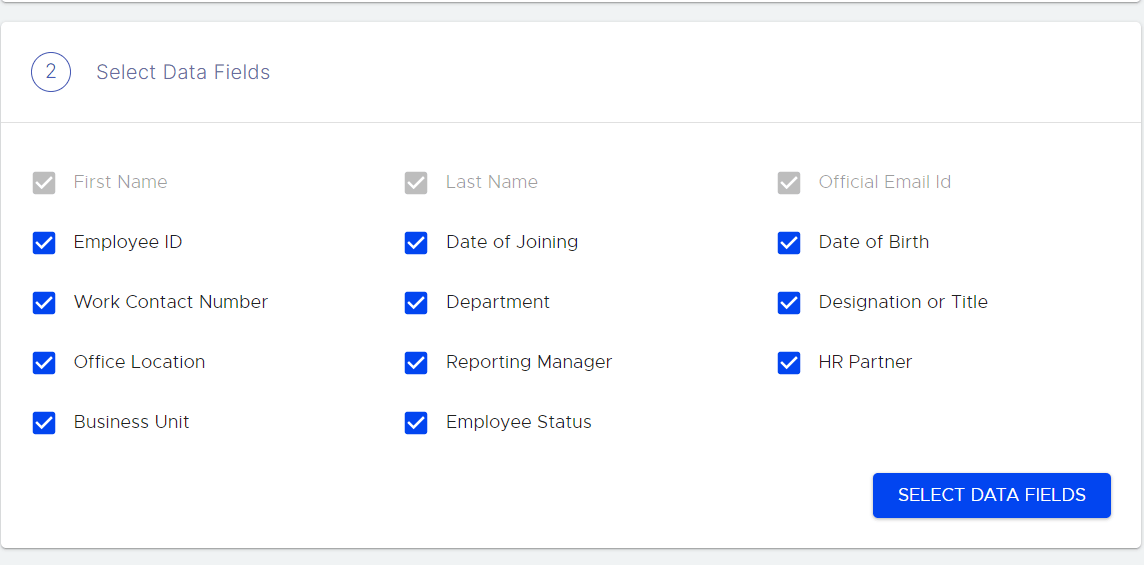 Data can be mapped for multiple fields like
1. First name
2. Last name
3. Official email
4. Employee code/ID
5. Grade
6. Department
7. Designation
8. Date of birth
9. Date of Joining
10. Mobile number
11. Business Unit
12. Cost center
13. Location
14. Contact/Mobile number, and many more
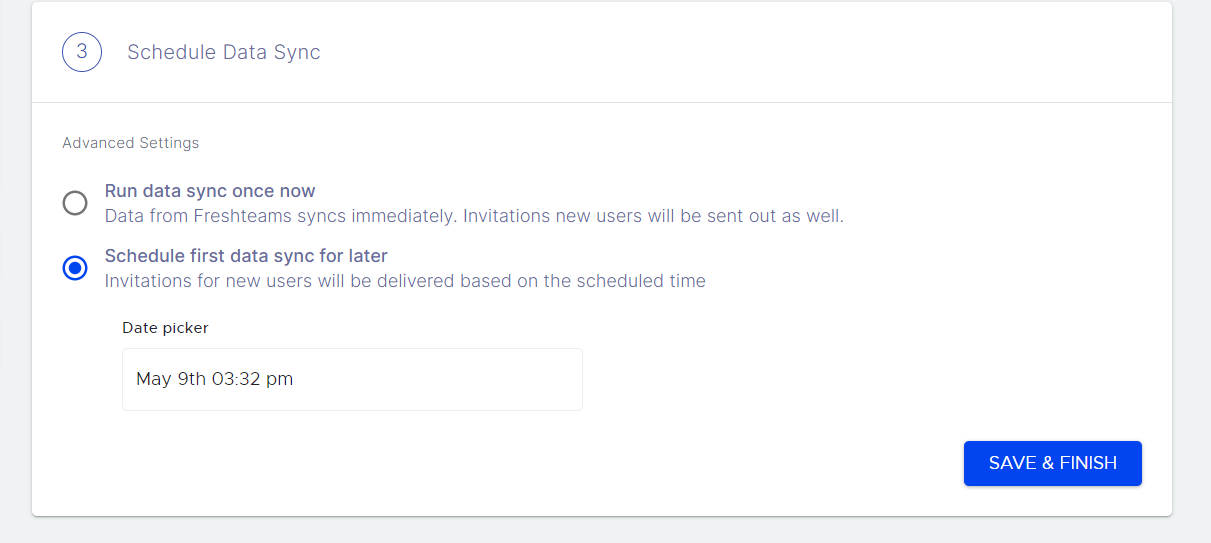
In this step, you can choose between two data sync options:
* Option 1: If you do not wish to manually upload employee data, choose the **Run data sync once now** option to sync data between Empuls and Freshteam once every 24 hours.
* Option 2: If you want to start the automatic data sync on a later date, choose the **Schedule first data sync for later** option. Once you are ready in the future to start the automatic sync, repeat the above steps and choose option 1.
Click on \*\*SAVE & FINISH \*\*after choosing one of the options.
Data can be mapped for multiple fields like
1. First name
2. Last name
3. Official email
4. Employee code/ID
5. Grade
6. Department
7. Designation
8. Date of birth
9. Date of Joining
10. Mobile number
11. Business Unit
12. Cost center
13. Location
14. Contact/Mobile number, and many more
In this step, you can choose between two data sync options:
* Option 1: If you do not wish to manually upload employee data, choose the **Run data sync once now** option to sync data between Empuls and Freshteam once every 24 hours.
* Option 2: If you want to start the automatic data sync on a later date, choose the **Schedule first data sync for later** option. Once you are ready in the future to start the automatic sync, repeat the above steps and choose option 1.
Click on \*\*SAVE & FINISH \*\*after choosing one of the options.
 You will now see a message confirming that the Freshteam integration is successfully enabled.
## **How to edit this configuration?**
Log in to your Empuls account.
Go to **Admin Dashboard** by clicking on "**Reports and Settings**".
Navigate to "**Integrations.**"
Navigate to the **Active Integrations** section and click on the **Freshteam** app.
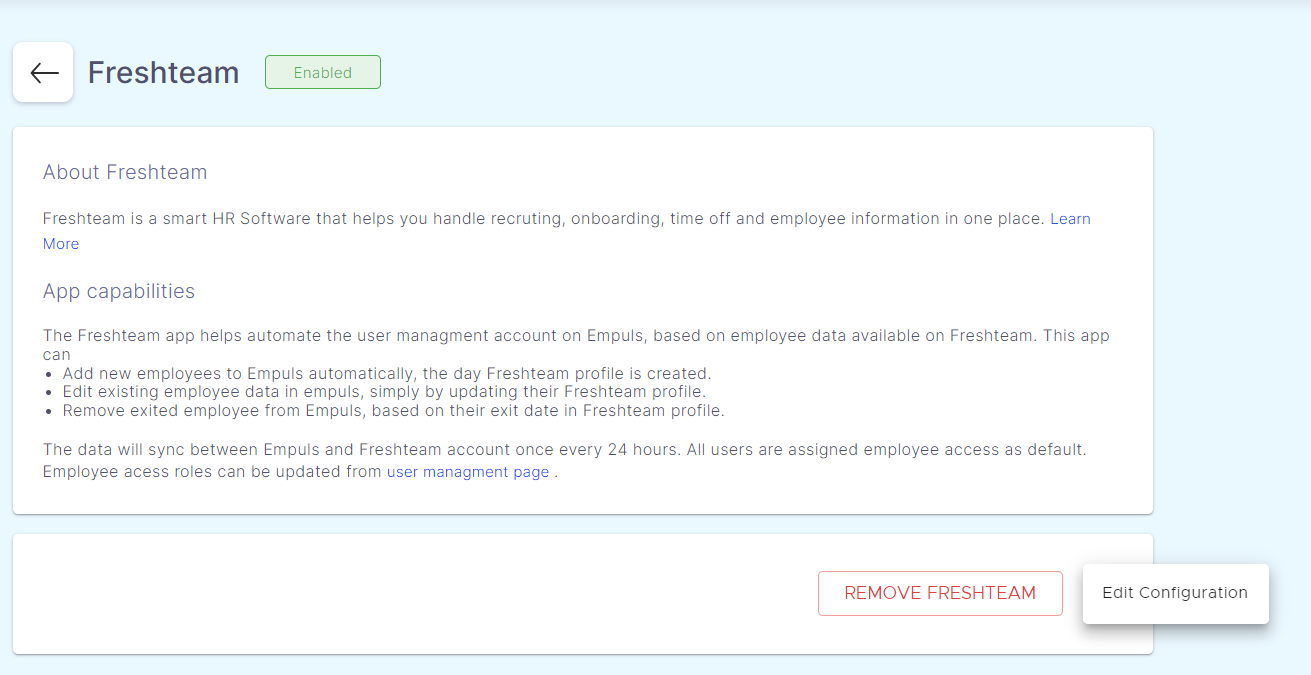
Click on the three dots beside the **REMOVE FRESHTEAM **button.Then click on** Edit Configuration.**
You will now see a message confirming that the Freshteam integration is successfully enabled.
## **How to edit this configuration?**
Log in to your Empuls account.
Go to **Admin Dashboard** by clicking on "**Reports and Settings**".
Navigate to "**Integrations.**"
Navigate to the **Active Integrations** section and click on the **Freshteam** app.
Click on the three dots beside the **REMOVE FRESHTEAM **button.Then click on** Edit Configuration.**
 Make changes in the Freshteam URL or API Key if needed. Click on **UPDATE & CONTINUE.**
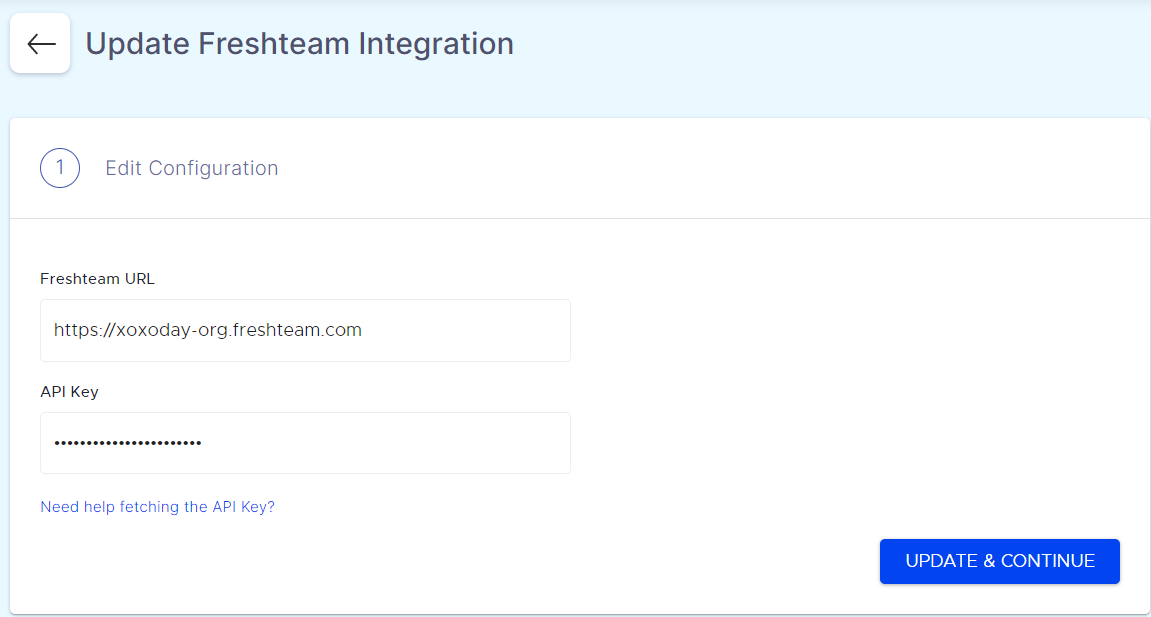 You will now see a message on the top-right of the screen confirming that URL and API key validation is successful.
You can check or uncheck any of the data fields and click on\*\* Save & Finish\*\*.
You will now see a message on the top-right of the screen confirming that URL and API key validation is successful.
You can check or uncheck any of the data fields and click on\*\* Save & Finish\*\*.
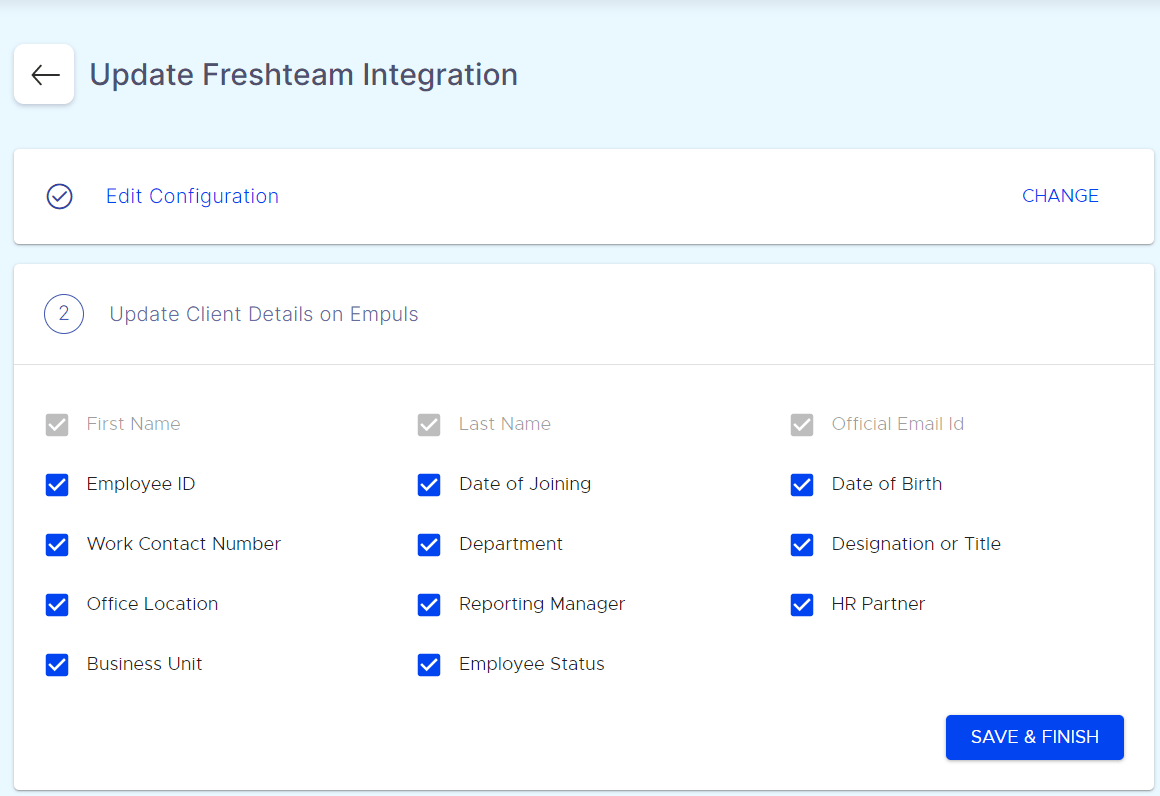 You will now see a message on the top-right corner confirming that the Freshteam configuration has been updated successfully.
## **How to disable this integration?**
Log in to your Empuls account.
Go to **Admin Dashboard** by clicking on "**Reports and Settings**".
Navigate to "**Integrations.**"
Navigate to the **Active Integrations** section and click on the **Freshteam** app.
You can disable the integration by simply clicking on **REMOVE FRESHTEAM.**
You will now see a message on the top-right corner confirming that the Freshteam configuration has been updated successfully.
## **How to disable this integration?**
Log in to your Empuls account.
Go to **Admin Dashboard** by clicking on "**Reports and Settings**".
Navigate to "**Integrations.**"
Navigate to the **Active Integrations** section and click on the **Freshteam** app.
You can disable the integration by simply clicking on **REMOVE FRESHTEAM.**
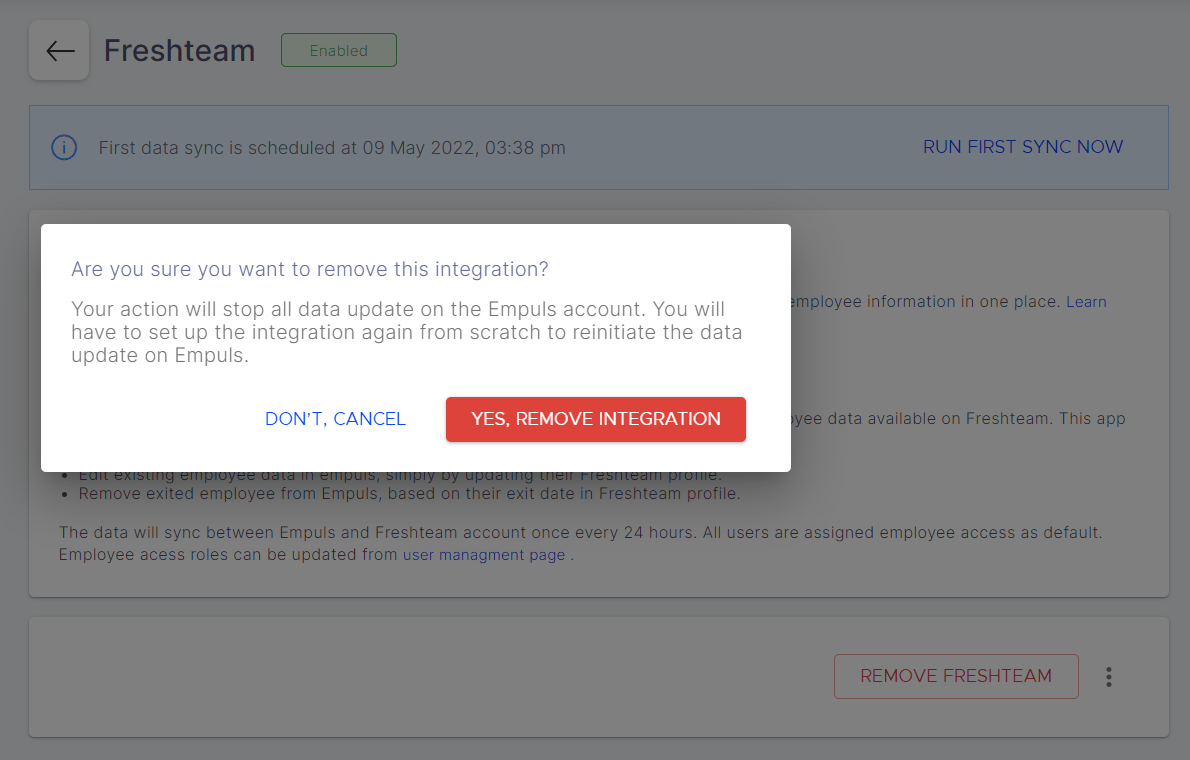
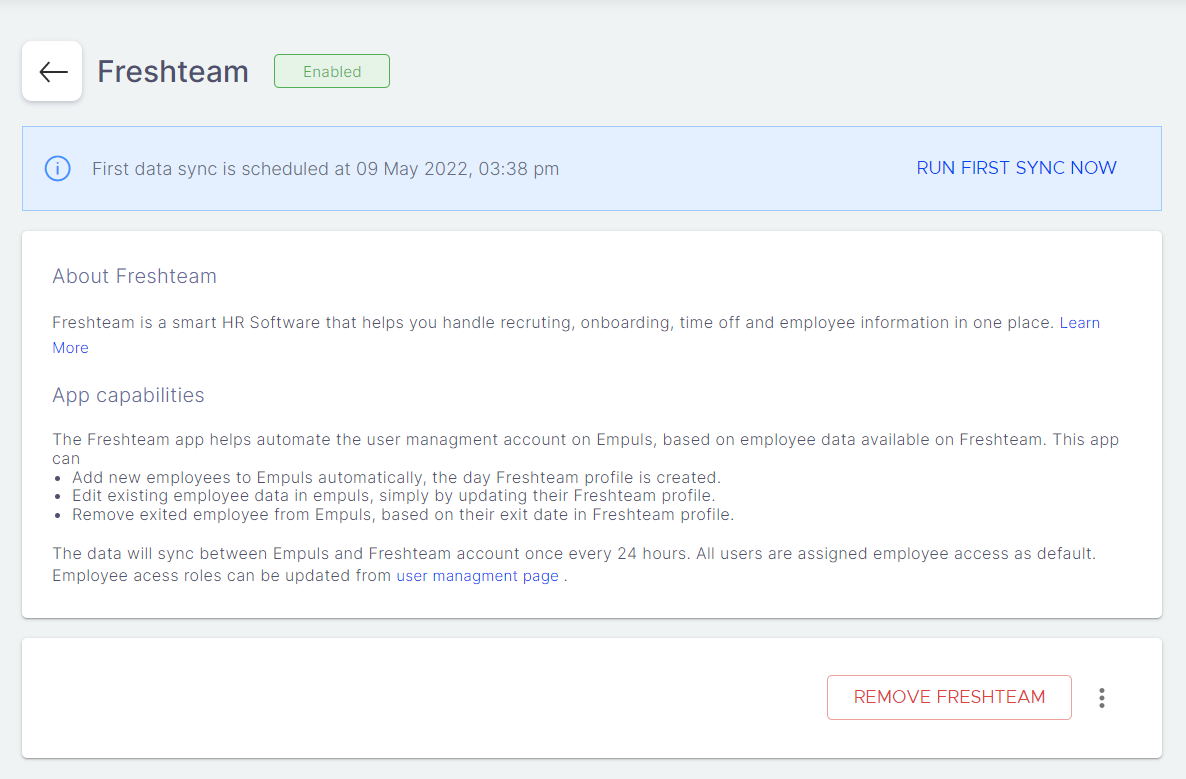 You will be prompted on whether you really want to remove the integration. Click on **YES, REMOVE INTEGRATION.**
 Questions? Contact us at [cs@xoxoday.com](mailto:cs@xoxoday.com).