> ## Documentation Index
> Fetch the complete documentation index at: https://help-empuls.xoxoday.com/llms.txt
> Use this file to discover all available pages before exploring further.
# ADP
> Automate employee onboarding, profile updates, and offboarding in Empuls by keeping your directory synchronized with ADP.
Learn how the **ADP and Empuls integration** automates employee onboarding, profile updates, and offboarding while keeping your employee directory synchronized with ADP.
## Before you begin
Before configuring the integration, ensure you have:
* Administrator access to both your ADP and Empuls accounts.
* Required employee information populated in ADP.
* Permission to configure API integrations in ADP.
## About this integration
The ADP integration automates employee lifecycle management in Empuls using the employee information available in your ADP account.
With this integration you can:
* Automatically create employee accounts in Empuls when new employees are added to ADP.
* Automatically update employee information in Empuls whenever employee records are modified in ADP.
* Automatically deactivate employees in Empuls based on their exit date or employment status.
* Eliminate manual employee imports and reduce administrative effort.
* Keep employee records synchronized every 24 hours.
Once enabled, ADP becomes the primary source of employee information for Empuls.
## Supported employee data
Employee information that can be synchronized includes:
* First Name
* Last Name
* Official Email
* Employee ID
* Date of Joining
* Exit Date
* Date of Birth
* Work Contact Number
* Department
* Designation / Job Title
* Office Location
* Reporting Manager
* Department Head
* Business Unit
* Employee Status
* Grade
* HR Representative
* Cost Center
* Cost Centre Head
Additional employee attributes may also be mapped based on your implementation requirements.
## Set up the integration
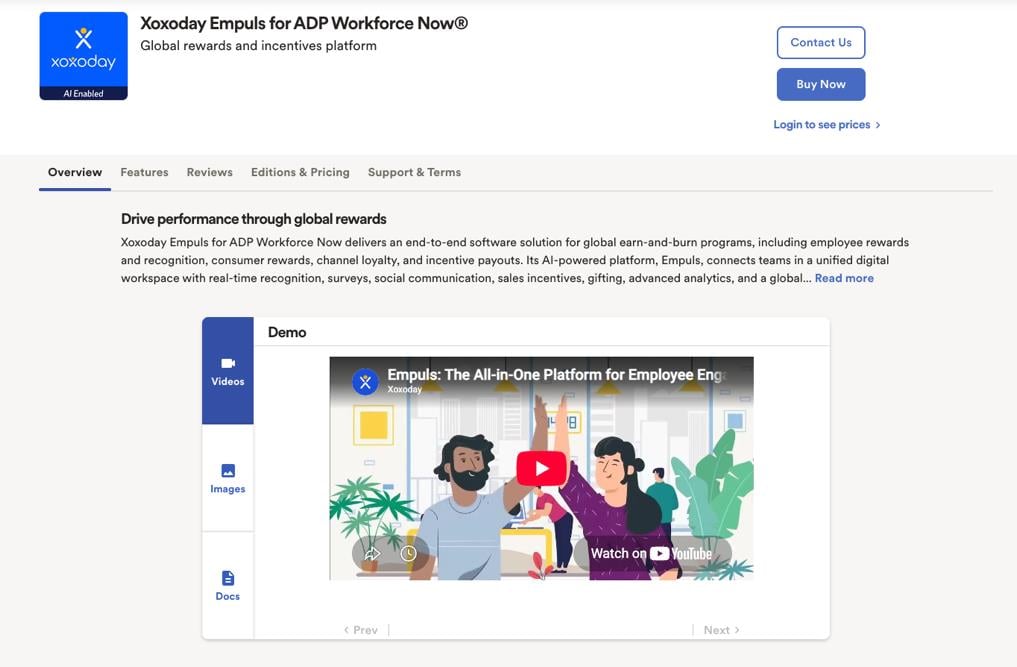
Empuls is listed on the ADP Marketplace. [Purchase Empuls](https://apps.adp.com/en-US/apps/799532) if you haven't already, then log in to Empuls.
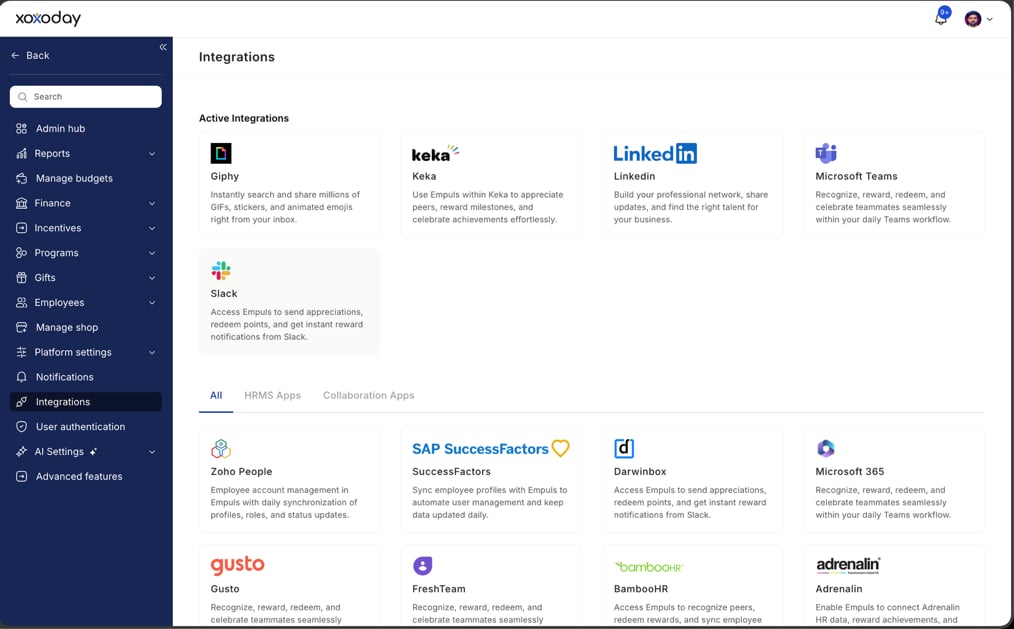
 From **Reports and Admin**, navigate to **Integrations**. Under **HRMS Applications**, select **ADP**.
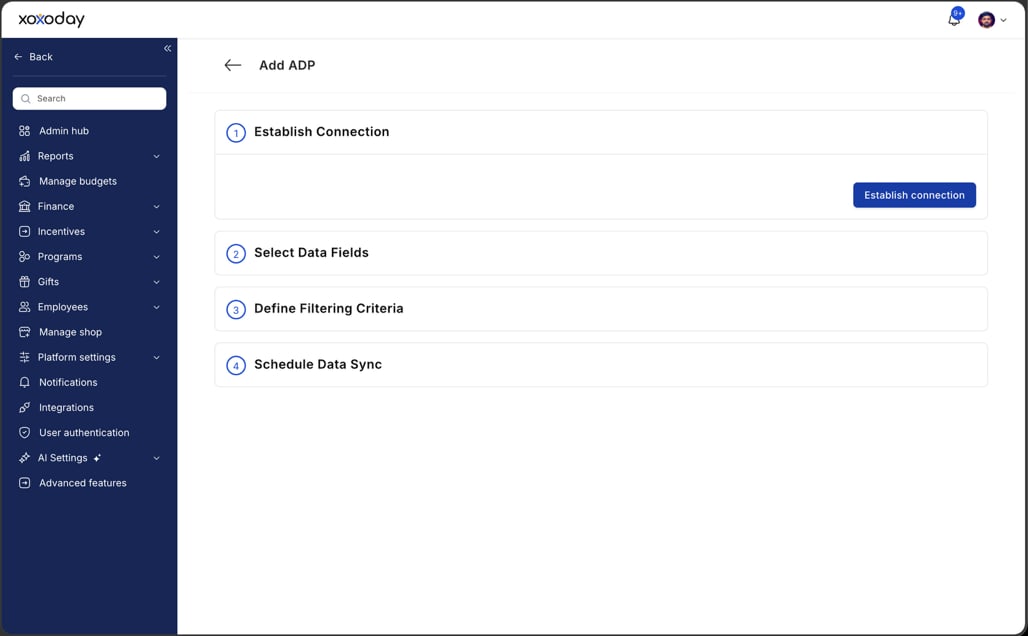
 Click **Enable Connection** to connect to your ADP account.
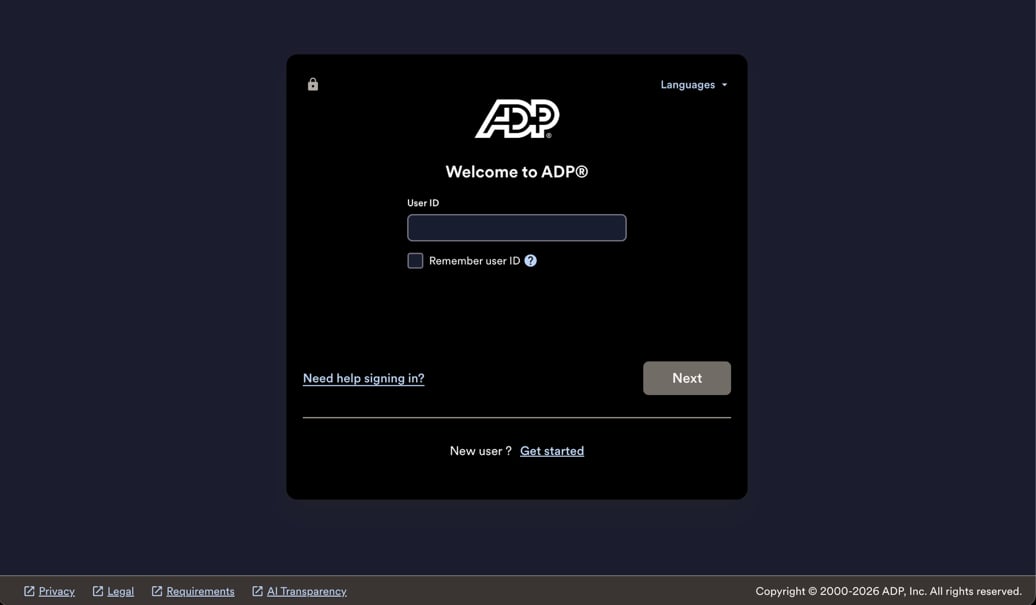
 Enter your ADP credentials to authenticate the connection.
 Back in Empuls, choose the employee information you want Empuls to synchronize from ADP.
* Most employee attributes are selected by default. Mandatory fields such as **First Name**, **Official Email**, **Employee ID**, and **Employee Status** cannot be deselected.
* Map each ADP field to its corresponding field in Empuls.
* If your organization stores dates in a custom format, select the correct date format for **Date of Joining**, **Date of Birth**, and **Exit Date**.
Back in Empuls, choose the employee information you want Empuls to synchronize from ADP.
* Most employee attributes are selected by default. Mandatory fields such as **First Name**, **Official Email**, **Employee ID**, and **Employee Status** cannot be deselected.
* Map each ADP field to its corresponding field in Empuls.
* If your organization stores dates in a custom format, select the correct date format for **Date of Joining**, **Date of Birth**, and **Exit Date**.
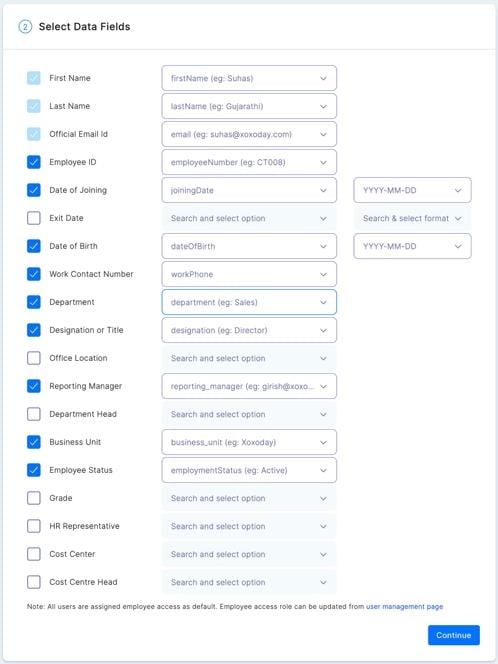 Review the mapped employee information before enabling synchronization. Validate that:
* Employee IDs are unique.
* Email addresses are correct.
* Required fields are populated.
* Duplicate employee records are not present.
Choose how you would like the initial synchronization to run:
* **Run data sync once now** — immediately imports employees from ADP, creates their accounts in Empuls, and sends invitation emails to newly created users.
* **Schedule first data sync for later** — pick a future date and time for the first synchronization. Use this when planning an organization-wide launch or communicating with employees before invitations are sent.
Review the mapped employee information before enabling synchronization. Validate that:
* Employee IDs are unique.
* Email addresses are correct.
* Required fields are populated.
* Duplicate employee records are not present.
Choose how you would like the initial synchronization to run:
* **Run data sync once now** — immediately imports employees from ADP, creates their accounts in Empuls, and sends invitation emails to newly created users.
* **Schedule first data sync for later** — pick a future date and time for the first synchronization. Use this when planning an organization-wide launch or communicating with employees before invitations are sent.
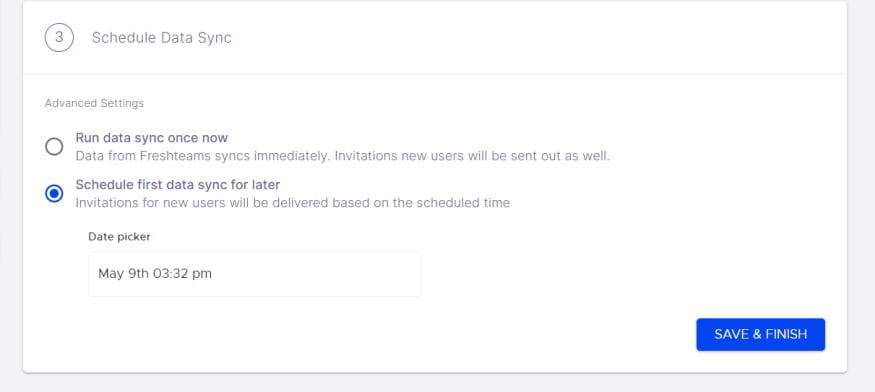 Click **Save & Finish**. Your ADP integration is now configured successfully.
Following the initial synchronization, Empuls automatically synchronizes employee data every **24 hours**.
## Employee lifecycle automation
**New employees**
Employees added in ADP are automatically created in Empuls during the next scheduled synchronization.
**Employee updates**
Changes made in ADP are reflected in Empuls after the next synchronization — for example:
* Department changes
* Designation updates
* Manager changes
* Business Unit changes
* Contact information updates
* Office location updates
**Employee offboarding**
Employees are automatically deactivated in Empuls when their exit date or employment status is updated in ADP.
## Best practices
For a smooth implementation:
* Complete employee profiles before the first synchronization.
* Ensure employee IDs are unique.
* Verify official email addresses.
* Review imported employee records after the first sync.
* Schedule the first synchronization to align with your internal rollout plan.
## Troubleshooting
Check that the employee exists in ADP, that mandatory fields are populated, and that the synchronization has completed successfully.
Changes made in ADP appear after the next scheduled synchronization (every 24 hours).
Verify that employee IDs and official email addresses are unique before running the first synchronization.
## FAQs
Employee information is synchronized automatically every 24 hours.
Yes. During setup, you can map supported ADP fields to Empuls and choose which optional fields to synchronize.
Employees are automatically deactivated in Empuls based on their exit date or employment status in ADP.
Yes. You can either run the first synchronization immediately or schedule it for a later date and time.
Yes. Administrators can modify field mappings by editing the integration configuration.
## Related resources
* **ADP Marketplace** — [Empuls for ADP](https://apps.adp.com/en-US/apps/799532)
* **Learn more** — [Empuls ADP integration](https://www.xoxoday.com/integrations/adp)
## Need help?
If you need assistance configuring the integration, contact your **Empuls account manager** or email [cs@xoxoday.com](mailto:cs@xoxoday.com).
Click **Save & Finish**. Your ADP integration is now configured successfully.
Following the initial synchronization, Empuls automatically synchronizes employee data every **24 hours**.
## Employee lifecycle automation
**New employees**
Employees added in ADP are automatically created in Empuls during the next scheduled synchronization.
**Employee updates**
Changes made in ADP are reflected in Empuls after the next synchronization — for example:
* Department changes
* Designation updates
* Manager changes
* Business Unit changes
* Contact information updates
* Office location updates
**Employee offboarding**
Employees are automatically deactivated in Empuls when their exit date or employment status is updated in ADP.
## Best practices
For a smooth implementation:
* Complete employee profiles before the first synchronization.
* Ensure employee IDs are unique.
* Verify official email addresses.
* Review imported employee records after the first sync.
* Schedule the first synchronization to align with your internal rollout plan.
## Troubleshooting
Check that the employee exists in ADP, that mandatory fields are populated, and that the synchronization has completed successfully.
Changes made in ADP appear after the next scheduled synchronization (every 24 hours).
Verify that employee IDs and official email addresses are unique before running the first synchronization.
## FAQs
Employee information is synchronized automatically every 24 hours.
Yes. During setup, you can map supported ADP fields to Empuls and choose which optional fields to synchronize.
Employees are automatically deactivated in Empuls based on their exit date or employment status in ADP.
Yes. You can either run the first synchronization immediately or schedule it for a later date and time.
Yes. Administrators can modify field mappings by editing the integration configuration.
## Related resources
* **ADP Marketplace** — [Empuls for ADP](https://apps.adp.com/en-US/apps/799532)
* **Learn more** — [Empuls ADP integration](https://www.xoxoday.com/integrations/adp)
## Need help?
If you need assistance configuring the integration, contact your **Empuls account manager** or email [cs@xoxoday.com](mailto:cs@xoxoday.com).