> ## Documentation Index
> Fetch the complete documentation index at: https://help-empuls.xoxoday.com/llms.txt
> Use this file to discover all available pages before exploring further.
# Investment advisory & wealth management with Assured Gain
> Learn more about integrating Assured Gain with Empuls
## **About Assured Gain**
Assured Gain provides investment and financial growth solutions focused on reliable returns and secure wealth-building opportunities for individuals.
## **Why Connect Assured Gain with Xoxoday Empuls**
Add a trusted advisory partner to your benefits stack so employees can make smarter investment decisions, manage finances effectively, and plan their future with structured financial guidance.
## **Key Benefits**
**For HR**
* **Financial wellbeing:** Professional guidance that supports long-term employee stability.
* \*\*Minimal administrative effort: \*\*Partner-led onboarding and communication.
* **Engagement boost:** Practical value employees can use beyond the workplace.
**For Employees**
* **Expert advice:** Smart investment strategies tailored to goals.
* **Holistic planning:** Structured financial plans for short and long term.
* **Confidence & clarity:** Transparent, growth-oriented approach.
## **How Employees Can Use Assured Gain**
Get expert guidance to grow wealth through smart investments, manage finances effectively, and secure the future with well-structured financial planning.
## **Co-Sponsor & Deliver at Scale**
Employers can offer Assured Gain to teams as a turnkey financial wellbeing benefit—driving responsible investing and long-term planning without adding admin burden.
Follow the steps below to bring Assured Gain to your organization.
## Step-by-Step Setup for Admins
* Click on **Reports & Admin** to land onAdmin Dashboard.
* Navigate to \*\*Program >> Manage Benefits >> Financial Benefits \*\*
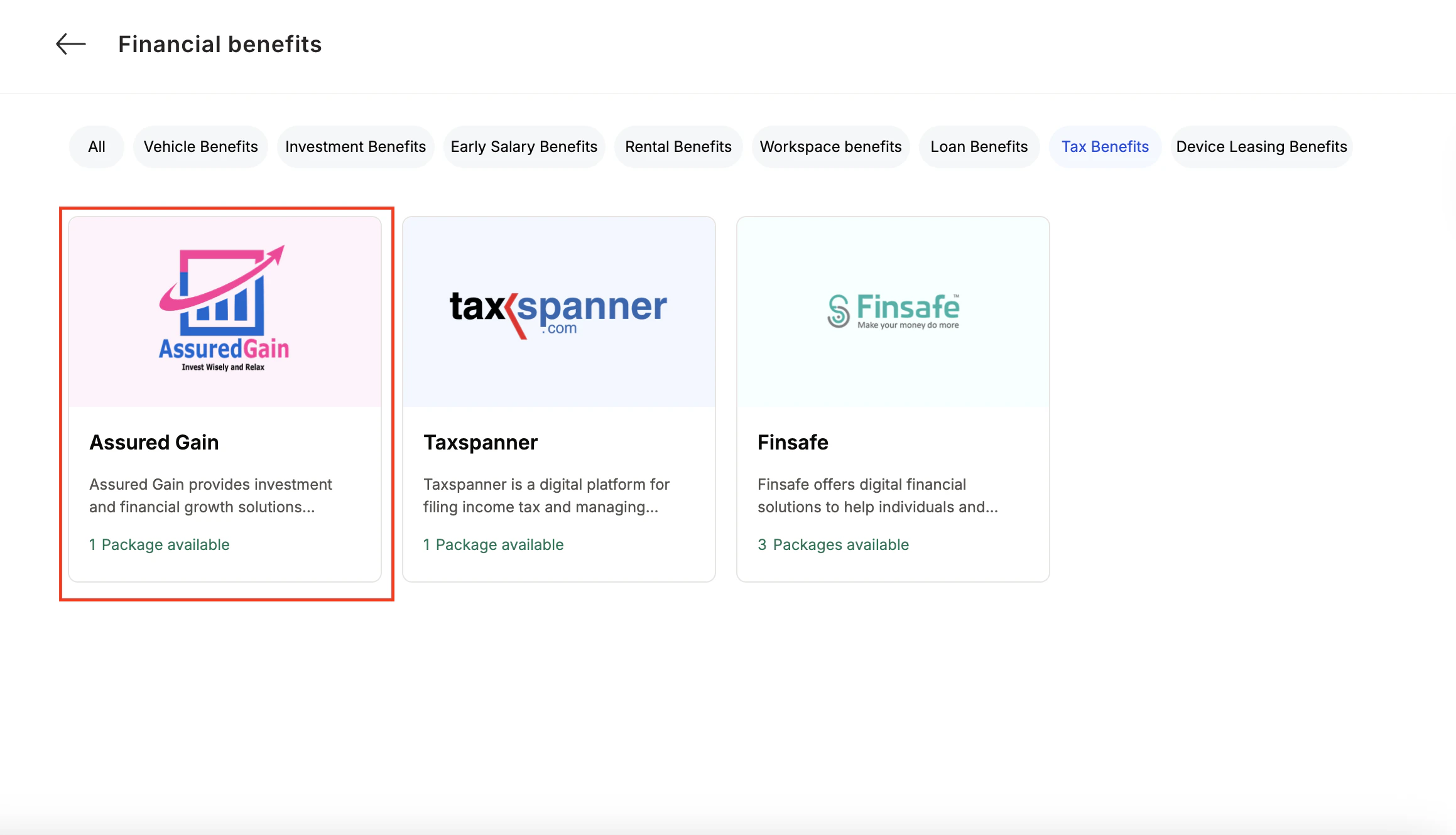
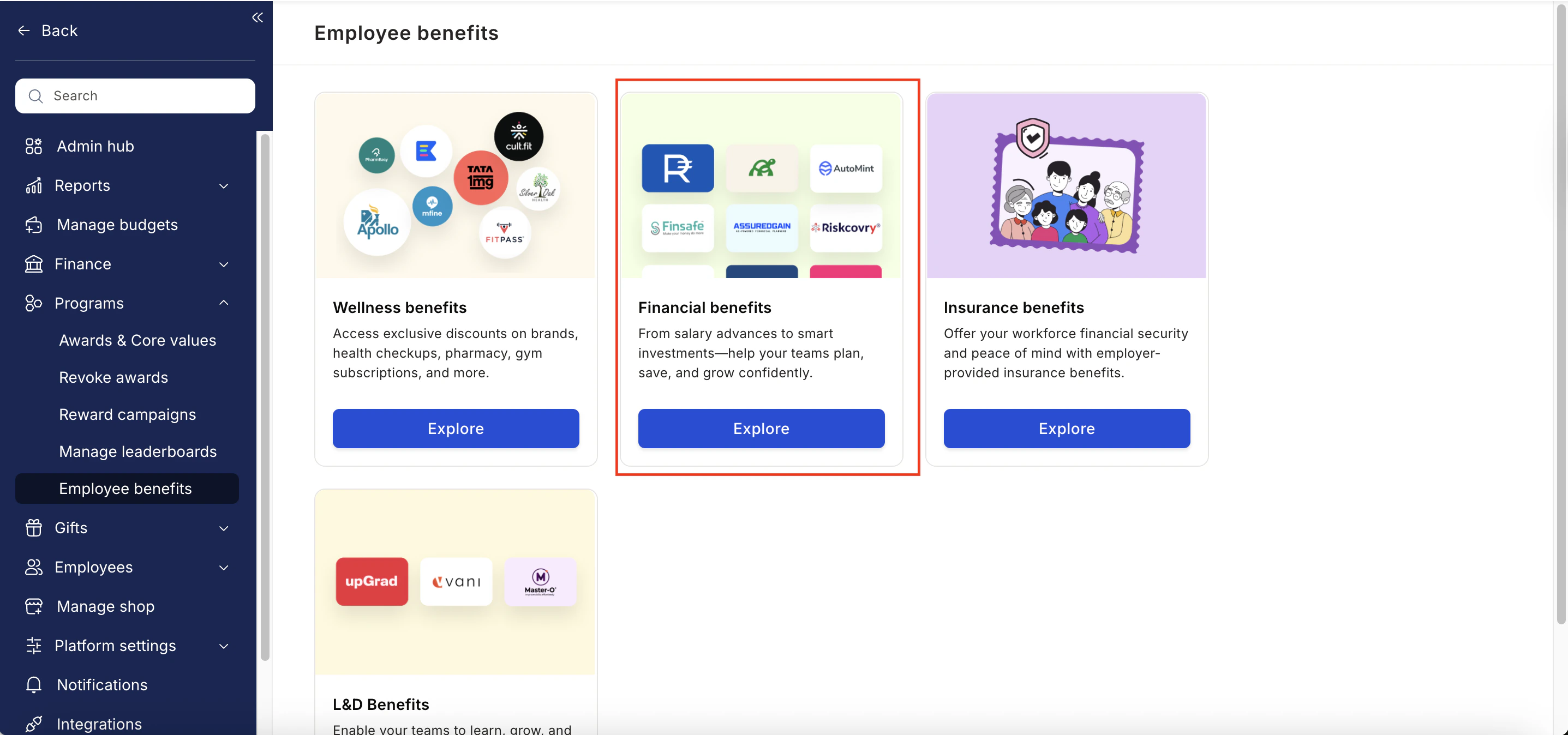 * From the list of wellness partners, choose **Assured Gain**
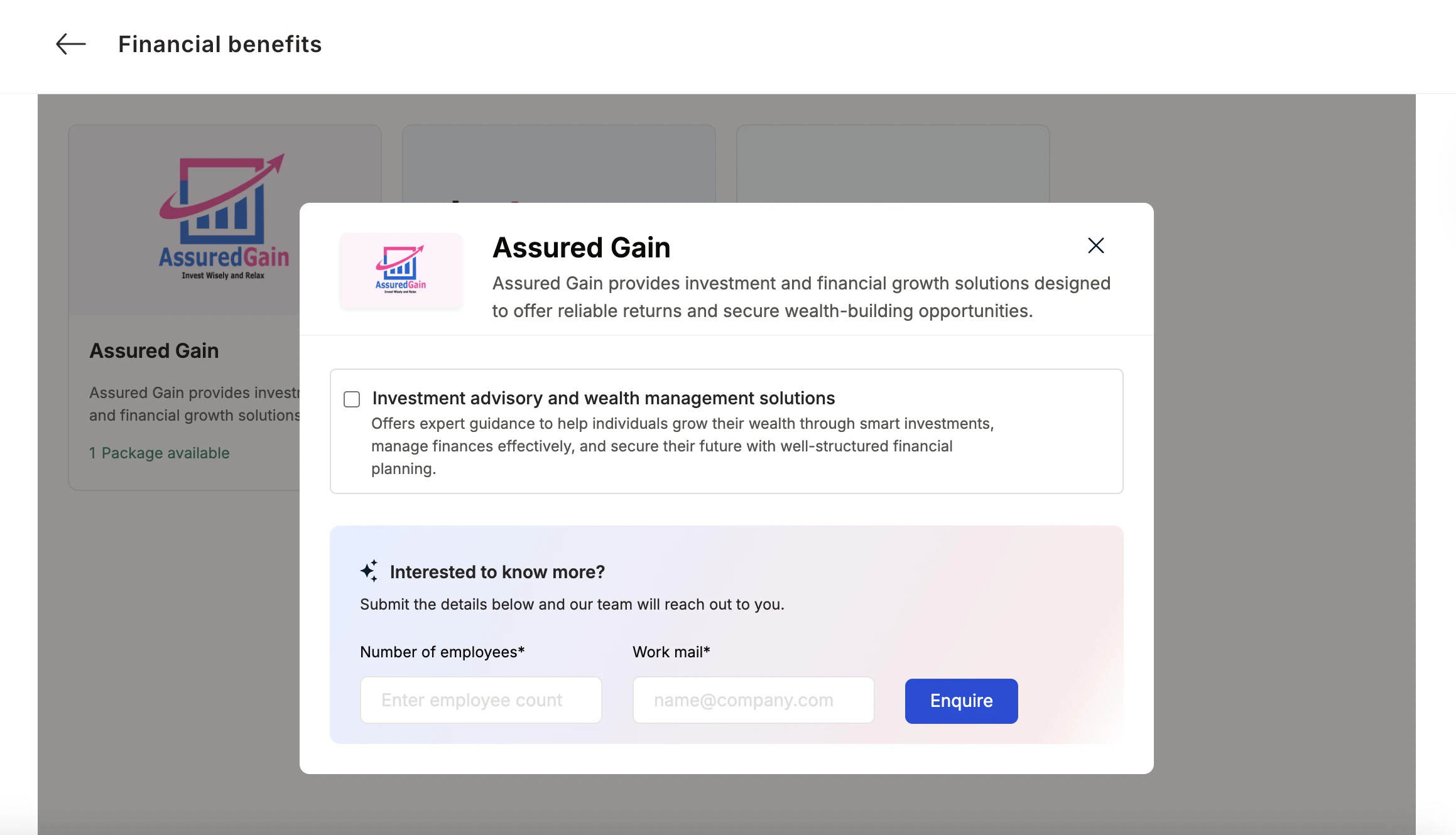
 * Enter:
* Number of employees
* Work email addresses
* Phone numbers
* Click **Enquire**.
* Our team will respond with details and pricing.
* Enter:
* Number of employees
* Work email addresses
* Phone numbers
* Click **Enquire**.
* Our team will respond with details and pricing.
 * Our team will connect with you, confirm pricing and requirements, and activate the benefit for all employees.
## How Employees Can Access Assured Gain
Log in to Empuls with your credentials.
Navigate to **Benefits**
Select\*\* Assured Gain \*\*from the available options.
Pick the counselling or well-being service you need.
Book your benefit by clicking on **Pay.**
## Support
For setup or usage assistance, contact us at **[cs@xoxoday.com](mailto:cs@xoxoday.com)**.
* Our team will connect with you, confirm pricing and requirements, and activate the benefit for all employees.
## How Employees Can Access Assured Gain
Log in to Empuls with your credentials.
Navigate to **Benefits**
Select\*\* Assured Gain \*\*from the available options.
Pick the counselling or well-being service you need.
Book your benefit by clicking on **Pay.**
## Support
For setup or usage assistance, contact us at **[cs@xoxoday.com](mailto:cs@xoxoday.com)**.