> ## Documentation Index
> Fetch the complete documentation index at: https://help-empuls.xoxoday.com/llms.txt
> Use this file to discover all available pages before exploring further.
# Slack
> Recognize, reward, and listen to your employees without leaving Slack, using the Empuls app for Slack.
Recognize, reward, and listen to your employees without leaving Slack.
## Why this integration?
Organisations invest in several tools to drive multiple people engagement initiatives, increasing the complexity of their HR tech stack. Empuls is natively integrated with Slack, so recognition, rewards, and feedback happen in the same place your teams already work. Empuls helps build a people-focused workplace culture by making recognition and rewards a daily habit, not a quarterly event.
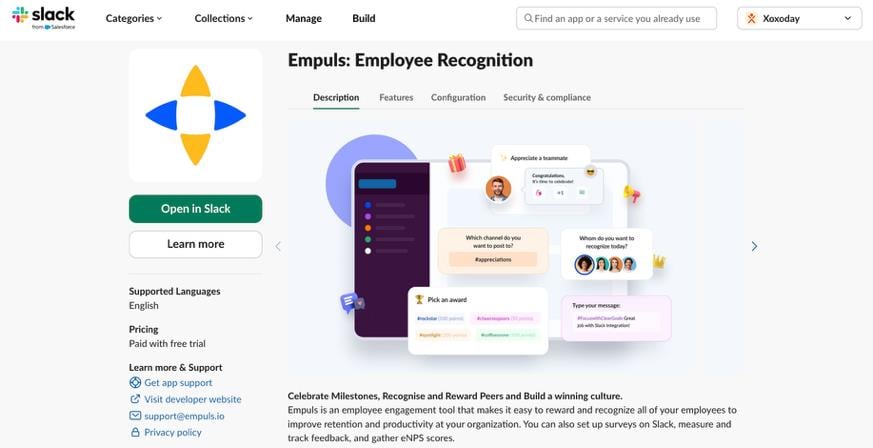
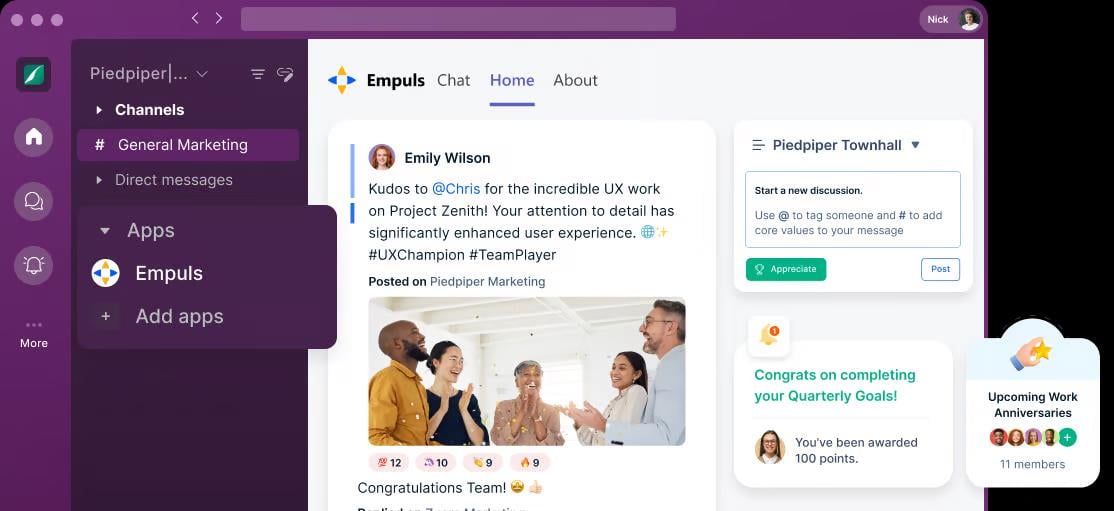 For more details, see the [Empuls app on the Slack app directory](https://slack.com/apps/A0133UTFXHP-empuls).
## With this integration, you can
Prefer to watch instead of read? This video covers the full employee guide to Empuls for Slack.
1. **Recognize and celebrate achievements** — empower employees to appreciate each other's contributions with peer, manager, and values-based recognition, right from the Home tab or a Slack channel.
2. **Reward good performance** — send gifts and let employees redeem points from a global catalog of 10M+ options: gift cards, merchandise, and experiences across 150+ countries, each with localised reward options and pricing in the local currency.
3. **Run nominations and awards** — review and act on open nominations for jury and peer-voted awards directly from the Empuls Home tab in Slack.
4. **Create opportunities for feedback** — measure employee sentiment with pulse, eNPS, and lifecycle surveys, and respond to survey invites without leaving Slack.
5. **Track recognition and engagement** — check the Wall of Fame and Leaderboard, and look up teammates through the employee directory, all inside Slack.
6. **Automate celebrations** — birthdays, work anniversaries, and service milestones post automatically, so no occasion is missed.
## How to set up this integration
Prefer to watch instead of read? This video walks through installing and configuring the Empuls app on Slack.
The Super Admin can set up the Slack and Empuls integration in less than a minute.
Log in to your Empuls account.
Go to the **Admin Dashboard** by clicking **Reports and Admin**.
Navigate to **Integrations**.
Select the **Slack** app.
For more details, see the [Empuls app on the Slack app directory](https://slack.com/apps/A0133UTFXHP-empuls).
## With this integration, you can
Prefer to watch instead of read? This video covers the full employee guide to Empuls for Slack.
1. **Recognize and celebrate achievements** — empower employees to appreciate each other's contributions with peer, manager, and values-based recognition, right from the Home tab or a Slack channel.
2. **Reward good performance** — send gifts and let employees redeem points from a global catalog of 10M+ options: gift cards, merchandise, and experiences across 150+ countries, each with localised reward options and pricing in the local currency.
3. **Run nominations and awards** — review and act on open nominations for jury and peer-voted awards directly from the Empuls Home tab in Slack.
4. **Create opportunities for feedback** — measure employee sentiment with pulse, eNPS, and lifecycle surveys, and respond to survey invites without leaving Slack.
5. **Track recognition and engagement** — check the Wall of Fame and Leaderboard, and look up teammates through the employee directory, all inside Slack.
6. **Automate celebrations** — birthdays, work anniversaries, and service milestones post automatically, so no occasion is missed.
## How to set up this integration
Prefer to watch instead of read? This video walks through installing and configuring the Empuls app on Slack.
The Super Admin can set up the Slack and Empuls integration in less than a minute.
Log in to your Empuls account.
Go to the **Admin Dashboard** by clicking **Reports and Admin**.
Navigate to **Integrations**.
Select the **Slack** app.
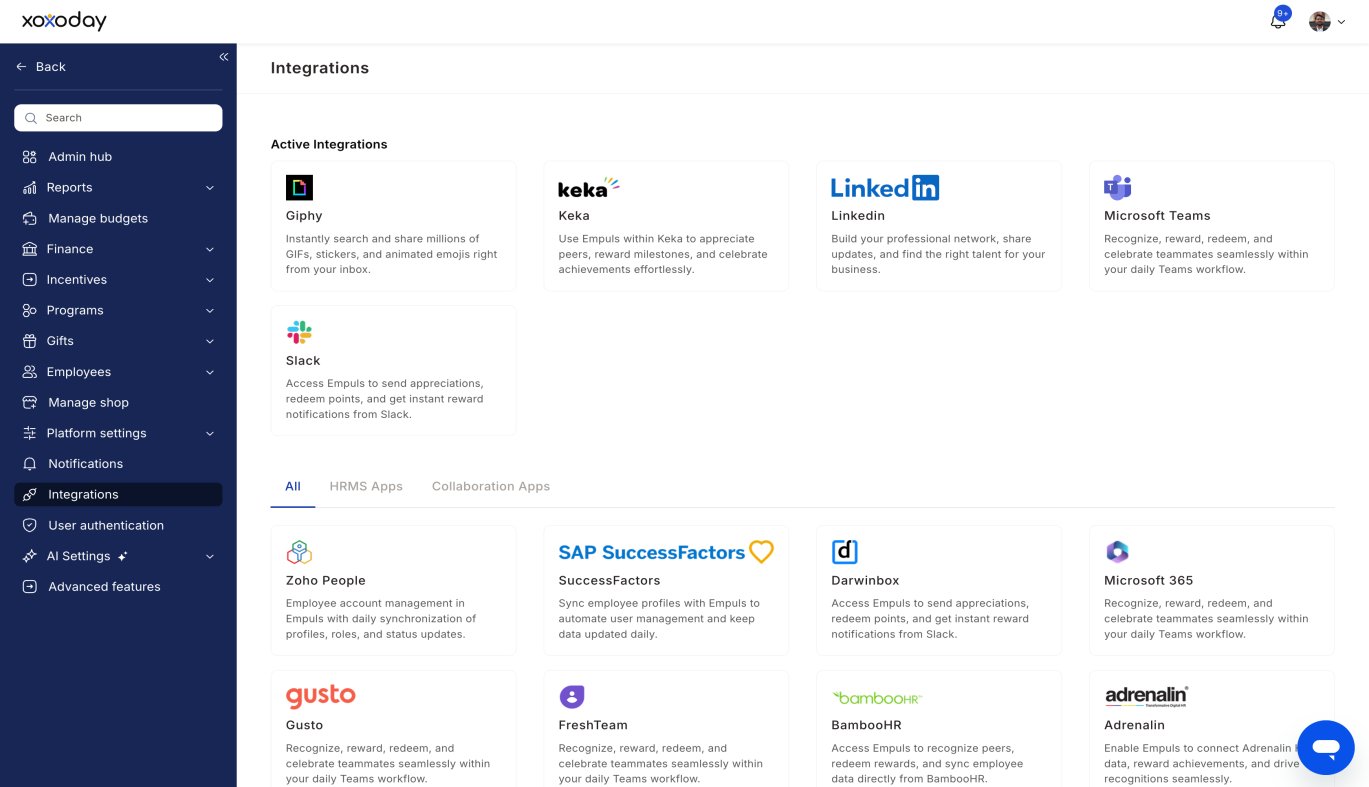 Click **Manage Slack App** to start the integration process.
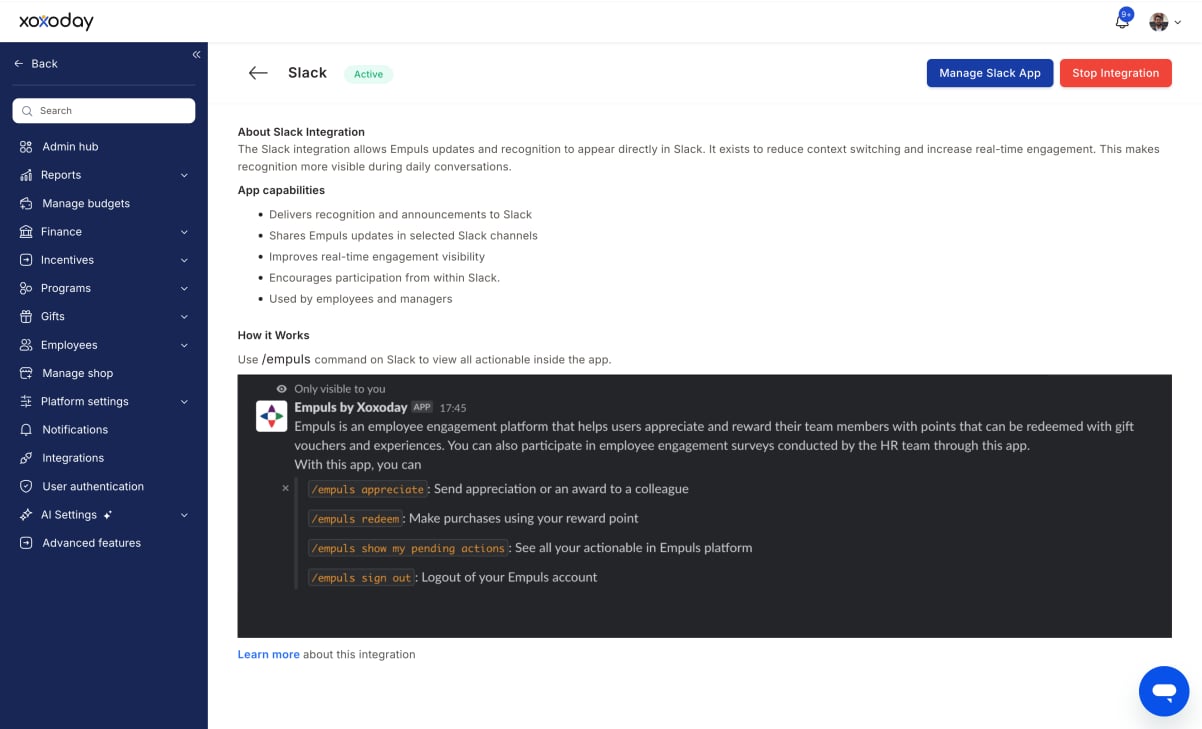 Click **Proceed** in the pop-up box to be redirected to Slack and complete the setup.
Allow the required permissions in your Slack account.
Click **Proceed** in the pop-up box to be redirected to Slack and complete the setup.
Allow the required permissions in your Slack account.
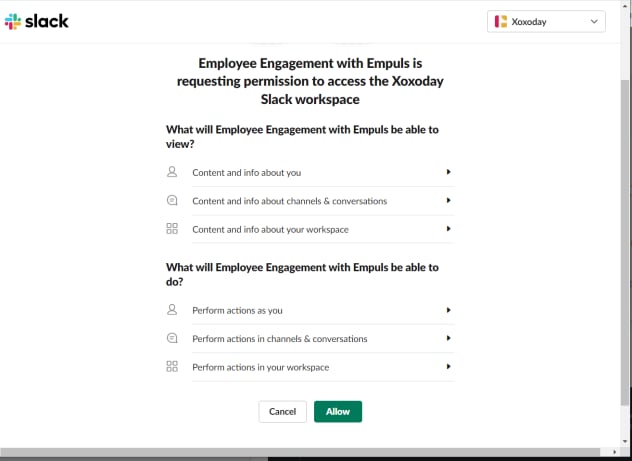 Once granted, you'll see a confirmation that the Slack integration is successful.
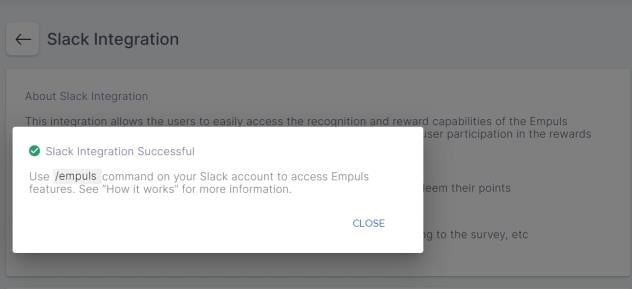 The Empuls bot is now ready to use. Open the Empuls **Home** tab in Slack to recognize, redeem, and check your Wall of Fame — or use the `/empuls` command for quick actions.
 ## Empuls in Slack
Everything you can do with Empuls once it's added to your Slack workspace.
### Home tab
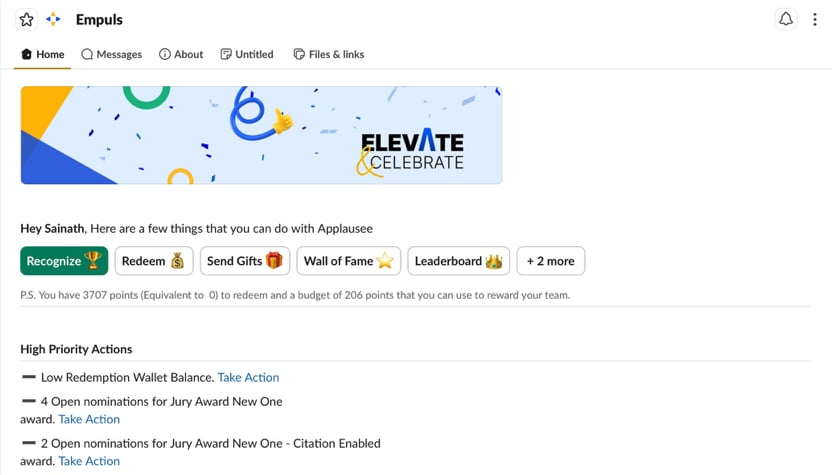
The main screen for Empuls inside Slack — a row of quick actions at the top, a list of things that need your attention, and any surveys waiting for you.
## Empuls in Slack
Everything you can do with Empuls once it's added to your Slack workspace.
### Home tab
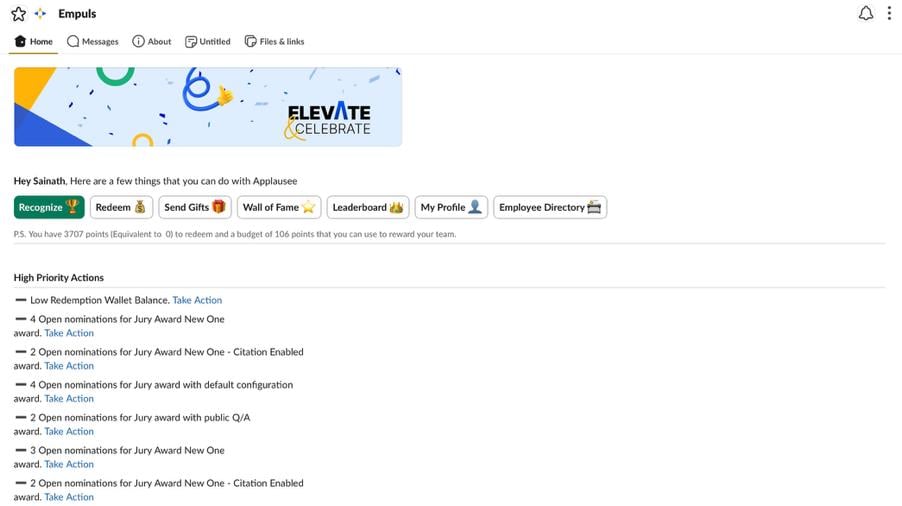
The main screen for Empuls inside Slack — a row of quick actions at the top, a list of things that need your attention, and any surveys waiting for you.
 ### Quick actions
**Recognize** — give a shoutout to a coworker.
Click **Recognize**.
Type or select the coworker's name, then click **Next**.
### Quick actions
**Recognize** — give a shoutout to a coworker.
Click **Recognize**.
Type or select the coworker's name, then click **Next**.
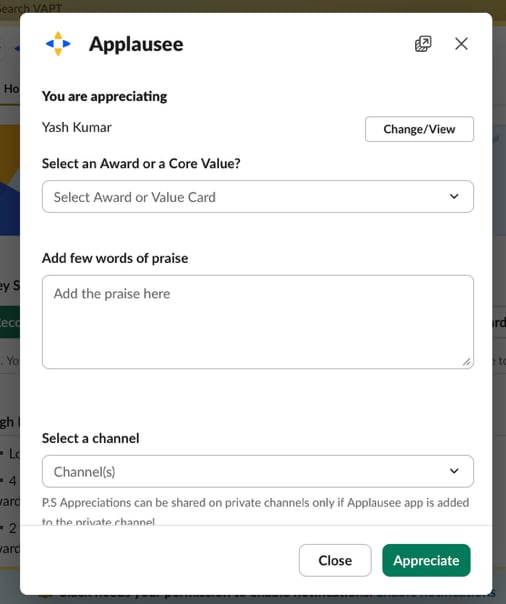
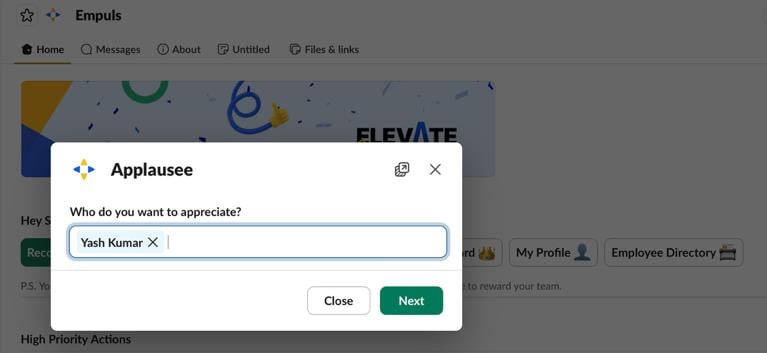 Pick an award or core value, write a short note, and pick a channel to post it in. Click **Appreciate**.
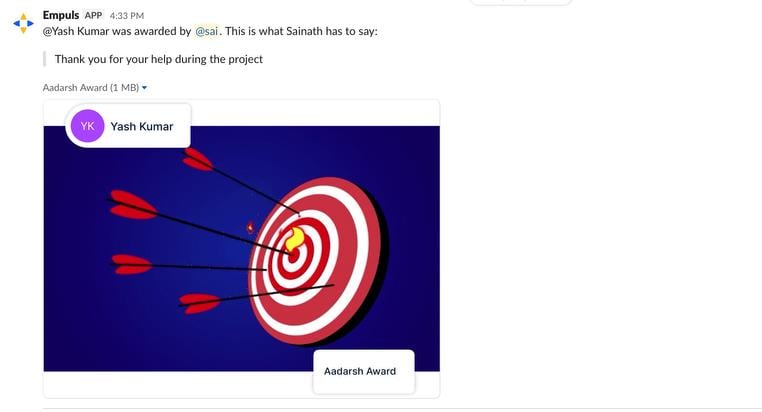
 It posts right away with your note and a graphic, and shows up on the Empuls web and mobile apps too.
 **Send gifts** — send someone a reward for a specific occasion, like a wedding, work anniversary, or "just because."
Click **Send Gifts**.
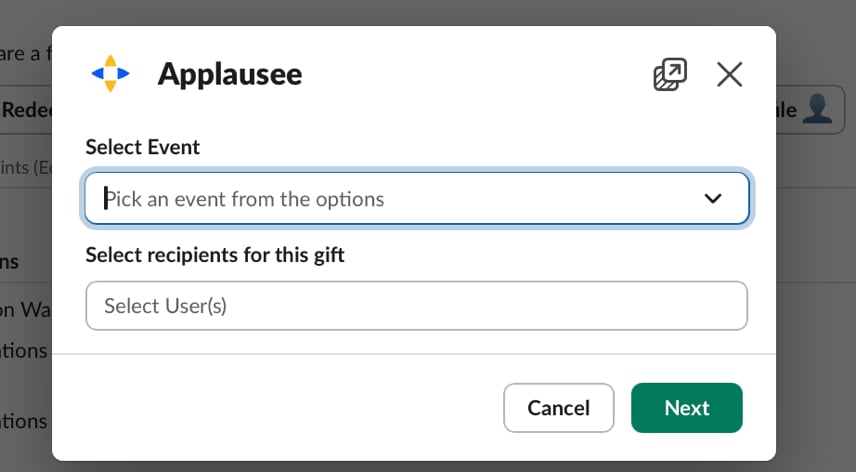
Pick the occasion and who gets it, then click **Next**.
**Send gifts** — send someone a reward for a specific occasion, like a wedding, work anniversary, or "just because."
Click **Send Gifts**.
Pick the occasion and who gets it, then click **Next**.
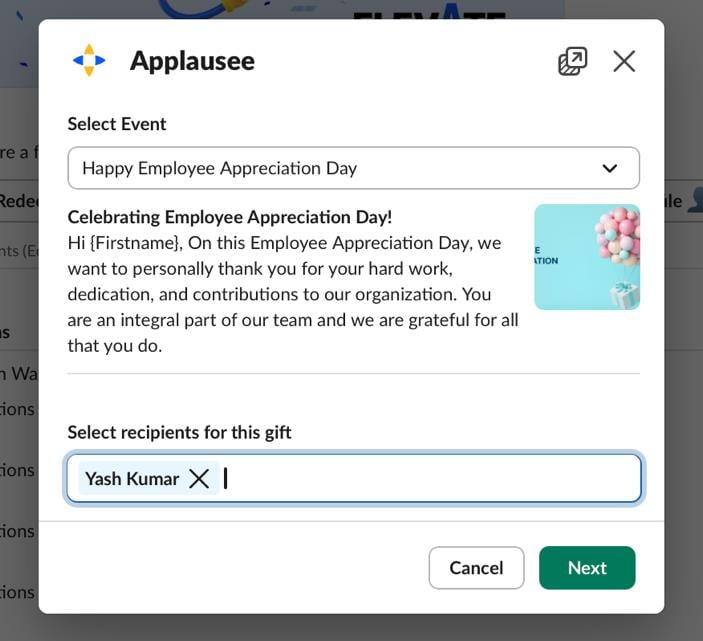
 Check the message that comes with it, then click **Next**.
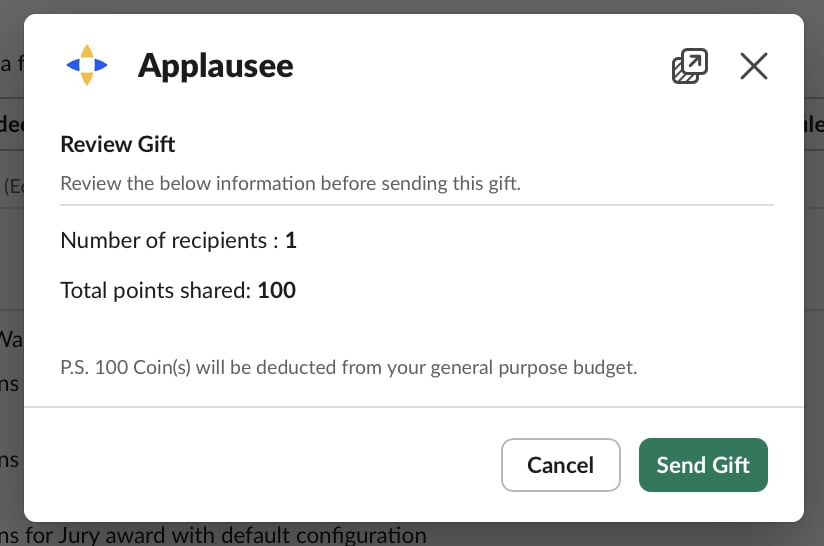
 Review the number of recipients and total points, then click **Send Gift**.
 **Redeem** — spend your points on rewards, gift cards, merchandise, travel, hotels, and more.
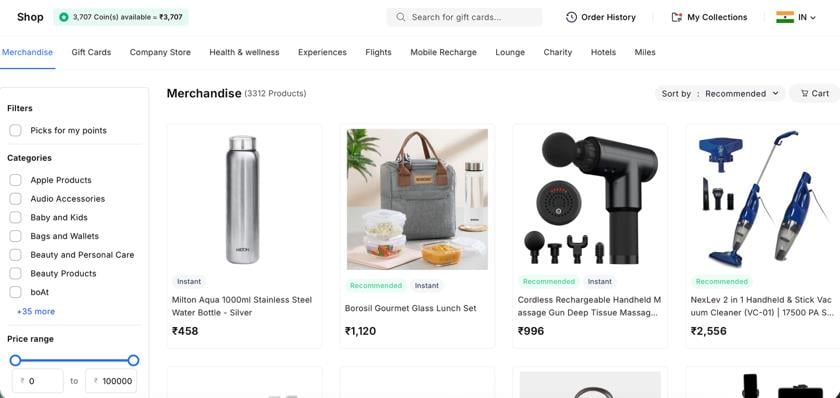
Click **Redeem** and check your point balance and its value at the top of the page.
Browse by category (Merchandise, Gift Cards, Company Store, Health & Wellness, Experiences, Flights, Mobile Recharge, Lounge, Charity, Hotels, Miles), or use the **Filters** and **Price range** on the left to narrow things down.
**Redeem** — spend your points on rewards, gift cards, merchandise, travel, hotels, and more.
Click **Redeem** and check your point balance and its value at the top of the page.
Browse by category (Merchandise, Gift Cards, Company Store, Health & Wellness, Experiences, Flights, Mobile Recharge, Lounge, Charity, Hotels, Miles), or use the **Filters** and **Price range** on the left to narrow things down.
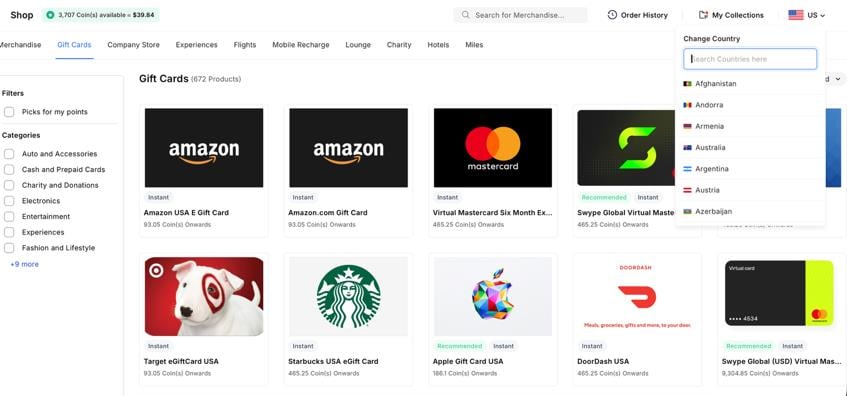
 Switch countries from the dropdown (top right) to see rewards available in a different location.
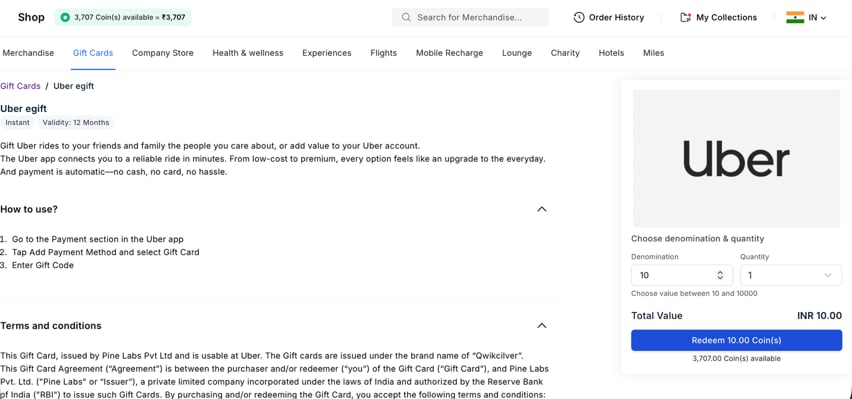
 Pick a reward and complete the purchase with your points.
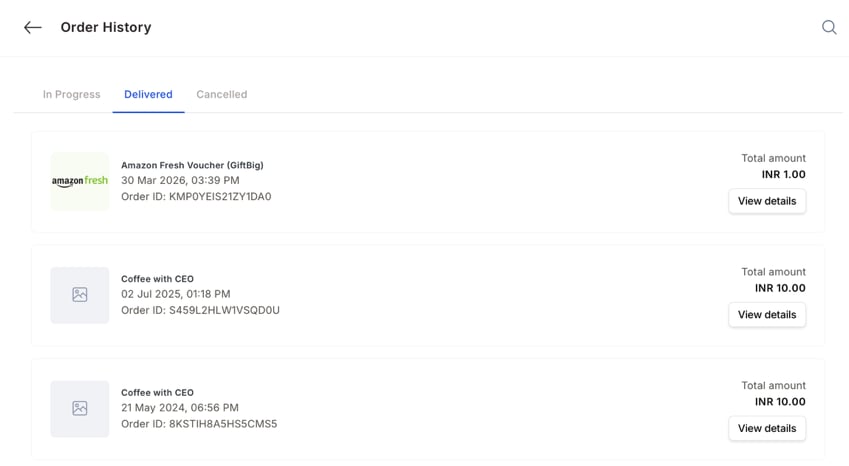
 Check **Order History** or **My Collections** anytime to see what you've redeemed before.
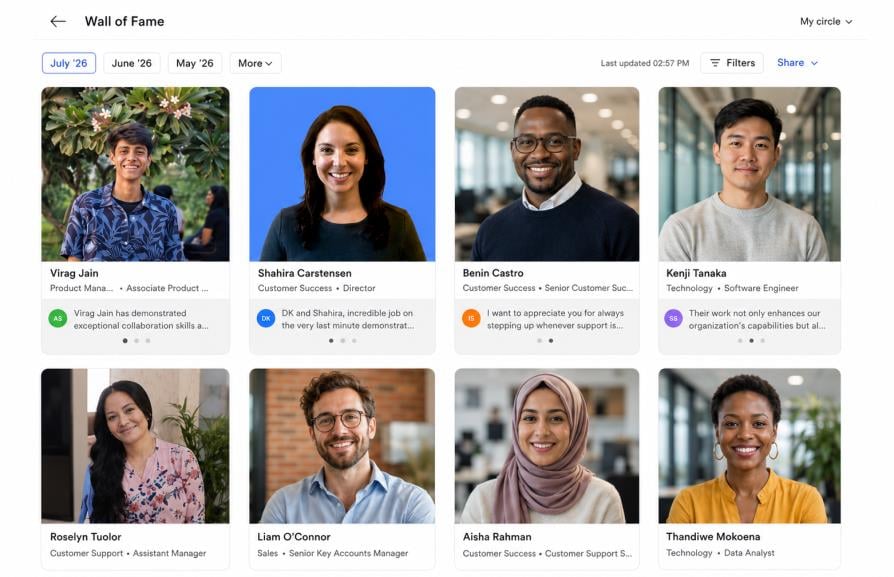
 **Wall of Fame** — a feed of everyone who's recently been recognized. Click **Wall of Fame**, pick a month (or **More** for earlier ones), and browse the cards to see who was recognized and why. Use **Filters** to narrow the list, or **Share** to send it elsewhere.
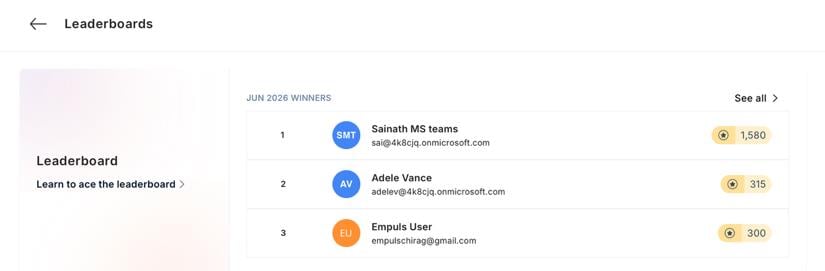
 **Leaderboard** — a ranking of who has the most points this month. Click **Leaderboard** to see the top point earners for the current month, and **See all** for the full ranking.
 **My profile** — your own info: birthday, join date, bio, skills, and any upcoming birthdays or work anniversaries. Click **My Profile** to view them, and **Privacy settings** to control what others can see about you.
**Employee directory** — a searchable list of everyone at the company. Click **Employee Directory**, search by name or keyword (or switch to the org-chart view), and click a person to see their email and other details.
### High priority actions
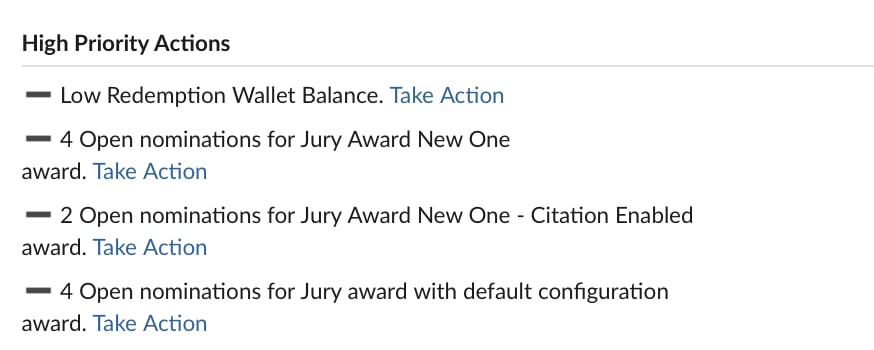
A running list of things that need your attention, with a **Take Action** link on each — for example, a low wallet balance warning, and counts of open nominations waiting for review.
**My profile** — your own info: birthday, join date, bio, skills, and any upcoming birthdays or work anniversaries. Click **My Profile** to view them, and **Privacy settings** to control what others can see about you.
**Employee directory** — a searchable list of everyone at the company. Click **Employee Directory**, search by name or keyword (or switch to the org-chart view), and click a person to see their email and other details.
### High priority actions
A running list of things that need your attention, with a **Take Action** link on each — for example, a low wallet balance warning, and counts of open nominations waiting for review.
 ### Open nominations
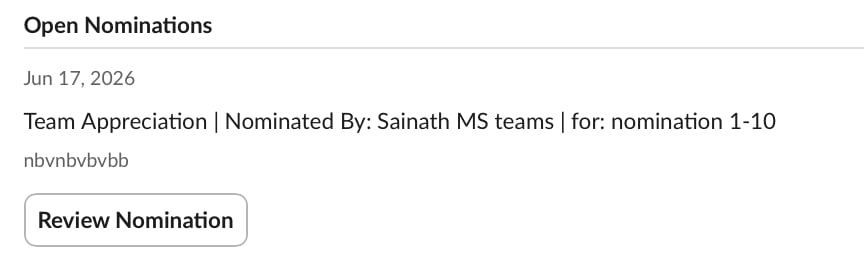
A more detailed list further down the Home tab. Each entry shows who nominated someone, what it's for, and any note attached, with a **Review Nomination** button to act on it.
### Open nominations
A more detailed list further down the Home tab. Each entry shows who nominated someone, what it's for, and any note attached, with a **Review Nomination** button to act on it.
 ### Survey and quiz invites
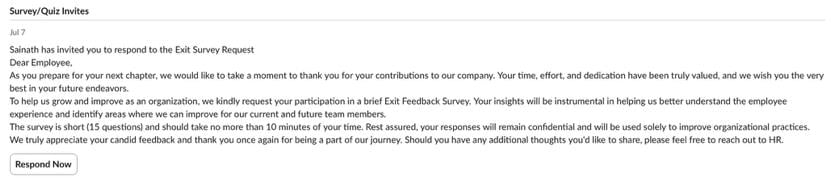
Any survey or quiz you've been asked to complete, with the full message from whoever sent it and a **Respond Now** button.
### Survey and quiz invites
Any survey or quiz you've been asked to complete, with the full message from whoever sent it and a **Respond Now** button.
 ### Admin settings
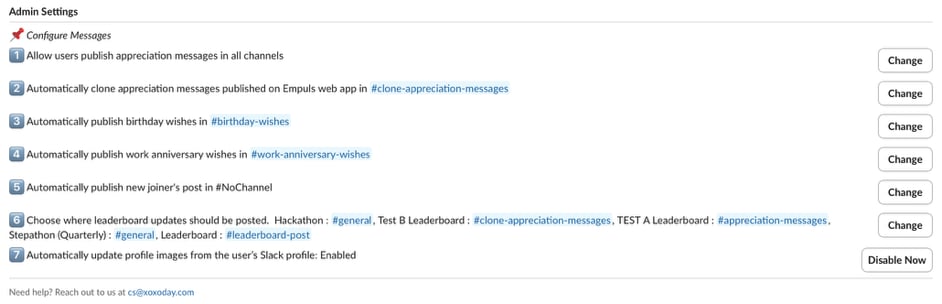
Where an admin controls how Empuls behaves in Slack for the whole workspace:
1. Allow or restrict users from publishing appreciation messages in all channels.
2. Choose whether recognitions posted on the Empuls web app get automatically copied into a Slack channel.
3. Choose which channel birthday wishes post to.
4. Choose which channel work anniversary wishes post to.
5. Choose which channel new joiner announcements post to.
6. Choose which channel each leaderboard posts its updates to — you can run more than one leaderboard, each pointing at a different channel.
7. Turn automatic profile photo syncing from Slack on or off.
### Admin settings
Where an admin controls how Empuls behaves in Slack for the whole workspace:
1. Allow or restrict users from publishing appreciation messages in all channels.
2. Choose whether recognitions posted on the Empuls web app get automatically copied into a Slack channel.
3. Choose which channel birthday wishes post to.
4. Choose which channel work anniversary wishes post to.
5. Choose which channel new joiner announcements post to.
6. Choose which channel each leaderboard posts its updates to — you can run more than one leaderboard, each pointing at a different channel.
7. Turn automatic profile photo syncing from Slack on or off.
 ### Messages tab
**Published recognition messages** — shows the actual recognition post: who got the award, who gave it, their note, and the award graphic. Every post carries a "Recognitions powered by Empuls" footer. From your own notification, you can click **View Published Message** to jump to where it was posted, or **Share on LinkedIn** to post the recognition publicly outside Slack.
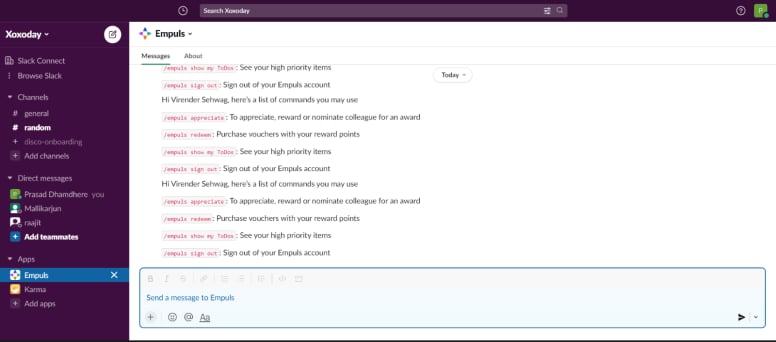
**Direct bot conversation** — type `/` in any Slack message box to bring up Empuls commands directly, without opening the Home tab. Two are available: `/appreciate` (recognize and reward a coworker) and `/redeem` (use your points to buy gift cards, experiences, and more).
### Automated channels
* **#birthday-wishes** — birthday messages post here automatically.
* **#work-anniversary-wishes** — the same, for work anniversaries.
* **Custom appreciation channels** — some companies set up an extra channel just for shoutouts and recognition posts.
### Notifications
You get pinged the moment someone recognizes you, sends you a reward, or when a survey or nomination needs your answer.
## How to remove this integration
In Empuls, go to the **Admin Dashboard**, then **Integrations**, then select the **Slack** app. Click **Manage Slack App**, then click **Disable on Slack**.
### Messages tab
**Published recognition messages** — shows the actual recognition post: who got the award, who gave it, their note, and the award graphic. Every post carries a "Recognitions powered by Empuls" footer. From your own notification, you can click **View Published Message** to jump to where it was posted, or **Share on LinkedIn** to post the recognition publicly outside Slack.
**Direct bot conversation** — type `/` in any Slack message box to bring up Empuls commands directly, without opening the Home tab. Two are available: `/appreciate` (recognize and reward a coworker) and `/redeem` (use your points to buy gift cards, experiences, and more).
### Automated channels
* **#birthday-wishes** — birthday messages post here automatically.
* **#work-anniversary-wishes** — the same, for work anniversaries.
* **Custom appreciation channels** — some companies set up an extra channel just for shoutouts and recognition posts.
### Notifications
You get pinged the moment someone recognizes you, sends you a reward, or when a survey or nomination needs your answer.
## How to remove this integration
In Empuls, go to the **Admin Dashboard**, then **Integrations**, then select the **Slack** app. Click **Manage Slack App**, then click **Disable on Slack**.
 It will ask whether you really want to remove the integration. Click **Proceed** in the pop-up box.
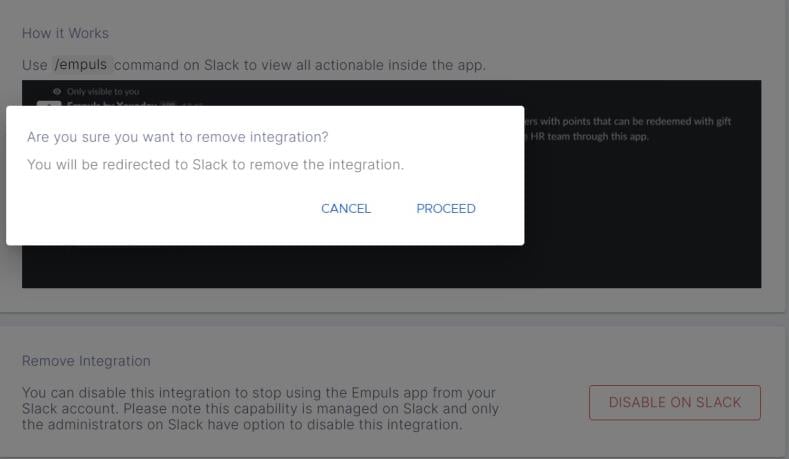 You'll be redirected to Slack to remove the integration. Click **Open in Slack**.
 Click the cross beside the Empuls app. It will disappear from your Slack Apps tab.
 ## FAQs
Yes. Recognition works both ways: anything sent on Empuls shows up on Slack, and anything sent through Slack shows up on the Empuls web and mobile apps too.
Yes. By default, these post to dedicated channels (#birthday-wishes and #work-anniversary-wishes). Your admin can change which channel each one posts to from the Slack integration settings in Empuls.
No. Open the Empuls Home tab in Slack to recognize a coworker, send gifts, redeem points, check the Wall of Fame or Leaderboard, or look up the employee directory — all without typing anything. If you'd rather type, Empuls also supports quick commands in the message box.
Yes. Any survey or quiz you're invited to, and any award nomination waiting on you, shows up in the Home tab with a button to respond or take action right there.
Yes. From your recognition notification, click **Share on LinkedIn** to post it publicly.
Yes. Admins can choose the channel for birthday wishes, work anniversary wishes, new joiner announcements, and leaderboard updates, and can turn on or off whether recognitions posted on the Empuls web app get copied into a Slack channel.
Yes. Slack lets users change the bot name for their own instance. Open the app details for Empuls in Slack, select **Configuration**, edit the bot username field, enter a new name, and save.
## FAQs
Yes. Recognition works both ways: anything sent on Empuls shows up on Slack, and anything sent through Slack shows up on the Empuls web and mobile apps too.
Yes. By default, these post to dedicated channels (#birthday-wishes and #work-anniversary-wishes). Your admin can change which channel each one posts to from the Slack integration settings in Empuls.
No. Open the Empuls Home tab in Slack to recognize a coworker, send gifts, redeem points, check the Wall of Fame or Leaderboard, or look up the employee directory — all without typing anything. If you'd rather type, Empuls also supports quick commands in the message box.
Yes. Any survey or quiz you're invited to, and any award nomination waiting on you, shows up in the Home tab with a button to respond or take action right there.
Yes. From your recognition notification, click **Share on LinkedIn** to post it publicly.
Yes. Admins can choose the channel for birthday wishes, work anniversary wishes, new joiner announcements, and leaderboard updates, and can turn on or off whether recognitions posted on the Empuls web app get copied into a Slack channel.
Yes. Slack lets users change the bot name for their own instance. Open the app details for Empuls in Slack, select **Configuration**, edit the bot username field, enter a new name, and save.