> ## Documentation Index
> Fetch the complete documentation index at: https://help-empuls.xoxoday.com/llms.txt
> Use this file to discover all available pages before exploring further.
# Microsoft Teams (installation guide for IT administrators)
## Overview
The Empuls integration with Microsoft Teams connects everyday collaboration with your organisation’s engagement, recognition, and feedback workflows. Employees can recognize teammates, redeem rewards, complete surveys, and view insights - all from within Teams, without switching tools.
For administrators, Empuls can be deployed org-wide through the Microsoft Teams admin center, with controls to publish events, manage permissions, and customize how the app appears across Teams.
**Quick Links:**
• Click [here](https://teams.microsoft.com/l/app/7ea47aaa-7c43-4fba-82fb-a81223e7cc2c?source=app-details-dialog) to add Empuls to your Microsoft Teams account
* [Watch the Demo](https://giift-my.sharepoint.com/personal/mallikarjun_xoxoday_com/_layouts/15/stream.aspx?id=%2Fpersonal%2Fmallikarjun%5Fxoxoday%5Fcom%2FDocuments%2FMicrosoft%20Teams%20Chat%20Files%2FMicrosoft%20Teams%20Admin%20Installation%20Guide%2Emp4\&referrer=StreamWebApp%2EWeb\&referrerScenario=AddressBarCopied%2Eview%2E3f868483%2Dea52%2D48ab%2Db516%2Dd9de068038c4\&ga=1)
## **1**. Installation & Setup (For IT Administrators)
This section guides Admins through installing the Empuls app on Microsoft Teams for their organization through the Microsoft Teams admin center.
\*\*1.1. Install Empuls for All Employees \*\*
Use this to give every user access to Empuls in their personal Teams space.
**Steps:**
* Log in to the Microsoft Teams admin center. [https://admin.teams.microsoft.com/dashboard](https://admin.teams.microsoft.com/dashboard))
* Go to \*\*Teams Apps → Manage Apps \*\*and search for Empuls.
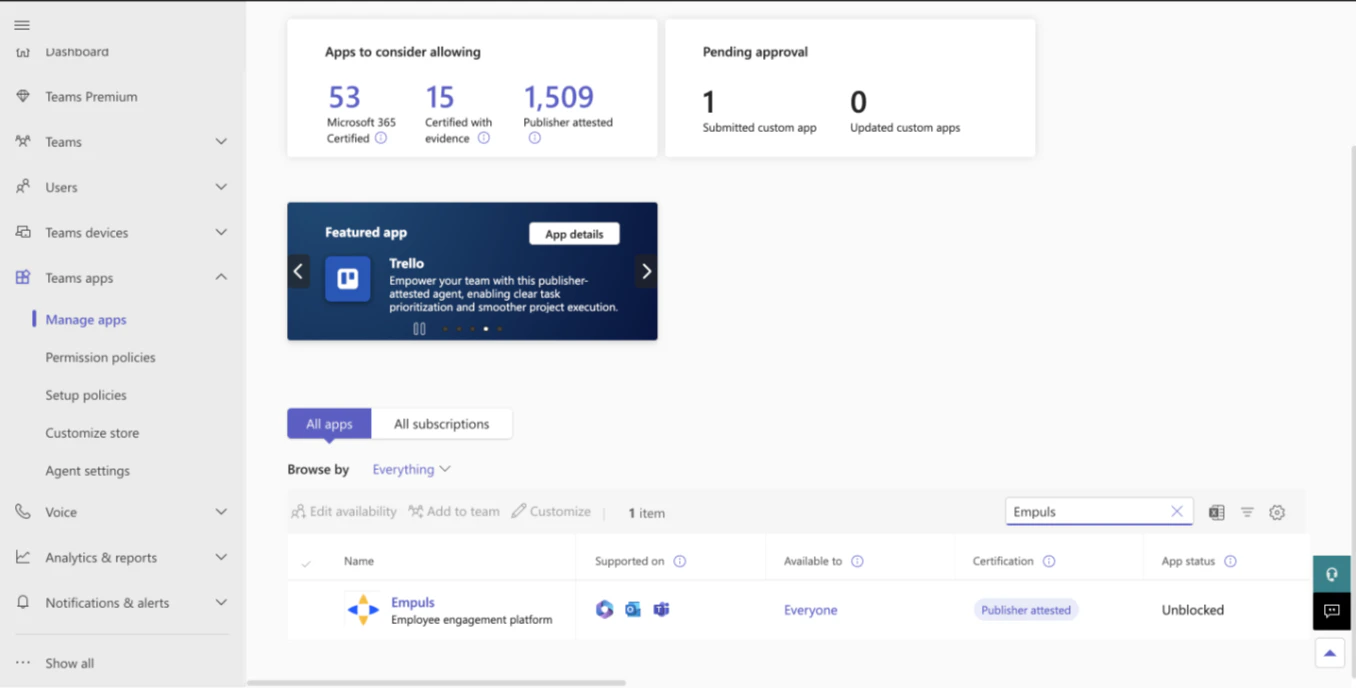 * **Go to Setup Policies**.
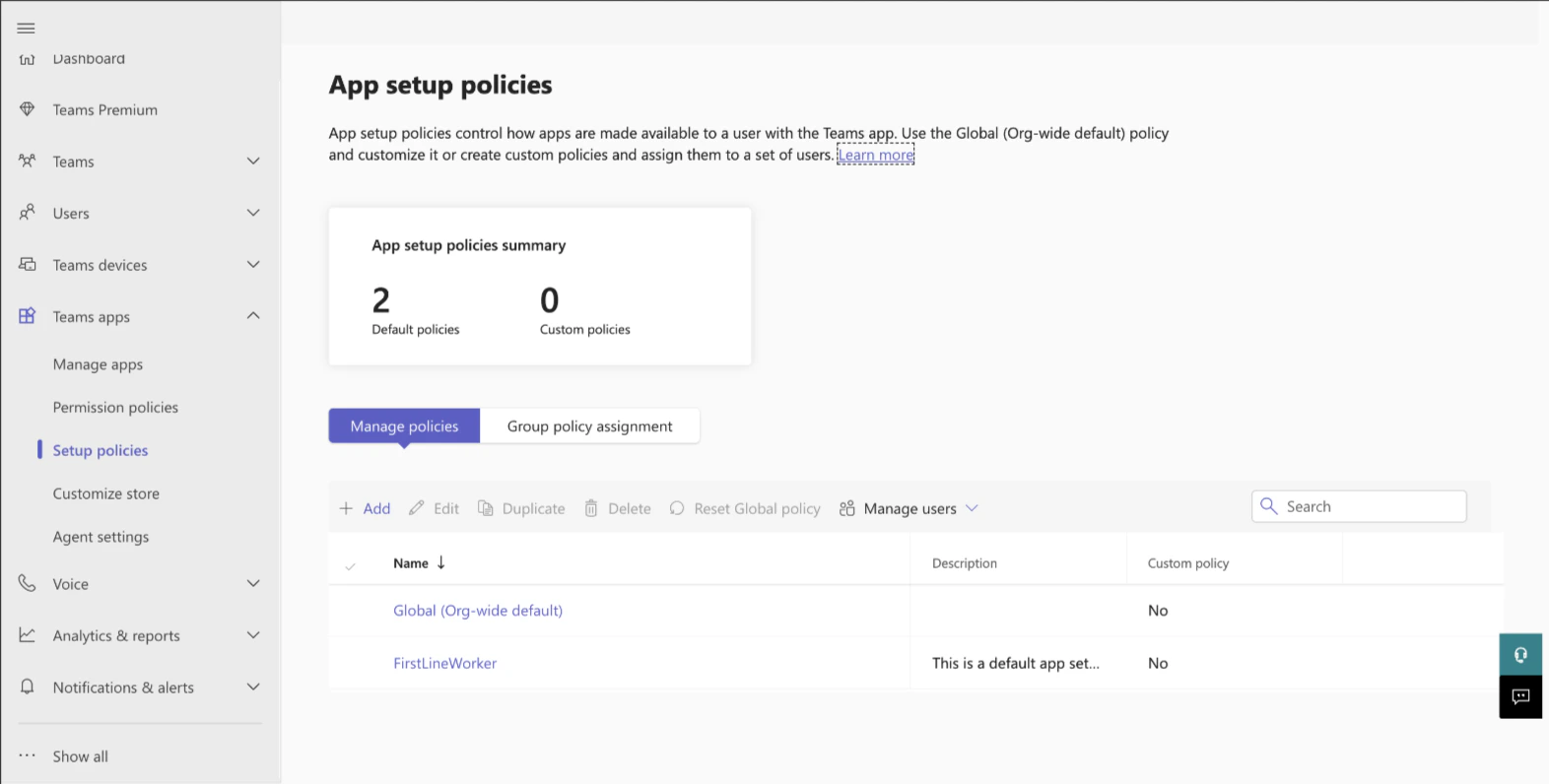 * Select **Global (Org-wide default)**.
* Under **Installed Apps**, click **Add Apps** and add Empuls.
* Select **Global (Org-wide default)**.
* Under **Installed Apps**, click **Add Apps** and add Empuls.
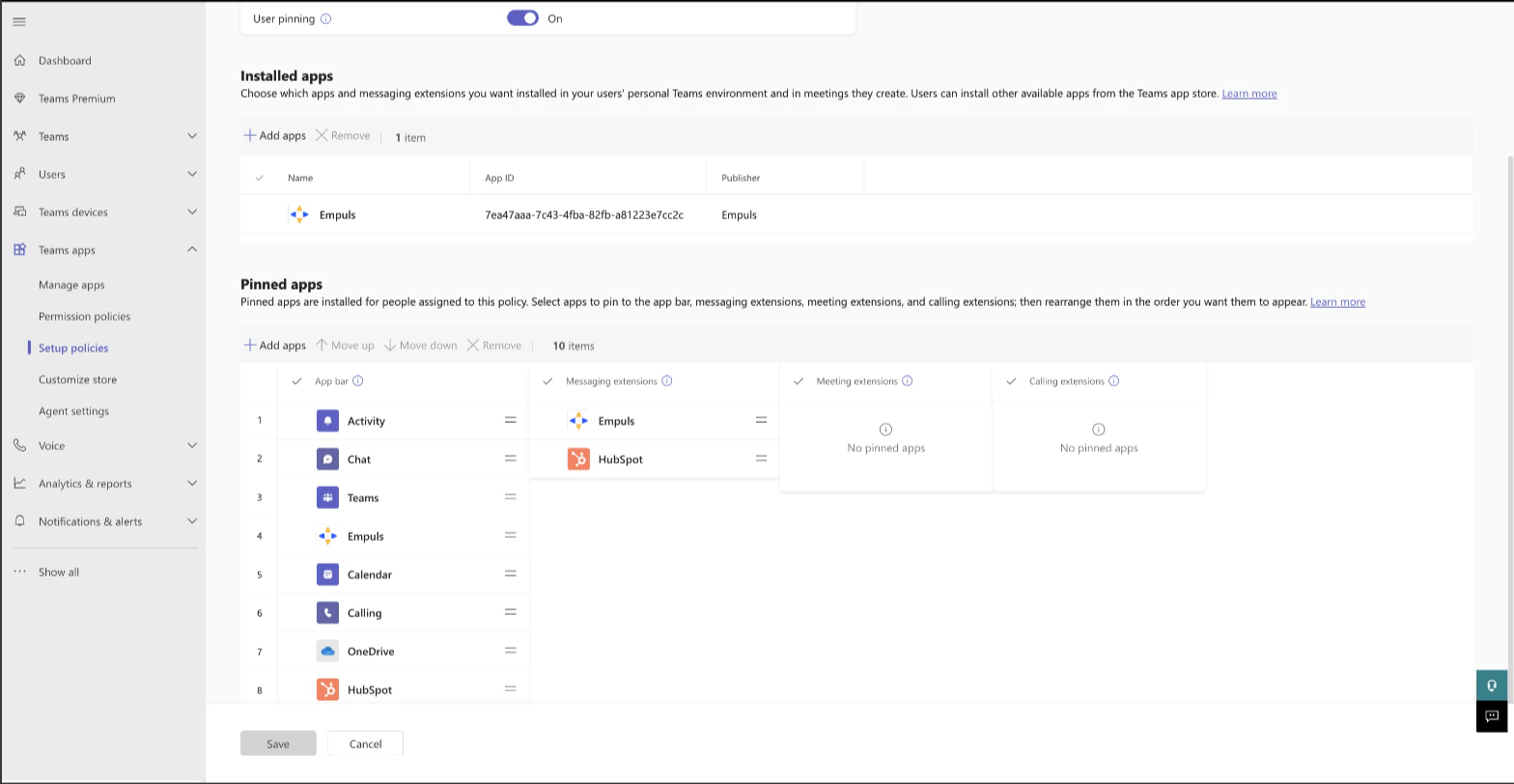 * Under **Pinned Apps**, click **Add Apps** to pin Empuls in the Teams app bar and messaging extensions.
* Scroll and **Save**.
Voila! Empuls is now available for all users.
**1.2 Install Empuls on Teams Channels (Add to Team / Add to Chat)**
With the Empuls app added as a message extension on all your MS Teams channels, you may install it on all or a few select channels from their admin console.
* Log in to Microsoft Teams admin center at [https://admin.teams.microsoft.com/dashboard](https://admin.teams.microsoft.com/dashboard).
* Go to **Teams Apps → Manage Apps** and search for Empuls.
* Under **Pinned Apps**, click **Add Apps** to pin Empuls in the Teams app bar and messaging extensions.
* Scroll and **Save**.
Voila! Empuls is now available for all users.
**1.2 Install Empuls on Teams Channels (Add to Team / Add to Chat)**
With the Empuls app added as a message extension on all your MS Teams channels, you may install it on all or a few select channels from their admin console.
* Log in to Microsoft Teams admin center at [https://admin.teams.microsoft.com/dashboard](https://admin.teams.microsoft.com/dashboard).
* Go to **Teams Apps → Manage Apps** and search for Empuls.
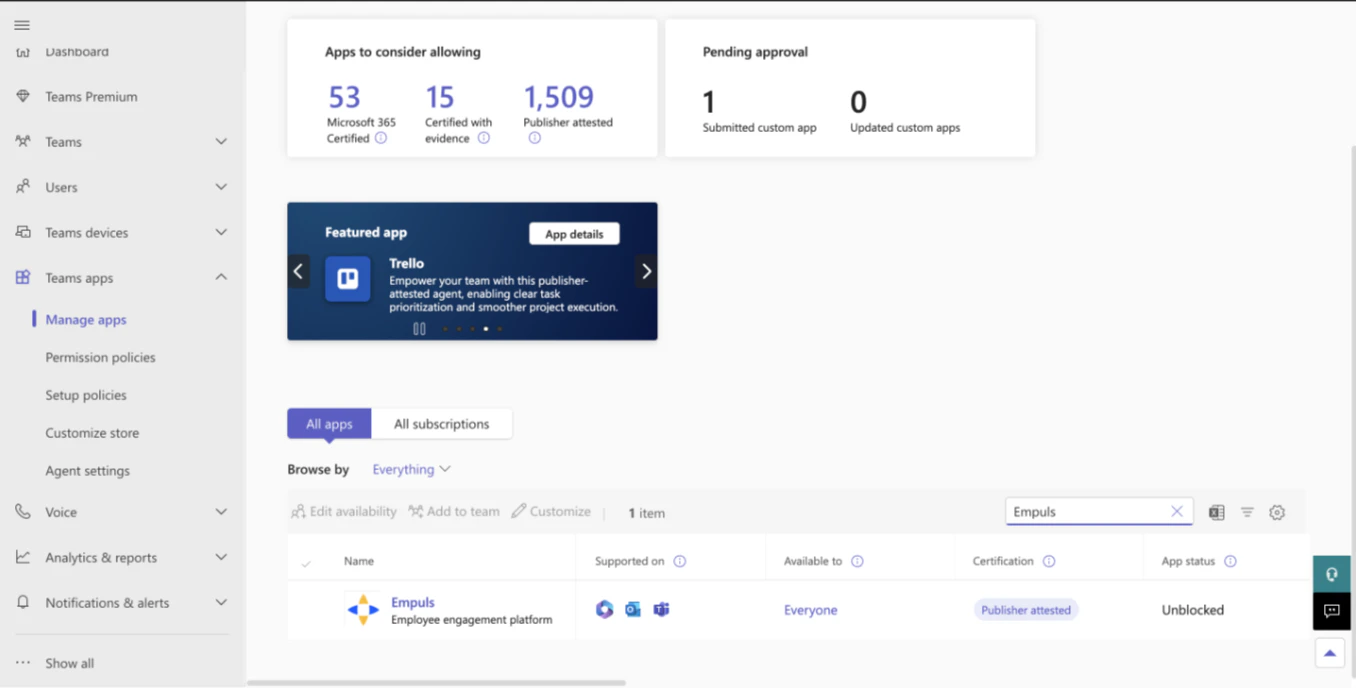 * Select **Add to Teams**.
* Choose the required channels and **Save**.
**1.3 Permissions Required**
**1.3.1. Mandatory SSO Permissions**
Empuls Team's app requires SSO-related permissions to access the Home tab.
* Select **Add to Teams**.
* Choose the required channels and **Save**.
**1.3 Permissions Required**
**1.3.1. Mandatory SSO Permissions**
Empuls Team's app requires SSO-related permissions to access the Home tab.
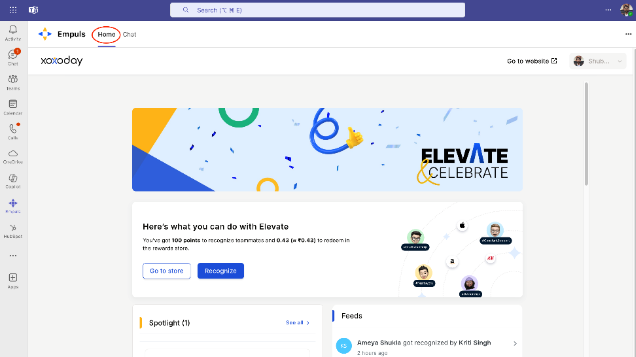 Following permissions/ scopes must be granted with the admin's consent to allow the users to access the Empuls Teams app seamlessly via SSO.
Empuls requires these scopes to enable automatic sign-in and access basic user details:
* User.Read
* email
* openid
* profile
* offline\_access
**How to grant admin consent**
User.Read, email, openid, profile, and offline\_access
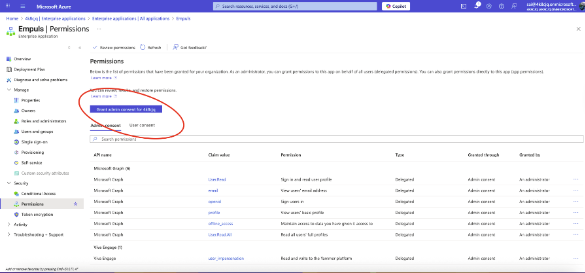
Go to **Permissions > Grant admin consent for 4k8cjq** as shown in the screenshot below:
Following permissions/ scopes must be granted with the admin's consent to allow the users to access the Empuls Teams app seamlessly via SSO.
Empuls requires these scopes to enable automatic sign-in and access basic user details:
* User.Read
* email
* openid
* profile
* offline\_access
**How to grant admin consent**
User.Read, email, openid, profile, and offline\_access
Go to **Permissions > Grant admin consent for 4k8cjq** as shown in the screenshot below:
 **1.3.2 Optional Permission for Profile Picture Sync**
To sync Teams profile photos to Empuls automatically, approve the following scope:
* User.Read.All
**1.3.2 Optional Permission for Profile Picture Sync**
To sync Teams profile photos to Empuls automatically, approve the following scope:
* User.Read.All
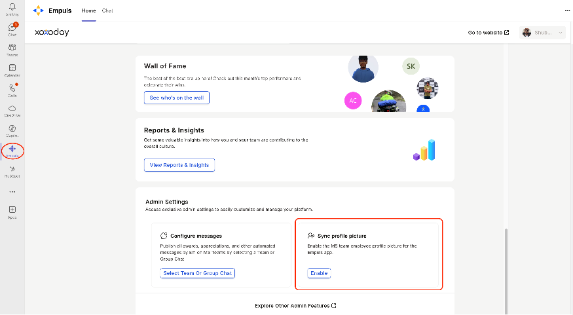 **💡 Recommended:** This scope is optional and required only if the admin wants to automatically sync the MS Teams profile pictures of users with the Empuls application instead of having the users manually add them.
All Done! Empuls app is now added to all employees and channels.
## FAQs
You’ll not be able to find the Empuls App if your Microsoft Teams Admin has blocked users from accessing public (Third-party) apps from the store. Please ask your Admin to enable Empuls on the Microsoft Teams app store. Refer to the Installation guide for more information.
You can uninstall the app from a channel by navigating the Apps section from the Manage Team option.
You can uninstall the Empuls bot from your account by following these steps:
* Navigate to the chat section.
* Hover on the Empuls app.
* Right-click on the app and select **Uninstall**.
**💡 Recommended:** This scope is optional and required only if the admin wants to automatically sync the MS Teams profile pictures of users with the Empuls application instead of having the users manually add them.
All Done! Empuls app is now added to all employees and channels.
## FAQs
You’ll not be able to find the Empuls App if your Microsoft Teams Admin has blocked users from accessing public (Third-party) apps from the store. Please ask your Admin to enable Empuls on the Microsoft Teams app store. Refer to the Installation guide for more information.
You can uninstall the app from a channel by navigating the Apps section from the Manage Team option.
You can uninstall the Empuls bot from your account by following these steps:
* Navigate to the chat section.
* Hover on the Empuls app.
* Right-click on the app and select **Uninstall**.
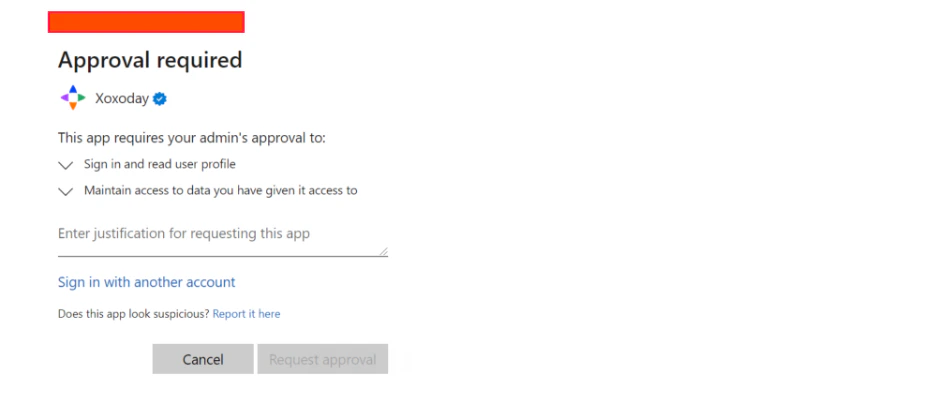 This page appears if the Microsoft Admins at your organization have added controls to prevent users from installing or using apps on Microsoft Store.
In the input box, Enter your reason for using the Empuls app and click on \*\*Request Approval. \*\*This will submit your request to your Microsoft Admin.
B) Your Microsoft Admin can see your request in the Azure portal under the Enterprise applications section. (URL:[https://portal.azure.com/#view/Microsoft\_AAD\_IAM/StartboardApplicationsMenuBlade/~~/AppAppsPreview/menuId~~/null](https://portal.azure.com/#view/Microsoft_AAD_IAM/StartboardApplicationsMenuBlade/~/AppAppsPreview/menuId~/null))
Make sure to nudge your Microsoft Admin, as your request may get lost among the plethora of similar requests.
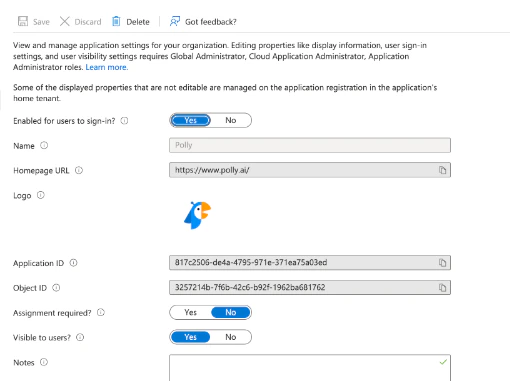
C) The Microsoft Admin can allow the Empuls app to enable all users to sign in without any additional permissions from the administrators. Sample image below:
This page appears if the Microsoft Admins at your organization have added controls to prevent users from installing or using apps on Microsoft Store.
In the input box, Enter your reason for using the Empuls app and click on \*\*Request Approval. \*\*This will submit your request to your Microsoft Admin.
B) Your Microsoft Admin can see your request in the Azure portal under the Enterprise applications section. (URL:[https://portal.azure.com/#view/Microsoft\_AAD\_IAM/StartboardApplicationsMenuBlade/~~/AppAppsPreview/menuId~~/null](https://portal.azure.com/#view/Microsoft_AAD_IAM/StartboardApplicationsMenuBlade/~/AppAppsPreview/menuId~/null))
Make sure to nudge your Microsoft Admin, as your request may get lost among the plethora of similar requests.
C) The Microsoft Admin can allow the Empuls app to enable all users to sign in without any additional permissions from the administrators. Sample image below:
 Once completed, all users can log in and start using the Empuls app.
Empuls app on Microsoft Teams will have permission to:
* Receive messages and data that I provide to it: *This permission allows users to interact with the Empuls bot (Em Bot).*
* Send me messages and notifications: *This permission allows Em bot to send notifications to users when the bot is installed.*
* Access my profile information such as my name, email address, company name, and preferred language: *This permission allows the Empuls app to identify the user and share relevant information with him.*
* Receive messages and data that team or chat members provide to it in a channel or chat: *This permission allows users to interact with the Empuls bot using tagging Empuls in the conversation.*
* Send messages and notifications in a channel or chat: *This permission allows the Empuls app to share appreciation messages on the channel and group chats.*
* Access information from this team or chat such as team or chat name, channel list, and roster (including team or chat member's names and email addresses) - and use this to contact them: *This permission is a prerequisite of the previous permission. Empuls app needs to know the channels and group chats the user is part of to allow users to share appreciation messages there.*
* Empuls uses Microsoft Graph API to authenticate users when they open the Personal Empuls Home tab. We get user's basic details, like email, to validate the user. Admin can grant these permissions to provide hassle-free access for the end users.
Scopes: `User.Read email openid profile offline_access`
* Empuls also uses another scope **User.Read.All**. This is required only if the admin wants to automatically sync MS Teams profile pictures of users with Empuls, instead of having users add them manually.
Once completed, all users can log in and start using the Empuls app.
Empuls app on Microsoft Teams will have permission to:
* Receive messages and data that I provide to it: *This permission allows users to interact with the Empuls bot (Em Bot).*
* Send me messages and notifications: *This permission allows Em bot to send notifications to users when the bot is installed.*
* Access my profile information such as my name, email address, company name, and preferred language: *This permission allows the Empuls app to identify the user and share relevant information with him.*
* Receive messages and data that team or chat members provide to it in a channel or chat: *This permission allows users to interact with the Empuls bot using tagging Empuls in the conversation.*
* Send messages and notifications in a channel or chat: *This permission allows the Empuls app to share appreciation messages on the channel and group chats.*
* Access information from this team or chat such as team or chat name, channel list, and roster (including team or chat member's names and email addresses) - and use this to contact them: *This permission is a prerequisite of the previous permission. Empuls app needs to know the channels and group chats the user is part of to allow users to share appreciation messages there.*
* Empuls uses Microsoft Graph API to authenticate users when they open the Personal Empuls Home tab. We get user's basic details, like email, to validate the user. Admin can grant these permissions to provide hassle-free access for the end users.
Scopes: `User.Read email openid profile offline_access`
* Empuls also uses another scope **User.Read.All**. This is required only if the admin wants to automatically sync MS Teams profile pictures of users with Empuls, instead of having users add them manually.