> ## Documentation Index
> Fetch the complete documentation index at: https://help-empuls.xoxoday.com/llms.txt
> Use this file to discover all available pages before exploring further.
# Physical and product-based gifts
> Create gift card and merchandise collections to reward employees with tangible items instead of, or alongside, reward points.
Product-based gifts let you replace or supplement reward points with physical merchandise and gift cards. You build a curated **collection** of items from 20+ categories, and recipients choose their preferred item from that collection. Collections can be reused across multiple gifting events and award configurations.
## How to set up a product-based gift
### Step 1: Open gift creation
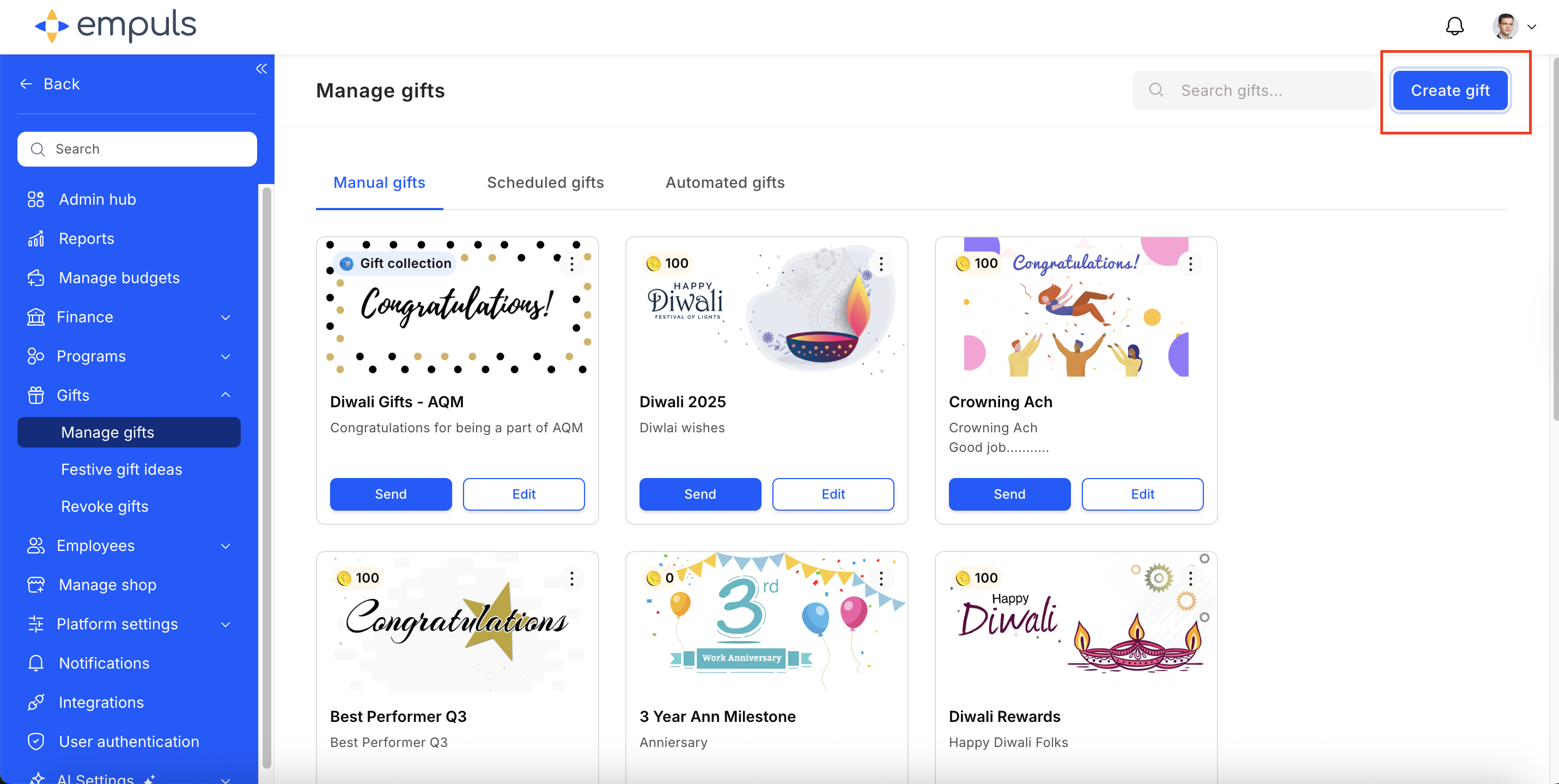
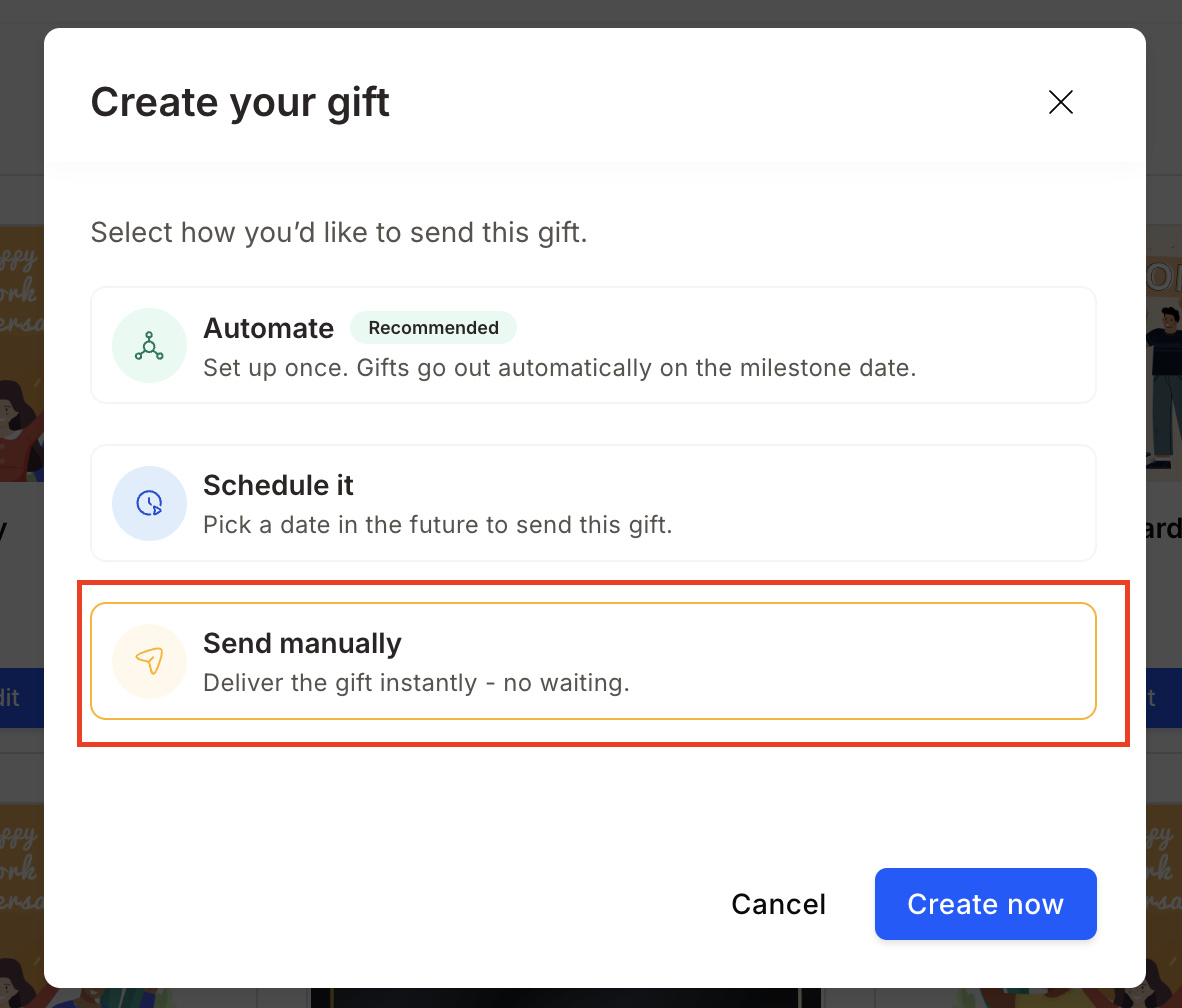
Navigate to **Gifts > Manage Gifts** and click **Create Gift**. Select your delivery mode — **Send Manually**, **Schedule It**, or **Automate**.
 ### Step 2: Select or create an event
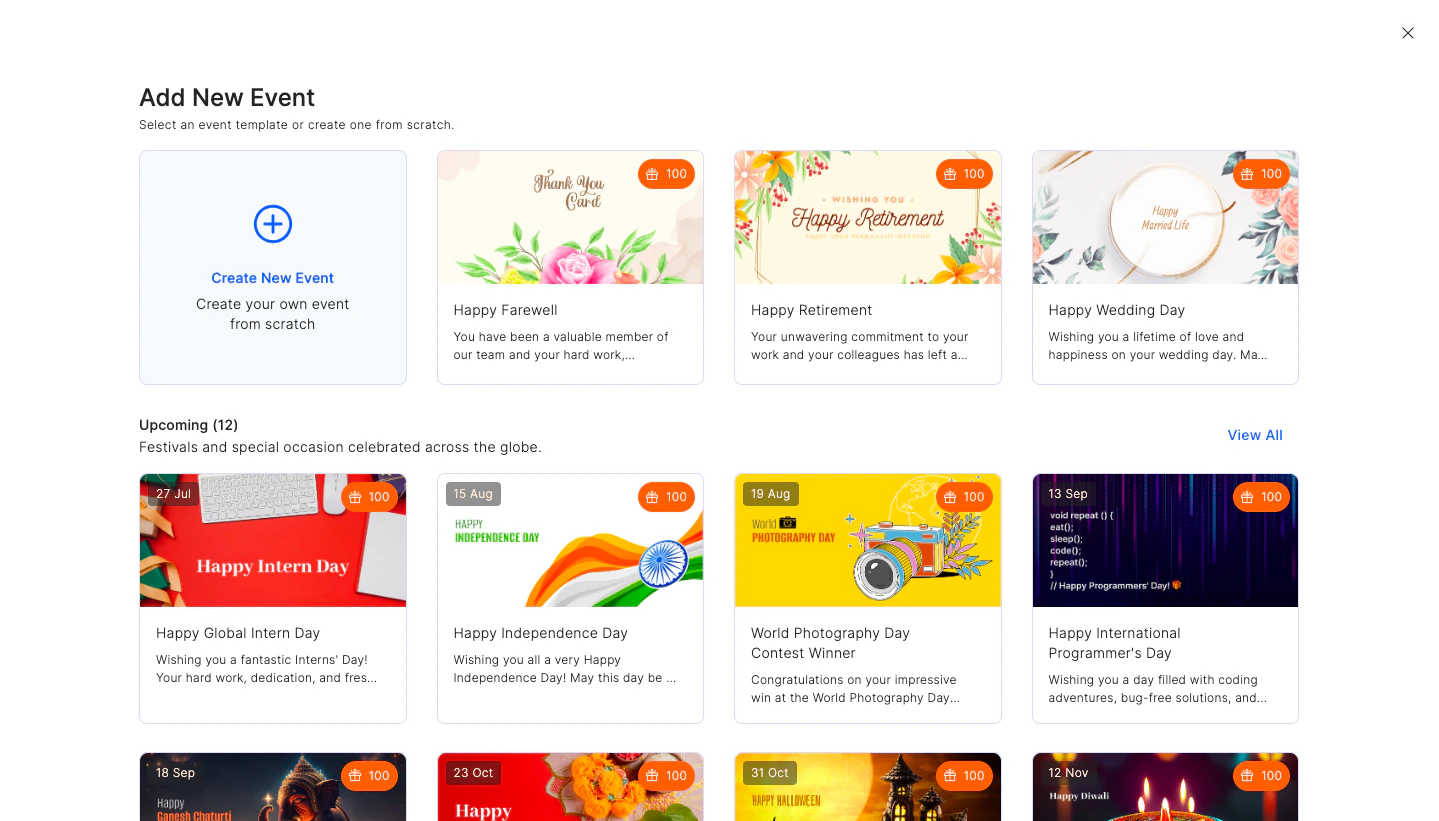
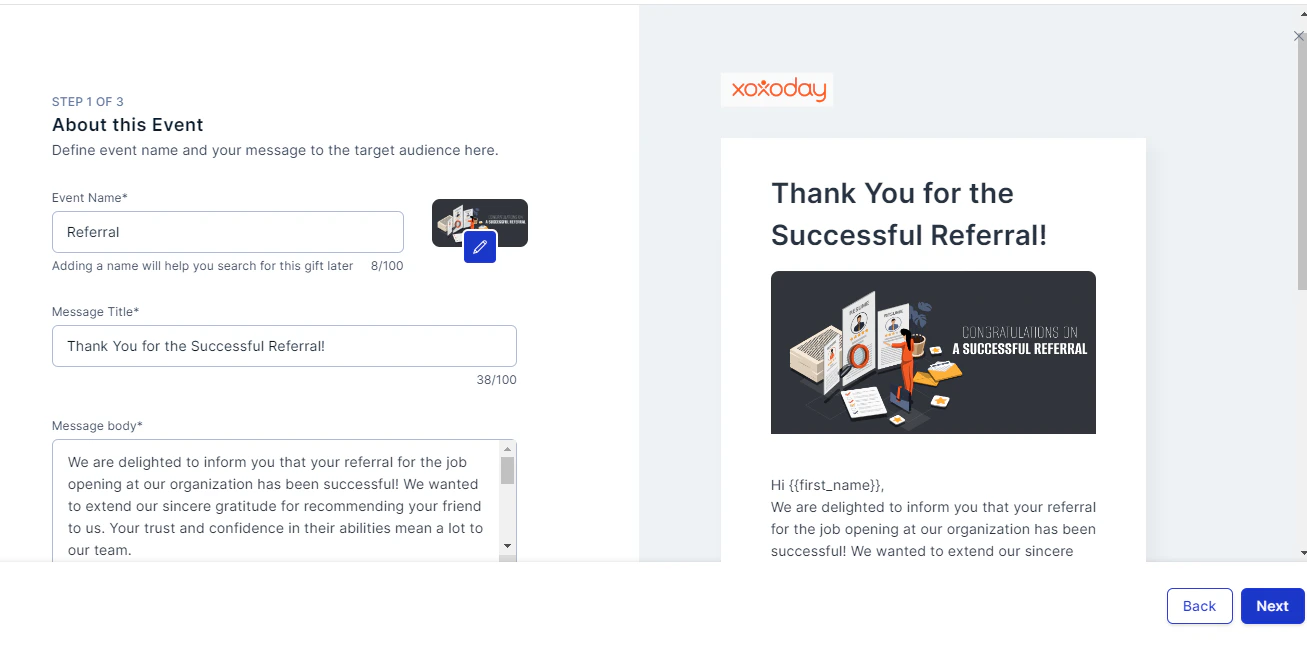
Choose from existing event templates (Birthday, Work Anniversary, New Joiner, Festival, etc.) or click **Create New Event**. Fill in the **Event Name**, **Title**, and **Message**.
### Step 2: Select or create an event
Choose from existing event templates (Birthday, Work Anniversary, New Joiner, Festival, etc.) or click **Create New Event**. Fill in the **Event Name**, **Title**, and **Message**.
 ### Step 3: Select the merchandise option
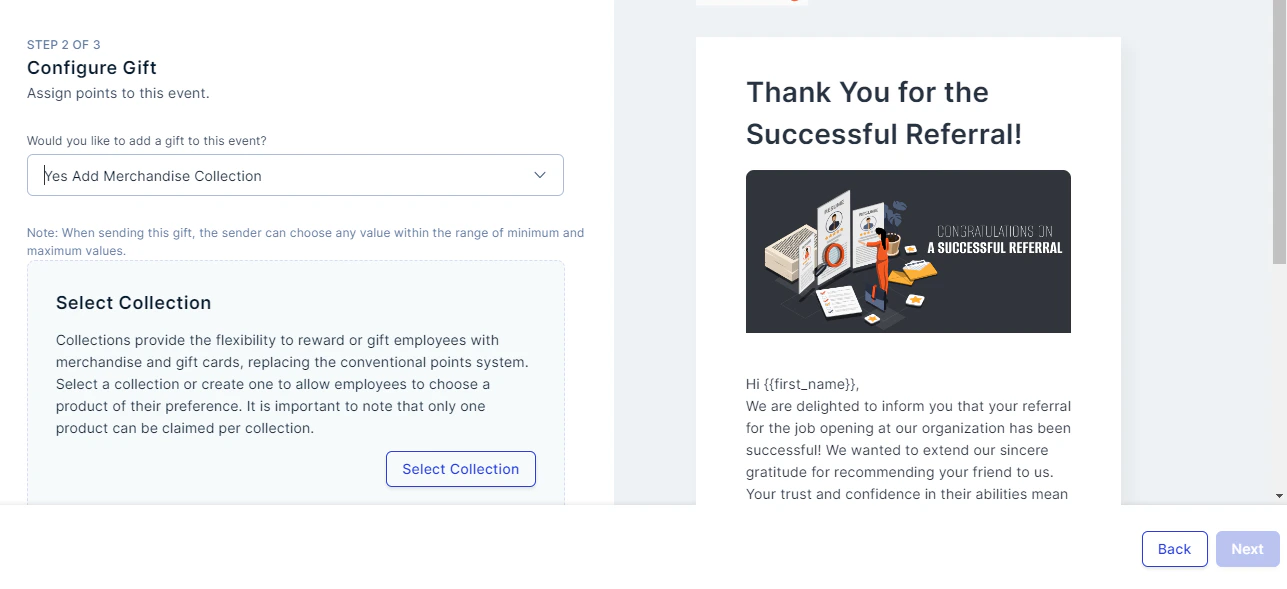
At the reward configuration step, select **Yes, Add Merchandise Collection** and click **Select Collection**.
### Step 3: Select the merchandise option
At the reward configuration step, select **Yes, Add Merchandise Collection** and click **Select Collection**.
 ### Step 4: Choose or create a collection
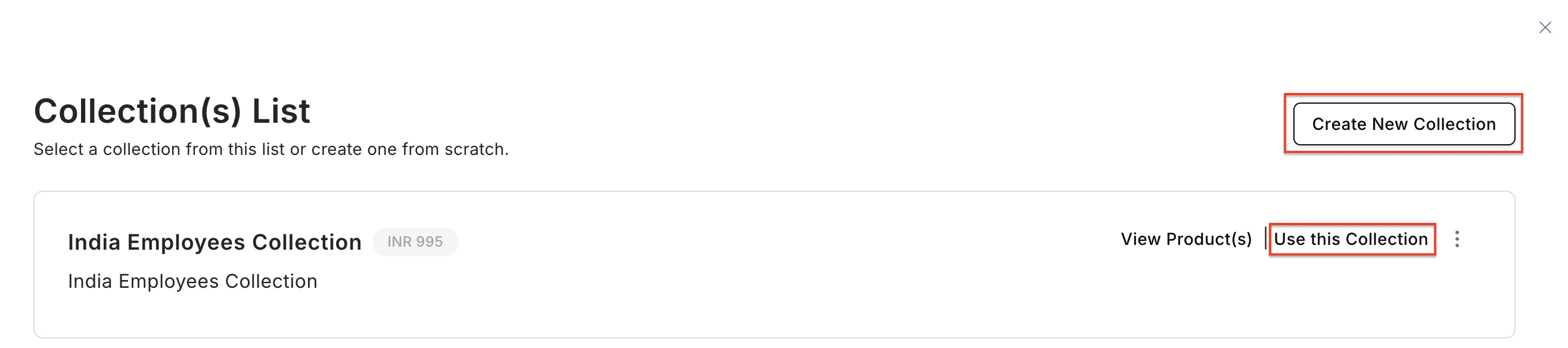
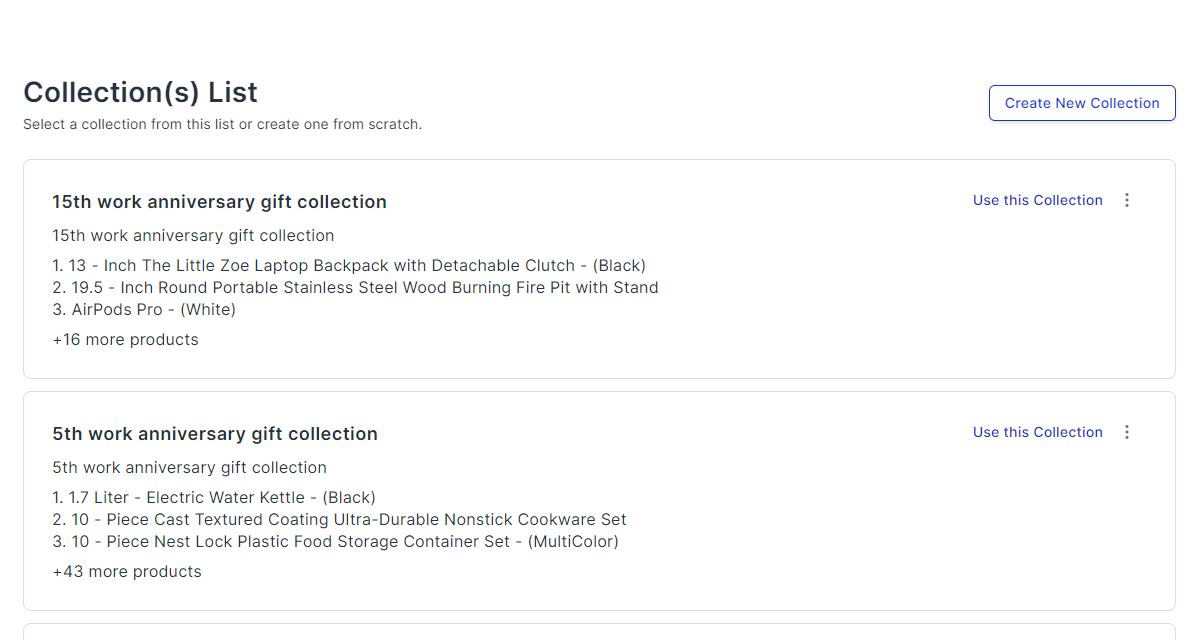
On the **Collections** list, hover over an existing collection and click **Use this Collection**, or click **Create New Collection**.
### Step 4: Choose or create a collection
On the **Collections** list, hover over an existing collection and click **Use this Collection**, or click **Create New Collection**.
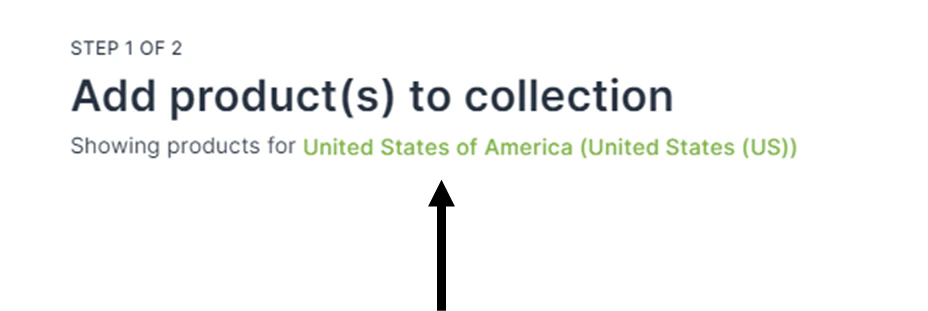
 Select the country for the collection to filter products by geography.
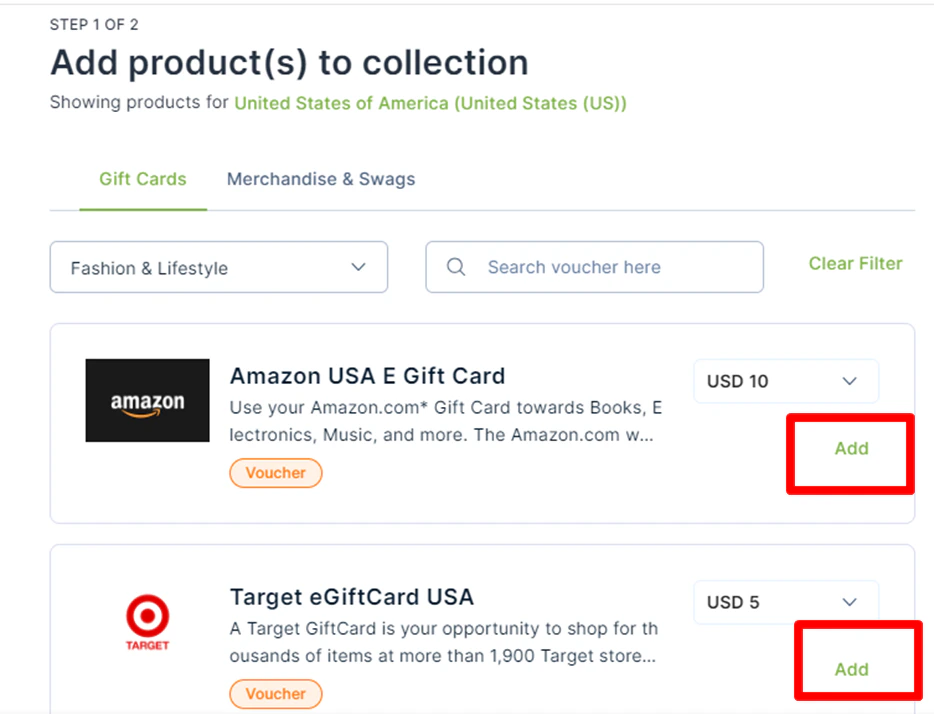
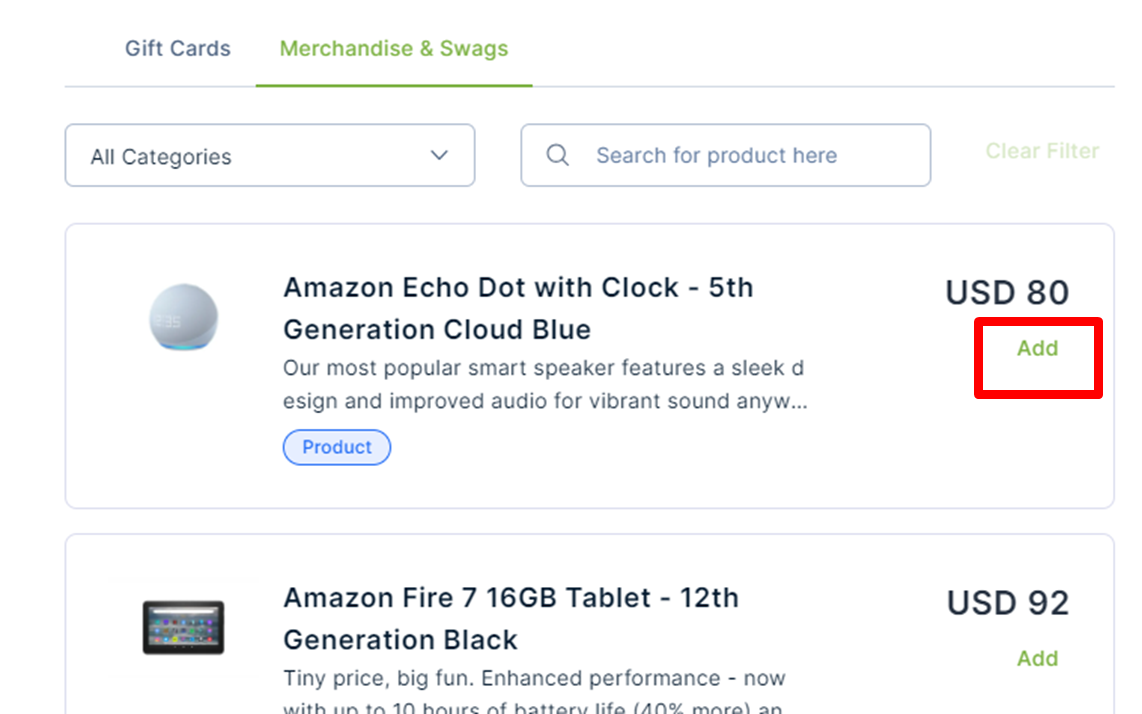
 Browse **Gift Cards**, **Merchandise**, or both. Filter across 20+ categories — Food, Fashion, Lifestyle, Travel, Baby Care, and more. Click **Add** next to each product you want to include.
 ### Step 5: Review selected products
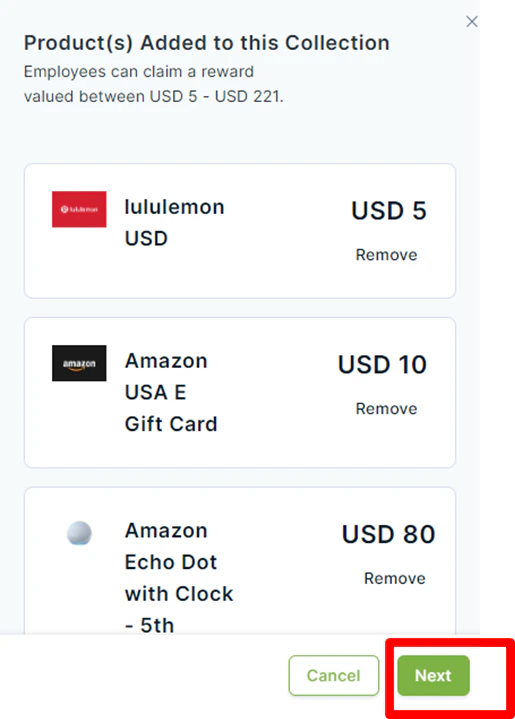
Products you've added appear on the right panel. Once done, click **Next**.
### Step 5: Review selected products
Products you've added appear on the right panel. Once done, click **Next**.
 ### Step 6: Name and save the collection
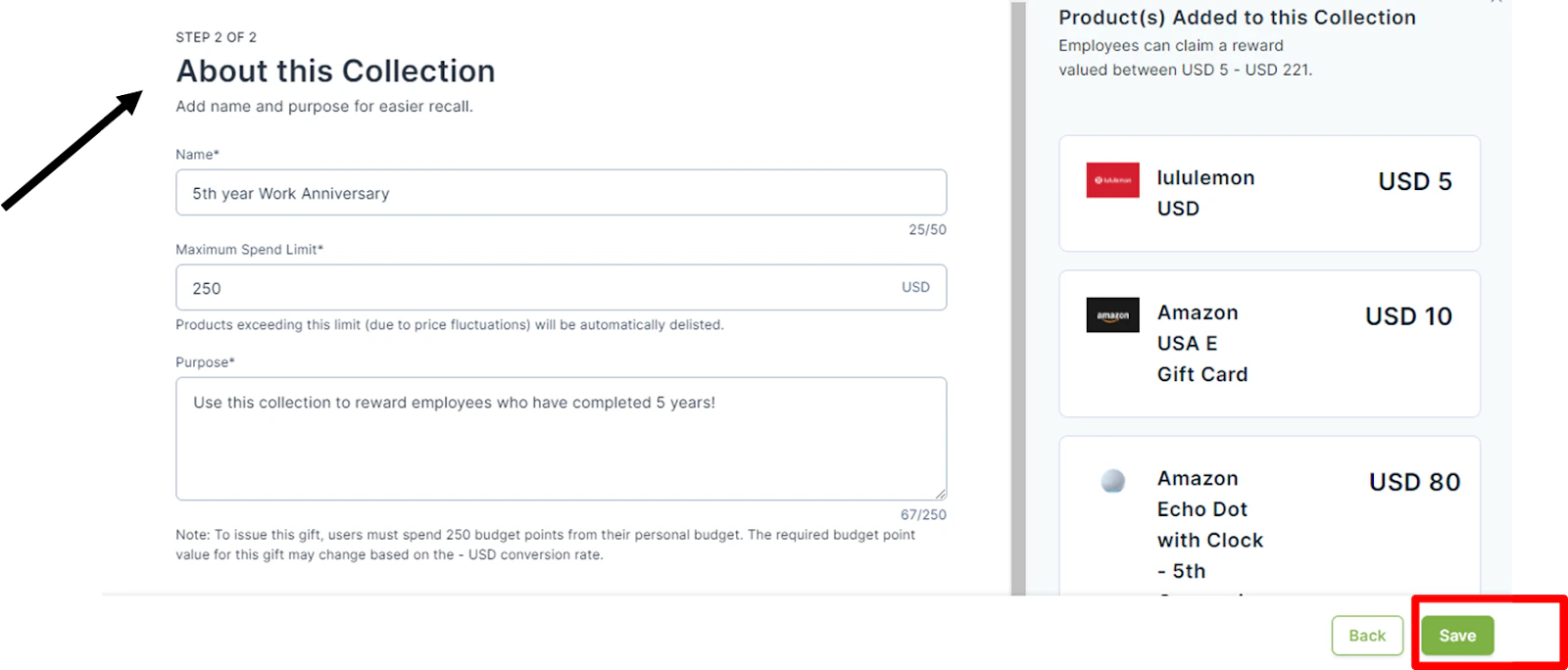
Fill in the **Name**, **Purpose**, and **Maximum spend** for the collection. Optionally check **Hide Product Price** to conceal individual prices from recipients. Click **Save** — the collection is stored for reuse in future events and awards.
### Step 6: Name and save the collection
Fill in the **Name**, **Purpose**, and **Maximum spend** for the collection. Optionally check **Hide Product Price** to conceal individual prices from recipients. Click **Save** — the collection is stored for reuse in future events and awards.
 ### Step 7: Define stakeholders and finish
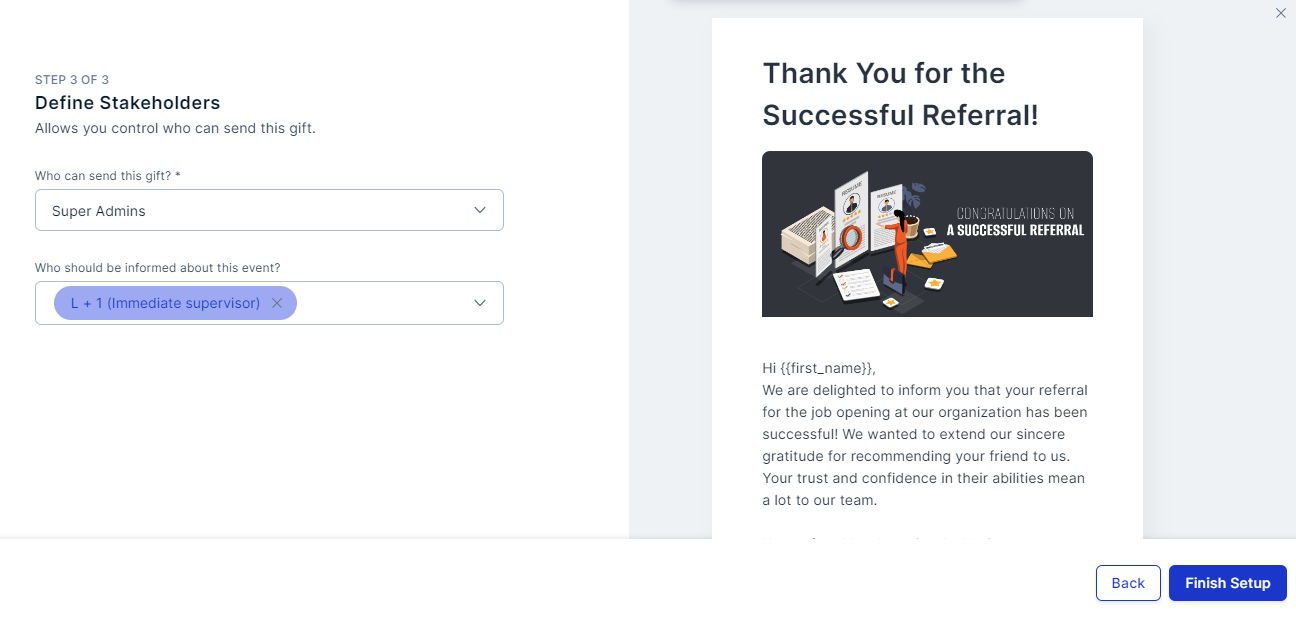
Specify who can send this gift and who should be notified. Click **Finish Setup**.
### Step 7: Define stakeholders and finish
Specify who can send this gift and who should be notified. Click **Finish Setup**.
 Create separate collections per country or region so employees always see locally available options. Product availability and gift cards vary by market.
## Attaching a collection to an award
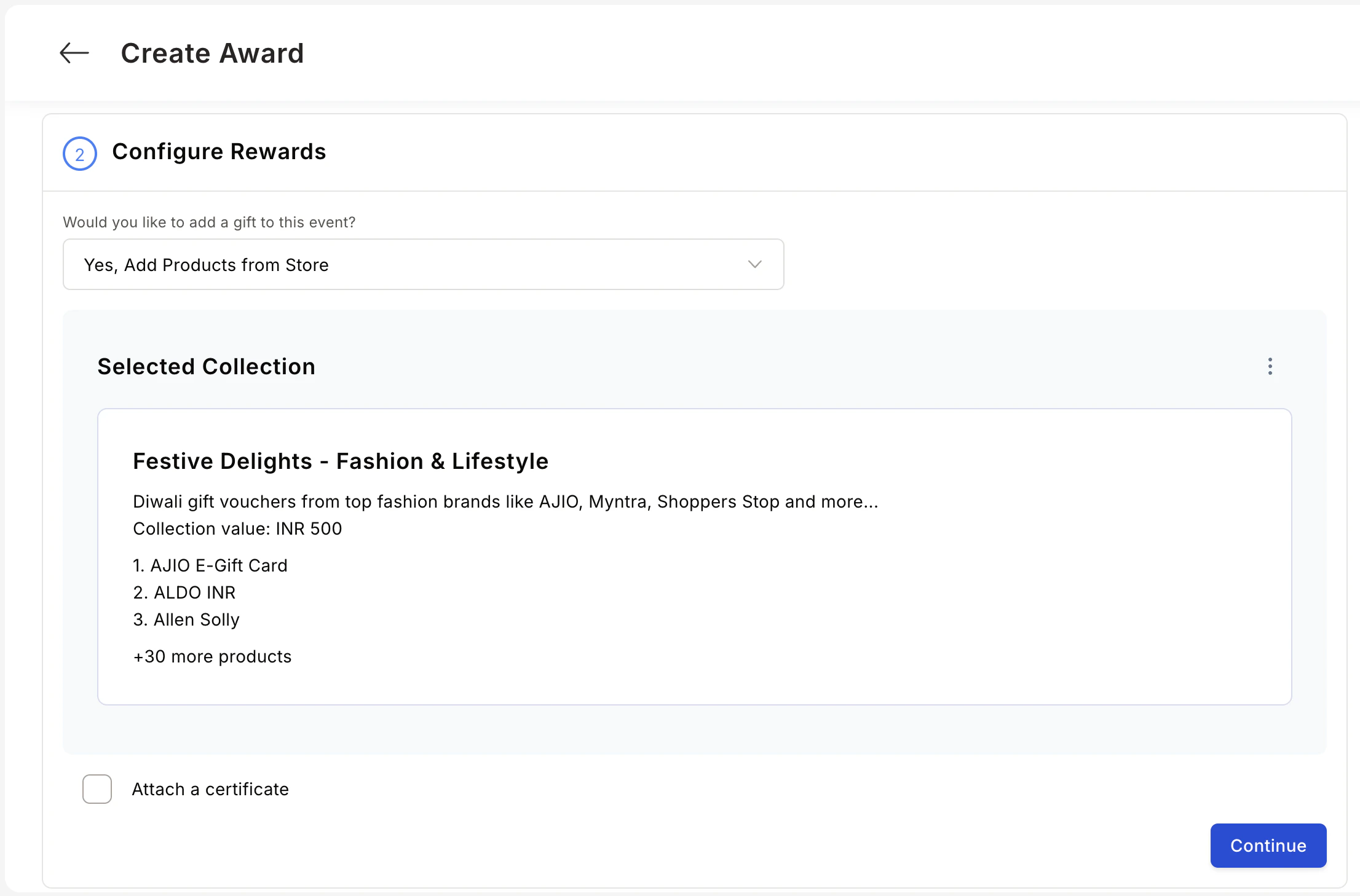
You can also link a collection to a performance award instead of a gift. When creating or editing an award, select **Add Products from the Store** at the reward step, then choose or create a collection. The collection replaces or supplements points as the reward.
Create separate collections per country or region so employees always see locally available options. Product availability and gift cards vary by market.
## Attaching a collection to an award
You can also link a collection to a performance award instead of a gift. When creating or editing an award, select **Add Products from the Store** at the reward step, then choose or create a collection. The collection replaces or supplements points as the reward.
 ## Common use cases
### Company swag for new joiners
Create a dedicated **Welcome Kit** collection (branded merchandise, notebooks, hoodies) so new hires receive a tangible, branded experience on day one — especially valuable for remote employees.
### Long service awards (LSA)
For major milestones (5 yr, 10 yr), create a premium collection (high-end electronics, travel accessories, lifestyle goods) that matches the significance of the achievement and feels more personal than a points deposit.
## FAQs
Yes. Create mixed collections with both to offer variety and let employees choose what suits them.
Yes. Select the country when building a collection — products are filtered by geography, ensuring availability and relevance.
Once saved, collections appear in the collections list and can be selected for any future manual, scheduled, or automated gift, and for any award.
Yes. Check **Hide Product Price** when saving the collection. Recipients see the items but not their individual prices.
Yes. When configuring an automated gift (birthday, anniversary, etc.), choose **Products from the store** at the reward step and select your collection. The collection is linked to every automated send.
## Common use cases
### Company swag for new joiners
Create a dedicated **Welcome Kit** collection (branded merchandise, notebooks, hoodies) so new hires receive a tangible, branded experience on day one — especially valuable for remote employees.
### Long service awards (LSA)
For major milestones (5 yr, 10 yr), create a premium collection (high-end electronics, travel accessories, lifestyle goods) that matches the significance of the achievement and feels more personal than a points deposit.
## FAQs
Yes. Create mixed collections with both to offer variety and let employees choose what suits them.
Yes. Select the country when building a collection — products are filtered by geography, ensuring availability and relevance.
Once saved, collections appear in the collections list and can be selected for any future manual, scheduled, or automated gift, and for any award.
Yes. Check **Hide Product Price** when saving the collection. Recipients see the items but not their individual prices.
Yes. When configuring an automated gift (birthday, anniversary, etc.), choose **Products from the store** at the reward step and select your collection. The collection is linked to every automated send.