> ## Documentation Index
> Fetch the complete documentation index at: https://help-empuls.xoxoday.com/llms.txt
> Use this file to discover all available pages before exploring further.
# Schedule gifts
Scheduled gifts allow admins to pre-plan and automate the delivery of rewards for a specific date and time. This ensures timely recognition for holidays, campaigns, and organizational milestones without requiring manual intervention on the day of the event.
## Admin Capabilities
Use the scheduling tool to fully customize and automate your reward campaigns:
* **Set Delivery Timing:** Choose the exact date and time the gift will be delivered to employees.
* **Define the Audience:** Send gifts to specific individuals, custom groups, or the entire organization.
* **Assign Reward Value:** Attach reward points, specific brand vouchers, or non-monetary recognition.
* **Personalize Messaging:** Customize the email or platform message template to match the occasion.
* **Brand the Experience:** Upload custom visuals, banners, or company branding for the digital gift card.
## When to Use Scheduled Gifts
Scheduling is ideal for predictable, date-specific events where you want to ensure the whole team receives a consistent, timely experience.
### Cultural & Company Holidays
Automate gifts for major celebrations so HR teams don't have to manually send rewards on days off.
> **Examples:** Diwali gifts, Christmas celebrations, or Company Foundation Day
### Thematic Celebrations & Events
Pre-plan rewards for global awareness days or internal company events.
> **Examples:** International Women’s Day, Men’s Day, or Employee Appreciation Day
### Recurring Engagement Programs
Set up systematic rewards for ongoing company initiatives.
> **Examples:** Monthly wellness participation rewards or end-of-quarter team appreciation
### Pre-planned Campaigns
Align gift deliveries with the launch of internal marketing or HR campaigns.
> **Examples:** Kick-off rewards for a new learning festival or a quarterly sales sprint
## How to schedule gifts
Use the Scheduled Gifts feature to pre-plan and automate the delivery of greetings and rewards on a specific future date. This is ideal for company-wide holidays, upcoming team events, or specific campaign milestones.
### Step 1: Initiate the Scheduled Gift
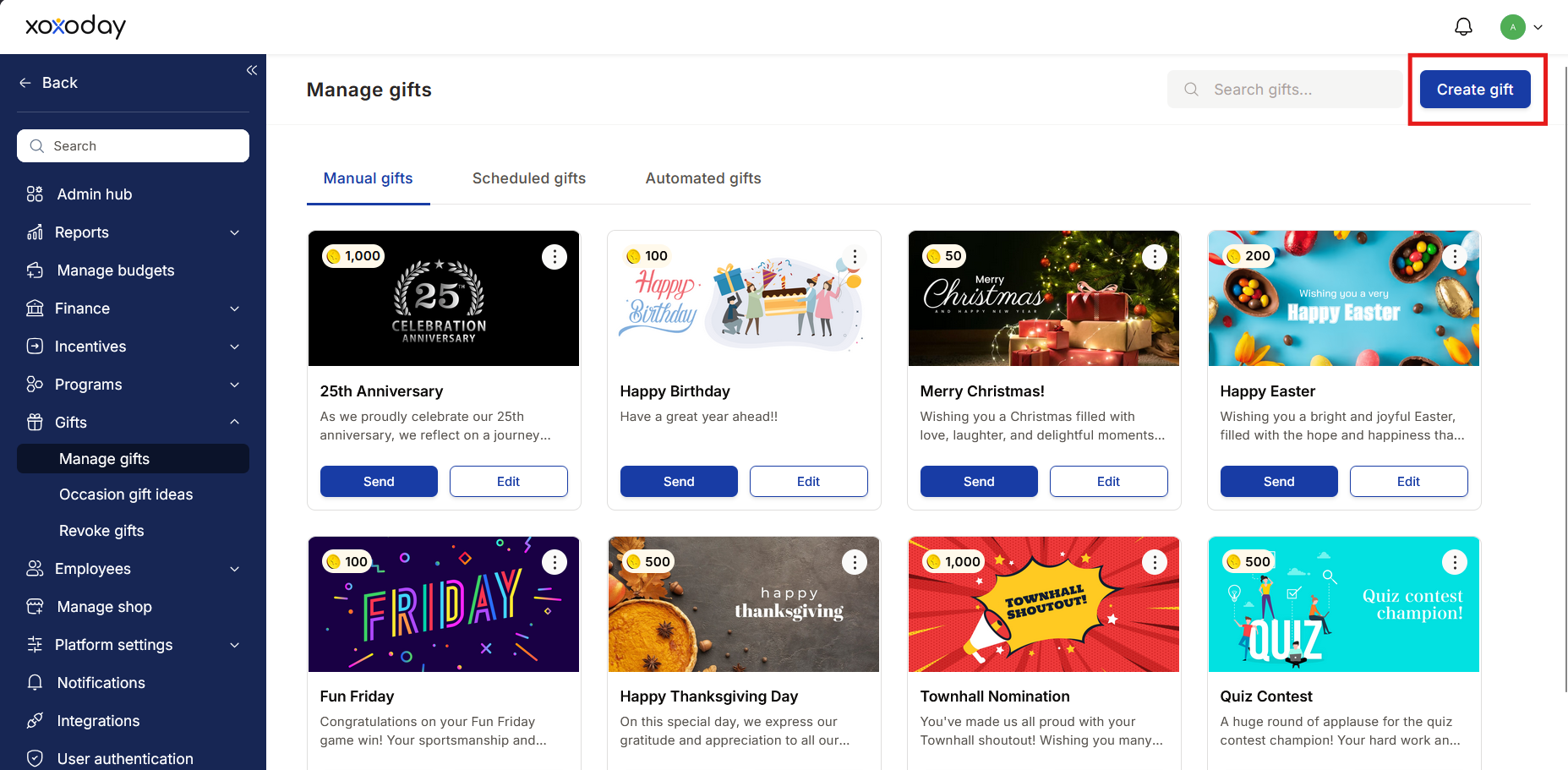
* Navigate to the **Manage gifts** dashboard and click **Create gift**.
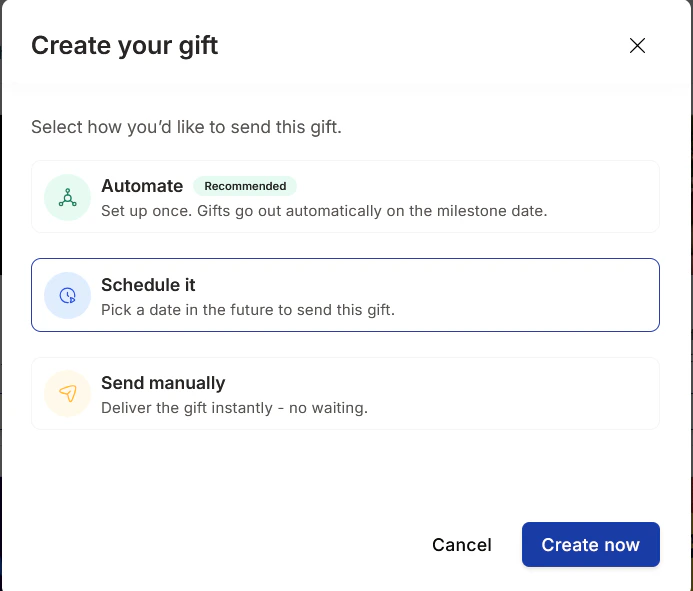
* In the "Create gift" modal, select the **Schedule it** option.
 ### Step 2: Define Gift Details
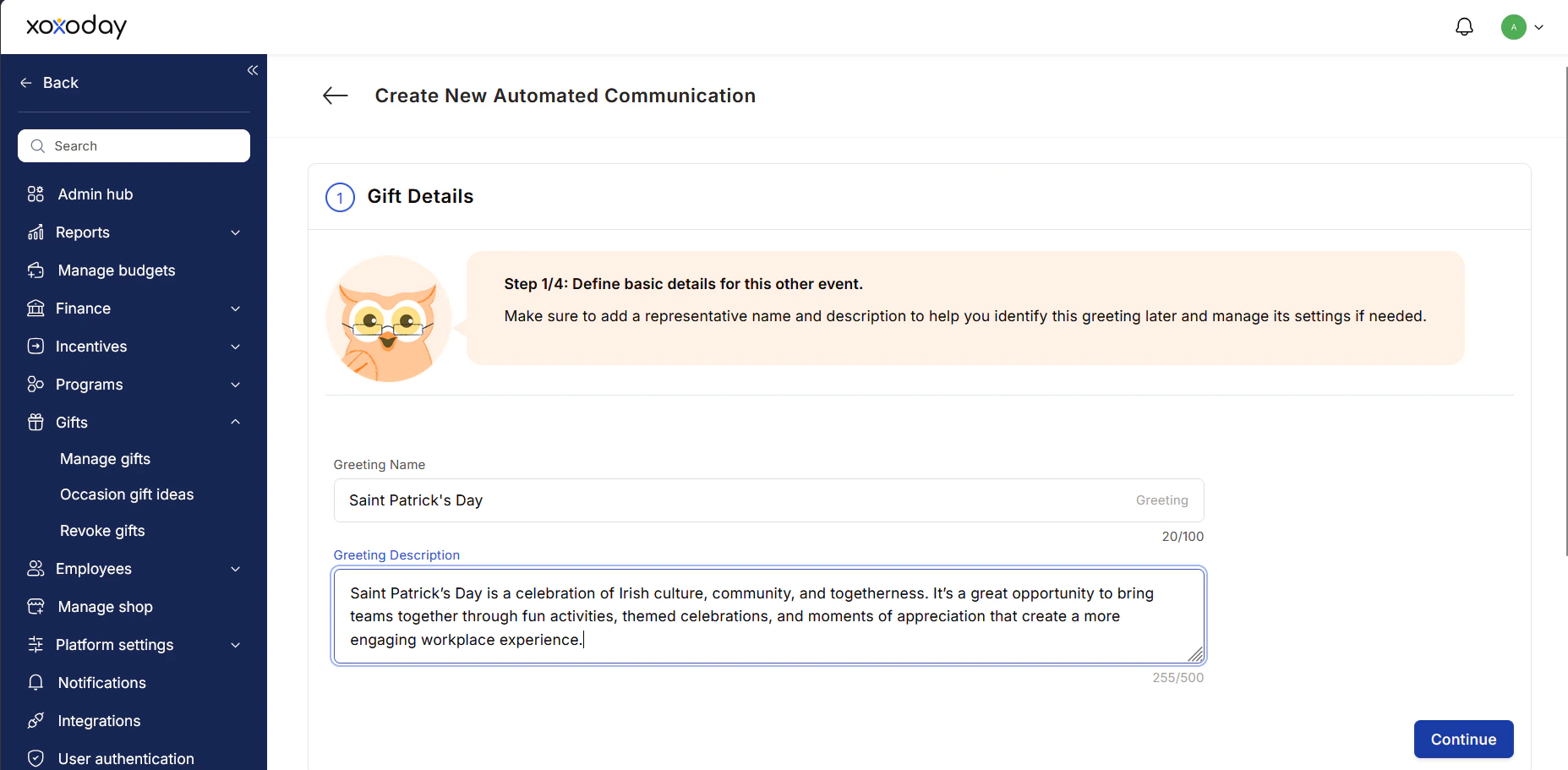
Provide basic information to help you identify and manage this campaign in your admin dashboard.
* Enter a **Greeting Name** (e.g., "Thanksgiving").
* Add a brief **Greeting Description** for internal reference.
### Step 2: Define Gift Details
Provide basic information to help you identify and manage this campaign in your admin dashboard.
* Enter a **Greeting Name** (e.g., "Thanksgiving").
* Add a brief **Greeting Description** for internal reference.
 ### Step 3: Schedule Date and Points
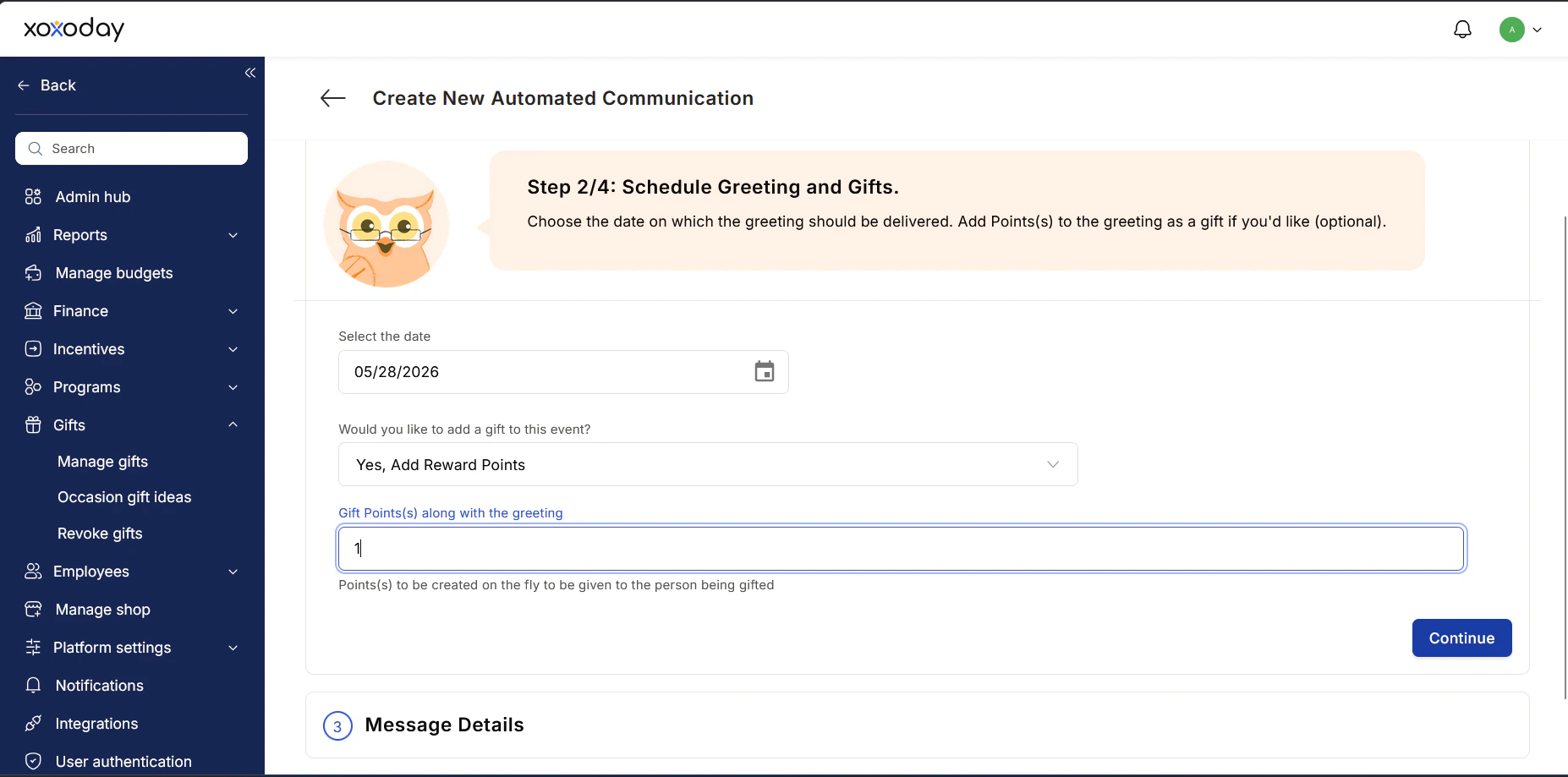
Determine exactly when the gift goes out and what reward is attached.
* **Select the date:** Click the calendar icon to choose the delivery date.\
*(Note: You must select a future date; selecting a past date will trigger a "Please select a future date" error.)*
* **Add a gift (Optional):** Use the dropdown menu under "Would you like to add a gift to this event?" to select your reward type (e.g., "Yes, Add Reward Points").
* **Set the value:** Enter the specific number of points each recipient will receive.
### Step 3: Schedule Date and Points
Determine exactly when the gift goes out and what reward is attached.
* **Select the date:** Click the calendar icon to choose the delivery date.\
*(Note: You must select a future date; selecting a past date will trigger a "Please select a future date" error.)*
* **Add a gift (Optional):** Use the dropdown menu under "Would you like to add a gift to this event?" to select your reward type (e.g., "Yes, Add Reward Points").
* **Set the value:** Enter the specific number of points each recipient will receive.
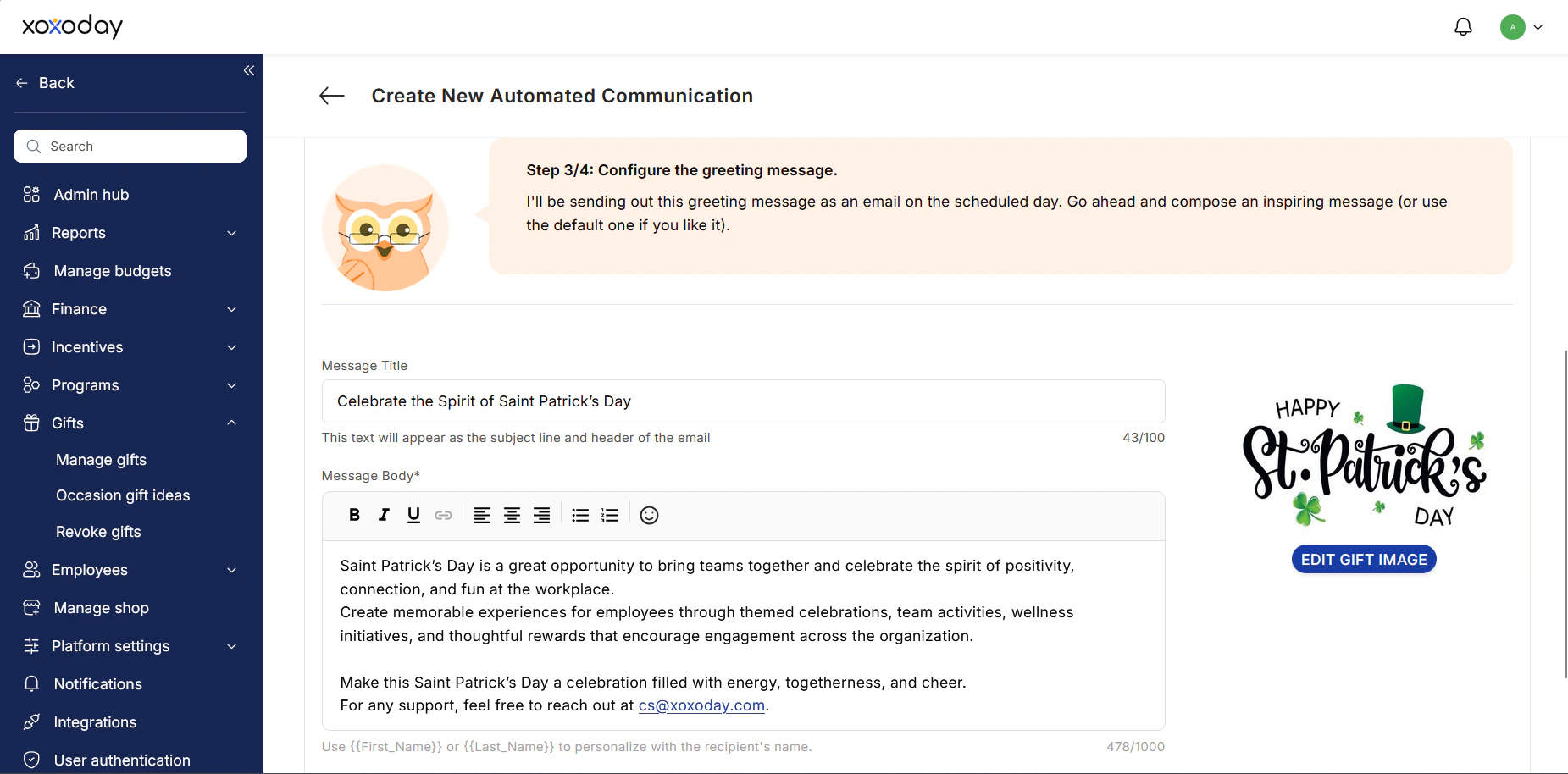
 ### Step 4: Configure Message Details
Customize the email communication that recipients will receive on the scheduled day.
* Enter a **Message Title**. This text will appear as the email subject line and the header of the message.
* Compose the **Message Body** with an inspiring or appreciative note.
* Click **Edit Gift Image** to swap out the default graphic with a custom visual or themed banner (e.g., a holiday or event-specific image).
### Step 4: Configure Message Details
Customize the email communication that recipients will receive on the scheduled day.
* Enter a **Message Title**. This text will appear as the email subject line and the header of the message.
* Compose the **Message Body** with an inspiring or appreciative note.
* Click **Edit Gift Image** to swap out the default graphic with a custom visual or themed banner (e.g., a holiday or event-specific image).
 ### Step 5: Define Recipients
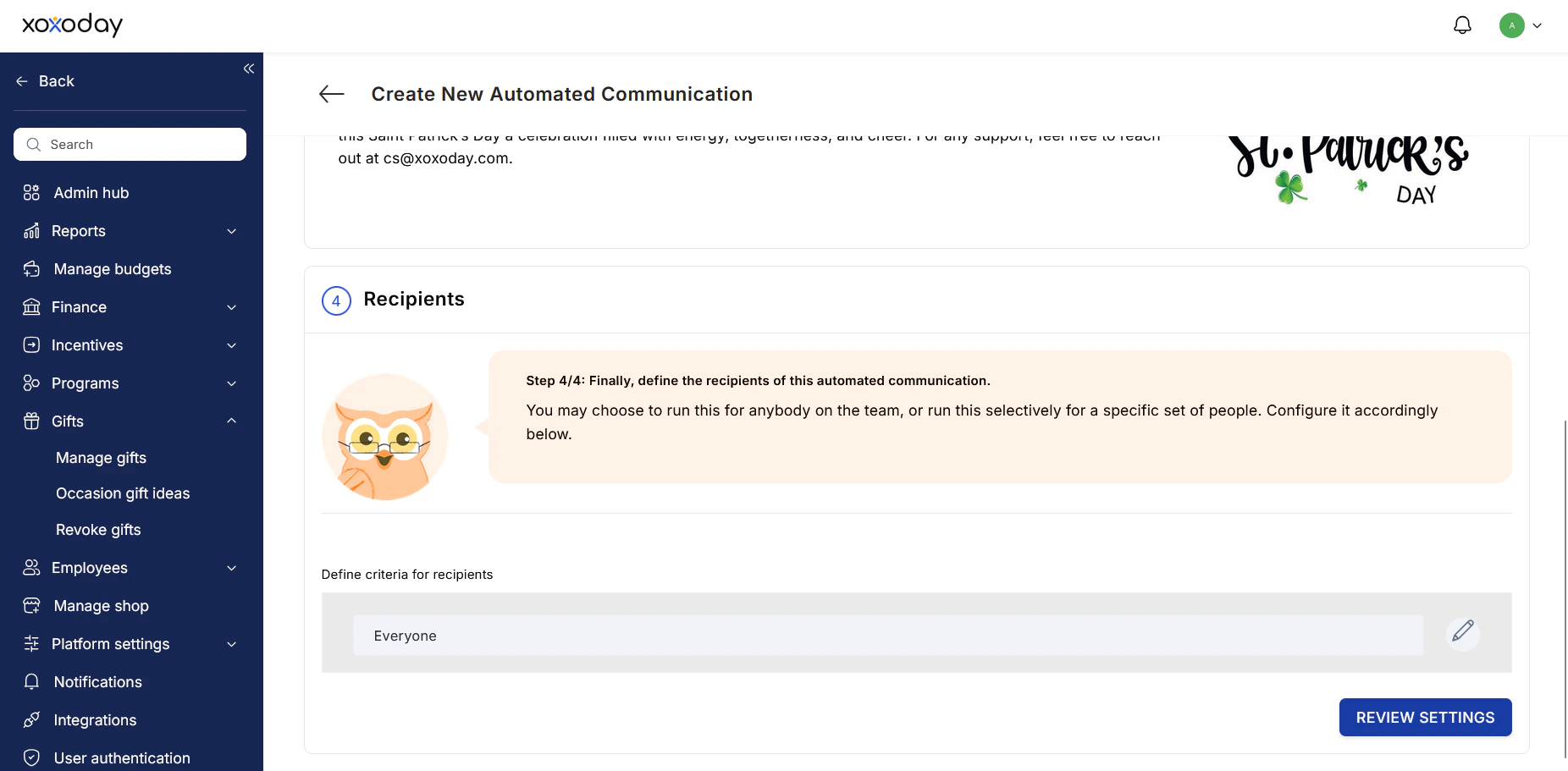
Select the audience for your scheduled communication.
* Under **Define criteria for recipients**, review the selected audience. By default, this may be set to "Everyone".
* To narrow your audience, click the **Edit (pencil) icon** to selectively target a specific set of people or teams.
* Once your audience is set, click **Review Settings** to verify your setup and finalize the scheduled gift.
### Step 5: Define Recipients
Select the audience for your scheduled communication.
* Under **Define criteria for recipients**, review the selected audience. By default, this may be set to "Everyone".
* To narrow your audience, click the **Edit (pencil) icon** to selectively target a specific set of people or teams.
* Once your audience is set, click **Review Settings** to verify your setup and finalize the scheduled gift.
 ## Need Help?
For feedback or assistance, contact support at:\
[cs@xoxoday.com](mailto:cs@xoxoday.com)
## Need Help?
For feedback or assistance, contact support at:\
[cs@xoxoday.com](mailto:cs@xoxoday.com)