> ## Documentation Index
> Fetch the complete documentation index at: https://help-empuls.xoxoday.com/llms.txt
> Use this file to discover all available pages before exploring further.
# Automate milestone celebrations
> Automate birthday and anniversary recognition in Empuls, set up the yearbook feature, run reward cycles, and apply cost-of-living adjustments for global teams.
Empuls helps you recognise employees at the moments that matter most — when they hit a milestone year with the company, complete a major project, or achieve a goal. Rather than relying on managers to remember these occasions, Empuls reads employee data from your HRMS and triggers recognition automatically. This page covers milestone-based rewards, service award automation, the yearbook feature, and reward campaigns for structured recognition cycles.
## Service awards (work anniversaries)
Service awards automatically celebrate employees on their work anniversary milestones — year 1, 3, 5, 10, and beyond. Once configured, Empuls reads each employee's date of joining from your HRMS integration and triggers the award on the anniversary date without any manual effort from HR.
### Key features of service awards
* **Automated triggers:** Set up once and Empuls handles every subsequent anniversary for your entire workforce.
* **Yearbook:** A digital keepsake compiled from all feed posts, wishes, and recognitions on the anniversary day. Teammates are notified to post wishes, and their messages are collected in the yearbook for the employee to keep.
* **Wishboard:** Colleagues post personalised messages on the employee's Wishboard. AI-powered suggestions make it quick for busy teammates to write something thoughtful.
* **Branded certificates:** Downloadable certificates tailored to each milestone year (e.g., a different design for 5 years vs. 10 years).
* **Multi-channel notifications:** Award winners receive personalised notifications through Microsoft Teams, Slack, and email, depending on your integrations.
* **Public feed post:** Every service award creates a post on the company feed, making the celebration visible organisation-wide.
### Set up service award automation
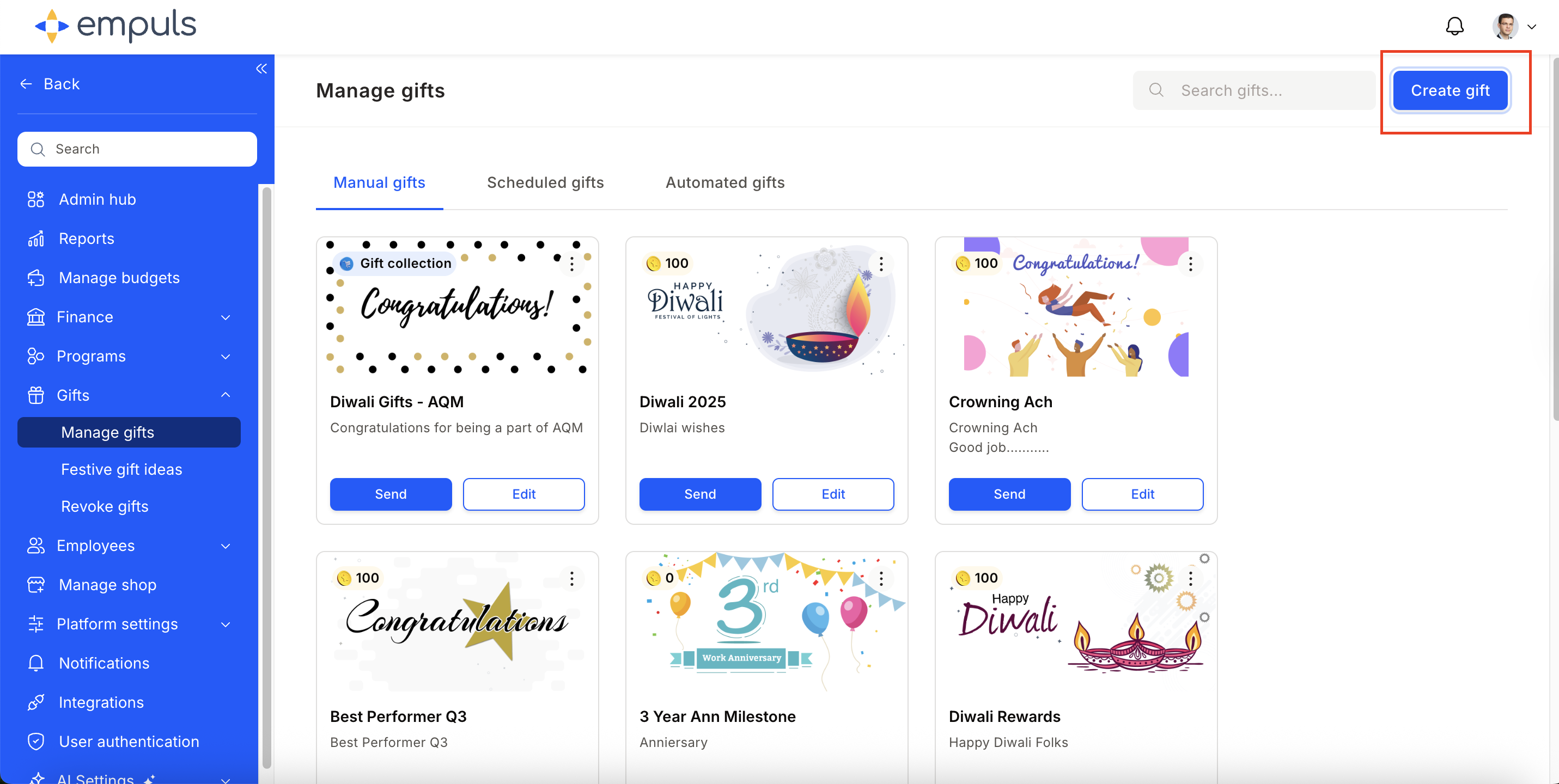
Go to **Admin Dashboard > Gifts > Manage Gifts > Create Gift** and select **Automate**.
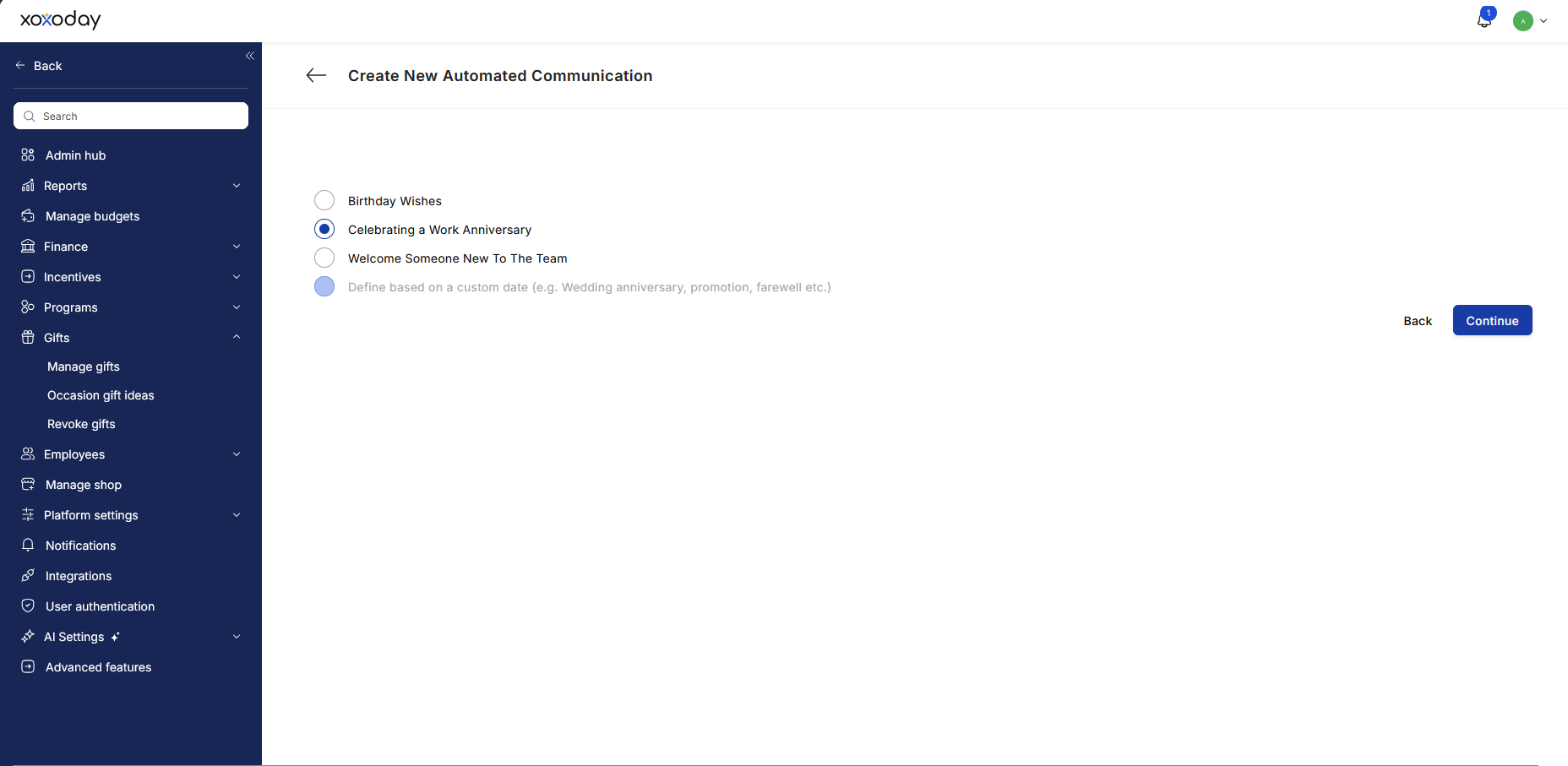
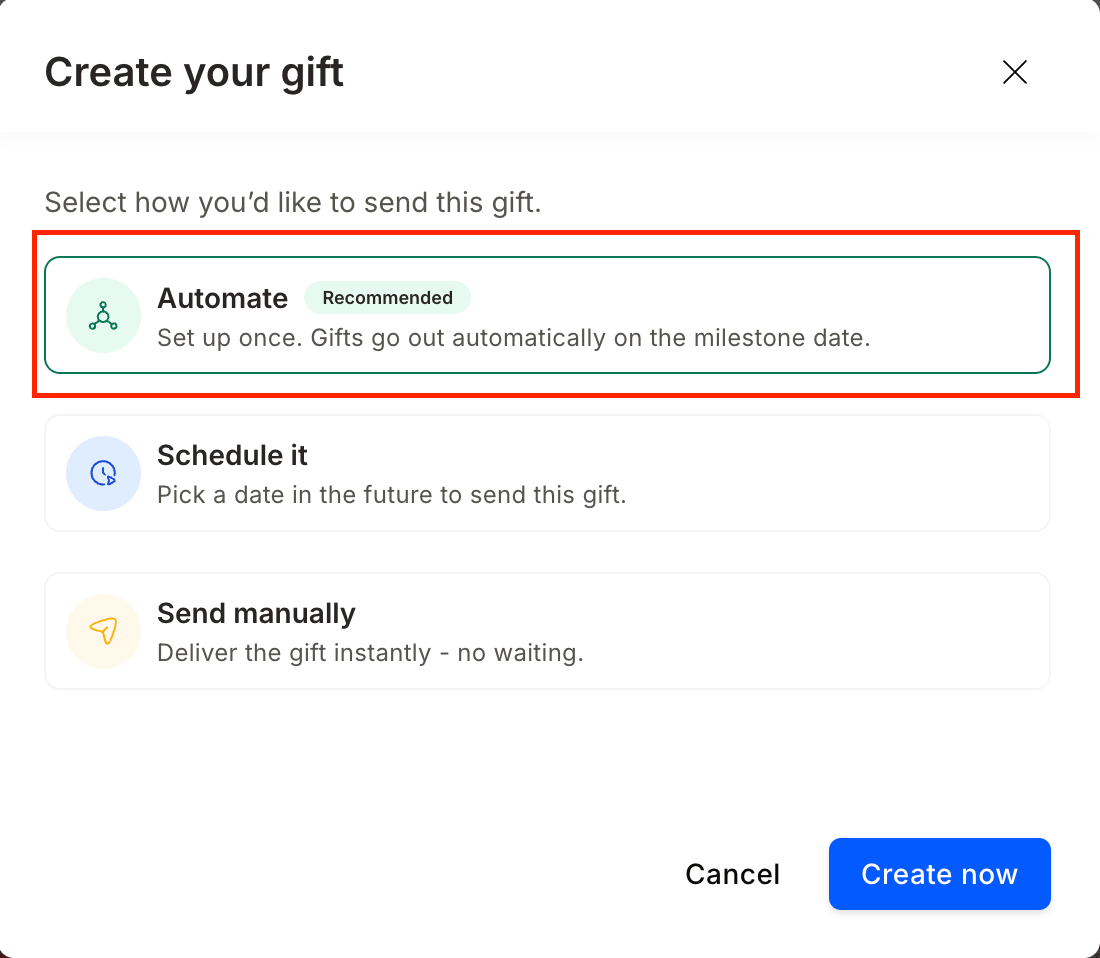 Click **Let's Begin**, then select the event **"Celebrating a Work Anniversary"** from the list of communication event templates. Click **Continue**.
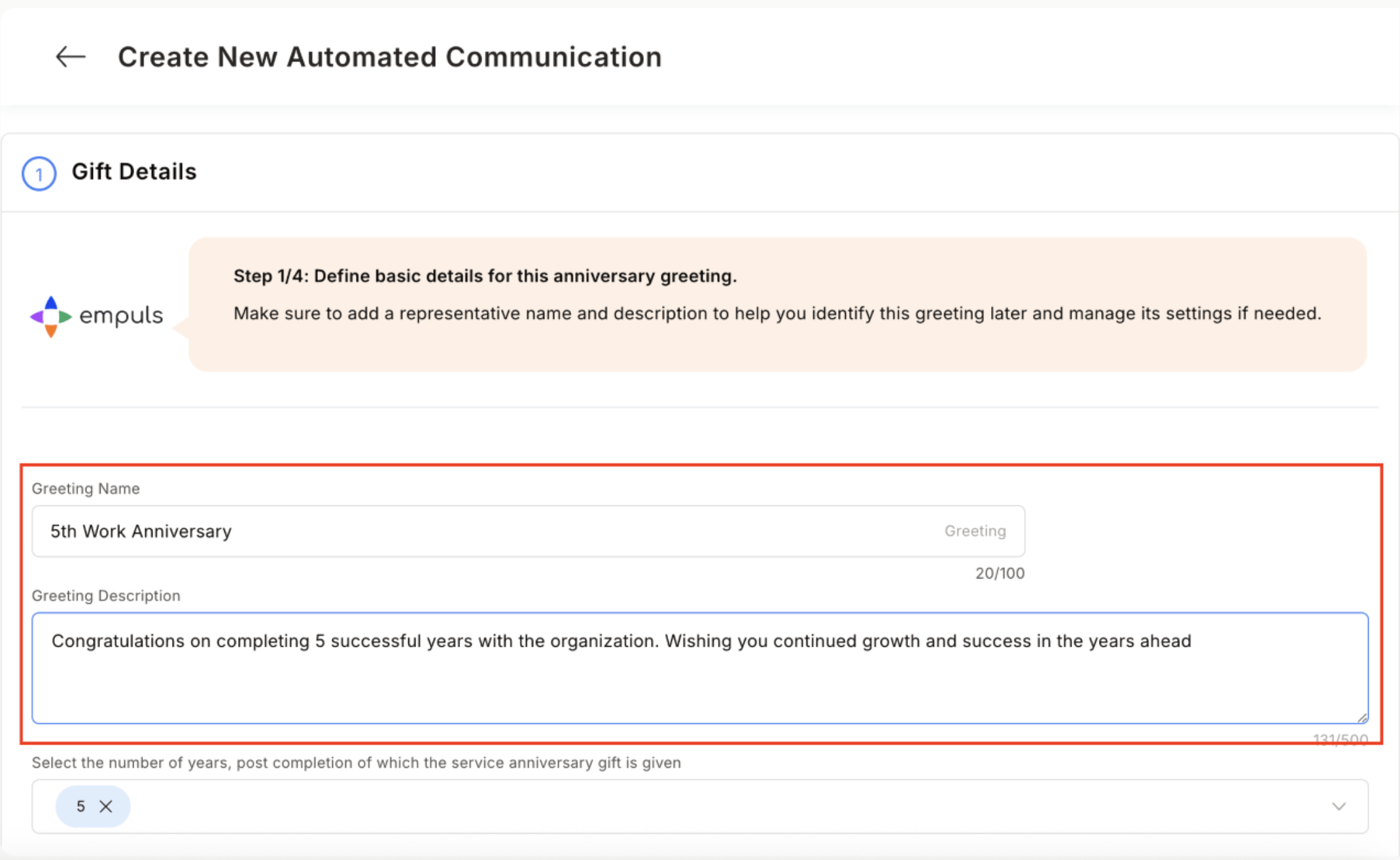
 Enter a **Gift Name** and **Description** (e.g., "5-Year Work Anniversary Award"). From the milestone year dropdown, select which anniversary year this automation covers: 1, 3, 5, 10, or another value you set. You can also notify stakeholders (such as the employee's manager) by adding their names from the dropdown.
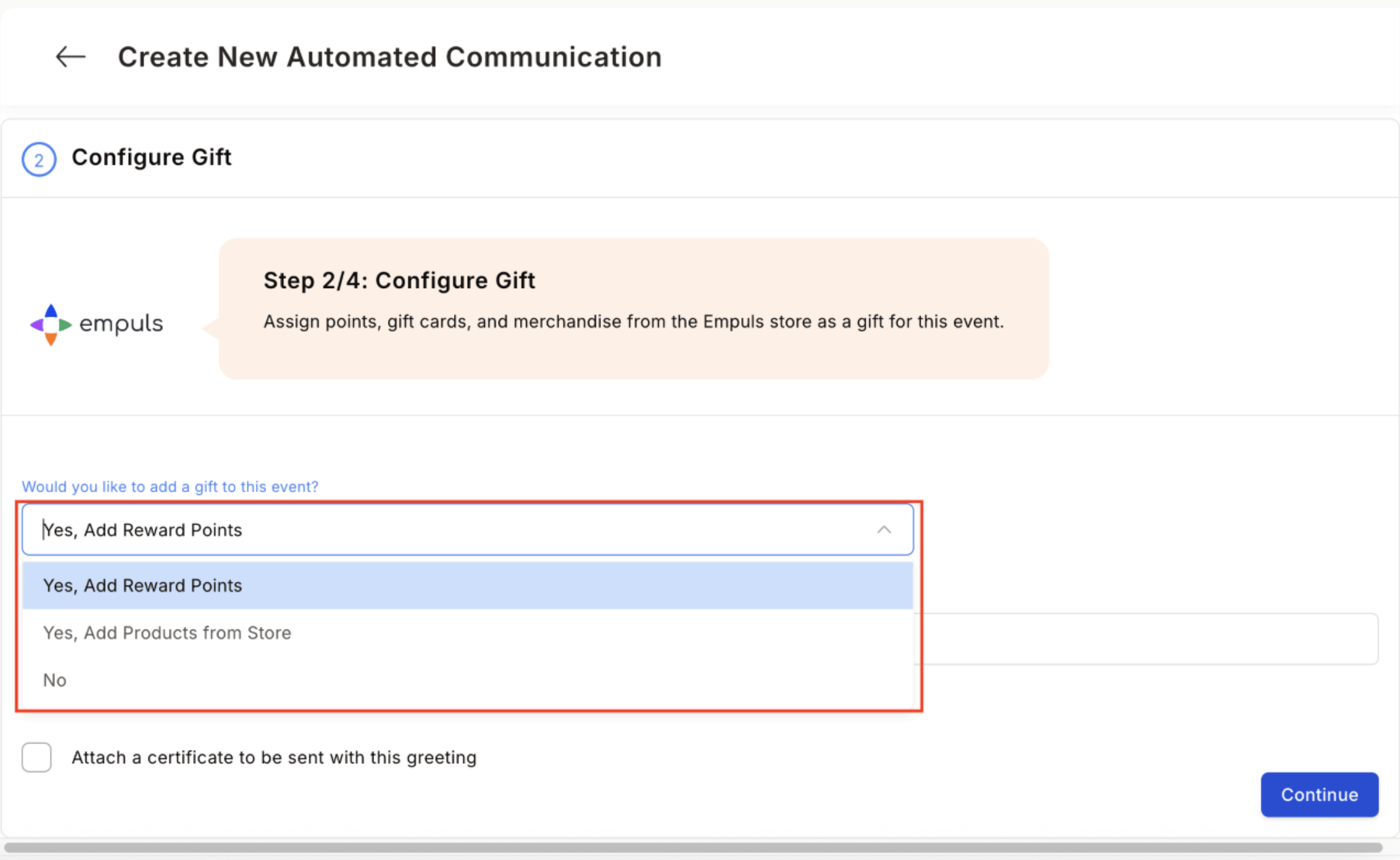
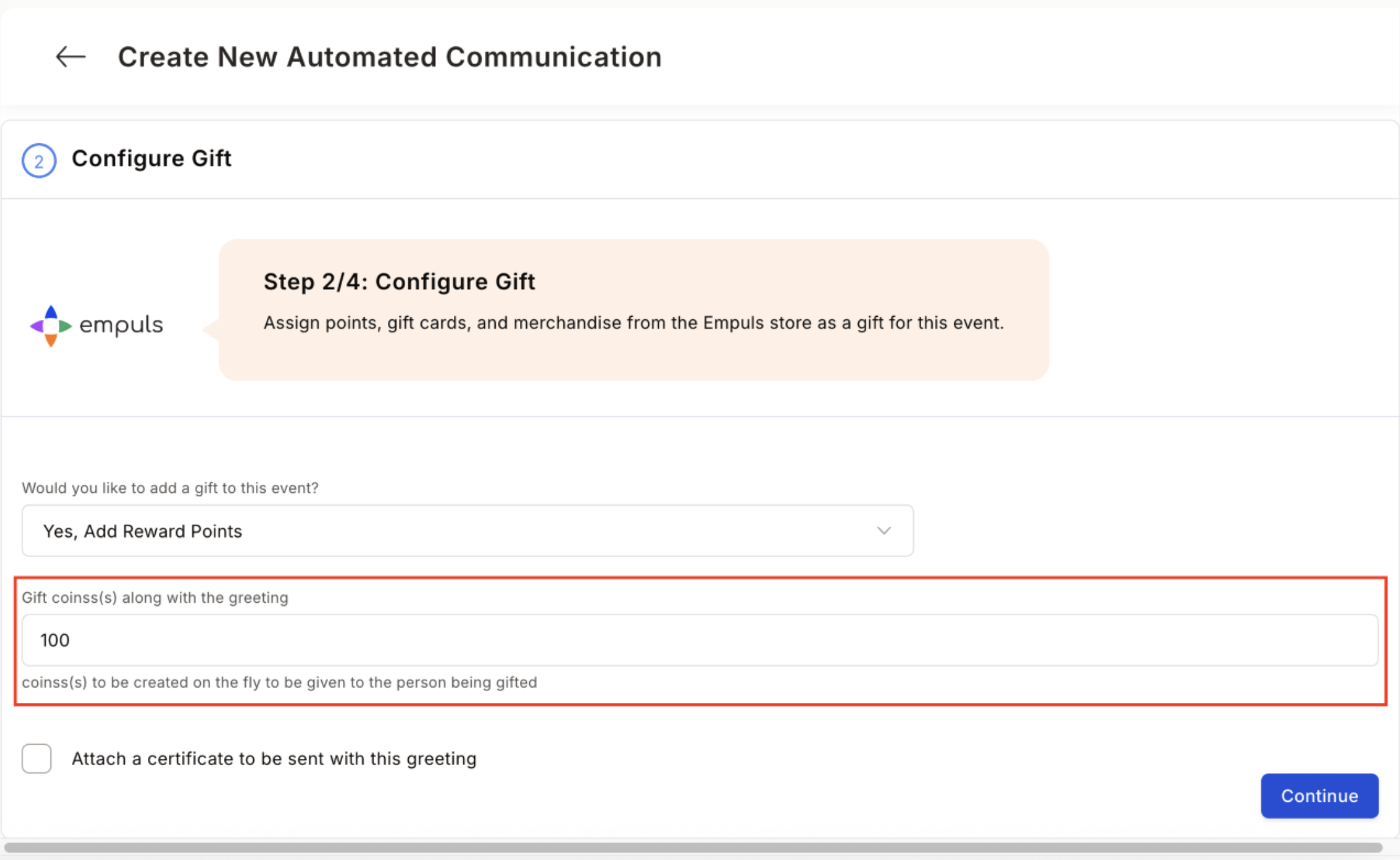
 Choose how to reward the recipient:
* **Reward points:** Enter the number of points to credit on the anniversary.
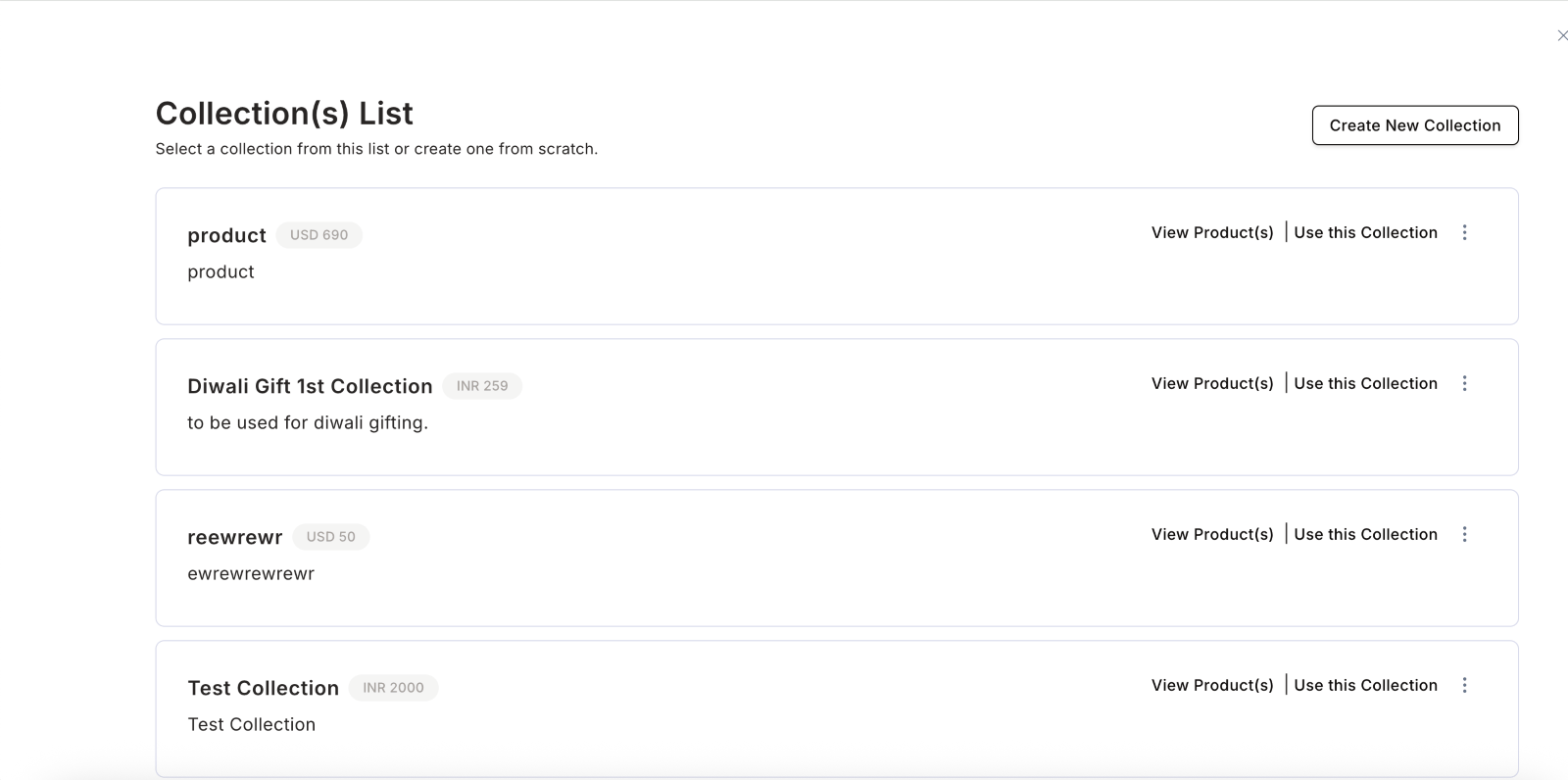
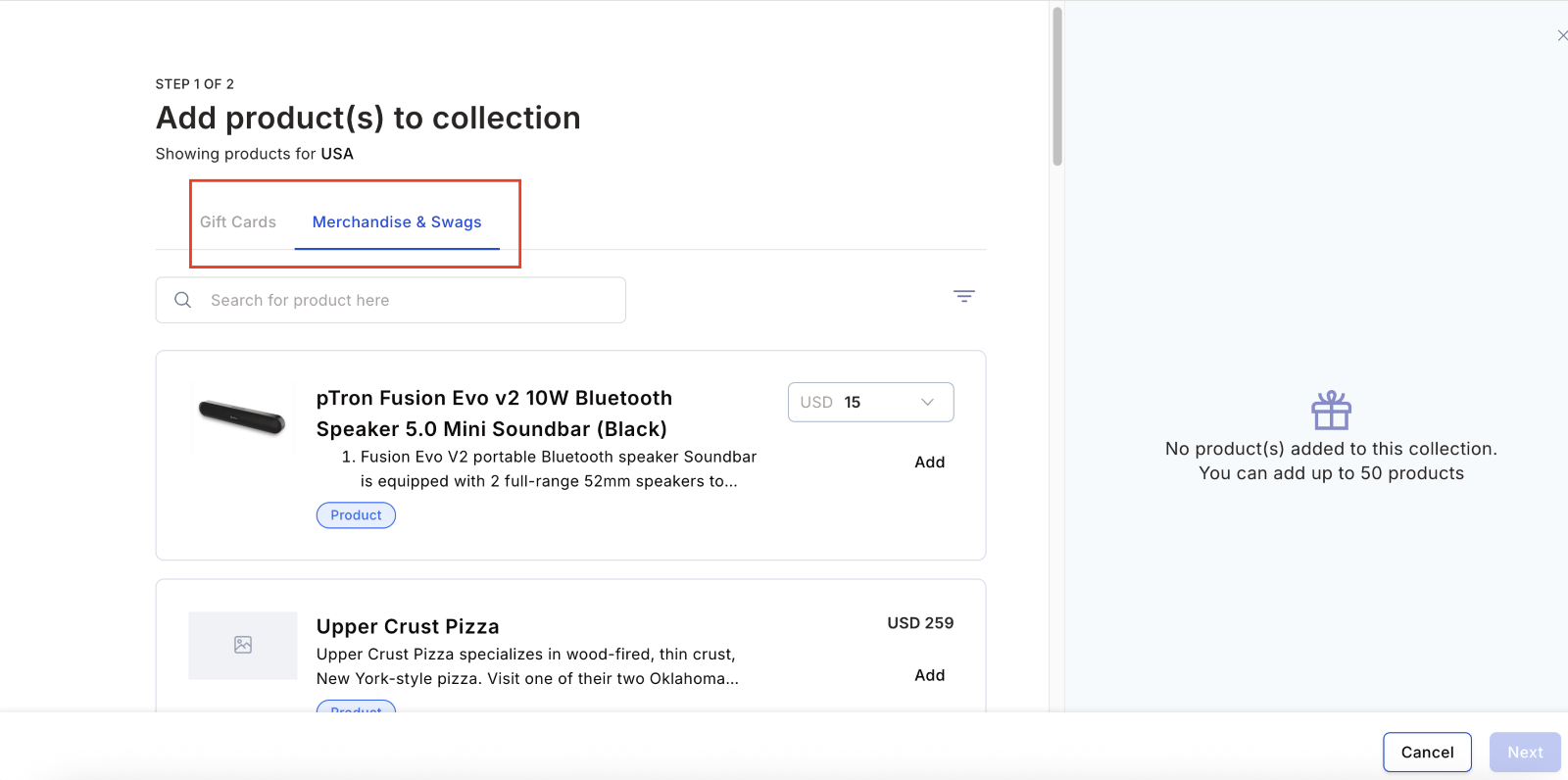
* **Products from the store:** Select or create a gift collection. Use gift cards, merchandise, or a mix. Filter by country to ensure the products are relevant for each employee's location.
For multinational teams, Empuls automatically converts reward points to local currencies and provides access to region-specific reward catalogs.
Choose how to reward the recipient:
* **Reward points:** Enter the number of points to credit on the anniversary.
* **Products from the store:** Select or create a gift collection. Use gift cards, merchandise, or a mix. Filter by country to ensure the products are relevant for each employee's location.
For multinational teams, Empuls automatically converts reward points to local currencies and provides access to region-specific reward catalogs.
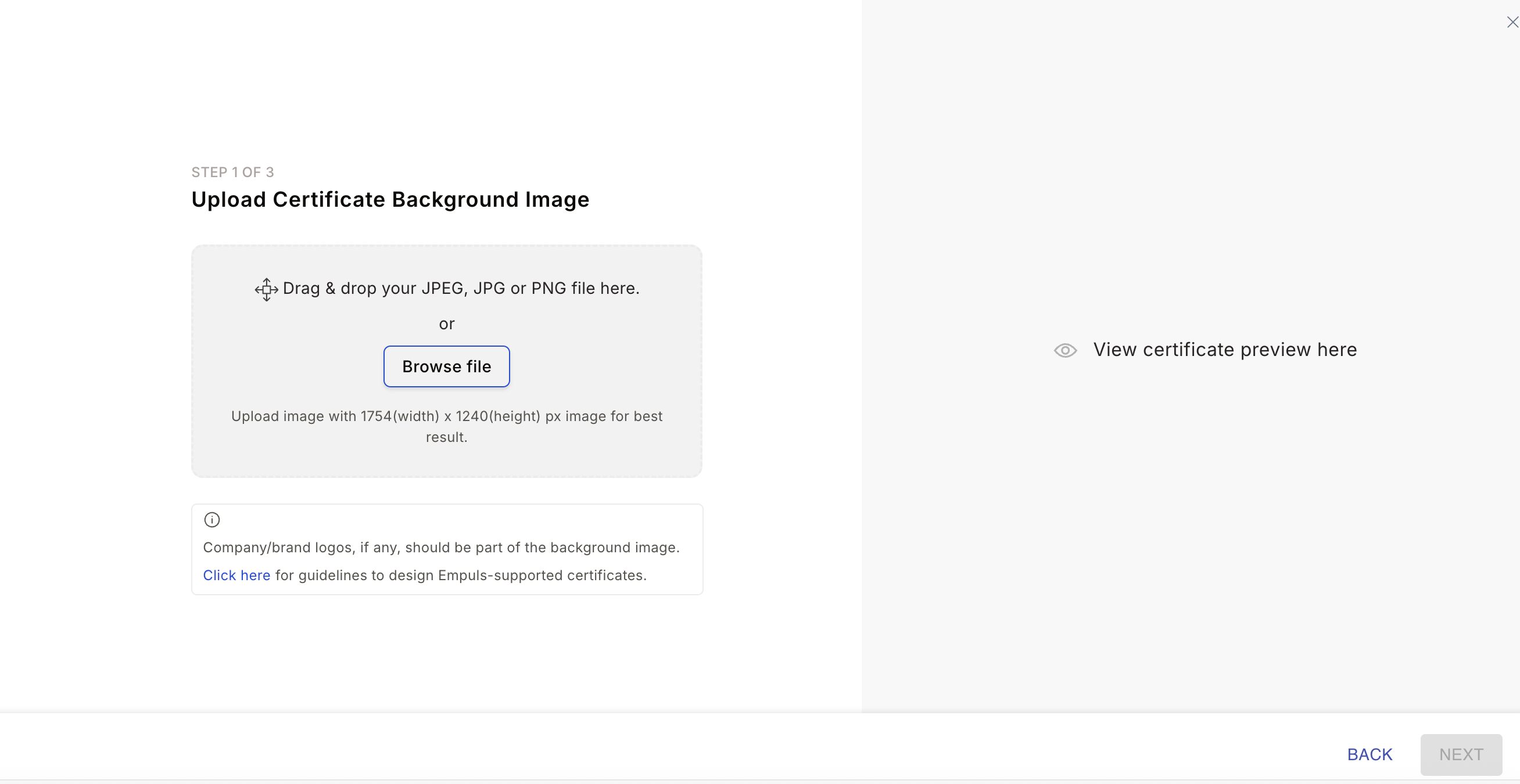
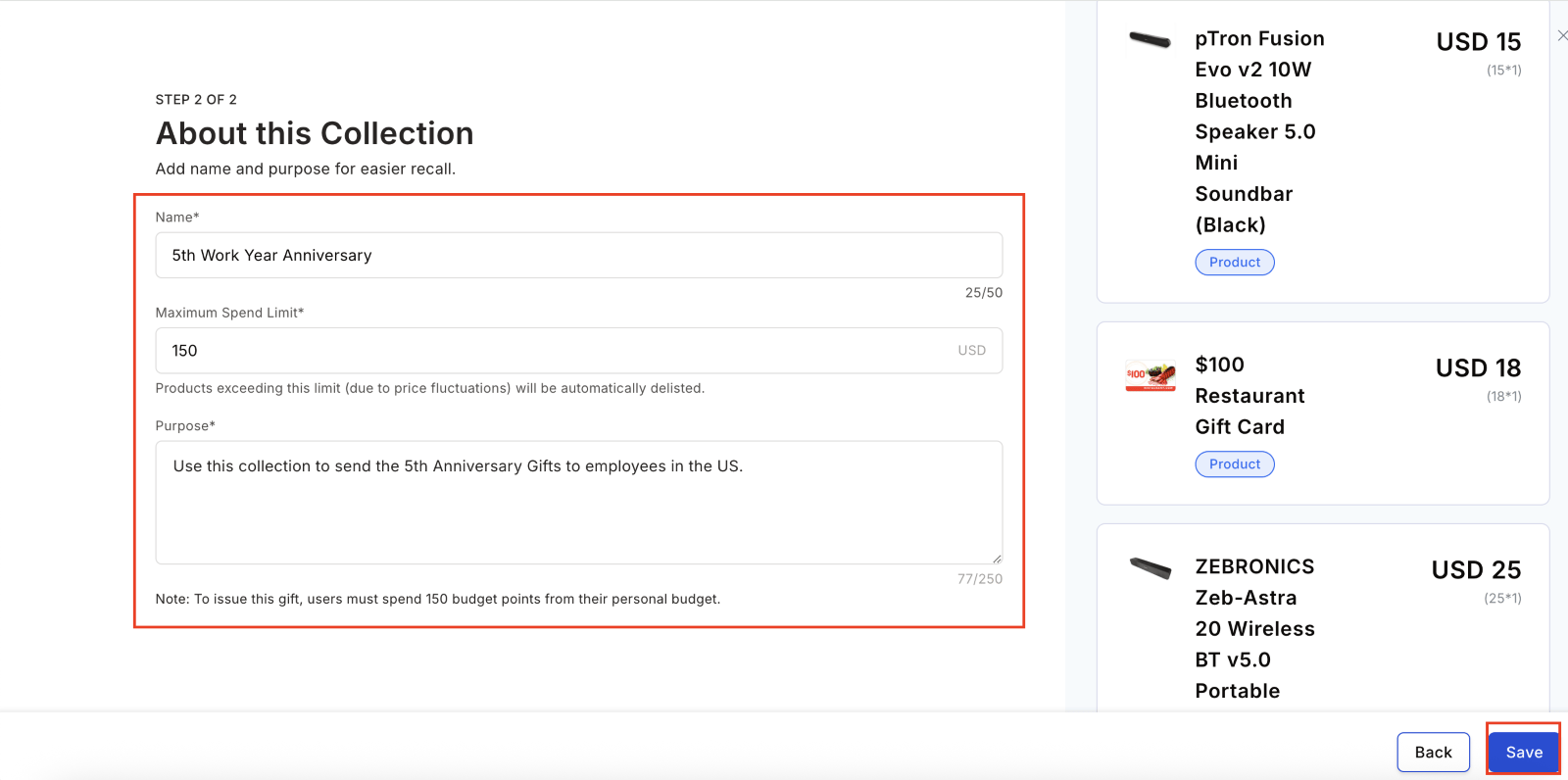 Check the box to include a certificate. Click **+ Add Certificate**, then choose a template or upload a custom design. Preview the certificate and click **Continue**. Use the placeholder `{{completed_year}}` in message titles or bodies to automatically insert the number of years served.
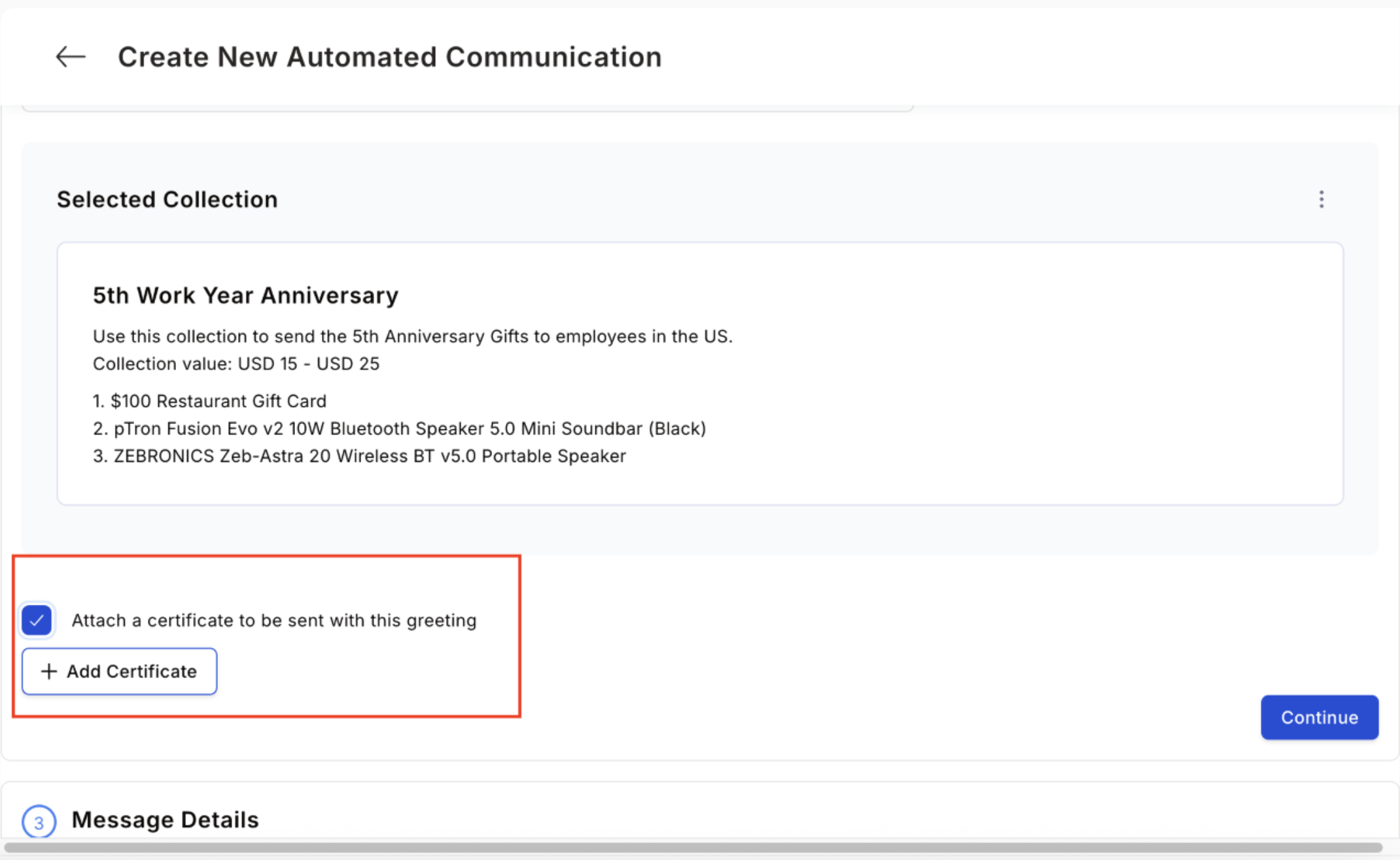
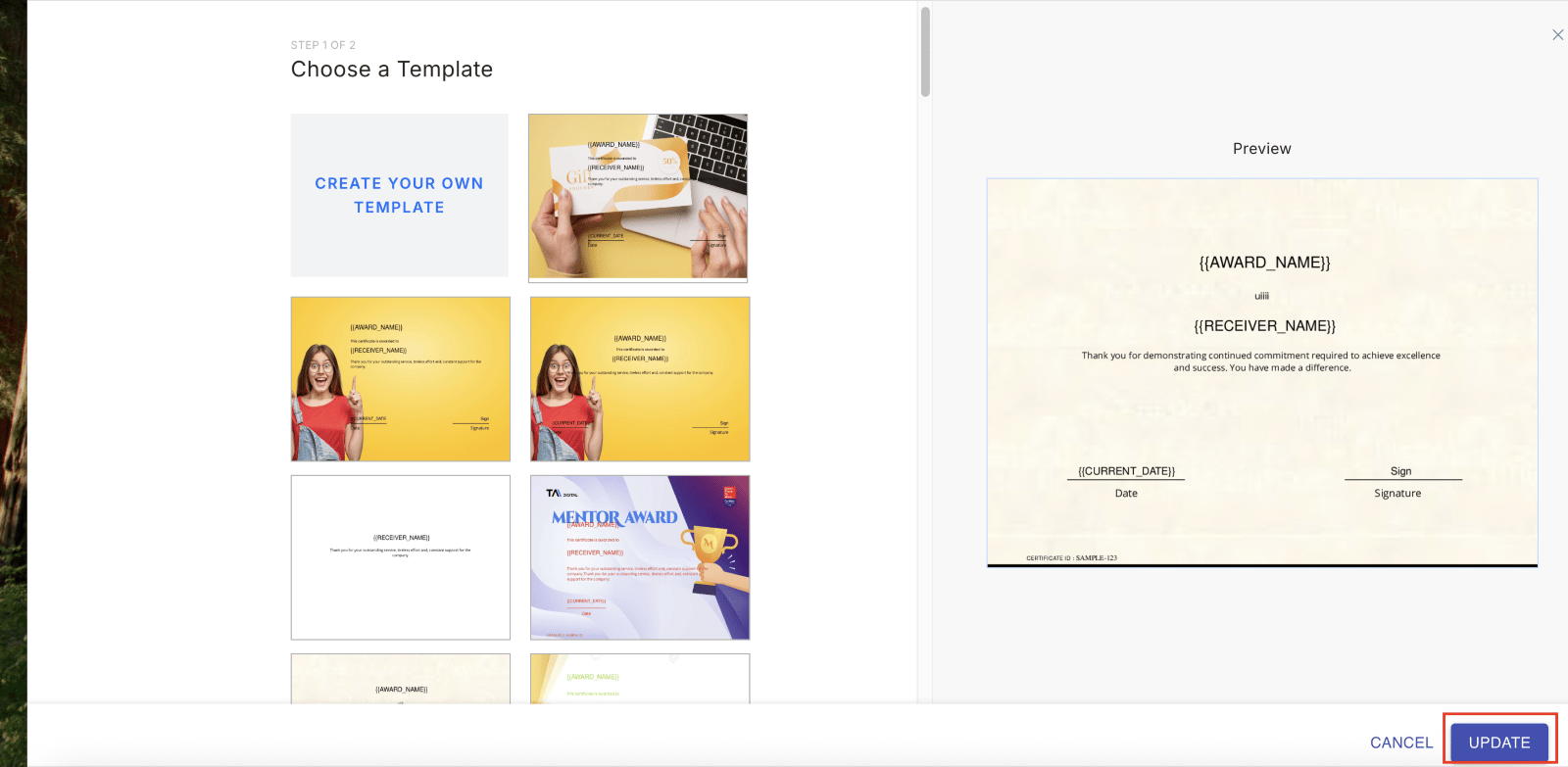
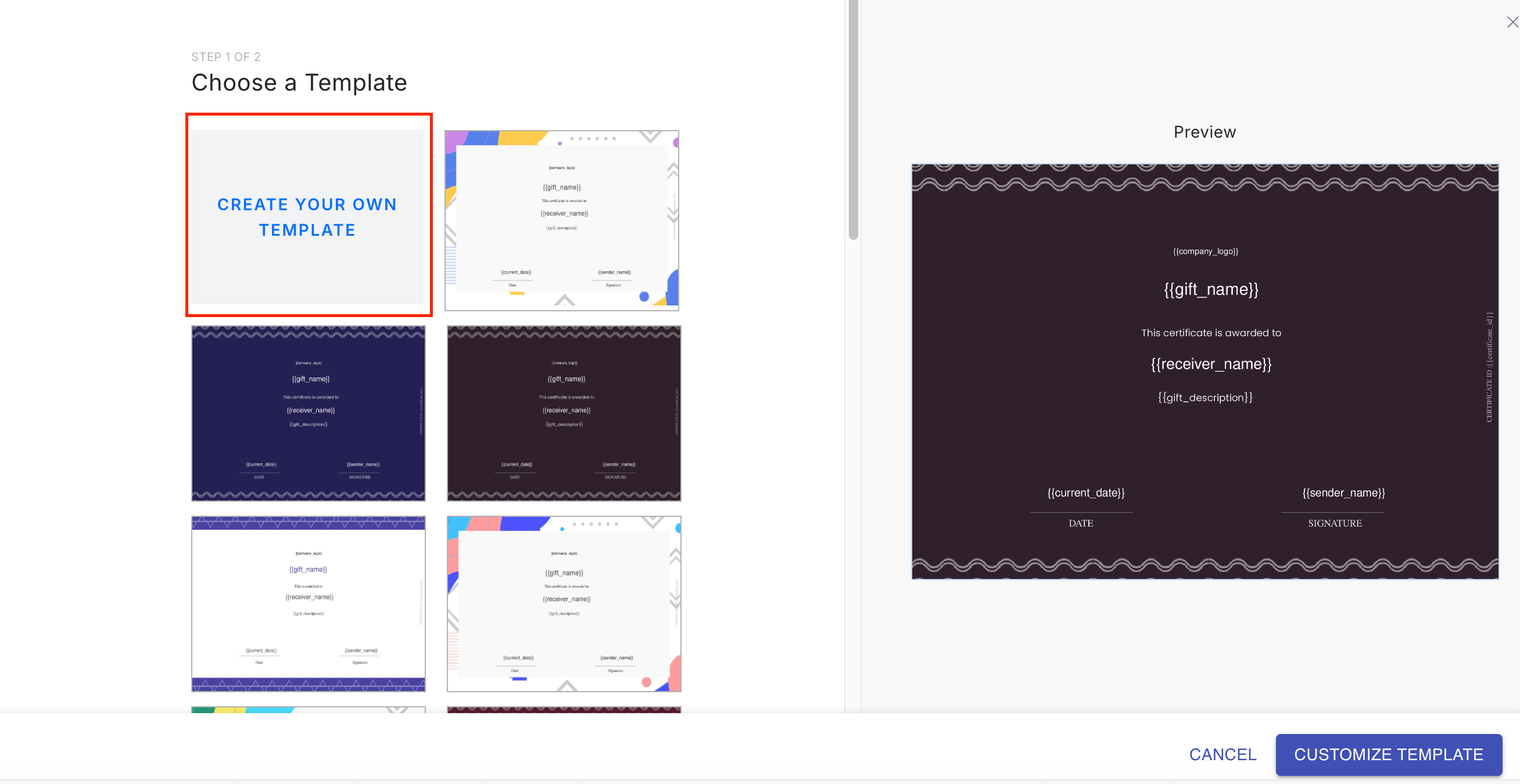
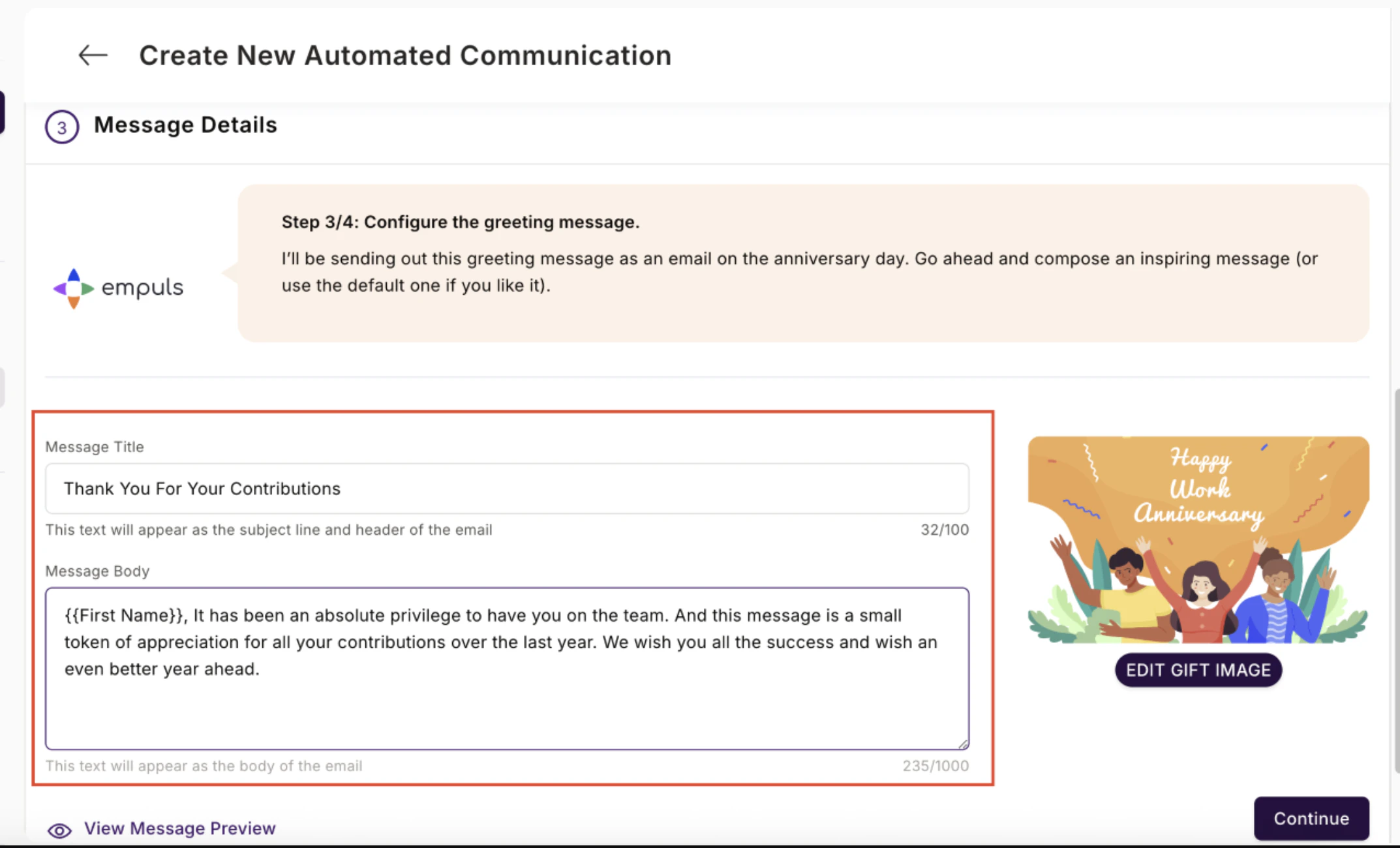
 Enter the message **Title** and **Body**. Use personalisation placeholders like `{{First Name}}` and `{{completed_year}}`. For example:
**Title:** Celebrating `{{completed_year}}` Year(s) of Excellence
**Body:** `{{First Name}}`, it's been a privilege to have you on the team. This is a token of appreciation for your `{{completed_year}}` year(s) of dedication.
Click **Edit Gift Image** on the right side of the screen to swap the default visual.
Enter the message **Title** and **Body**. Use personalisation placeholders like `{{First Name}}` and `{{completed_year}}`. For example:
**Title:** Celebrating `{{completed_year}}` Year(s) of Excellence
**Body:** `{{First Name}}`, it's been a privilege to have you on the team. This is a token of appreciation for your `{{completed_year}}` year(s) of dedication.
Click **Edit Gift Image** on the right side of the screen to swap the default visual.
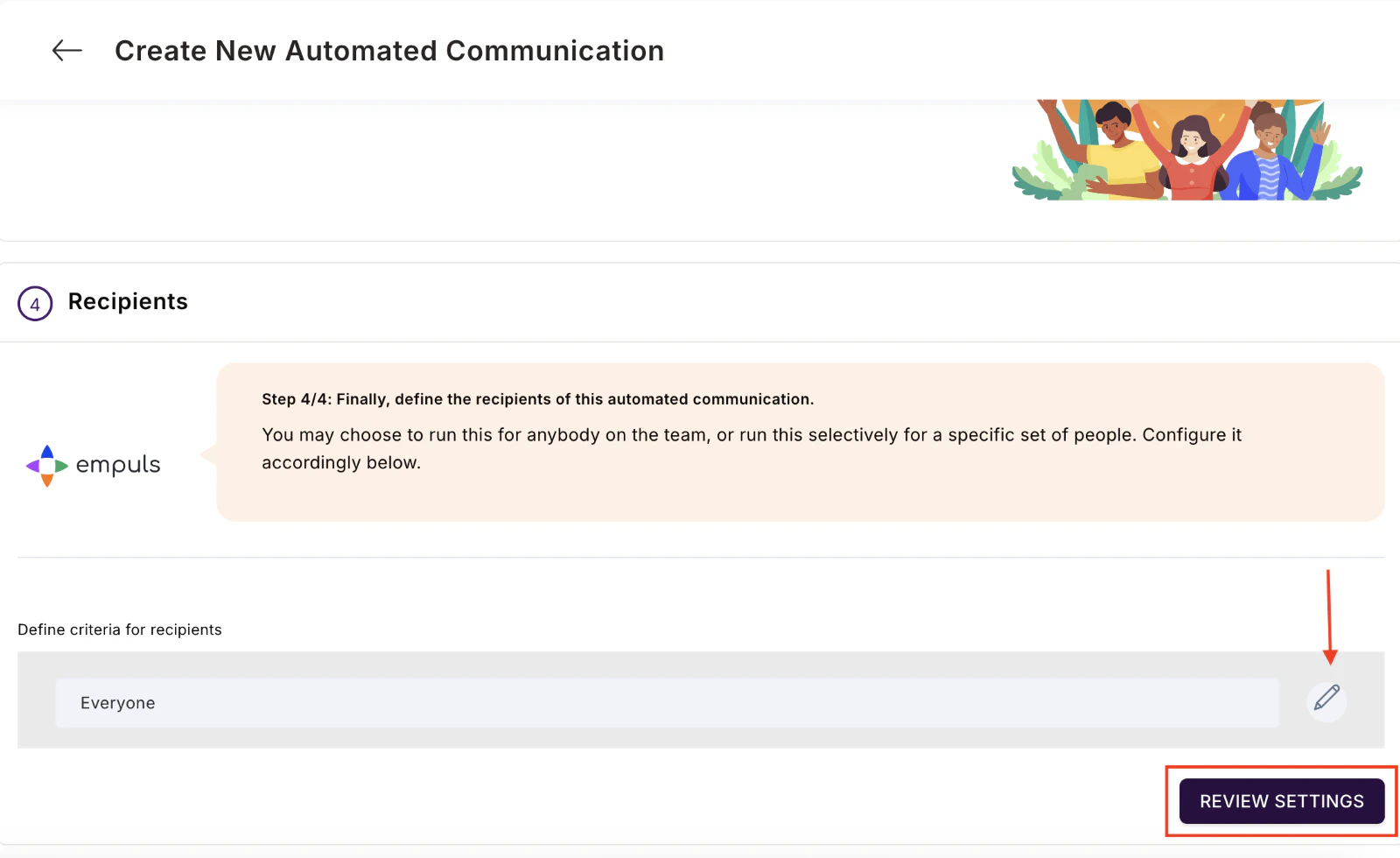
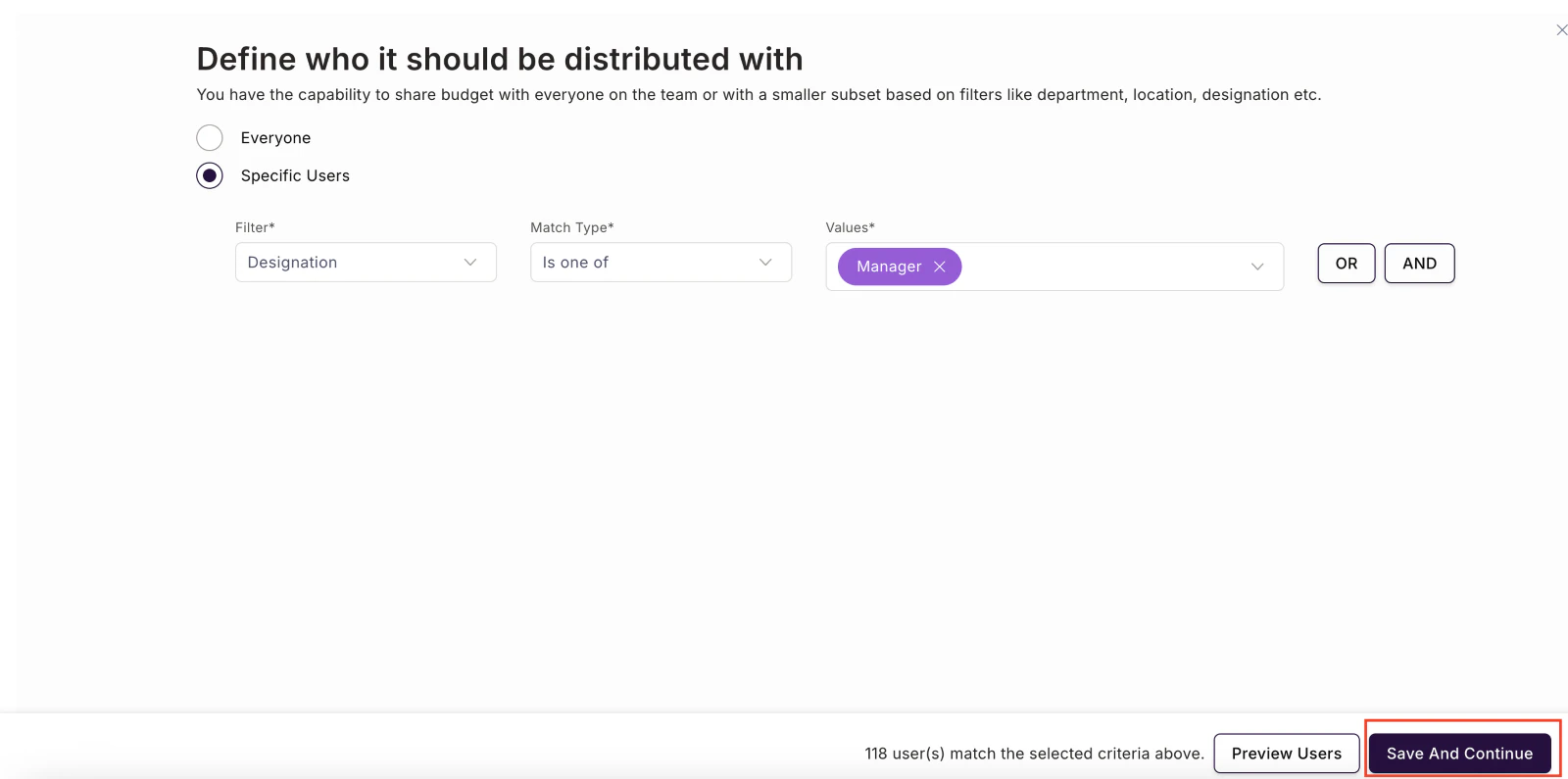
 Choose **Everyone** to include all employees, or use filters to target specific groups by designation, department, location, or other attributes. Click **Save and Continue**.
 Review all settings. Click **Confirm and Create** to activate the automation. Empuls will now trigger this award automatically for every qualifying employee on their anniversary date.
 You can set up separate automations for each milestone year (1 year, 3 years, 5 years, etc.) with different reward values and gift collections for each tier.
## Birthday and onboarding recognition
Birthday and work anniversary greetings are automatically generated as soon as an employee's date of birth (DOB) or date of joining (DOJ) is added to their Empuls profile or synced from your HRMS. You don't need to manually create a gift for each employee.
To automate birthday or onboarding gifts with specific point values or merchandise, follow the same process as service awards (above), but select the **Birthday** or **New Joiner / Onboarding** event template instead.
Empuls reads each employee's date of joining from the data synced from your HRMS or uploaded manually. When a service award automation is active for a given milestone year, the system checks this date daily and triggers the award on the matching anniversary.
Yes. Create separate automations for each milestone (1 year, 3 years, 5 years, 10 years) with different reward values, gift collections, and certificate designs.
The Yearbook is a digital keepsake that compiles all feed posts and wishes sent on an employee's work anniversary. Teammates are automatically notified to post their wishes, and those posts are assembled into the yearbook for the employee to view and download.
## Related
Create the award structures used in reward campaigns and service programs.
Send occasion-based gifts for birthdays, festivals, onboarding, and farewells.
Configure milestone-based rewards tied to engagement scores.
Understand how employees nominate and approvers review during a campaign.
You can set up separate automations for each milestone year (1 year, 3 years, 5 years, etc.) with different reward values and gift collections for each tier.
## Birthday and onboarding recognition
Birthday and work anniversary greetings are automatically generated as soon as an employee's date of birth (DOB) or date of joining (DOJ) is added to their Empuls profile or synced from your HRMS. You don't need to manually create a gift for each employee.
To automate birthday or onboarding gifts with specific point values or merchandise, follow the same process as service awards (above), but select the **Birthday** or **New Joiner / Onboarding** event template instead.
Empuls reads each employee's date of joining from the data synced from your HRMS or uploaded manually. When a service award automation is active for a given milestone year, the system checks this date daily and triggers the award on the matching anniversary.
Yes. Create separate automations for each milestone (1 year, 3 years, 5 years, 10 years) with different reward values, gift collections, and certificate designs.
The Yearbook is a digital keepsake that compiles all feed posts and wishes sent on an employee's work anniversary. Teammates are automatically notified to post their wishes, and those posts are assembled into the yearbook for the employee to view and download.
## Related
Create the award structures used in reward campaigns and service programs.
Send occasion-based gifts for birthdays, festivals, onboarding, and farewells.
Configure milestone-based rewards tied to engagement scores.
Understand how employees nominate and approvers review during a campaign.