> ## Documentation Index
> Fetch the complete documentation index at: https://help-empuls.xoxoday.com/llms.txt
> Use this file to discover all available pages before exploring further.
# Manual gifts
> Send one-off gifts immediately to individuals or groups in Empuls for birthdays, festivals, onboarding, and any occasion.
Gifts in Empuls are occasion-based rewards that can be sent manually, scheduled for a future date, or triggered automatically when a life event occurs. Unlike awards (which are tied to performance or behaviour), gifts are typically celebration-oriented. They cover birthdays, work anniversaries, festivals, onboarding kits, farewells, and any other occasion your organisation wants to mark. Each gift can include reward points, physical merchandise, gift cards, a personalised message, or simply a heartfelt digital greeting.
Birthday and work anniversary greetings are automatically generated as soon as an employee's date of birth (DOB) or date of joining (DOJ) is added to their Empuls profile or synced from your HRMS. You do not need to create a separate gift for each employee.
## Video walkthrough
## Gift delivery modes
When you create a gift, you choose how it is delivered:
* **Automate:** Set up once, and Empuls delivers the gift automatically every time the trigger event occurs (e.g., every birthday, every work anniversary).
* **Schedule:** Pick a specific date and time to send the gift. Useful for festival greetings or one-off company events.
* **Send manually:** Deliver the gift immediately to a list of recipients you specify.
## Create a gift
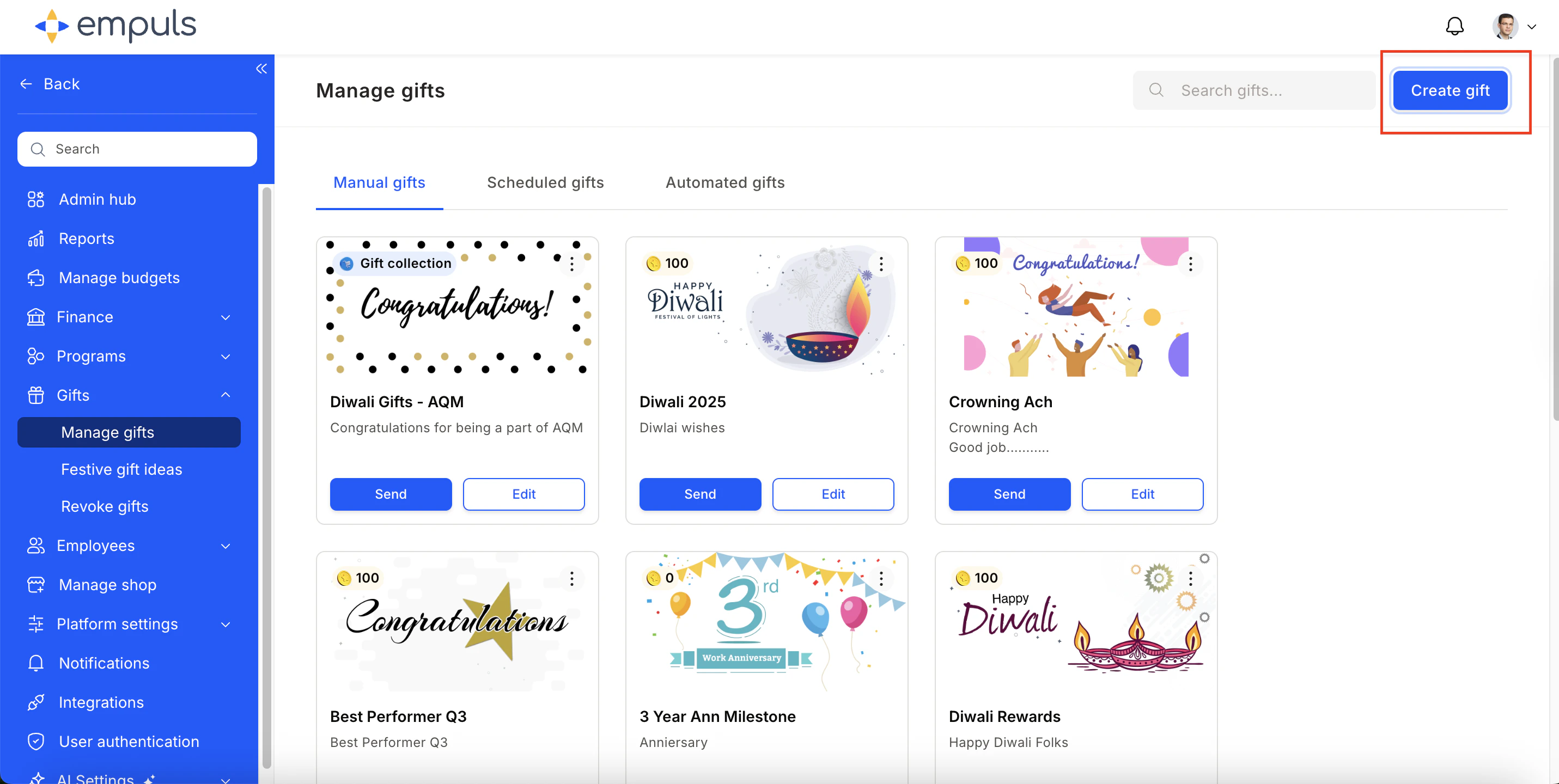
Go to **Admin Dashboard > Gifts > Manage Gifts** and click **Create Gift**.
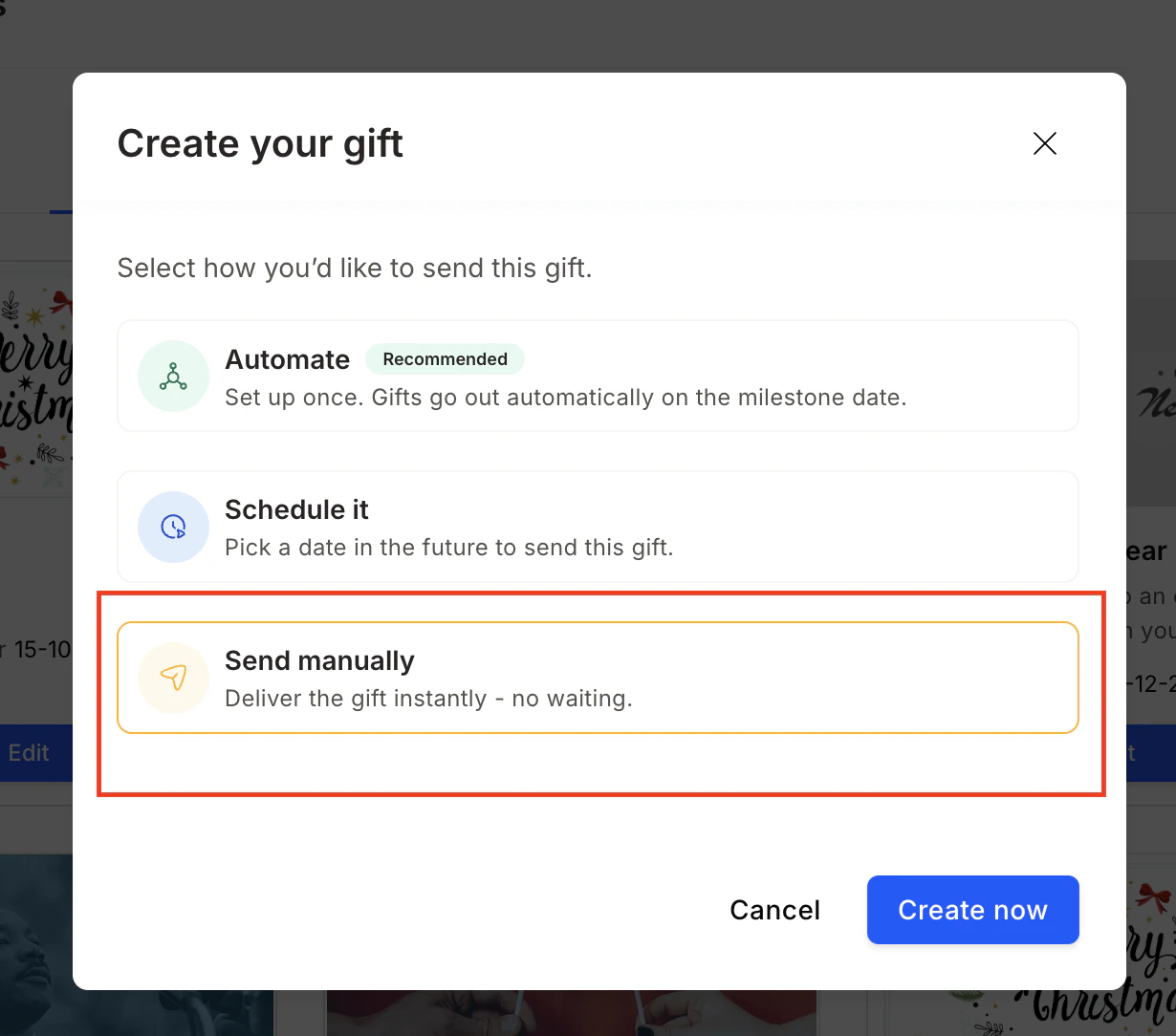
 Choose **Automate**, **Schedule It**, or **Send Manually**, then click **Create**.
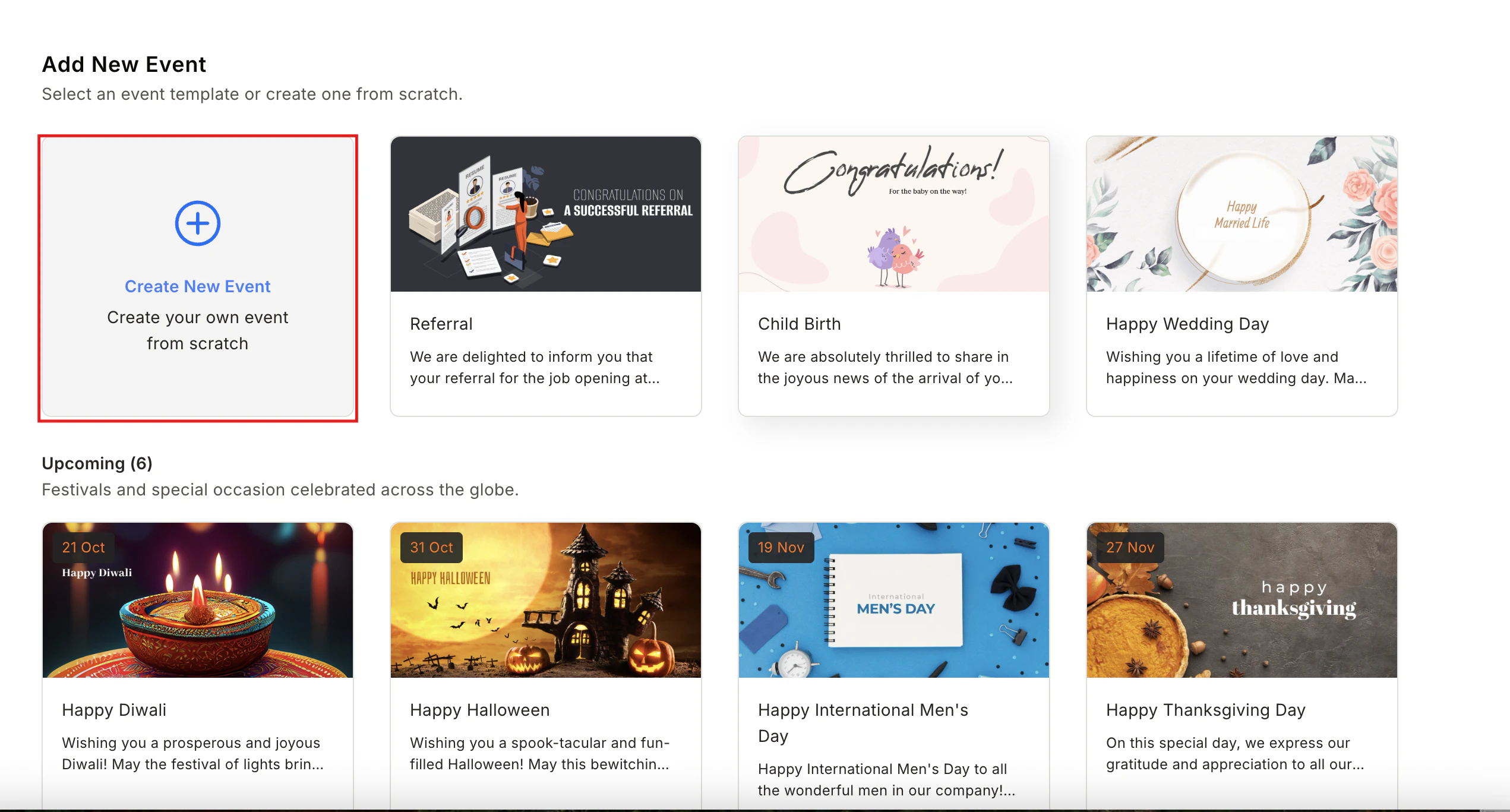
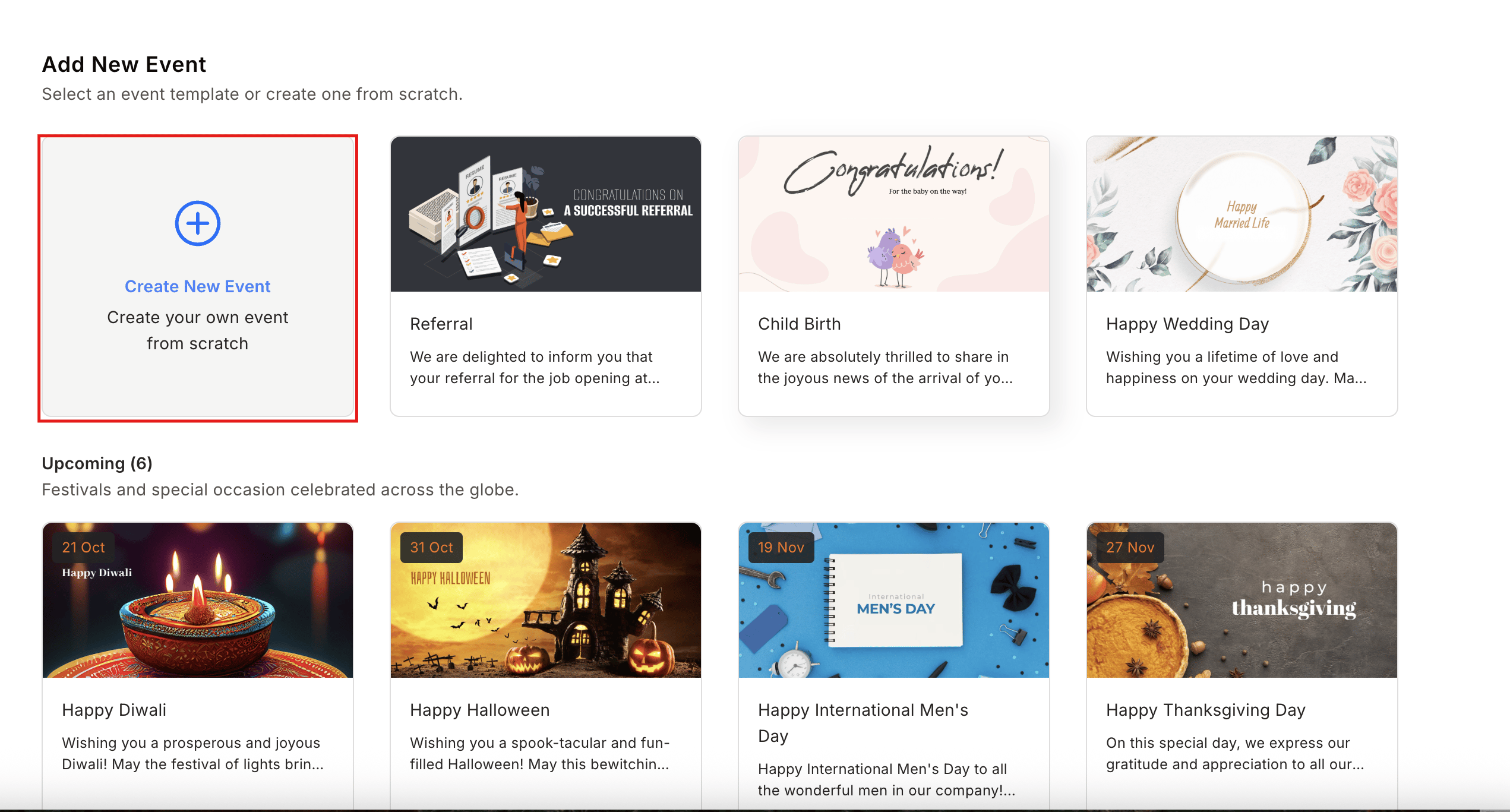
 Choose from existing event templates (Birthday, Work Anniversary, New Joiner / Onboarding, Festival, Farewell, and more). For new or custom occasions, select **Create New Event**. Empuls pre-populates editable email content for known templates using AI.
 Provide a **Greeting Name** and **Description** to identify this gift in your admin panel. If the gift is automated, also choose any stakeholders (such as the recipient's manager) who should receive a notification when it is sent.
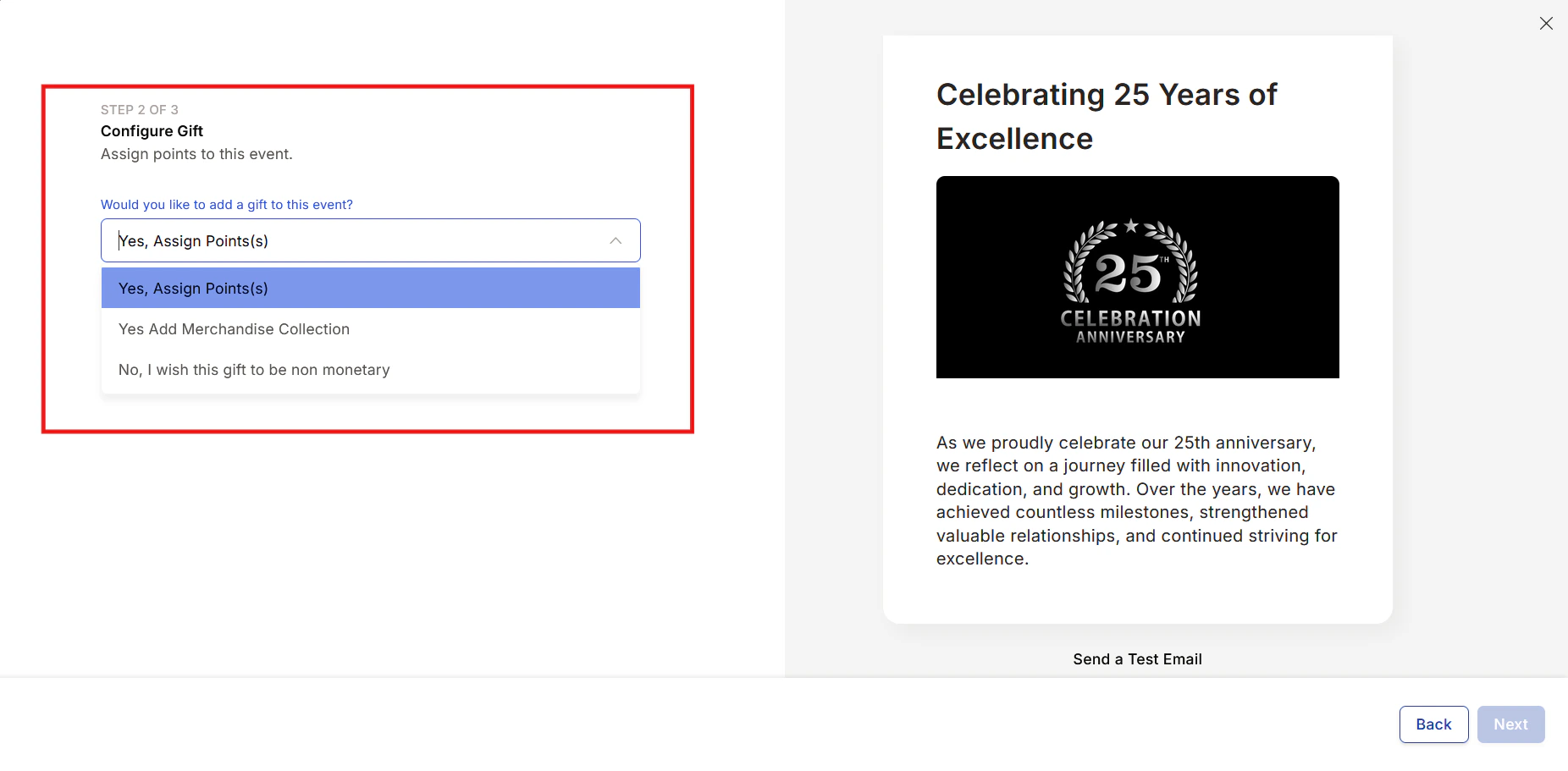
Choose one of three reward options:
* **Reward points:** Enter the number of points to credit to the recipient's account. These points are deducted from the gift owner's allocated budget.
* **Products from the store:** Select a merchandise or gift-card collection (see [Set up product-based gifts](#set-up-product-based-gifts) below).
* **Non-monetary:** Send a personalised greeting, festival card, or digital appreciation without any monetary value. You can optionally add a **call-to-action (CTA)** button that links to a destination of your choice.
Provide a **Greeting Name** and **Description** to identify this gift in your admin panel. If the gift is automated, also choose any stakeholders (such as the recipient's manager) who should receive a notification when it is sent.
Choose one of three reward options:
* **Reward points:** Enter the number of points to credit to the recipient's account. These points are deducted from the gift owner's allocated budget.
* **Products from the store:** Select a merchandise or gift-card collection (see [Set up product-based gifts](#set-up-product-based-gifts) below).
* **Non-monetary:** Send a personalised greeting, festival card, or digital appreciation without any monetary value. You can optionally add a **call-to-action (CTA)** button that links to a destination of your choice.
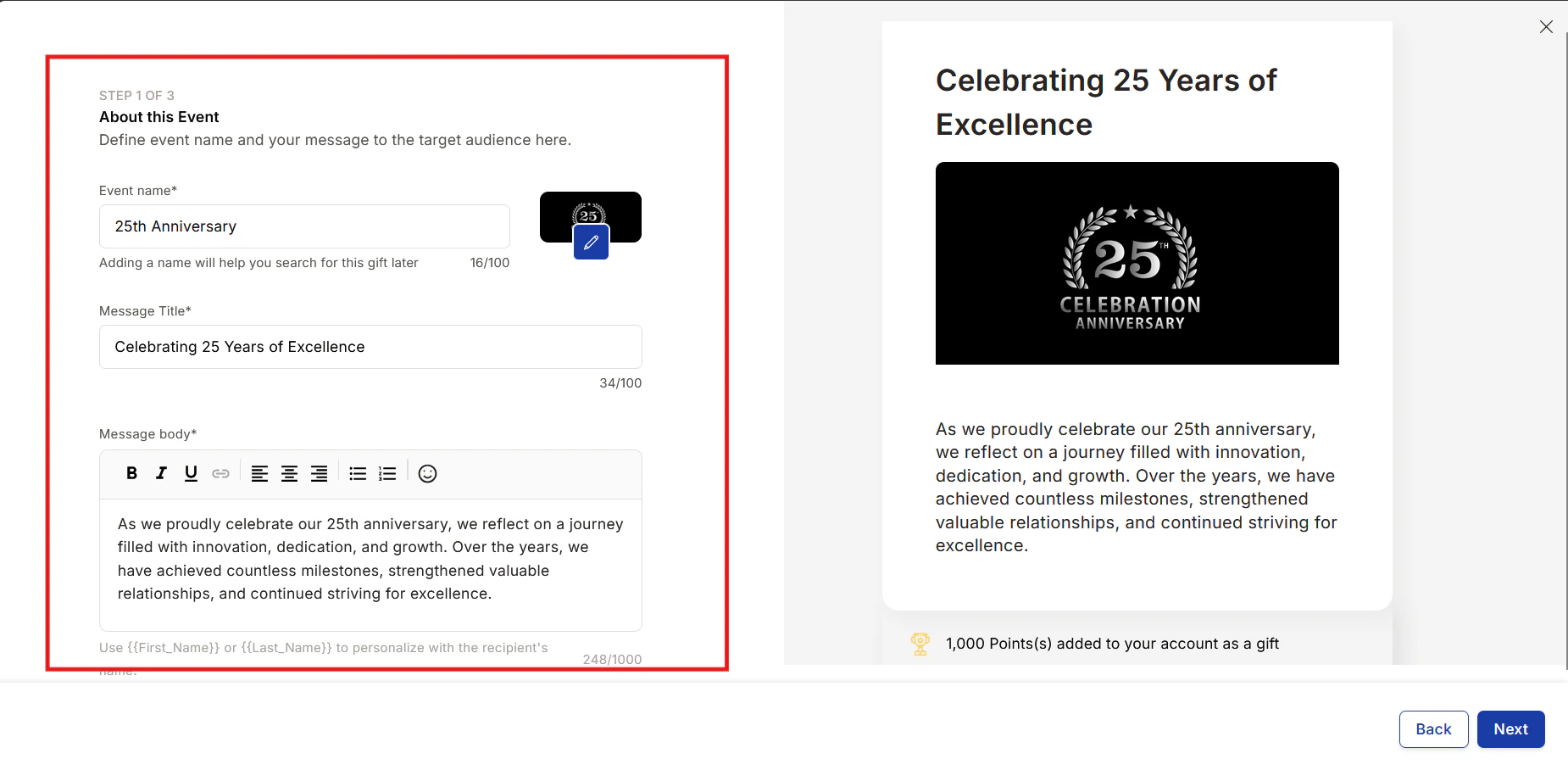
 Write the greeting message title and body. You can use personalisation placeholders such as `{{First Name}}` to address each recipient by name. For work anniversary gifts, use `{{completed_year}}` to insert the number of years served.
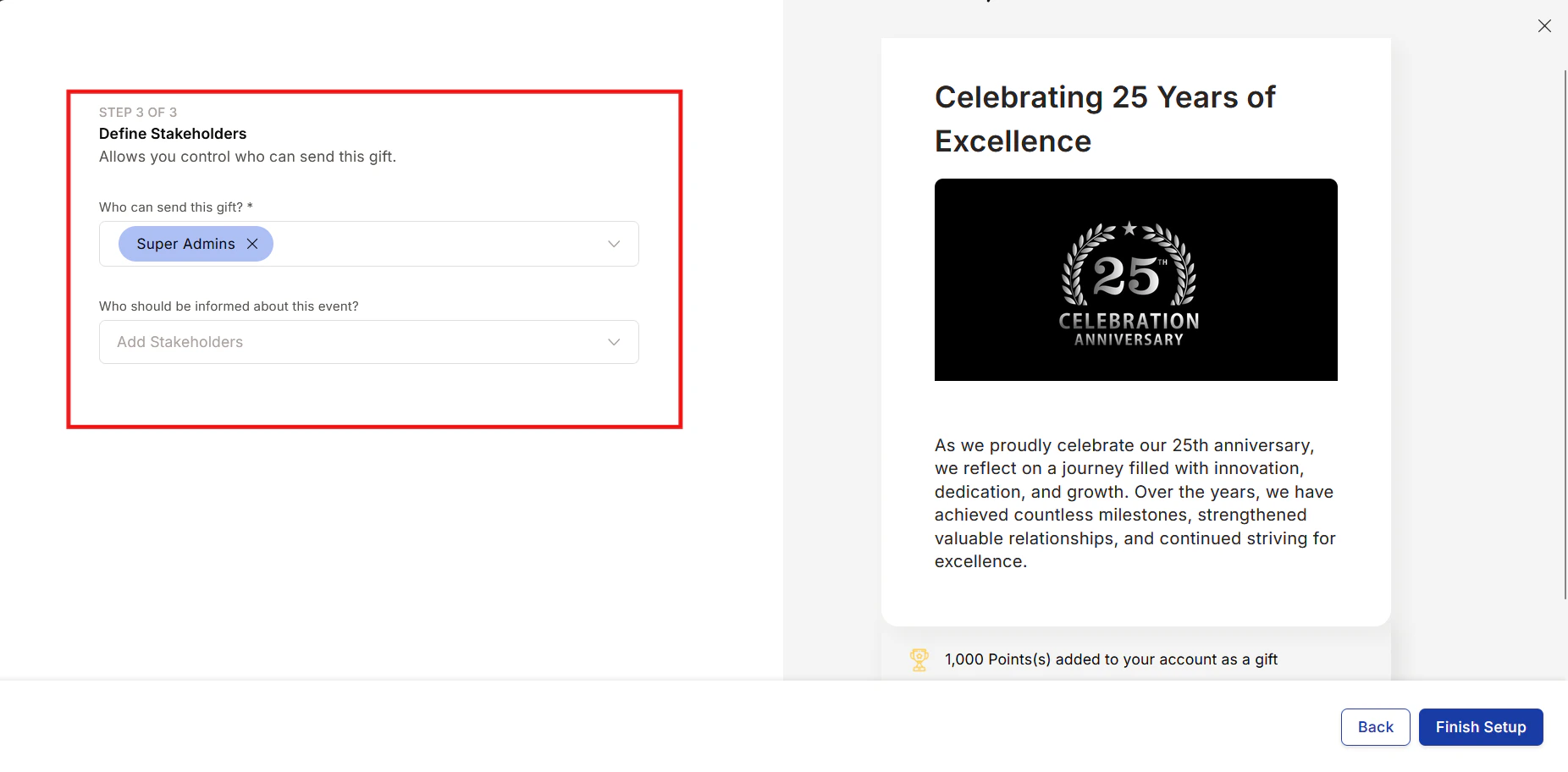
 Add recipients by entering email addresses manually, pasting a list, or uploading a CSV. You can also use audience filters (department, designation, location, and custom fields) to target specific groups. For automated gifts, Empuls uses the trigger event (birthday, anniversary) to determine recipients automatically.
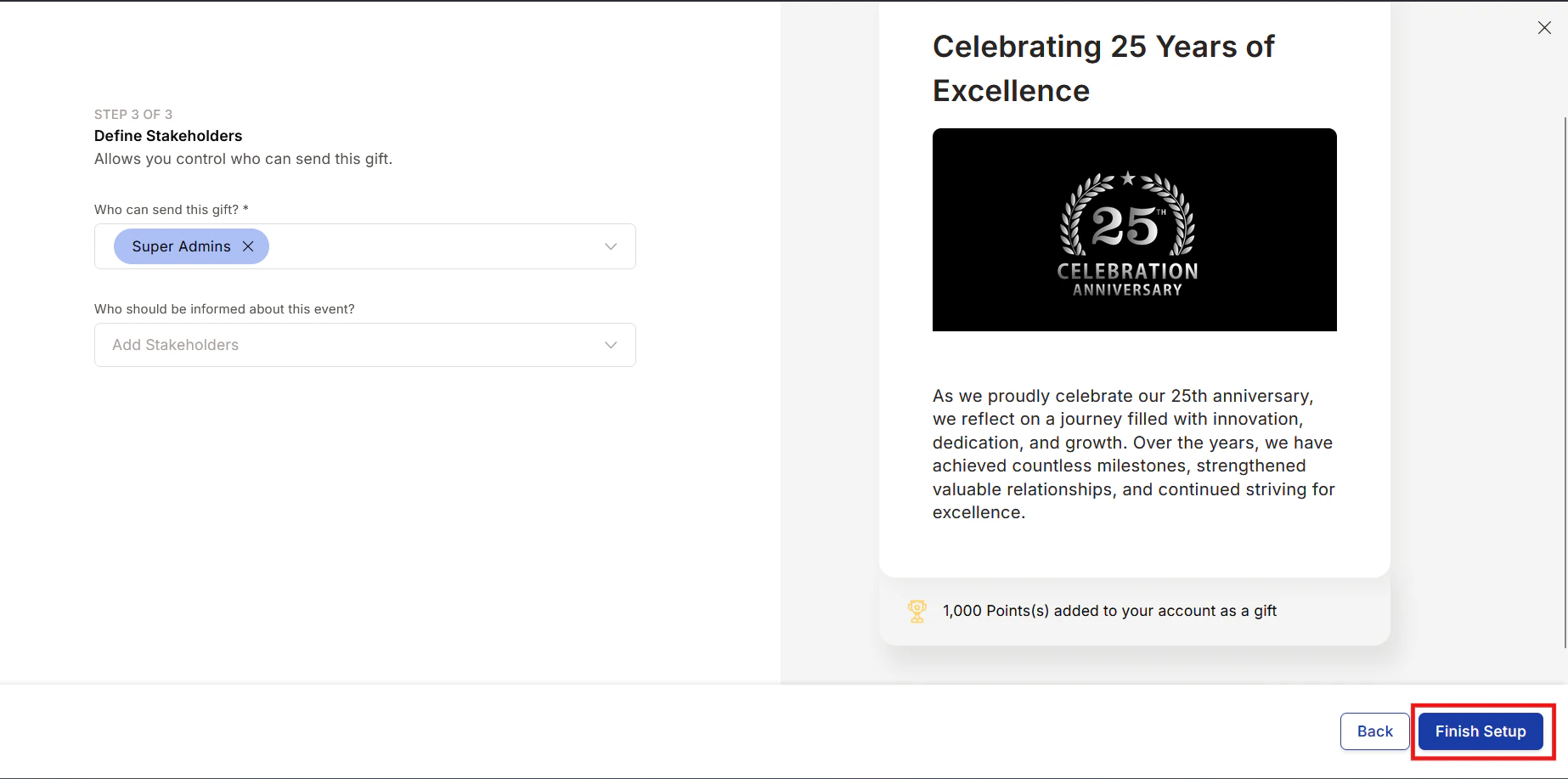
 Review the gift summary, then click **Finish Setup** (manual/scheduled) or **Confirm and Create** (automated). The gift appears in the **Manage Gifts** panel under the relevant tab: Manual, Scheduled, or Automated.
 ## Monetary vs. non-monetary gifts
| Type | Examples |
| ---------------- | ----------------------------------------------------------------------------------------------------------------------------------------------------- |
| **Monetary** | Reward points, gift cards, vouchers, digital codes, catalog products, reimbursable allowances |
| **Non-monetary** | Personalised greetings, festival cards, value cards (marriage, baby, graduation), email appreciation notes, branded celebration graphics, wish boards |
Non-monetary gifts are ideal when you want to celebrate an occasion without any budget spend, or when tax or compliance regulations restrict monetary gifting in certain markets.
## Send gifts manually
For one-off occasions where you want to deliver a pre-created gift immediately:
Navigate to **Gifts > Manage Gifts > Manual Gifts**.
## Monetary vs. non-monetary gifts
| Type | Examples |
| ---------------- | ----------------------------------------------------------------------------------------------------------------------------------------------------- |
| **Monetary** | Reward points, gift cards, vouchers, digital codes, catalog products, reimbursable allowances |
| **Non-monetary** | Personalised greetings, festival cards, value cards (marriage, baby, graduation), email appreciation notes, branded celebration graphics, wish boards |
Non-monetary gifts are ideal when you want to celebrate an occasion without any budget spend, or when tax or compliance regulations restrict monetary gifting in certain markets.
## Send gifts manually
For one-off occasions where you want to deliver a pre-created gift immediately:
Navigate to **Gifts > Manage Gifts > Manual Gifts**.
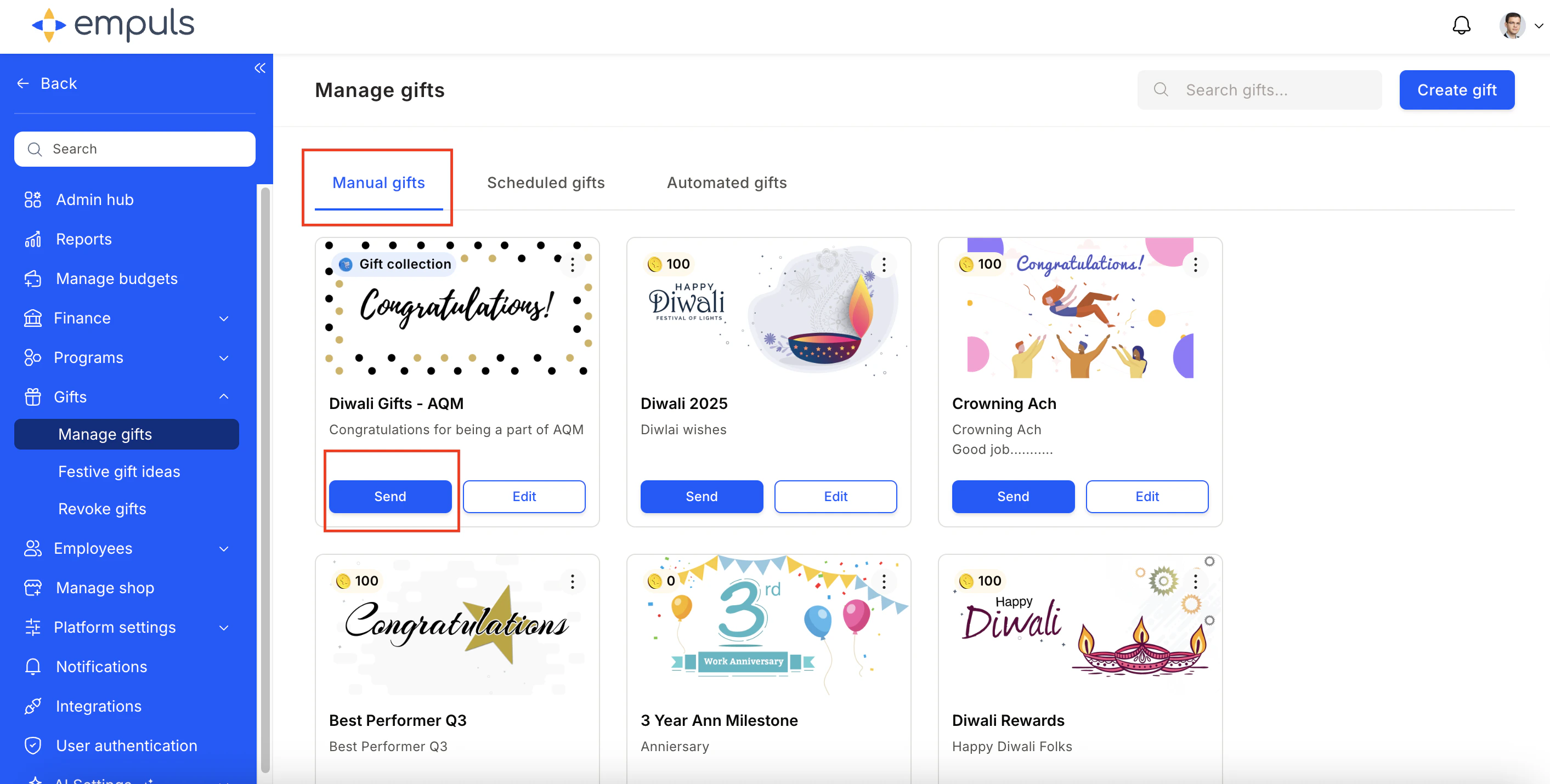 Find the gift you want to send and click **Send Gift**.
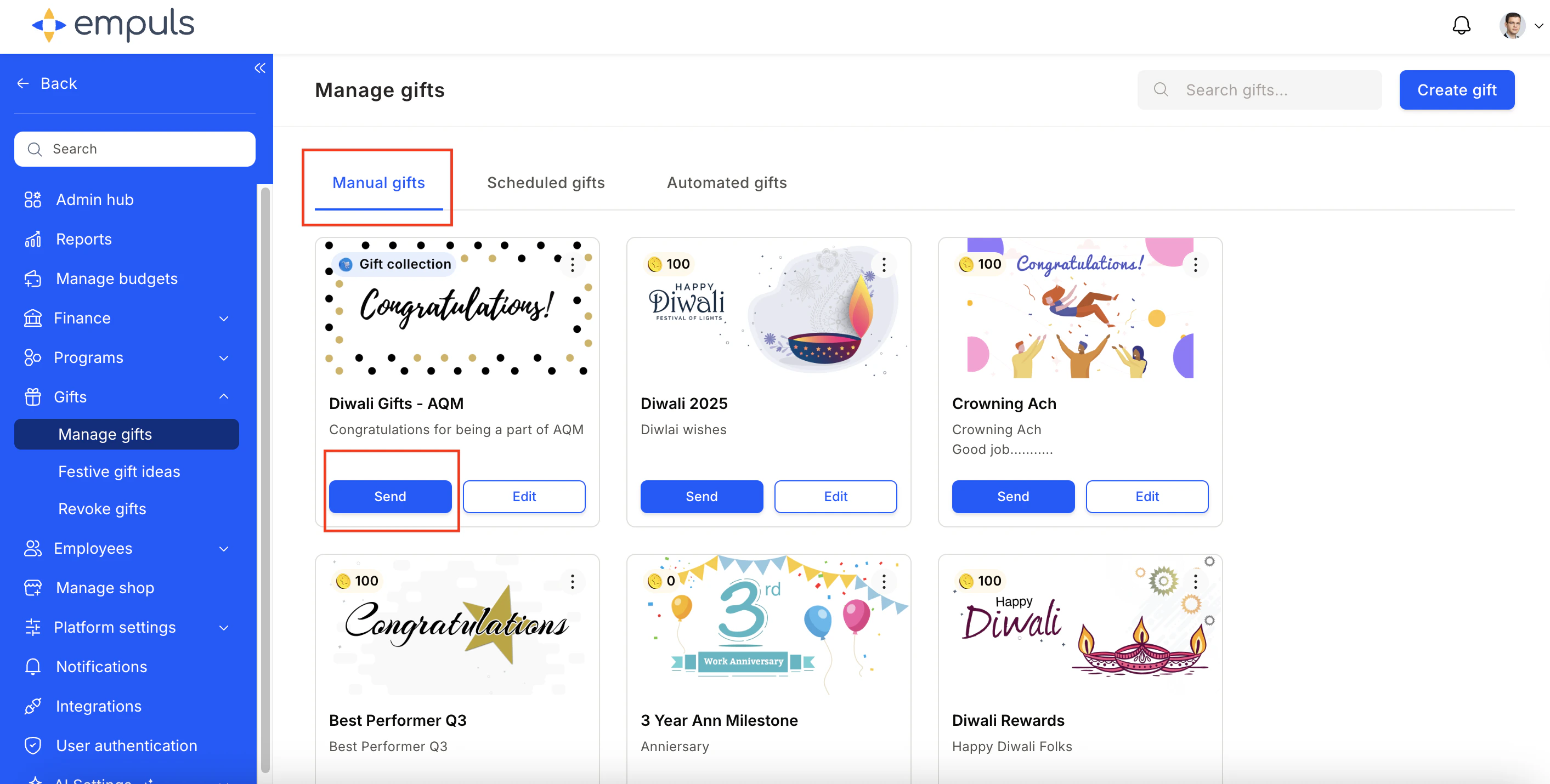 Enter email addresses manually, paste a list, or upload a CSV. Use audience filters (default metadata fields, custom fields, or relationship fields) to target by department, designation, or other criteria.
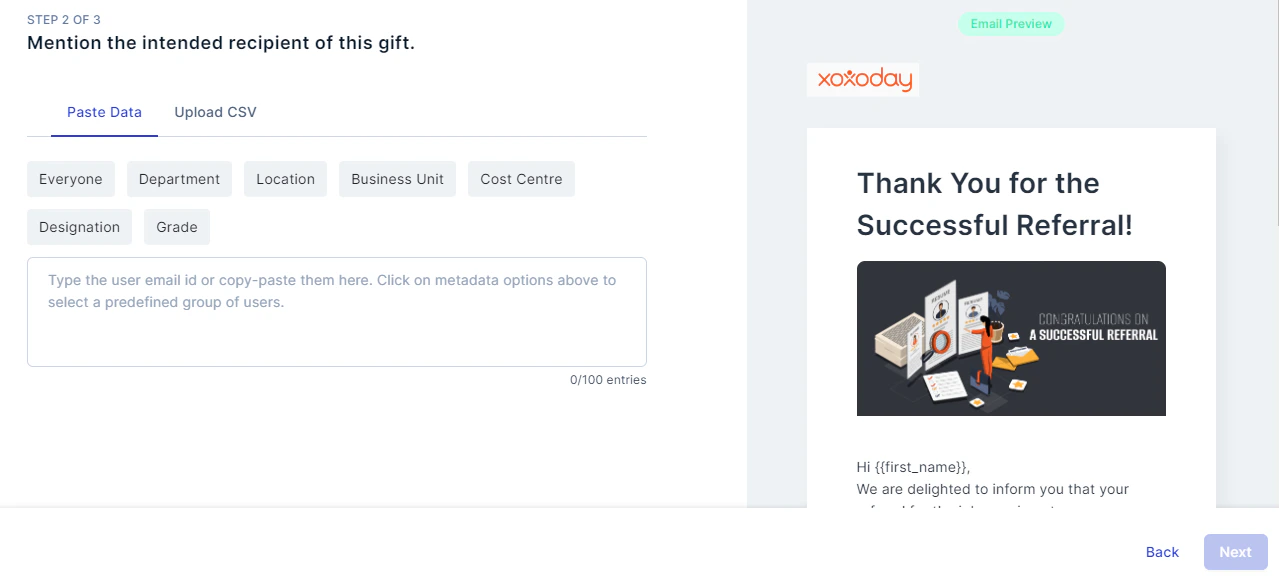
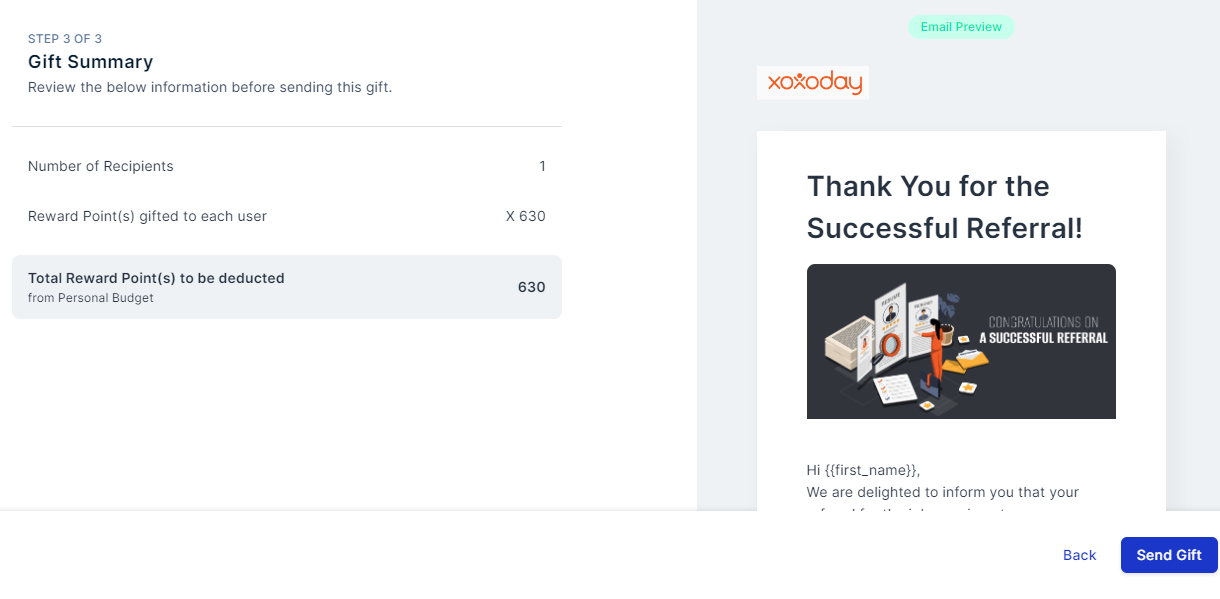
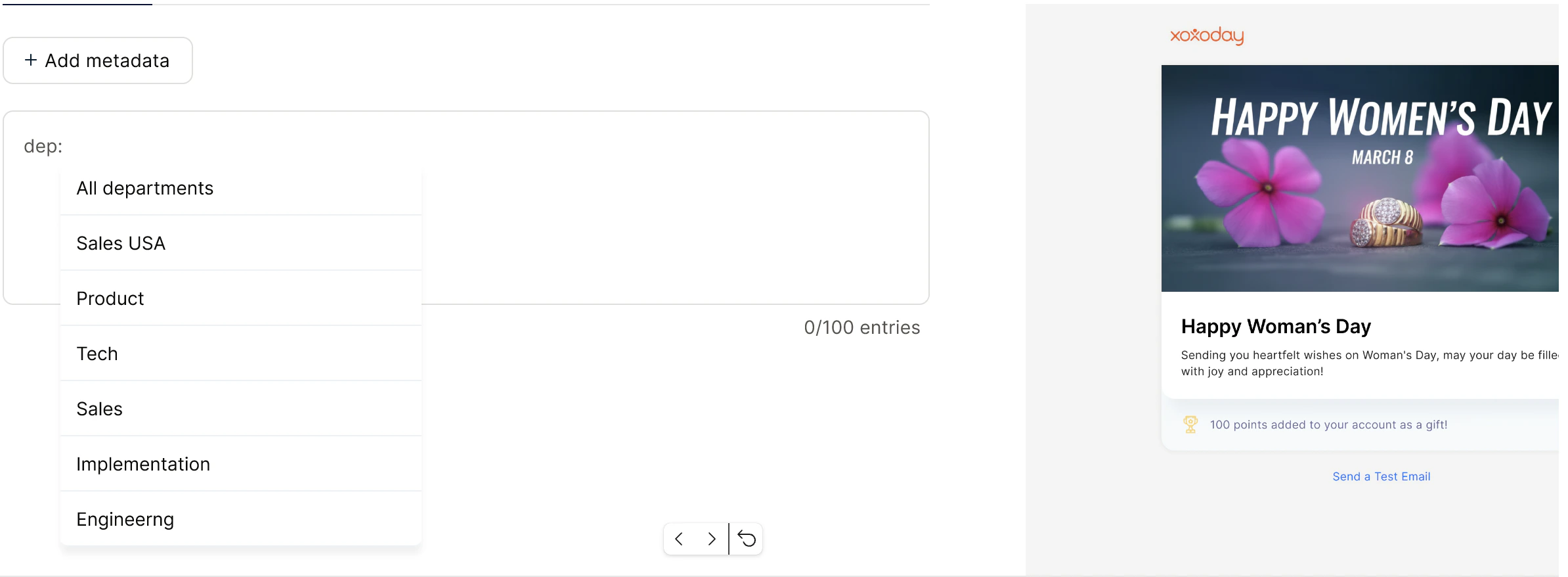 Review the gift summary. Click **Send Gift** to deliver immediately.
 ## Edit a gift
The edit steps differ based on the delivery mode:
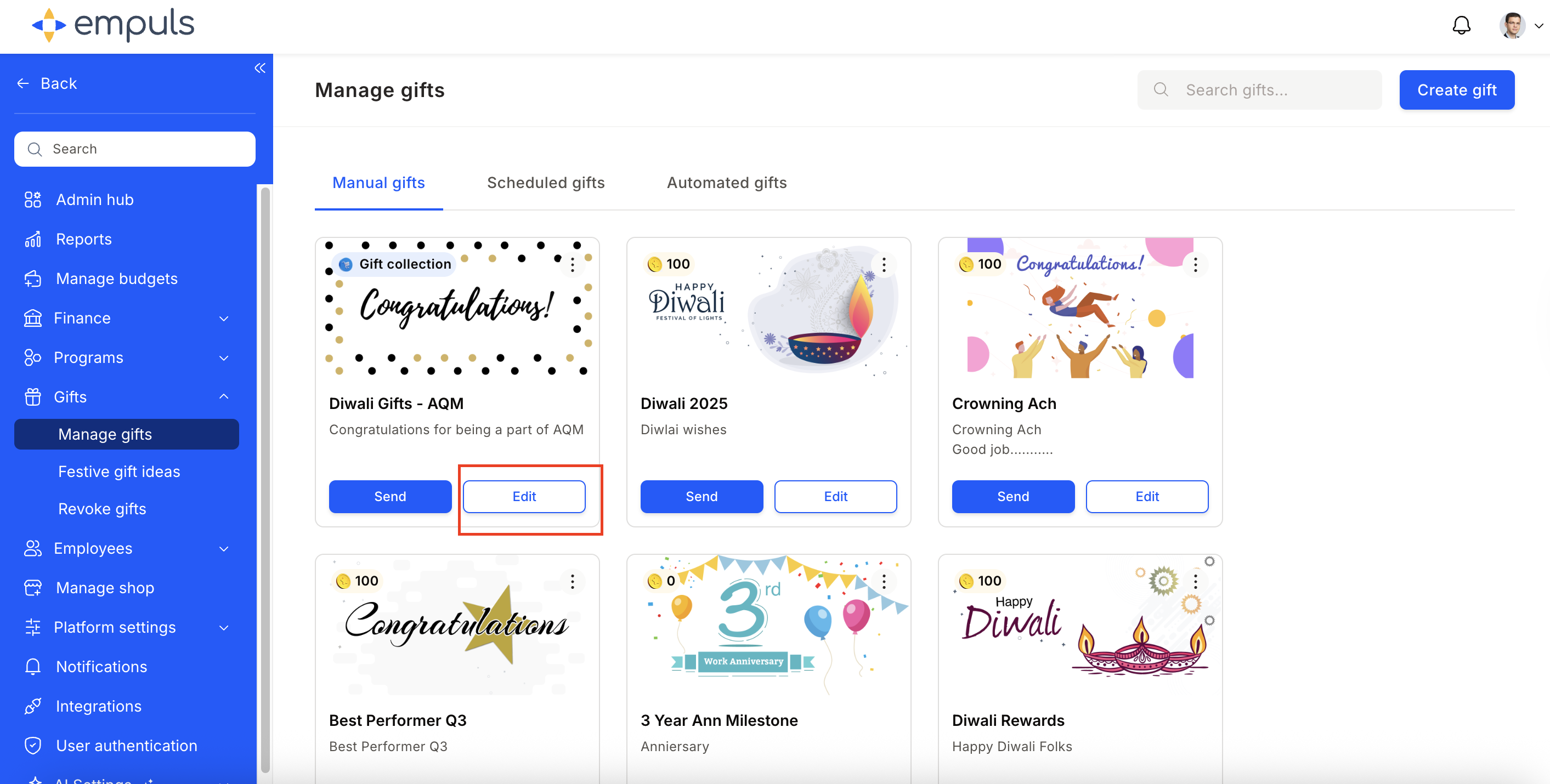
* **Manual gift:** Navigate to **Gifts > Manage Gifts > Manual Gifts**, find the gift, and click **Edit**.
## Edit a gift
The edit steps differ based on the delivery mode:
* **Manual gift:** Navigate to **Gifts > Manage Gifts > Manual Gifts**, find the gift, and click **Edit**.
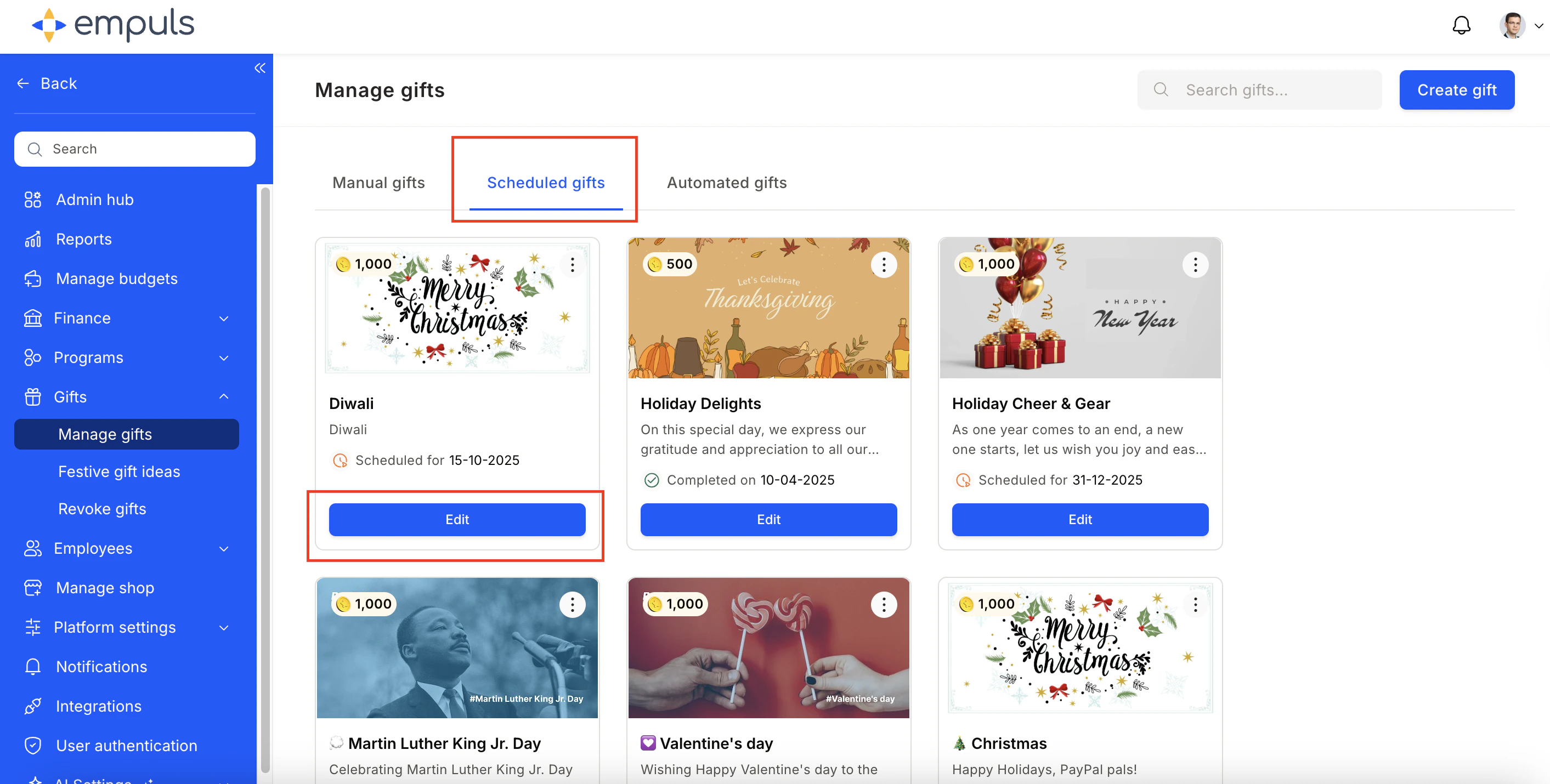
 * **Scheduled gift:** Navigate to **Gifts > Manage Gifts > Scheduled Gifts**, find the gift, and click **Edit**.
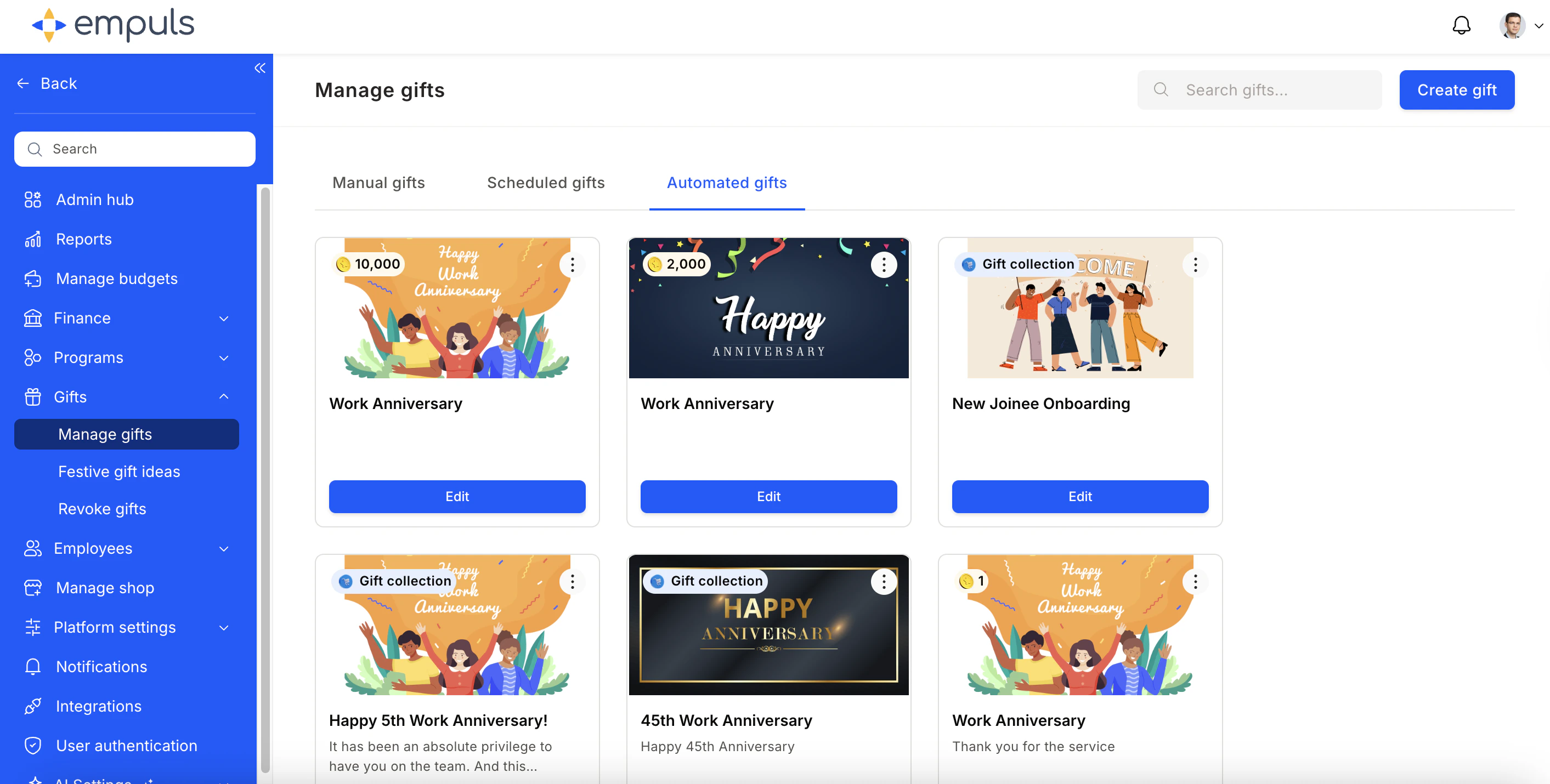
 **Automated gift:** Navigate to **Gifts > Manage Gifts > Automated Gifts**, find the gift, and click **Edit**.
 Make your changes and save. Changes to automated gifts take effect from the next scheduled trigger — they do not affect gifts already sent.
## Clone a gift
To reuse a manual gift configuration for a new occasion:
Navigate to **Gifts > Manage Gifts**, hover over the gift, and click **Make a Copy**. A duplicate is created with the same configuration. Update the name, dates, recipients, and visibility settings, then save.
Make your changes and save. Changes to automated gifts take effect from the next scheduled trigger — they do not affect gifts already sent.
## Clone a gift
To reuse a manual gift configuration for a new occasion:
Navigate to **Gifts > Manage Gifts**, hover over the gift, and click **Make a Copy**. A duplicate is created with the same configuration. Update the name, dates, recipients, and visibility settings, then save.
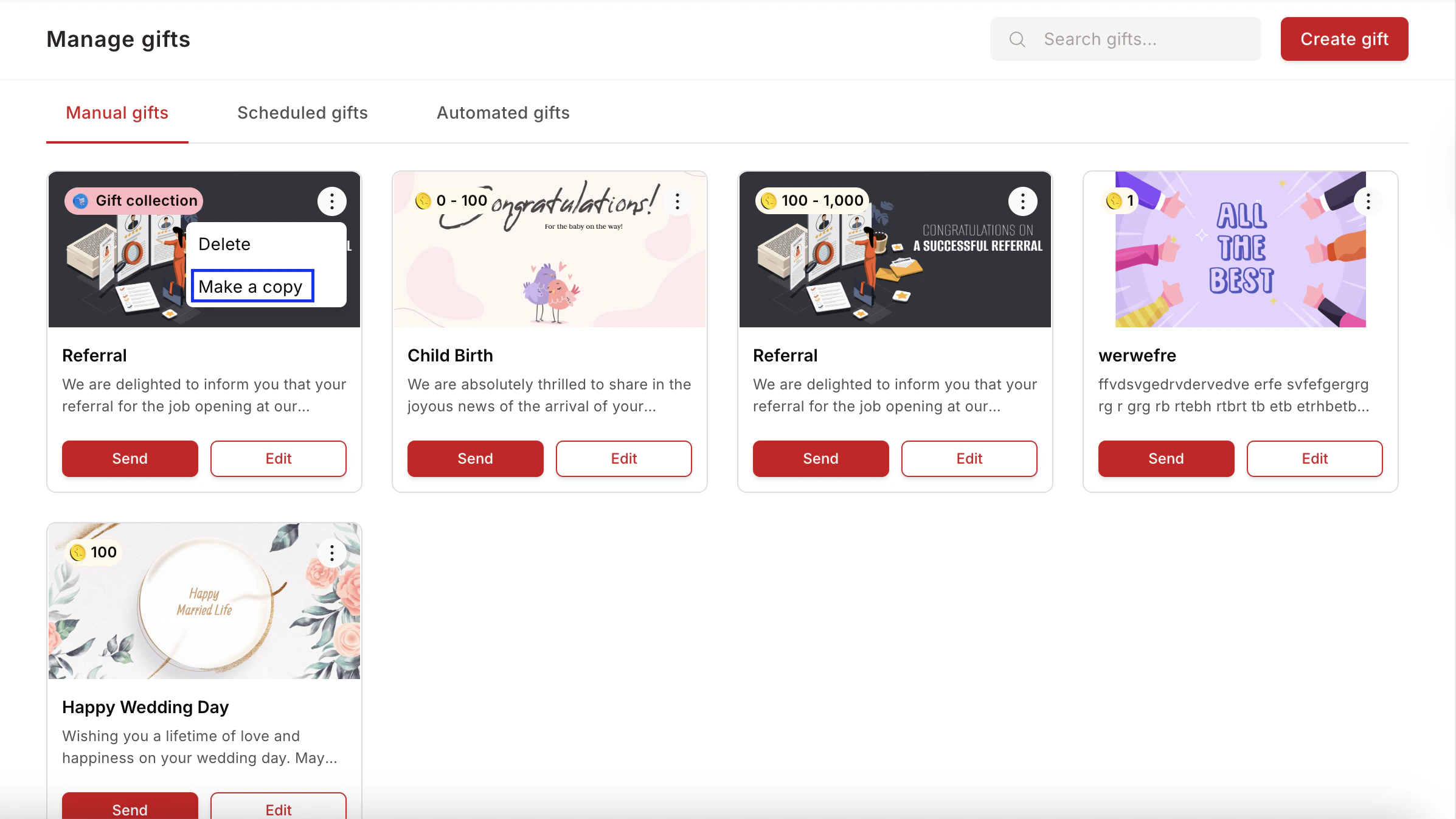 Cloning is available for manual gifts only.
## Disable a gift
To stop a scheduled or automated gift from sending further:
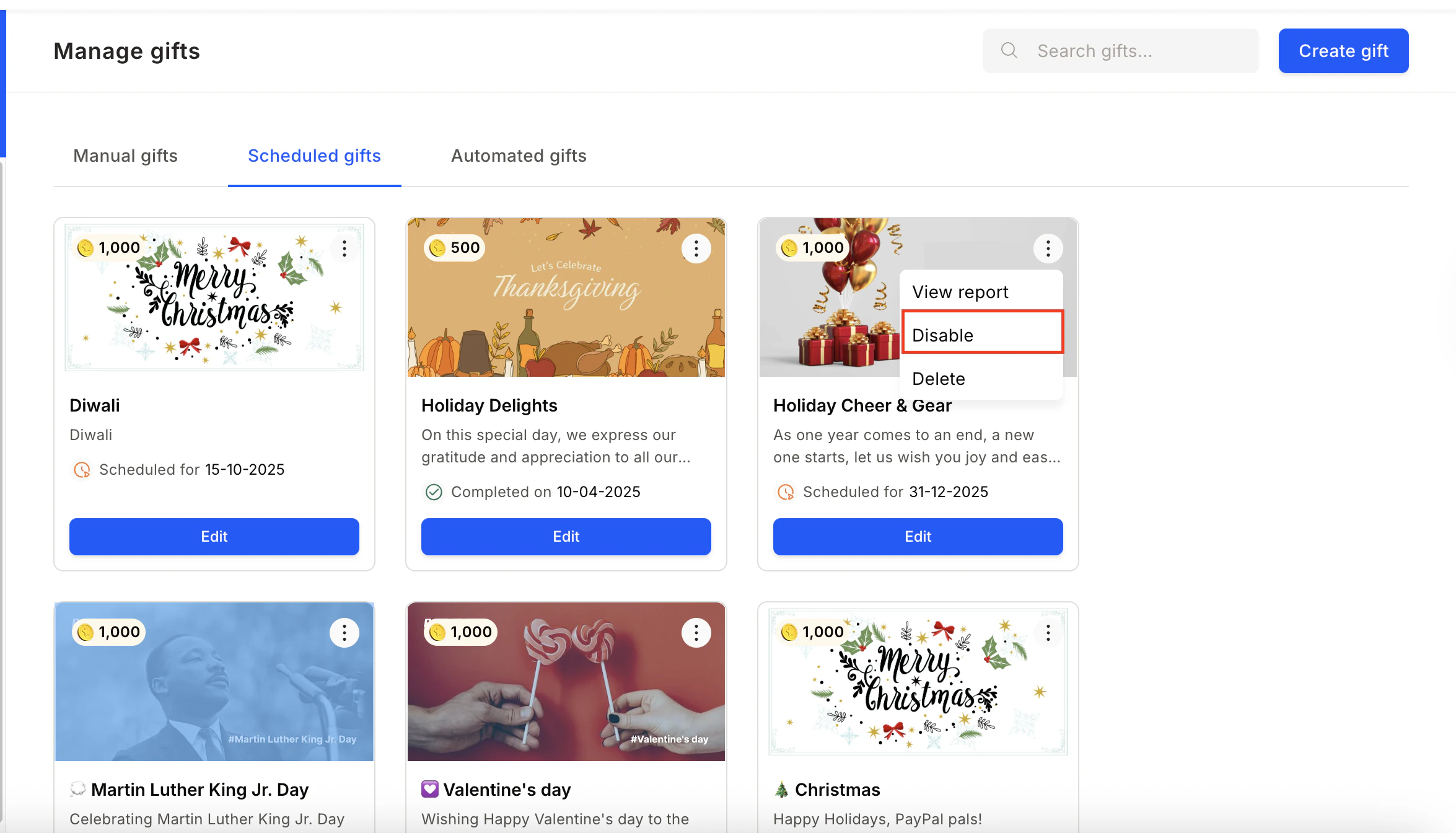
Navigate to the relevant tab (**Scheduled Gifts** or **Automated Gifts**), click the three-dot icon on the gift card, and select **Disable**. The gift remains in the list but will not trigger until re-enabled.
Cloning is available for manual gifts only.
## Disable a gift
To stop a scheduled or automated gift from sending further:
Navigate to the relevant tab (**Scheduled Gifts** or **Automated Gifts**), click the three-dot icon on the gift card, and select **Disable**. The gift remains in the list but will not trigger until re-enabled.
 ## View gift reports
To see the history of a sent or automated gift:
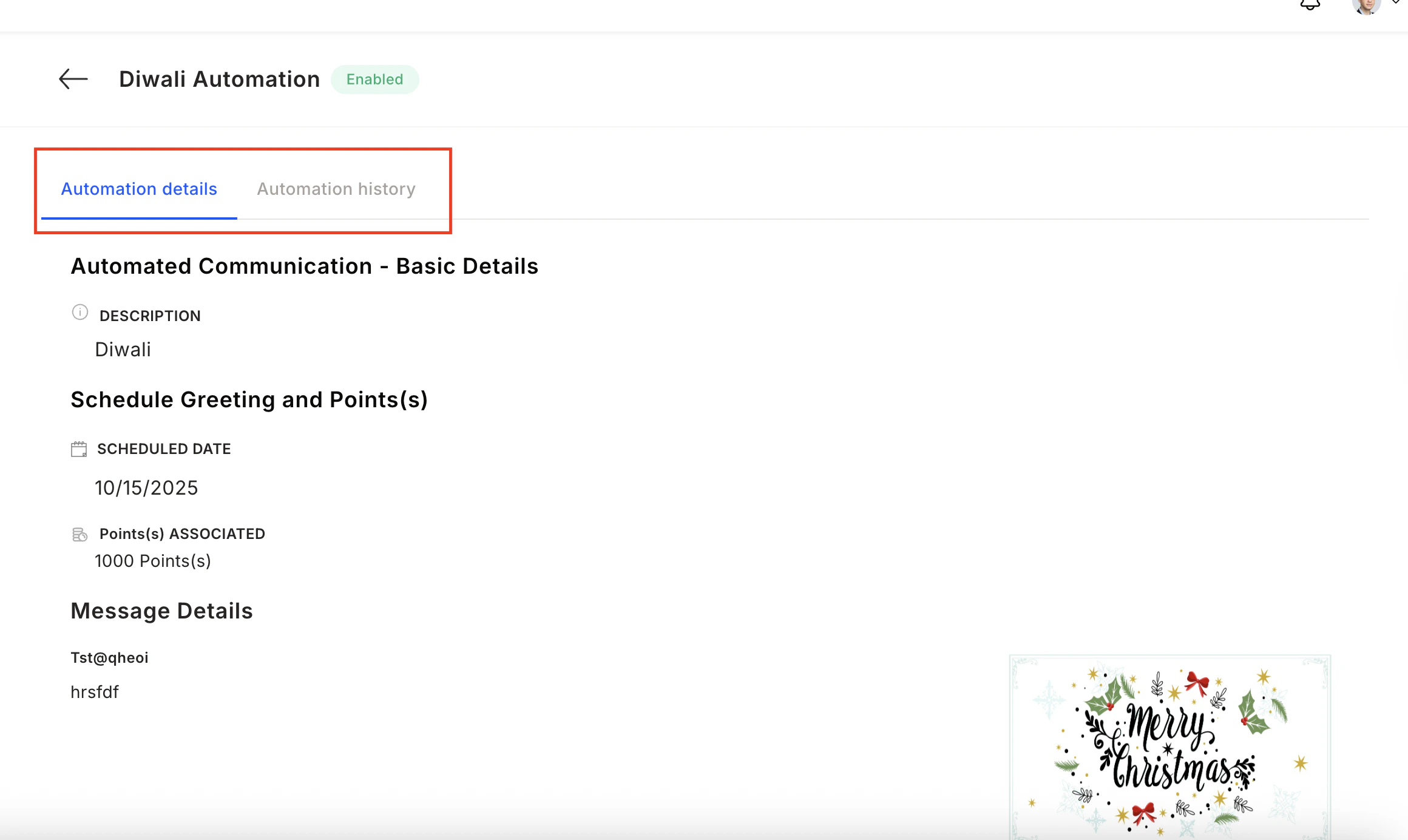
Navigate to **Gifts > Manage Gifts > Scheduled Gifts** or **Automated Gifts**, click the three-dot icon, and select **View Report**. The report shows automation details and the full history of individual sends.
## View gift reports
To see the history of a sent or automated gift:
Navigate to **Gifts > Manage Gifts > Scheduled Gifts** or **Automated Gifts**, click the three-dot icon, and select **View Report**. The report shows automation details and the full history of individual sends.
 ## Related
Set up automated work anniversary and birthday recognition programs.
Create performance-based awards with merchandise or point rewards.
## Related
Set up automated work anniversary and birthday recognition programs.
Create performance-based awards with merchandise or point rewards.