> ## Documentation Index
> Fetch the complete documentation index at: https://help-empuls.xoxoday.com/llms.txt
> Use this file to discover all available pages before exploring further.
# Subscription and billing
> View your active subscription plan, update billing contact and payment details, download invoices, manage redemption wallet balances, and configure currencies.
The Finance section of the Admin Hub centralizes all money-related settings for your Empuls account — your SaaS subscription details, invoices, billing contact information, redemption wallets for employee rewards, and currency configuration. Keeping these settings current ensures your subscription continues uninterrupted and employees can always redeem their earned points.
## View and manage your subscription
In the Admin Hub, navigate to **Finance > Billing** and click **Details**.
At the top of the Billing page, a summary dashboard shows:
* **Current plan** — Your active plan tier (e.g., Proficient) and billing frequency (monthly or annual).
* **Pricing and total users** — Cost per user and the number of active users on your account.
* **Next invoice** — The estimated amount and exact date of your next charge.
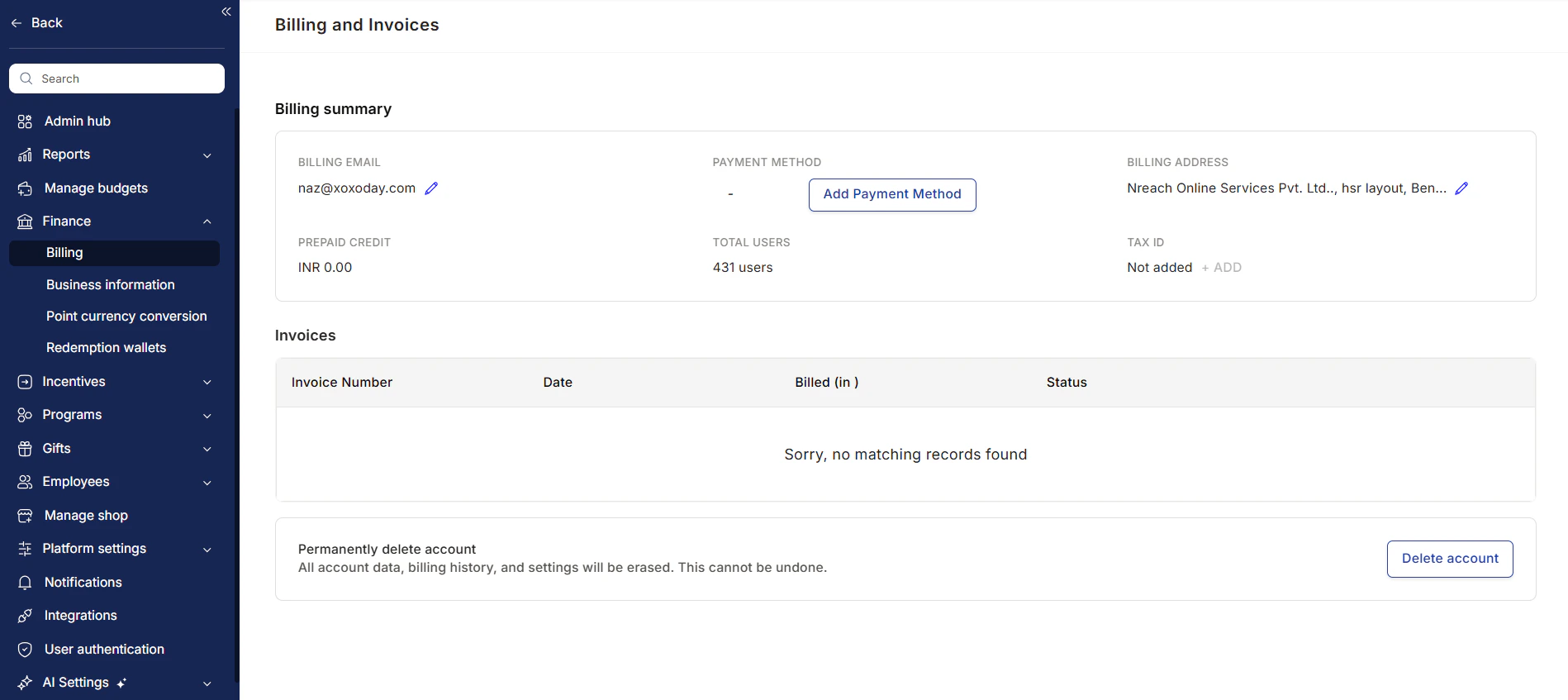 Keep invoice communications routed to the right team:
* **Billing email** — Click **Update** next to the current email to change where invoices are sent.
* **Billing address** — Click **Add** to enter your company's official billing address for invoice compliance.
* **Payment method** — Click **Add Payment Method** to securely enter credit card or bank details.
* **Prepaid credit** — View any available prepaid balance applied to your account.
* **Tax ID** — Click **Add Tax ID** to include your company's tax identification number for compliance on future invoices.
Canceling your subscription is permanent. If you need to cancel, scroll to the bottom of the Billing page and click **Cancel Subscription**. This action will permanently delete the account and cannot be undone. Contact [cs@xoxoday.com](mailto:cs@xoxoday.com) before canceling if you have questions about your options.
To change your subscription plan — upgrade, downgrade, or modify the number of seats — contact your account manager or reach out to [cs@xoxoday.com](mailto:cs@xoxoday.com). Plan changes are not self-serve and are handled by the Empuls team.
## View and download invoices
In the Finance section, click **Invoices**.
The Invoices tab displays all paid and outstanding invoices with dates, amounts, and status.
Click **Download Invoice** next to the relevant date to save a PDF copy for your records or accounting team.
Keep invoice communications routed to the right team:
* **Billing email** — Click **Update** next to the current email to change where invoices are sent.
* **Billing address** — Click **Add** to enter your company's official billing address for invoice compliance.
* **Payment method** — Click **Add Payment Method** to securely enter credit card or bank details.
* **Prepaid credit** — View any available prepaid balance applied to your account.
* **Tax ID** — Click **Add Tax ID** to include your company's tax identification number for compliance on future invoices.
Canceling your subscription is permanent. If you need to cancel, scroll to the bottom of the Billing page and click **Cancel Subscription**. This action will permanently delete the account and cannot be undone. Contact [cs@xoxoday.com](mailto:cs@xoxoday.com) before canceling if you have questions about your options.
To change your subscription plan — upgrade, downgrade, or modify the number of seats — contact your account manager or reach out to [cs@xoxoday.com](mailto:cs@xoxoday.com). Plan changes are not self-serve and are handled by the Empuls team.
## View and download invoices
In the Finance section, click **Invoices**.
The Invoices tab displays all paid and outstanding invoices with dates, amounts, and status.
Click **Download Invoice** next to the relevant date to save a PDF copy for your records or accounting team.
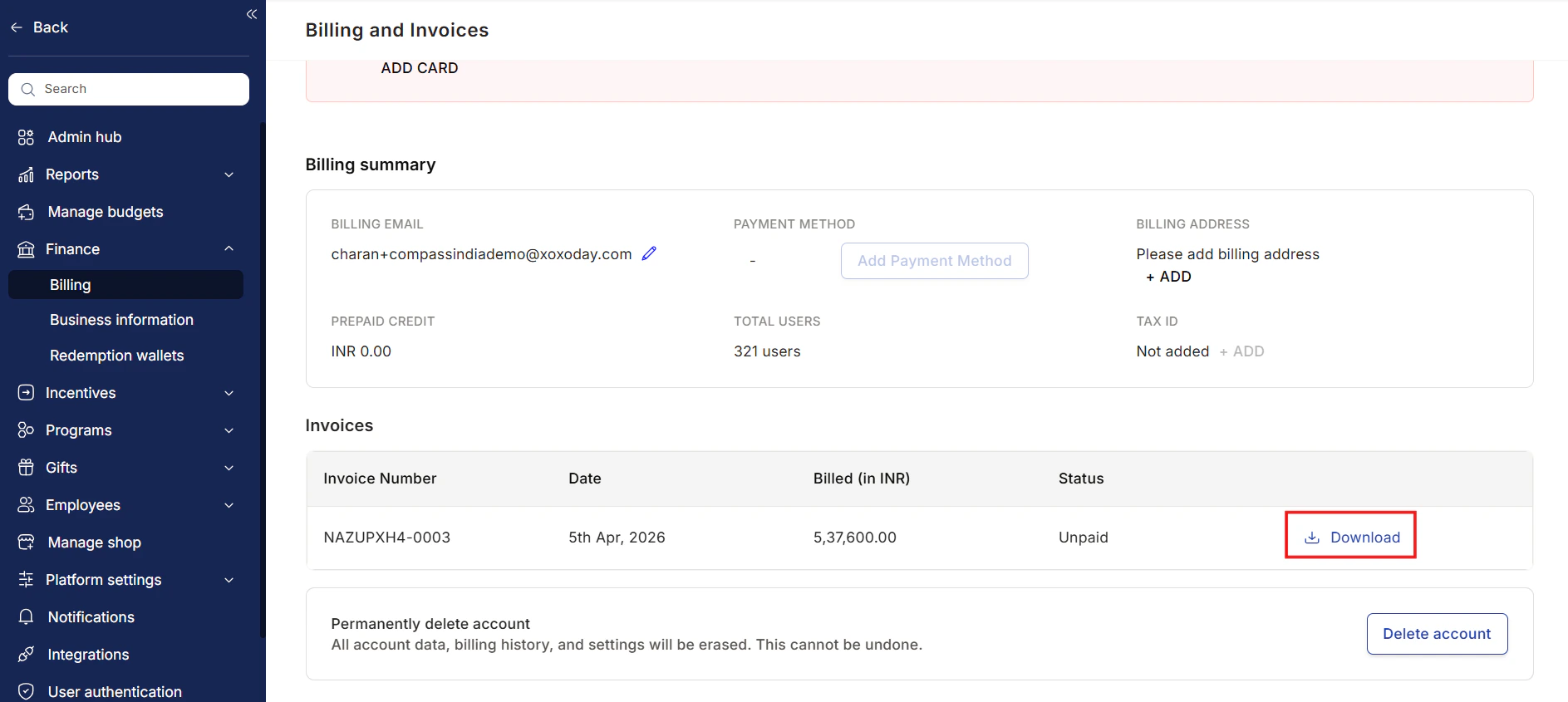 For outstanding invoices, click **Pay Now** to complete payment online. If payment was made offline (e.g., bank transfer), click **Mark as Paid** to update the invoice status manually.
## Business information
Business information covers your company's official details that appear on invoices and in the platform's compliance records.
In the Admin Hub, go to **Finance > Business Information**.
For outstanding invoices, click **Pay Now** to complete payment online. If payment was made offline (e.g., bank transfer), click **Mark as Paid** to update the invoice status manually.
## Business information
Business information covers your company's official details that appear on invoices and in the platform's compliance records.
In the Admin Hub, go to **Finance > Business Information**.
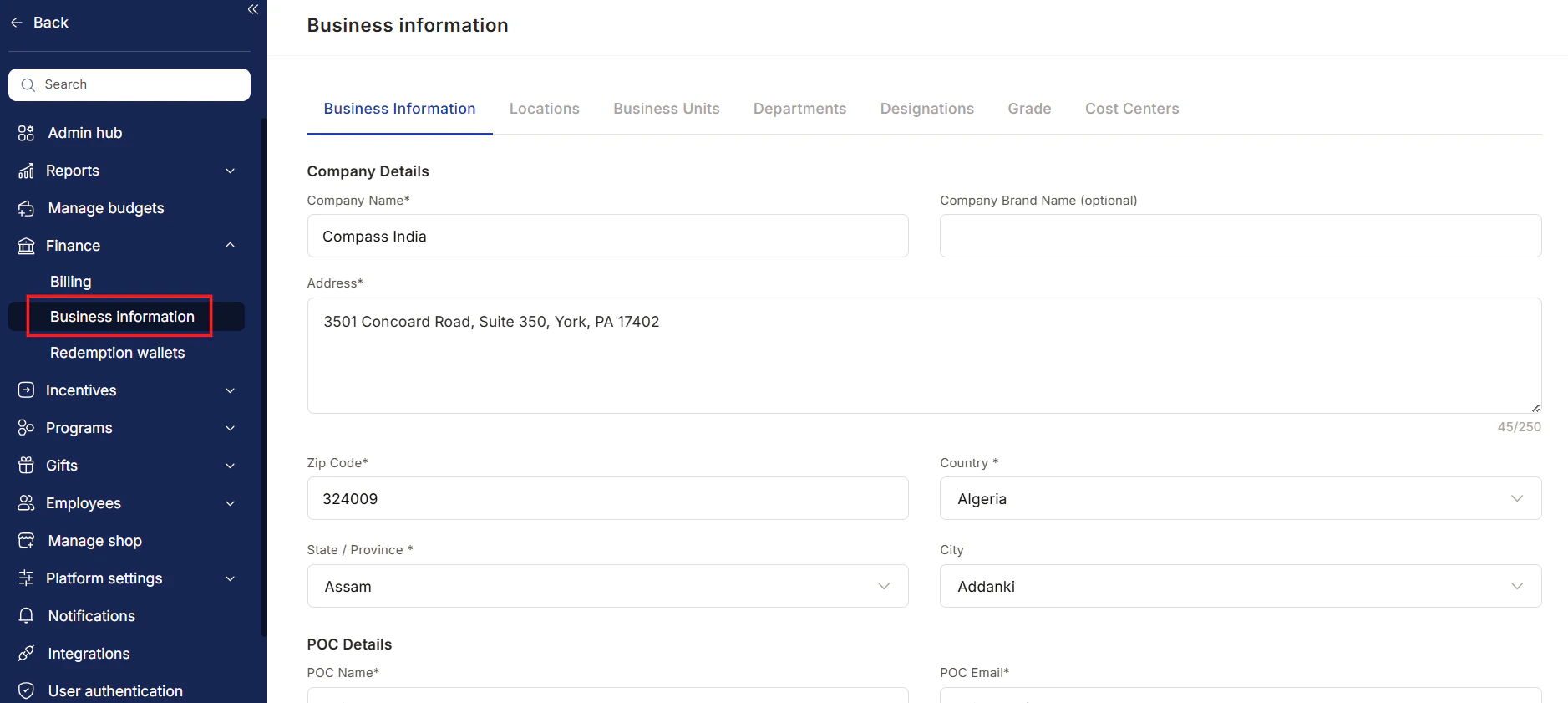 Edit your company's name, address, and primary point of contact details.
Add or edit metadata that structures your employee directory:
* **Locations** — Office and remote work locations.
* **Business units** — Top-level organizational divisions.
* **Cost centers** — Financial allocation units.
* **Departments** — Functional teams.
* **Designations** — Job titles.
* **Grades** — Seniority levels.
Click **Add Location** (or the equivalent button for each metadata type) to create entries. Click **Proceed** to save.
To delete a metadata entry, go to the **Metadata** tab, hover over the entry, and click the **delete icon**. You will be prompted to either set the linked data field to blank for all affected users, or remap those users to a different metadata entry using the dropdown.
Go to **Finance > Billing**, click **Details**, and then click **Update** next to the billing email or **Add Payment Method** to change your payment information.
Yes. Navigate to **Finance > Invoices** and click **Download Invoice** next to the date you need.
Click **Mark as Paid** next to the invoice to manually update its status so your records stay accurate.
Contact your account manager or reach out to [cs@xoxoday.com](mailto:cs@xoxoday.com) to upgrade, downgrade, or modify your plan. Plan changes are not available through self-service.
Employees will be unable to complete reward redemptions until the wallet is topped up. Monitor your wallet balance regularly and add funds before it approaches zero.
Yes. Go to the Metadata tab, find the entry, and click the delete icon. You will be prompted to either blank the field for affected users or remap them to another entry.
Edit your company's name, address, and primary point of contact details.
Add or edit metadata that structures your employee directory:
* **Locations** — Office and remote work locations.
* **Business units** — Top-level organizational divisions.
* **Cost centers** — Financial allocation units.
* **Departments** — Functional teams.
* **Designations** — Job titles.
* **Grades** — Seniority levels.
Click **Add Location** (or the equivalent button for each metadata type) to create entries. Click **Proceed** to save.
To delete a metadata entry, go to the **Metadata** tab, hover over the entry, and click the **delete icon**. You will be prompted to either set the linked data field to blank for all affected users, or remap those users to a different metadata entry using the dropdown.
Go to **Finance > Billing**, click **Details**, and then click **Update** next to the billing email or **Add Payment Method** to change your payment information.
Yes. Navigate to **Finance > Invoices** and click **Download Invoice** next to the date you need.
Click **Mark as Paid** next to the invoice to manually update its status so your records stay accurate.
Contact your account manager or reach out to [cs@xoxoday.com](mailto:cs@xoxoday.com) to upgrade, downgrade, or modify your plan. Plan changes are not available through self-service.
Employees will be unable to complete reward redemptions until the wallet is topped up. Monitor your wallet balance regularly and add funds before it approaches zero.
Yes. Go to the Metadata tab, find the entry, and click the delete icon. You will be prompted to either blank the field for affected users or remap them to another entry.