> ## Documentation Index
> Fetch the complete documentation index at: https://help-empuls.xoxoday.com/llms.txt
> Use this file to discover all available pages before exploring further.
# Manage budgets
> Create recognition budgets, allocate points to managers and teams, set fixed or prorated distributions, pause and reactivate budgets, and monitor spending.
Budgets in Empuls control how recognition points are distributed to managers and employees. Allocate fixed amounts or prorate distributions based on team size, edit budgets at any time, pause or reactivate them, and monitor spending across the organization.
Keep your redemption wallet balance in sync with total outstanding redeemable points. When employees redeem points for vouchers, the amount is settled from your organization's redemption wallet. An underfunded wallet will interrupt the redemption experience.
## Video walkthrough
## Manage organisational R\&R budget
Reward Admins (Super Admins) can control the organization's reward expenses by managing the total points created in the system.
### Create points
Points are the currency used in this system for rewarding users or giving gifts (for example, on birthdays). To start the rewarding process, you must first create points. These points are only paid for at the time of redemption.
The Super Admin can create these points using their assigned personal budget.
Go to the **Admin dashboard** by clicking on **Reports and Admin**.
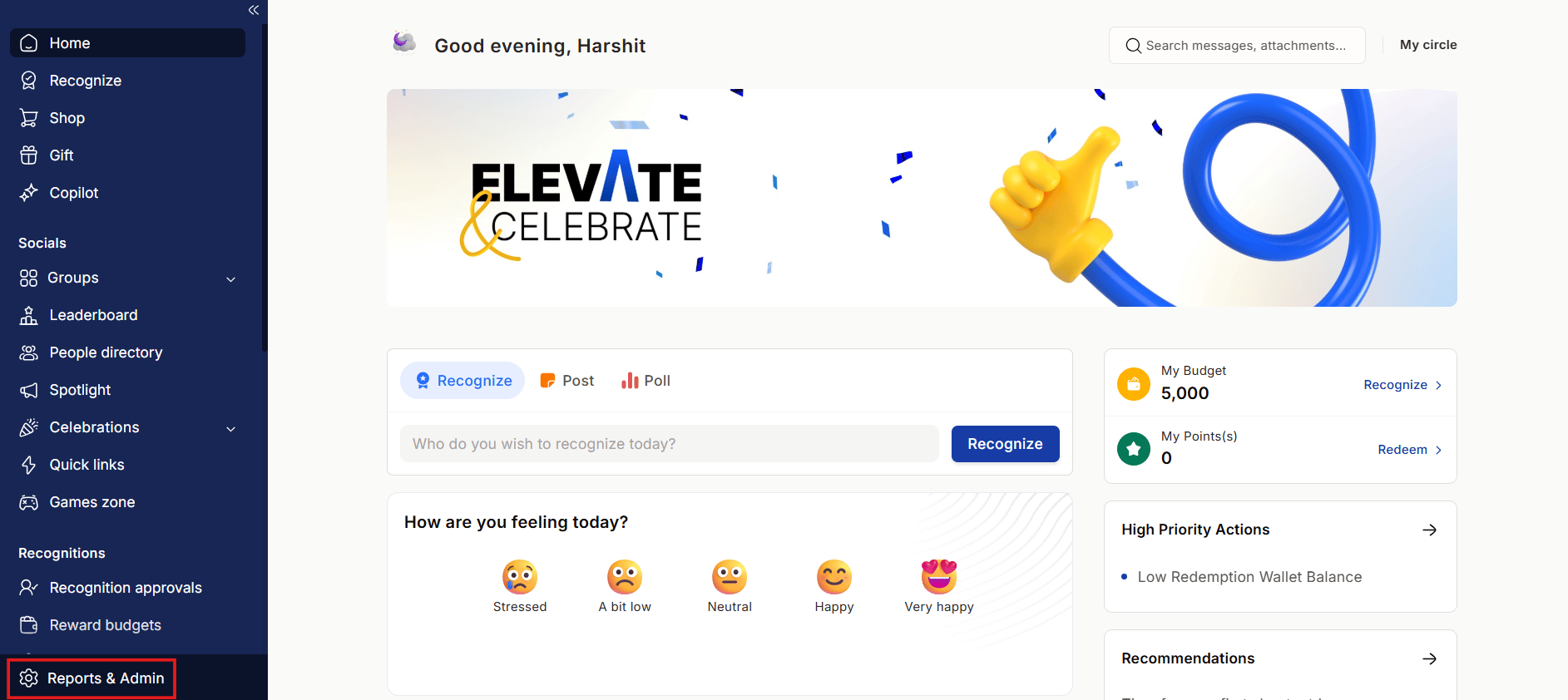 Navigate to **Manage budgets**.
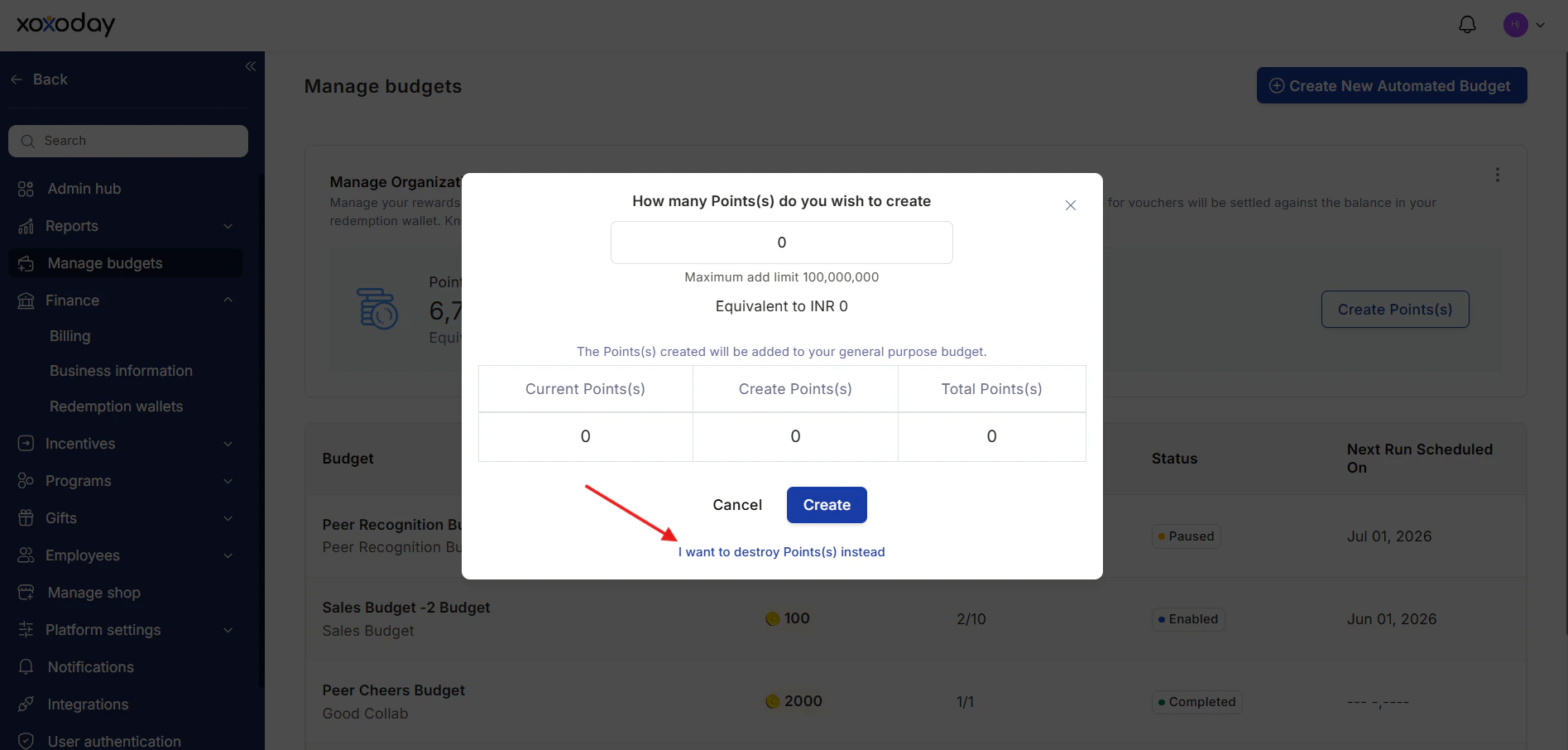
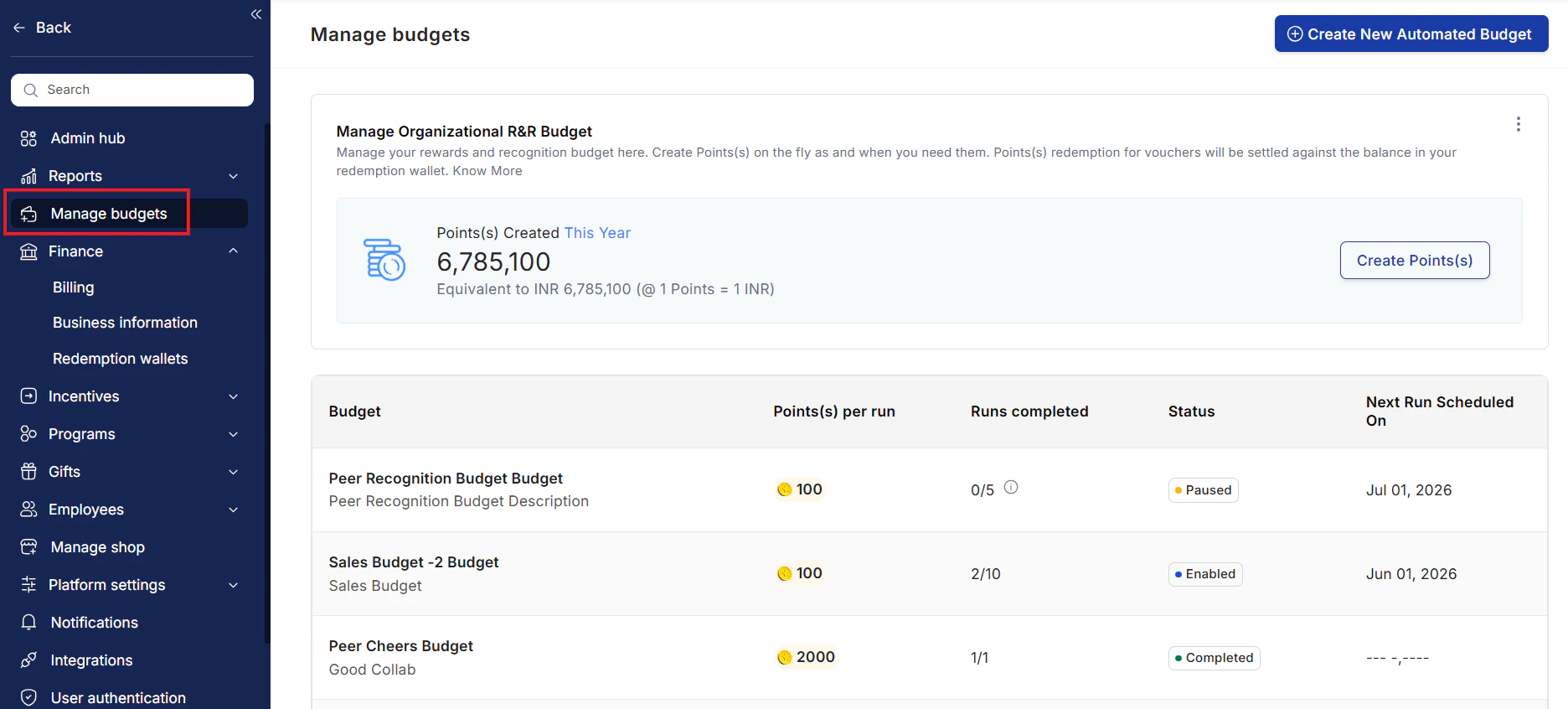 Click on **Create Points** under the Manage Organizational R\&R Budget card.
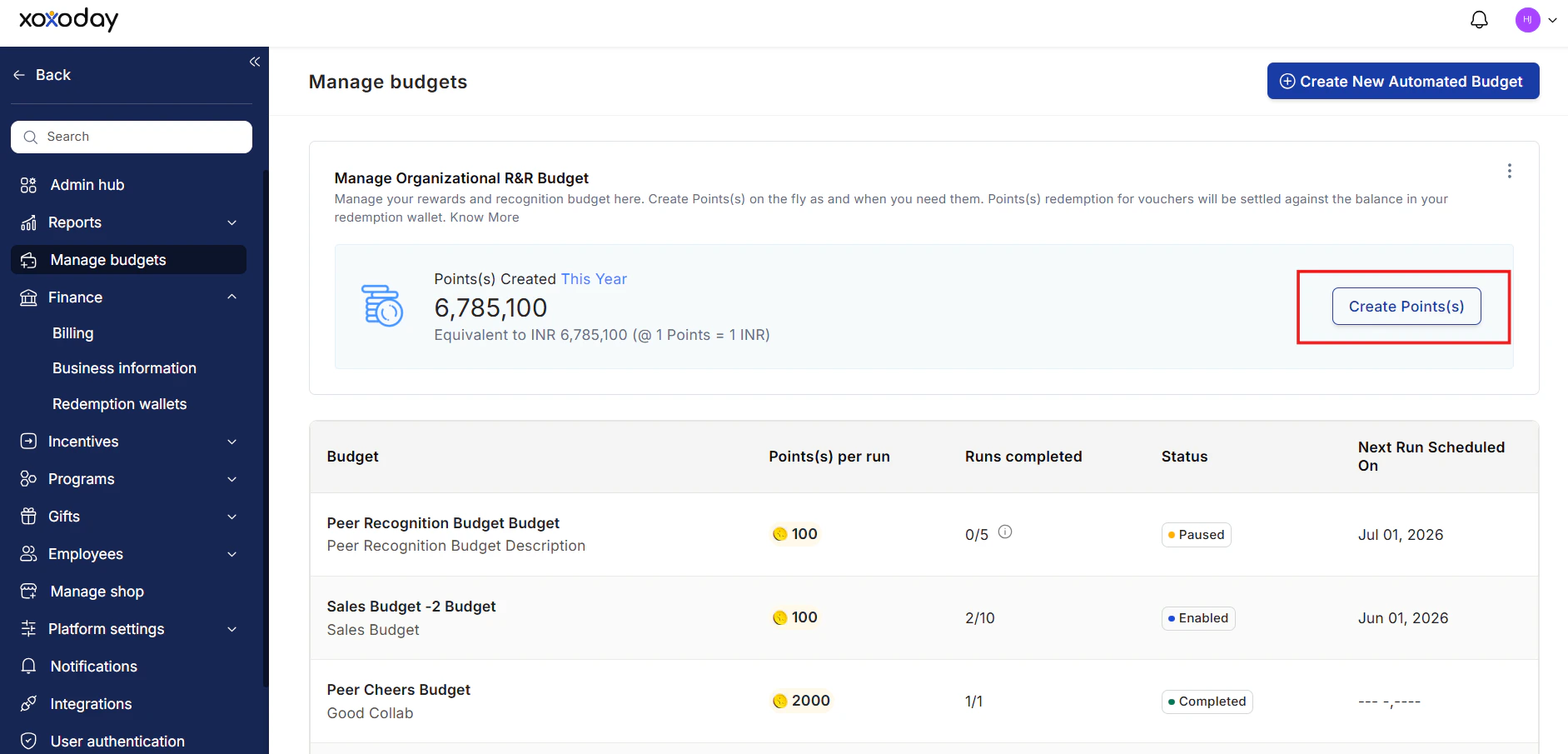 Enter the total number of points you wish to create. The equivalent currency is shown alongside. Click **Create**.
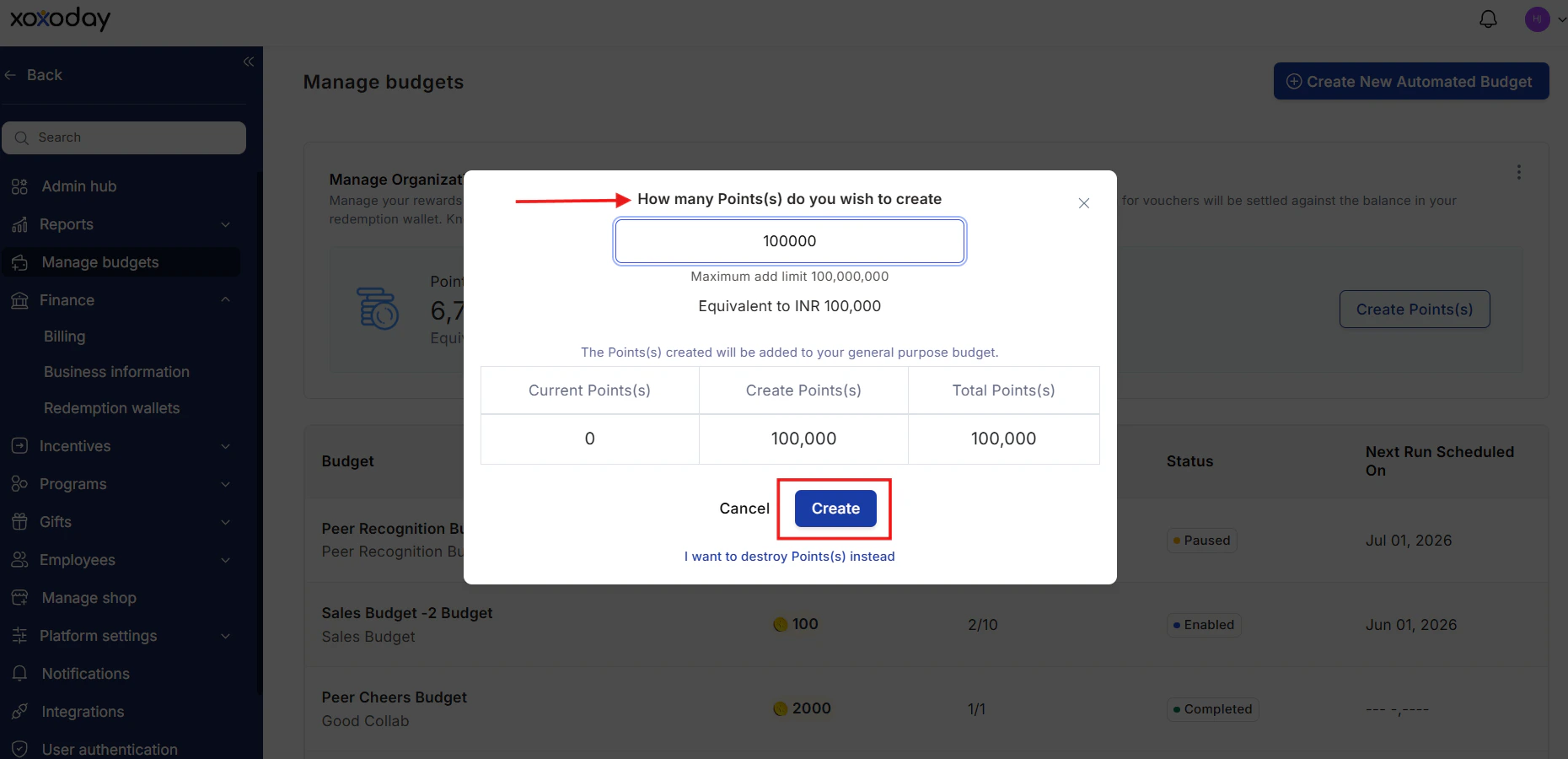 You can also choose to destroy reward points. Click **I want to destroy points** instead at the bottom. Enter the number of coins you wish to destroy and click **Destroy**.
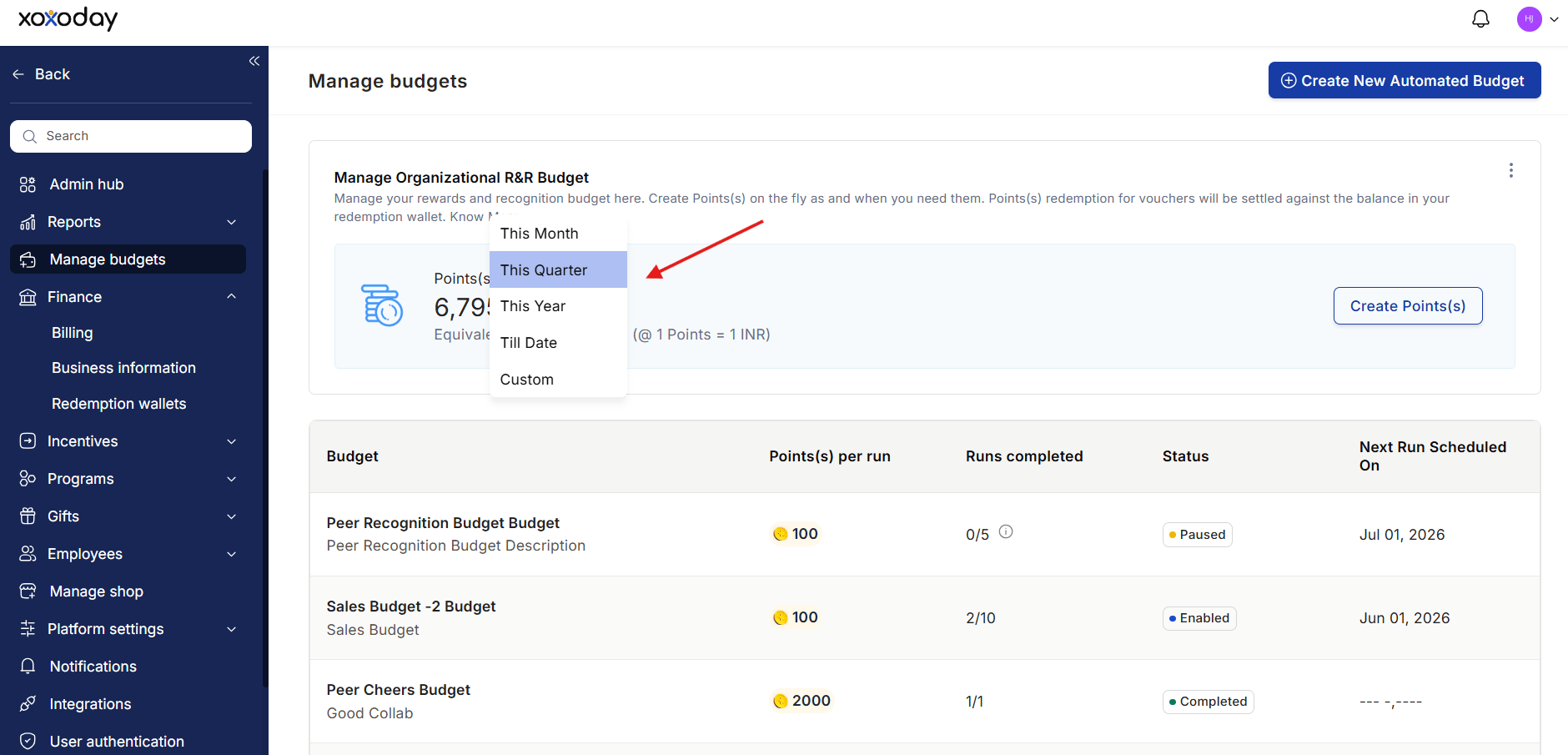
 Select the desired time frame to view the total reward points — for example, a day, a month, or a year.
 * *You only need to pay for reward points at the time of redemption.*
* *The organisational wallet must have sufficient funds to honour redemptions on the Empuls store.*
## Edit an existing budget
To update a budget's name, description, allocation, or recipients after it has been created:
1. Go to **Manage Budgets** in the Admin Hub.
2. Locate the budget in the list and click on it to open **Budget Details**.
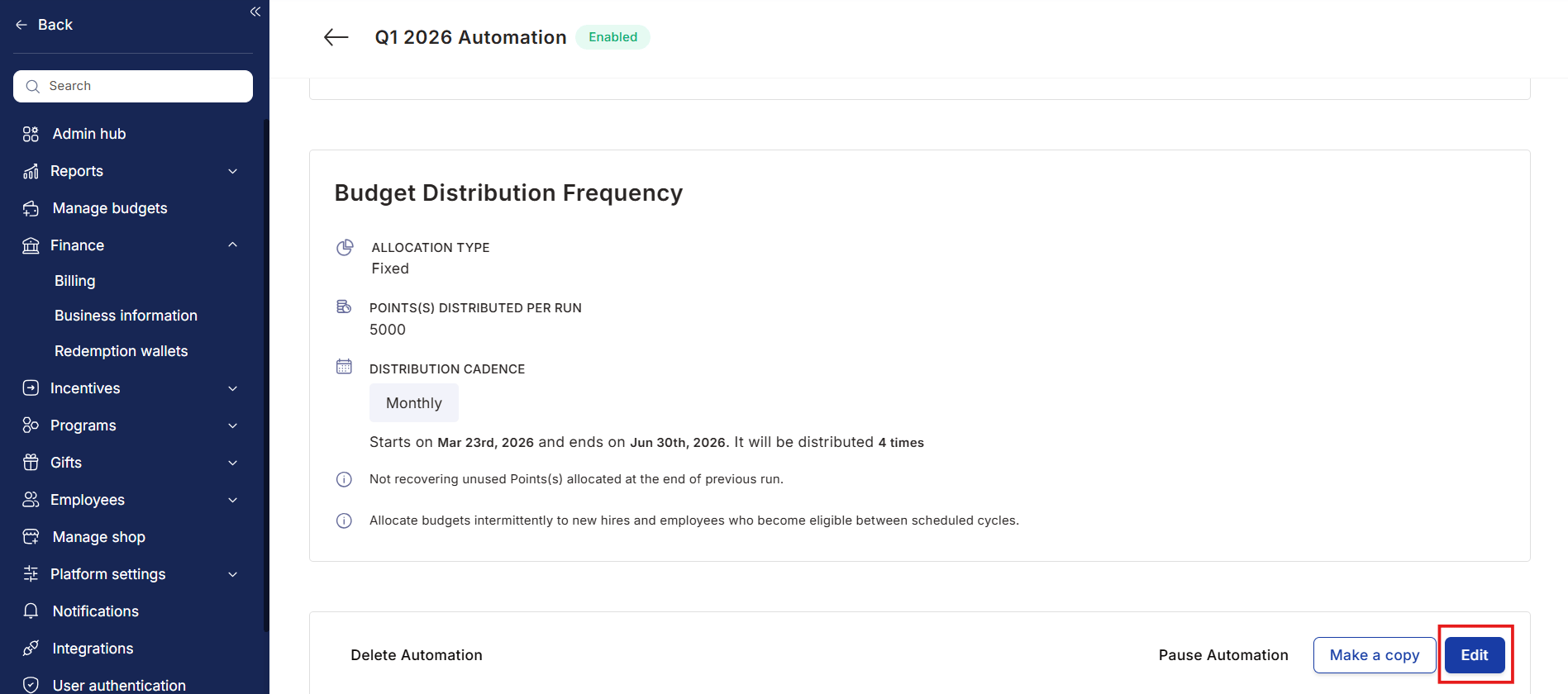
3. Click **Edit** and make the necessary changes.
4. Click **Save** to apply the updates.
* *You only need to pay for reward points at the time of redemption.*
* *The organisational wallet must have sufficient funds to honour redemptions on the Empuls store.*
## Edit an existing budget
To update a budget's name, description, allocation, or recipients after it has been created:
1. Go to **Manage Budgets** in the Admin Hub.
2. Locate the budget in the list and click on it to open **Budget Details**.
3. Click **Edit** and make the necessary changes.
4. Click **Save** to apply the updates.
 ## Pause and reactivate a budget
If you need to temporarily suspend a budget — for example, during a company restructuring or hiring freeze — you can pause it without losing its configuration.
1. Open the budget from the **Manage Budgets** list.
2. Click **Pause Budget**.
3. The budget stops distributing points on its schedule but retains all settings.
4. When ready to resume, open the budget again and click **Reactivate**.
## Pause and reactivate a budget
If you need to temporarily suspend a budget — for example, during a company restructuring or hiring freeze — you can pause it without losing its configuration.
1. Open the budget from the **Manage Budgets** list.
2. Click **Pause Budget**.
3. The budget stops distributing points on its schedule but retains all settings.
4. When ready to resume, open the budget again and click **Reactivate**.
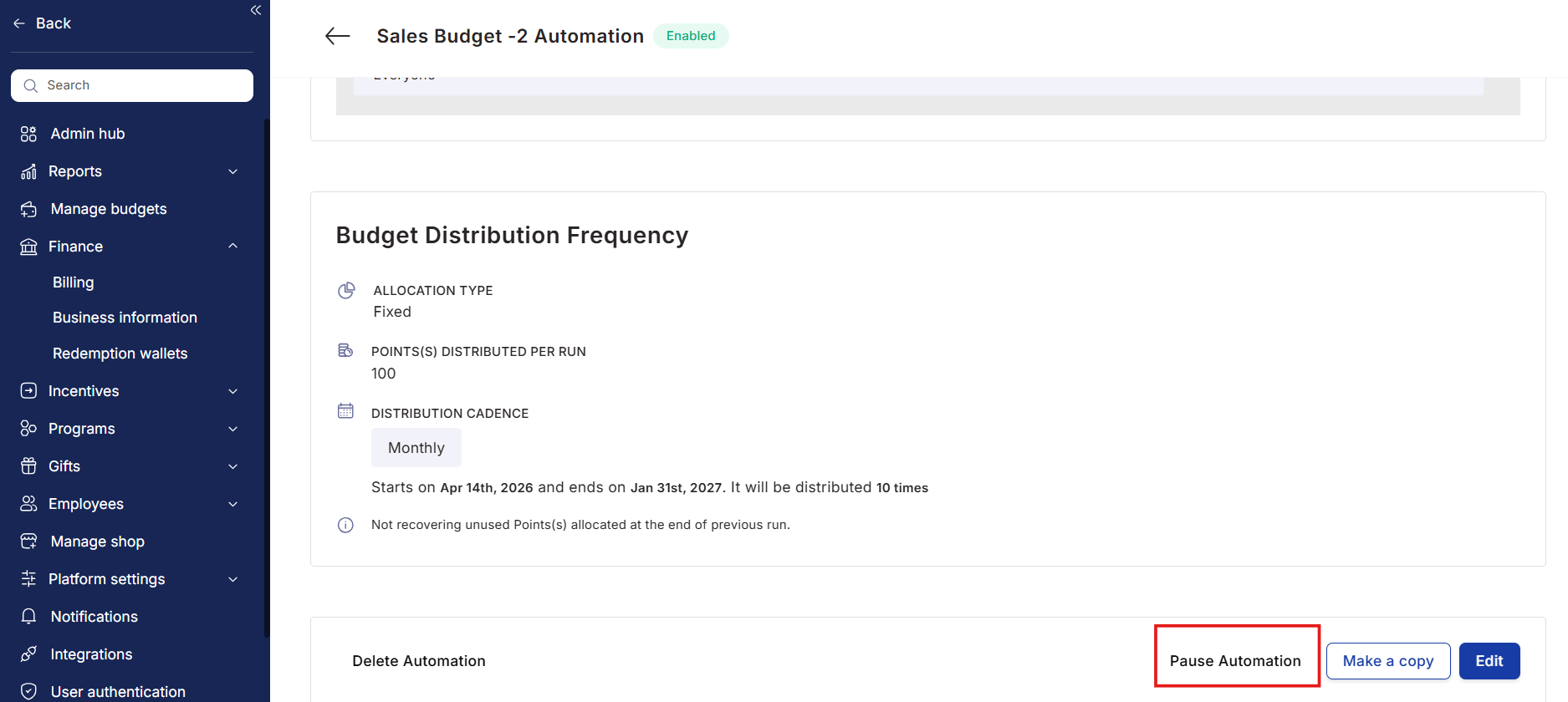 Reactivation resumes the budget from its configured schedule without requiring you to rebuild it from scratch.
## Duplicate a budget
If you want to create a new budget based on an existing configuration:
1. Go to **Manage Budgets** and click the budget you want to copy.
2. Scroll to the bottom of the **Budget Details** page.
3. Click **Make a Copy**.
Reactivation resumes the budget from its configured schedule without requiring you to rebuild it from scratch.
## Duplicate a budget
If you want to create a new budget based on an existing configuration:
1. Go to **Manage Budgets** and click the budget you want to copy.
2. Scroll to the bottom of the **Budget Details** page.
3. Click **Make a Copy**.
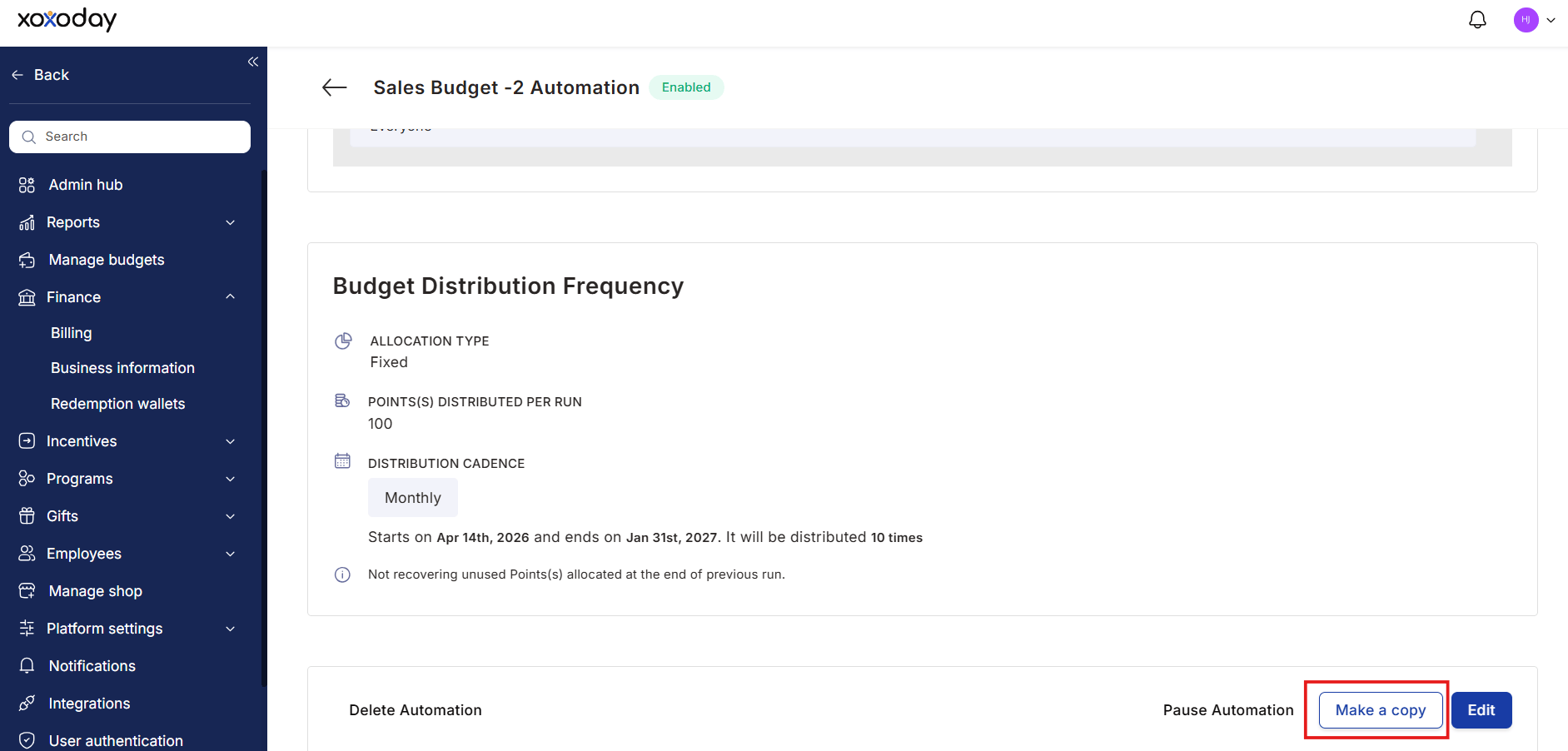 A duplicate is created with all the same settings. Edit the copy to adjust the name, recipients, or cadence before activating it.
## View budget history
To review how a budget has performed over time:
1. Navigate to **Reports & Settings > Manage Budgets**.
2. Locate the budget in the list and click on it to expand.
3. Review the **Budget Details** section to see historical distribution runs, amounts sent, and recipients.
A duplicate is created with all the same settings. Edit the copy to adjust the name, recipients, or cadence before activating it.
## View budget history
To review how a budget has performed over time:
1. Navigate to **Reports & Settings > Manage Budgets**.
2. Locate the budget in the list and click on it to expand.
3. Review the **Budget Details** section to see historical distribution runs, amounts sent, and recipients.
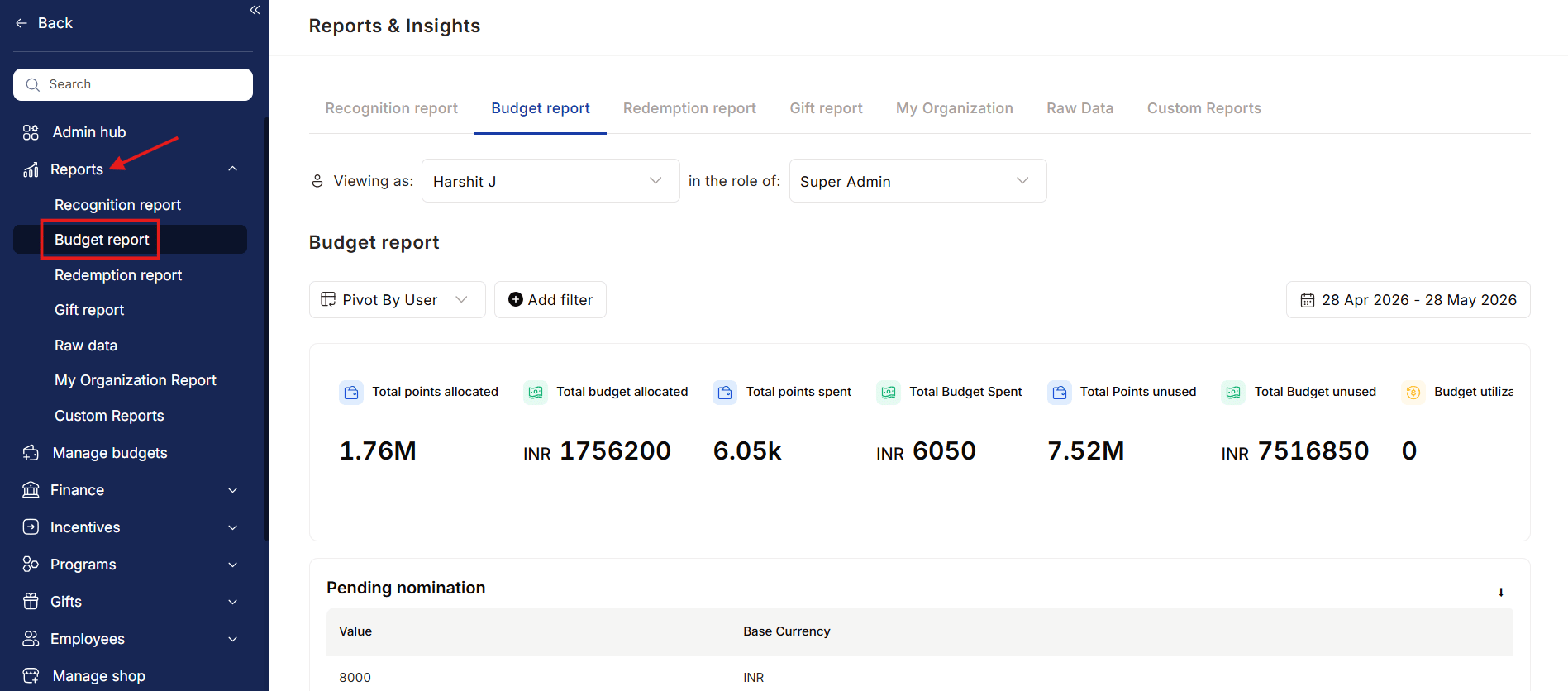 This view shows the full configuration alongside all historical activity in one place, making it easy to audit past distributions or troubleshoot discrepancies.
## Monitor budget usage
Budget usage data is available in two places:
* **Budget Details** — Expanding any budget shows current allocation status and remaining balance.
* **Budget Reports** (in the Reports section) — Organization-wide view of allocated vs. spent budgets across all departments, managers, and programs.
Use budget reports to identify managers who are consistently underspending their allocation (and may need encouragement to recognize more) or departments that are exhausting budgets quickly (and may benefit from a larger allocation).
## FAQs
Fixed allocation gives every recipient the same number of points regardless of team size. Prorated allocation scales the distribution based on a rule — for example, a manager with 10 direct reports receives more points than a manager with 3, so both can meaningfully recognize their teams.
Yes. Open the budget from Manage Budgets, click **Edit**, update the linked awards, and save. Changes take effect on the next distribution run.
If you checked **Recover unused points** during budget creation, unspent points return to the budget pool at the end of each cycle. If this option is unchecked, points carry over to the next cycle or remain in the recipient's budget wallet.
This view shows the full configuration alongside all historical activity in one place, making it easy to audit past distributions or troubleshoot discrepancies.
## Monitor budget usage
Budget usage data is available in two places:
* **Budget Details** — Expanding any budget shows current allocation status and remaining balance.
* **Budget Reports** (in the Reports section) — Organization-wide view of allocated vs. spent budgets across all departments, managers, and programs.
Use budget reports to identify managers who are consistently underspending their allocation (and may need encouragement to recognize more) or departments that are exhausting budgets quickly (and may benefit from a larger allocation).
## FAQs
Fixed allocation gives every recipient the same number of points regardless of team size. Prorated allocation scales the distribution based on a rule — for example, a manager with 10 direct reports receives more points than a manager with 3, so both can meaningfully recognize their teams.
Yes. Open the budget from Manage Budgets, click **Edit**, update the linked awards, and save. Changes take effect on the next distribution run.
If you checked **Recover unused points** during budget creation, unspent points return to the budget pool at the end of each cycle. If this option is unchecked, points carry over to the next cycle or remain in the recipient's budget wallet.