> ## Documentation Index
> Fetch the complete documentation index at: https://help-empuls.xoxoday.com/llms.txt
> Use this file to discover all available pages before exploring further.
# Automated budgets
> Create automated recognition budgets that run on a schedule — weekly, monthly, or quarterly — so your programs always have funds without manual top-ups.
Rather than manually sending points each month, create automated budgets that run on a schedule (weekly, monthly, or quarterly) so your recognition programs always have funds available without manual intervention. Allocate fixed amounts or prorate distributions based on team size.
## Create an automated budget
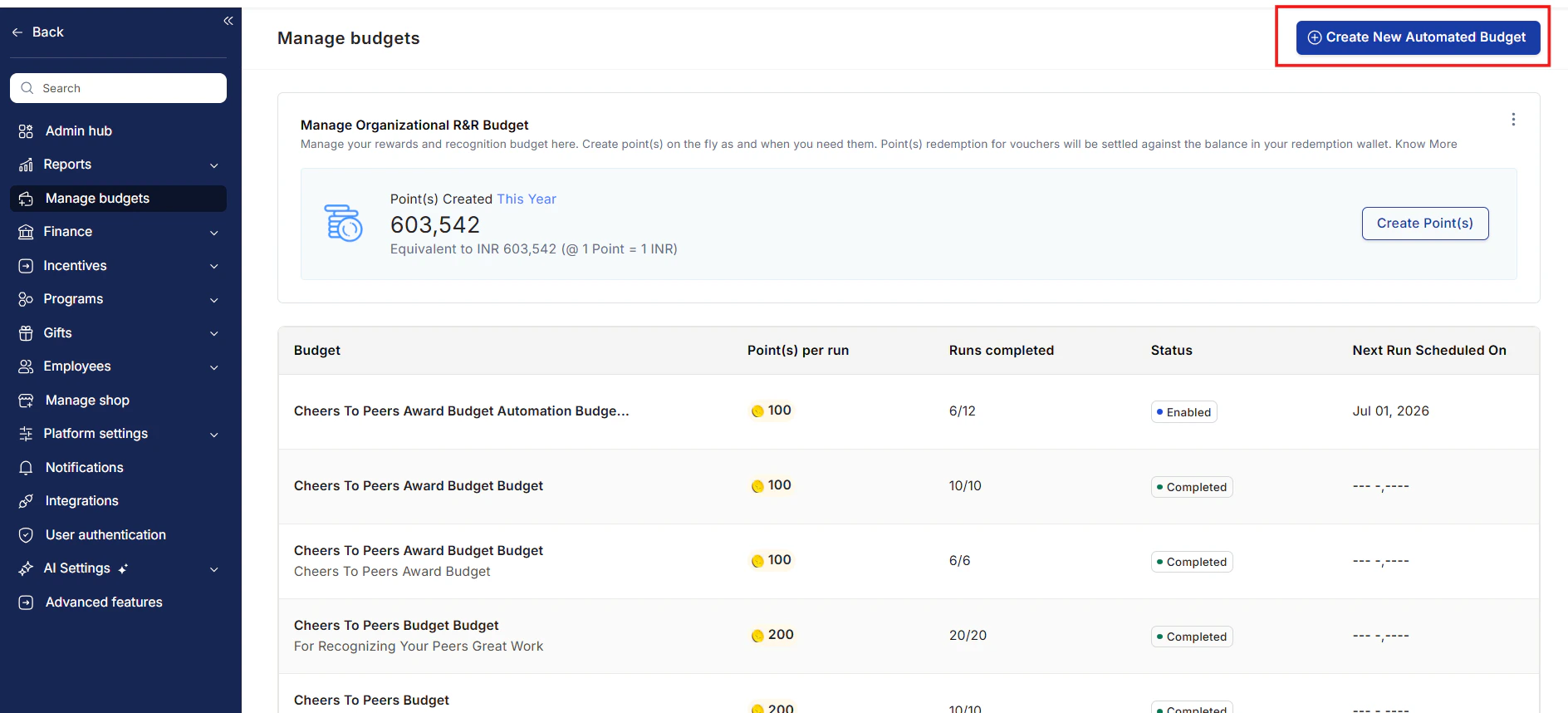
In the Admin Hub, navigate to **Manage Budgets** and click **Create New Automated Budget**.
 The budget creation wizard opens. Click **Let's Begin** to start.
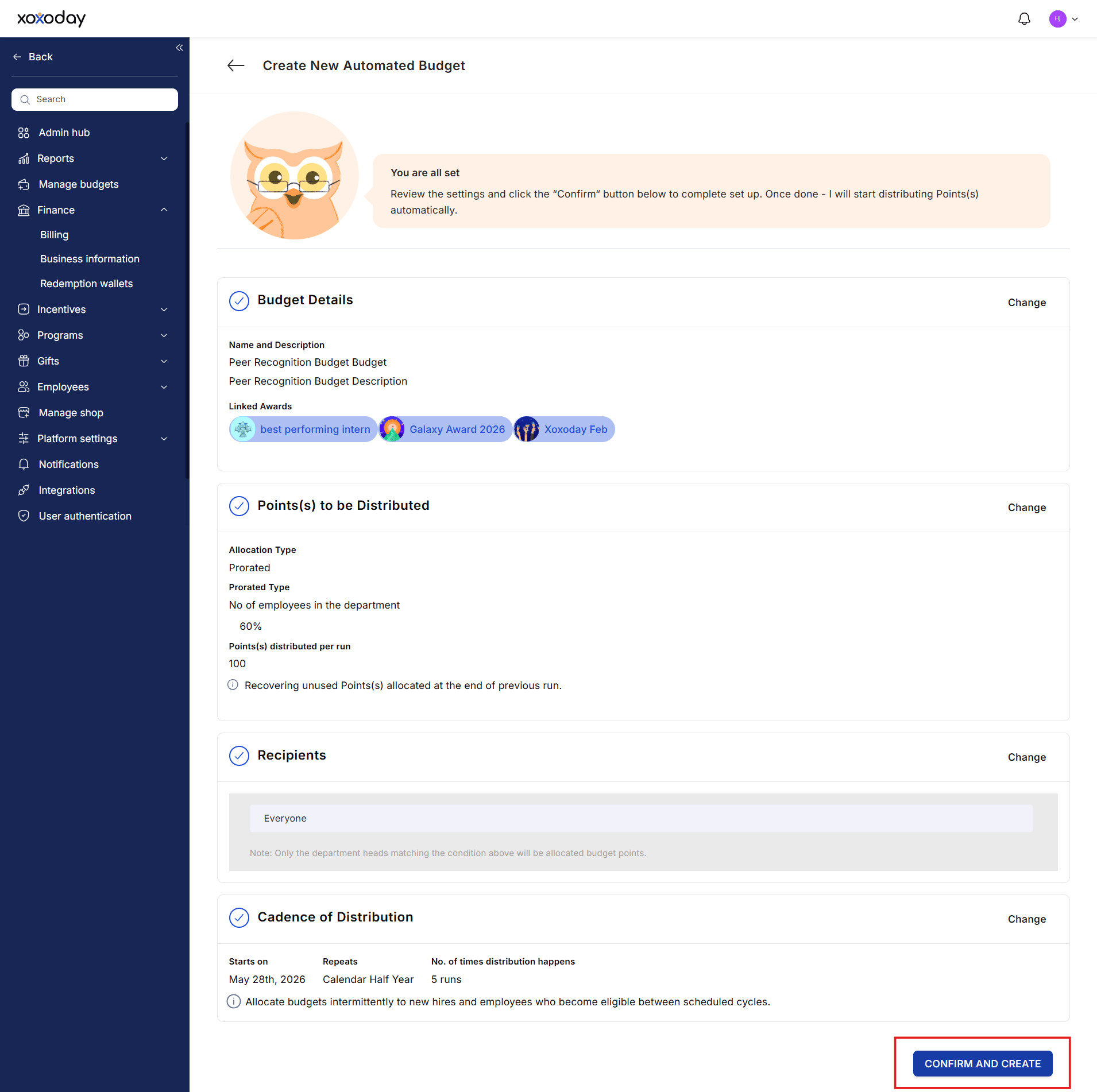
Enter a **budget name** and **description**, then link the award types that will draw from this budget. For example, a "Peer Recognition Budget" linked to your peer awards ensures managers only use these funds for that specific program.
Select how points are distributed to recipients:
* **Fixed** — Every recipient gets the same number of points per distribution run. Use this for equal-distribution programs where team size doesn't matter.
* **Prorated** — Points are distributed based on a rule you define. Select a proration rule from the dropdown:
* Number of employees in a department
* Number of employees in a business unit
* Number of employees in a cost center
* Number of employees mapped to an HR representative
* Number of direct reports
* Number of direct and indirect reports
Then enter the total points to distribute per run. The system calculates each recipient's share based on the rule.
Check **Recover unused points** if you want unspent points returned to the budget at the end of each cycle rather than carried over to the next period.
Click the **pen icon** to choose who receives the budget. You can:
* Select individuals manually
* Use advanced filters (by designation, location, department, function, etc.)
* Paste a list of recipients directly
Configure when and how often the budget distributes:
* **Start date** — Select the first distribution date using the calendar.
* **Repeat cycle** — Choose weekly, monthly, quarterly, or another frequency.
* **Number of runs** — Specify how many times the distribution should occur before the budget expires.
Review all settings in the summary. Click **Confirm and Create** to activate the automated budget.
The budget creation wizard opens. Click **Let's Begin** to start.
Enter a **budget name** and **description**, then link the award types that will draw from this budget. For example, a "Peer Recognition Budget" linked to your peer awards ensures managers only use these funds for that specific program.
Select how points are distributed to recipients:
* **Fixed** — Every recipient gets the same number of points per distribution run. Use this for equal-distribution programs where team size doesn't matter.
* **Prorated** — Points are distributed based on a rule you define. Select a proration rule from the dropdown:
* Number of employees in a department
* Number of employees in a business unit
* Number of employees in a cost center
* Number of employees mapped to an HR representative
* Number of direct reports
* Number of direct and indirect reports
Then enter the total points to distribute per run. The system calculates each recipient's share based on the rule.
Check **Recover unused points** if you want unspent points returned to the budget at the end of each cycle rather than carried over to the next period.
Click the **pen icon** to choose who receives the budget. You can:
* Select individuals manually
* Use advanced filters (by designation, location, department, function, etc.)
* Paste a list of recipients directly
Configure when and how often the budget distributes:
* **Start date** — Select the first distribution date using the calendar.
* **Repeat cycle** — Choose weekly, monthly, quarterly, or another frequency.
* **Number of runs** — Specify how many times the distribution should occur before the budget expires.
Review all settings in the summary. Click **Confirm and Create** to activate the automated budget.
 ## FAQs
Budgets can be distributed on any recurring schedule. Common choices are monthly (for ongoing recognition programs), quarterly (for performance-tied programs), and annually (for long-service awards or end-of-year programs). You set the frequency when creating the budget.
You can assign budgets to individual users, managers, teams, or filtered groups based on attributes like designation, location, or department. Use advanced filters during budget creation to target the right recipients without manually listing them.
Fixed allocation gives every recipient the same number of points regardless of team size. Prorated allocation scales the distribution based on a rule — for example, a manager with 10 direct reports receives more points than a manager with 3, so both can meaningfully recognize their teams.
If you checked **Recover unused points** during budget creation, unspent points return to the budget pool at the end of each cycle. If this option is unchecked, points carry over to the next cycle or remain in the recipient's budget wallet.
To edit, pause, duplicate, or audit an automated budget after creation, see [Manage budgets](/admin/budgets/manage-budgets).
## FAQs
Budgets can be distributed on any recurring schedule. Common choices are monthly (for ongoing recognition programs), quarterly (for performance-tied programs), and annually (for long-service awards or end-of-year programs). You set the frequency when creating the budget.
You can assign budgets to individual users, managers, teams, or filtered groups based on attributes like designation, location, or department. Use advanced filters during budget creation to target the right recipients without manually listing them.
Fixed allocation gives every recipient the same number of points regardless of team size. Prorated allocation scales the distribution based on a rule — for example, a manager with 10 direct reports receives more points than a manager with 3, so both can meaningfully recognize their teams.
If you checked **Recover unused points** during budget creation, unspent points return to the budget pool at the end of each cycle. If this option is unchecked, points carry over to the next cycle or remain in the recipient's budget wallet.
To edit, pause, duplicate, or audit an automated budget after creation, see [Manage budgets](/admin/budgets/manage-budgets).