> ## Documentation Index
> Fetch the complete documentation index at: https://help-empuls.xoxoday.com/llms.txt
> Use this file to discover all available pages before exploring further.
# AI settings
> Enable or disable AI Content Moderation, AI Writing Suggestions, and AI Skill Mapping from the admin panel, and review flagged content in one place.
The AI Settings panel gives Super Admins centralized control over all AI-powered features on Empuls. From a single screen, you can enable content moderation that automatically blocks inappropriate posts, turn on AI writing assistance to help employees craft better recognition messages, and activate skill mapping that surfaces soft skills from recognition data. Each feature operates independently and can be toggled on or off at any time without affecting the others.
## Accessing AI Settings
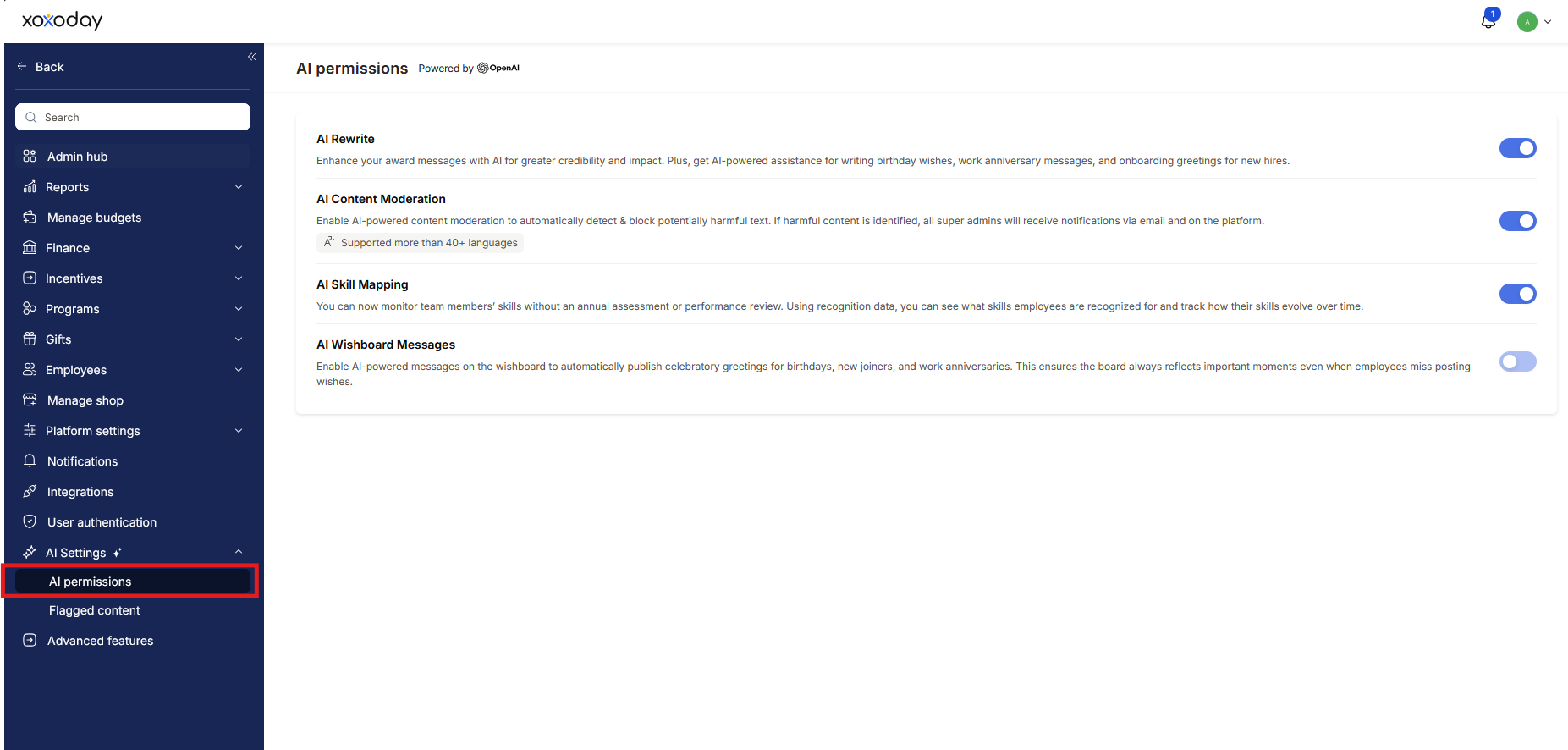
Navigate to **Reports and Admin > AI Settings > AI Permissions** to reach the configuration panel.
Only Super Admins can enable or disable AI features. Managers and employees see the results of these settings but cannot change them.
***
## AI Content Moderation
AI Content Moderation uses OpenAI's Moderation API to automatically evaluate user-generated content before it is published on the platform. When flagged content is detected, it is either blocked silently or blocked and reported for admin review, depending on your configuration.
### Where moderation applies
Content moderation is enforced across:
* Social feed posts
* Comments
* Award citations
* Q\&A submissions
* Wishboard wishes
### How to enable AI Content Moderation
Go to **Reports and Admin > AI Settings > AI Permissions**.
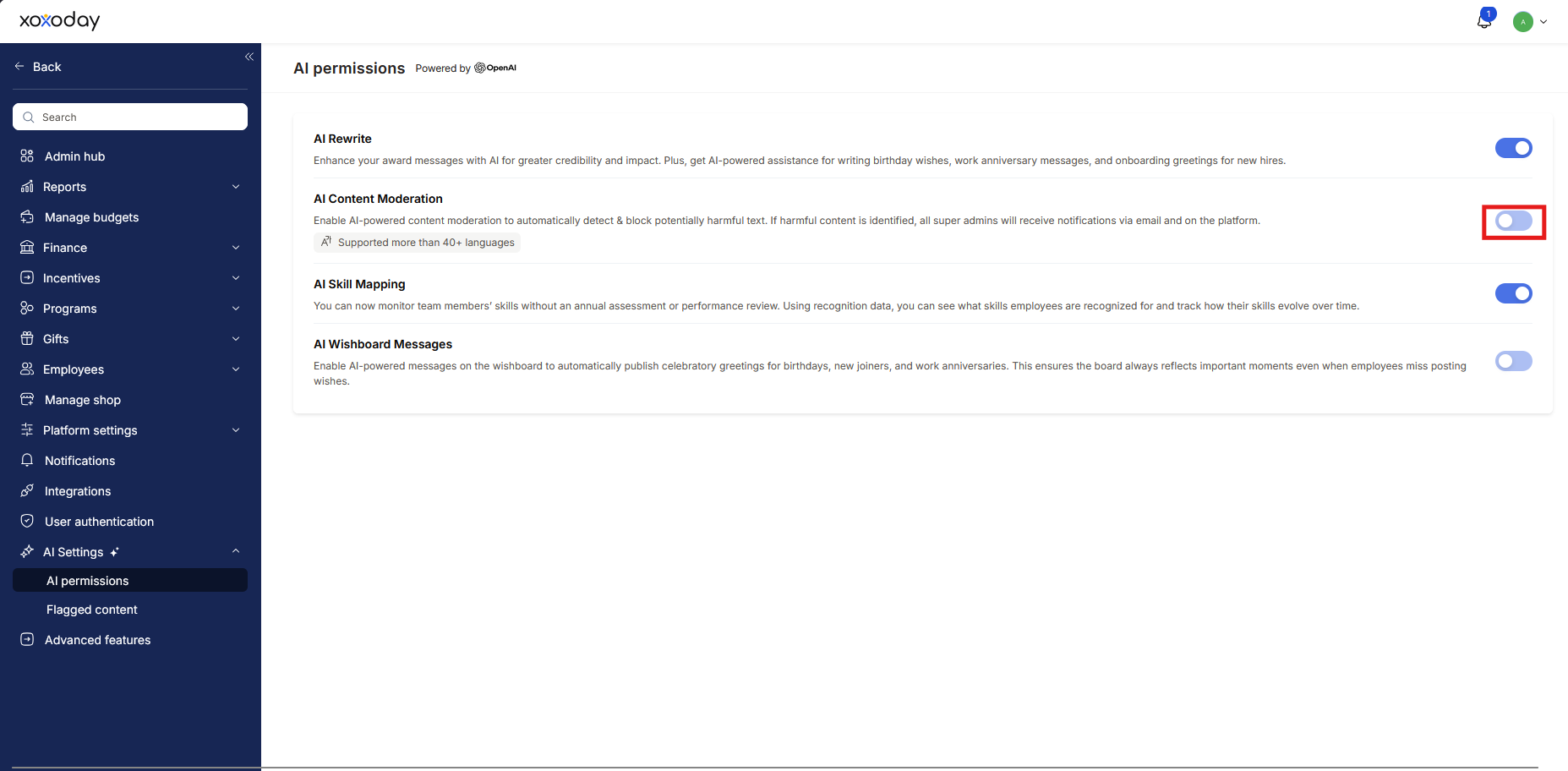
 Click the toggle next to **AI Content Moderation** to enable it.
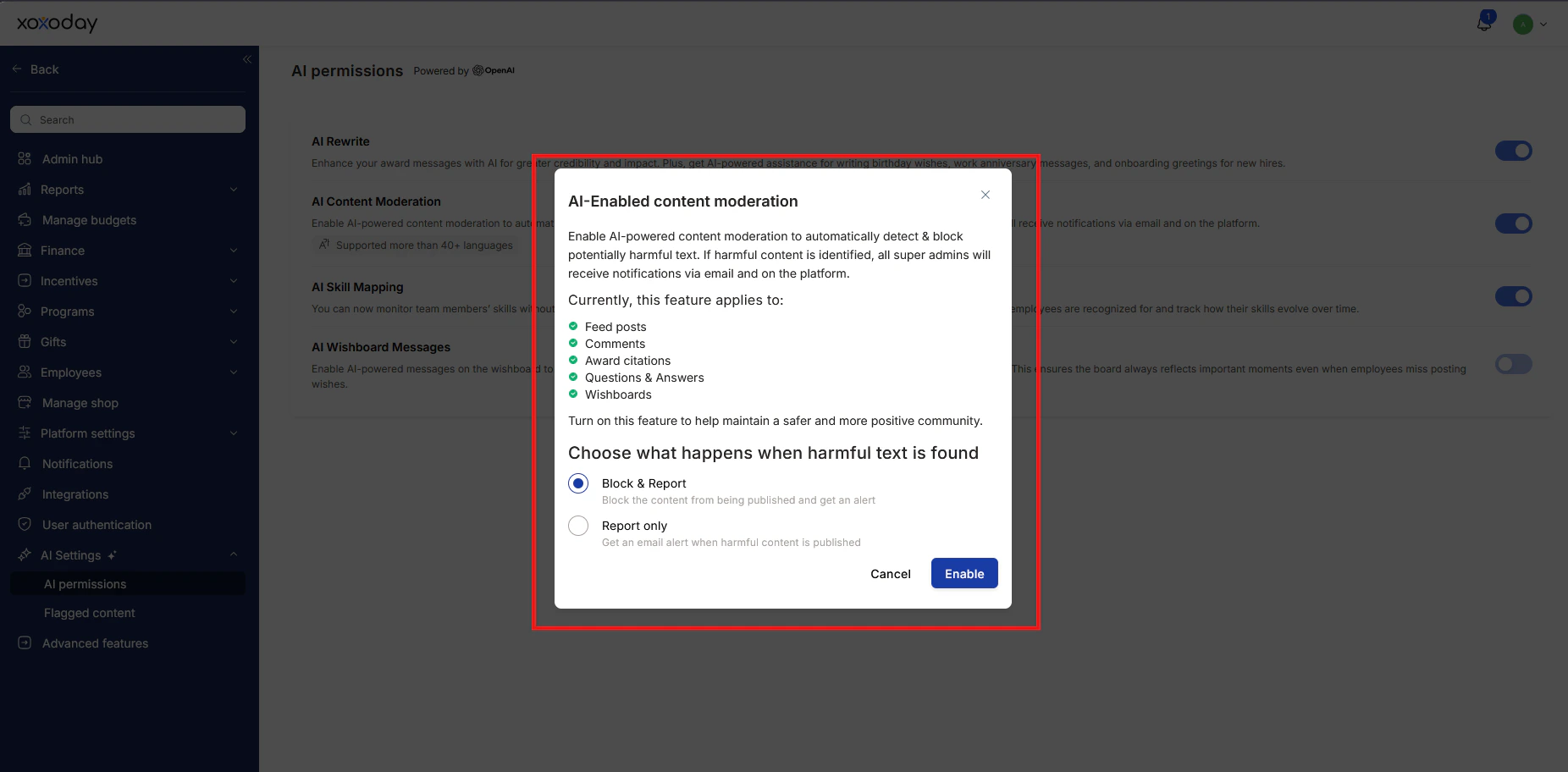
 Select one of two options:
* **Block** — Automatically prevents flagged content from being published. The author receives a notification explaining the policy violation.
* **Block or Report** — Blocks flagged content and also sends the admin an email and push notification for review.
Check the option you want and click **Enable**.
Select one of two options:
* **Block** — Automatically prevents flagged content from being published. The author receives a notification explaining the policy violation.
* **Block or Report** — Blocks flagged content and also sends the admin an email and push notification for review.
Check the option you want and click **Enable**.
 ### How content moderation works in practice
**For employees submitting content:**
1. The employee submits a post, comment, citation, or wish.
2. The content is sent to OpenAI's Moderation API for evaluation (completed within 2–3 seconds).
3. If the content violates community guidelines, it is blocked from publishing and the employee sees a message explaining the violation.
4. If the content is appropriate, it is published normally.
**For admins:**
* You receive an email and push notification whenever content is flagged (when using "Block or Report" mode).
* All flagged items are available for review under **AI Settings > Flagged Content**.
### Reviewing flagged content
Navigate to **AI Settings > Flagged Content**.
### How content moderation works in practice
**For employees submitting content:**
1. The employee submits a post, comment, citation, or wish.
2. The content is sent to OpenAI's Moderation API for evaluation (completed within 2–3 seconds).
3. If the content violates community guidelines, it is blocked from publishing and the employee sees a message explaining the violation.
4. If the content is appropriate, it is published normally.
**For admins:**
* You receive an email and push notification whenever content is flagged (when using "Block or Report" mode).
* All flagged items are available for review under **AI Settings > Flagged Content**.
### Reviewing flagged content
Navigate to **AI Settings > Flagged Content**.
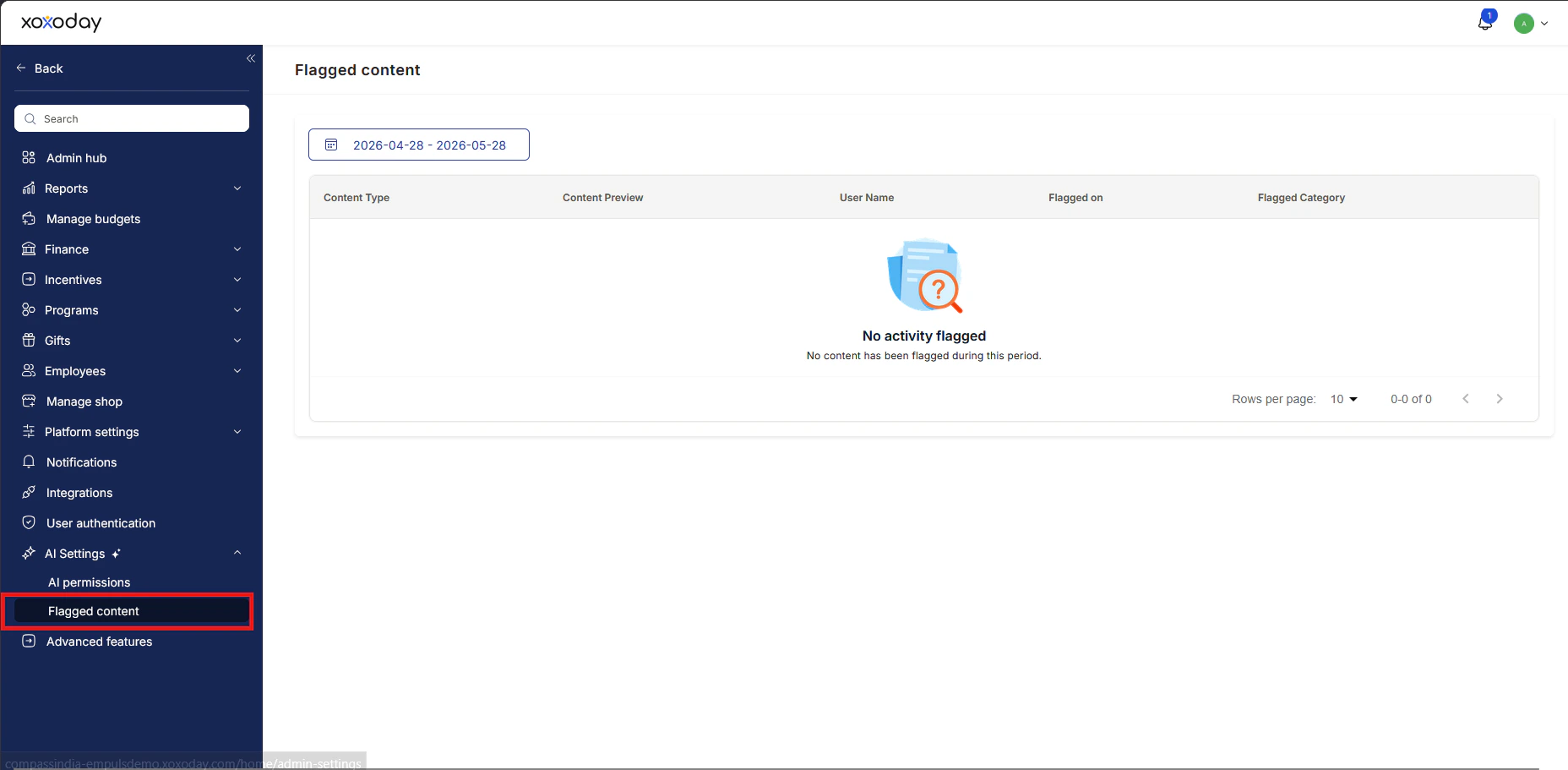 Use the calendar to adjust the moderation timeline, then click **Apply**.
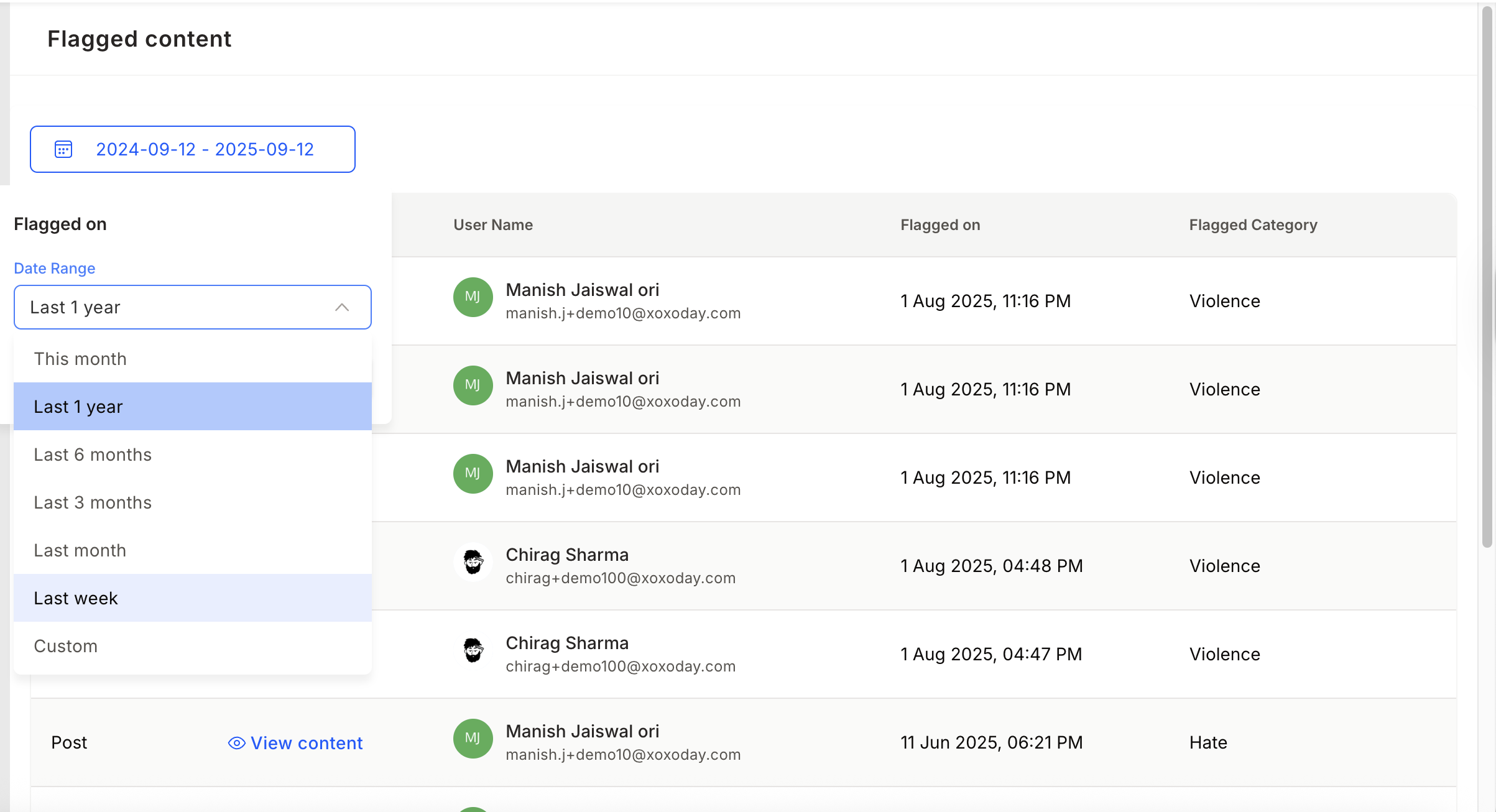 * A preview of the flagged content
* The content type (post, comment, citation, etc.)
* The submitting employee
* The timestamp
* The flagged category (e.g., harassment, hate speech)
Click **View** on any row to see the full submission.
Review flagged content regularly — especially when using "Block" mode only — so that you can identify patterns and address any cultural issues across teams.
***
## AI Writing Suggestions (AI Rewrite)
AI Writing Suggestions help employees improve the quality of award citations and Wishboard messages. When enabled, an **Improve with AI** button appears in eligible text fields. Employees click the button to receive a refined, AI-generated version of their draft that preserves their intent while improving tone, clarity, and emotional impact.
### What AI Rewrite works on
* **Citations for appreciation** — Recognition messages attached to peer or manager awards
* **Wishboard messages** — Birthday, work anniversary, and new joiner greetings
### How to enable AI Writing Suggestions
Go to **Reports and Admin > AI Settings > AI Permissions**.
* A preview of the flagged content
* The content type (post, comment, citation, etc.)
* The submitting employee
* The timestamp
* The flagged category (e.g., harassment, hate speech)
Click **View** on any row to see the full submission.
Review flagged content regularly — especially when using "Block" mode only — so that you can identify patterns and address any cultural issues across teams.
***
## AI Writing Suggestions (AI Rewrite)
AI Writing Suggestions help employees improve the quality of award citations and Wishboard messages. When enabled, an **Improve with AI** button appears in eligible text fields. Employees click the button to receive a refined, AI-generated version of their draft that preserves their intent while improving tone, clarity, and emotional impact.
### What AI Rewrite works on
* **Citations for appreciation** — Recognition messages attached to peer or manager awards
* **Wishboard messages** — Birthday, work anniversary, and new joiner greetings
### How to enable AI Writing Suggestions
Go to **Reports and Admin > AI Settings > AI Permissions**.
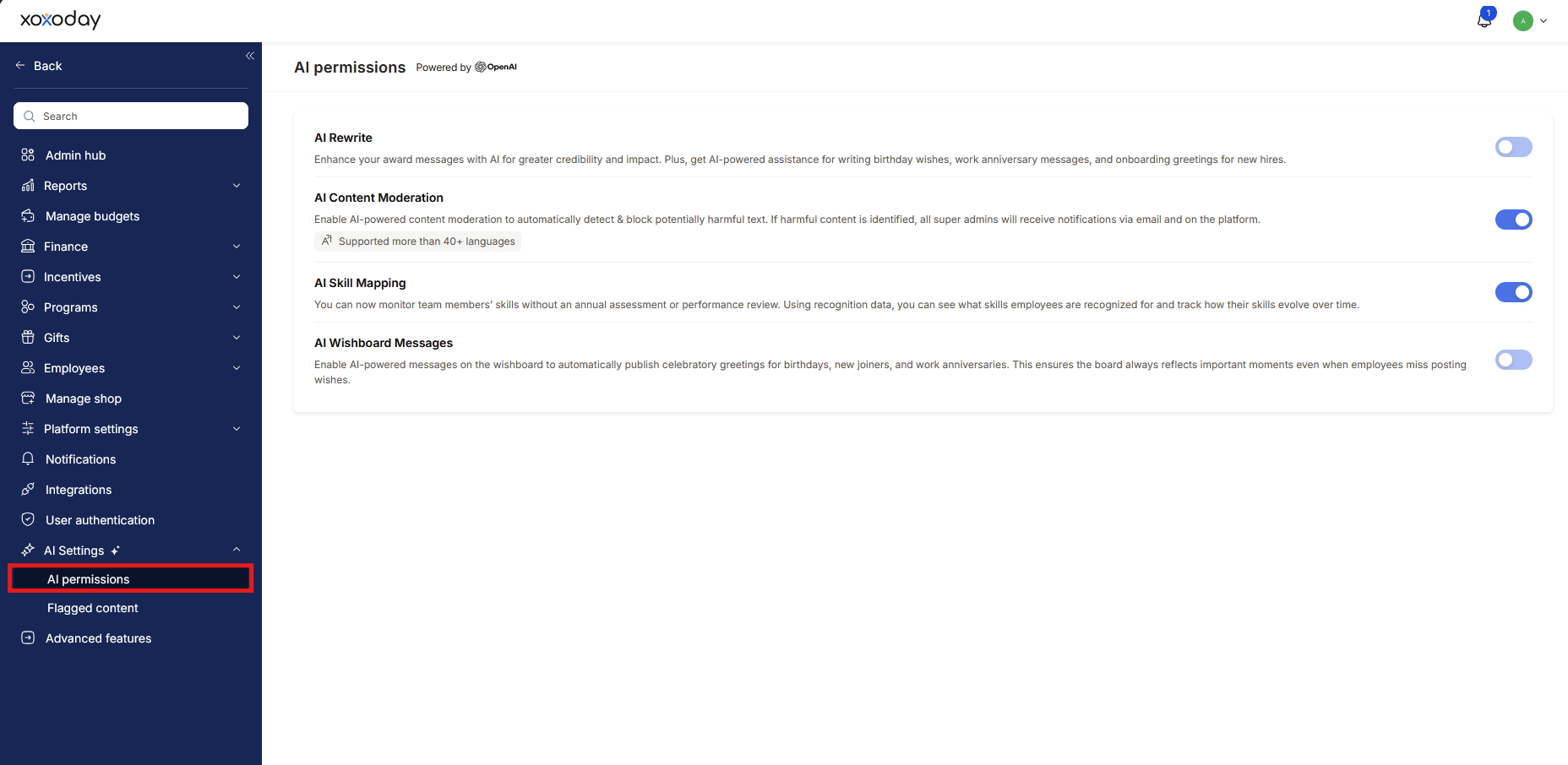 Click the toggle next to **AI Writing Suggestions** (AI Rewrite) to enable it.
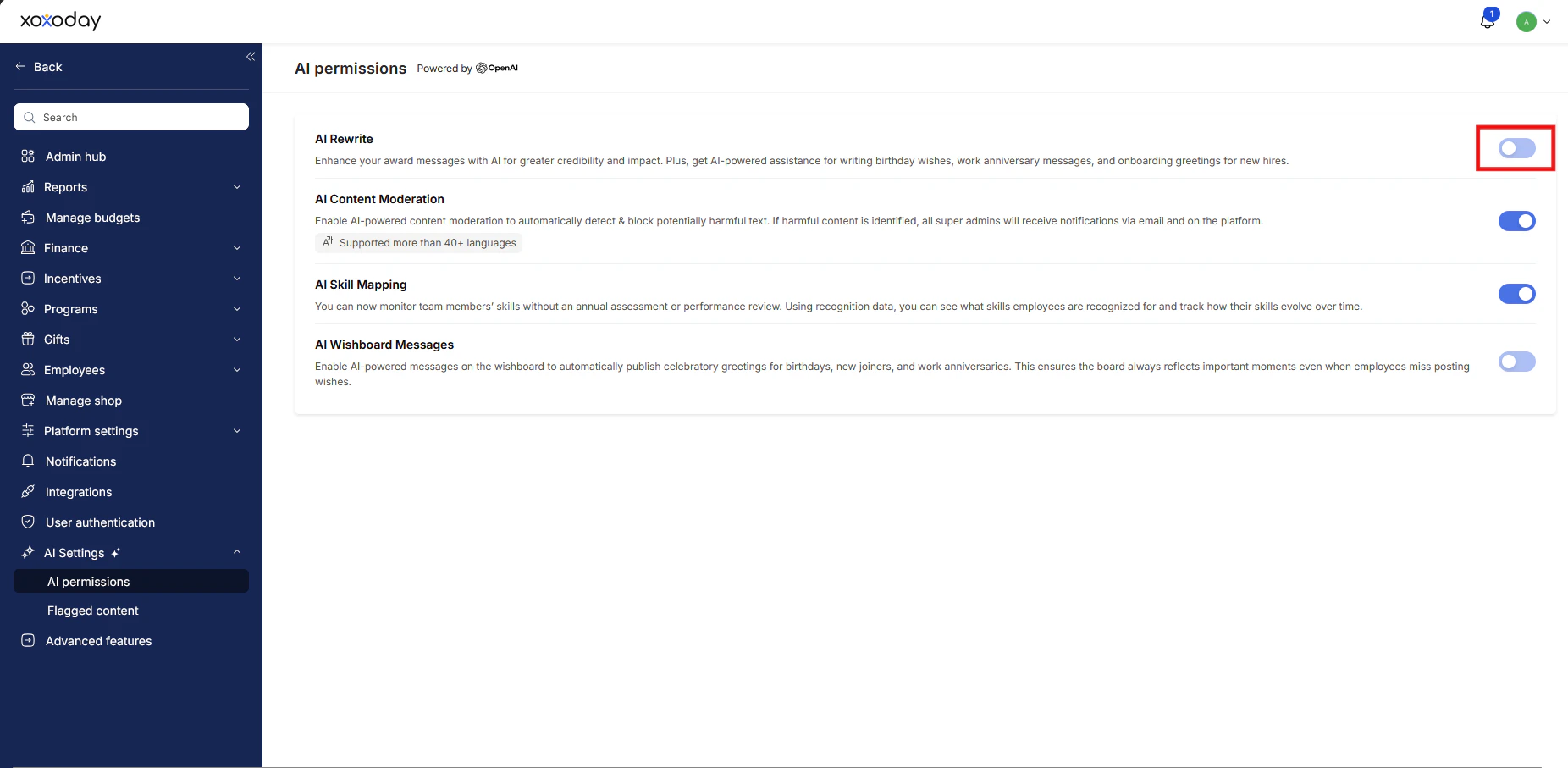 Check the boxes for the options you want to activate:
* **Citations** — for appreciation and award recognition messages
* **Wishes** — for birthdays, work anniversaries, and new joiners
Click **Enable** to save.
Check the boxes for the options you want to activate:
* **Citations** — for appreciation and award recognition messages
* **Wishes** — for birthdays, work anniversaries, and new joiners
Click **Enable** to save.
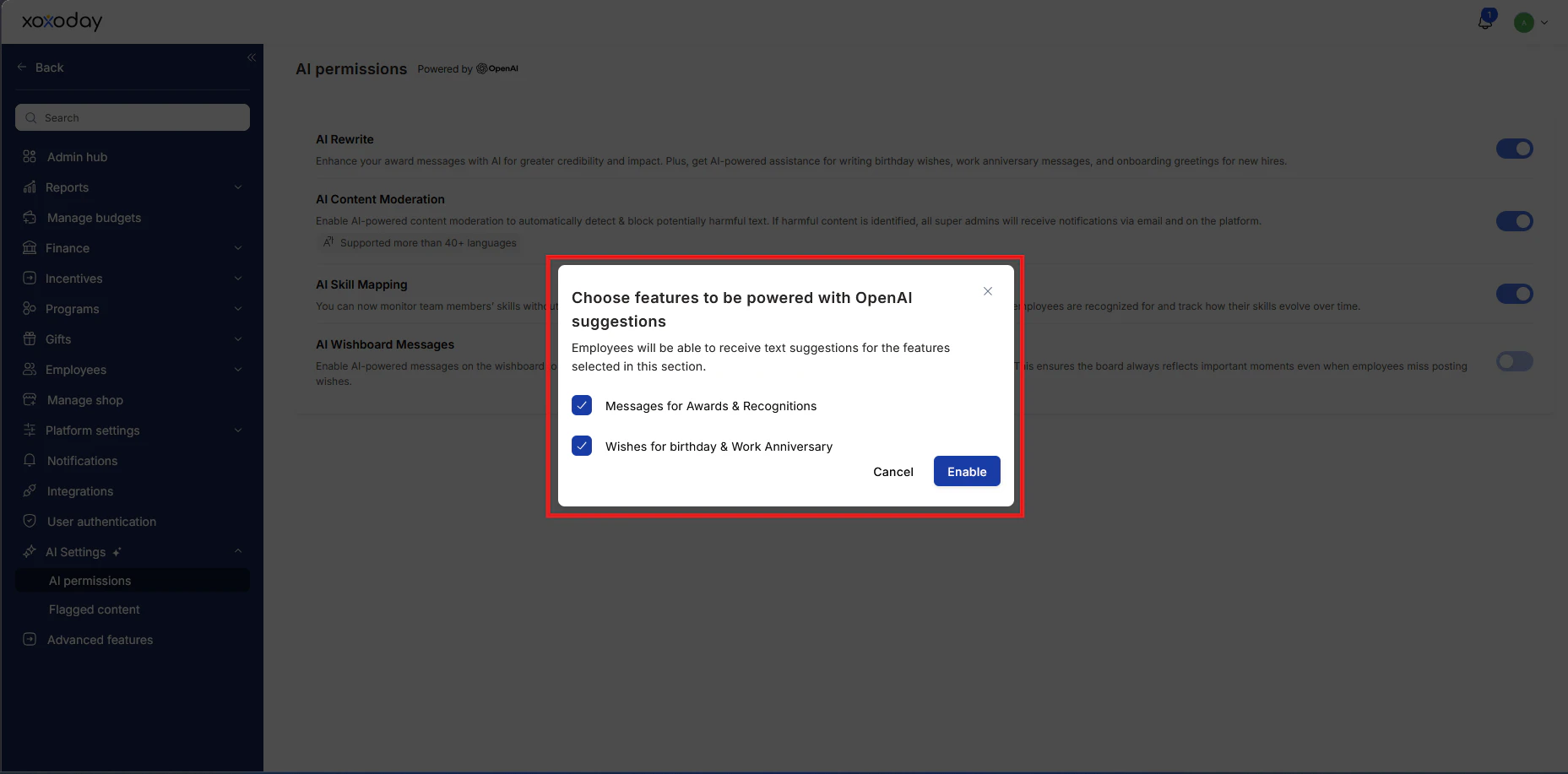 You can enable both options simultaneously. To disable, return to the same settings page and toggle the feature off. Changes take effect immediately.
***
## AI Skill Mapping
AI Skill Mapping analyzes the recognition messages employees send and receive to identify soft skill patterns across your organization. When enabled, admins and managers can access skill reports at the individual, team, and organization level.
### How to enable AI Skill Mapping
Go to **Reports and Admin > AI Settings > AI Permissions**.
You can enable both options simultaneously. To disable, return to the same settings page and toggle the feature off. Changes take effect immediately.
***
## AI Skill Mapping
AI Skill Mapping analyzes the recognition messages employees send and receive to identify soft skill patterns across your organization. When enabled, admins and managers can access skill reports at the individual, team, and organization level.
### How to enable AI Skill Mapping
Go to **Reports and Admin > AI Settings > AI Permissions**.
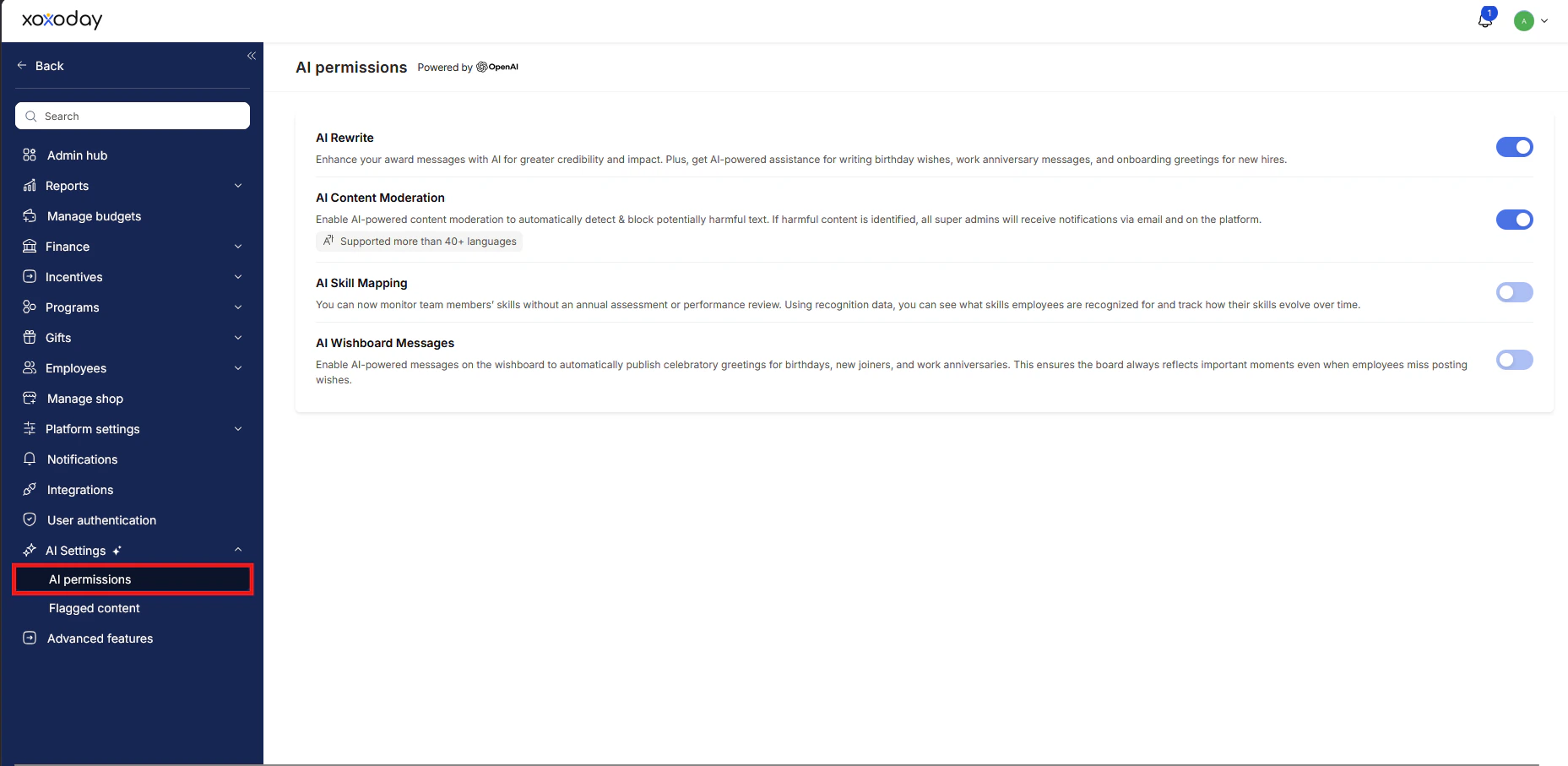 Scroll to the **AI Skill Mapping** section within AI Permissions.
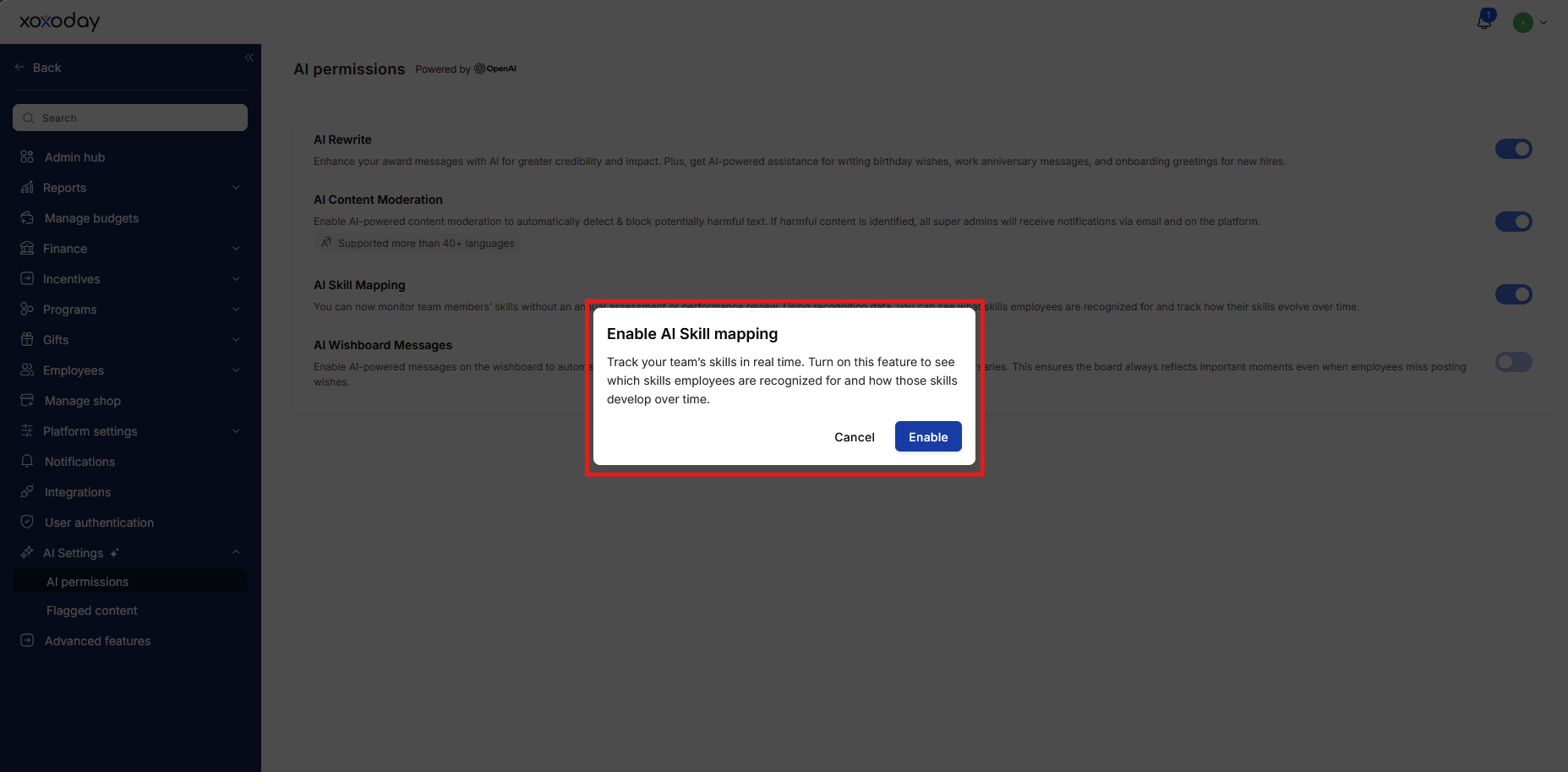
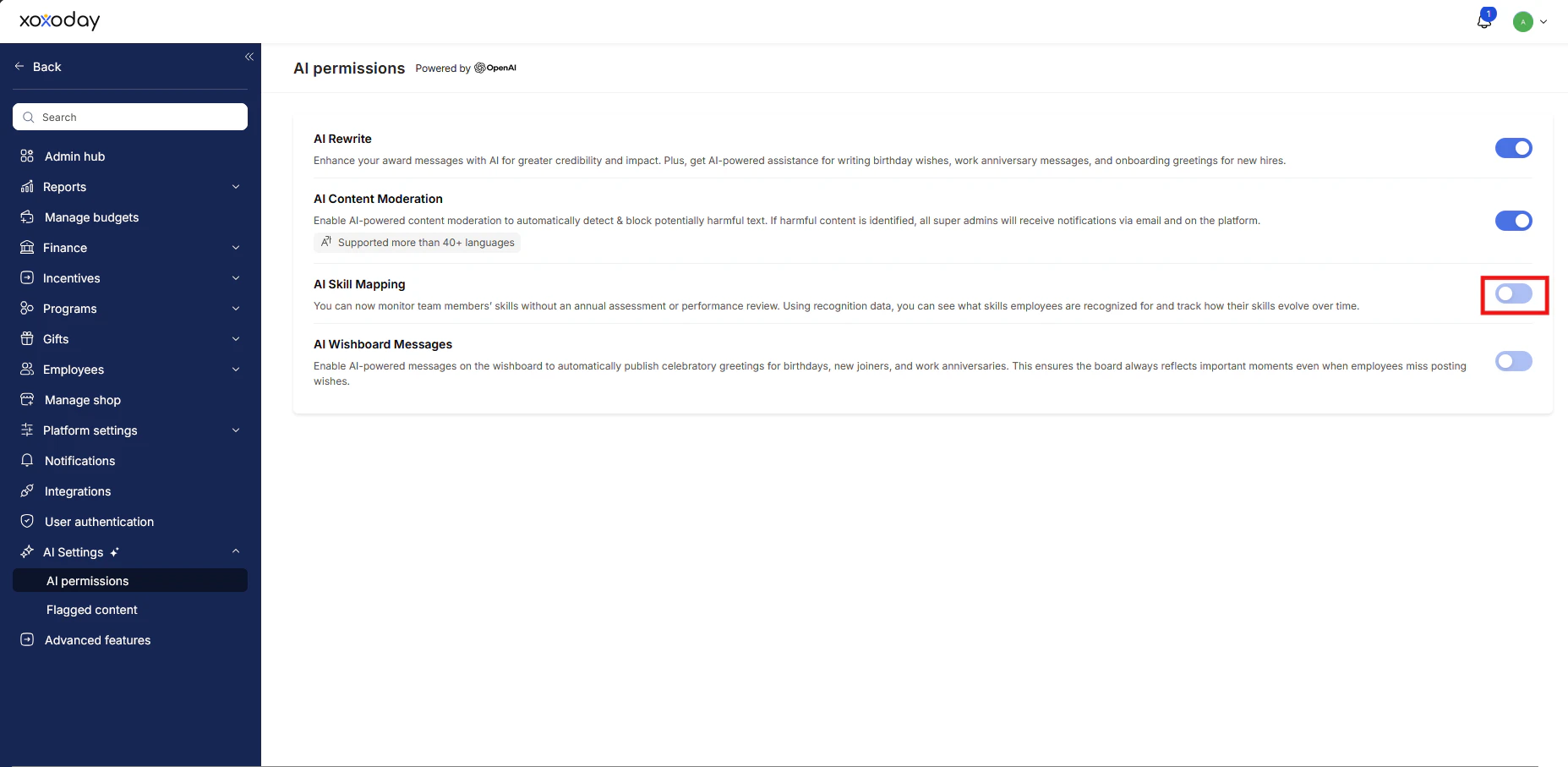 Click the toggle to enable AI Skill Mapping, then click **Enable** to confirm. Skill analysis becomes active immediately for your account.
 For a full guide on reading skill reports and applying insights to talent decisions, see [AI-Powered Skill Mapping](/admin/ai/ai-skill-mapping).
***
## Summary of AI permissions
| Feature | What it does | Who benefits |
| ---------------------- | -------------------------------------------------------------- | ----------------------------- |
| AI Content Moderation | Detects and blocks inappropriate content before it's published | Admins, all employees |
| AI Writing Suggestions | Improves award citations and wish messages with AI | Employees writing recognition |
| AI Skill Mapping | Surfaces soft skill insights from recognition data | HR, managers, admins |
Disabling an AI feature removes it from the employee UI immediately. Employees relying on AI writing suggestions, for example, will no longer see the "Improve with AI" button until the feature is re-enabled.
For a full guide on reading skill reports and applying insights to talent decisions, see [AI-Powered Skill Mapping](/admin/ai/ai-skill-mapping).
***
## Summary of AI permissions
| Feature | What it does | Who benefits |
| ---------------------- | -------------------------------------------------------------- | ----------------------------- |
| AI Content Moderation | Detects and blocks inappropriate content before it's published | Admins, all employees |
| AI Writing Suggestions | Improves award citations and wish messages with AI | Employees writing recognition |
| AI Skill Mapping | Surfaces soft skill insights from recognition data | HR, managers, admins |
Disabling an AI feature removes it from the employee UI immediately. Employees relying on AI writing suggestions, for example, will no longer see the "Improve with AI" button until the feature is re-enabled.