> ## Documentation Index
> Fetch the complete documentation index at: https://help-empuls.xoxoday.com/llms.txt
> Use this file to discover all available pages before exploring further.
# Admin panel
> The Admin Hub is your central Empuls control panel — manage budgets, employees, programs, platform settings, integrations, and AI features from one place.
The Admin Hub is the centralized control panel in Empuls where administrators access all reporting, configuration, and program management tools in one place. It replaces the need to navigate separate menus for budgets, awards, employees, and settings — everything is organized under a single dashboard with improved navigation and a search bar to find any setting instantly.
Use the search bar at the top of the Admin Hub to jump directly to any setting or configuration page. Type a keyword like "budget" or "leaderboard" and you are taken there immediately, without browsing through menus.
## How to open the Admin Hub
Sign in to your organization's Empuls instance with your admin credentials.
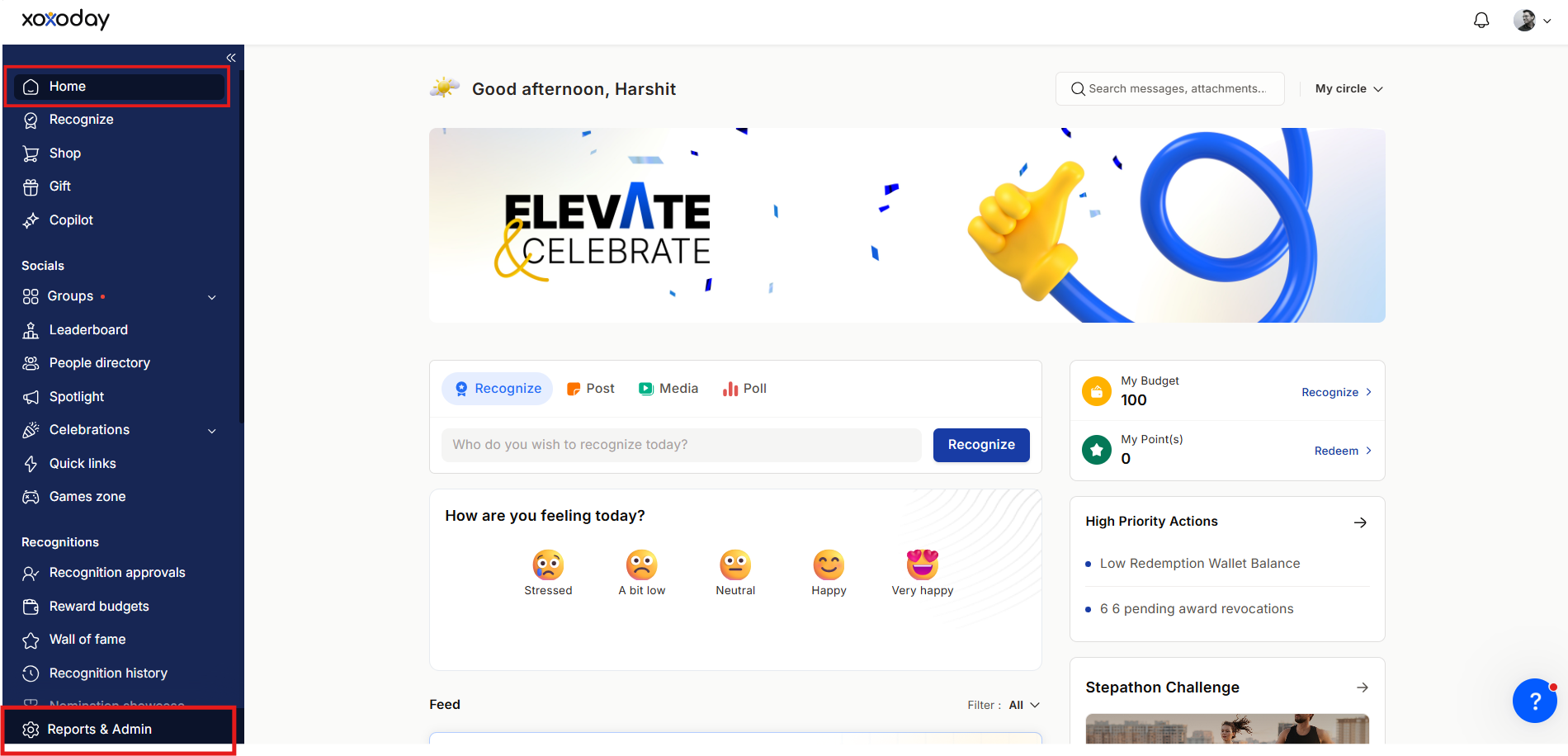
Scroll to the bottom of the left-side navigation panel and click **Reports & Settings**.
You now have access to all admin sections described below.
 ## Admin Hub sections
### Reports
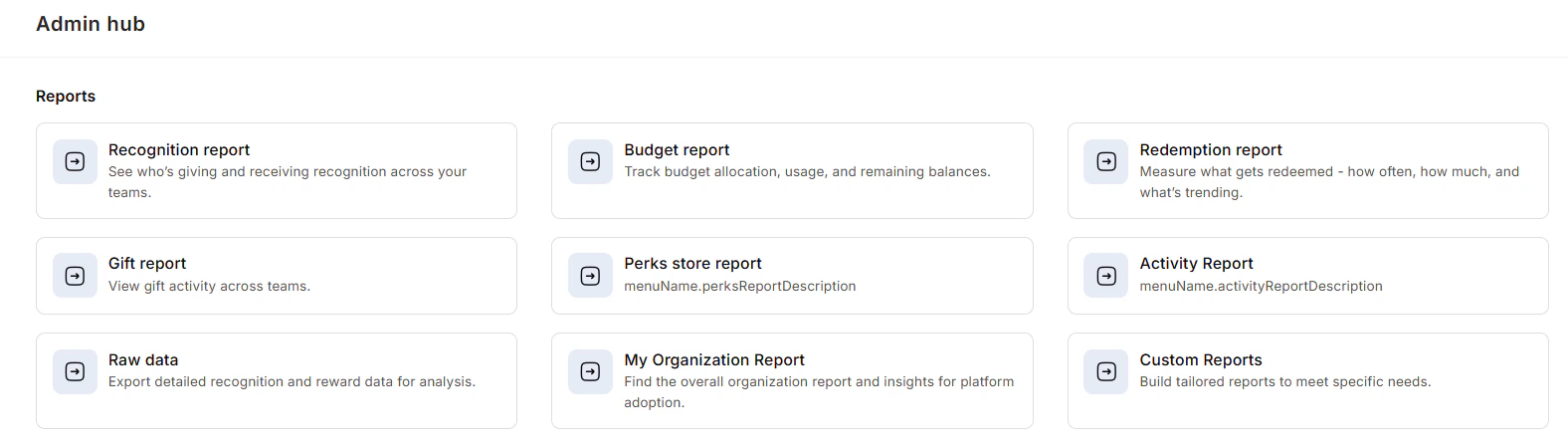
The Reports section gives admins complete visibility into recognition, rewards, and employee engagement across the organization.
| Report type | What it shows |
| ----------------------- | ---------------------------------------------------------------------------- |
| **Myself** | Your own activity — awards sent, received, and redemptions |
| **My Team Reports** | How your direct reports are participating in recognition and rewards |
| **My Org Reports** | Company-wide data on recognition trends, rewards distributed, and engagement |
| **Custom Reports** | Filtered views by department, location, or program |
| **Raw Data** | Transaction-level data for export to Excel or BI tools |
| **Recognition Reports** | Who is recognizing, who is being recognized, and which awards are most used |
| **Budget Reports** | Allocated vs. spent budgets across departments, managers, and programs |
## Admin Hub sections
### Reports
The Reports section gives admins complete visibility into recognition, rewards, and employee engagement across the organization.
| Report type | What it shows |
| ----------------------- | ---------------------------------------------------------------------------- |
| **Myself** | Your own activity — awards sent, received, and redemptions |
| **My Team Reports** | How your direct reports are participating in recognition and rewards |
| **My Org Reports** | Company-wide data on recognition trends, rewards distributed, and engagement |
| **Custom Reports** | Filtered views by department, location, or program |
| **Raw Data** | Transaction-level data for export to Excel or BI tools |
| **Recognition Reports** | Who is recognizing, who is being recognized, and which awards are most used |
| **Budget Reports** | Allocated vs. spent budgets across departments, managers, and programs |
 Use an Engagement Report to identify the department with the lowest participation rate, then plan an initiative to increase recognition there.
***
### Manage budgets
The Manage Budgets section lets you create, allocate, monitor, edit, pause, and automate recognition budgets. You can set fixed or prorated allocations, assign budgets to specific managers or teams, and configure recurring distributions so recognition programs never run dry. See [Budgets](/admin/finance/budgets) for the full setup guide.
Use an Engagement Report to identify the department with the lowest participation rate, then plan an initiative to increase recognition there.
***
### Manage budgets
The Manage Budgets section lets you create, allocate, monitor, edit, pause, and automate recognition budgets. You can set fixed or prorated allocations, assign budgets to specific managers or teams, and configure recurring distributions so recognition programs never run dry. See [Budgets](/admin/finance/budgets) for the full setup guide.
 ***
### Finance
The Finance section manages all money-related settings in one place.
***
### Finance
The Finance section manages all money-related settings in one place.
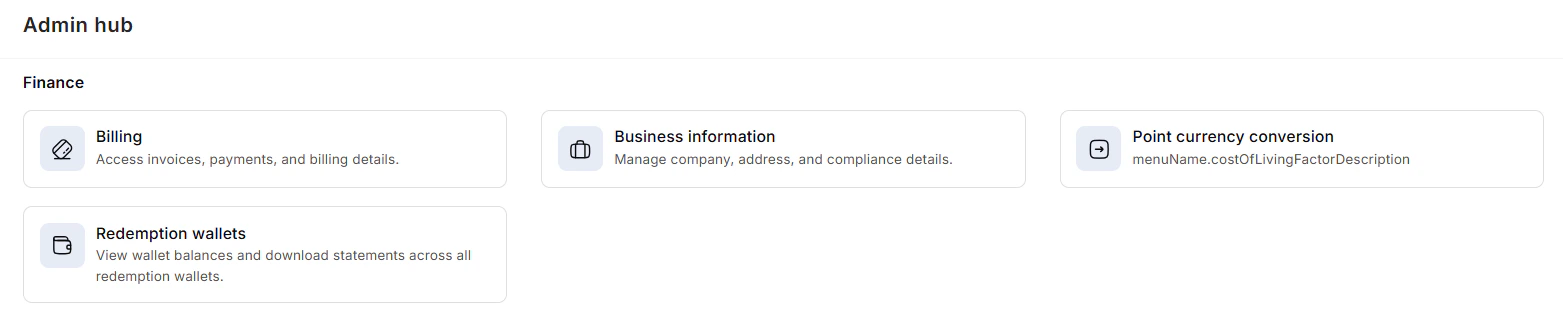 **Business information** — Update and maintain your company's official details including address, point-of-contact, and compliance documents. You can also manage organizational metadata such as locations, business units, cost centers, departments, designations, and grades.
**Redemption wallets** — View wallet balances across all redemption wallets, download transaction statements, and track all redemption activity. Coins redeemed for vouchers are settled against the balance in your redemption wallet.
Keep your redemption wallet balance equal to the total redeemable points outstanding to ensure employees always have a smooth redemption experience. A wallet with insufficient funds will block employees from completing redemptions.
**Currency configuration** — Set your preferred transaction currencies for all payments and rewards.
***
### Programs
The Programs section is where you create and manage all employee recognition and incentive initiatives.
**Business information** — Update and maintain your company's official details including address, point-of-contact, and compliance documents. You can also manage organizational metadata such as locations, business units, cost centers, departments, designations, and grades.
**Redemption wallets** — View wallet balances across all redemption wallets, download transaction statements, and track all redemption activity. Coins redeemed for vouchers are settled against the balance in your redemption wallet.
Keep your redemption wallet balance equal to the total redeemable points outstanding to ensure employees always have a smooth redemption experience. A wallet with insufficient funds will block employees from completing redemptions.
**Currency configuration** — Set your preferred transaction currencies for all payments and rewards.
***
### Programs
The Programs section is where you create and manage all employee recognition and incentive initiatives.
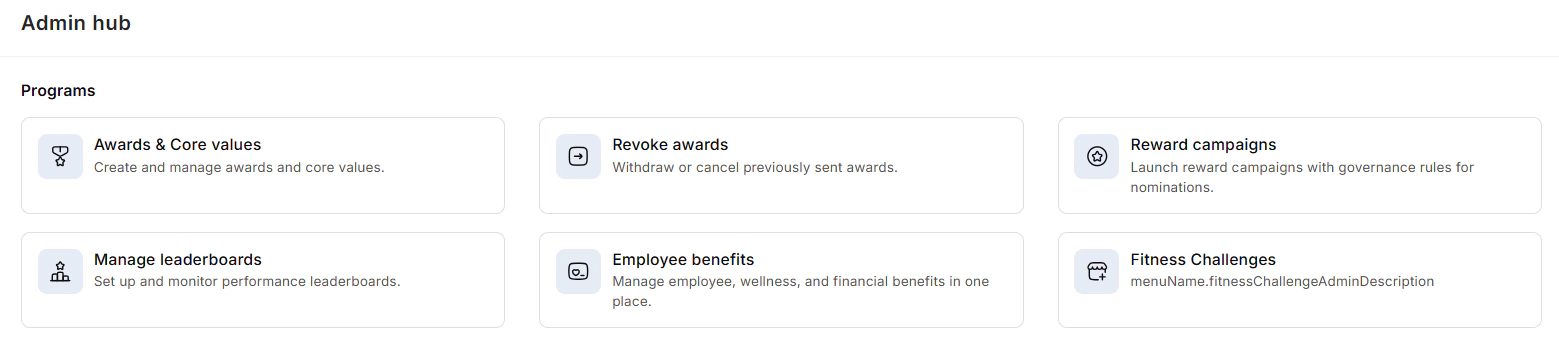 **Awards and core values** — Create awards aligned with your organization's values. Configure award names, descriptions, point values, and eligibility rules. Edit or delete awards at any time.
**Revoke awards** — Withdraw previously sent awards if they were issued in error or under special circumstances.
**Reward campaigns** — Launch automated reward cycles to schedule nominations, allocate budgets, and run programs consistently without manual oversight.
**Leaderboards** — Create and manage performance leaderboards with custom scoring rules and ranking criteria to showcase achievements across teams or the whole organization.
***
### Gifts
The Gifts section handles all automated and one-off gifting activity — birthday gifts, work anniversaries, new joiner welcomes, festive gifts, and long-service awards.
**Awards and core values** — Create awards aligned with your organization's values. Configure award names, descriptions, point values, and eligibility rules. Edit or delete awards at any time.
**Revoke awards** — Withdraw previously sent awards if they were issued in error or under special circumstances.
**Reward campaigns** — Launch automated reward cycles to schedule nominations, allocate budgets, and run programs consistently without manual oversight.
**Leaderboards** — Create and manage performance leaderboards with custom scoring rules and ranking criteria to showcase achievements across teams or the whole organization.
***
### Gifts
The Gifts section handles all automated and one-off gifting activity — birthday gifts, work anniversaries, new joiner welcomes, festive gifts, and long-service awards.
 * **Manage gifts** — Configure milestone gifts and set up automated triggers. Birthday and work anniversary gifts are triggered automatically when the employee's date of birth or date of joining is added to their profile.
* **Automate workflows** — Set up recurring gift workflows for festivals, holidays, and onboarding events.
* **Revoke gifts** — Withdraw gifts in case of errors or disputes.
***
### Employees
The Employees section covers all employee lifecycle and access management actions. See [Manage Employees](/admin/user-management/manage-employees) for the detailed guide.
* **Manage gifts** — Configure milestone gifts and set up automated triggers. Birthday and work anniversary gifts are triggered automatically when the employee's date of birth or date of joining is added to their profile.
* **Automate workflows** — Set up recurring gift workflows for festivals, holidays, and onboarding events.
* **Revoke gifts** — Withdraw gifts in case of errors or disputes.
***
### Employees
The Employees section covers all employee lifecycle and access management actions. See [Manage Employees](/admin/user-management/manage-employees) for the detailed guide.
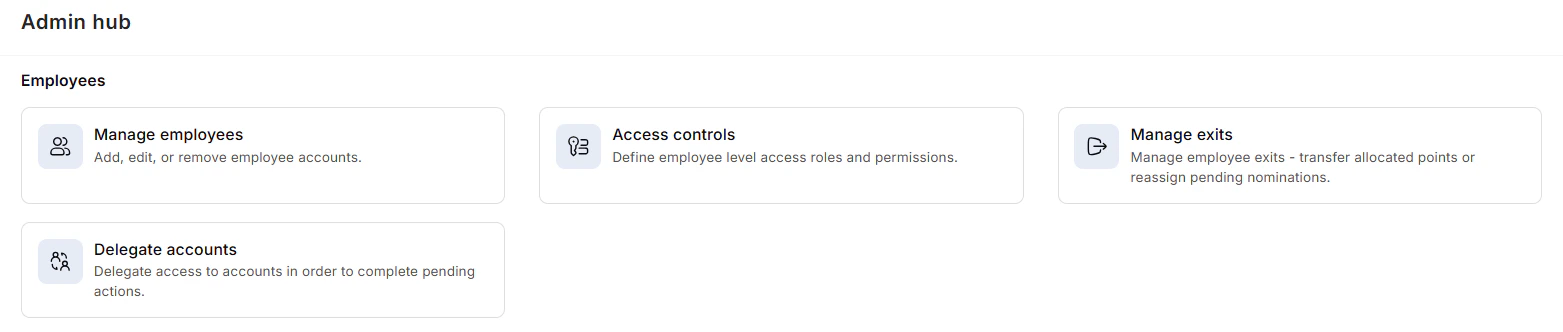 * **Manage employees** — Add or remove users individually or via CSV bulk import.
* **Access controls** — Define roles and permissions (Super Admin, General Admin, Manager, User) and create custom roles.
* **Manage exits** — Configure how unused budget points and reward points are handled when employees leave.
* **Delegate accounts** — Temporarily grant access to another user to complete pending tasks during absences or role transitions.
***
### Shop
The Shop section lets you manage the employee rewards catalog — the gift cards, merchandise, and experiences employees can redeem their points for. Configure catalog availability and set redemption rules for different regions.
* **Manage employees** — Add or remove users individually or via CSV bulk import.
* **Access controls** — Define roles and permissions (Super Admin, General Admin, Manager, User) and create custom roles.
* **Manage exits** — Configure how unused budget points and reward points are handled when employees leave.
* **Delegate accounts** — Temporarily grant access to another user to complete pending tasks during absences or role transitions.
***
### Shop
The Shop section lets you manage the employee rewards catalog — the gift cards, merchandise, and experiences employees can redeem their points for. Configure catalog availability and set redemption rules for different regions.
 ***
### Platform settings
Platform settings covers branding and homepage configuration.
***
### Platform settings
Platform settings covers branding and homepage configuration.
 **Branding** — Customize logos, color themes, feed card backgrounds for birthdays, anniversaries, and new joiner posts, wall of fame banners, and other visual elements. See [Branding](/admin/platform-settings/branding) for the full guide.
**Feed settings** — Configure visibility rules for announcements and recognition posts in employees' recommended feeds.
**Homepage editor** — Choose from three homepage layout options (Current Feed, Communication-First, or Goal & Recognition Focused) to match your organization's priorities.
***
### Integrations
Connect Empuls with your HRMS, payroll system, Microsoft Teams, Slack, or other business tools. The Integrations section lets you set up new connections and monitor existing ones to ensure data flows correctly between systems.
**Branding** — Customize logos, color themes, feed card backgrounds for birthdays, anniversaries, and new joiner posts, wall of fame banners, and other visual elements. See [Branding](/admin/platform-settings/branding) for the full guide.
**Feed settings** — Configure visibility rules for announcements and recognition posts in employees' recommended feeds.
**Homepage editor** — Choose from three homepage layout options (Current Feed, Communication-First, or Goal & Recognition Focused) to match your organization's priorities.
***
### Integrations
Connect Empuls with your HRMS, payroll system, Microsoft Teams, Slack, or other business tools. The Integrations section lets you set up new connections and monitor existing ones to ensure data flows correctly between systems.
 ***
### User authentication
Set the default login method for your organization. Empuls supports Google, Microsoft, Slack, and custom SAML 2.0 SSO. With single sign-on, employees access Empuls alongside other corporate apps without re-entering credentials, and you manage user access through your chosen identity provider.
***
### User authentication
Set the default login method for your organization. Empuls supports Google, Microsoft, Slack, and custom SAML 2.0 SSO. With single sign-on, employees access Empuls alongside other corporate apps without re-entering credentials, and you manage user access through your chosen identity provider.
 ***
### AI settings
Configure how AI features work across your Empuls instance.
***
### AI settings
Configure how AI features work across your Empuls instance.
 **AI content moderation** — Automatically detect and flag inappropriate or non-compliant content. Review flagged items and take action from a centralized report.
**AI writing suggestions** — Enable smart suggestions for employees writing recognition citations, posts, or nominations to make communication faster and more impactful.
**AI skill mapping** — Analyze employee profiles, roles, and activities to suggest relevant skills, helping build skill matrices and identify learning gaps.
**Flagged content** — View a report of all content flagged by the AI moderation system.
## Next steps
Add employees individually or in bulk, manage roles, handle exits, and delegate accounts.
Apply your organization's logo, colors, and visual identity to the platform.
Create automated recognition budgets and allocate them to managers and teams.
Manage your plan, billing contact, invoices, and redemption wallets.
**AI content moderation** — Automatically detect and flag inappropriate or non-compliant content. Review flagged items and take action from a centralized report.
**AI writing suggestions** — Enable smart suggestions for employees writing recognition citations, posts, or nominations to make communication faster and more impactful.
**AI skill mapping** — Analyze employee profiles, roles, and activities to suggest relevant skills, helping build skill matrices and identify learning gaps.
**Flagged content** — View a report of all content flagged by the AI moderation system.
## Next steps
Add employees individually or in bulk, manage roles, handle exits, and delegate accounts.
Apply your organization's logo, colors, and visual identity to the platform.
Create automated recognition budgets and allocate them to managers and teams.
Manage your plan, billing contact, invoices, and redemption wallets.